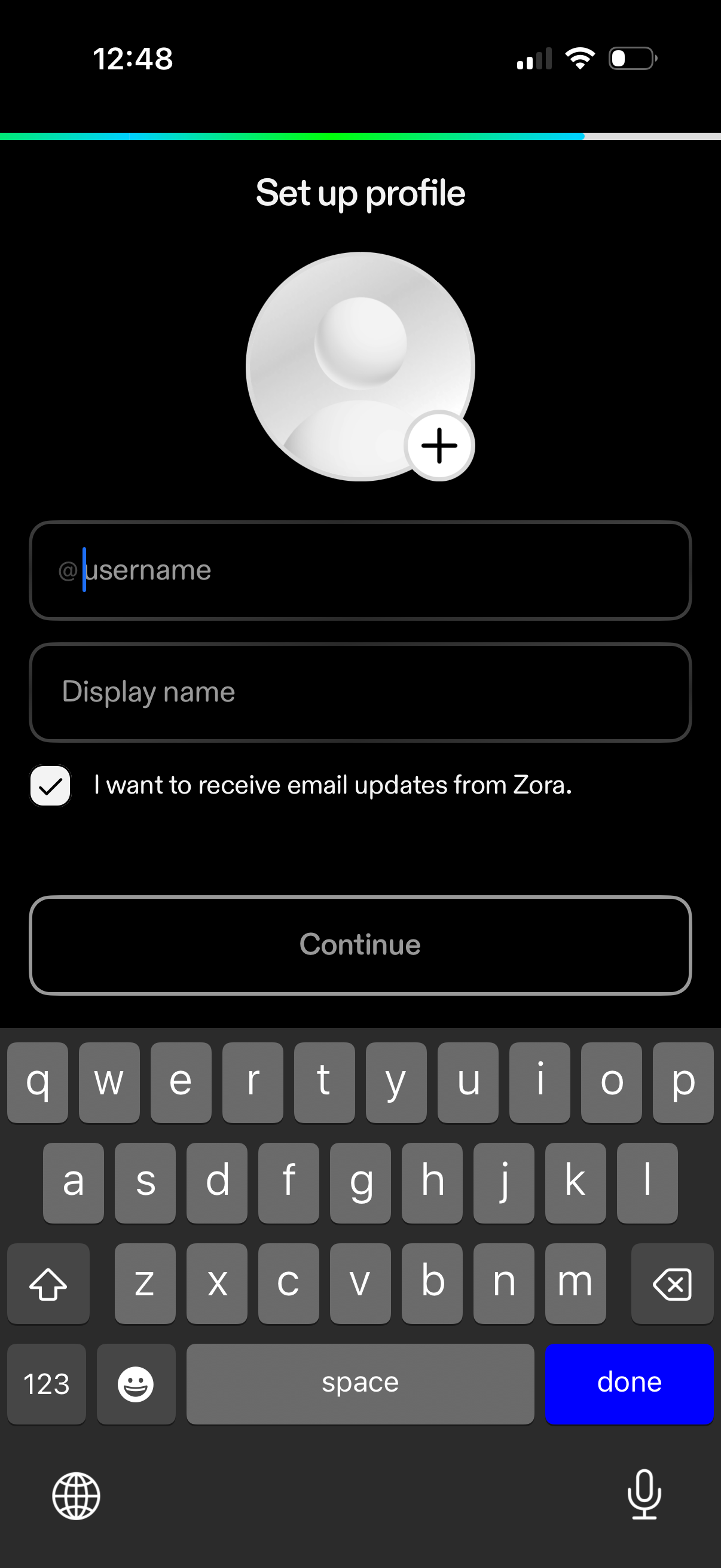
Profile setup onboarding screen with an avatar placeholder and plus button to add a profile photo, text fields for @username and display name, and an opt-in checkbox to receive email updates. A disabled Continue button at the bottom advances after required profile details are entered.
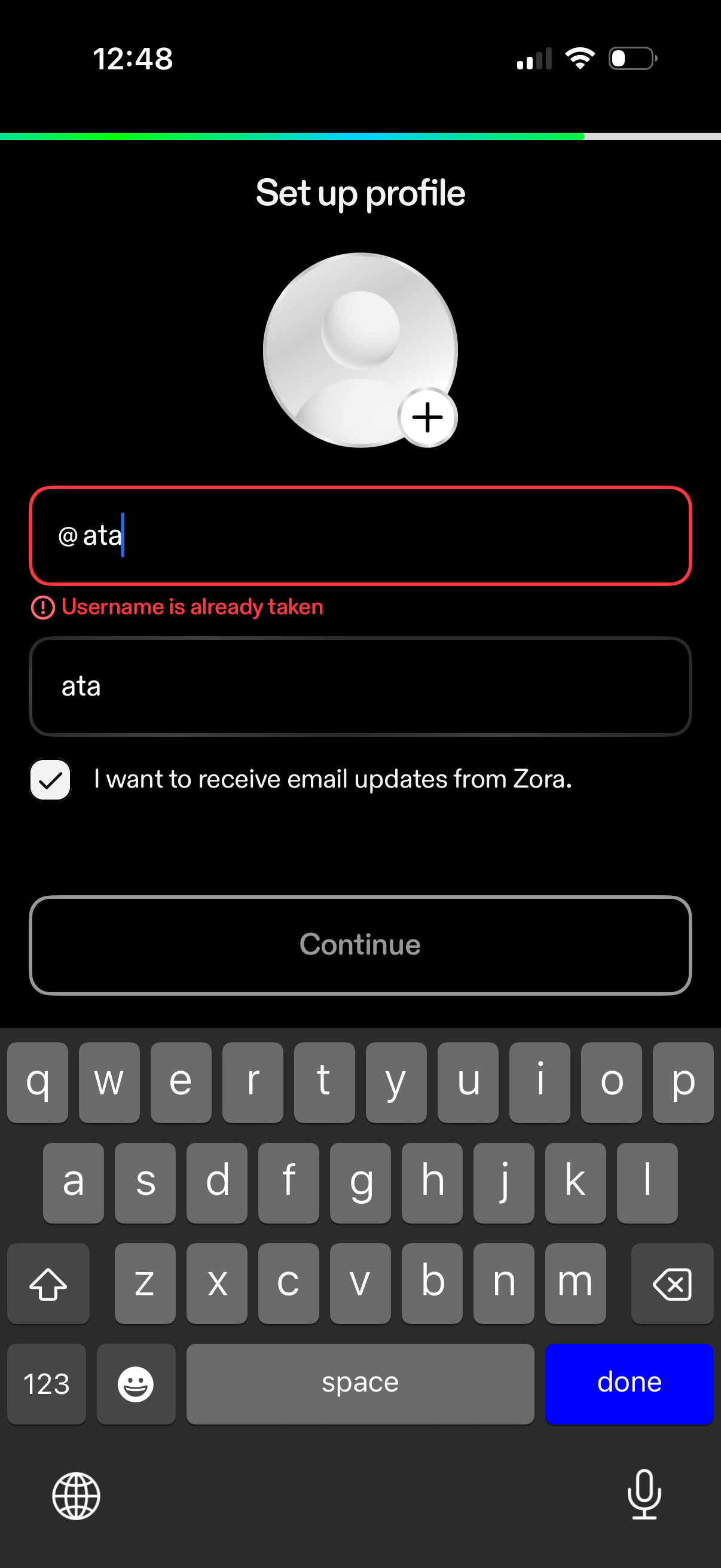
Profile setup screen for onboarding where the user adds a profile photo and chooses a unique @username, with inline validation showing an error when the username is already taken. Includes an optional checkbox to opt in to email updates and a disabled Continue button until the form is valid.
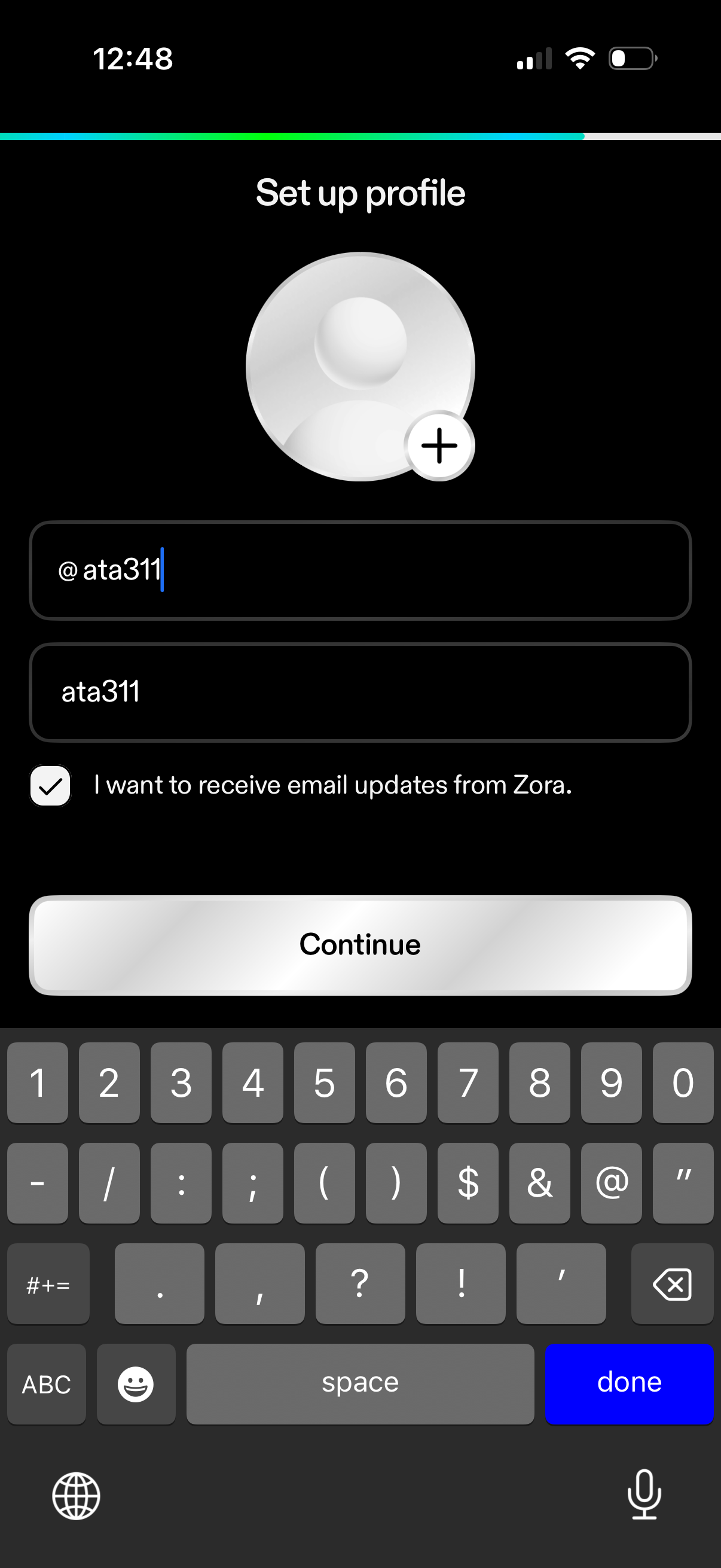
Profile setup onboarding screen where the user can add a profile photo, enter a username/handle and display name, and opt in to email updates via a checkbox. A primary “Continue” button submits the profile details to proceed.
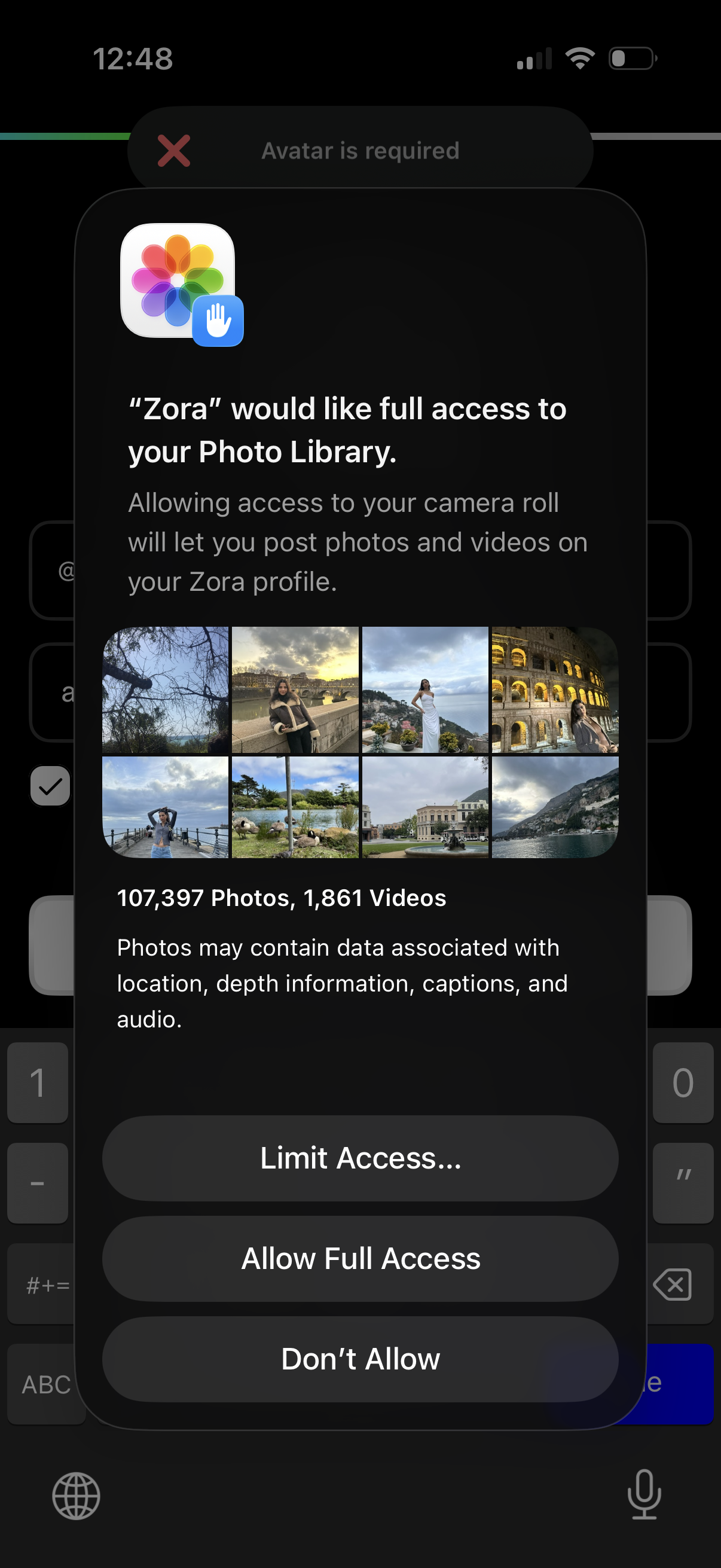
iOS system permission prompt requesting full access to the user’s Photo Library so the app can upload/post photos and videos to a profile, showing a preview grid and media counts. Actions include Limit Access, Allow Full Access, or Don’t Allow.
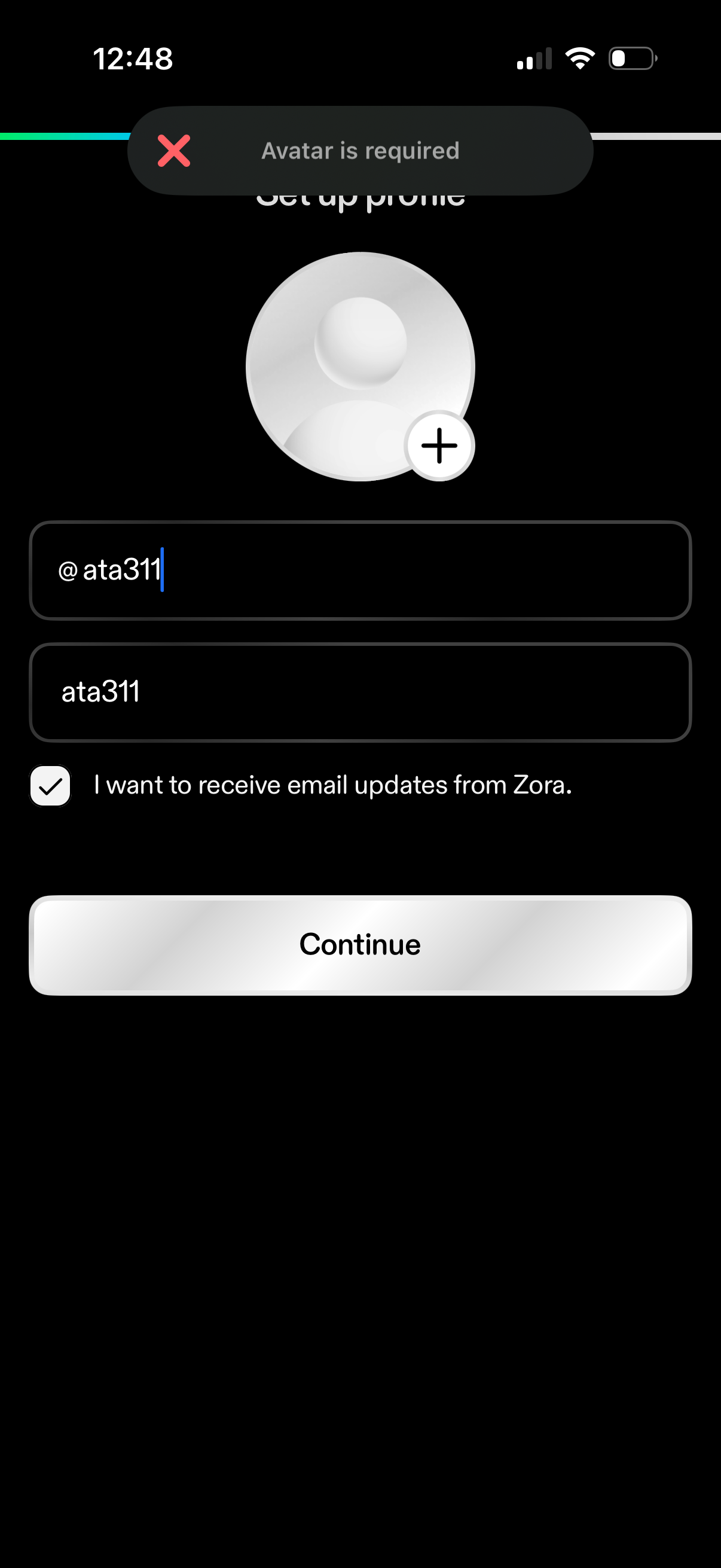
Profile setup screen prompting the user to add an avatar (plus button), enter a username/handle and display name, and optionally opt in to email updates via checkbox. Includes an error toast indicating “Avatar is required” and a primary Continue button to proceed.
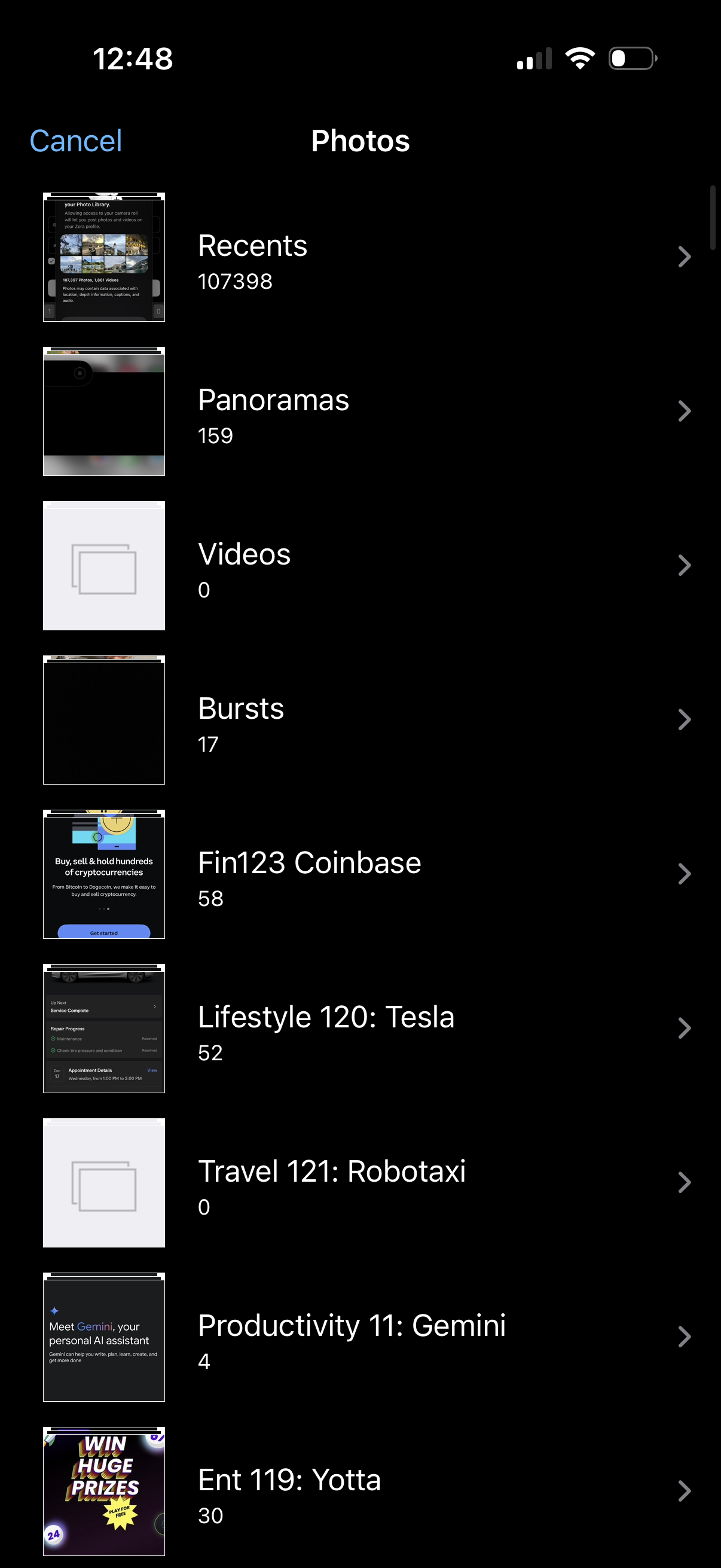
iOS Photos album picker screen showing a scrollable list of photo and video albums (e. g.
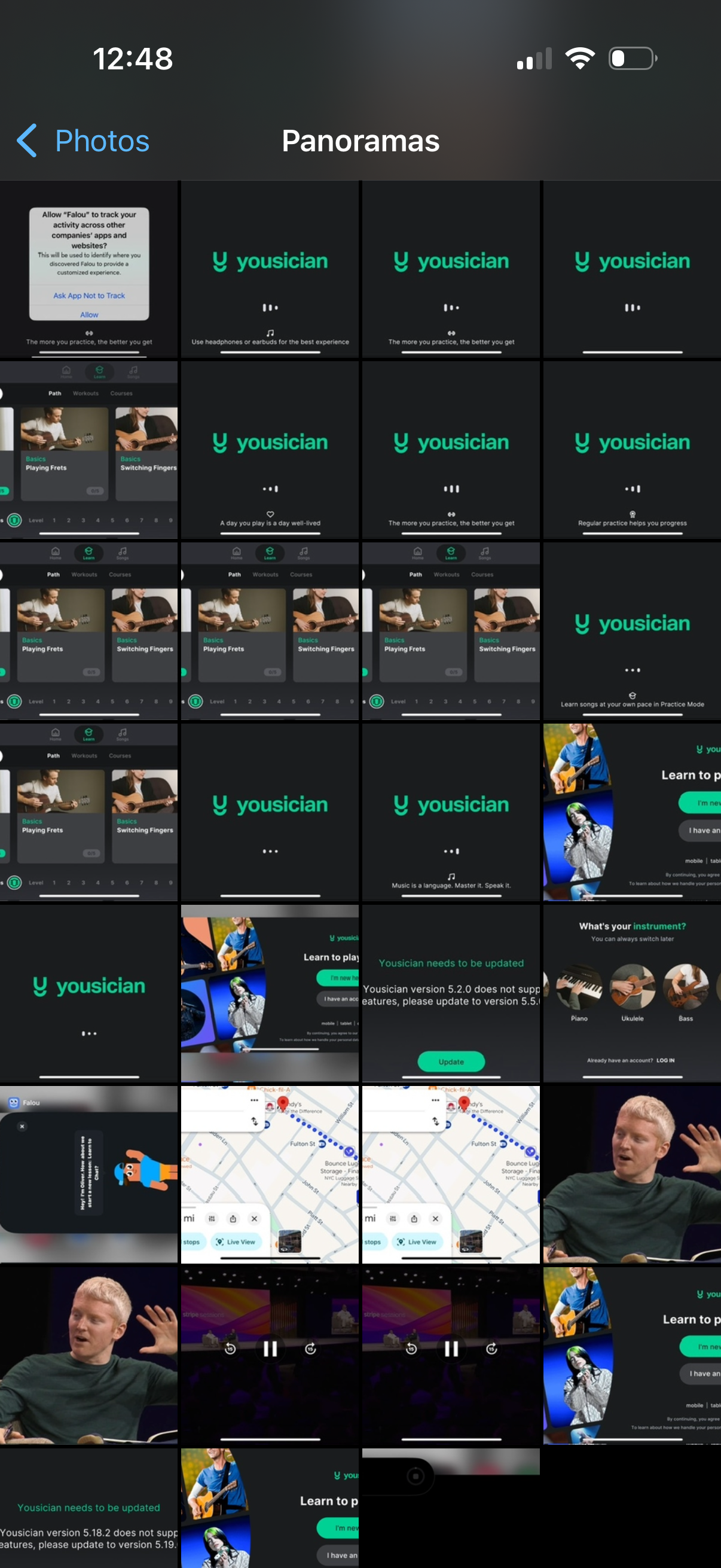
iOS Photos app album screen showing a grid gallery of panorama images and screenshots, with navigation back to Photos and the album title “Panoramas” in the header for browsing and selecting media.
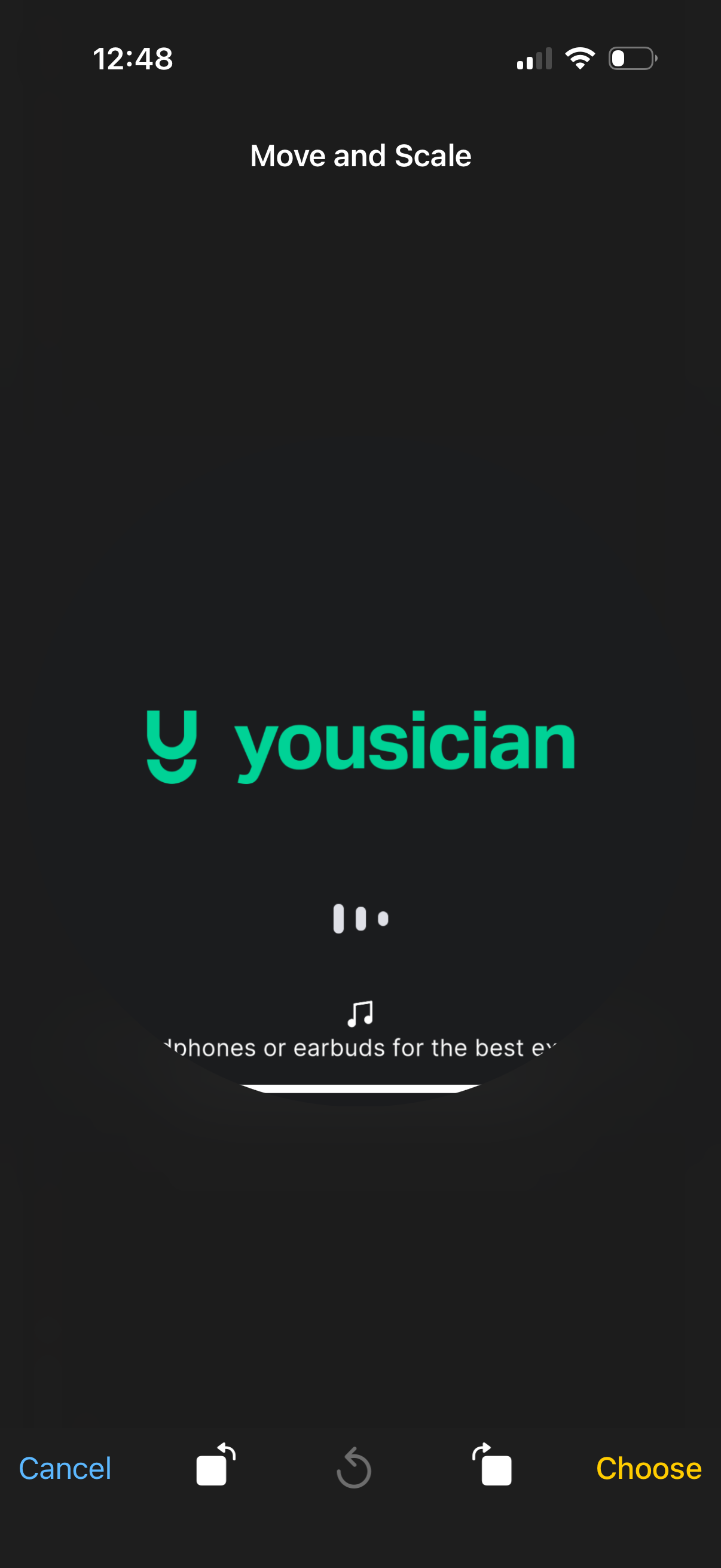
Image editing screen for moving and scaling a placed logo or sticker on a dark canvas, with options to cancel, undo/redo, and confirm by tapping Choose. This step is part of adjusting an overlay’s position and size before saving or applying the edit.
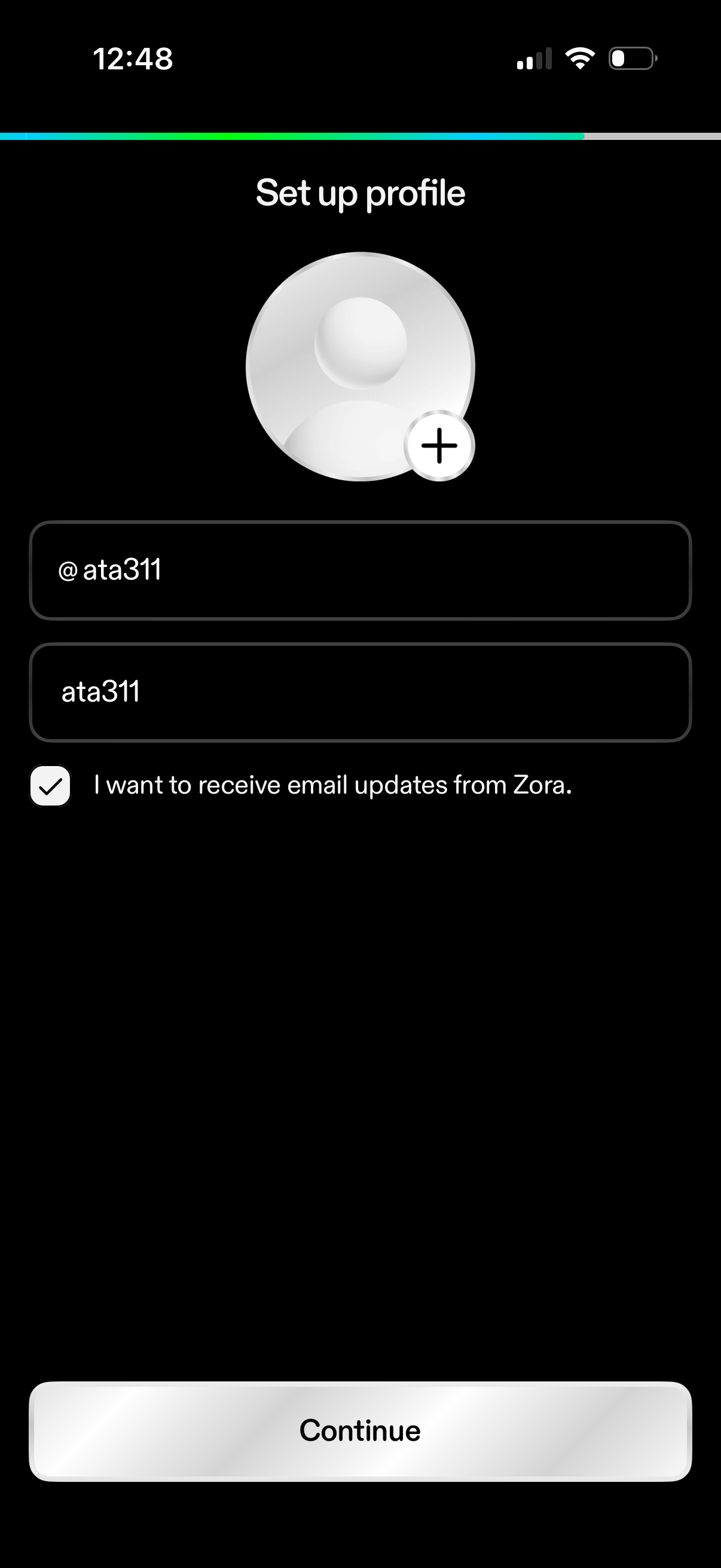
Profile setup onboarding screen where the user adds a profile photo, enters a username/handle and display name, and can opt in to receive email updates via a checkbox. A progress indicator shows setup completion and a primary Continue button advances to the next step.
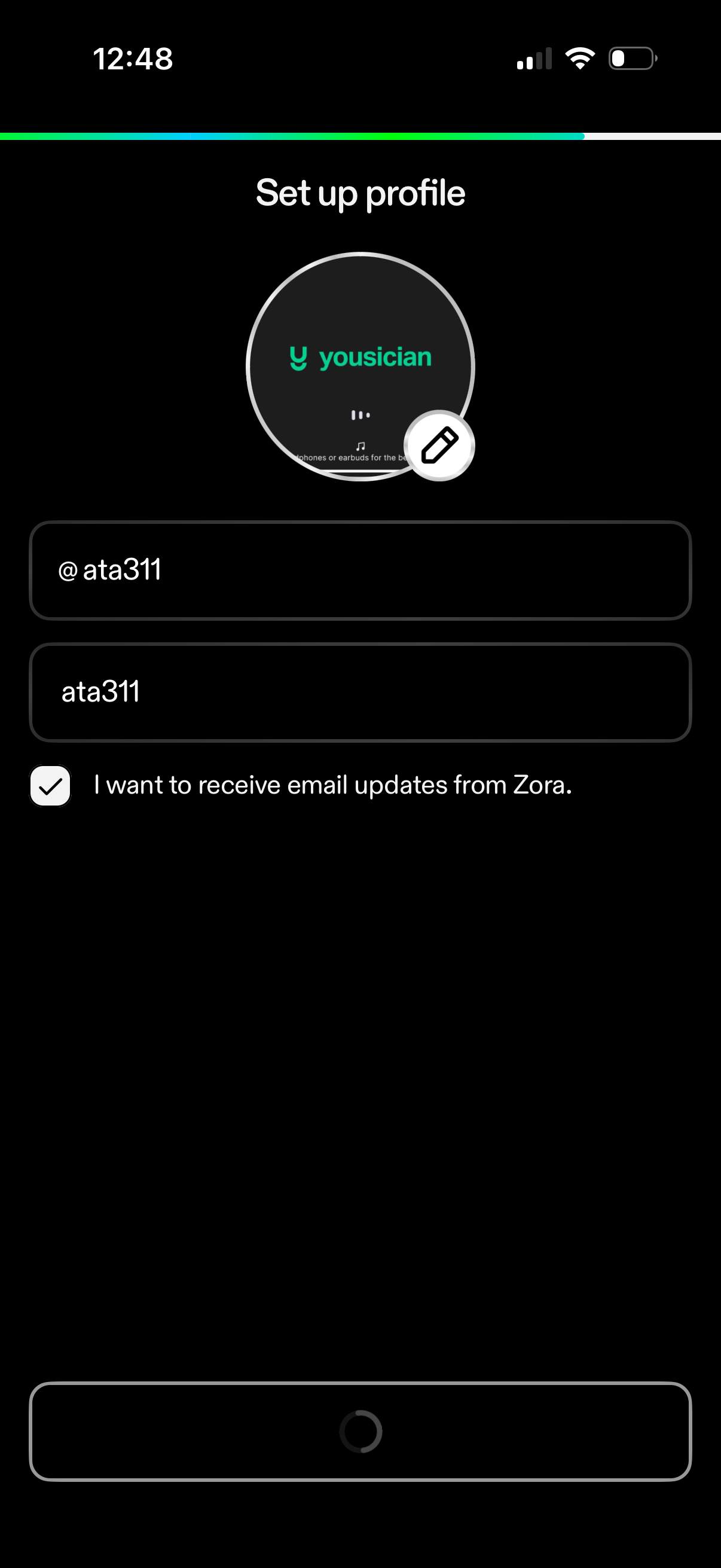
Profile setup screen during onboarding where the user adds or edits a profile image, enters a username/handle and display name in text fields, and can opt in to receive email updates via a checkbox. A progress indicator at the top suggests a multi-step setup flow.
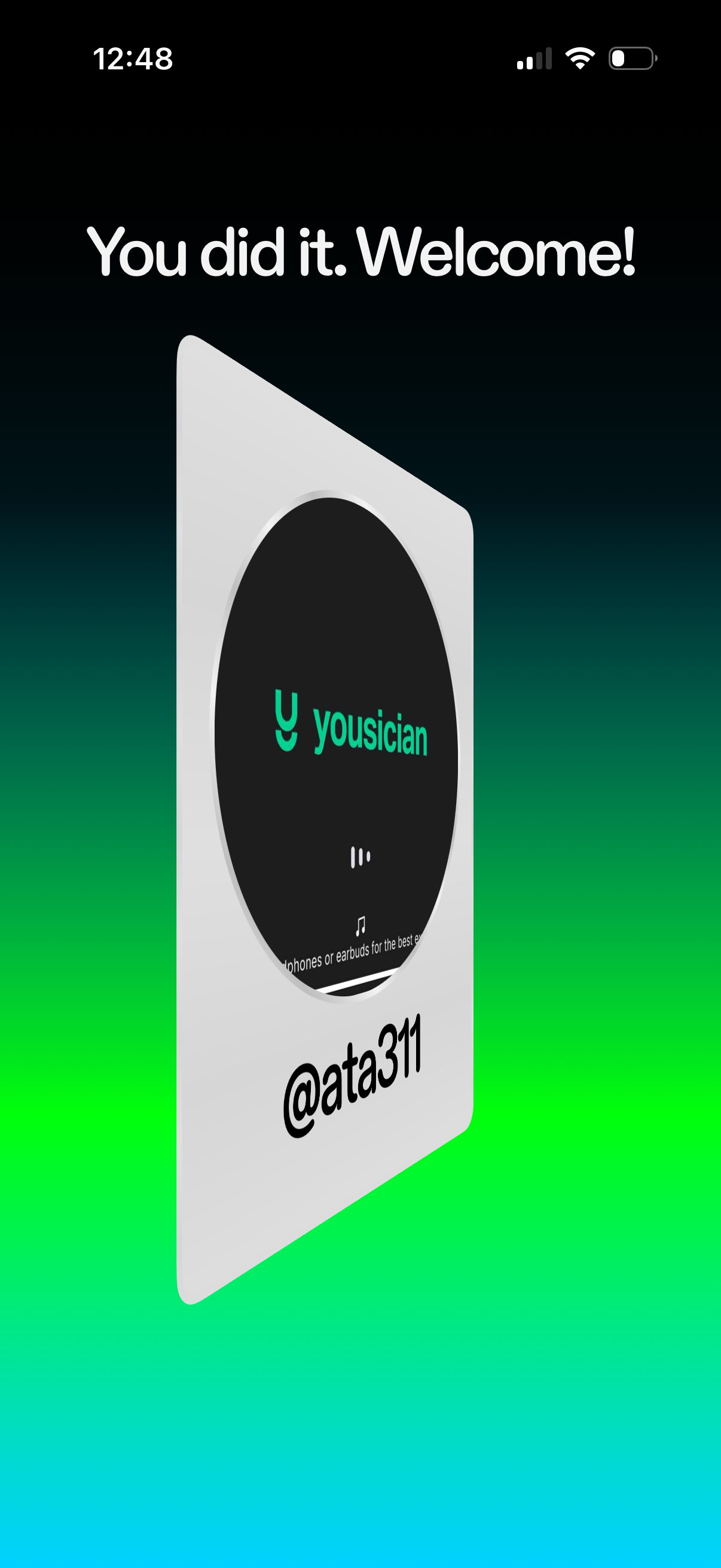
Welcome/success onboarding screen confirming account setup is complete, featuring a branded card illustration and minimal UI indicating the user is ready to start using the app. It serves as a completion confirmation step after sign-up or registration.
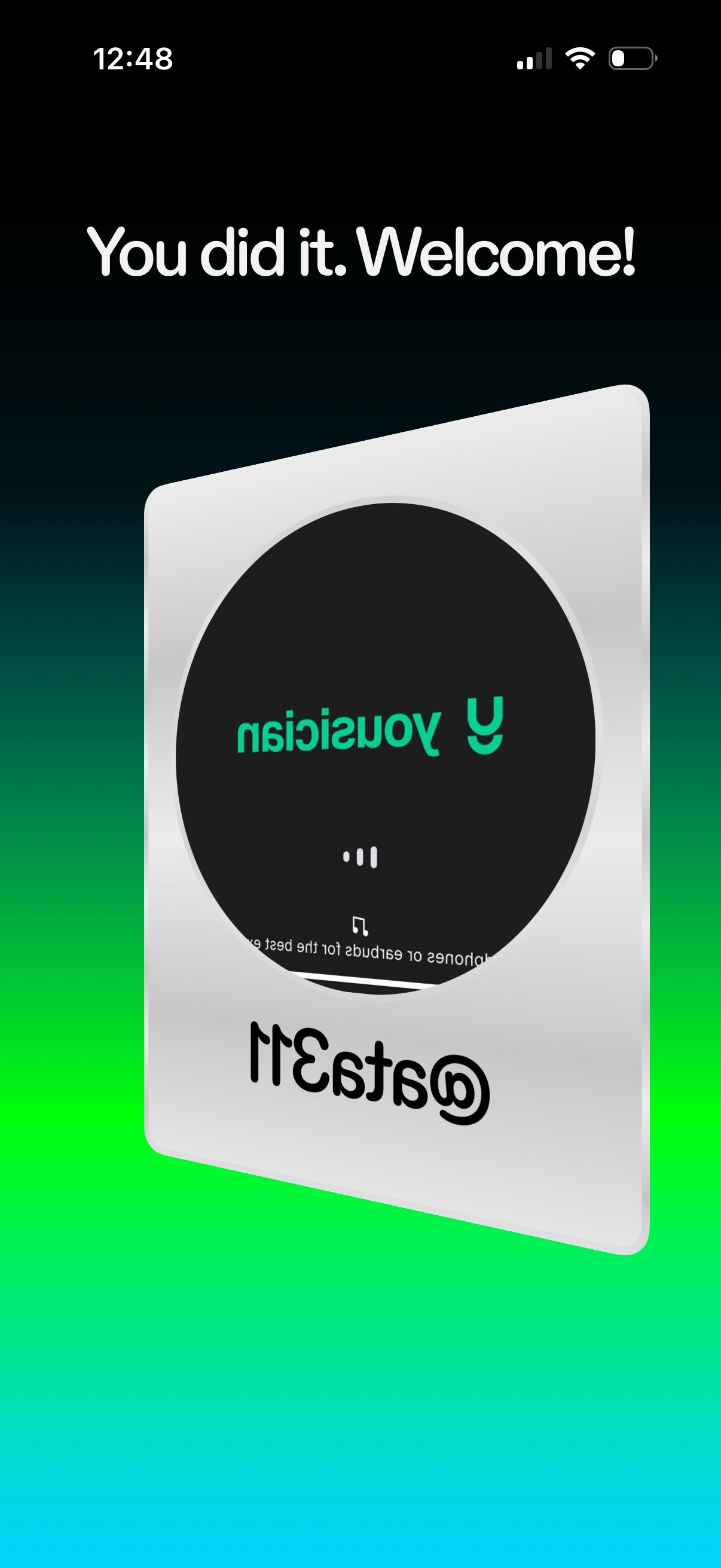
Welcome/congratulations confirmation screen shown after completing setup or signup, featuring a celebratory message (“You did it. Welcome!