
Reminder creation screen with a text field to enter the reminder title and quick options to set the time (e. g.
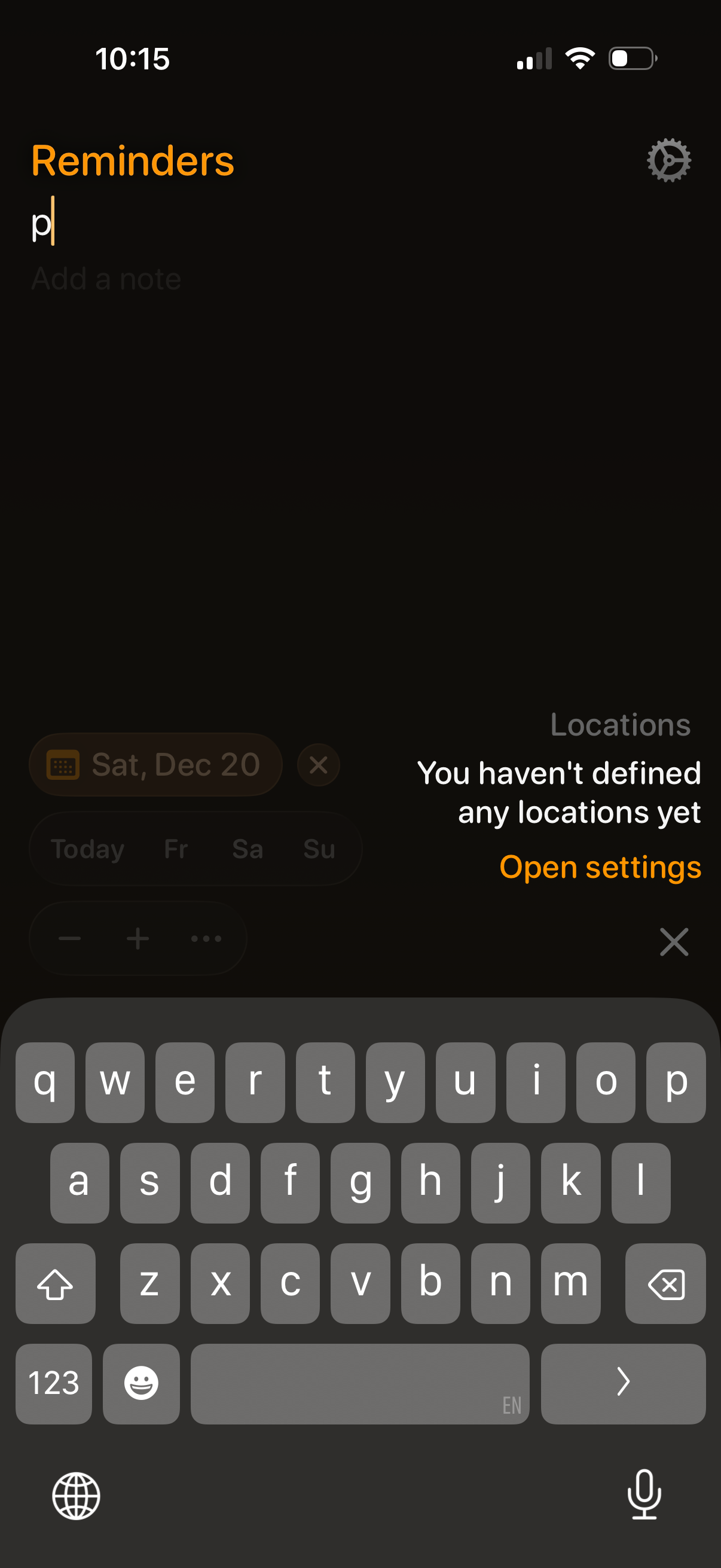
Reminder creation/edit screen with a text field to enter the reminder title and an optional note, plus a settings icon for managing reminder preferences. A “Locations” panel indicates no locations are configured yet and prompts the user to open settings, suggesting location-based reminders.

Settings screen for managing preset locations used to quickly assign location-based reminders, with an “Add location” primary action and an Edit option to modify existing saved places. Includes brief helper text explaining examples like home, work, supermarket, or a friend’s house.
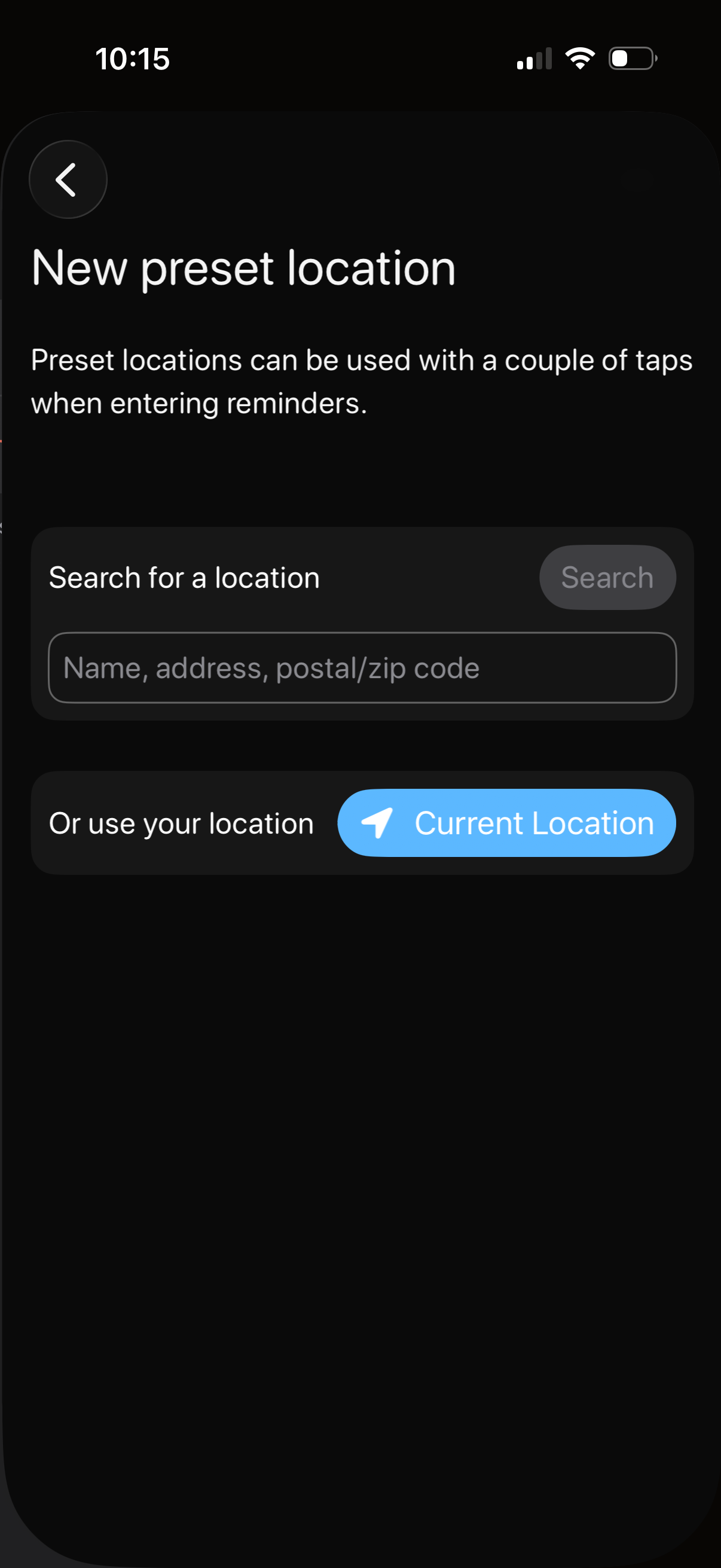
Screen for creating a new preset location for reminders, allowing the user to search by name/address/postal code and save it. Includes an option to use the device’s current location via a “Current Location” button and a back navigation control.
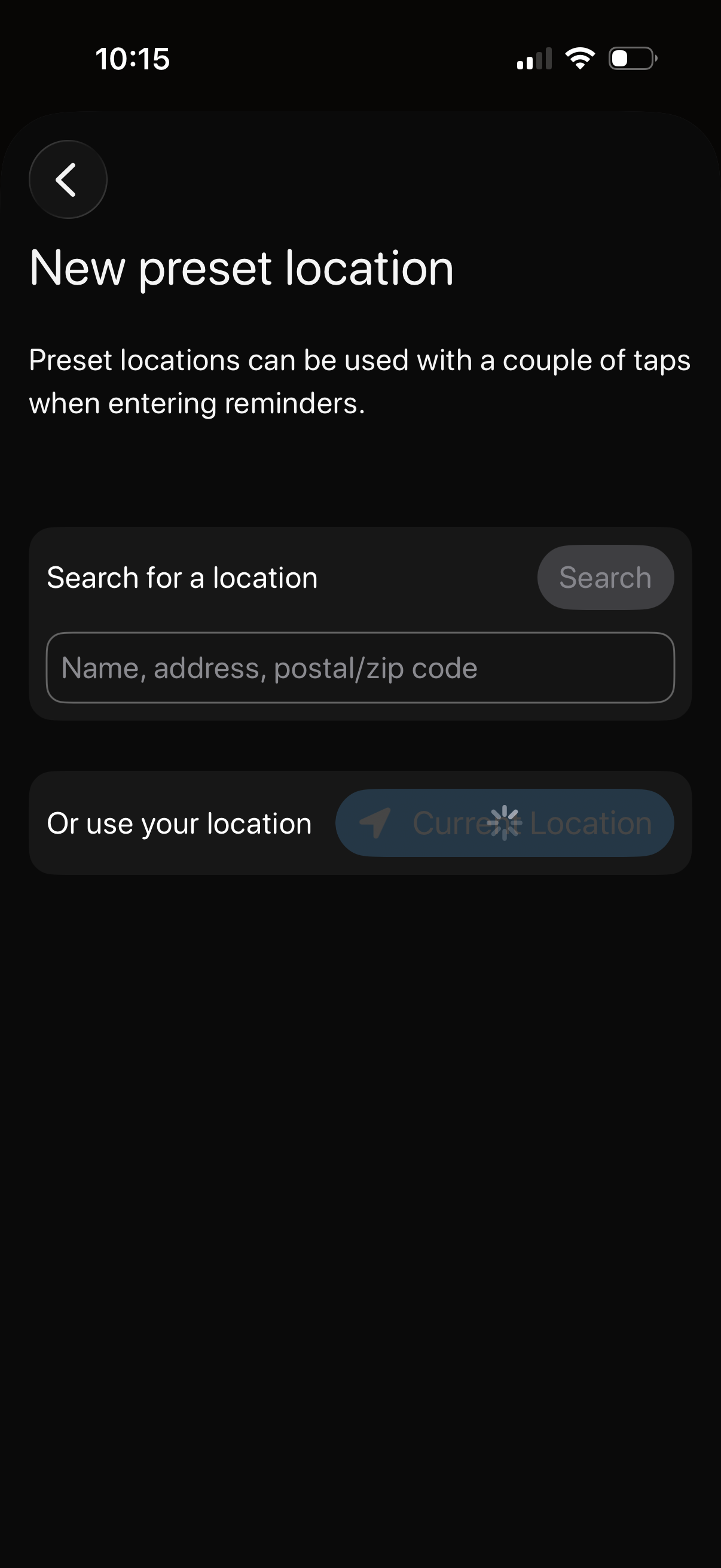
Screen for creating a new preset location for reminders, explaining that saved locations can be quickly reused. Users can search by name/address/zip code or choose their current location to set the preset.
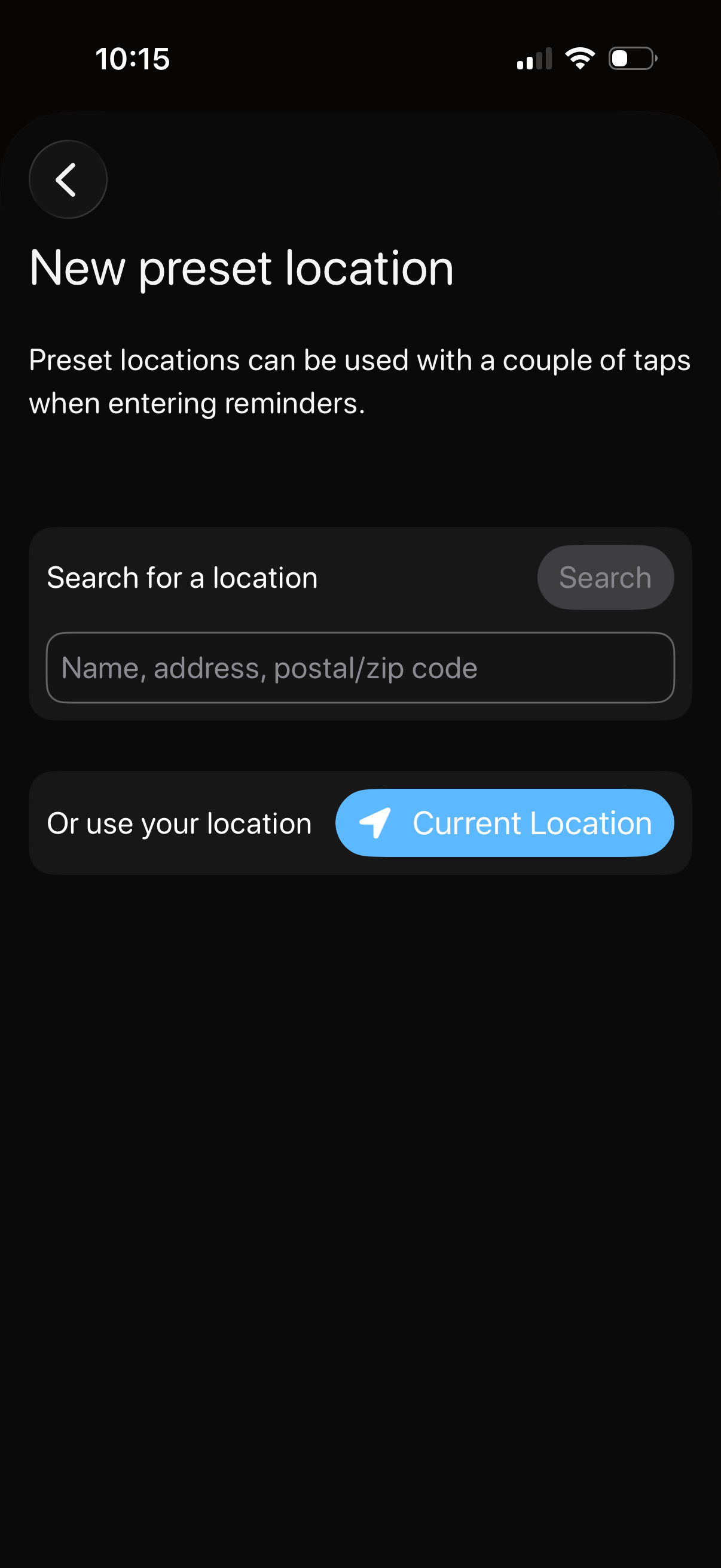
Screen for adding a new preset location for reminders, explaining that preset locations help quickly enter reminder locations. Users can search by name/address/zip code with a search field and button, or tap “Current Location” to use their device location.
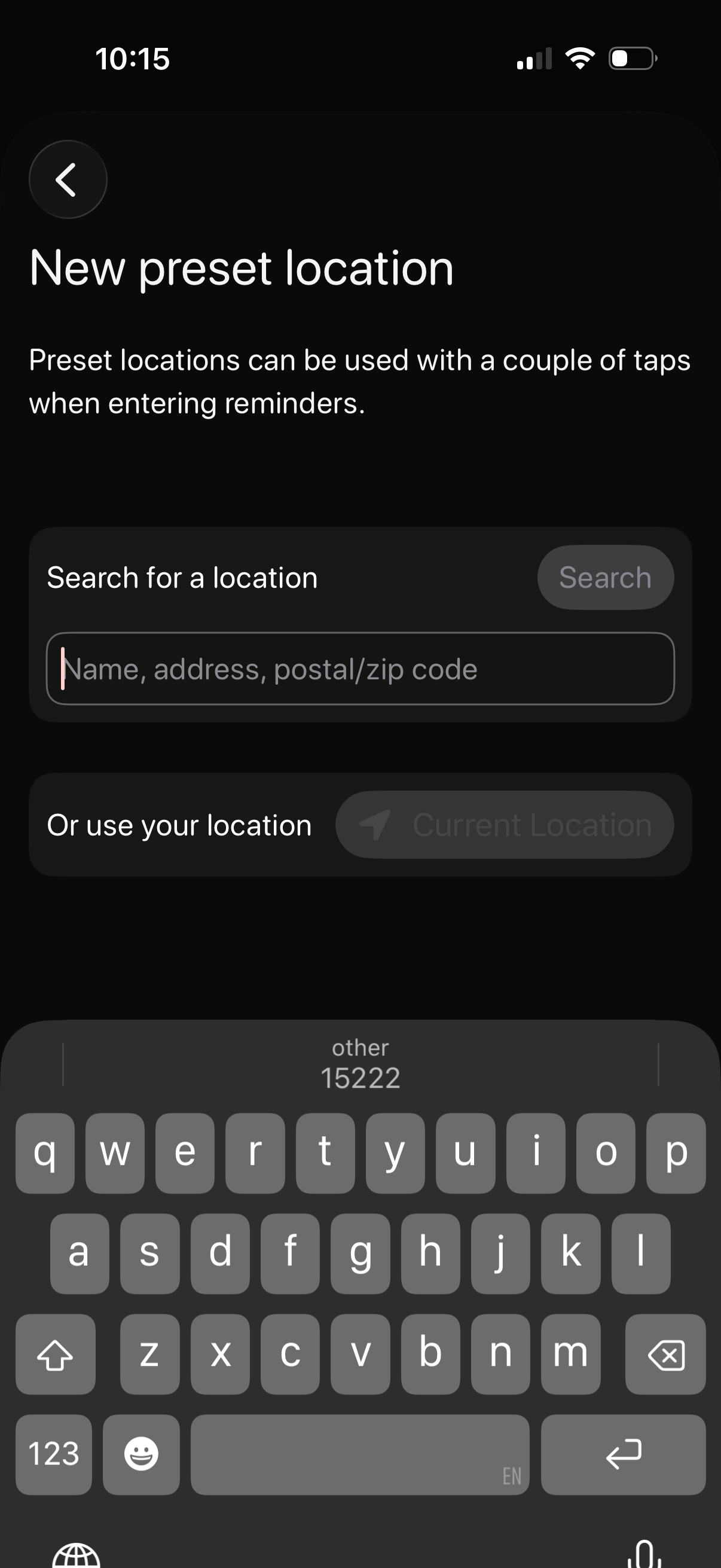
Screen for creating a new preset location for reminders, allowing users to search by name/address/zip code and tap a Search button. Includes an option to use the device’s current location, with a back navigation control.

Screen for creating a new preset location for reminders, explaining that saved locations can be quickly reused. Provides a location search input with a Search button and an option to use the device’s current location.
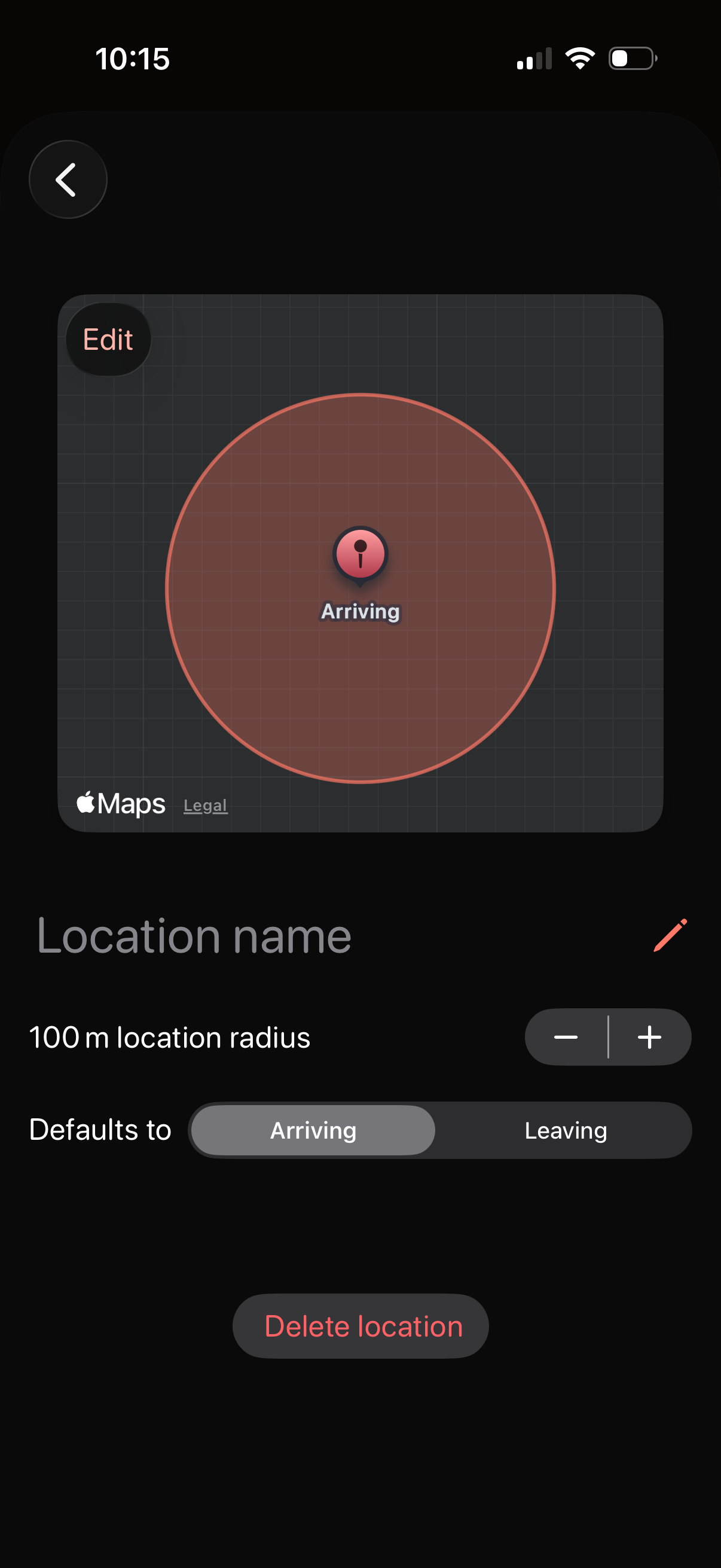
Geofence location settings screen with an Apple Maps preview showing a pinned area and circular radius, allowing the user to edit the location name and adjust the location radius with plus/minus controls. Users can choose whether the automation triggers on arriving or leaving, and can delete the saved location.
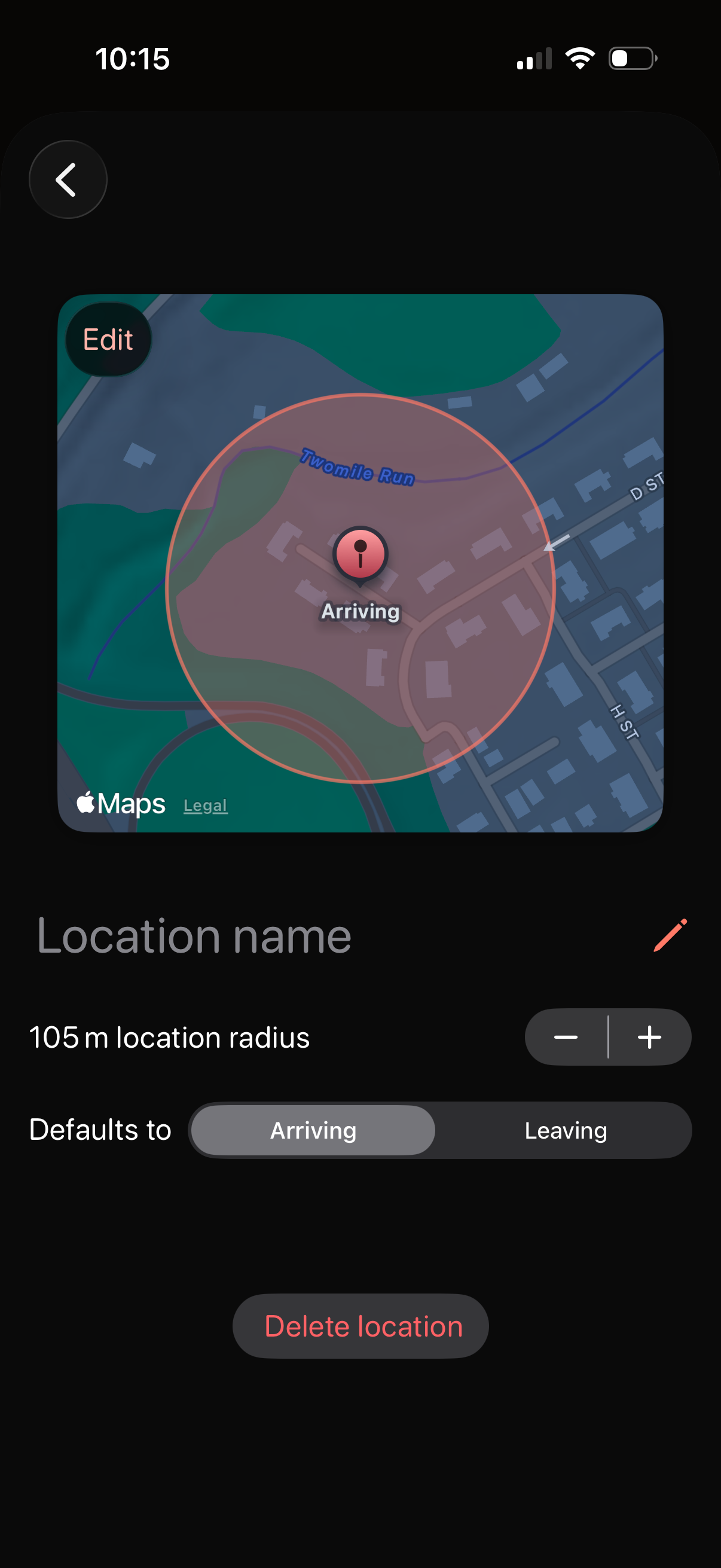
Geofence location settings screen showing a map preview with a highlighted radius and pin, allowing the user to name/edit the location, adjust the location radius with plus/minus controls, and set the trigger default to arriving or leaving. Includes actions to edit and delete the saved location.
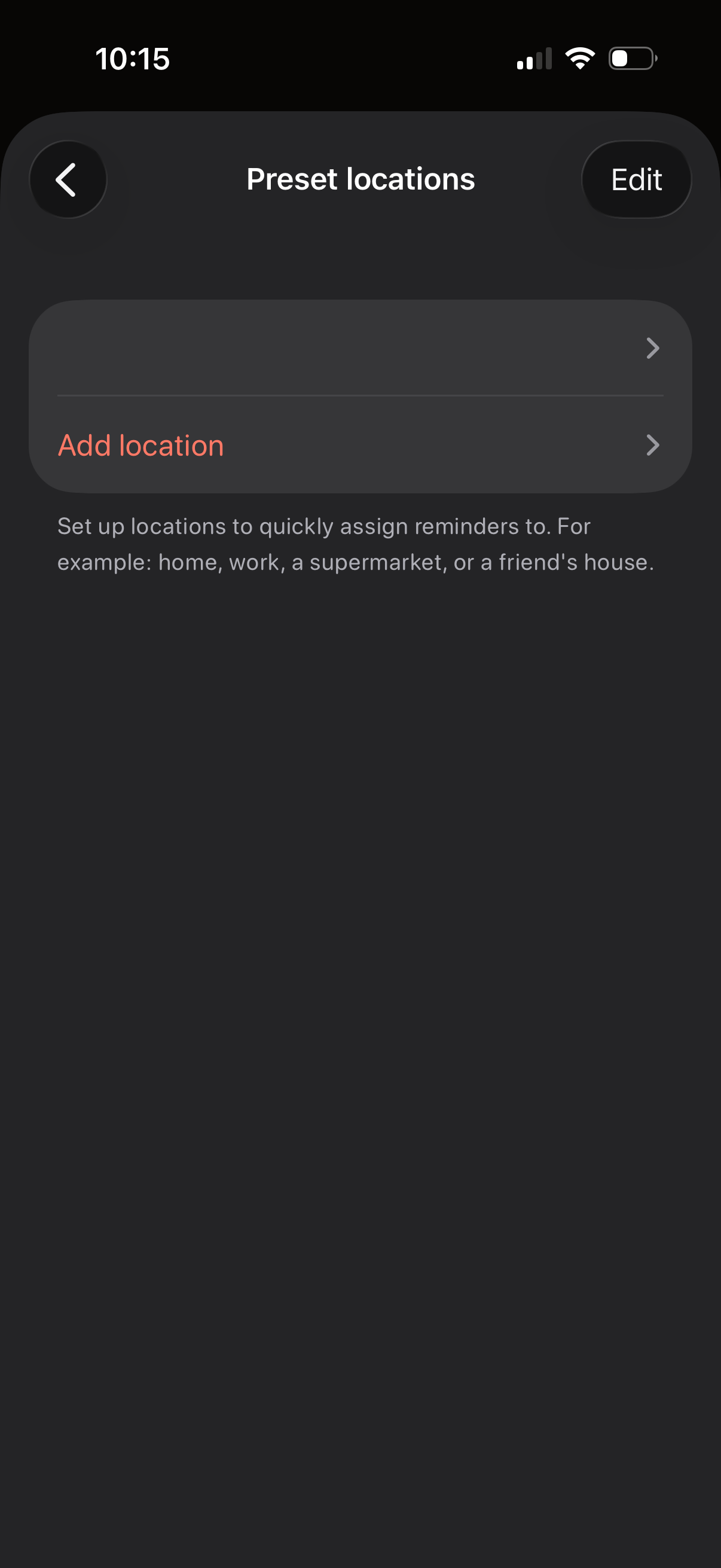
Settings screen for managing preset locations used to quickly assign location-based reminders, with an “Add location” row and an Edit button to modify existing locations. Includes brief helper text explaining examples like home, work, or a supermarket.