create wallet with email
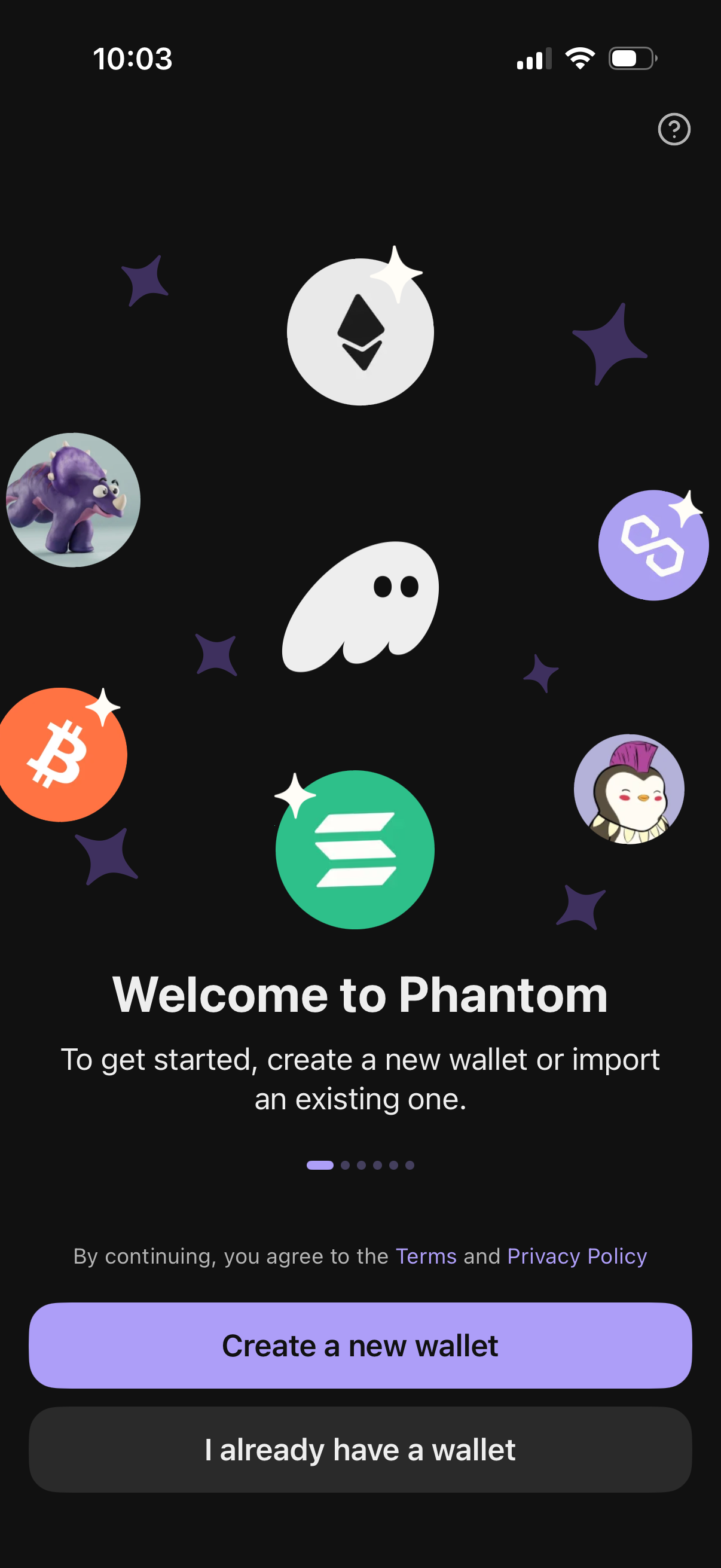
Crypto wallet onboarding welcome screen prompting users to get started by creating a new wallet or importing an existing wallet. Includes primary and secondary CTA buttons, a help icon, onboarding pagination indicator, and links to Terms and Privacy Policy.
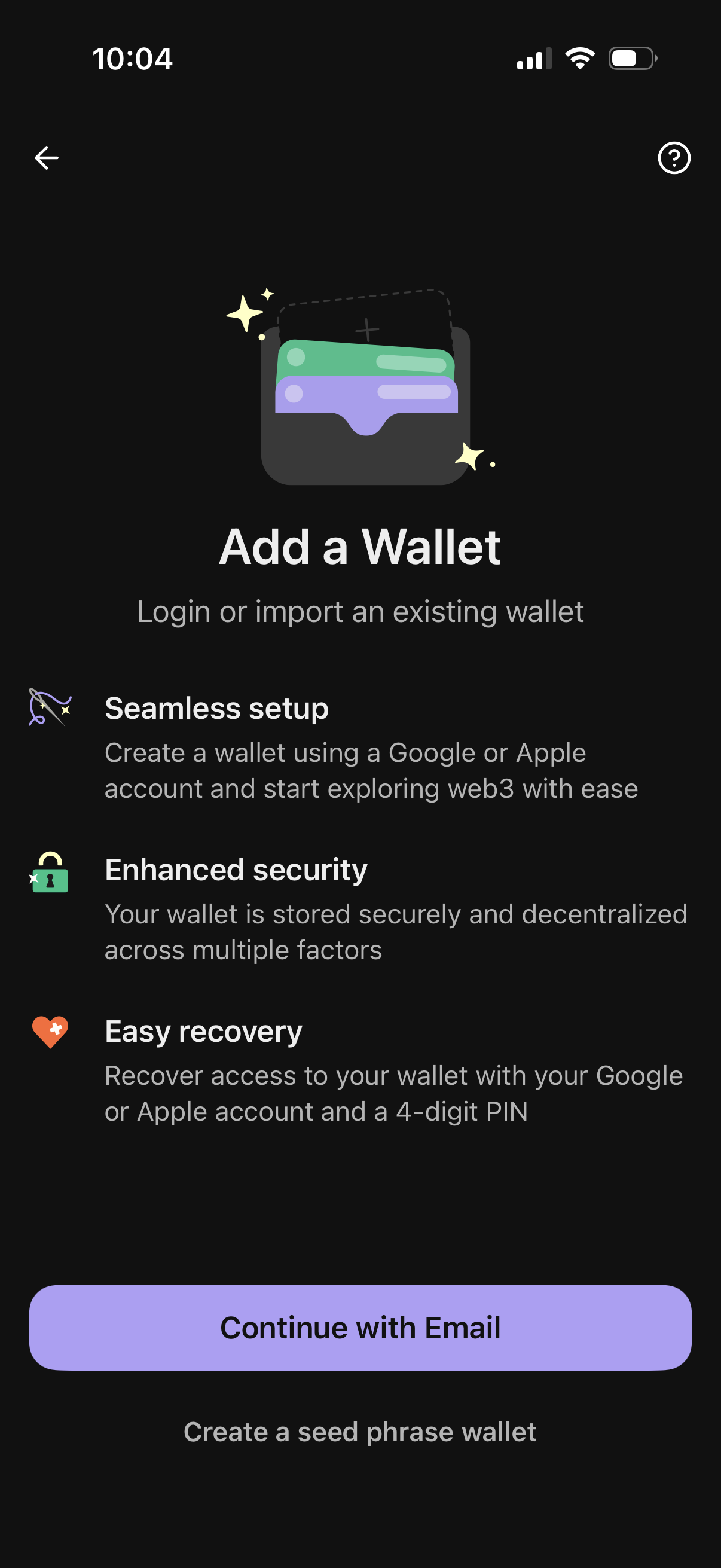
Onboarding screen for adding a crypto/web3 wallet, explaining benefits like seamless setup with Google/Apple, enhanced security, and easy recovery with a 4-digit PIN. Primary action is to continue with email, with an alternative option to create a seed phrase wallet and navigation/help icons.
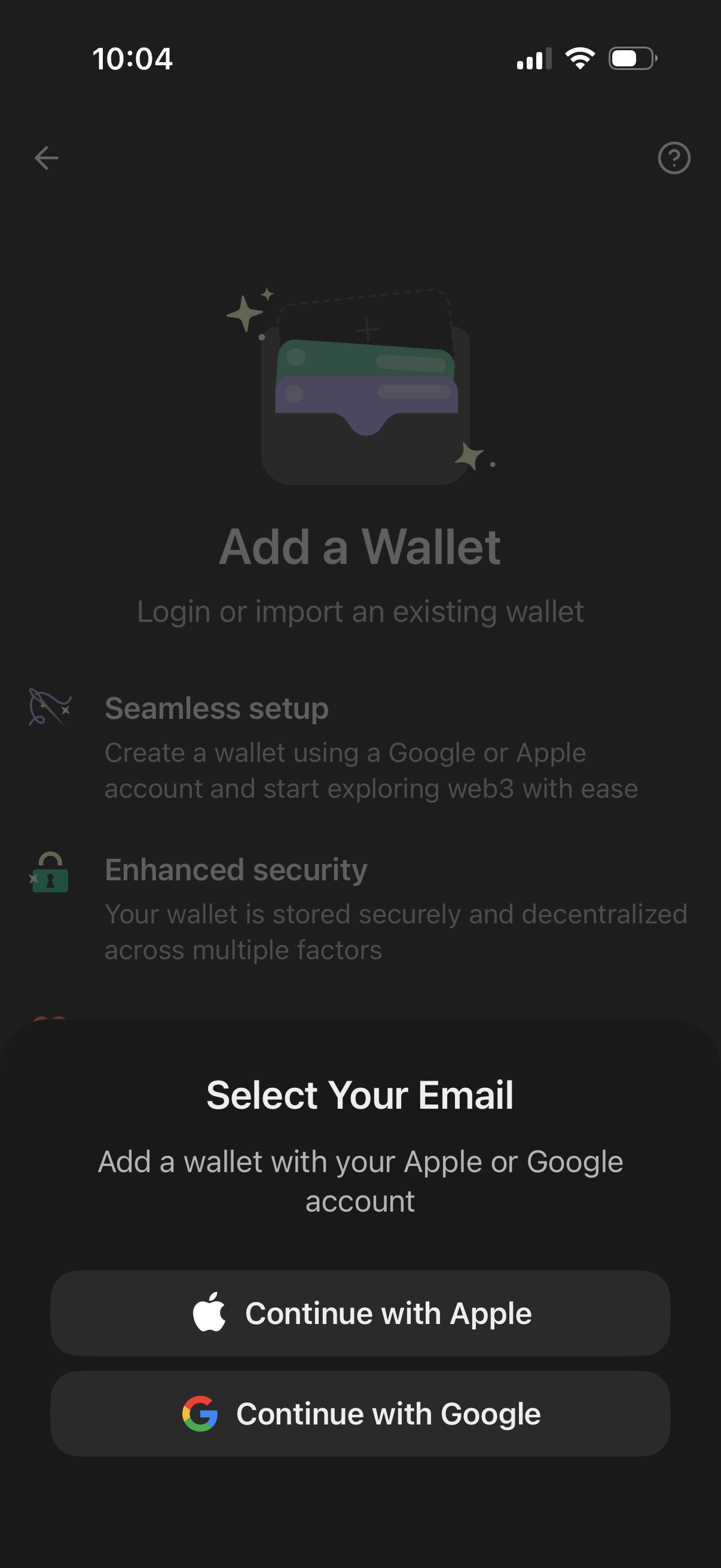
Crypto/Web3 wallet onboarding screen prompting users to add or import a wallet, highlighting seamless setup and enhanced security. A bottom sheet modal asks the user to select an email and sign in via “Continue with Apple” or “Continue with Google.
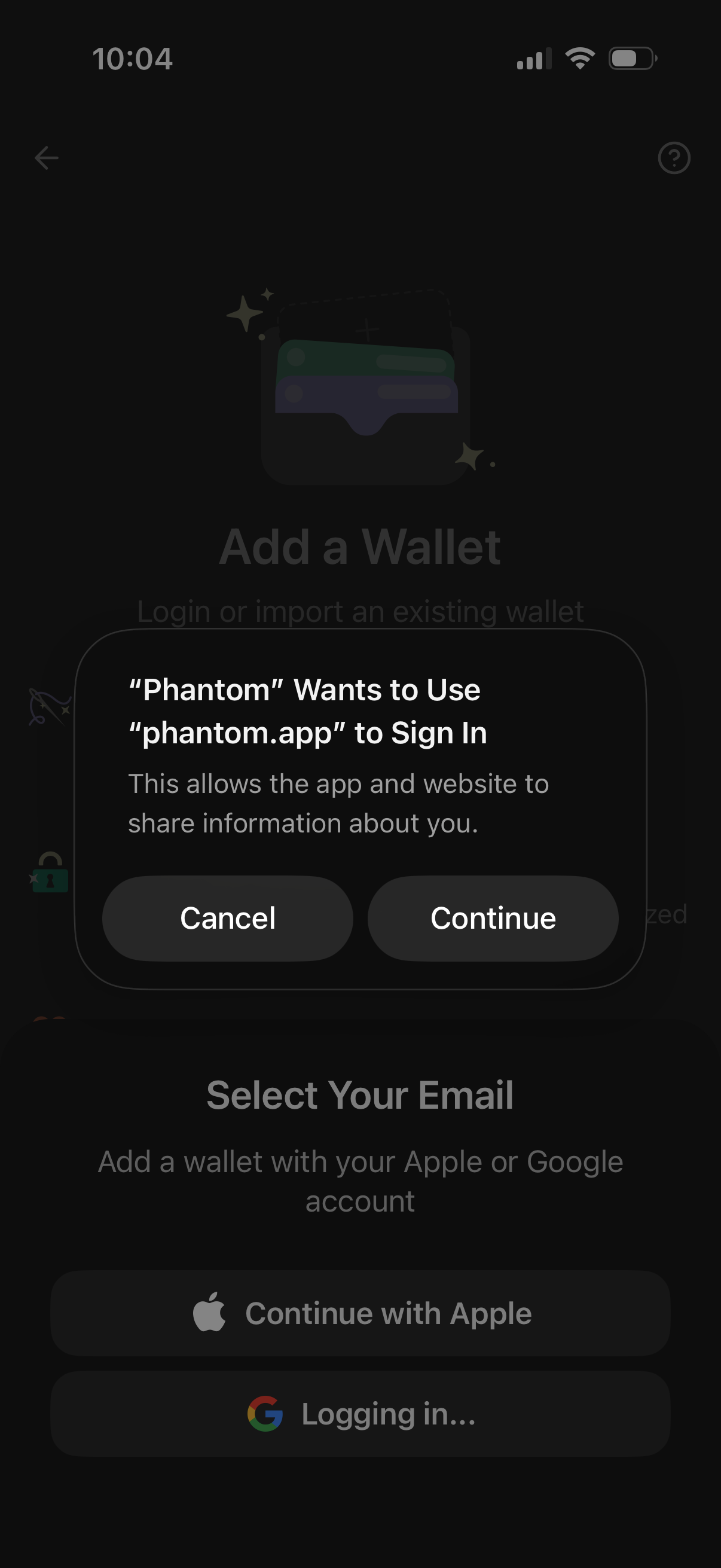
A wallet onboarding screen with an iOS permission alert asking to use an external domain (phantom. app) to sign in, with actions to Cancel or Continue.
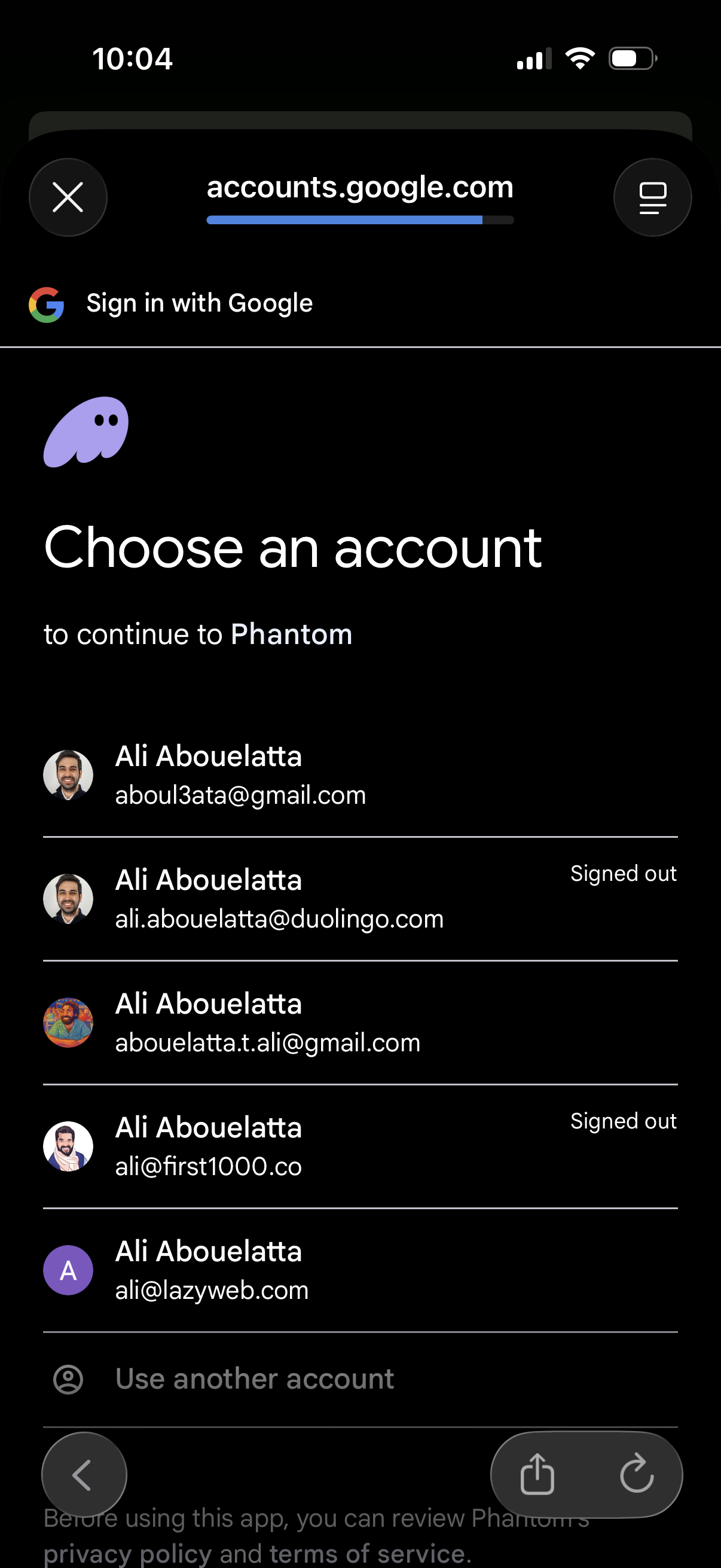
Google “Sign in with Google” account chooser screen prompting the user to select an existing Google account to continue to an app (Phantom), showing a list of saved accounts with avatars and signed-out status. Includes an option to use another account and controls to close the login sheet.
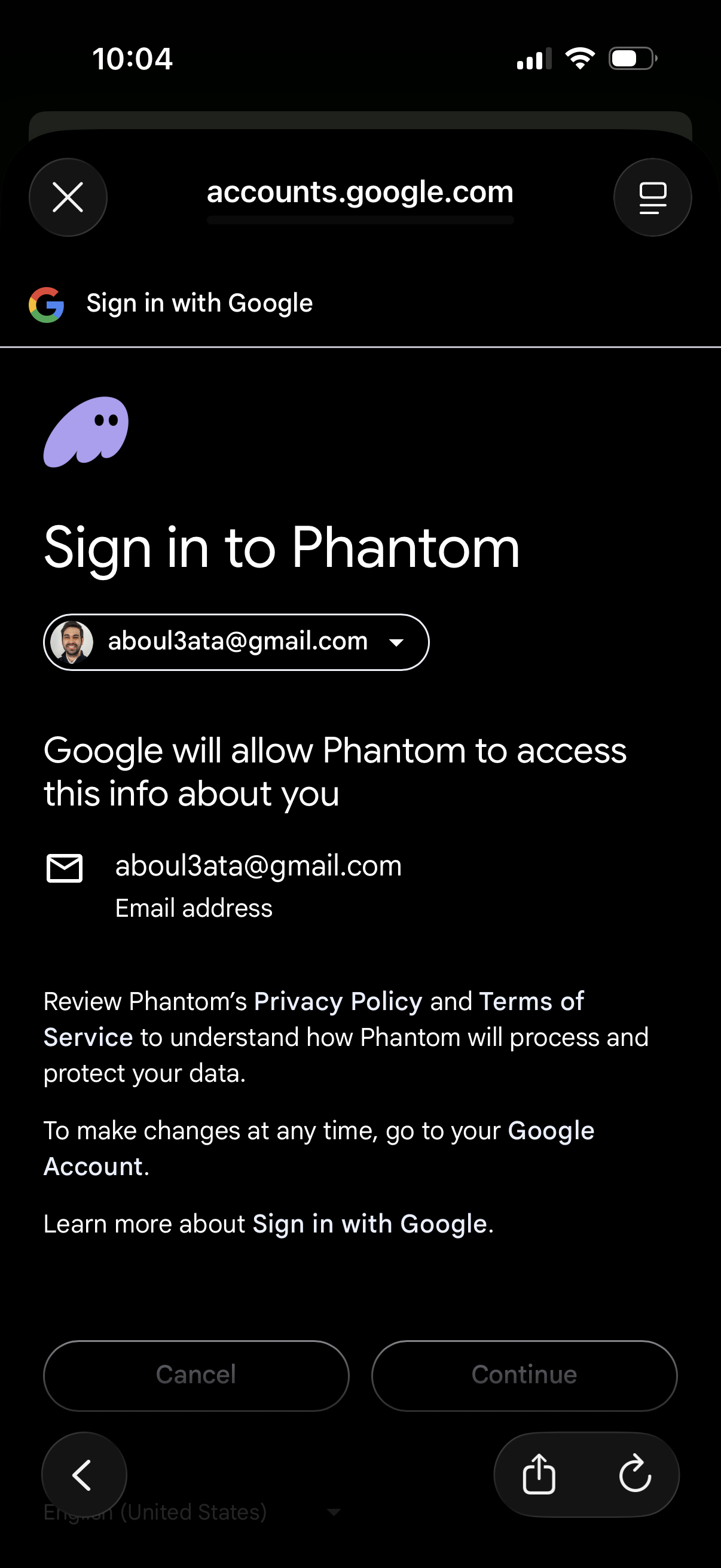
Google OAuth consent screen for signing in to the Phantom app, showing the selected Google account and the data the app will access (email address). Primary actions are Cancel or Continue to approve access, with links to privacy policy/terms and account settings.
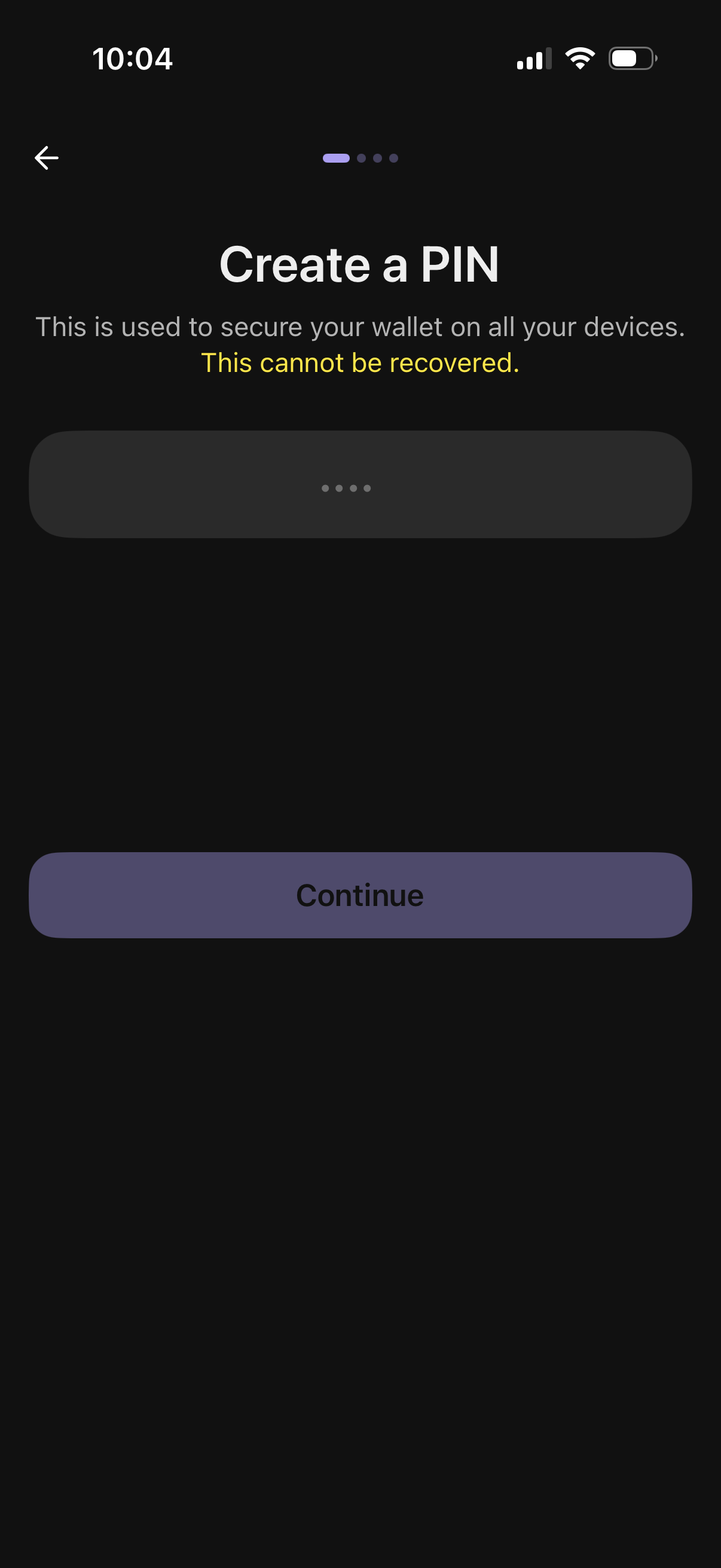
Wallet onboarding security screen prompting the user to create a PIN to secure their wallet across devices, with a warning that the PIN cannot be recovered. Includes a masked PIN entry field and a primary Continue button to proceed.
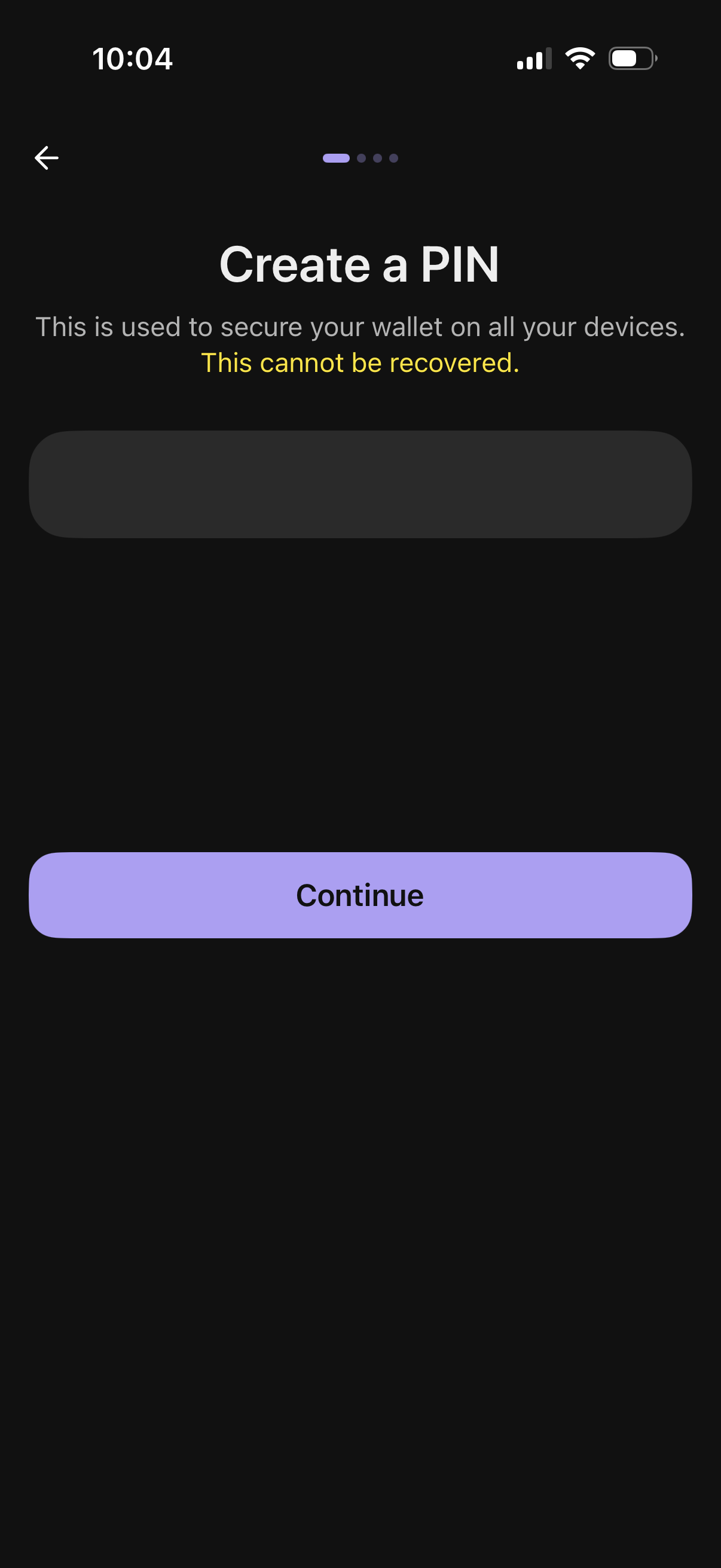
Wallet security setup screen prompting the user to create a PIN to secure their wallet across devices, with a warning that the PIN cannot be recovered. Includes a PIN entry field, back navigation, progress indicator, and a primary Continue button to proceed.
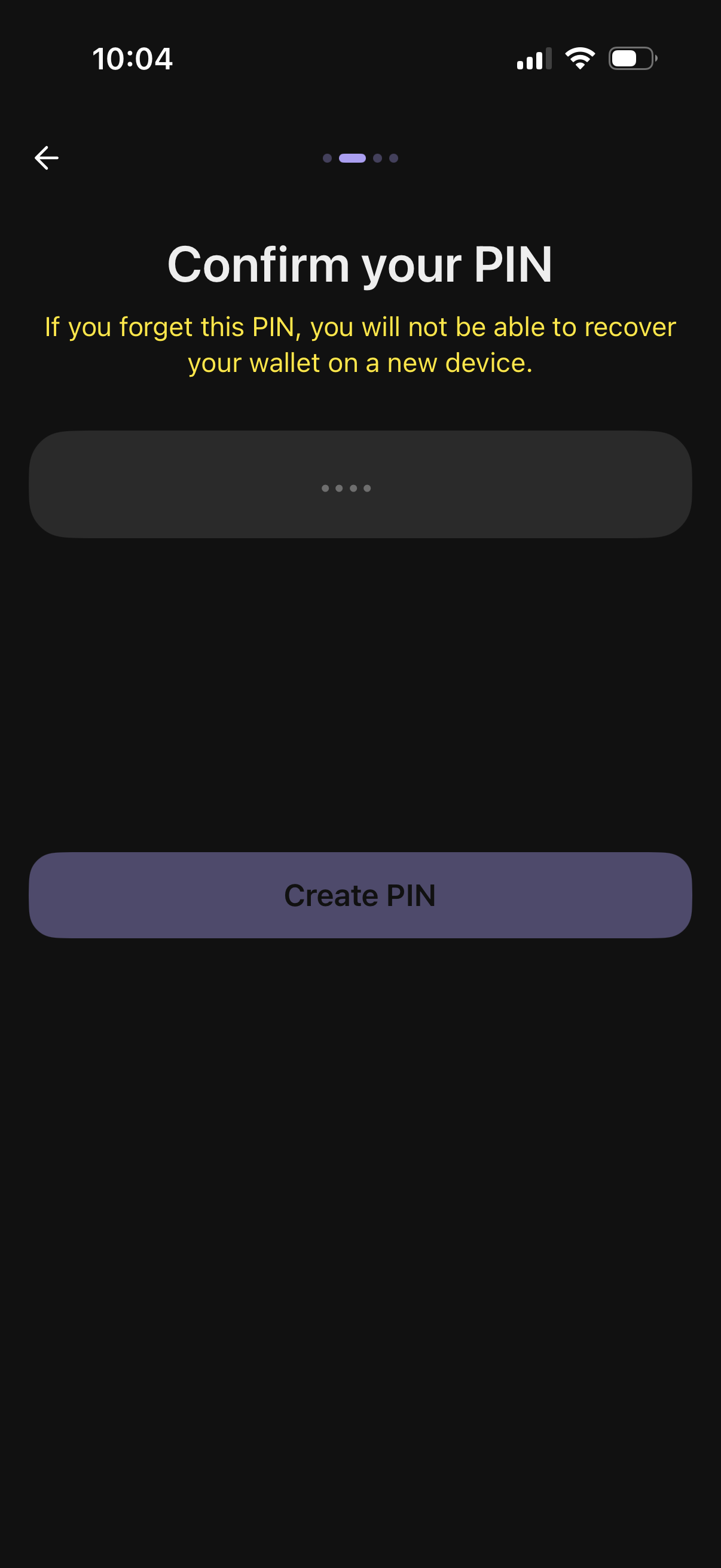
Wallet security setup screen prompting the user to confirm a 4-digit PIN, warning that forgetting it prevents wallet recovery on a new device. Includes masked PIN entry and a primary “Create PIN” button to finalize the PIN.
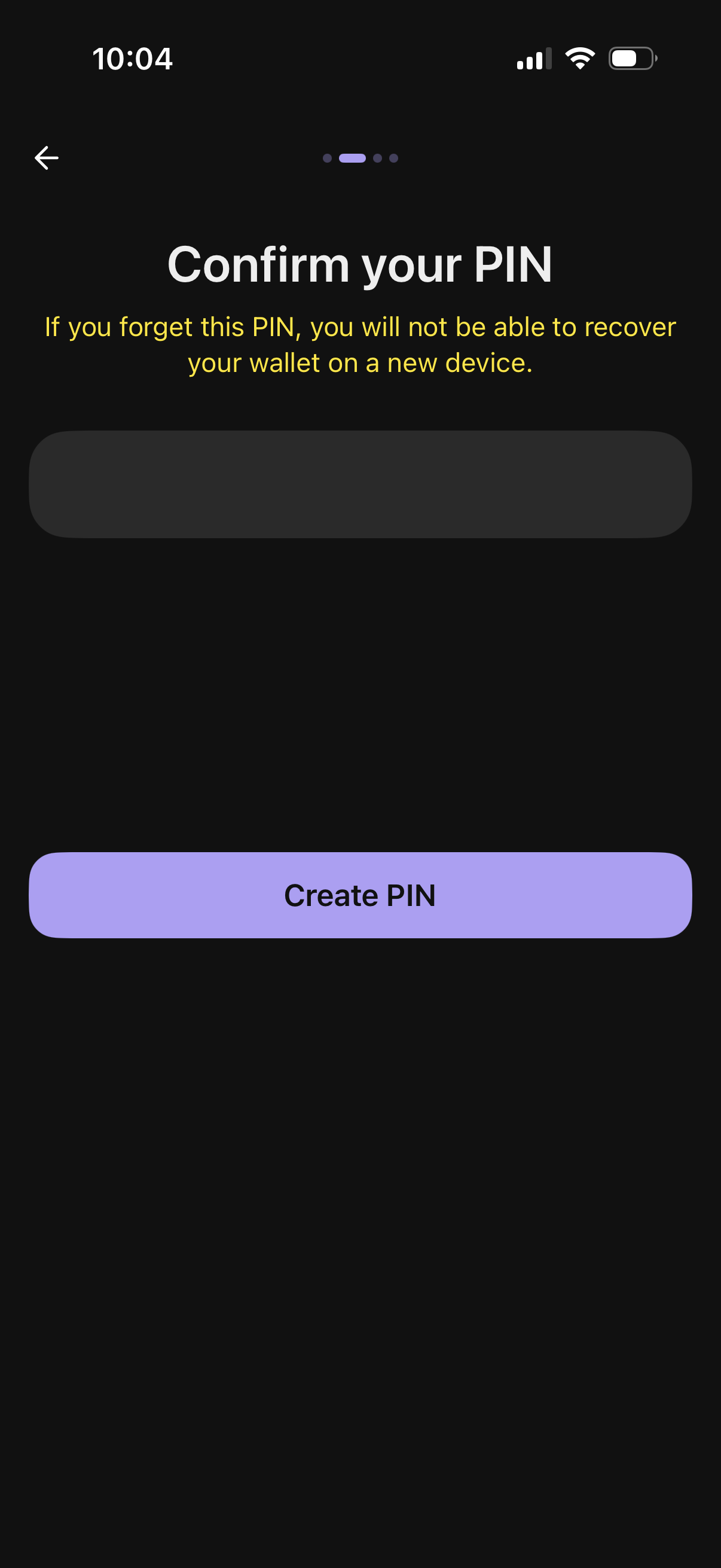
PIN setup confirmation screen for a crypto wallet, prompting the user to re-enter their PIN and warning that forgetting it prevents wallet recovery on a new device. Includes a PIN input field, back navigation, progress indicator, and a primary “Create PIN” button to finalize.
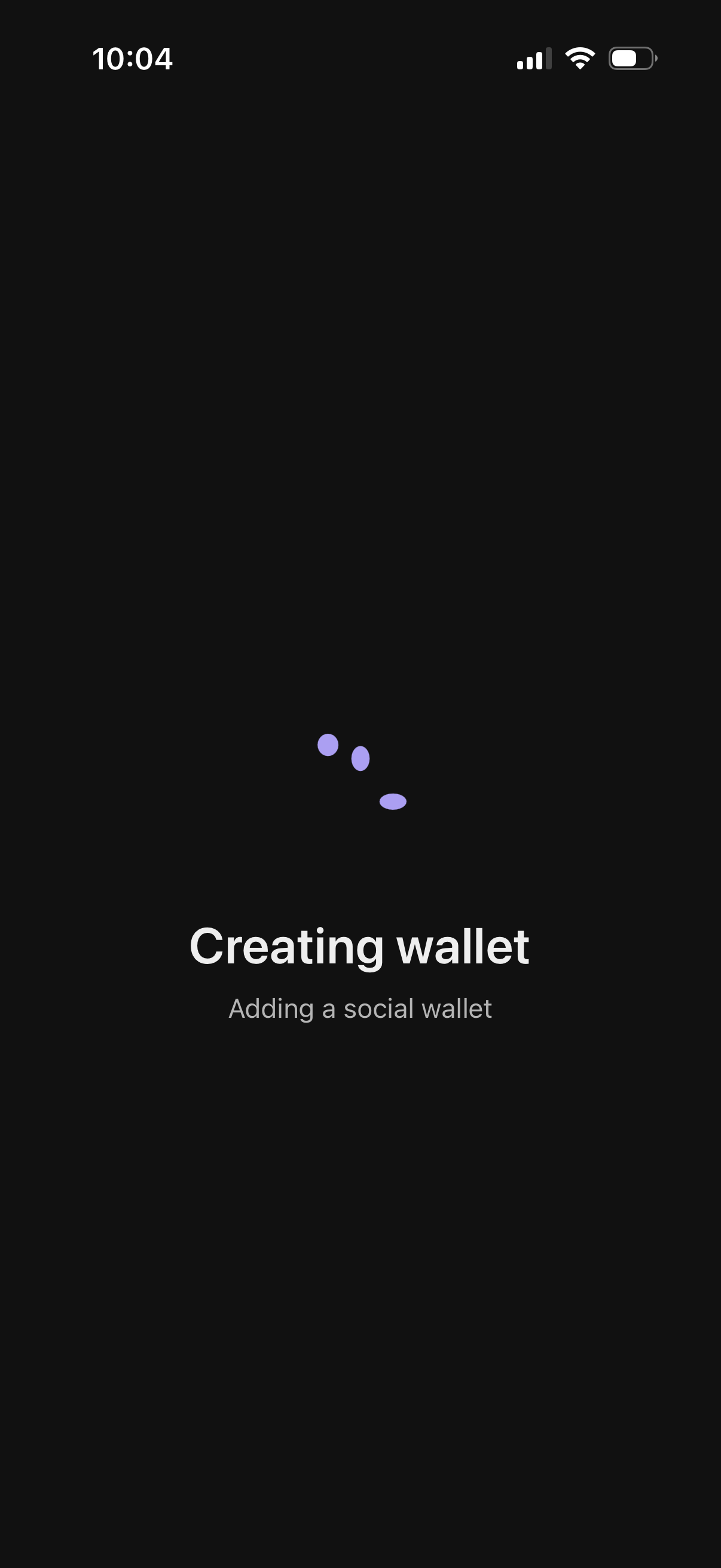
A wallet onboarding loading screen showing an animated progress indicator while the app creates a new wallet. The status message reads “Creating wallet” with supporting text “Adding a social wallet,” indicating setup is in progress with no user actions available.
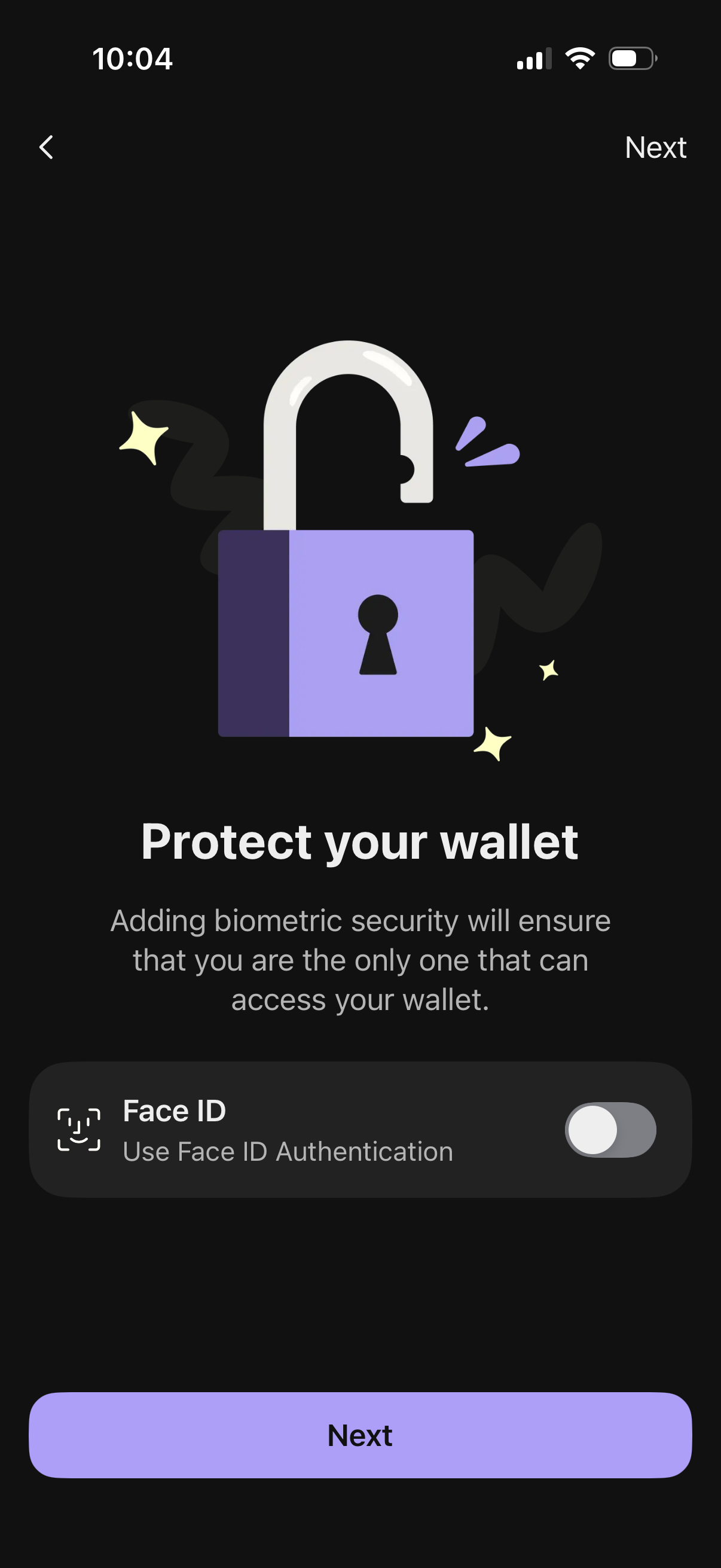
Security onboarding screen for a digital wallet prompting the user to protect their wallet by enabling biometric authentication (Face ID) via a toggle. Includes explanatory copy and primary “Next” action to continue setup, with a back navigation option.
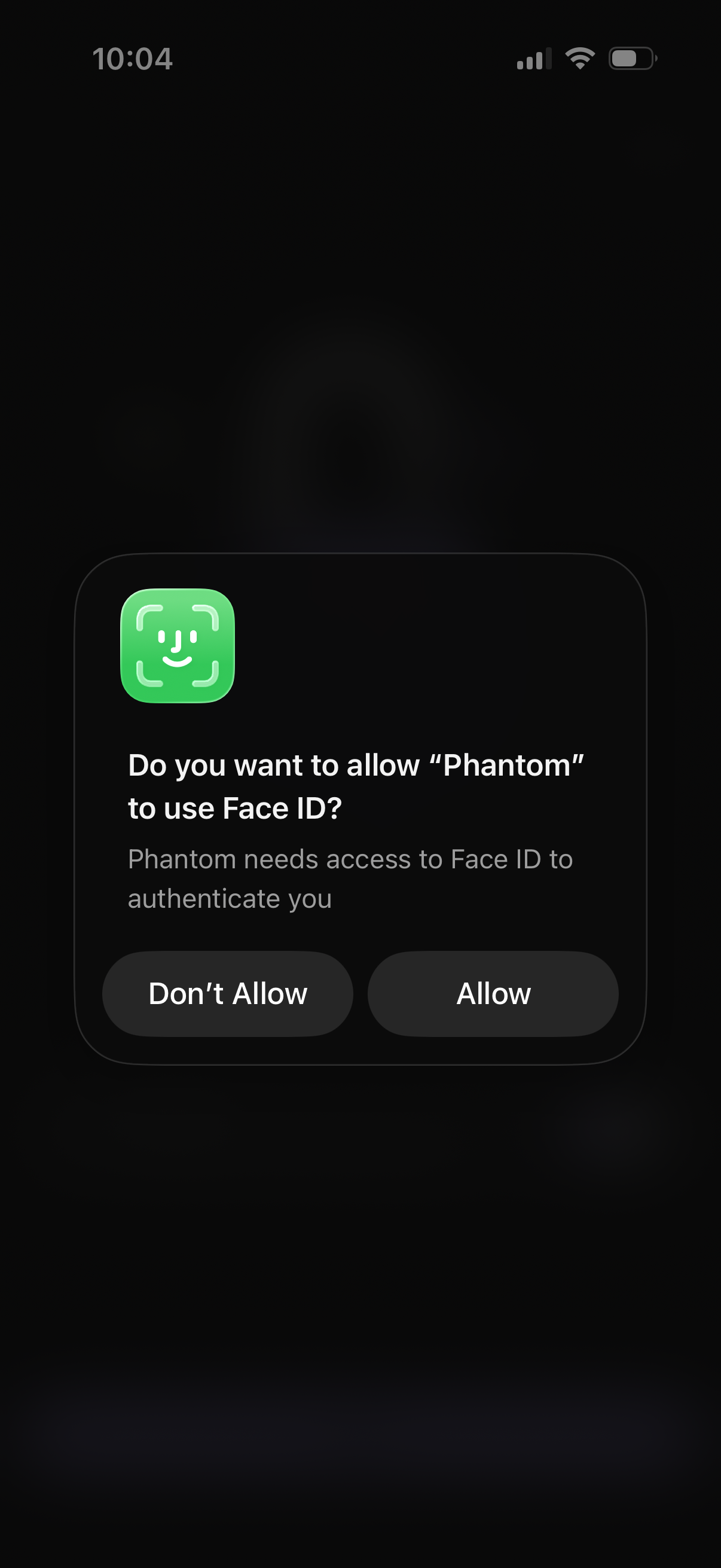
iOS system permission alert asking the user to allow an app to use Face ID for authentication. Modal dialog includes app icon and two actions: Don’t Allow or Allow.
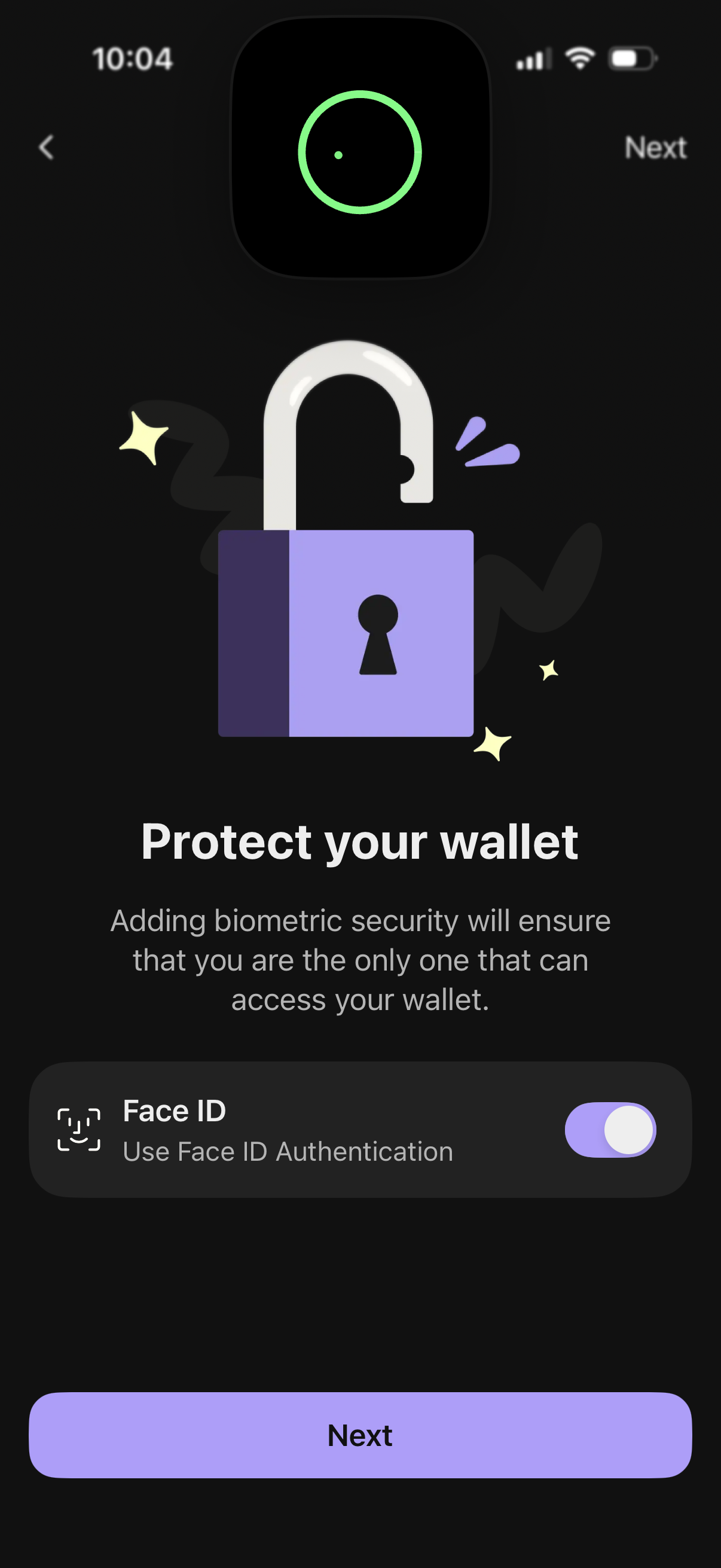
Wallet security setup screen prompting users to protect their wallet by enabling biometric authentication, with a Face ID toggle option. Users can proceed with a prominent Next button or navigate back.
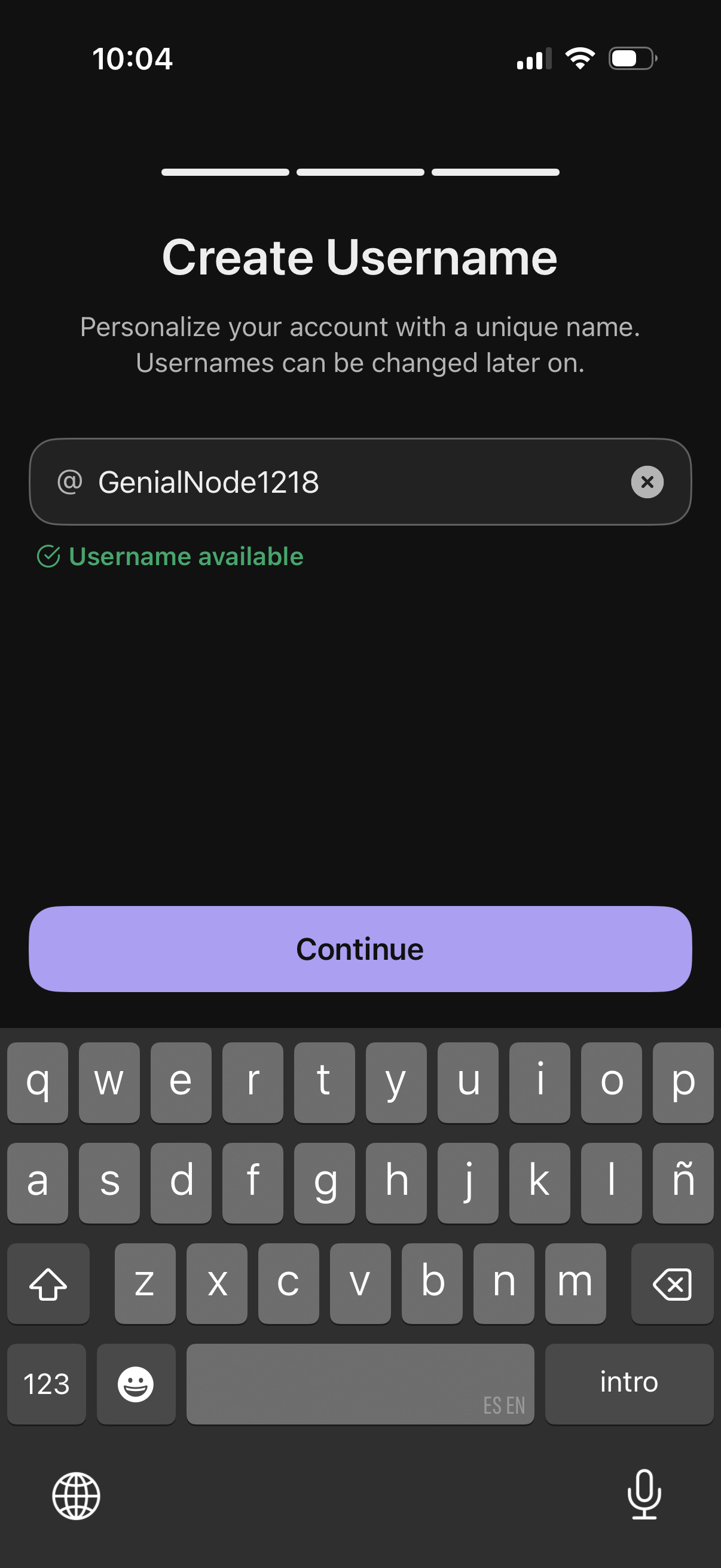
Onboarding account setup screen for creating a unique username, featuring a handle input field with clear button and real-time availability confirmation. A primary “Continue” call-to-action advances to the next step after choosing an available username.

Full-screen illustrated splash/loading screen with abstract shapes and no visible UI controls, used as an app launch or transition background while content loads.
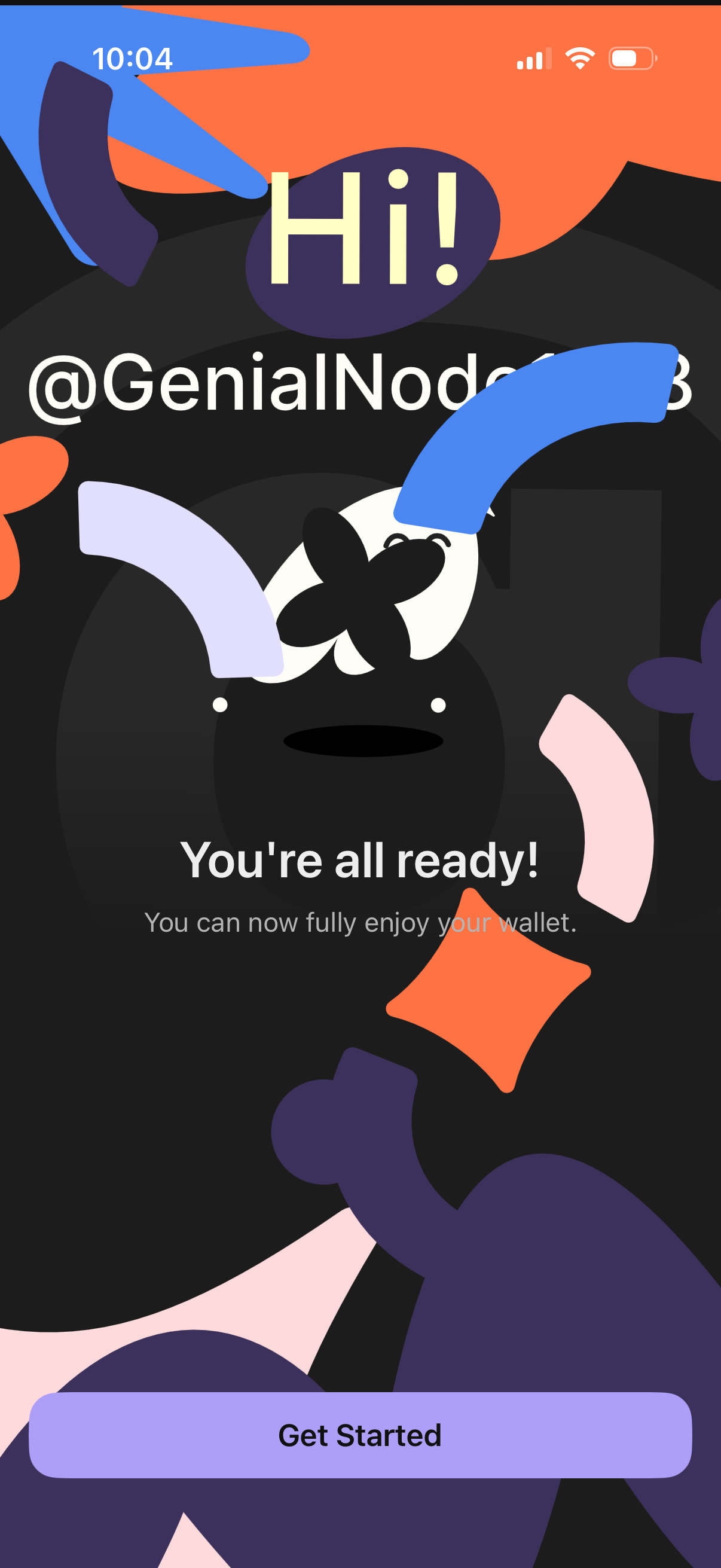
Wallet app onboarding completion screen confirming setup is finished with the message “You’re all ready” and a prominent “Get Started” call-to-action to begin using the wallet. Includes a personalized greeting/handle and celebratory illustration indicating successful account or wallet creation.
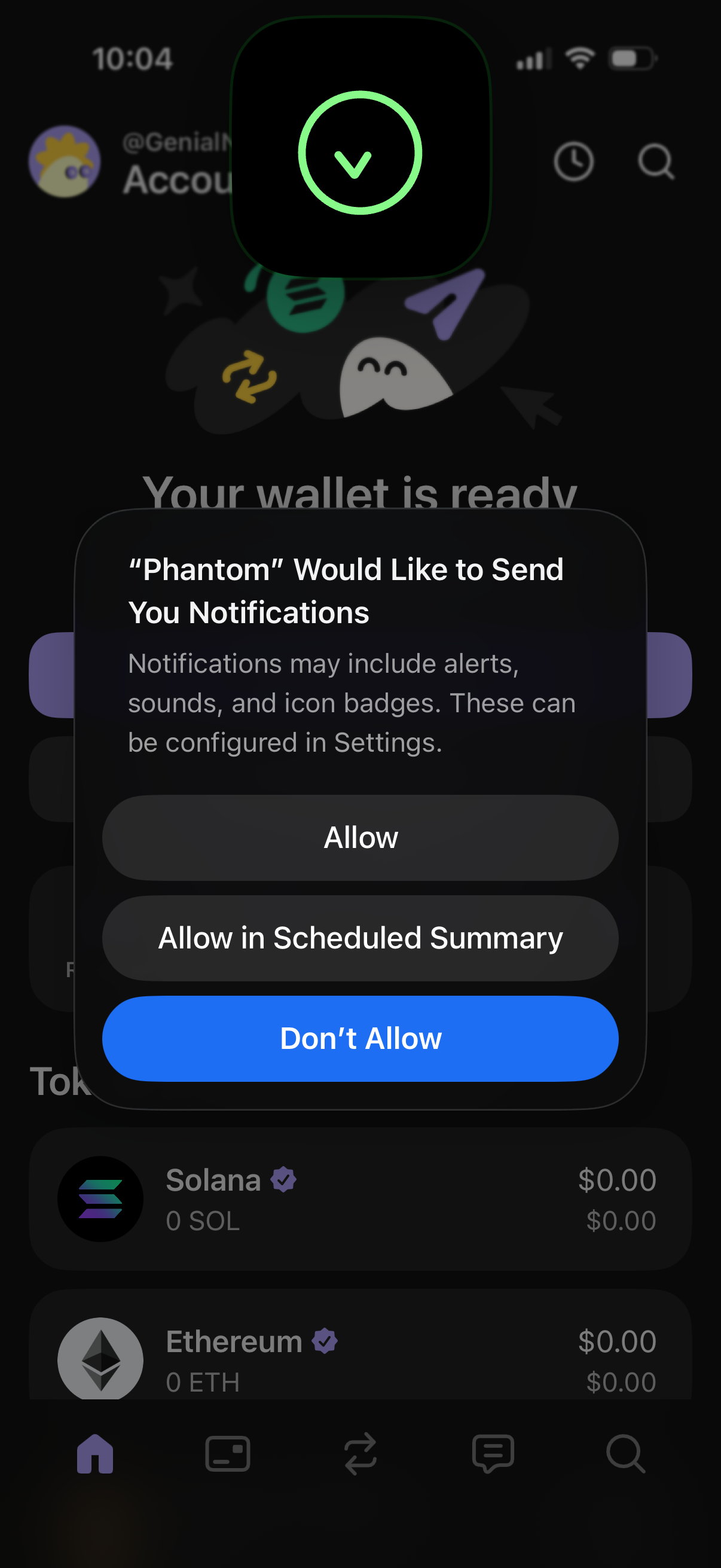
iOS system permission dialog asking to allow an app to send push notifications, offering actions to Allow, Allow in Scheduled Summary, or Don’t Allow. The prompt appears over a crypto wallet home screen showing wallet readiness and token balances.
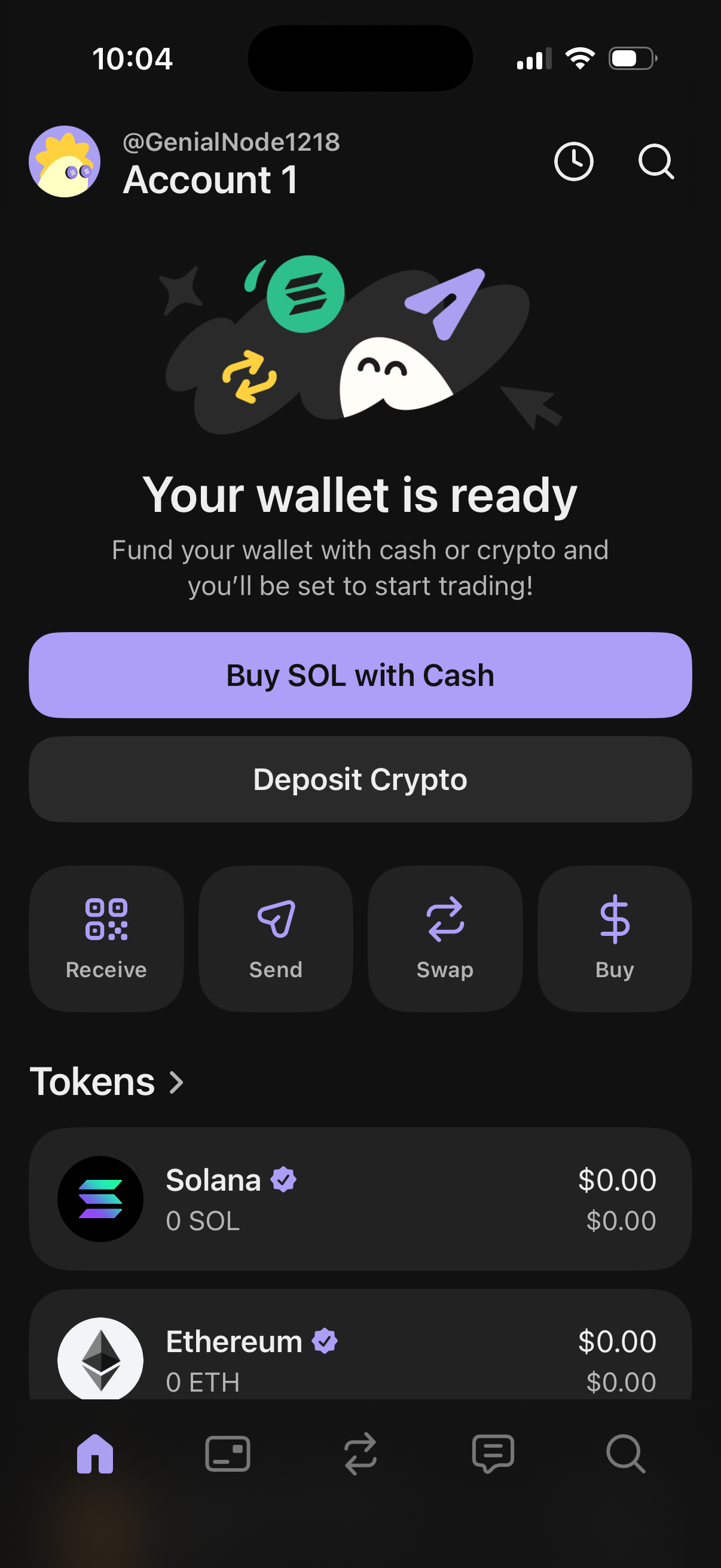
Crypto wallet home dashboard showing an onboarding state “Your wallet is ready” with primary actions to fund the wallet by buying SOL with cash or depositing crypto. Provides quick action shortcuts for receive, send, swap, and buy, plus a token list with balances (e.