browse plan sections
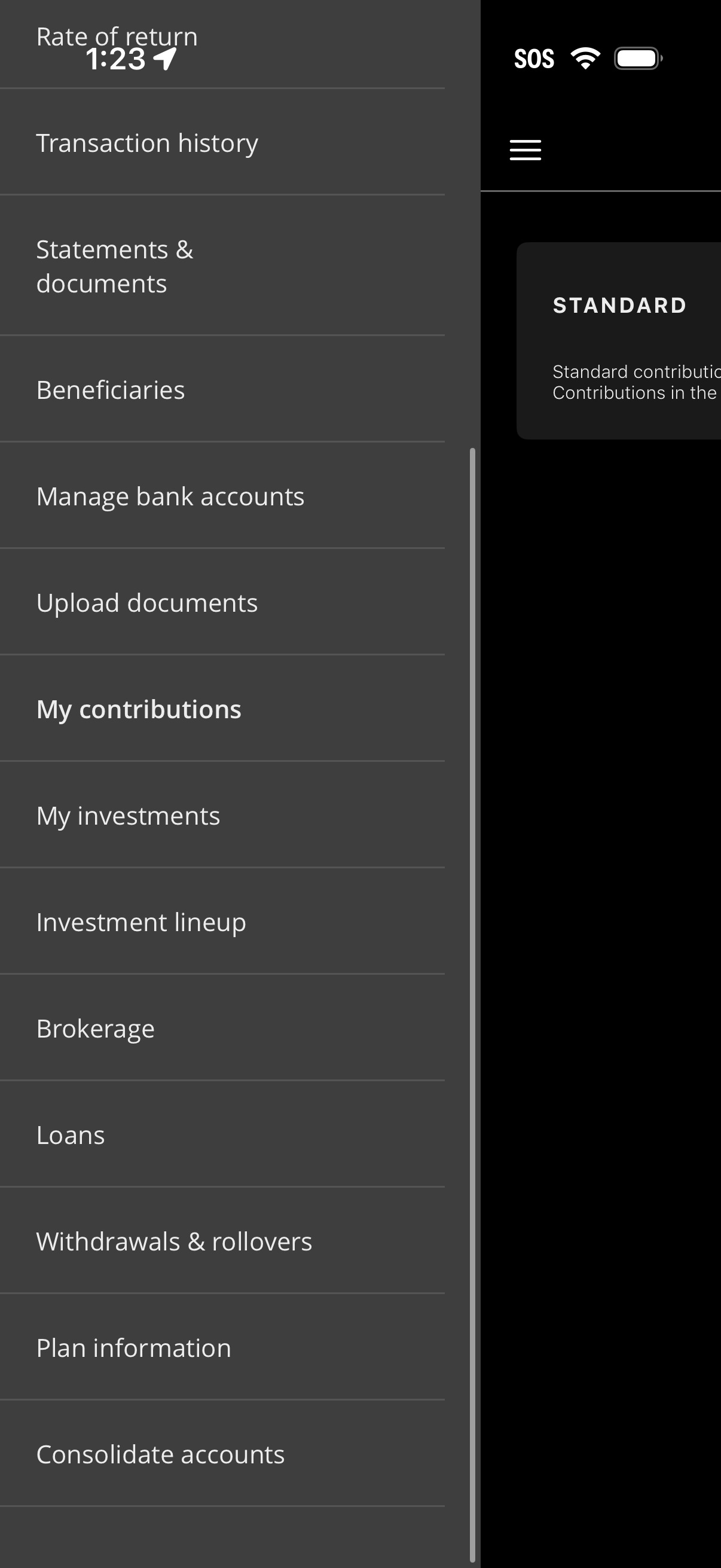
Slide-out navigation menu for a finance/investment app providing quick access to account and plan management features such as rate of return, transaction history, statements & documents, beneficiaries, managing linked bank accounts, uploading documents, contributions, investments, investment lineup, brokerage, loans, withdrawals/rollovers, plan information, and account consolidation. Users can tap a menu item to navigate to the corresponding section.
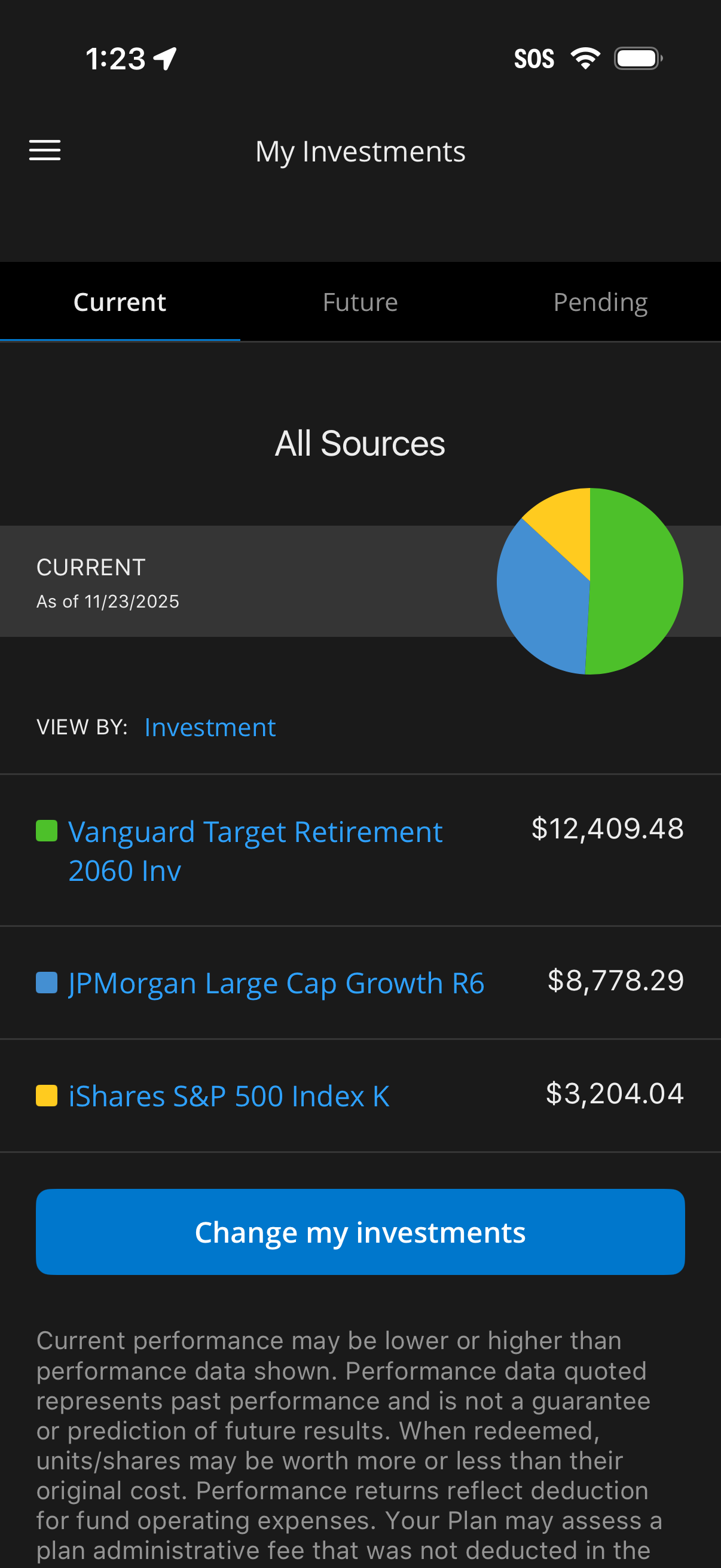
Investment portfolio overview screen showing “My Investments” with tabs for Current, Future, and Pending, a pie chart allocation for all sources, and a list of holdings with individual balances. Includes a “View by: Investment” filter and a primary action button to change or rebalance investments.
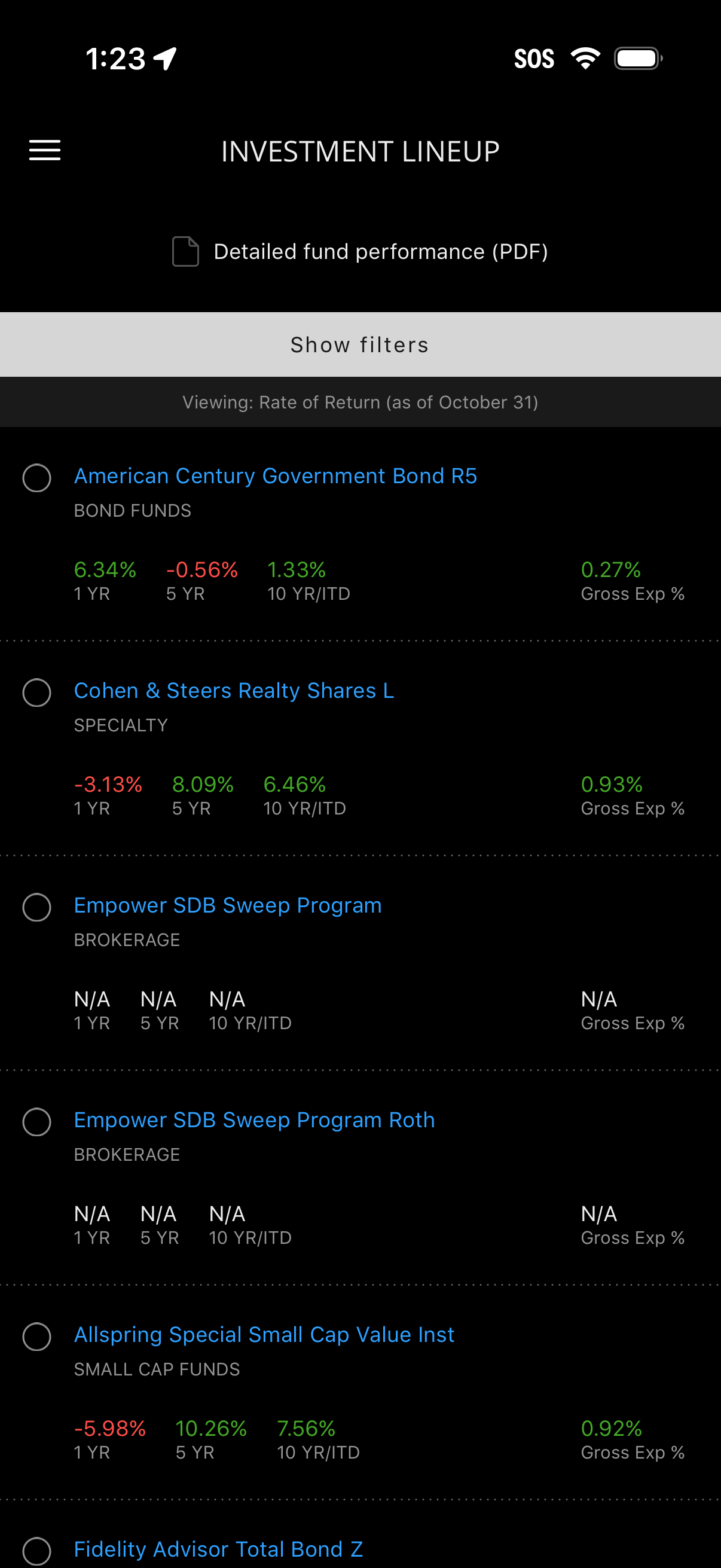
Investment lineup screen listing available mutual funds and brokerage sweep options with selectable radio buttons, showing each fund’s category plus 1-year, 5-year, and 10-year/ITD returns and gross expense percentage. Users can open a detailed fund performance PDF and use filters to refine the rate-of-return view by date.

Brokerage account screen showing an informational banner instructing users to log in on the website to enroll in a self-directed account or transfer cash to/from an existing account. The page indicates “Data unavailable” and offers a “Summary” section, with a hamburger menu for navigation.
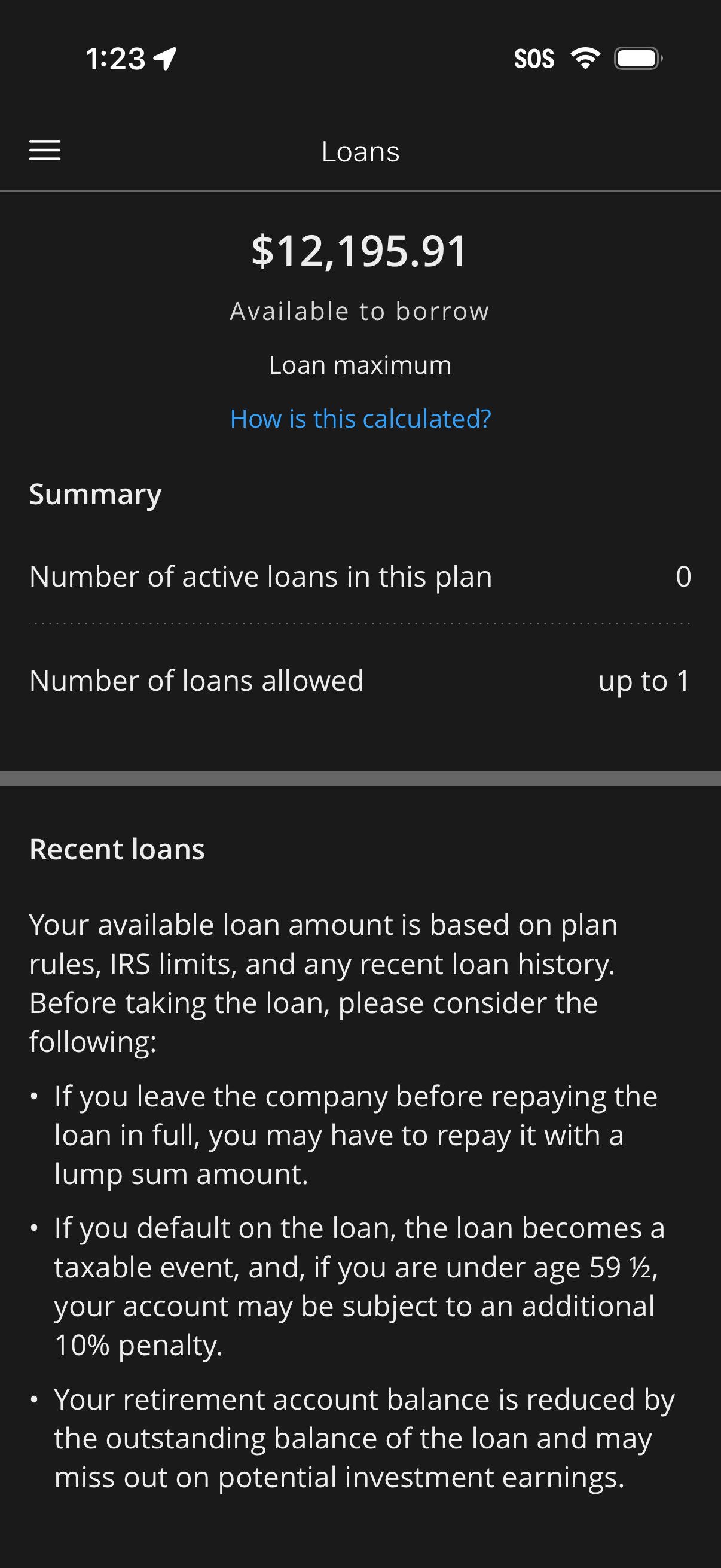
Loans overview screen showing the user’s available amount to borrow and loan maximum, with a link explaining how the amount is calculated. Includes a summary of active loans vs allowed loans and a “Recent loans” section with informational disclaimers and repayment/tax penalty warnings.
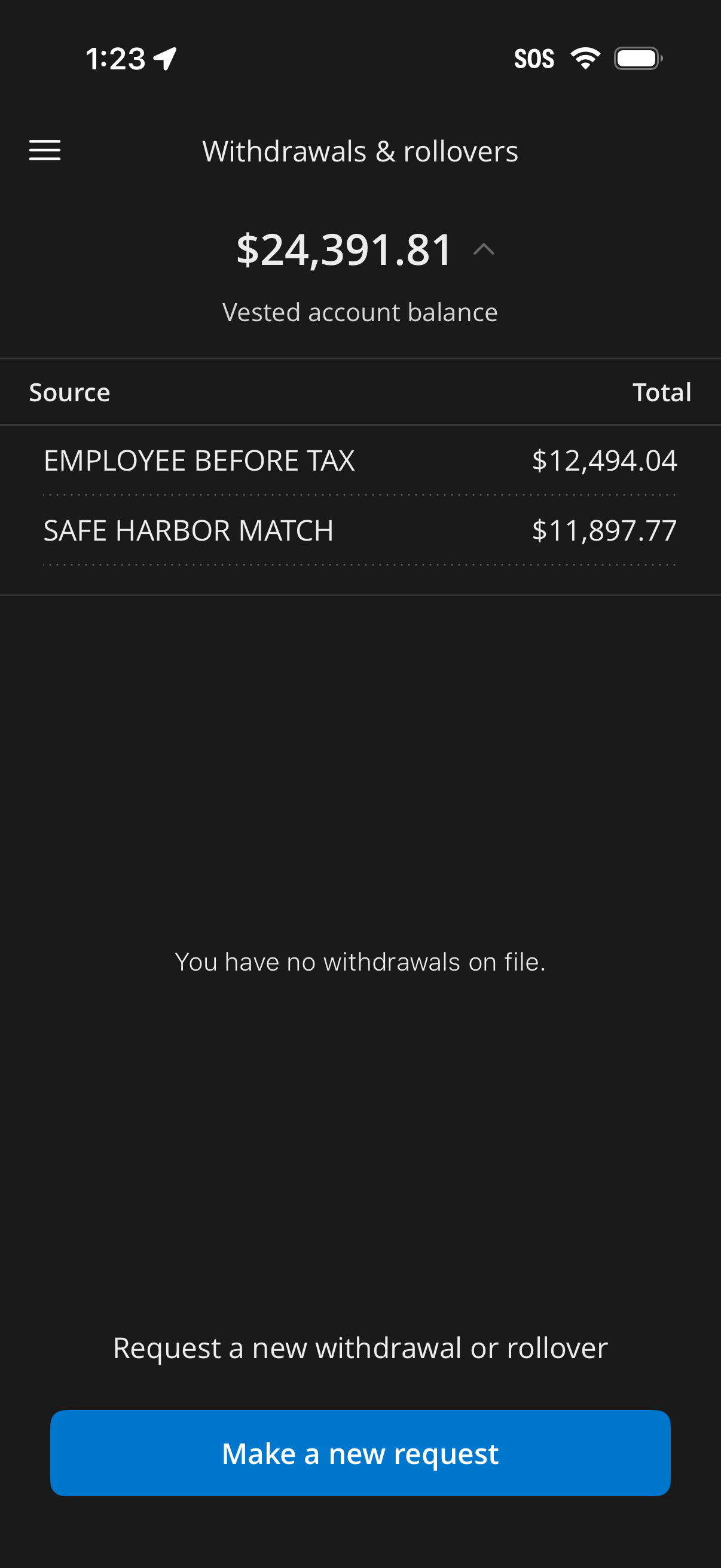
Retirement account withdrawals and rollovers screen showing vested account balance and a breakdown of funding sources with totals (e. g.
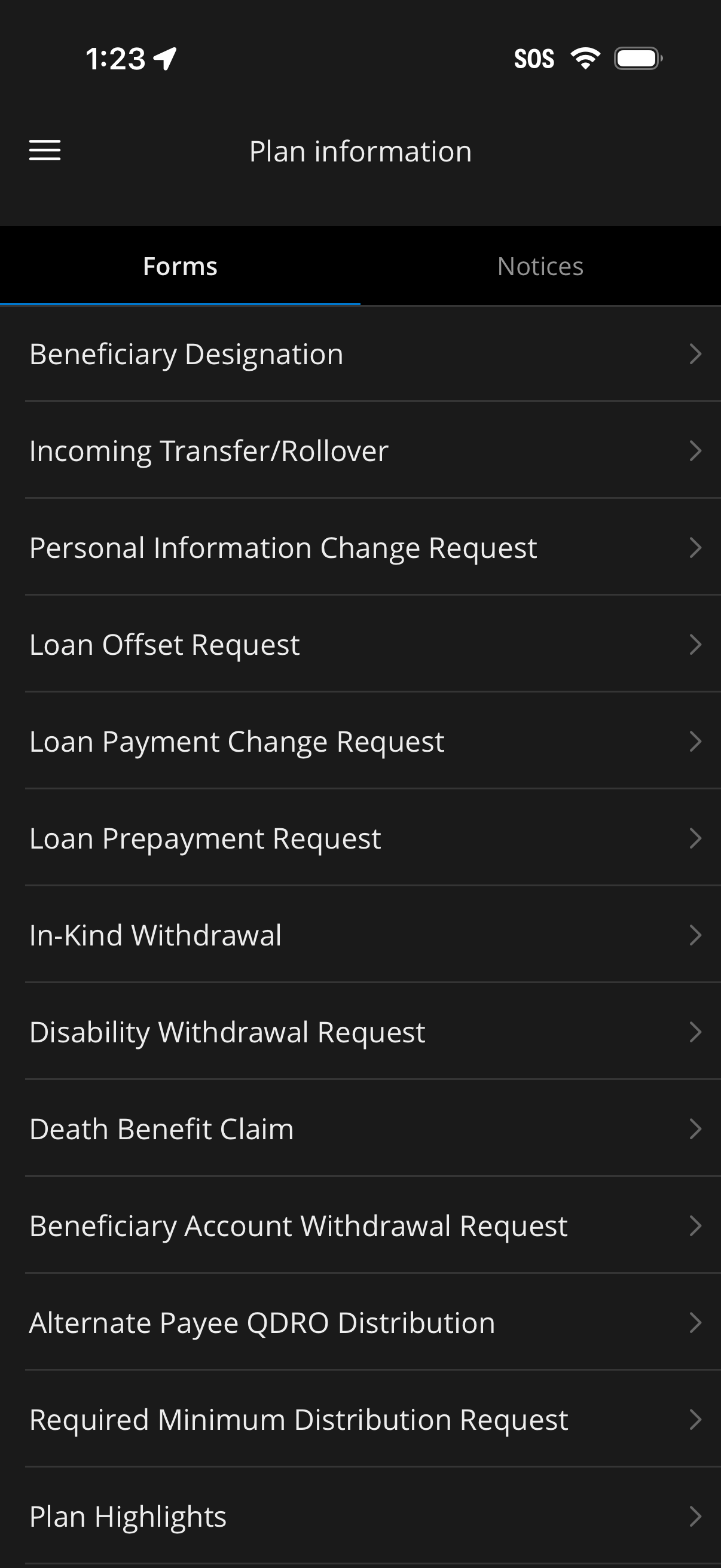
Plan information screen in a financial/retirement app showing a Forms tab with a scrollable list of plan-related request forms (beneficiary designation, transfers/rollovers, personal info change, loan offset/payment changes, withdrawals, disability/death benefit claims, QDRO distribution, required minimum distribution, plan highlights). Each list item is a tappable row with a chevron to open the selected form, with a sibling Notices tab and a hamburger menu for navigation.
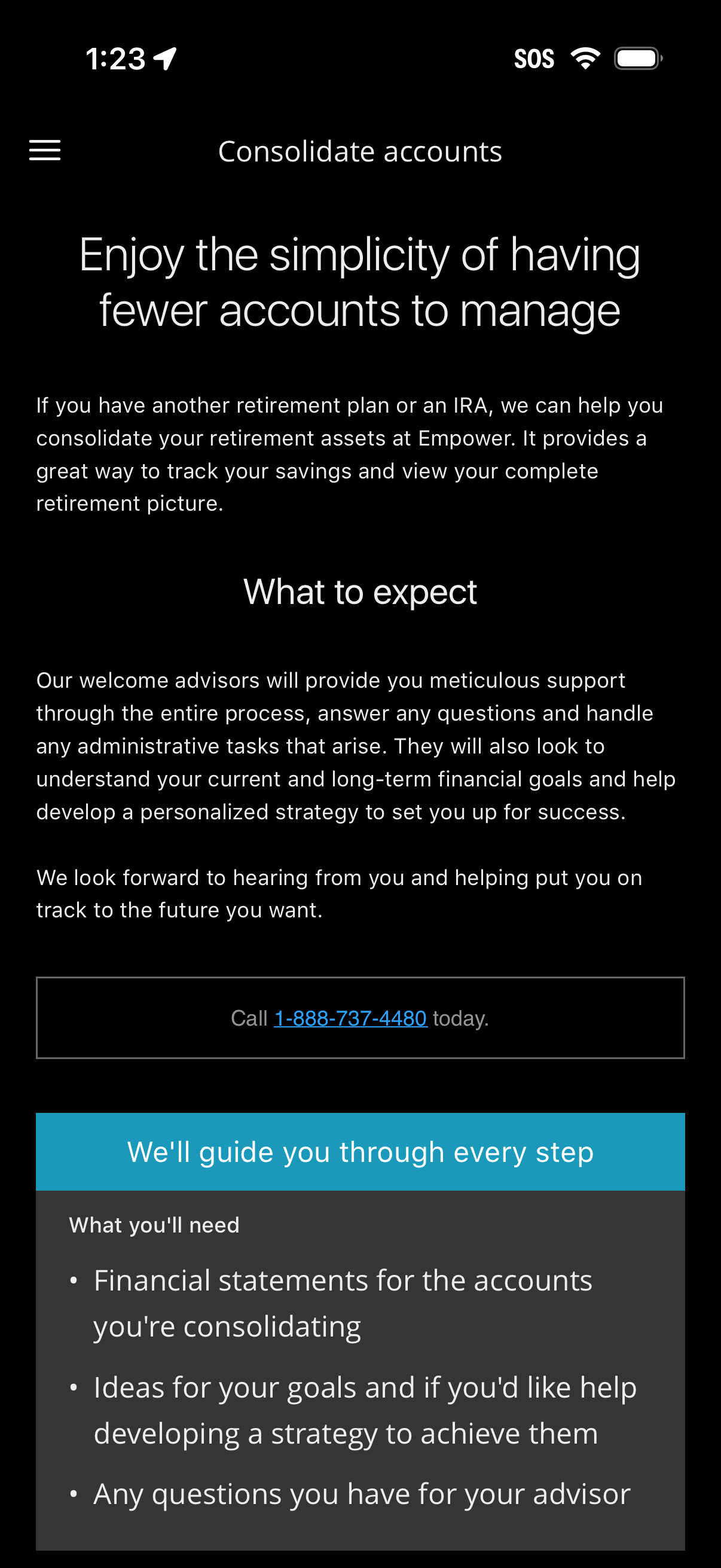
Educational onboarding screen for consolidating retirement accounts, explaining the benefits of managing fewer accounts and what to expect from advisor support during the rollover process. Includes a prominent call-to-action to contact support via phone and a checklist of required documents and information needed to get started.