enable suggestions
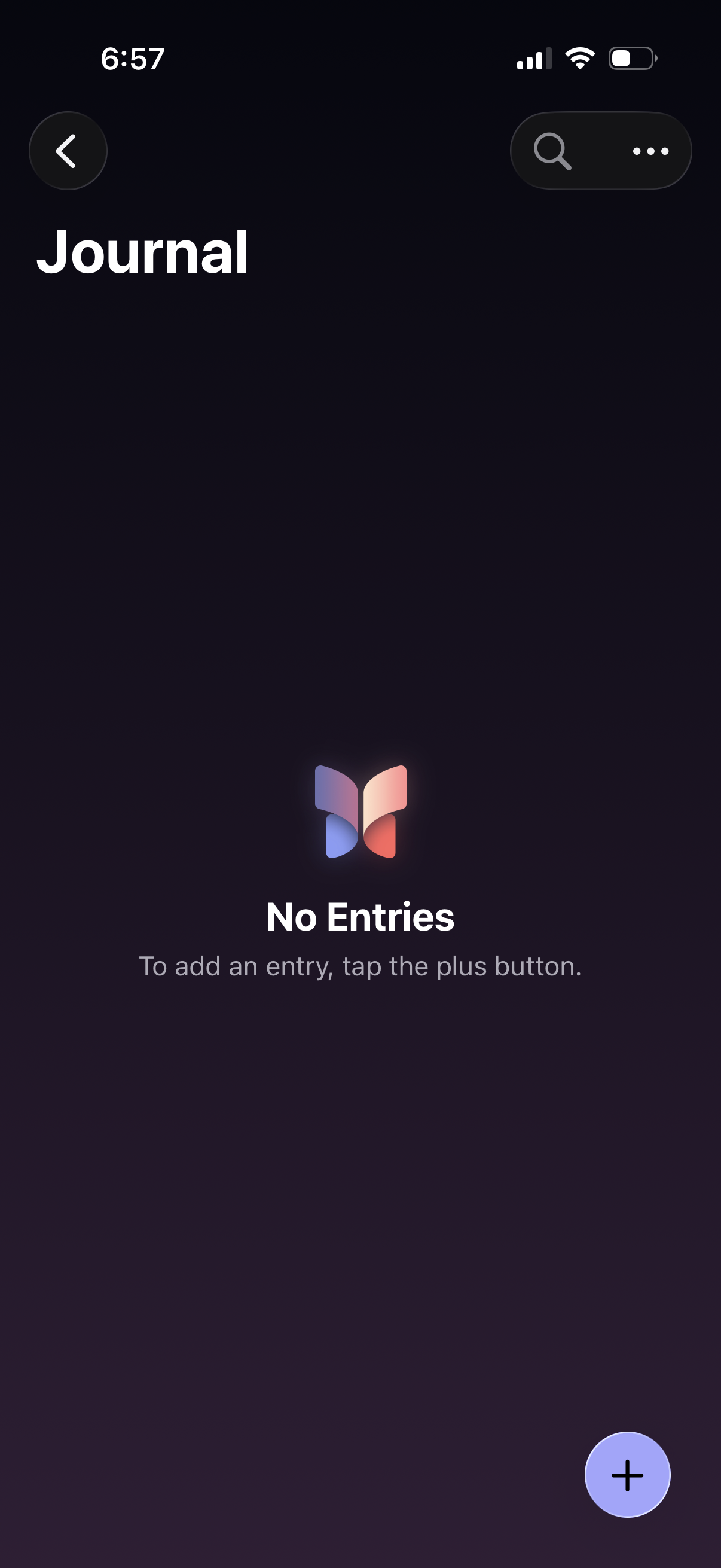
Empty state journal home screen showing “No Entries” with guidance to add an entry via a floating plus button. Top navigation includes a back button plus search and overflow menu for finding or managing journal entries.
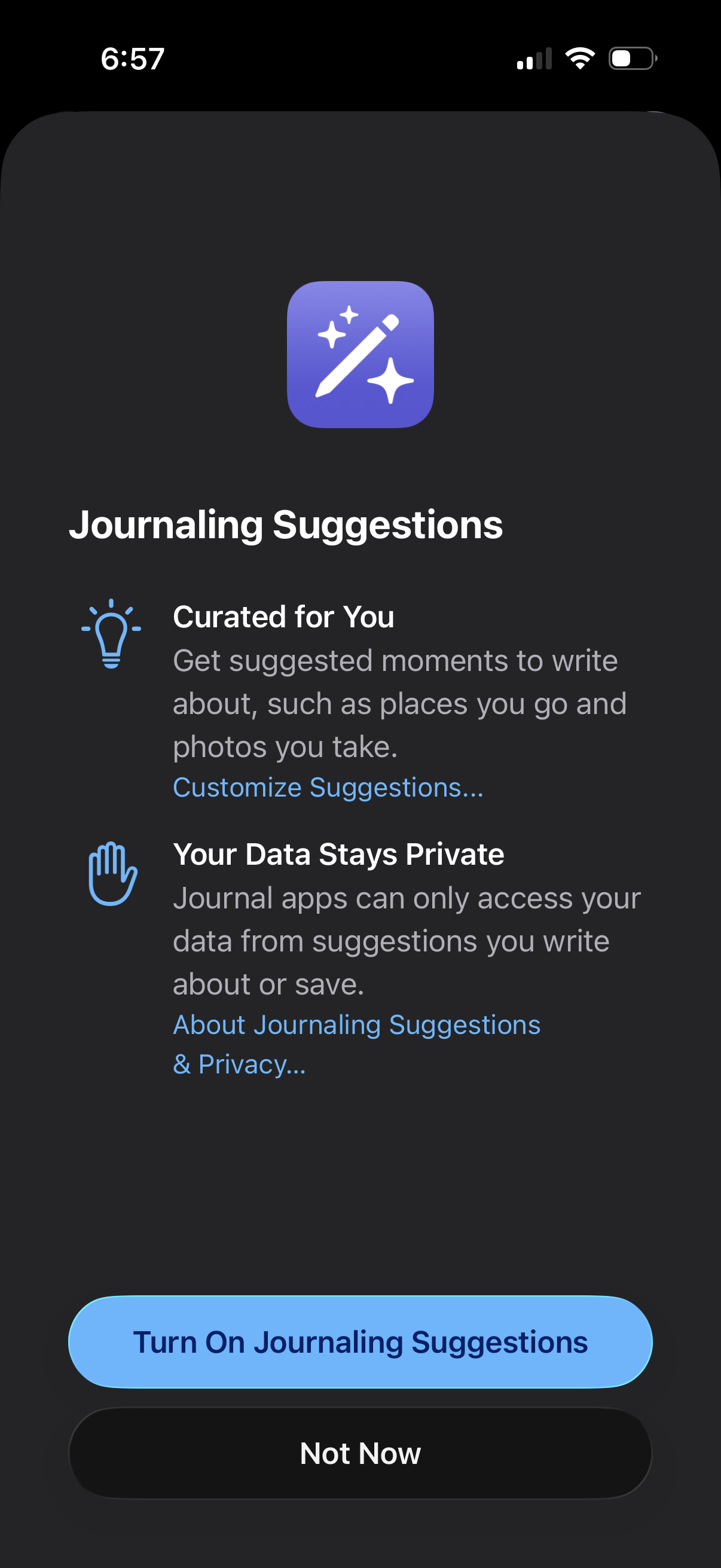
Onboarding permission screen prompting users to enable “Journaling Suggestions,” explaining curated writing prompts based on places visited and photos taken plus privacy assurances and customization links. Primary actions are “Turn On Journaling Suggestions” or “Not Now.
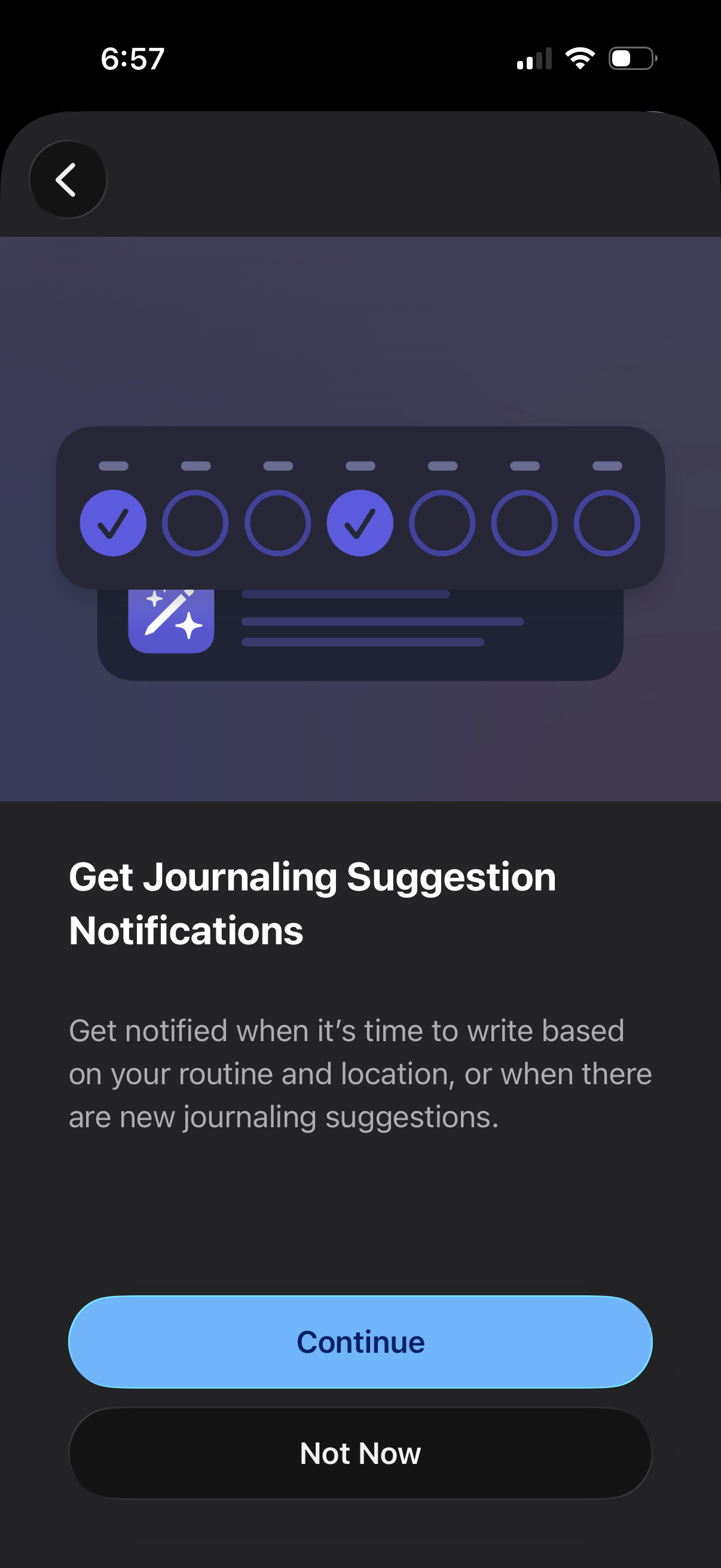
Onboarding permission prompt asking the user to enable journaling suggestion notifications, explaining they’ll be notified based on routine, location, or new suggestions. Primary actions are Continue to proceed with notifications or Not Now to skip, with a back button to return.
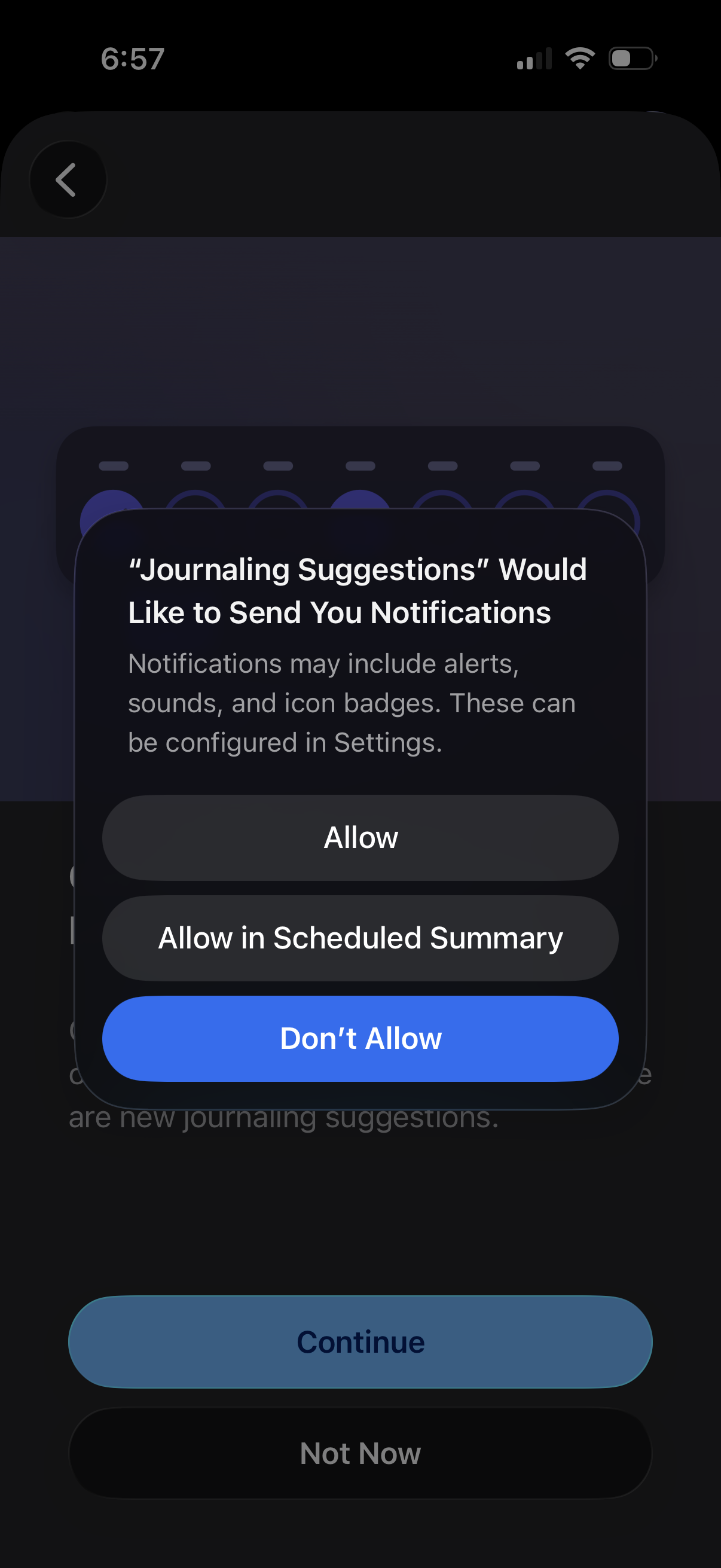
iOS system permission modal asking to enable push notifications for a journaling suggestions feature, with options to Allow, Allow in Scheduled Summary, or Don’t Allow. The underlying onboarding screen includes primary actions to Continue or choose Not Now.
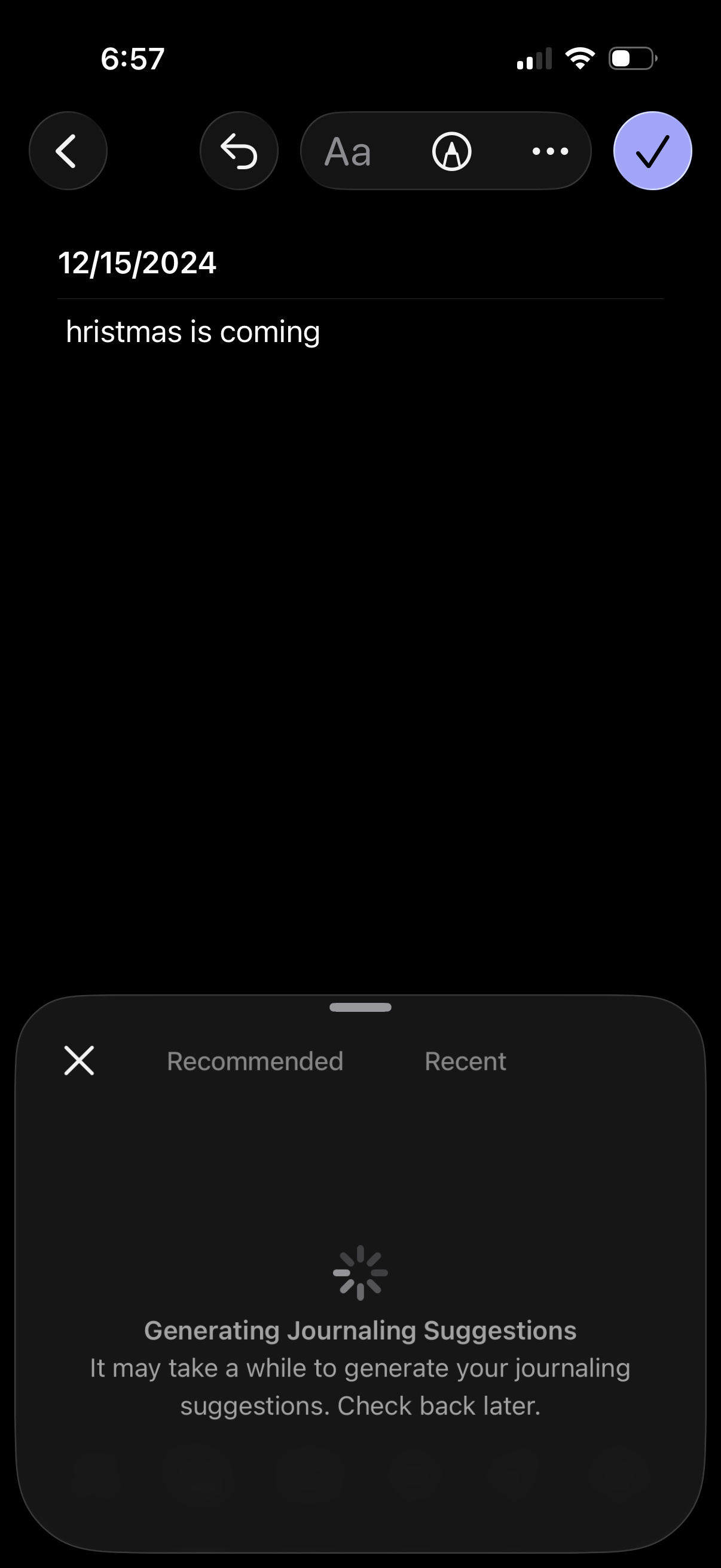
Mobile notes/journaling editor in dark mode showing a dated entry being typed, with top controls for undo/redo, text formatting and drawing tools, and a save/confirm button. A bottom sheet is open on the “Recommended” tab indicating it’s generating AI journaling suggestions, with a switch to “Recent” and an option to close the panel.
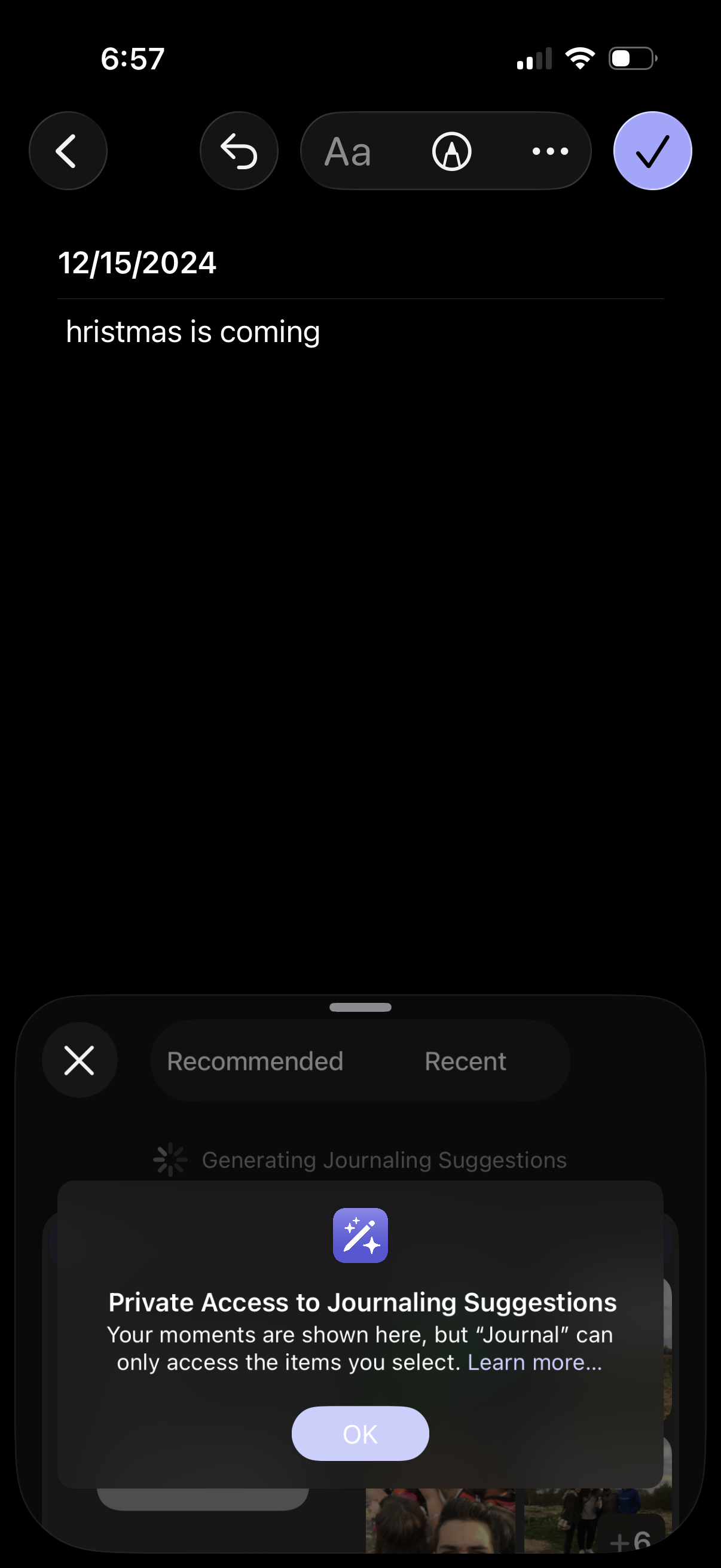
A journaling app entry editor in dark mode showing the date header and a text note, with top actions for back, undo, text formatting/tools, more options, and a checkmark to save. A bottom sheet is open for journaling suggestions with Recommended/Recent tabs and a privacy permission dialog explaining private access with an OK confirmation.
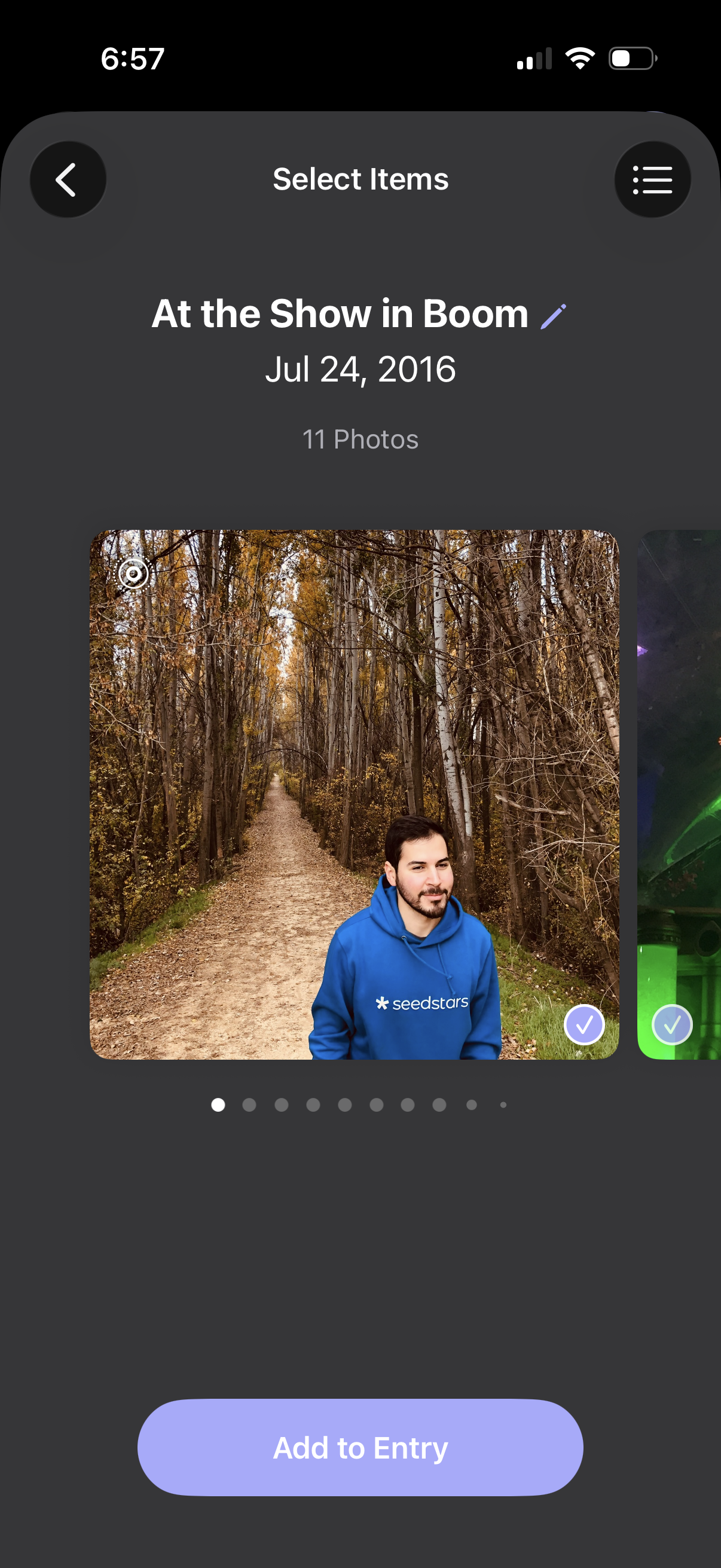
Photo picker screen for selecting multiple images from an album/event, showing the album title, date, and photo count with a horizontal carousel and checkmark selection indicators. Primary action is a large “Add to Entry” button to attach the selected photos, with back navigation and a menu/options icon.