Welcome/onboarding screen for a productivity tools app with branding, a brief value proposition, and primary authentication actions. Provides two CTA buttons to log in or create an account.
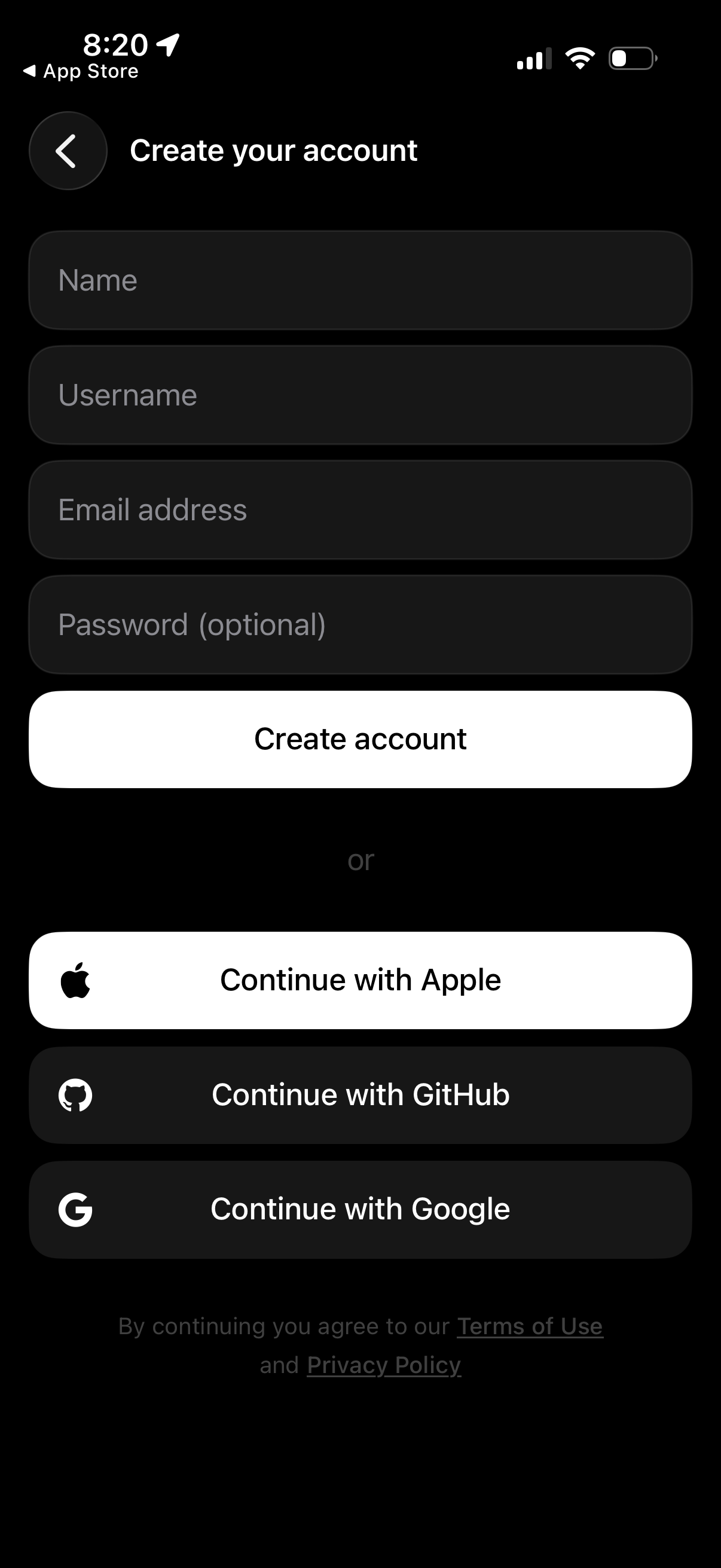
Account sign-up screen with a “Create your account” form to enter name, username, email address, and optional password, plus a primary Create account button. Offers alternative social login options to continue with Apple, GitHub, or Google and includes links to terms of use and privacy policy.
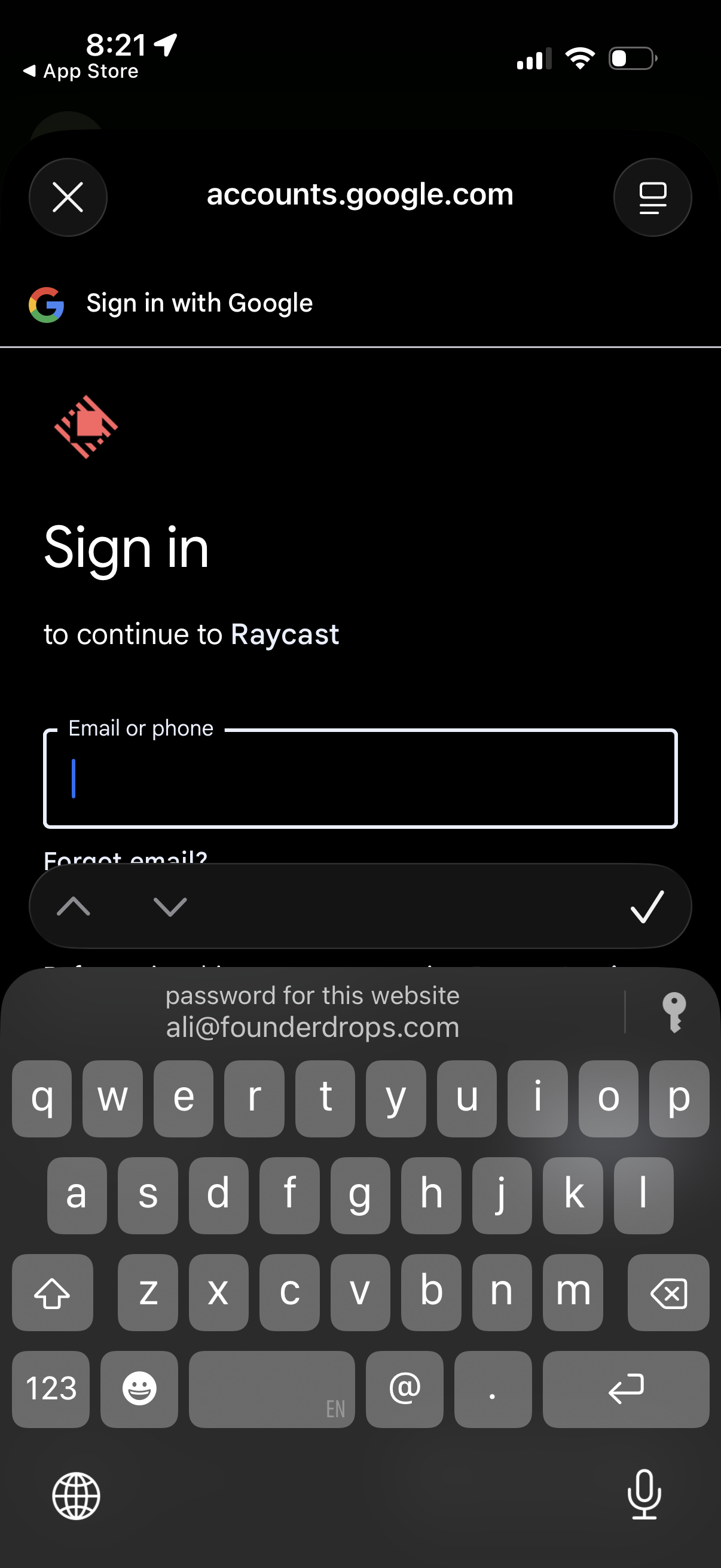
Google OAuth sign-in screen in an in-app browser prompting the user to sign in to continue to a third-party app, with an input field for email or phone and a “Forgot email? ” recovery link.
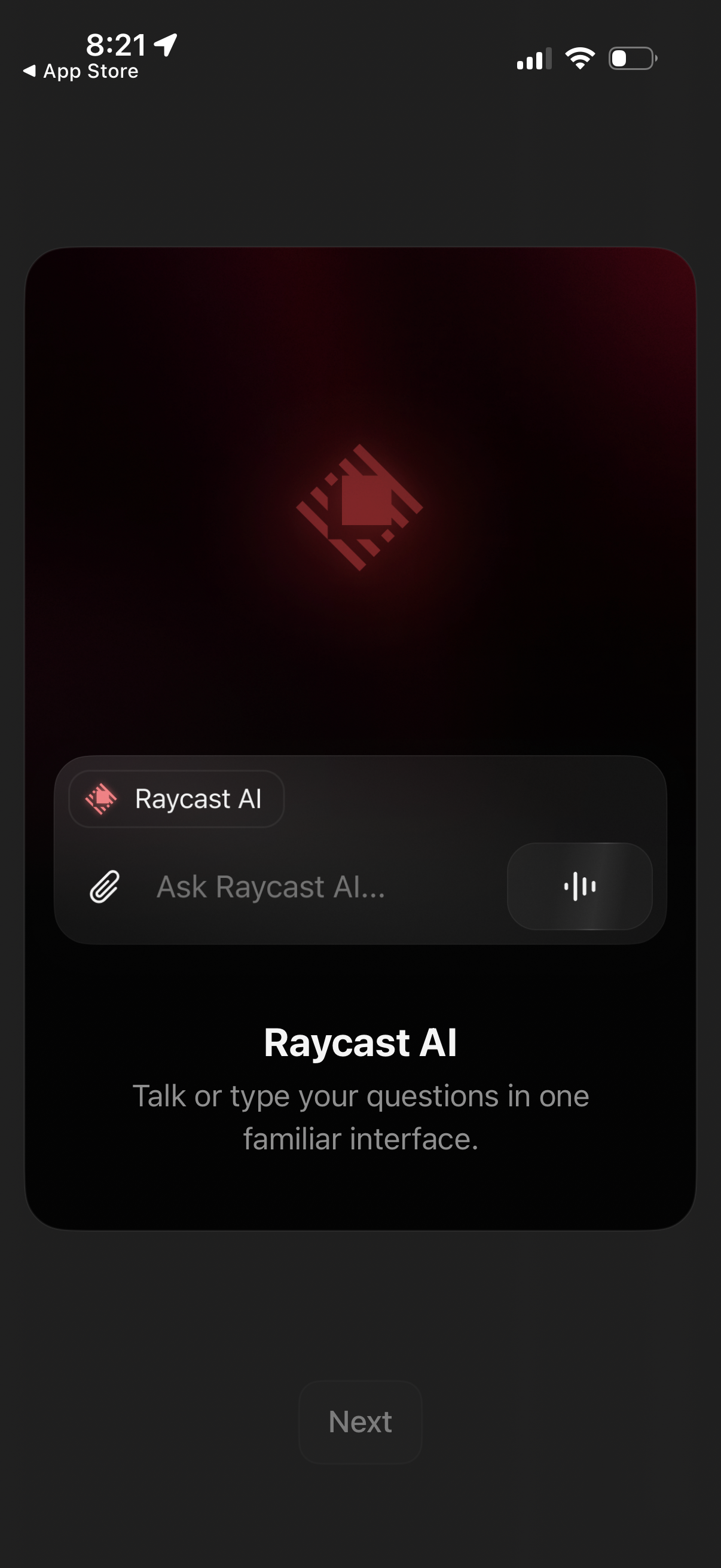
Onboarding screen introducing an AI assistant with a chat input that supports typing or voice questions, including attachment and microphone controls. A “Next” button continues the setup to the next step.
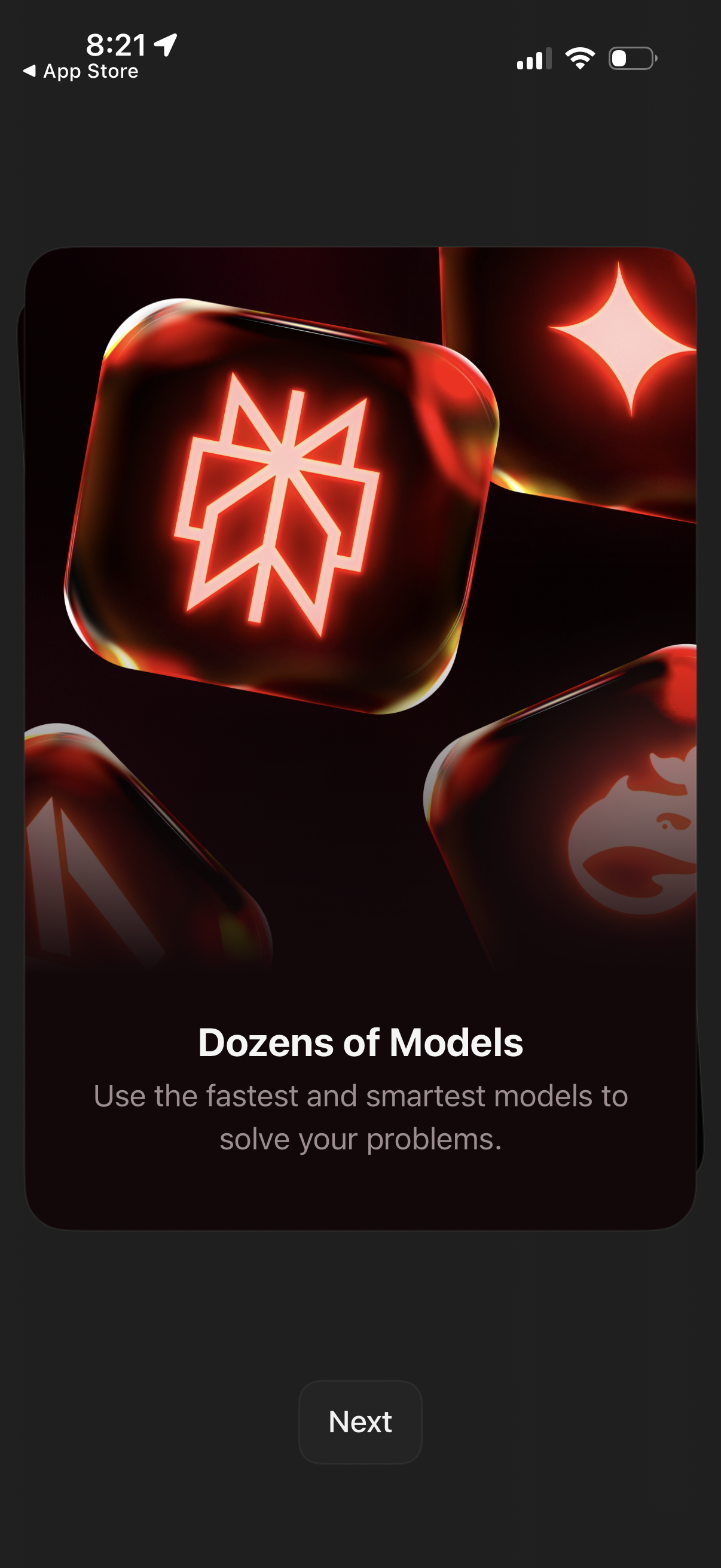
Onboarding/feature highlight screen promoting access to dozens of AI models, with a large illustrative graphic, headline and supporting description. Includes a primary “Next” button to continue through the onboarding carousel.
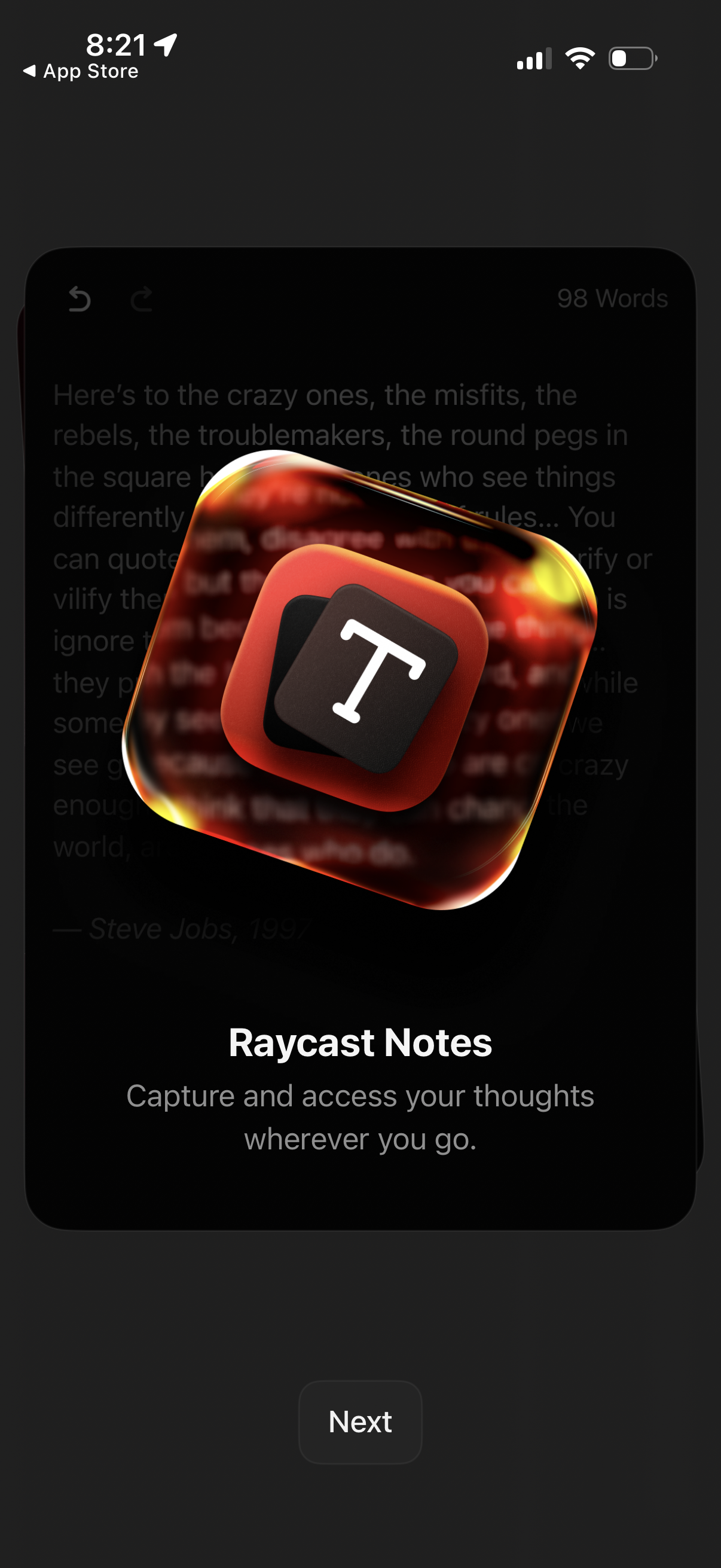
Intro/onboarding welcome screen for a notes app (Raycast Notes) highlighting the ability to capture and access thoughts anywhere, with a prominent “Next” button to continue setup or onboarding. The screen uses a branded app icon and brief value proposition text over a dark background.
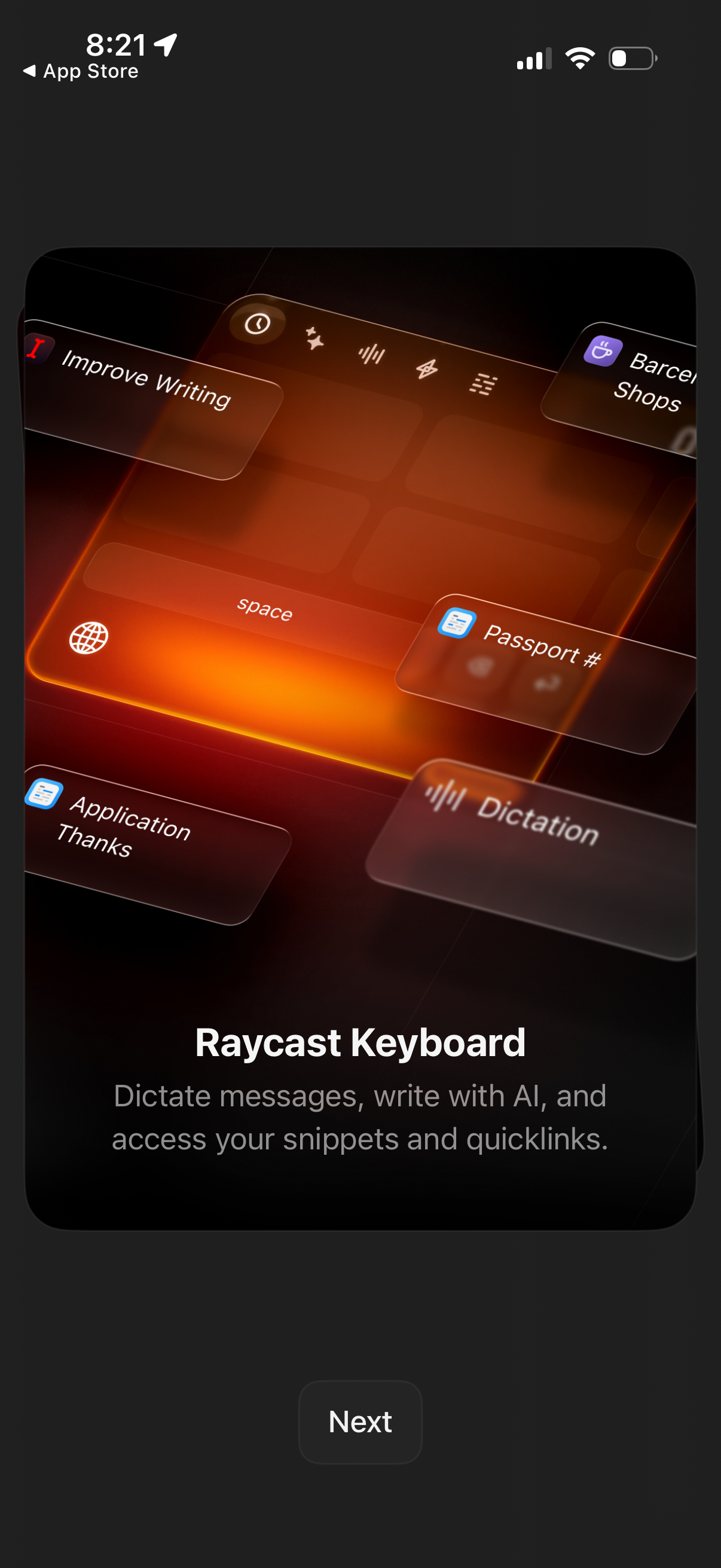
Onboarding feature introduction screen for an AI keyboard called “Raycast Keyboard,” highlighting dictation, AI writing assistance, and quick access to saved snippets and quick links. A large preview image of the keyboard is shown with a primary “Next” button to continue setup.
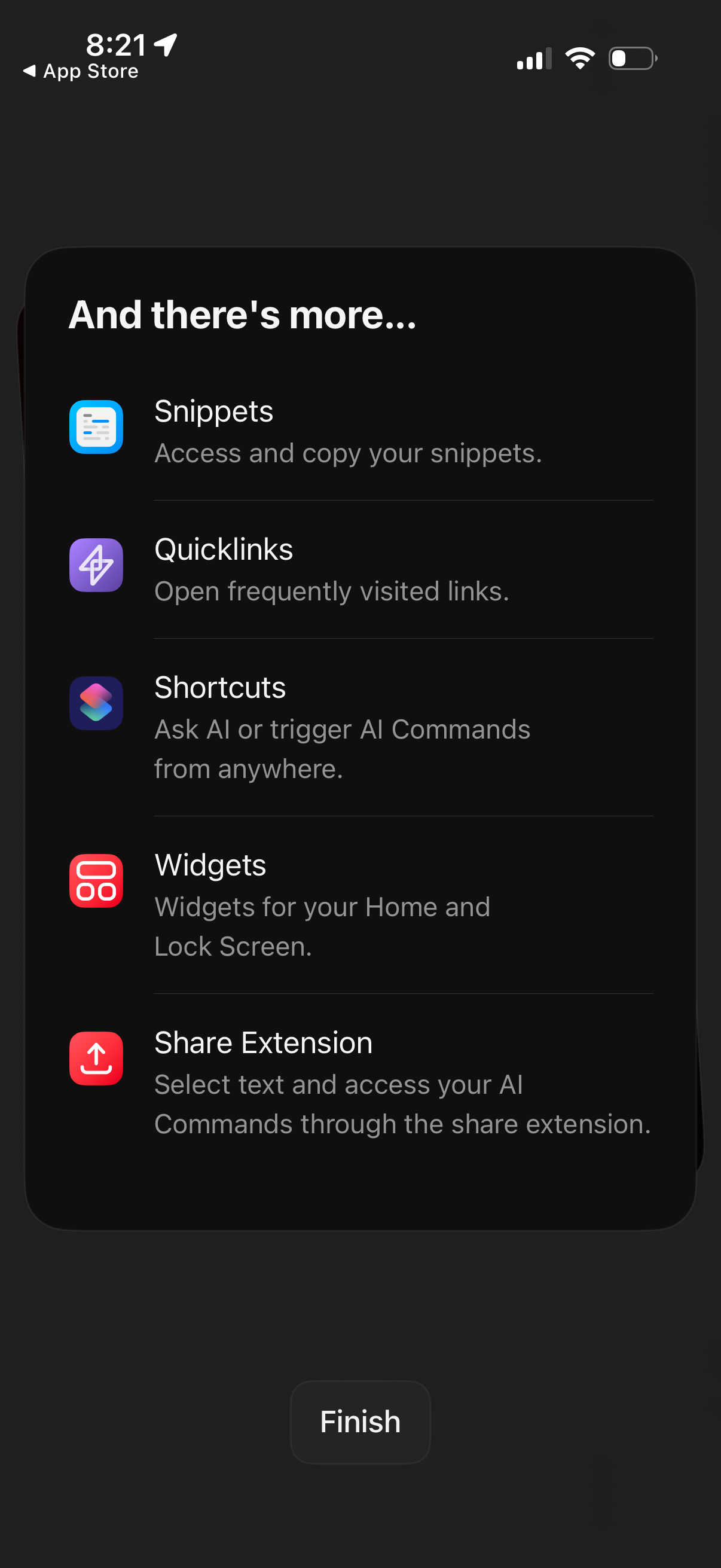
An onboarding/feature discovery screen listing additional app capabilities: Snippets (access/copy saved snippets), Quicklinks (open frequently visited links), Shortcuts (trigger AI commands), Widgets (Home/Lock Screen widgets), and a Share Extension (use AI commands from the share sheet). Includes a primary “Finish” button to complete setup.
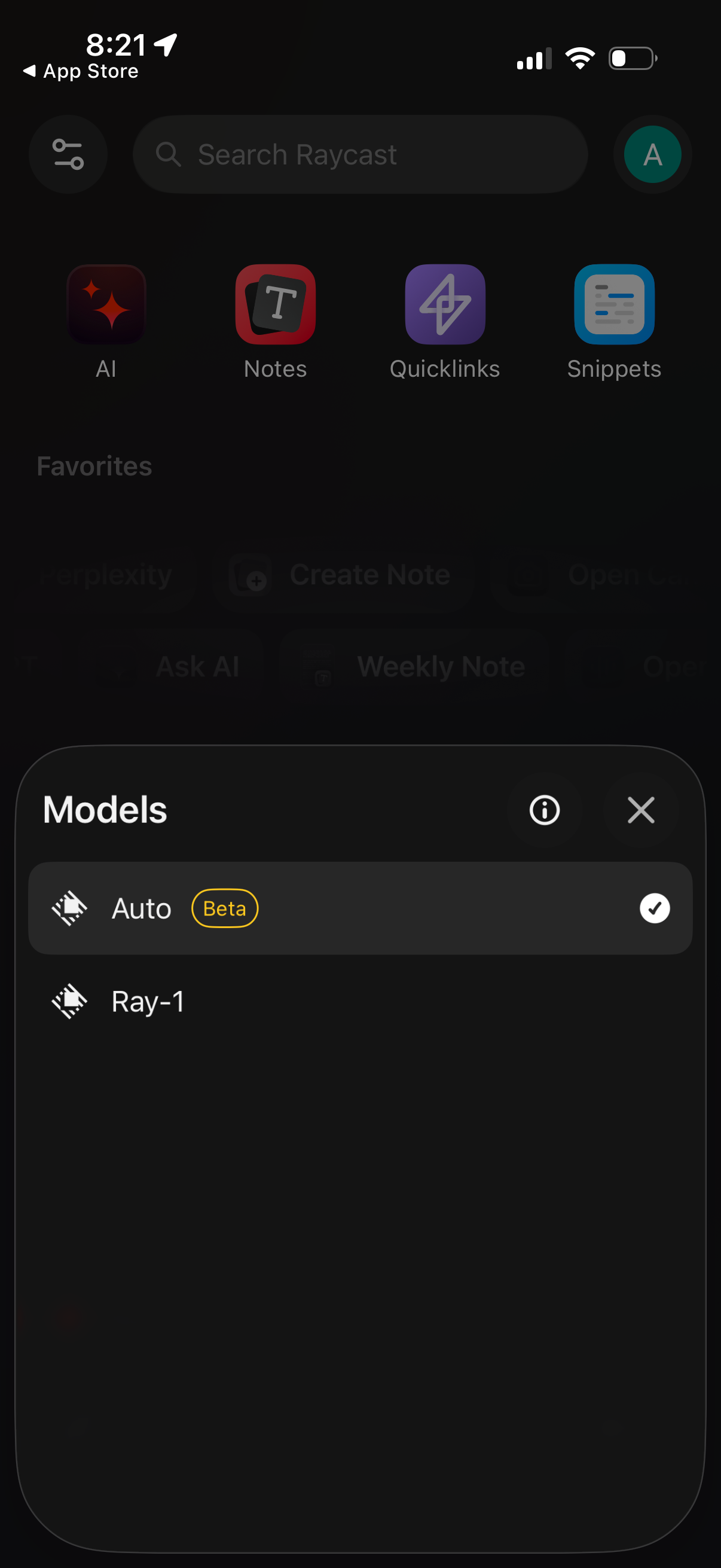
A bottom-sheet modal titled “Models” lets users choose an AI model for the app, showing selectable options like Auto (Beta) and Ray-1 with a checkmark for the current selection. The sheet includes info and close icons while the main app home with search and feature shortcuts is dimmed in the background.
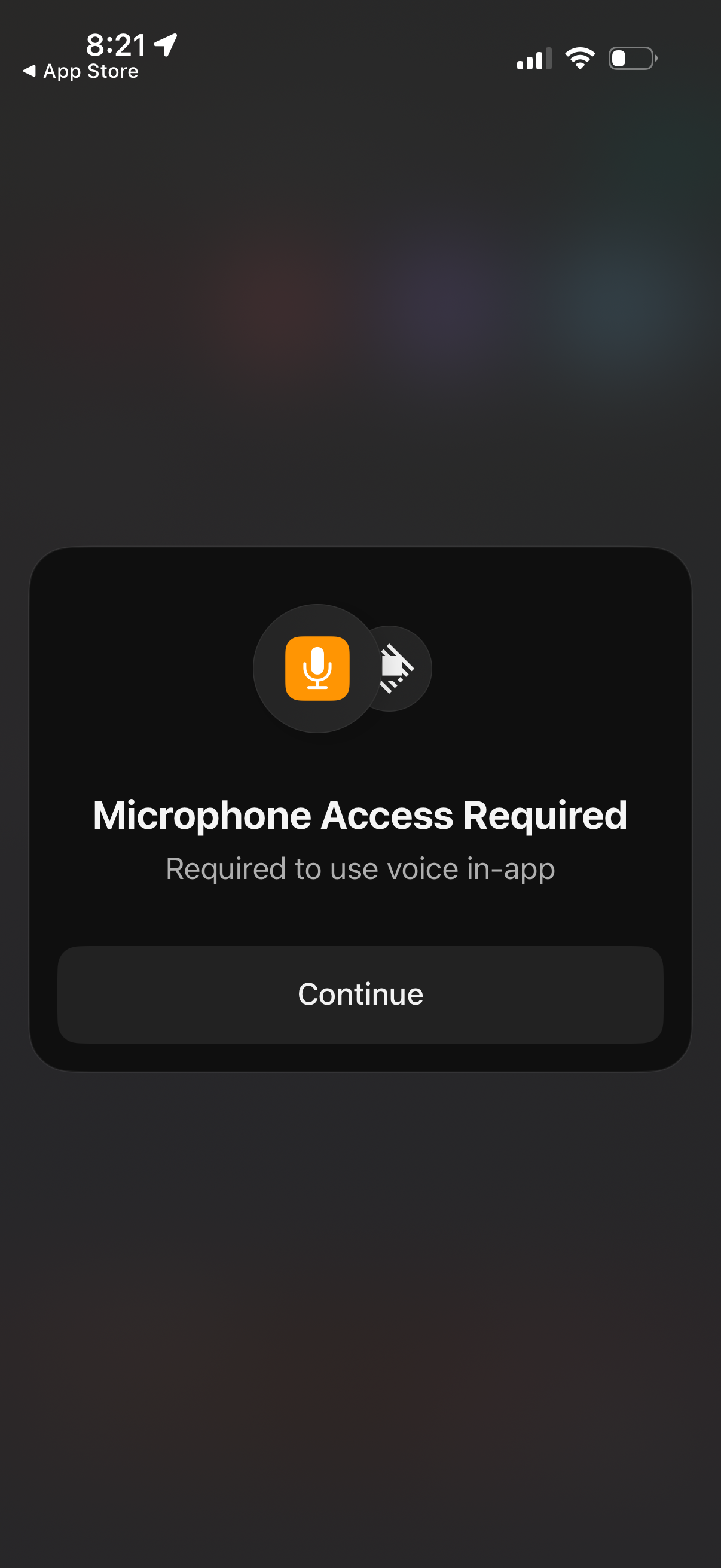
A modal permission prompt informs the user that microphone access is required to use in-app voice features, with a single primary action button to continue and grant access. The screen focuses on enabling microphone permissions for voice input during onboarding or feature access.
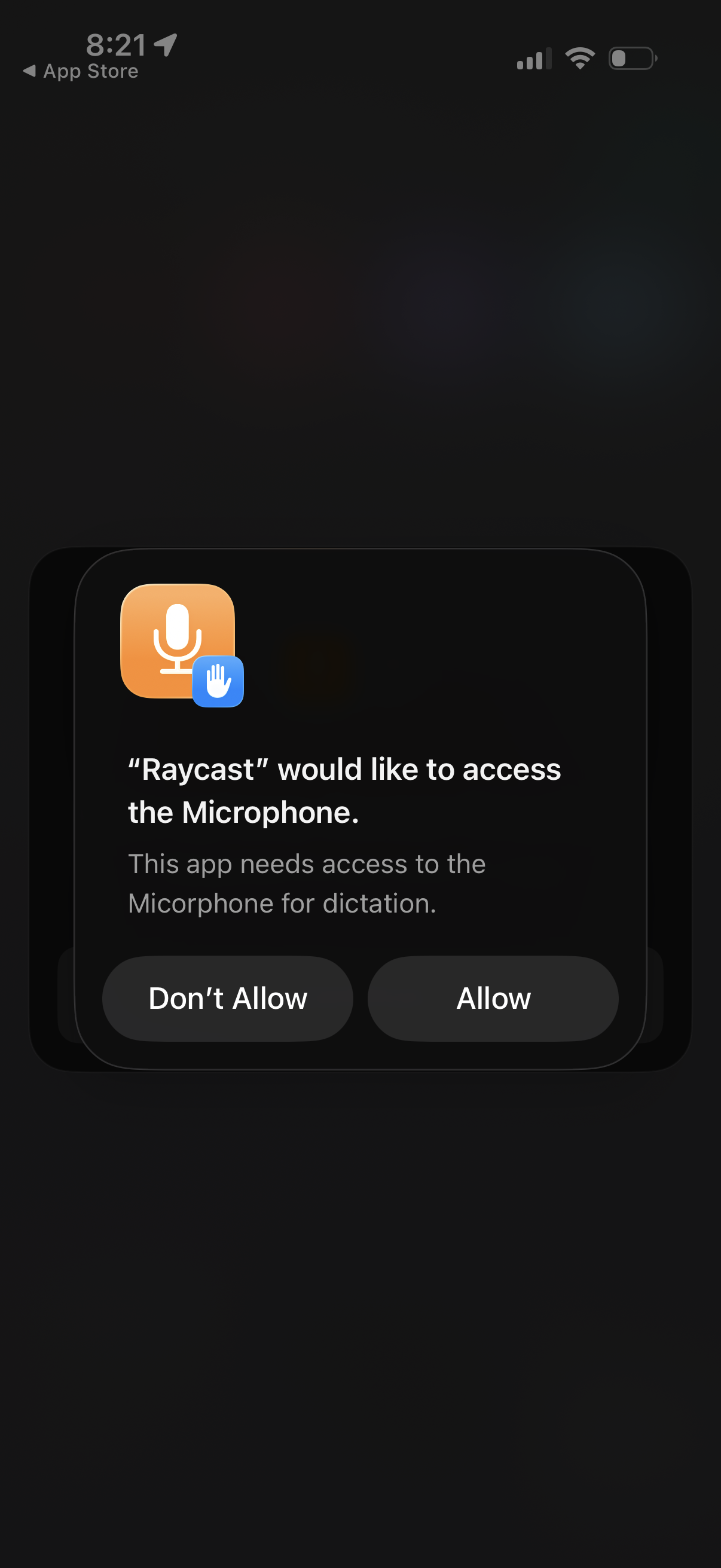
iOS system permission dialog requesting microphone access for an app to enable dictation/voice input. Provides two actions: Allow or Don’t Allow.
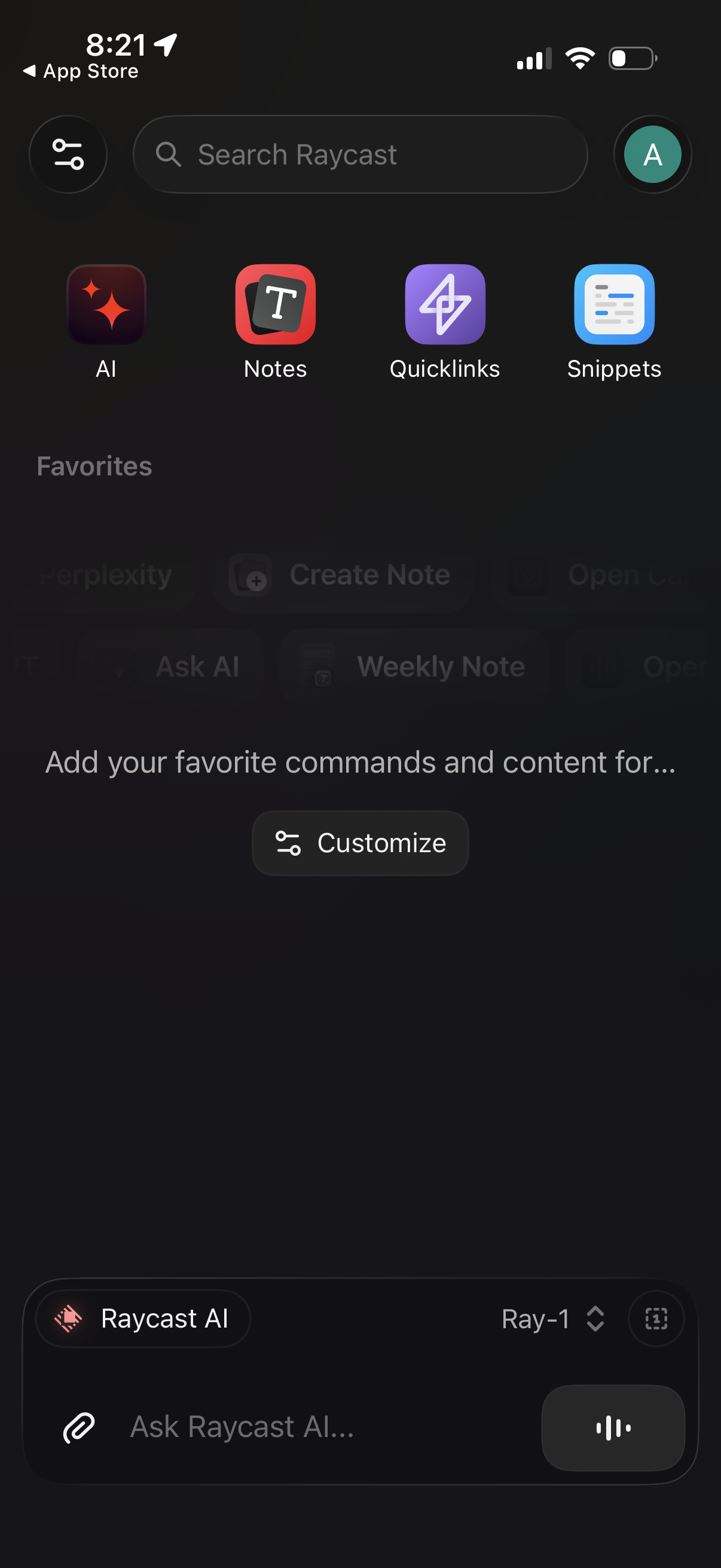
Home dashboard for a productivity/command launcher app with a global search bar and quick-access tiles to AI, Notes, Quicklinks, and Snippets. Includes a Favorites section with a Customize button and a persistent bottom chat input to ask the app’s AI assistant (with attachment and voice controls).