use writing tools to
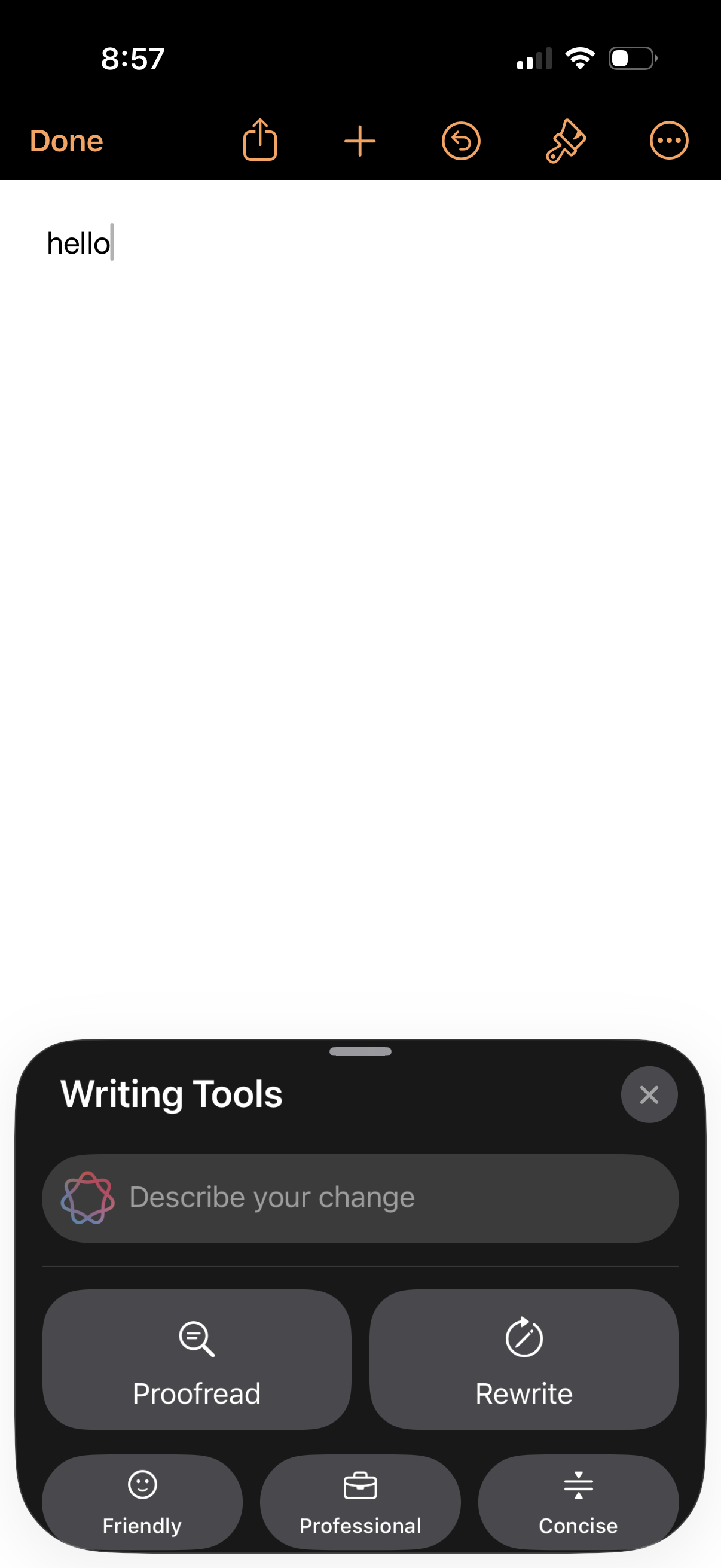
A note editor screen with a text cursor and a bottom-sheet “Writing Tools” panel for AI-assisted editing, including a prompt field to describe the desired change. The panel offers actions like Proofread and Rewrite plus tone/style options such as Friendly, Professional, and Concise, with close and done controls.
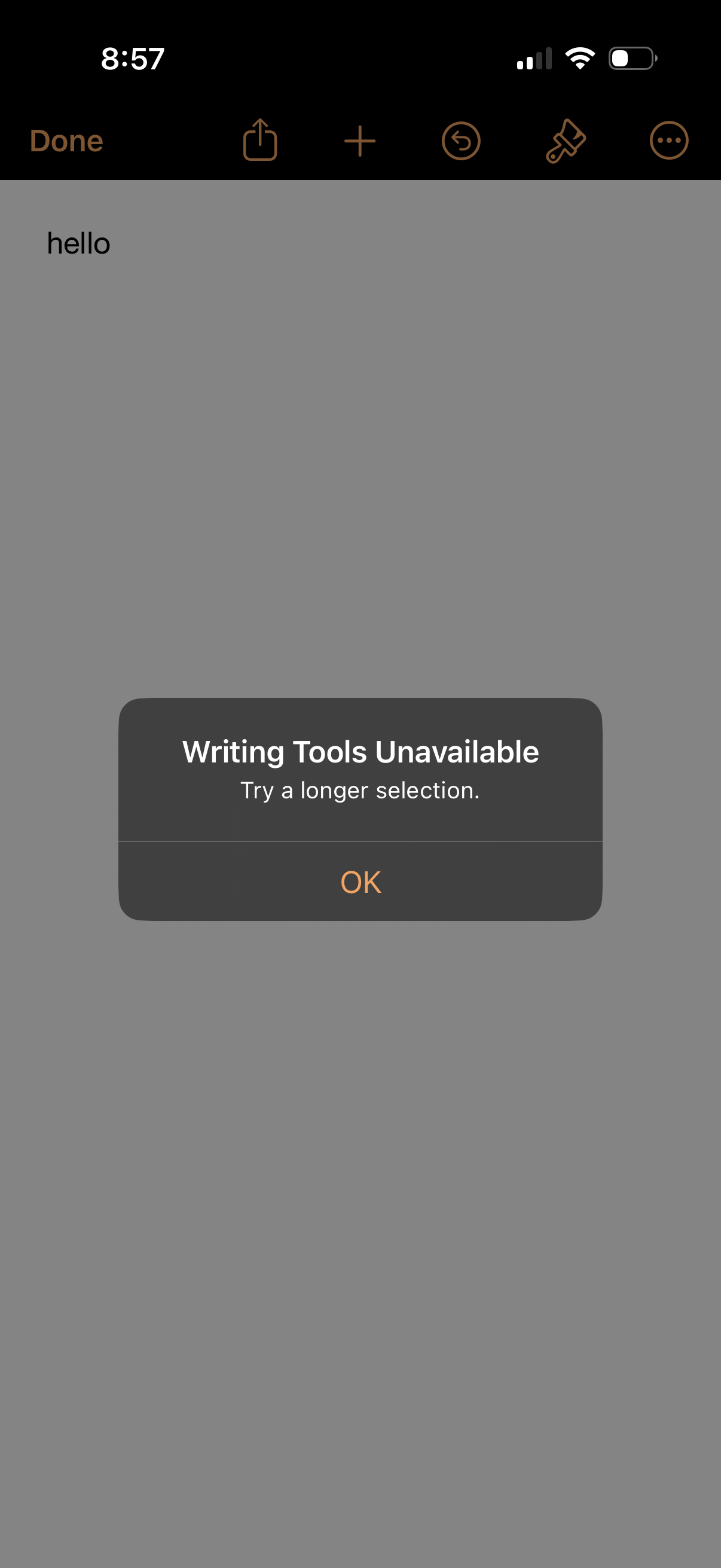
A note-editing screen with a text entry area and top toolbar actions (done, share, add, undo, formatting/markup, more) shows an error modal stating “Writing Tools Unavailable” and prompting the user to try a longer text selection, with an OK button to dismiss.
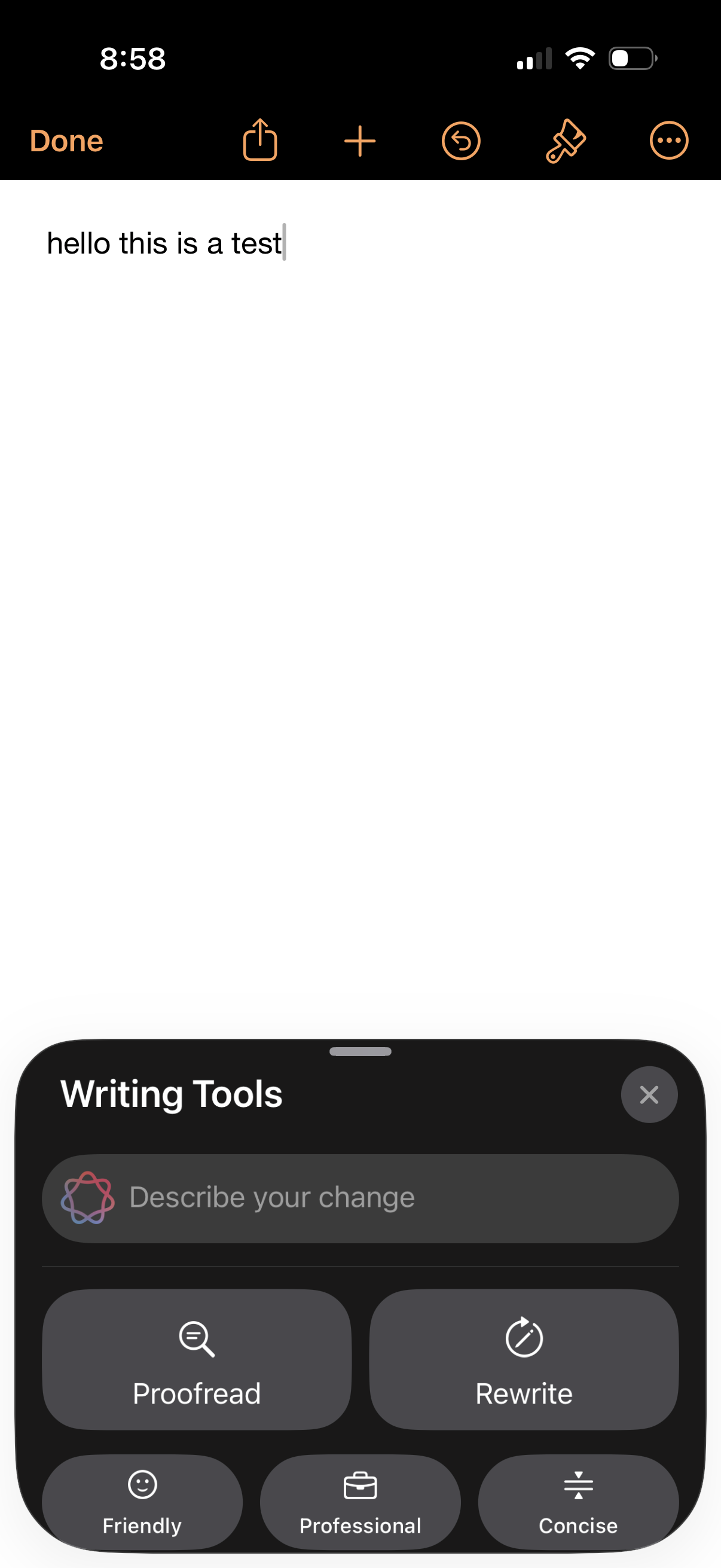
A mobile notes text editor screen with a simple note in progress and a bottom sheet for AI Writing Tools that lets users describe an edit and choose actions like Proofread or Rewrite, plus tone and style options such as Friendly, Professional, and Concise. The top bar includes common note actions like done, share, add, undo, and formatting.
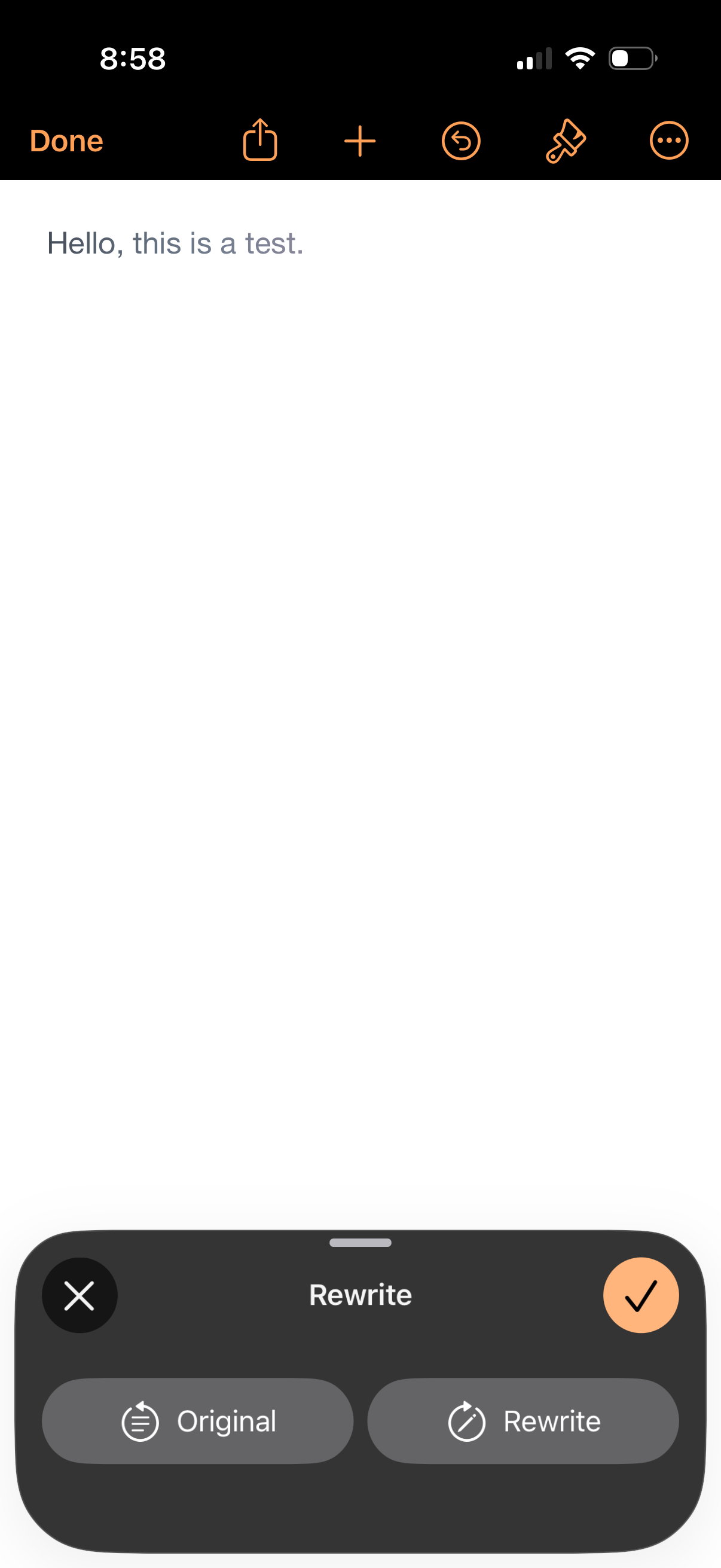
Mobile note editor with a text field and a toolbar for done, share, add, undo, formatting, and more options. A bottom “Rewrite” sheet lets users toggle between Original and Rewrite versions and confirm or cancel the AI rewriting action.
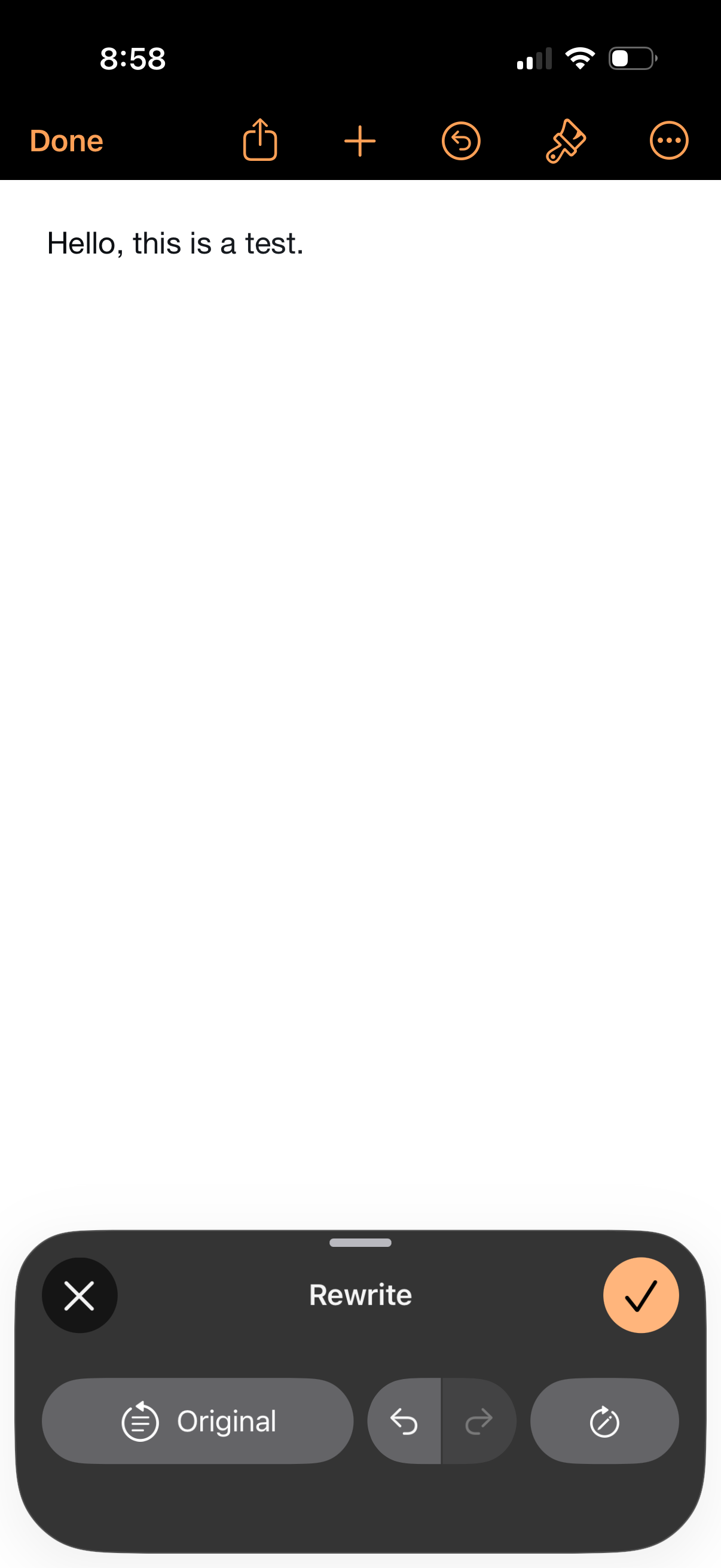
Text note editor screen showing a simple note with a top toolbar for done, share, add, undo, drawing/markup, and more options. A bottom “Rewrite” panel is open to rewrite the text, offering an “Original” view and controls like undo/redo and variation settings, with cancel and confirm actions.
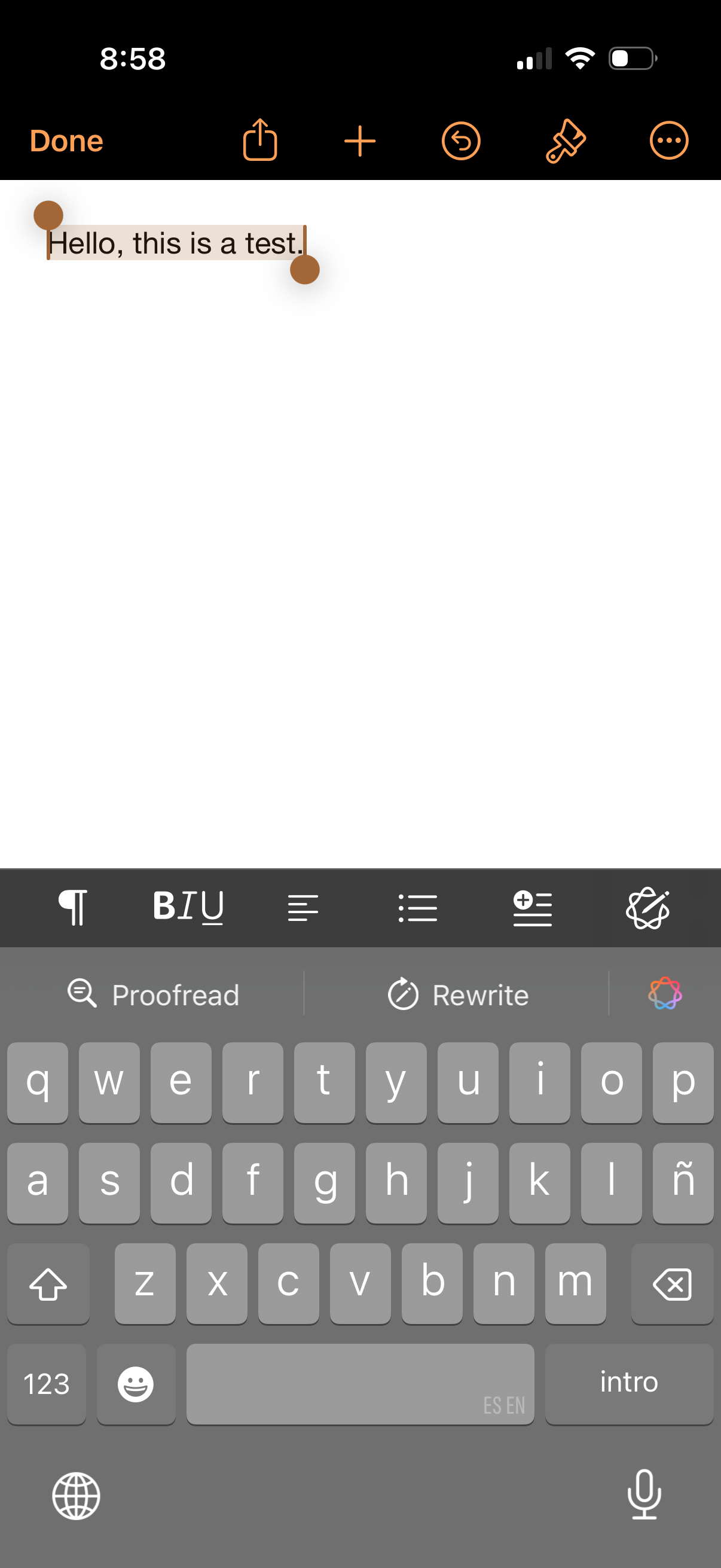
Mobile document editor screen with a text selection handle on a blank page, offering top actions like done, share, add, undo, and drawing/markup. A formatting toolbar above the keyboard provides paragraph styles, bold/italic/underline, alignment and list controls, plus proofreading and rewrite suggestions.
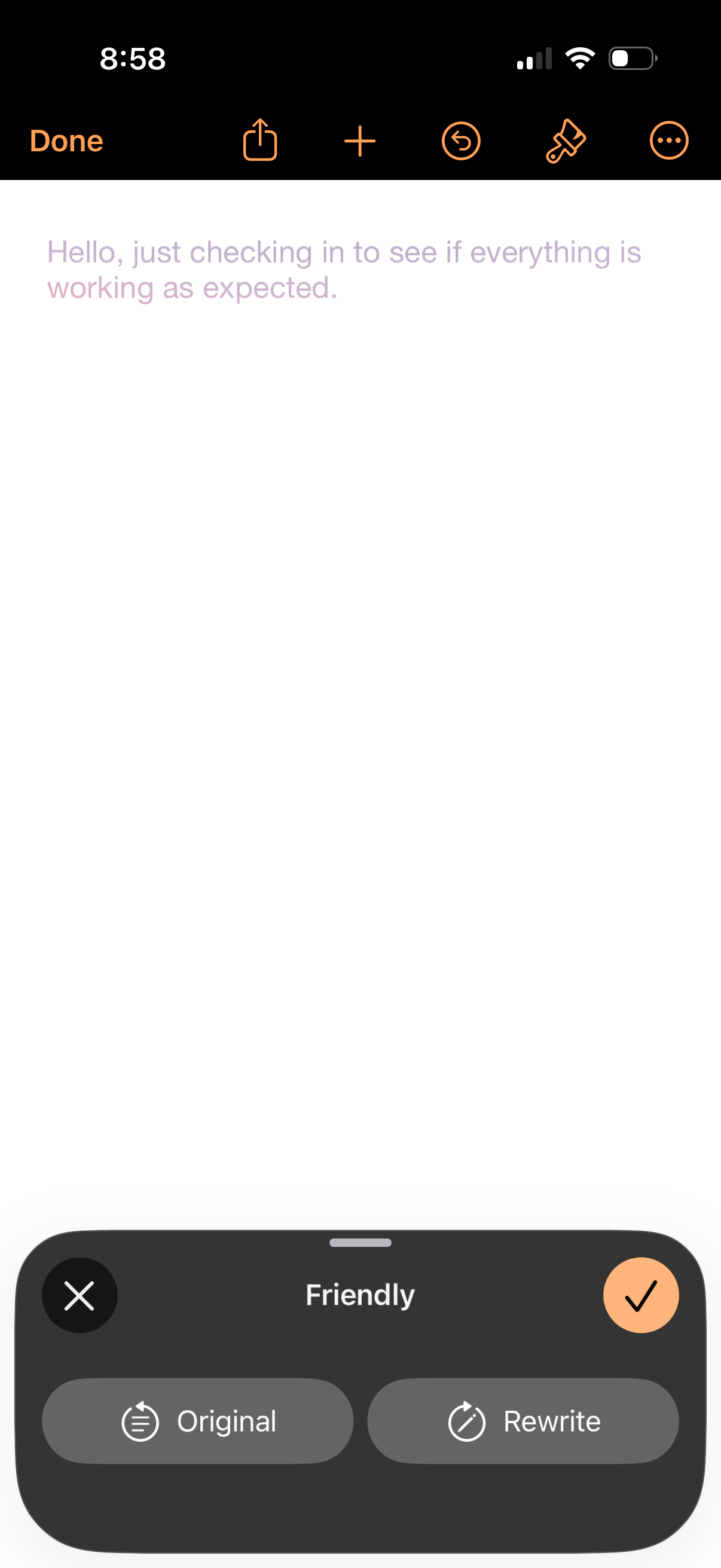
Mobile text editor screen with a writing assistant rewrite panel that lets the user choose a tone (“Friendly”) and toggle between viewing the Original text or a Rewrite. Includes controls to cancel or confirm the rewrite, plus top-bar actions for sharing, adding content, undo, formatting/markup, and more.
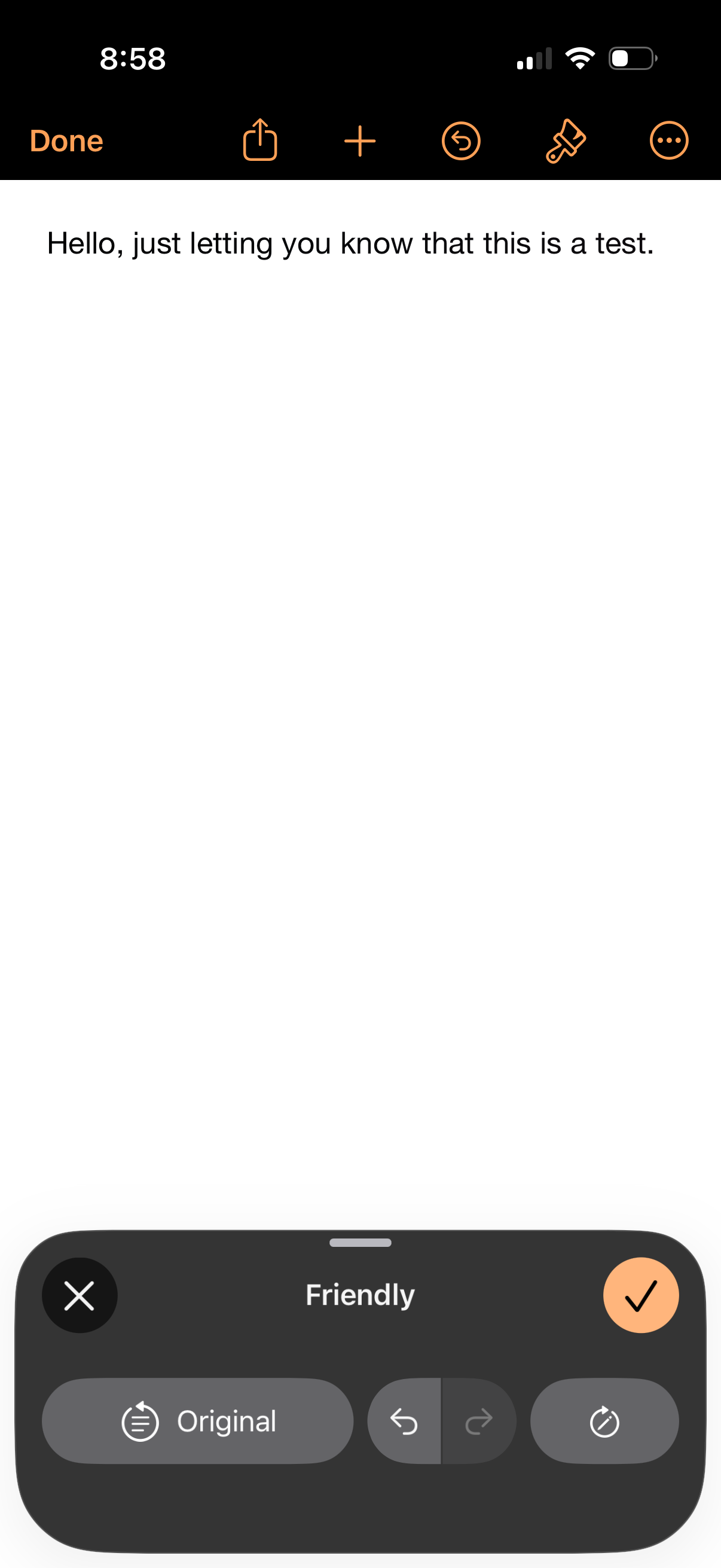
Text editor or notes screen with a single note open, showing a top toolbar for done/close, share, add new note, undo, formatting/markup, and more options. A bottom writing assistant panel is open with a “Friendly” tone selected, offering rewrite mode (Original), undo/redo, and a confirm/apply button to accept the suggested text change.
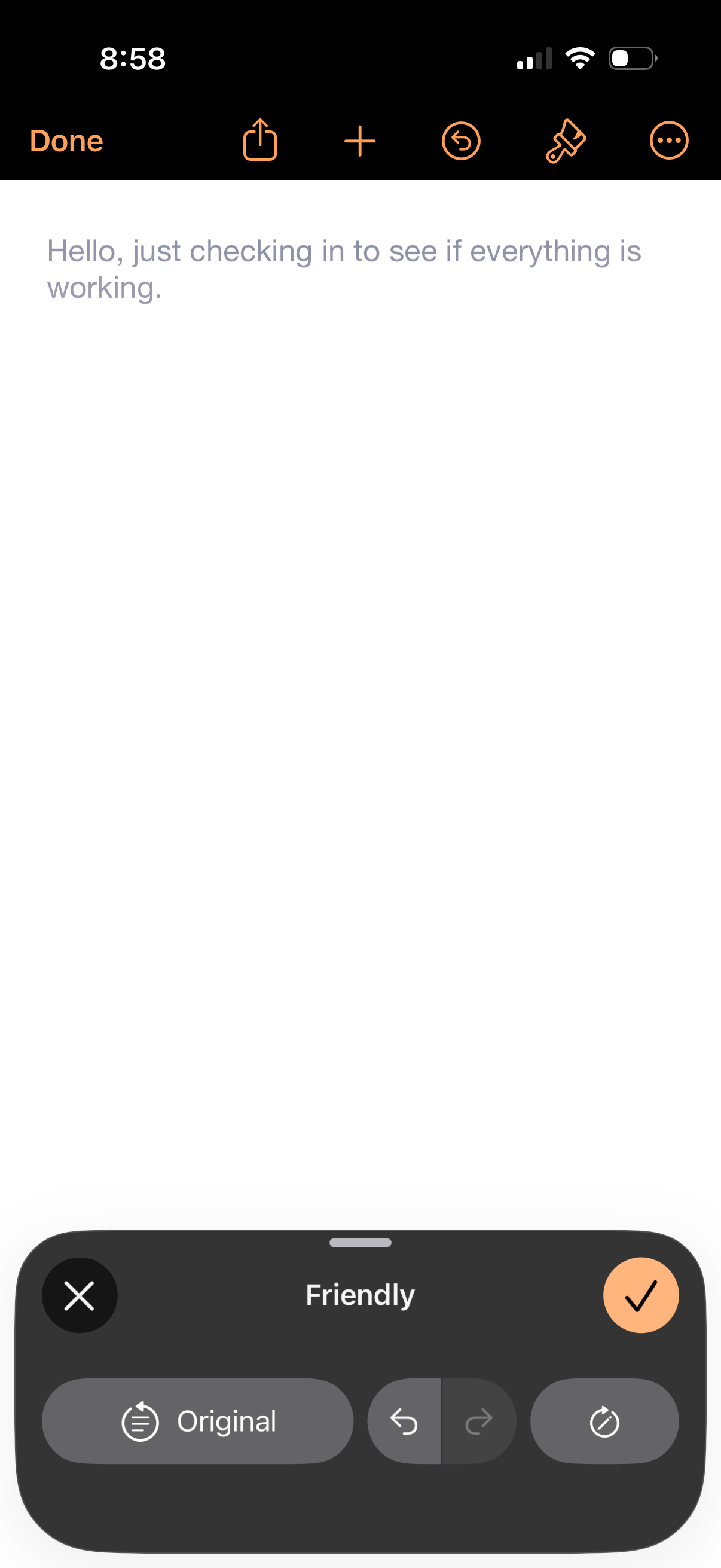
Email compose editor showing a draft message with a top toolbar for done, share, add, undo, formatting, and more options. A bottom writing assistant tone selector is open on “Friendly,” allowing users to rewrite from original, undo/redo changes, and confirm the edited text.