set up multi factor
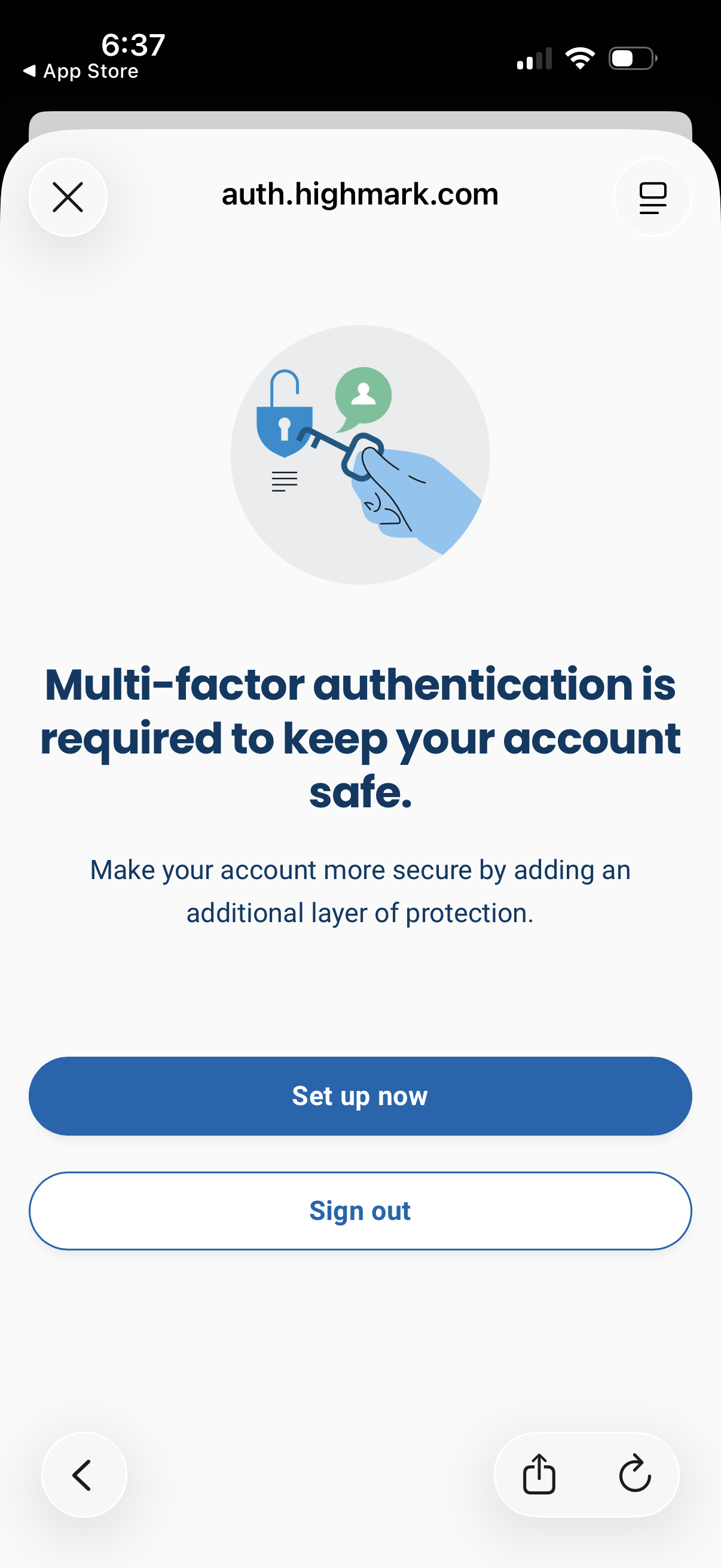
Security prompt screen informing the user that multi-factor authentication is required to keep their account safe, explaining the added protection. Primary actions include a “Set up now” CTA to begin MFA enrollment and a secondary option to sign out, with a close/dismiss control.
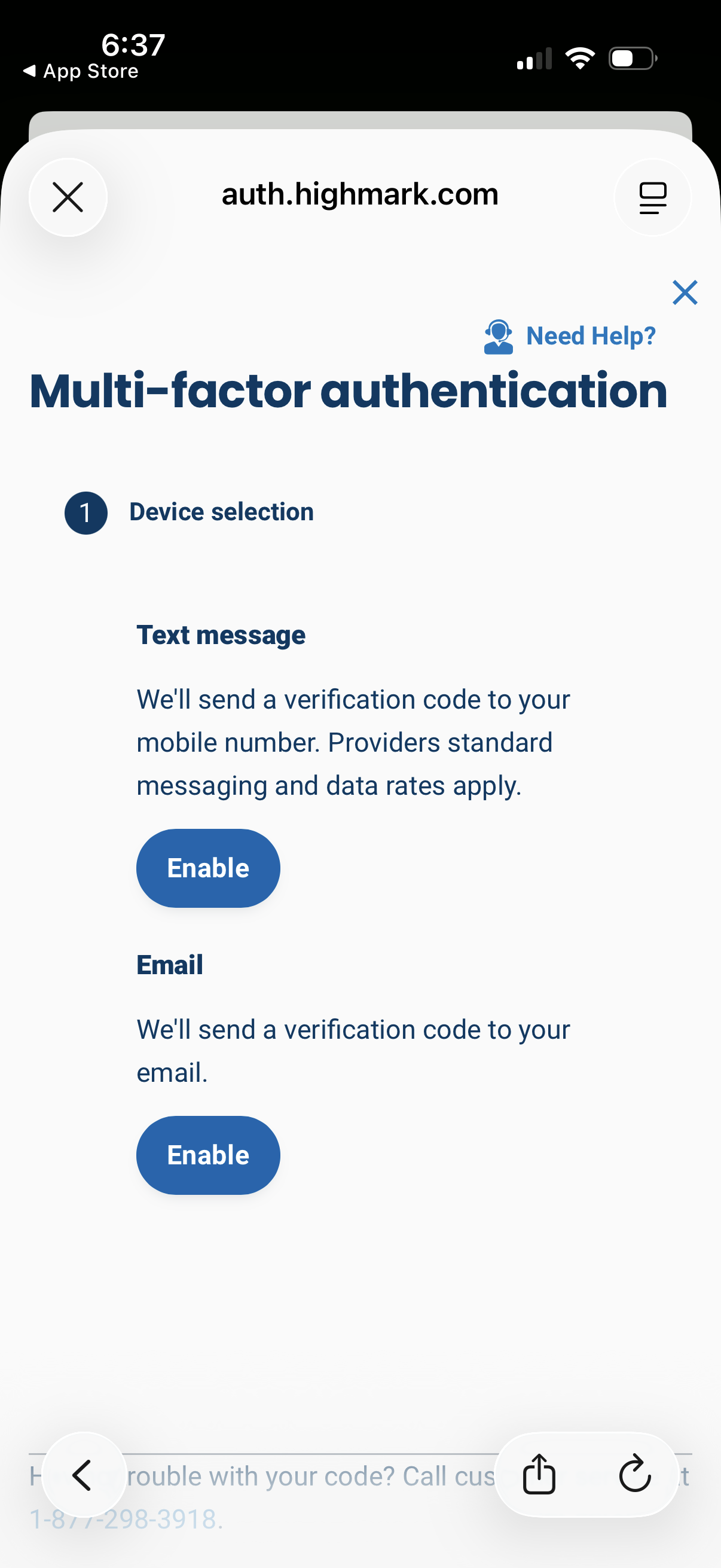
Multi-factor authentication setup screen prompting the user to select a verification method and enable MFA via text message (SMS) or email to receive a verification code, with a help option available.
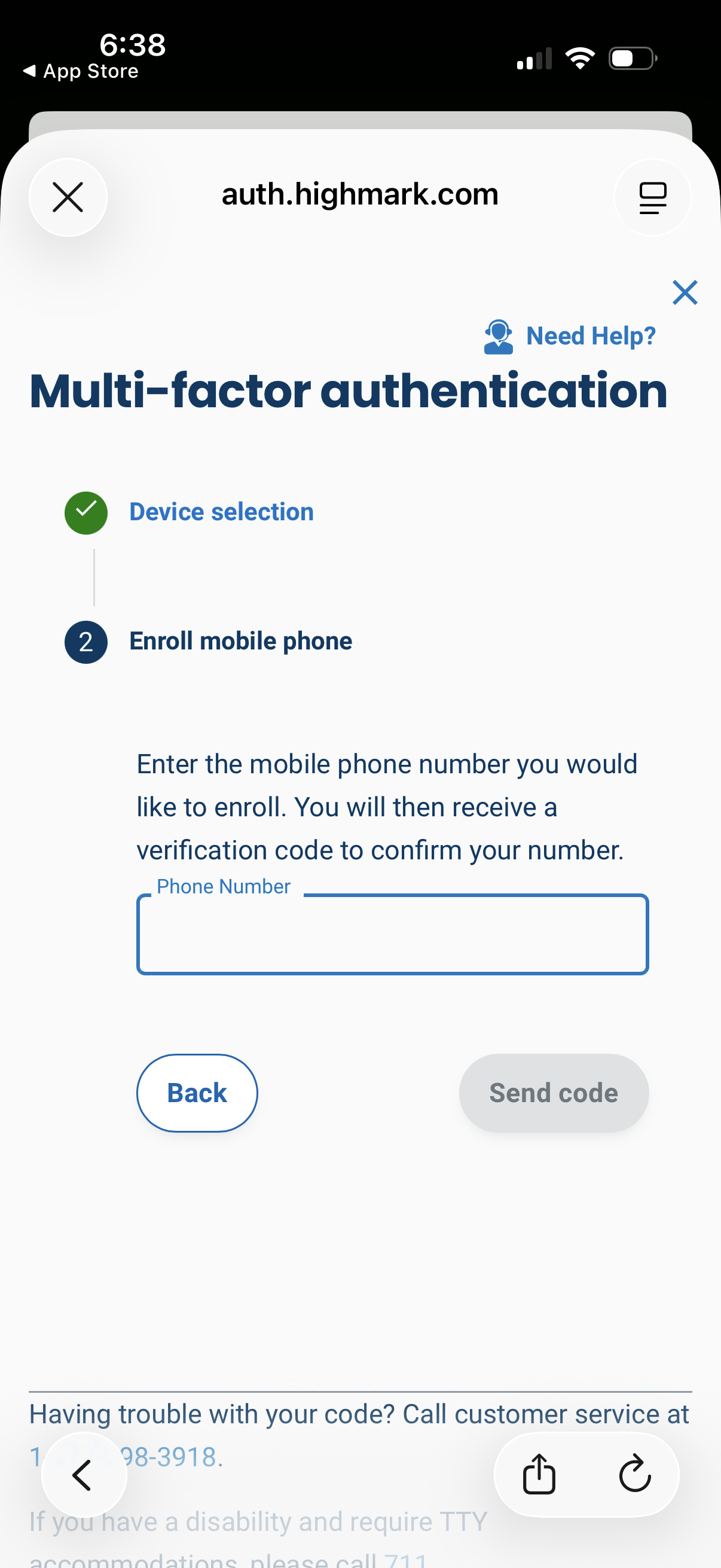
Multi-factor authentication setup screen for enrolling a mobile phone, showing step progress from device selection to phone enrollment. Users enter a phone number to receive an SMS verification code, with actions to go back or send the code and a help link for support.
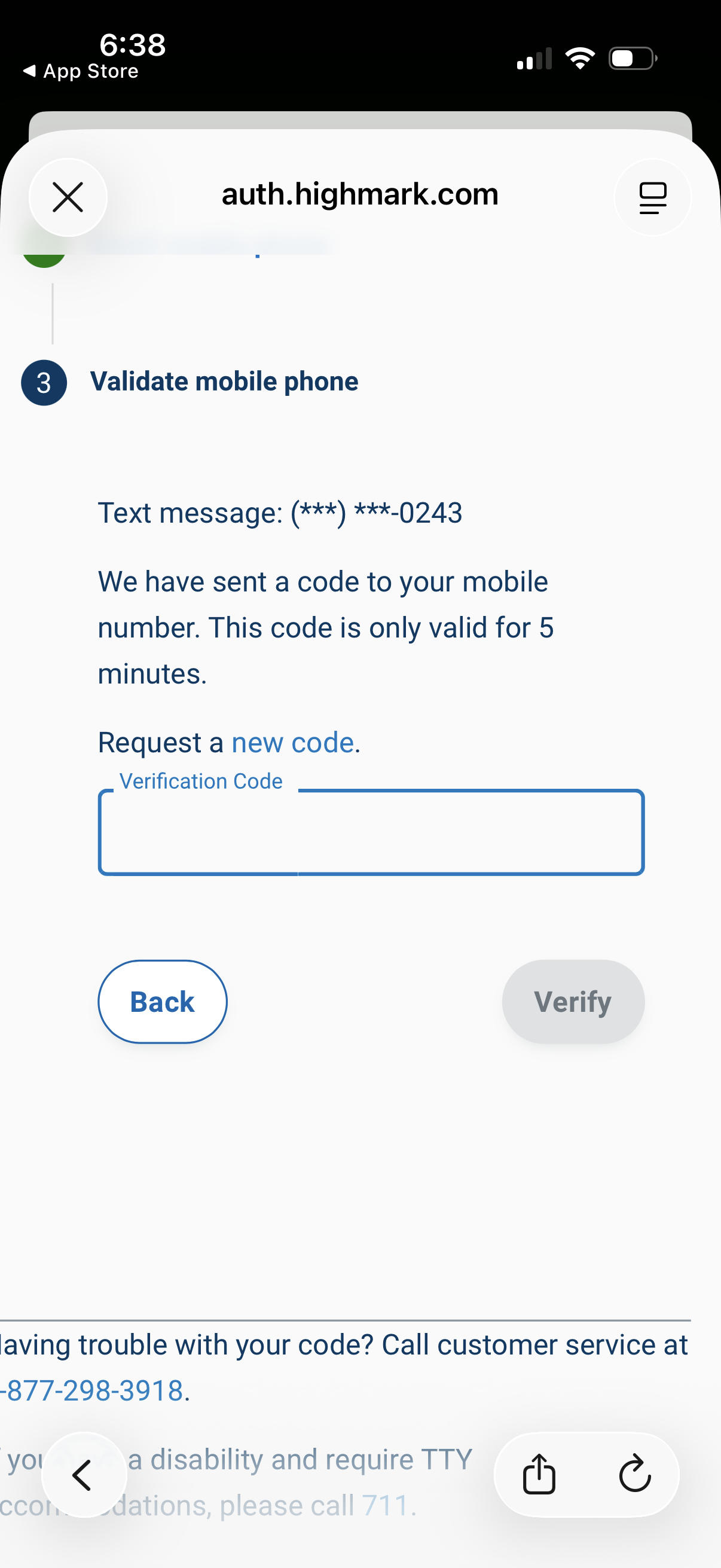
Mobile phone verification step in an authentication flow prompting the user to enter an SMS one-time passcode sent to a masked number, with messaging about a 5‑minute expiration and a link to request a new code. Includes a verification code input field with Back and Verify actions.
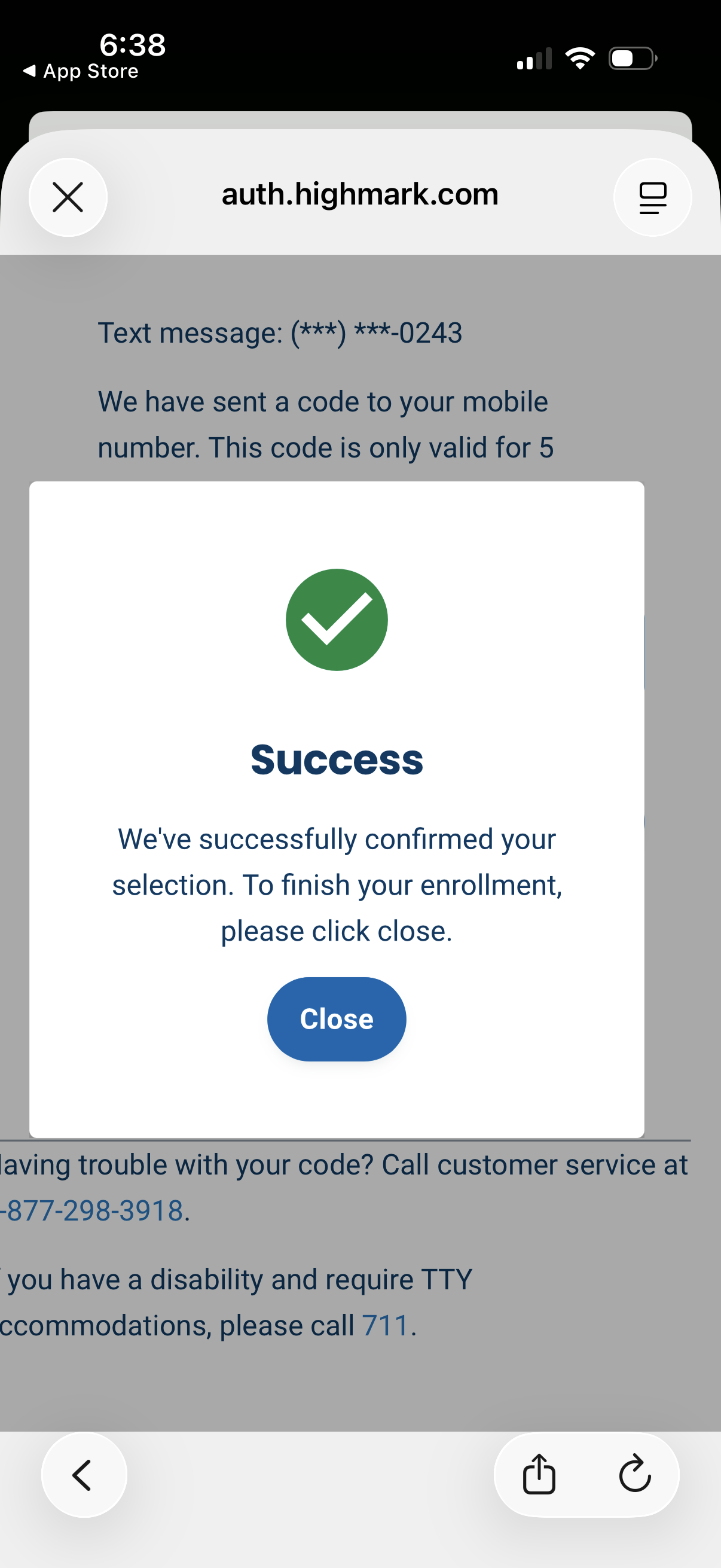
A two-factor authentication enrollment flow showing a success confirmation modal after verifying a code sent via SMS to a mobile number. The dialog confirms the selection and prompts the user to tap “Close” to finish enrollment.