add wish from product
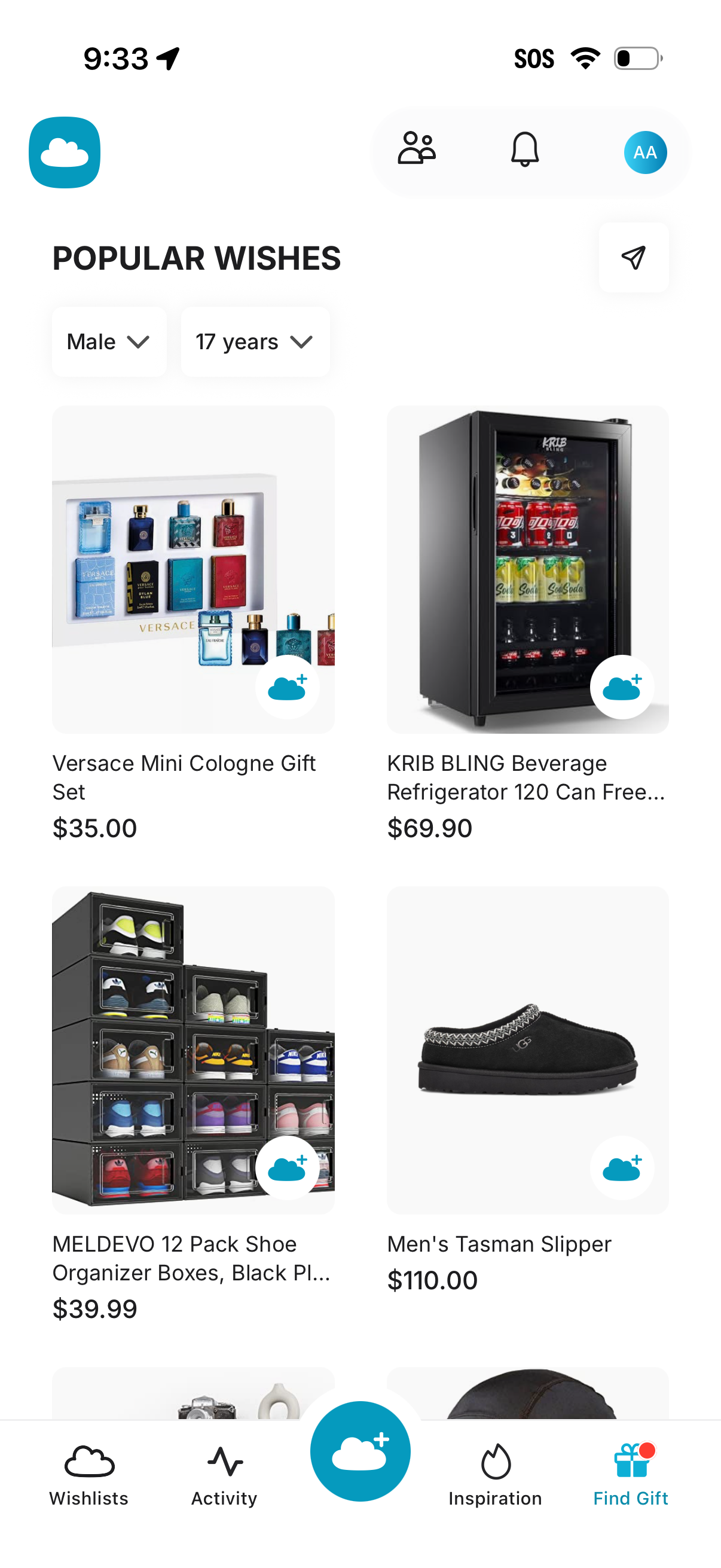
Gift inspiration browsing screen showing a “Popular Wishes” grid of recommended products with images, names, and prices, plus filters for recipient gender and age. Users can add items to a wishlist with a plus button and access tabs for Wishlists, Activity, Inspiration, and Find Gift, along with profile and notifications icons.
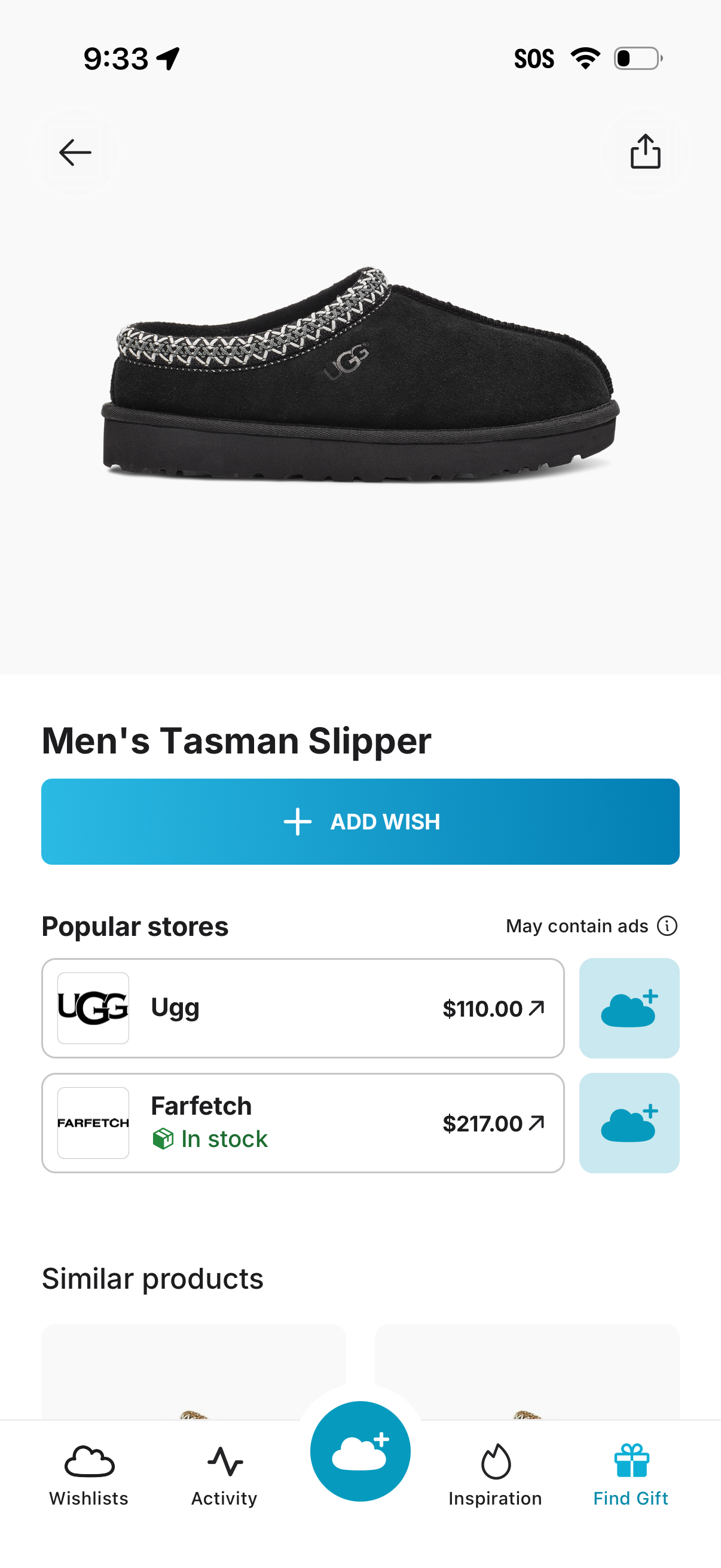
Product detail screen for an item with large product photo, item name, and a primary “Add Wish” button to save it to a wishlist. Shows price comparisons from popular stores with in-stock status and external links, plus share/back actions and a section for similar products.
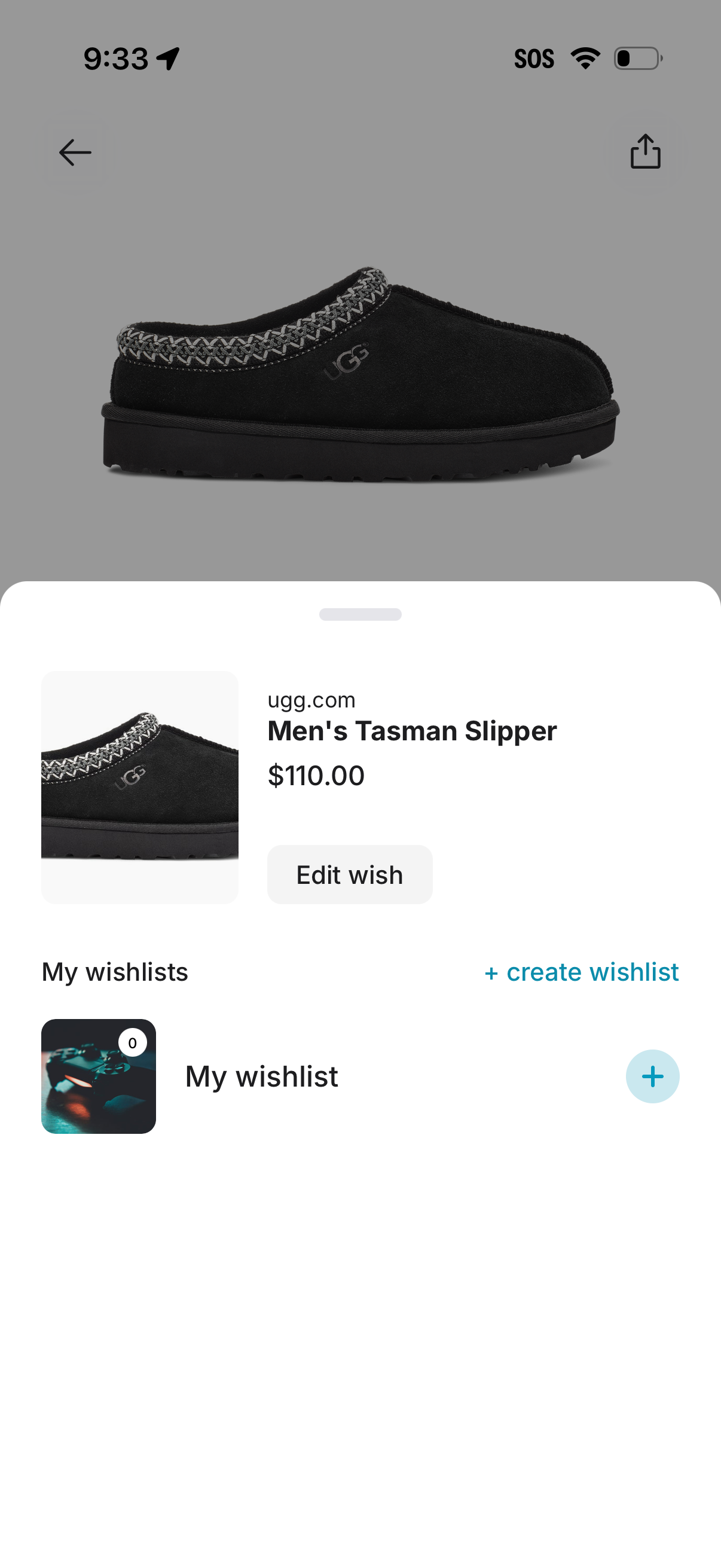
Wishlist saving screen for an e-commerce product, showing the item preview with retailer name, product title and price plus an “Edit wish” action. Users can add the product to an existing wishlist or create a new wishlist, with a plus button to add/select the destination list.
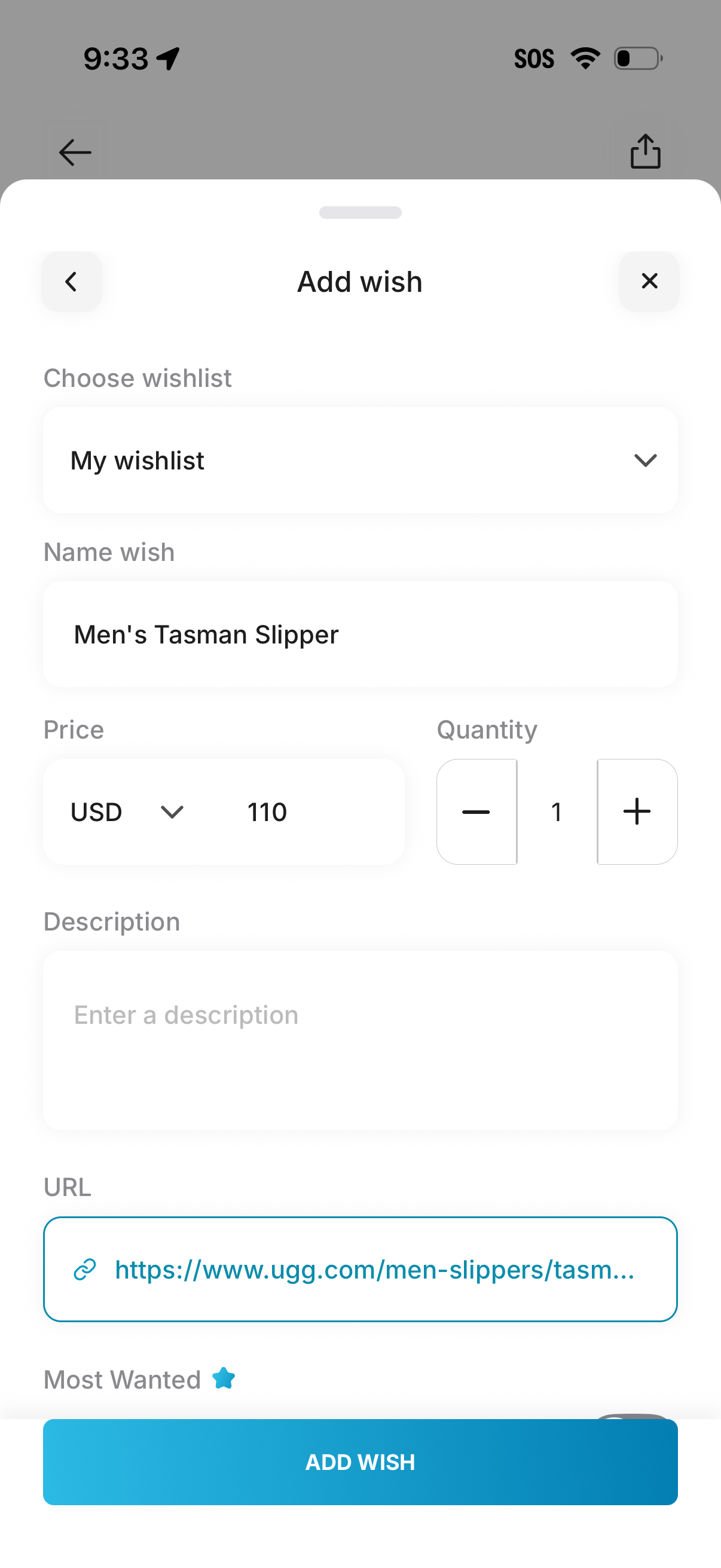
Modal “Add wish” form for adding an item to a wishlist, letting users choose a wishlist, enter the wish name, set price with currency, adjust quantity with plus/minus controls, add an optional description and URL, mark as “Most Wanted,” and submit via an “Add Wish” button.
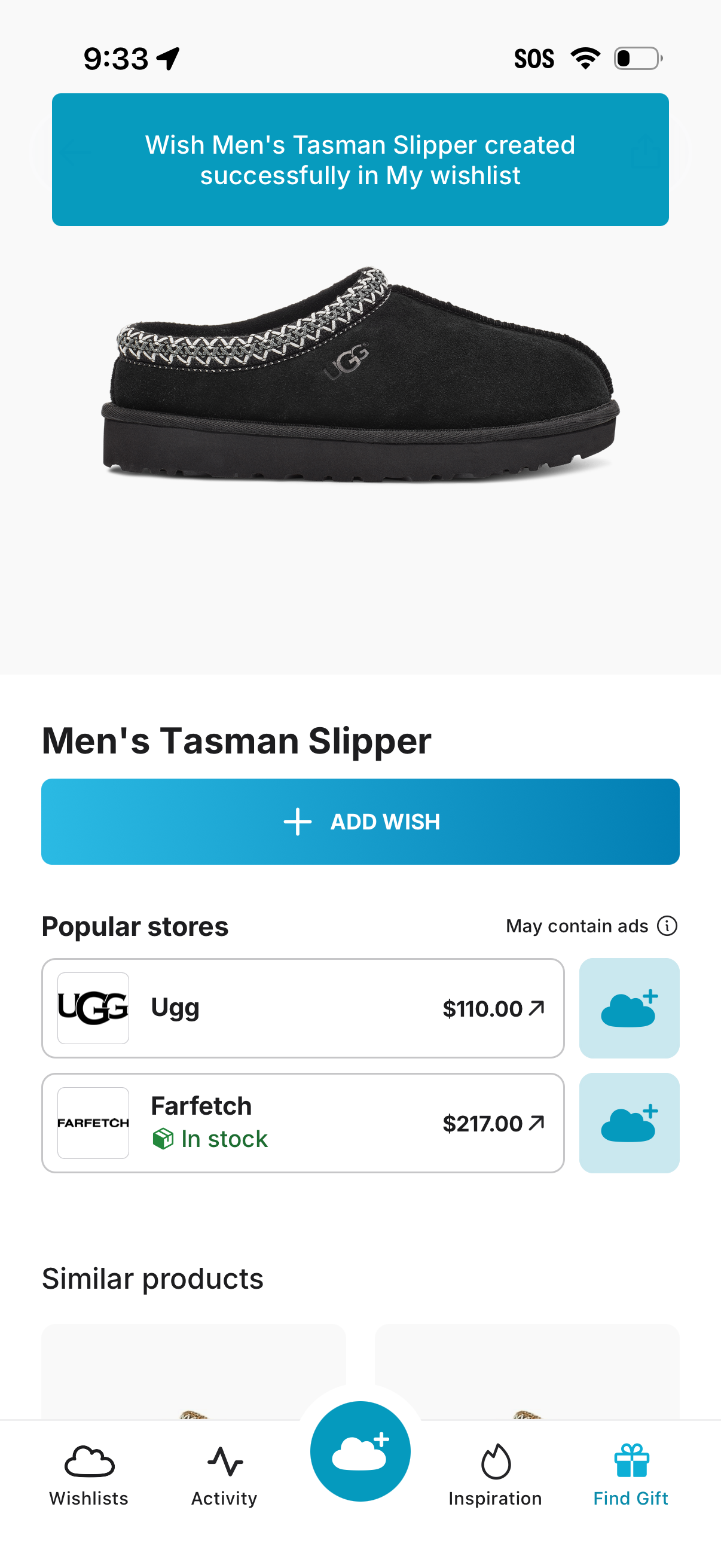
Product detail screen for an item with a large image, title, and primary “Add wish” CTA, including a success banner confirming the item was added to the user’s wishlist. Below, it lists popular stores with prices and stock status plus quick add buttons, and a section for similar products with bottom navigation.