
Crypto trading app welcome/onboarding screen introducing the product with floating cryptocurrency logos and a tagline. Primary CTA is “Create account” with a secondary “Log in” button and links to Terms of Use and Privacy Policy.
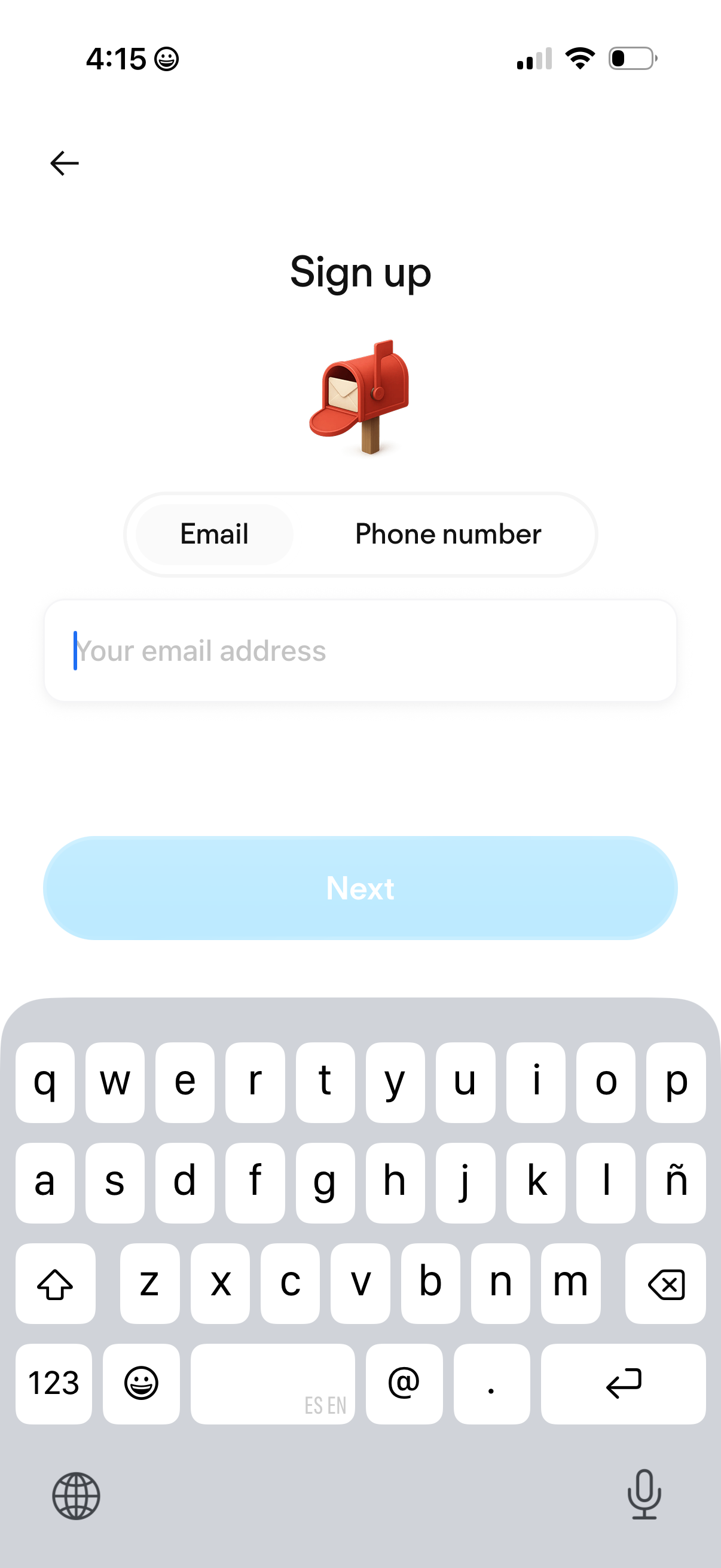
Sign-up screen for account creation with a toggle to choose verification method via Email or Phone number. Includes an input field for the selected identifier and a primary “Next” button to continue, with a back navigation arrow.
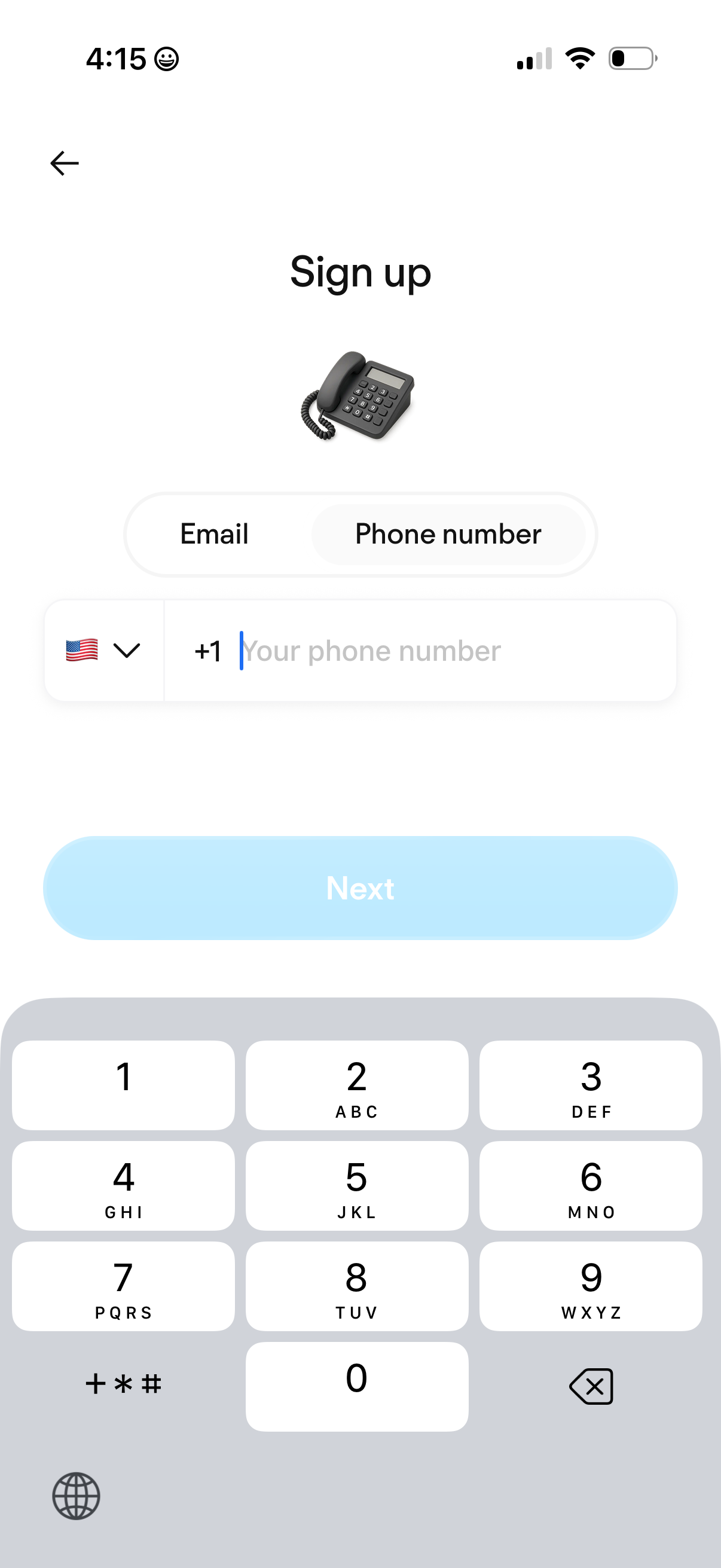
Sign up screen for account creation that lets users choose between email or phone number registration, with a phone input field including country code selector. A disabled “Next” button indicates progression to the next step once a valid phone number is entered.
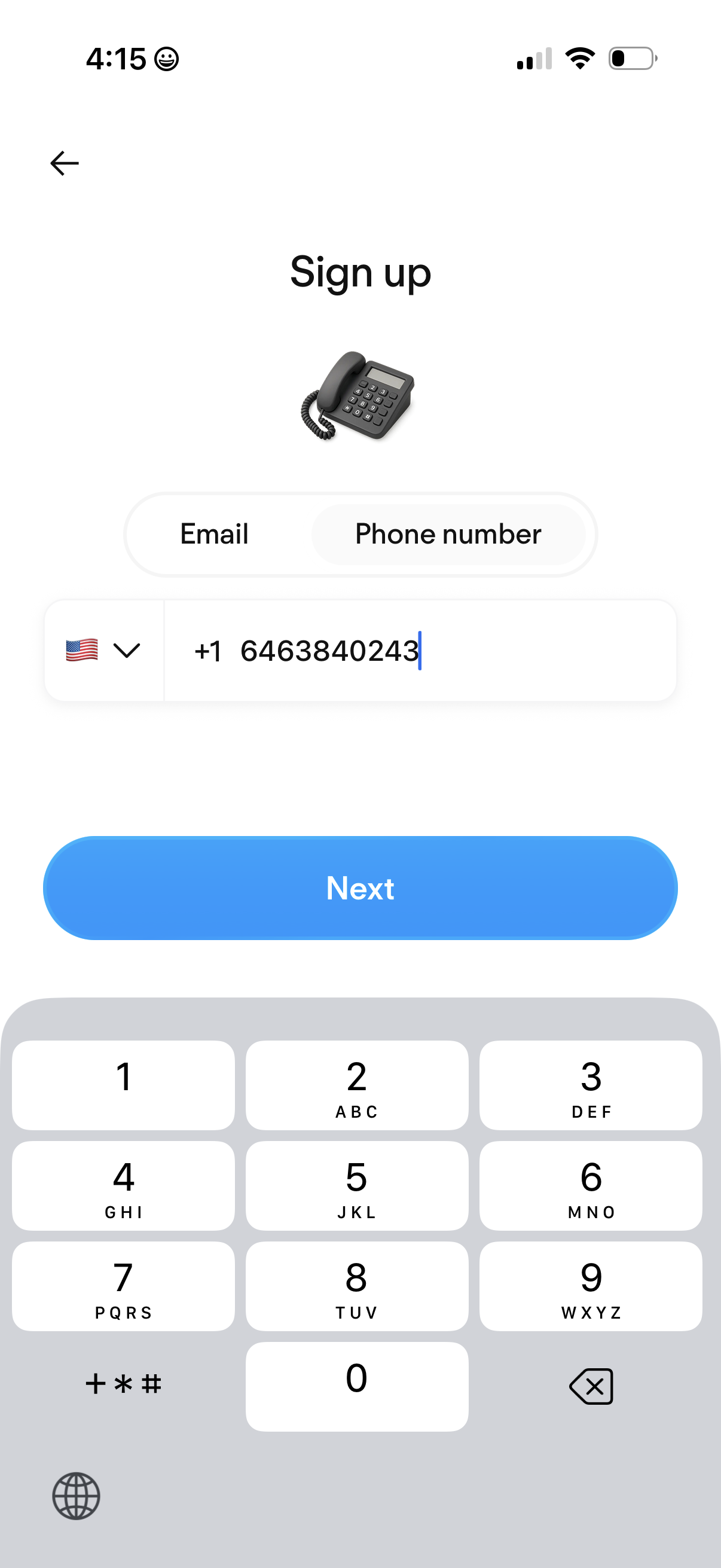
Sign up screen for account creation using a phone number, with a segmented control to switch between Email and Phone number. Includes a country code selector with flag dropdown, phone number input field, and a primary Next button to continue to verification.
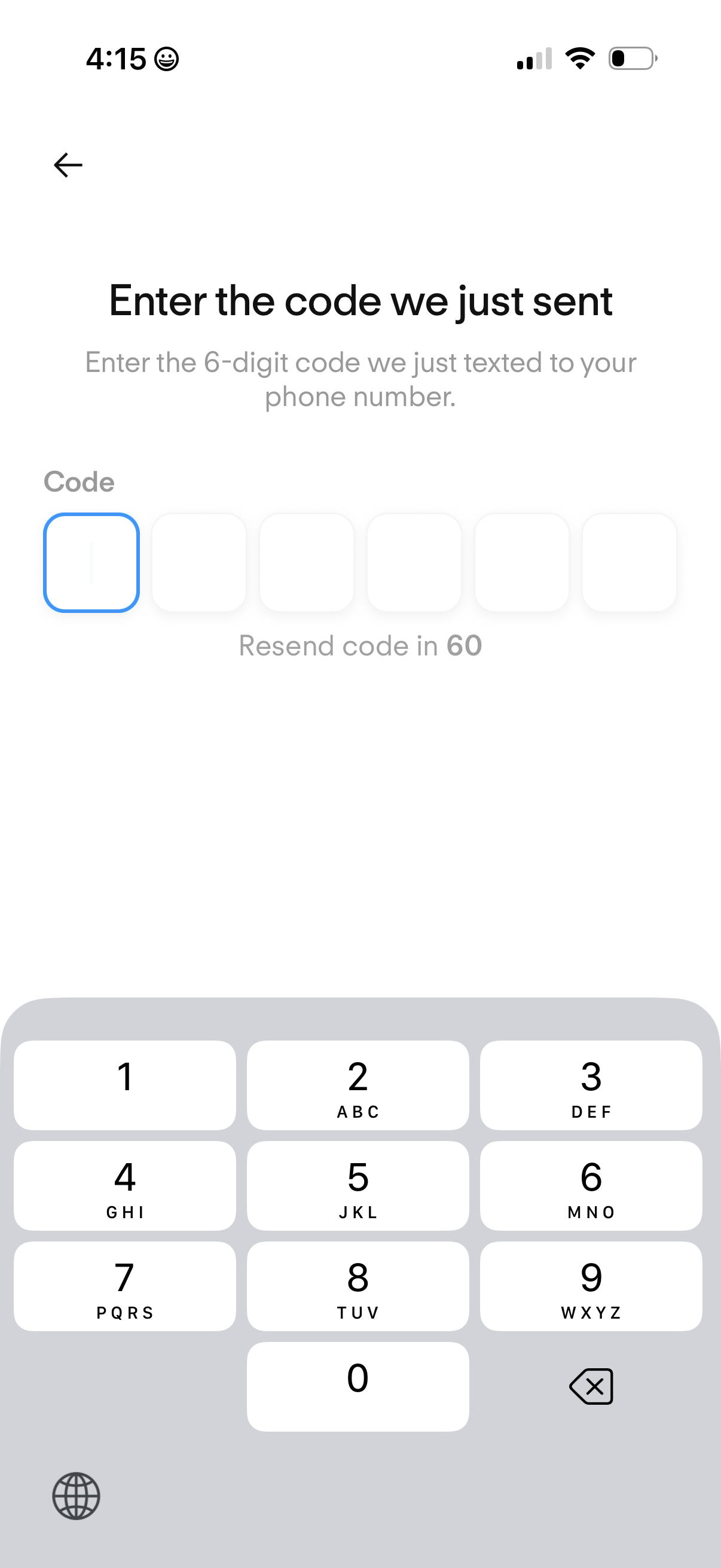
Phone number verification screen prompting the user to enter a 6-digit SMS authentication code using six separate input boxes. Includes a countdown timer indicating when the user can resend the code, plus a back navigation option and numeric keypad for code entry.
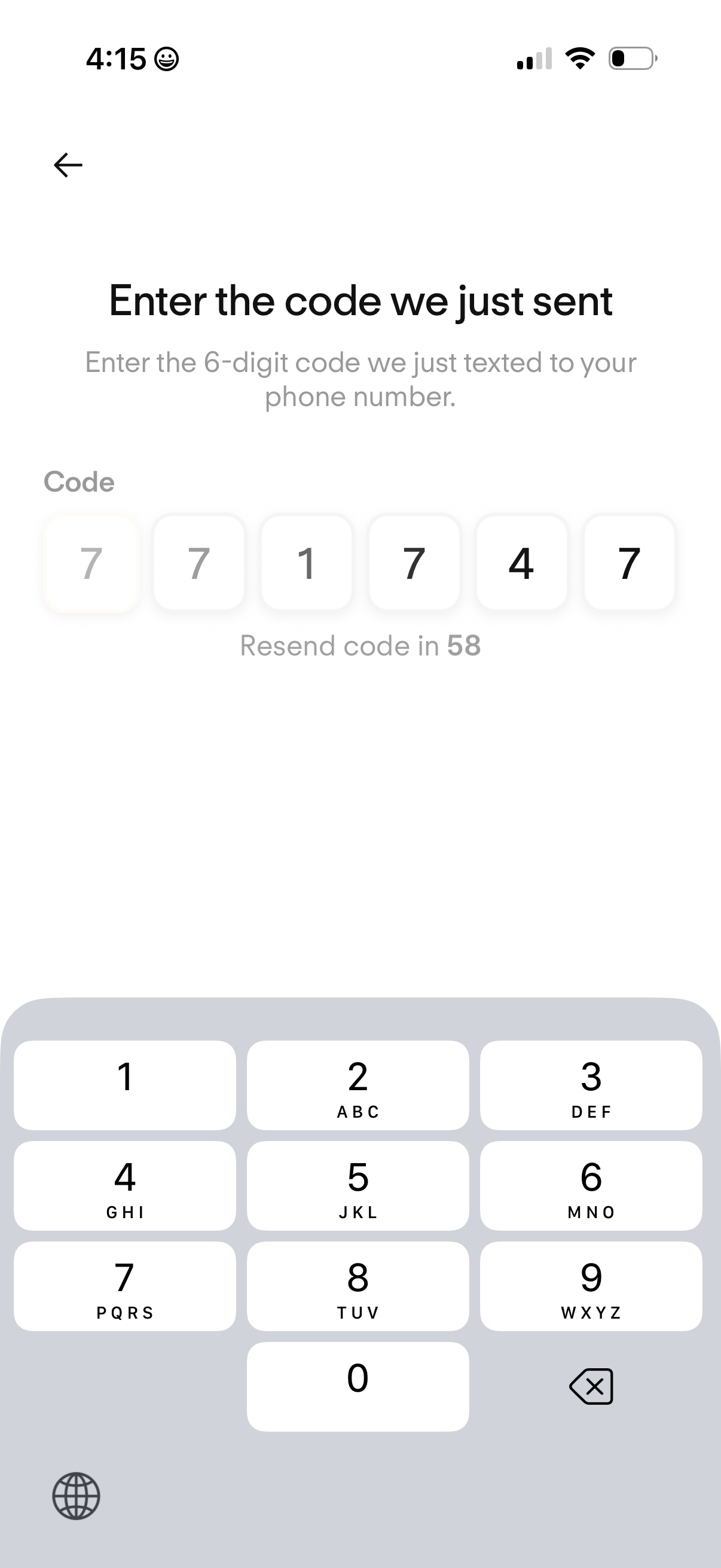
Phone number verification screen prompting the user to enter a 6-digit SMS code using separate digit input boxes. Includes a resend-code countdown timer and a back navigation arrow for returning to the previous step.
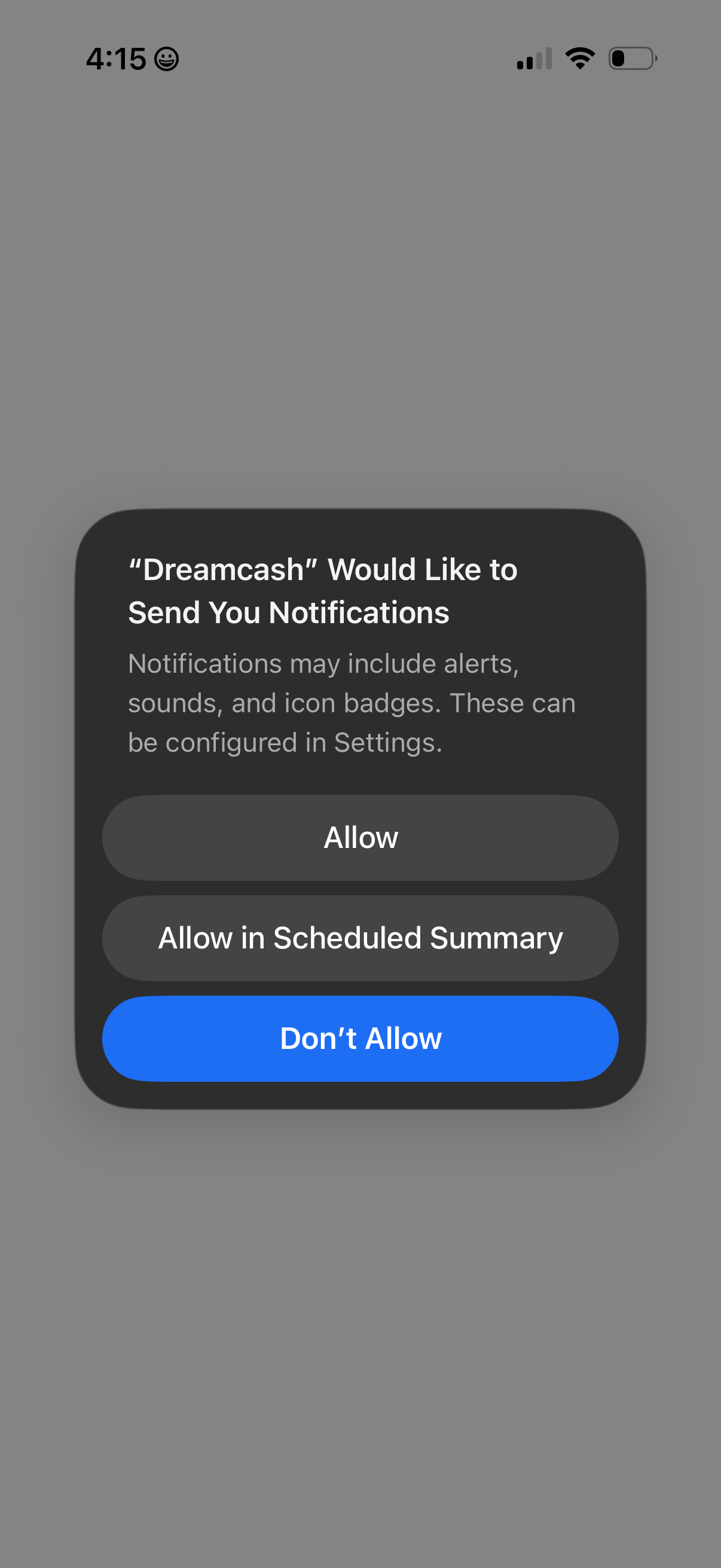
iOS system permission popup requesting to send push notifications for an app, explaining alerts/sounds/badges and offering actions to Allow, Allow in Scheduled Summary, or Don’t Allow.
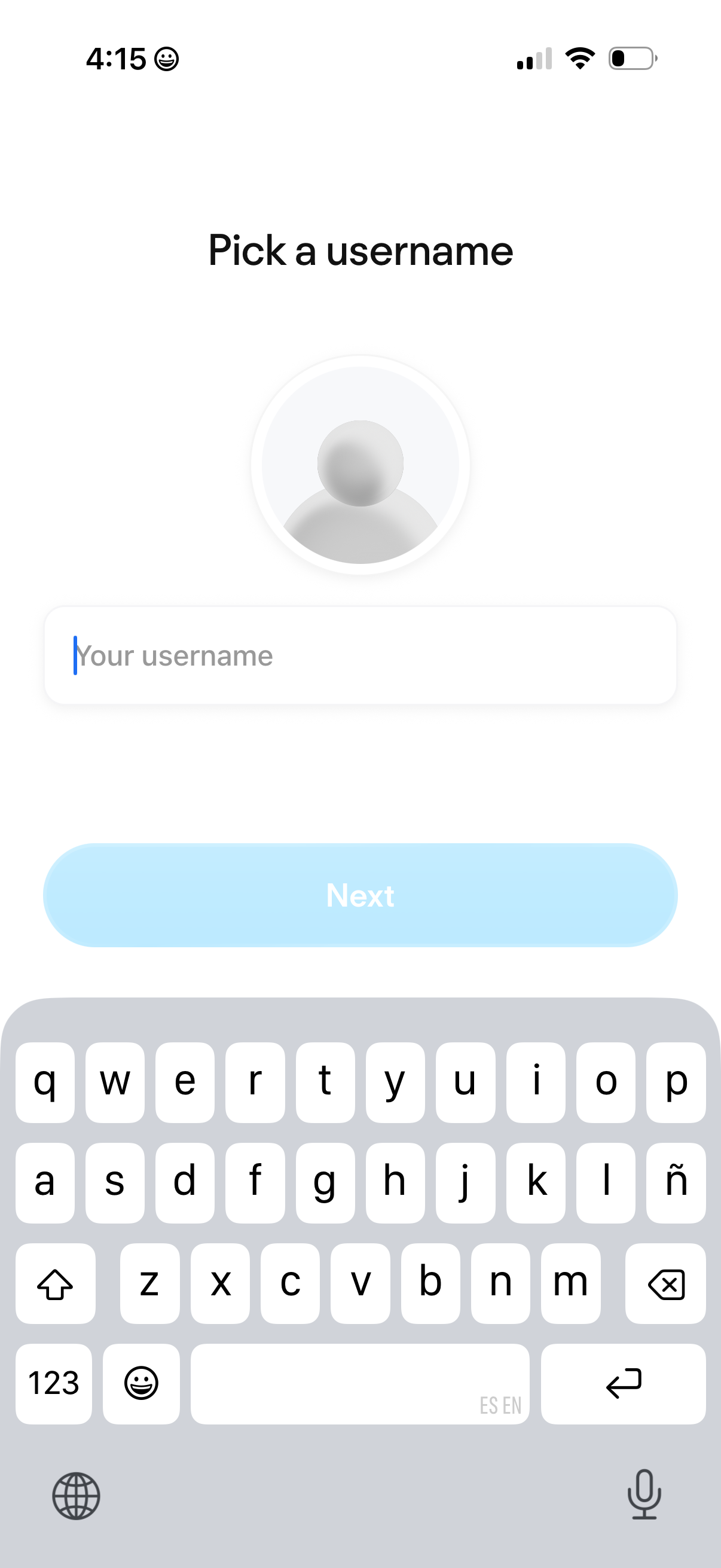
Account onboarding screen prompting the user to pick a username, with a single text input field and an avatar placeholder. Includes a primary “Next” button to continue after entering the username.
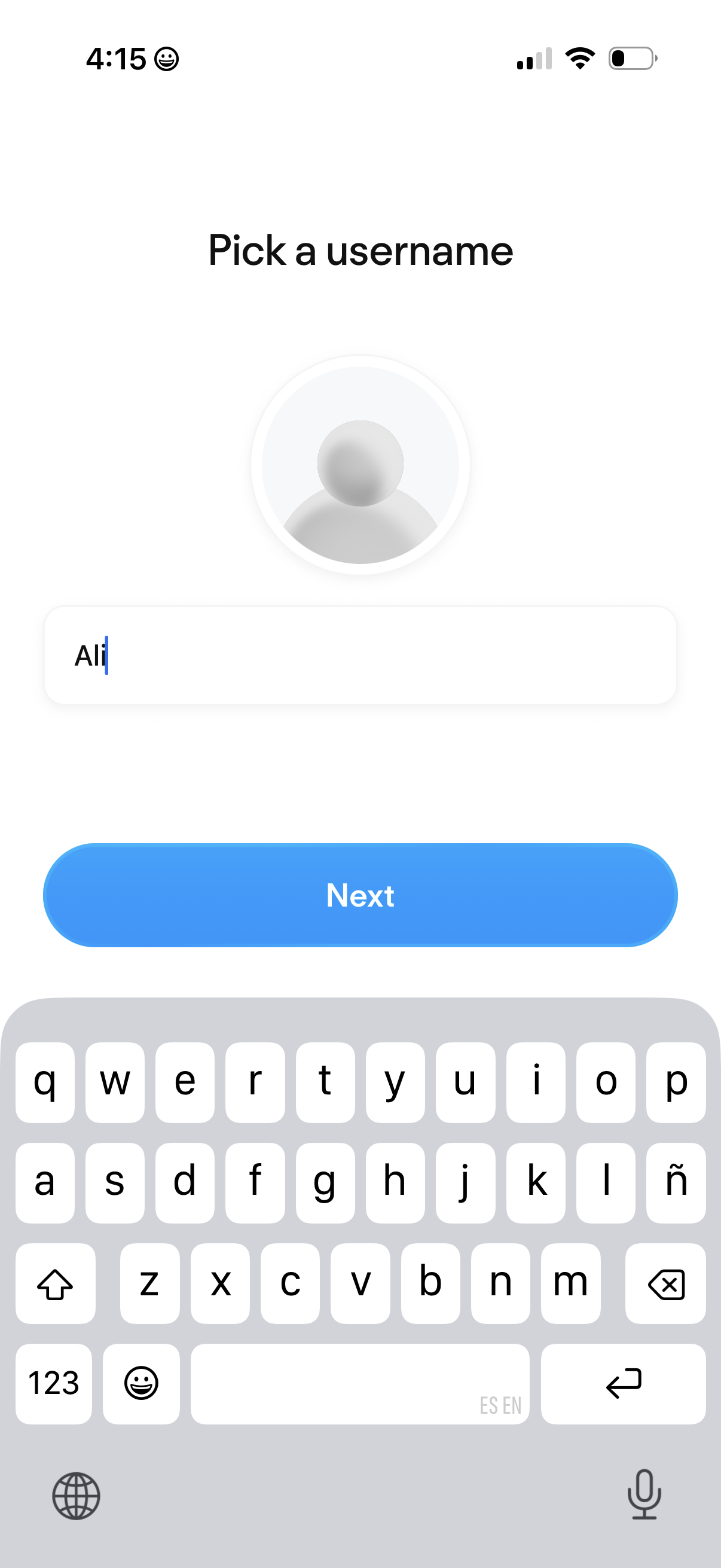
Account setup screen prompting the user to pick a username, showing a profile avatar placeholder and a single text input field. Includes a primary “Next” button to continue the onboarding flow after entering the username.
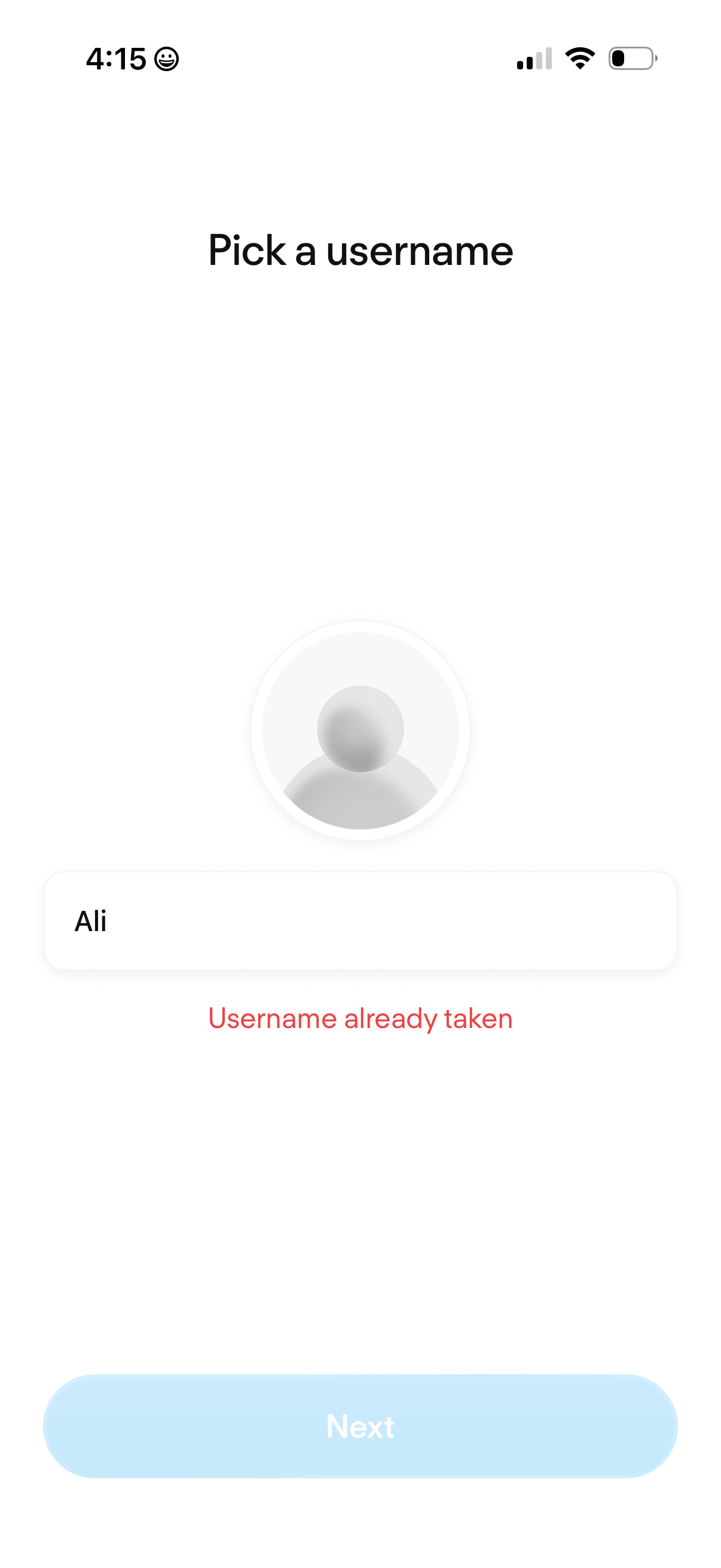
Account setup screen prompting the user to pick a username with a single text input field and a disabled Next button until the username is valid. Shows inline validation error state indicating the chosen username is already taken.
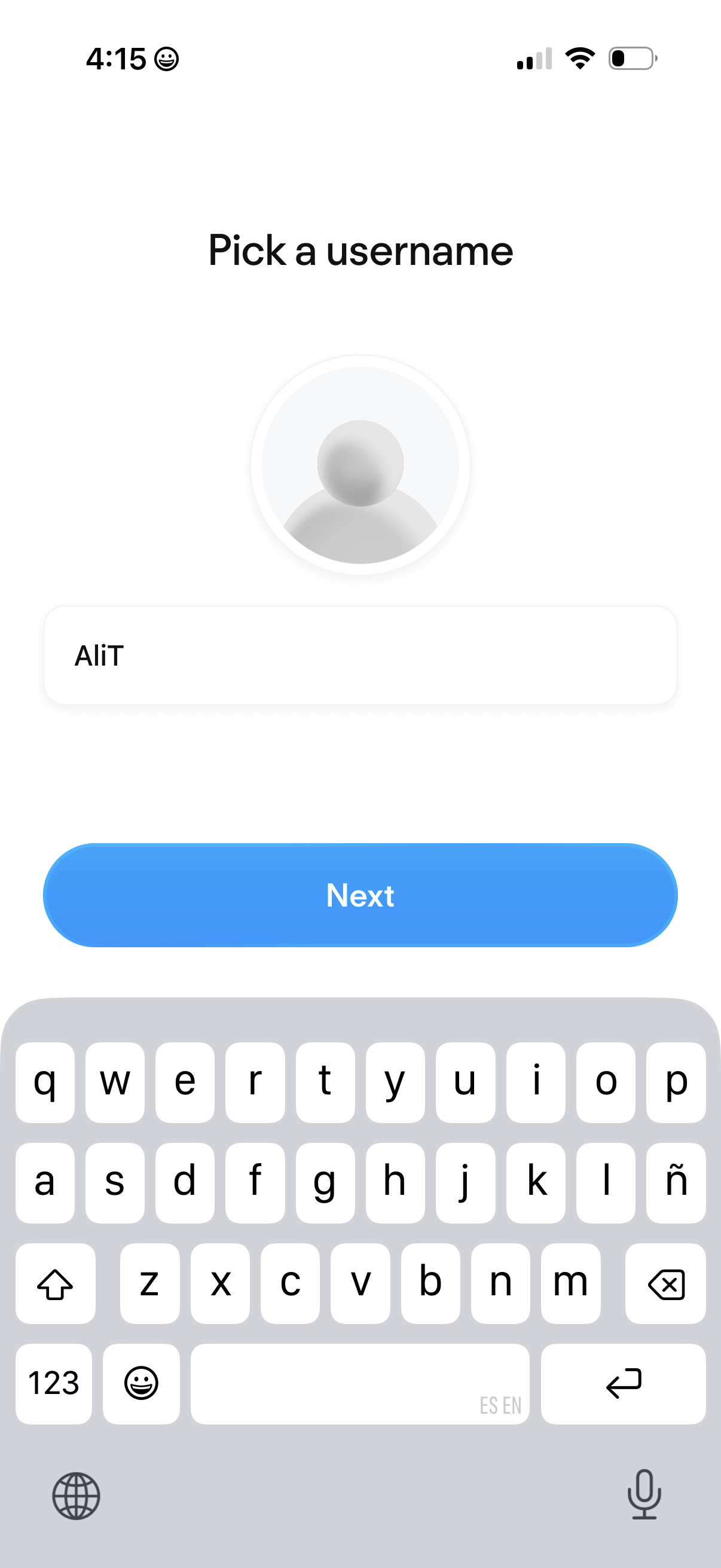
Account setup screen prompting the user to pick a username, with a single text input field and a large “Next” button to continue onboarding. Includes a profile avatar placeholder above the form and uses the keyboard for username entry.
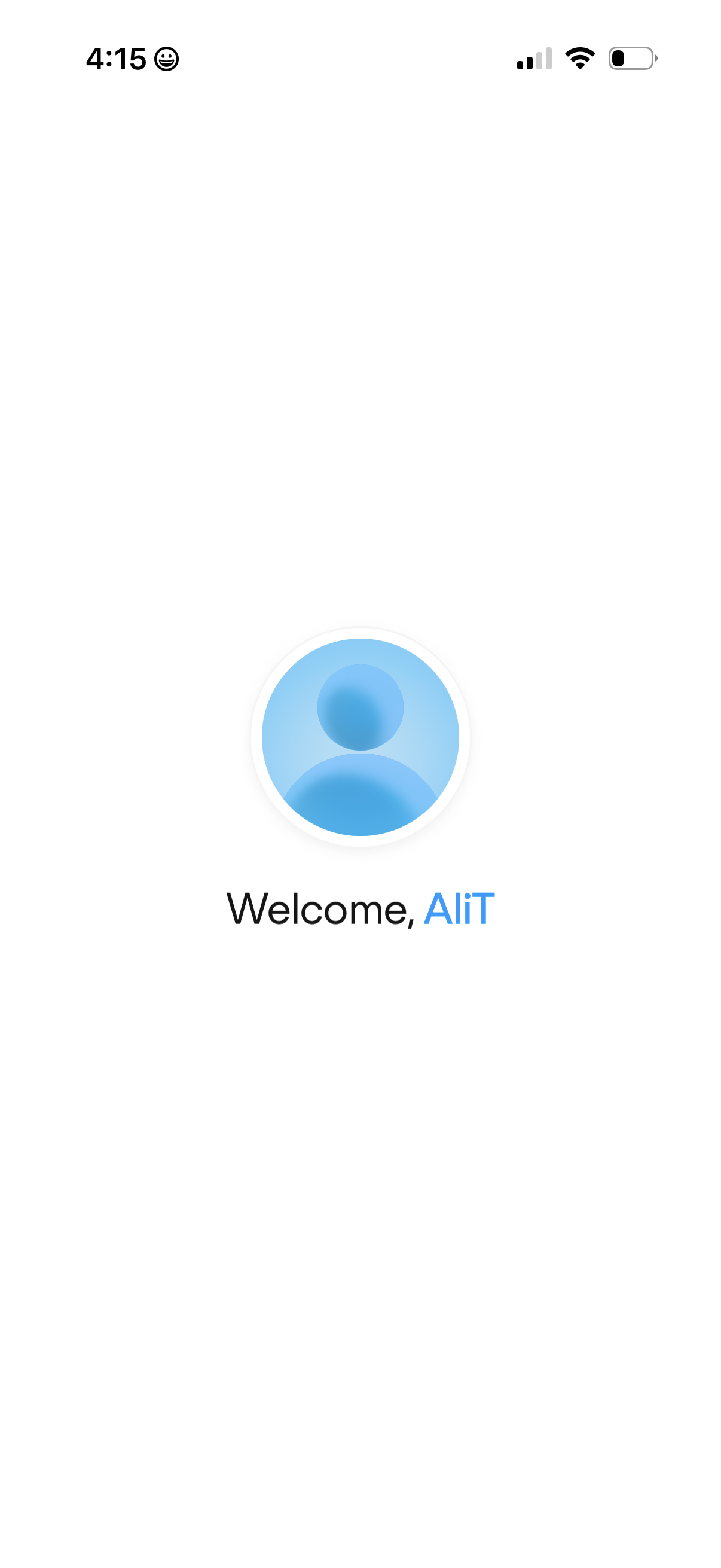
Minimal welcome screen after sign-in showing a large user avatar icon and a personalized greeting message, serving as a simple confirmation/transition page with no visible actions or navigation controls.
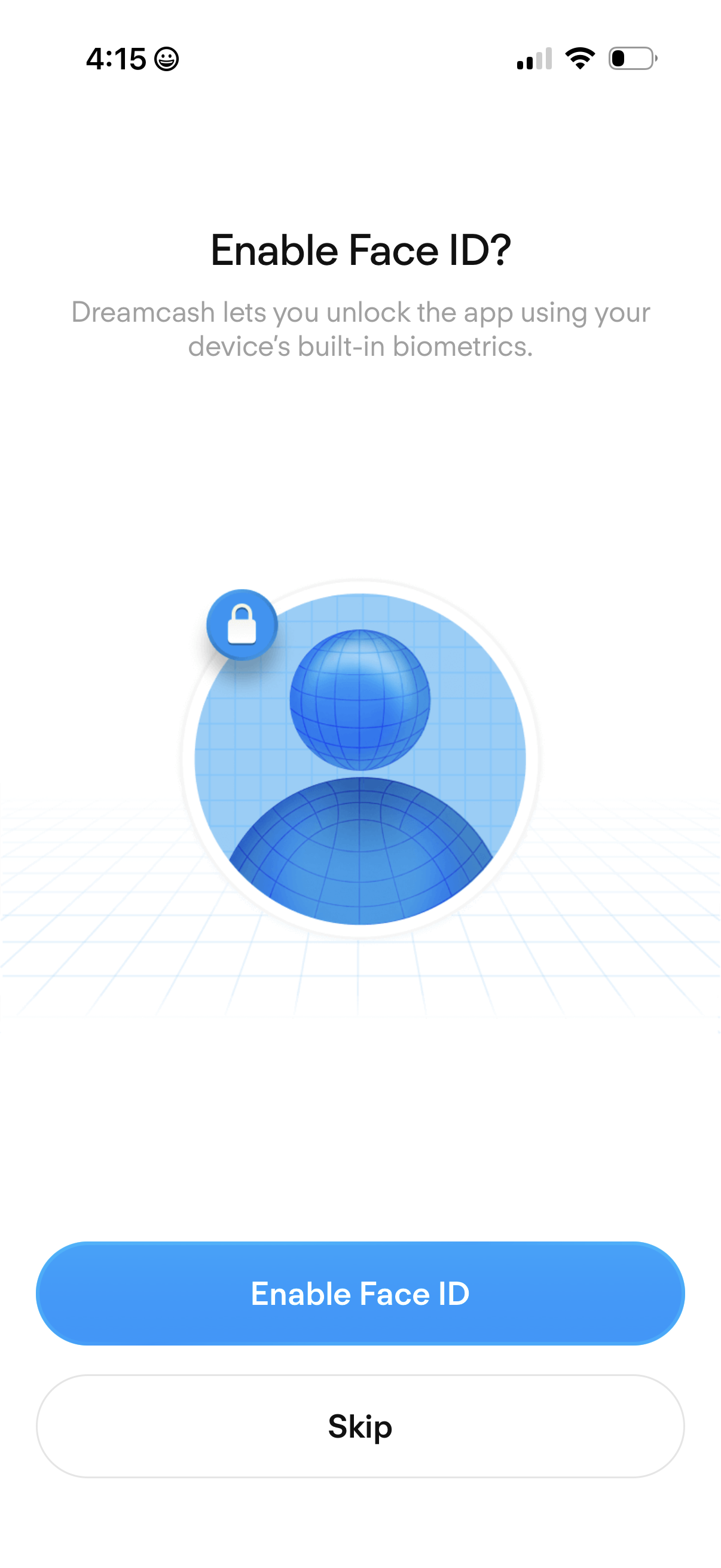
Biometric authentication onboarding prompt asking the user to enable Face ID to unlock the app using device biometrics. Provides primary CTA to “Enable Face ID” and a secondary “Skip” option.