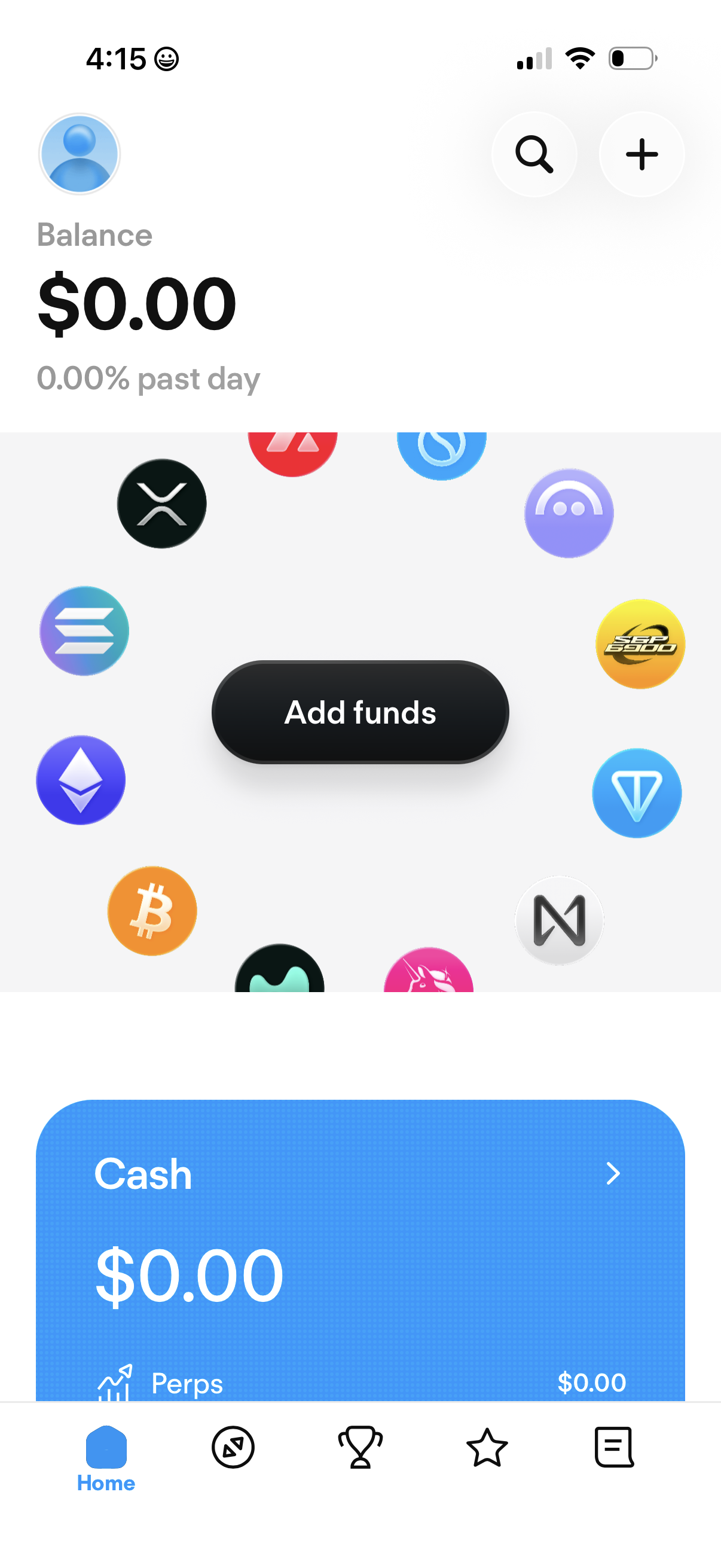
Crypto portfolio home dashboard showing total account balance and past-day performance, with prominent Add funds call-to-action and quick access to search and add/plus actions. Below, asset cards like Cash and trading categories are accessible via a bottom navigation bar.
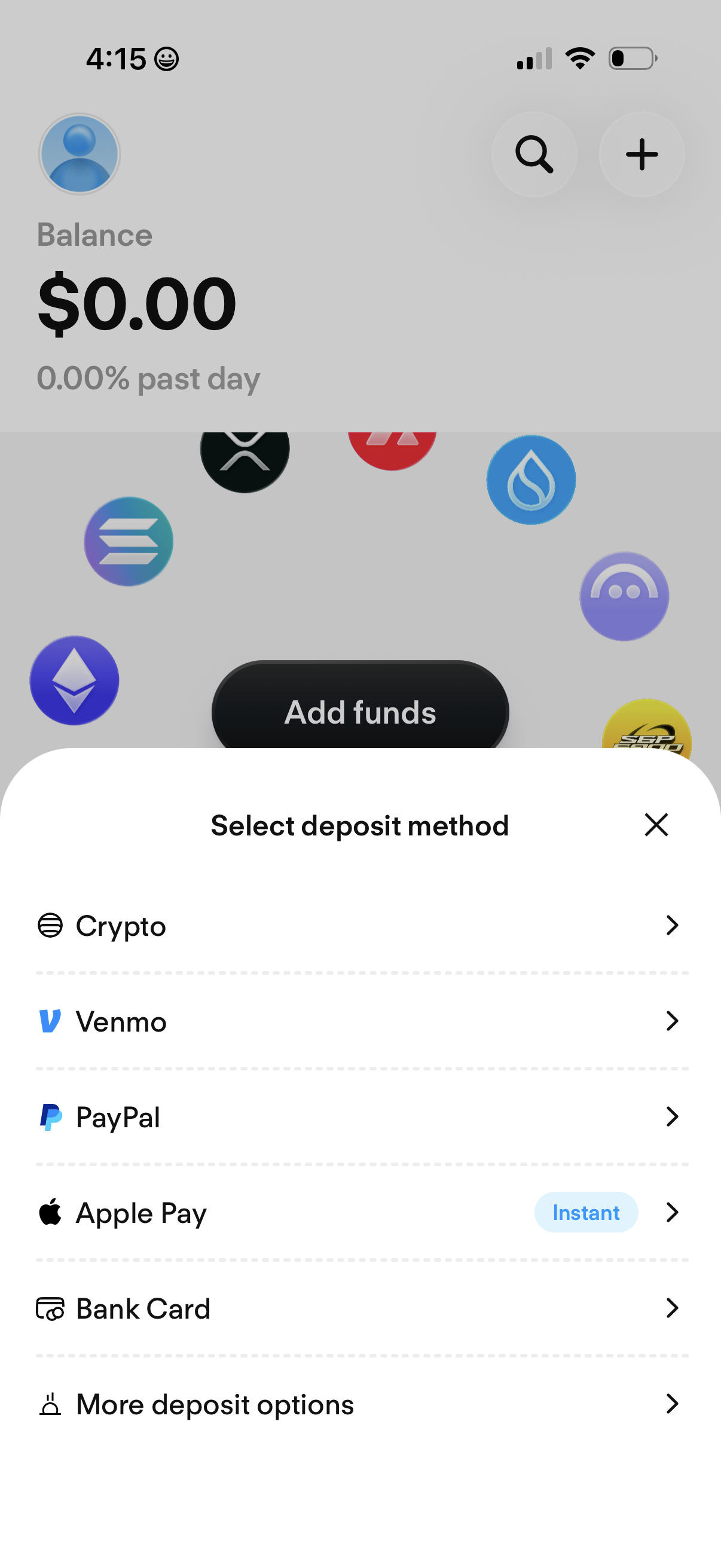
A crypto wallet balance screen with an “Add funds” flow shown as a bottom sheet to select a deposit method. Users can choose to deposit via Crypto, Venmo, PayPal, Apple Pay (instant), or Bank Card, with an option to view more deposit options and dismiss the modal.
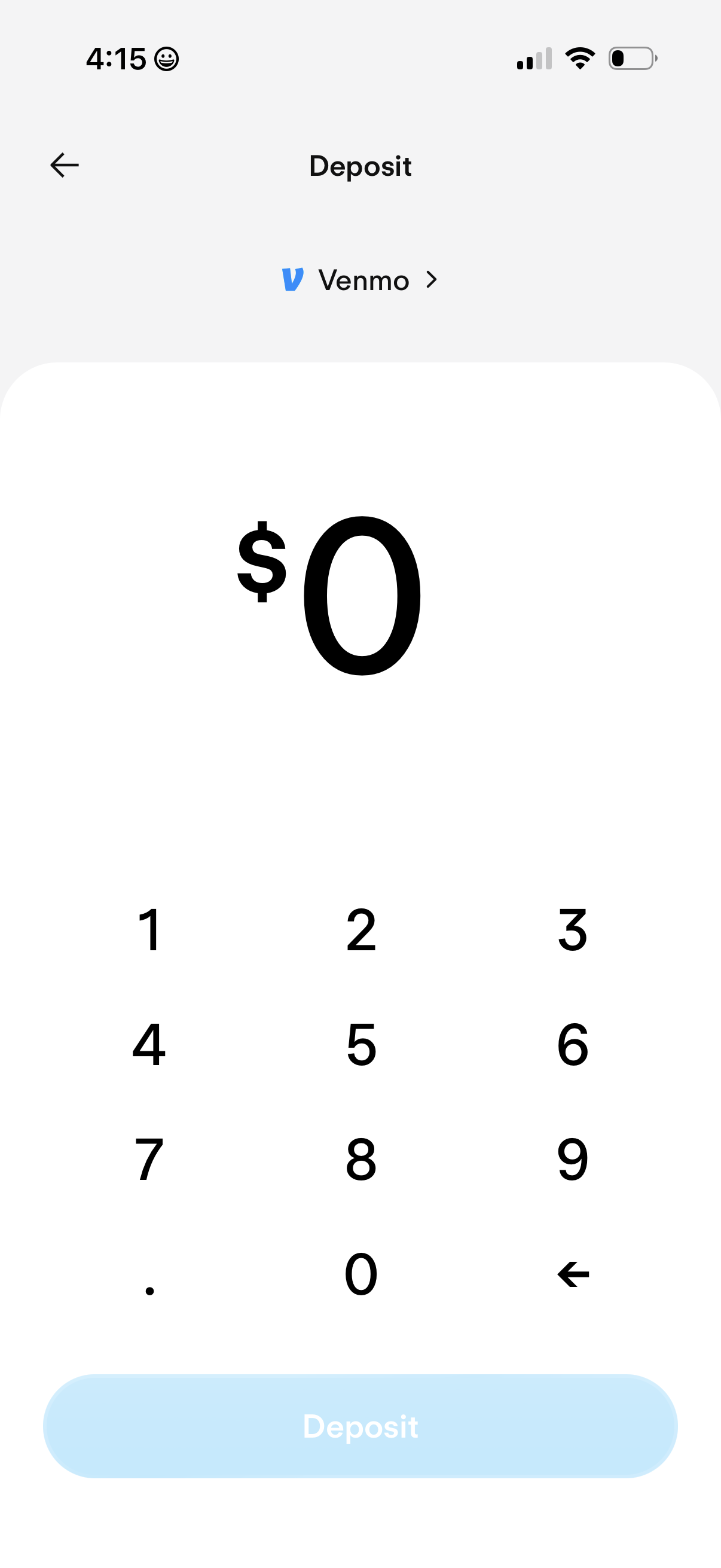
Deposit amount entry screen for adding funds via Venmo, showing a large dollar amount field with numeric keypad input. Includes a disabled “Deposit” primary CTA until a valid amount is entered and a selector to change the funding method.
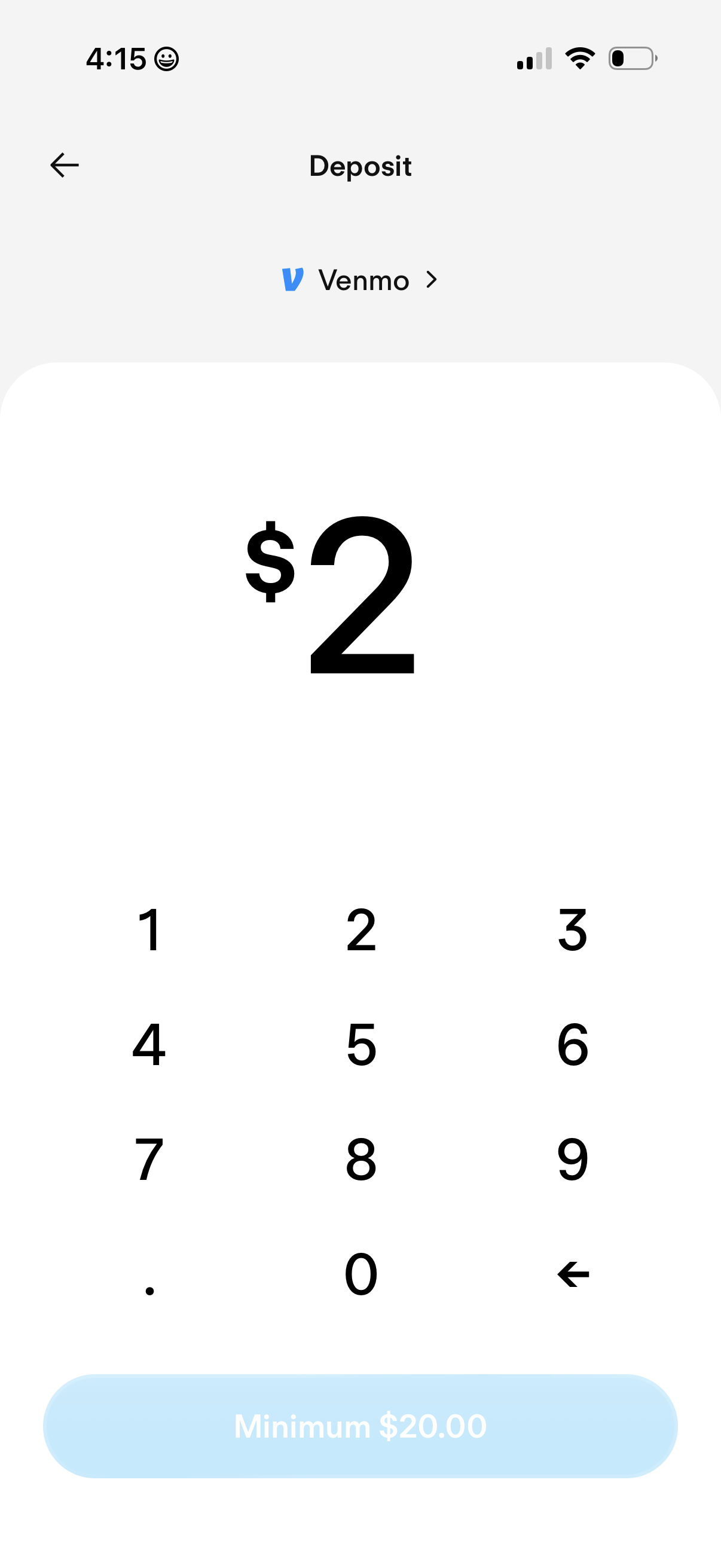
Deposit amount entry screen showing a selected funding method (Venmo) and a large numeric keypad to input a dollar value. A disabled CTA indicates a minimum deposit requirement (minimum $20.
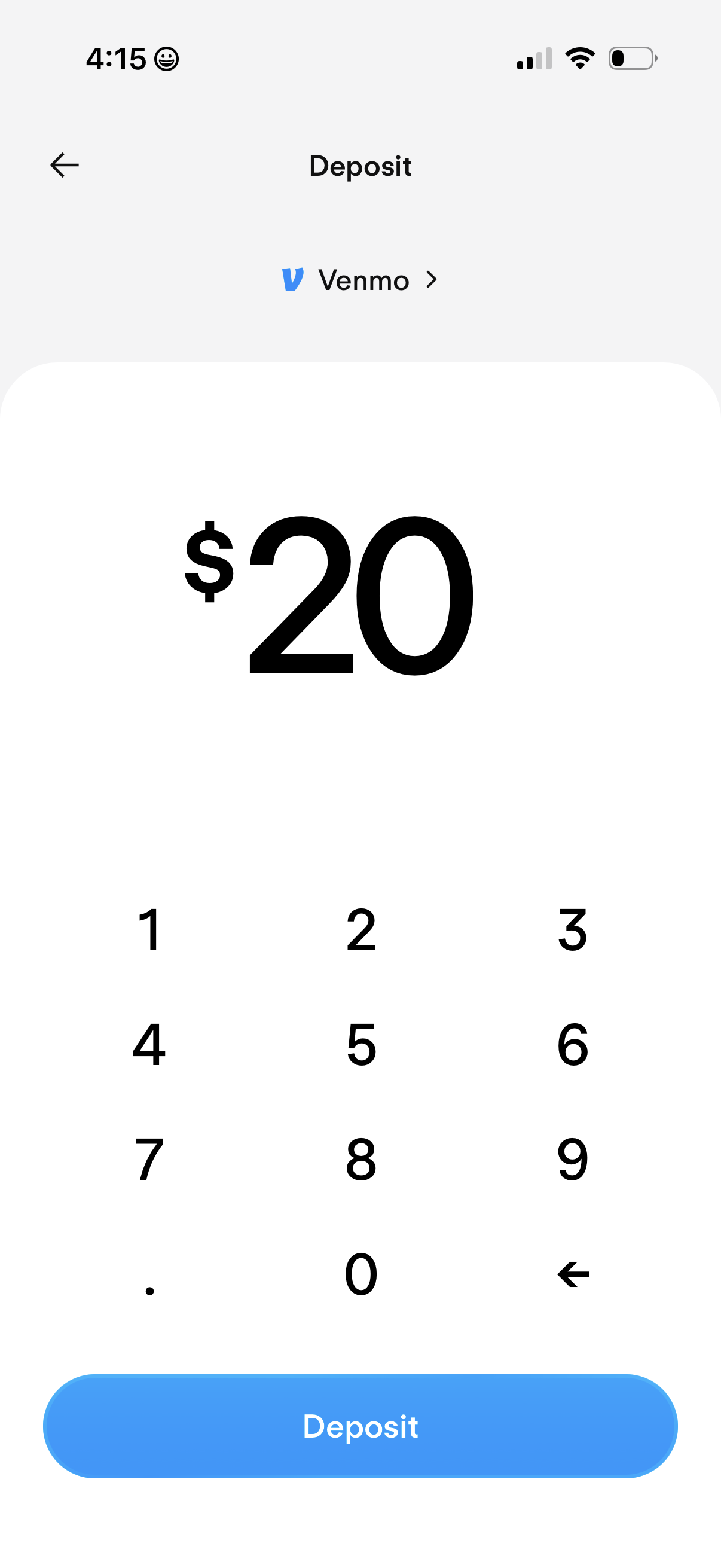
Deposit amount entry screen for transferring money via Venmo, showing a large dollar value with a numeric keypad to input/edit the amount. Includes a primary “Deposit” button to confirm the transfer and a back arrow to cancel.
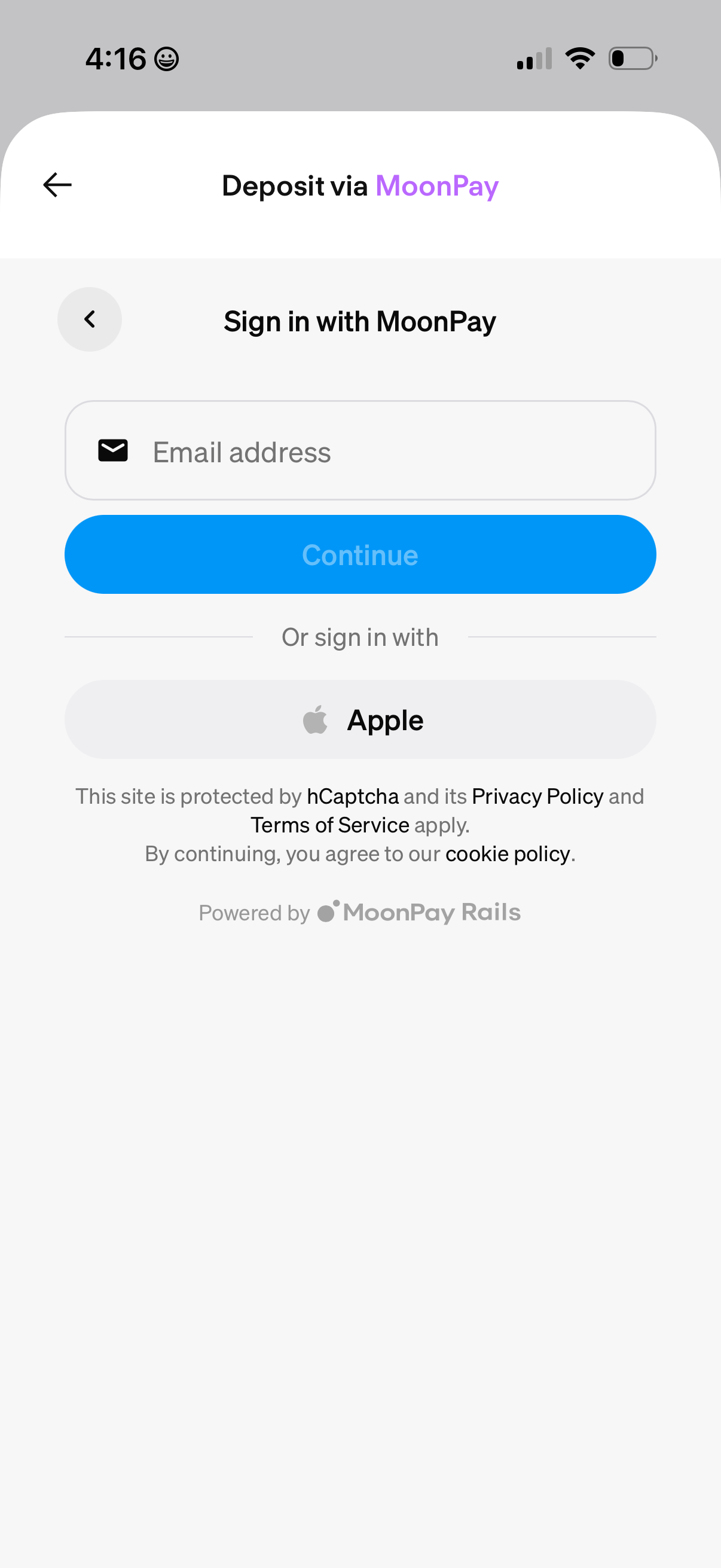
Third-party payment deposit sign-in screen for MoonPay, prompting the user to enter an email address to continue or sign in with Apple. Includes back navigation and legal/security notices (hCaptcha, privacy policy, terms of service, cookie policy) indicating the deposit flow is powered by MoonPay Rails.
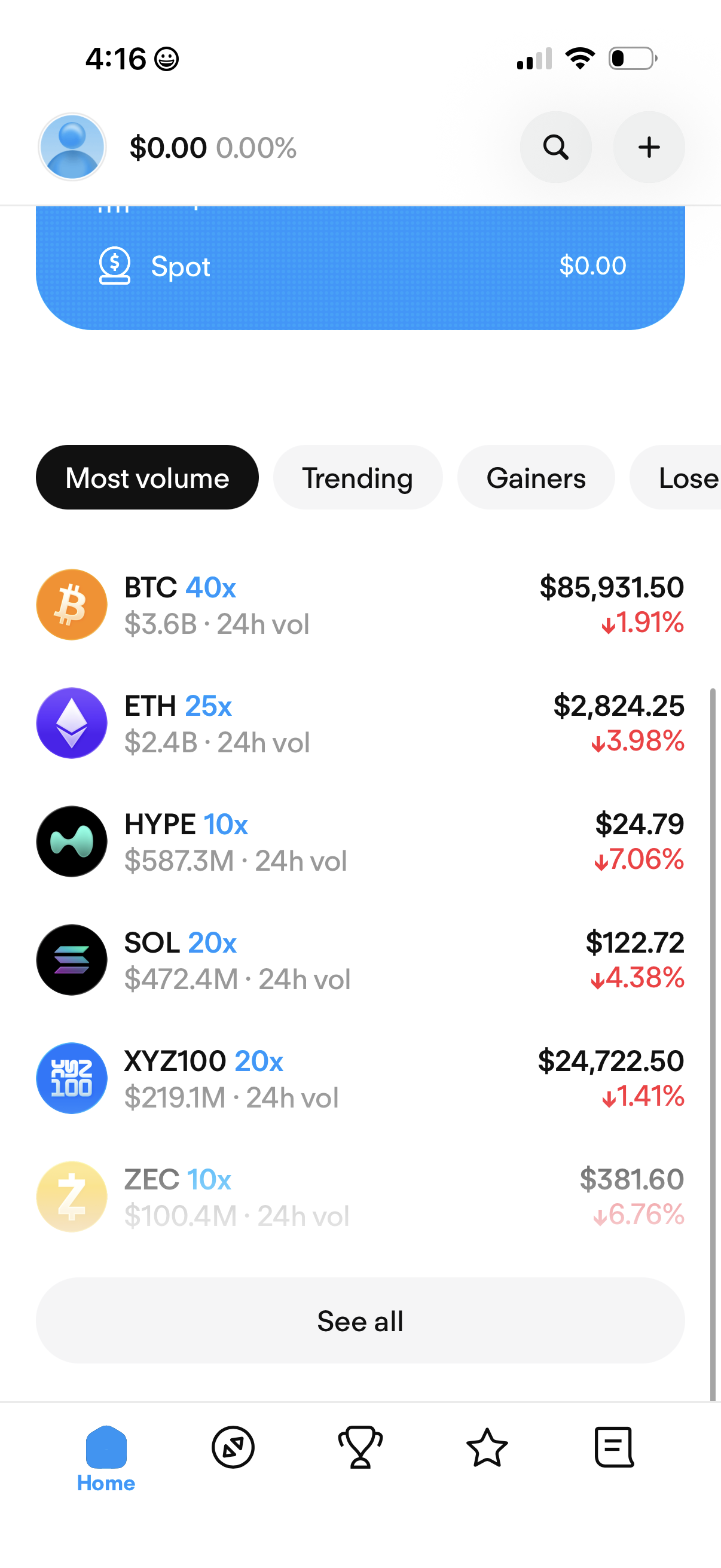
Crypto trading app home/market screen showing a Spot portfolio balance and a ranked list of cryptocurrencies filtered by tabs like Most volume, Trending, and Gainers/Losers. Each row displays the coin icon and ticker, leverage badge, 24h volume, current price, and 24h percent change, with search and add buttons and a “See all” action to view the full market list.