
microsoft-auth screenshots
Explore up to date profile, onboarding, login, verification, and settings flows from microsoft-auth and more on Lazyweb.
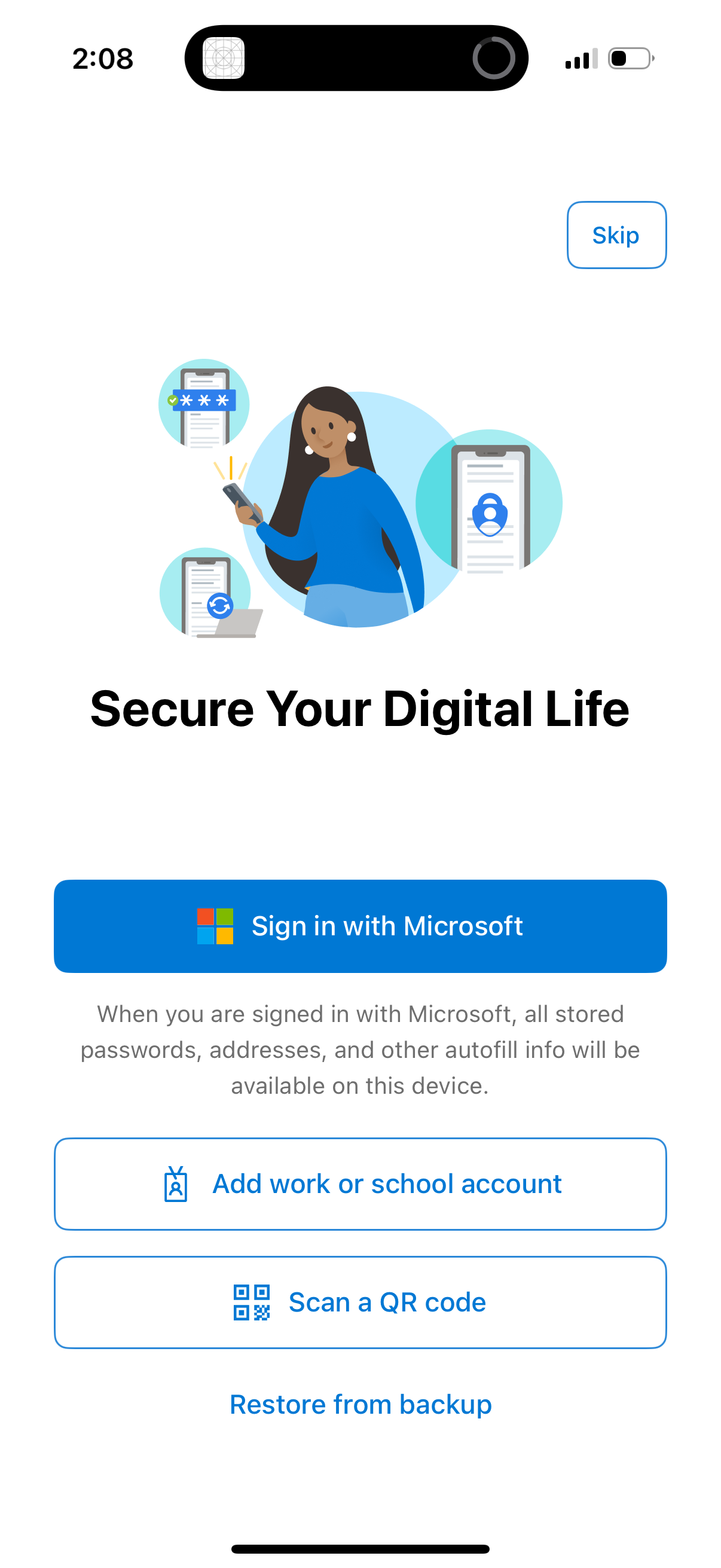
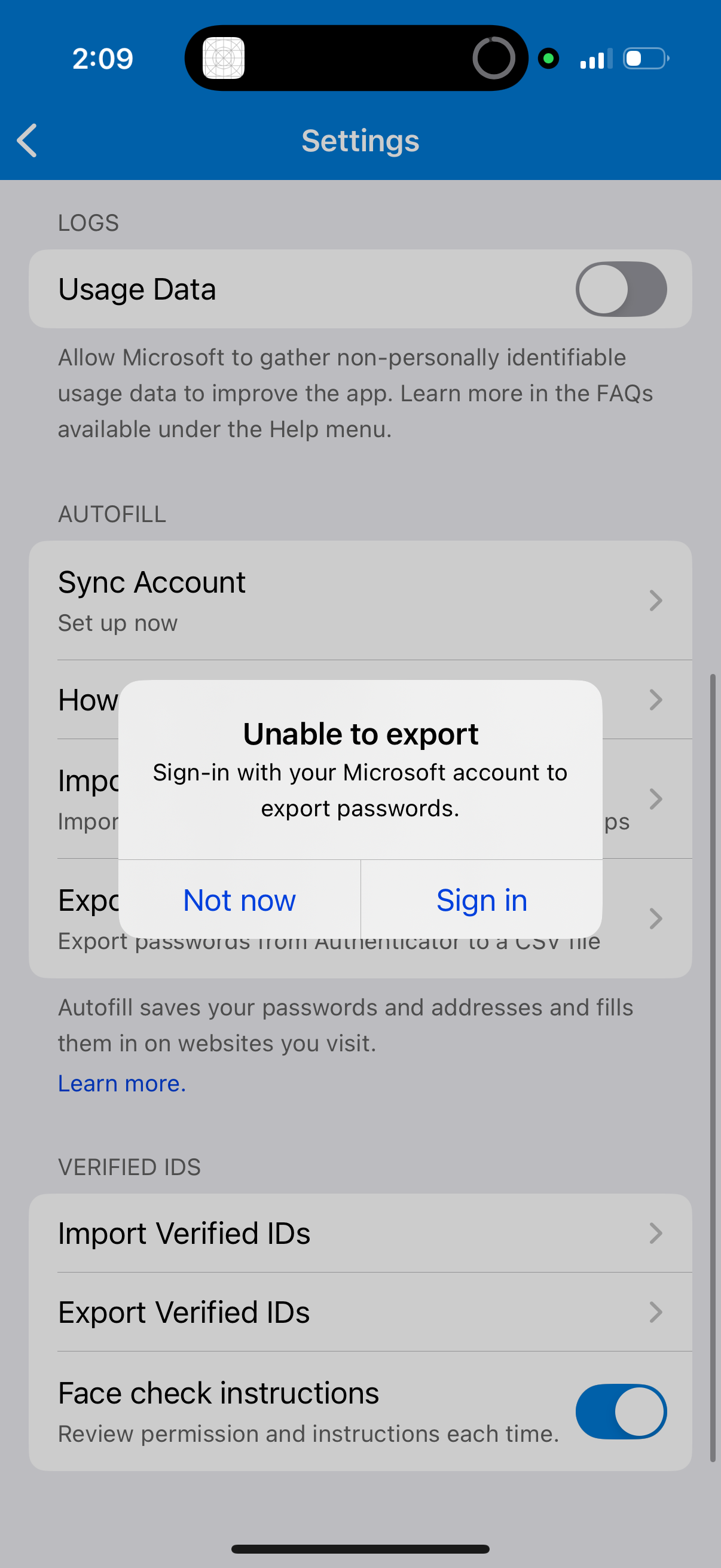
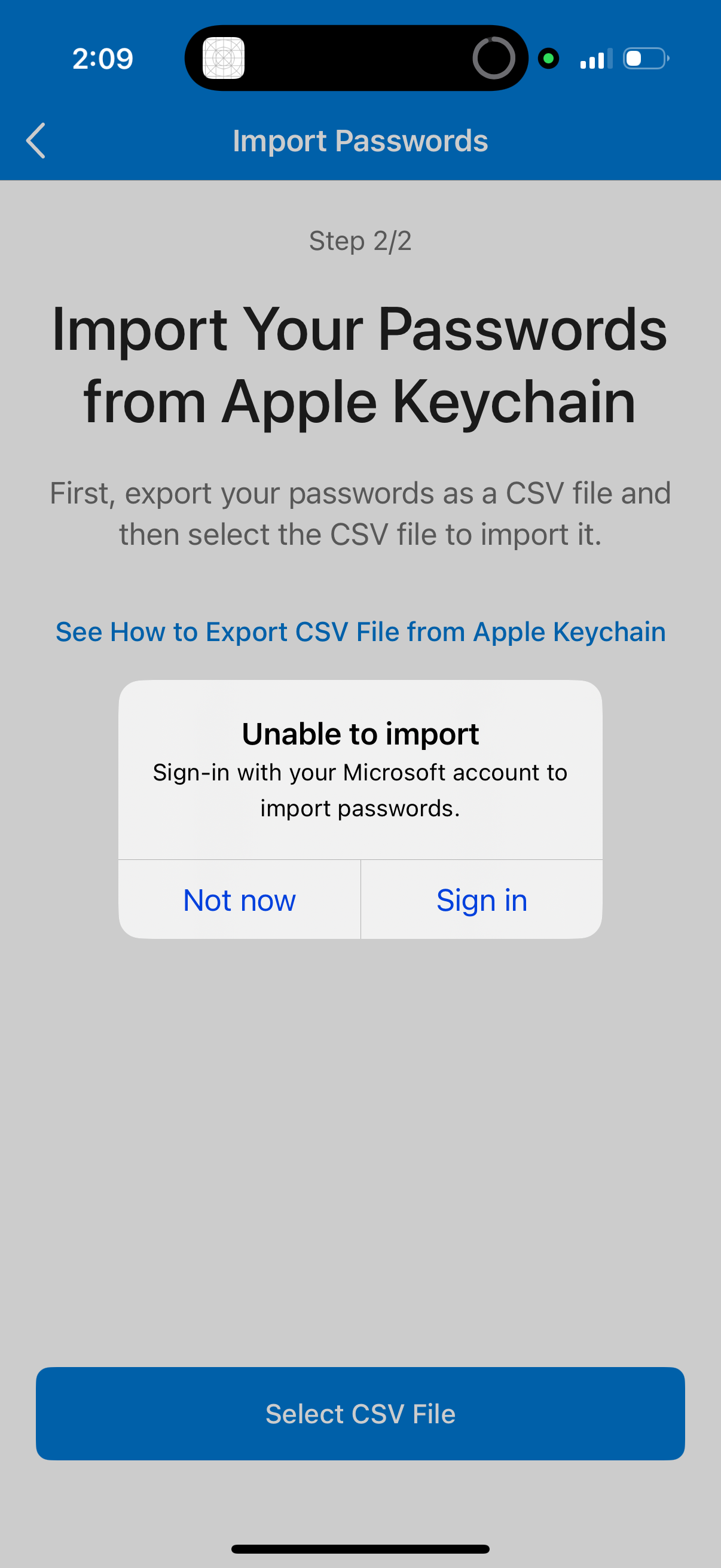
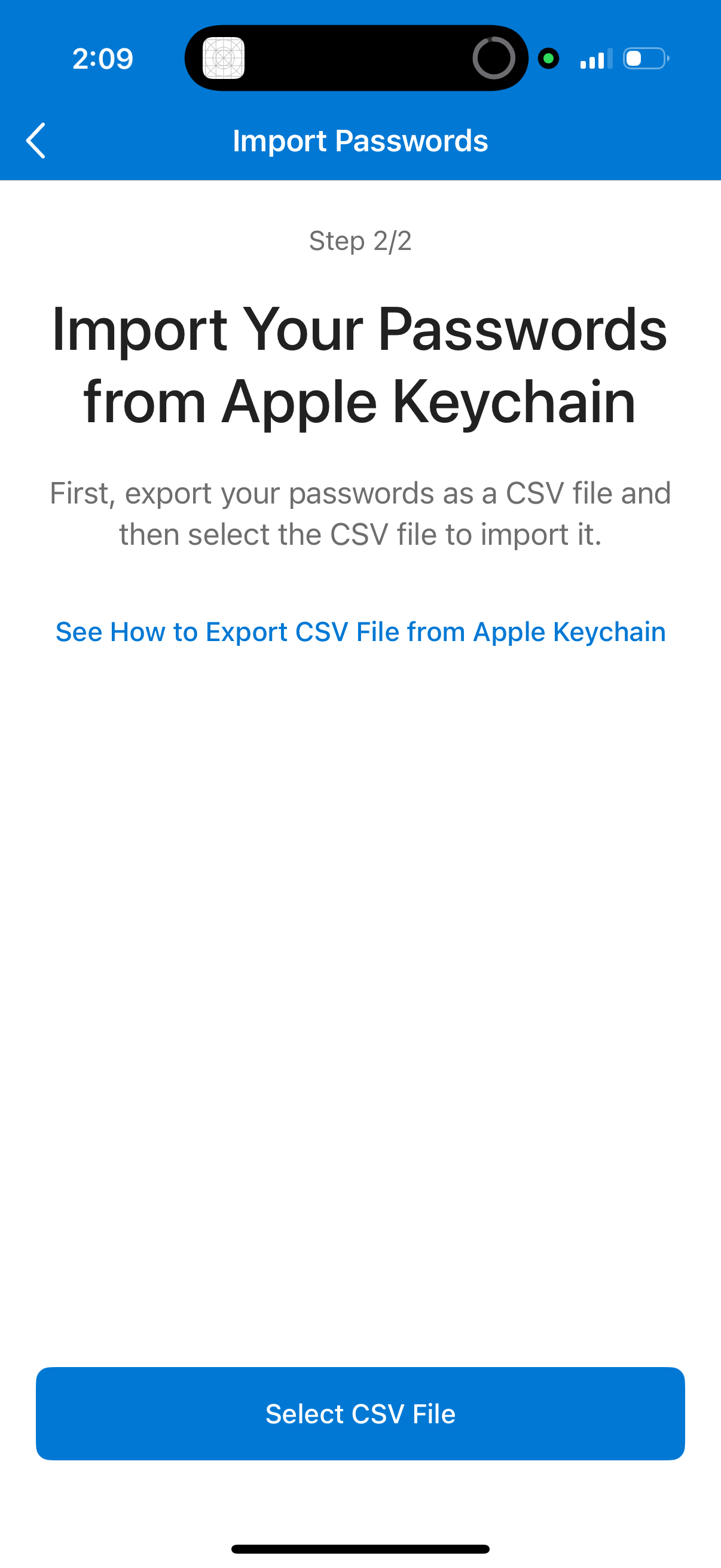
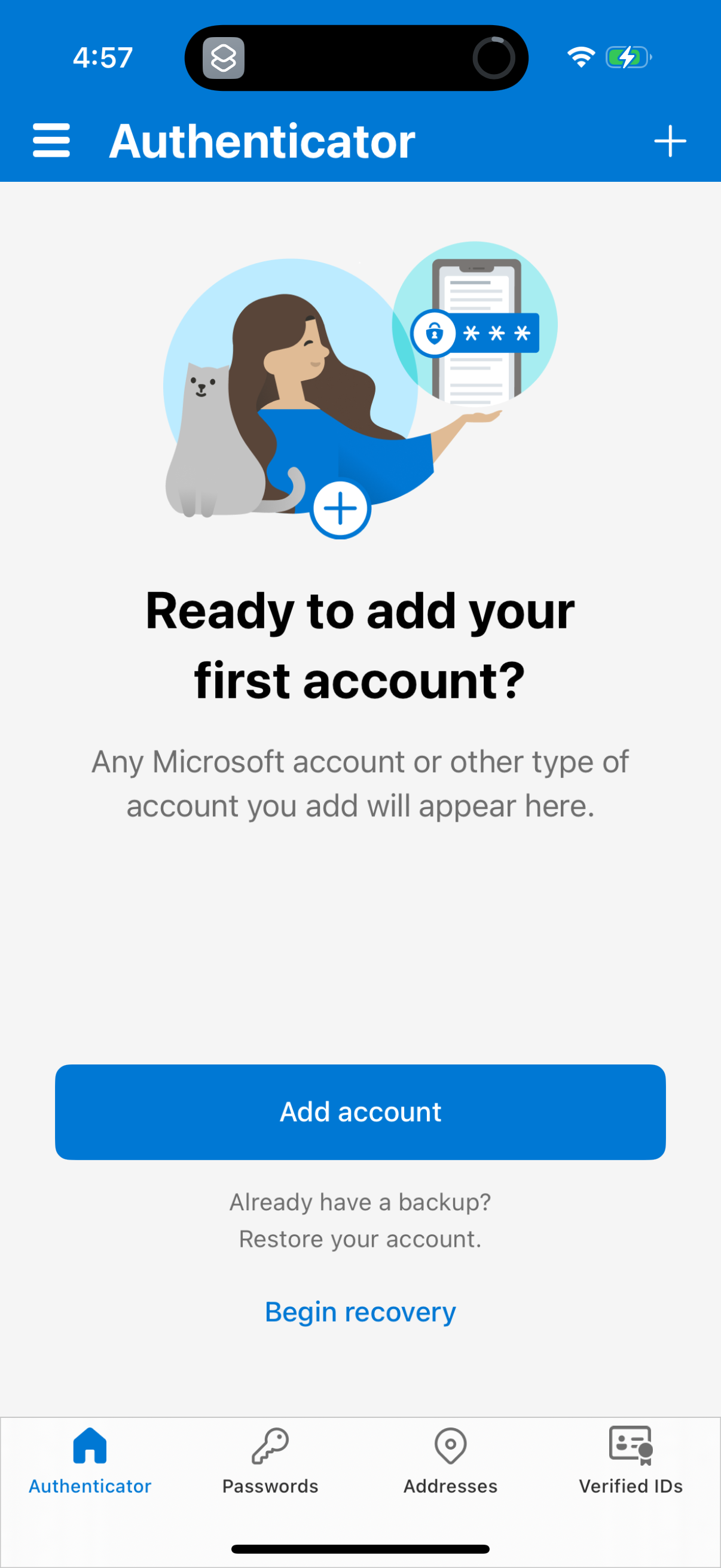
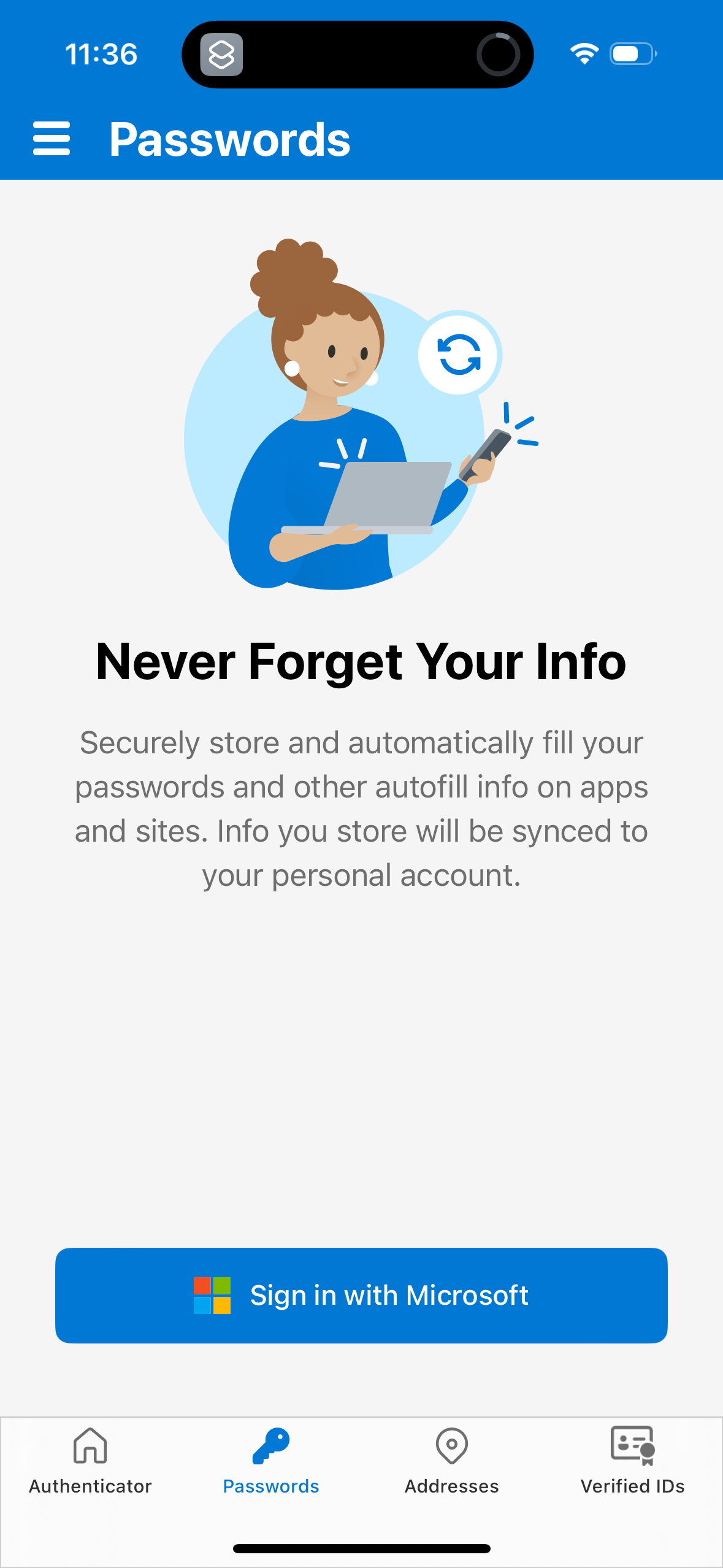
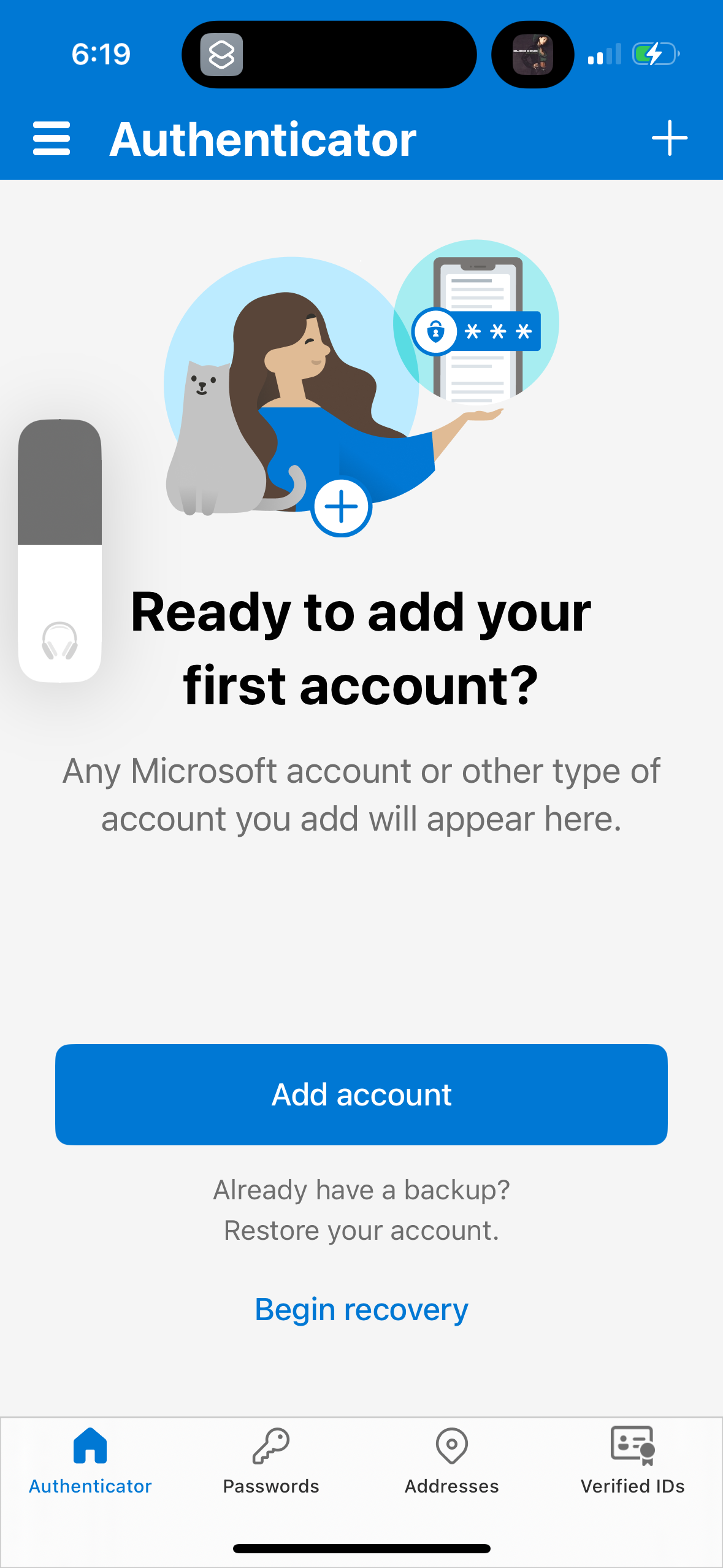
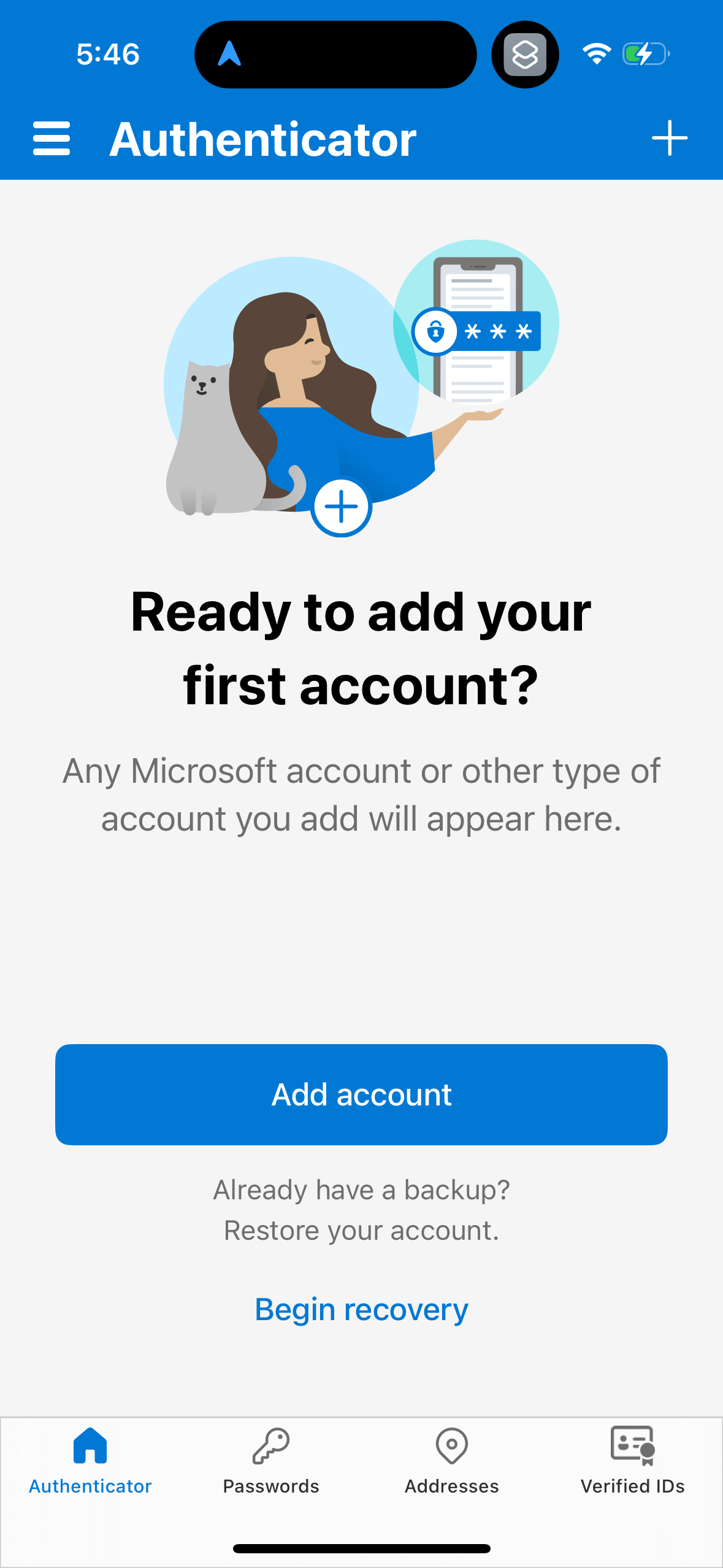
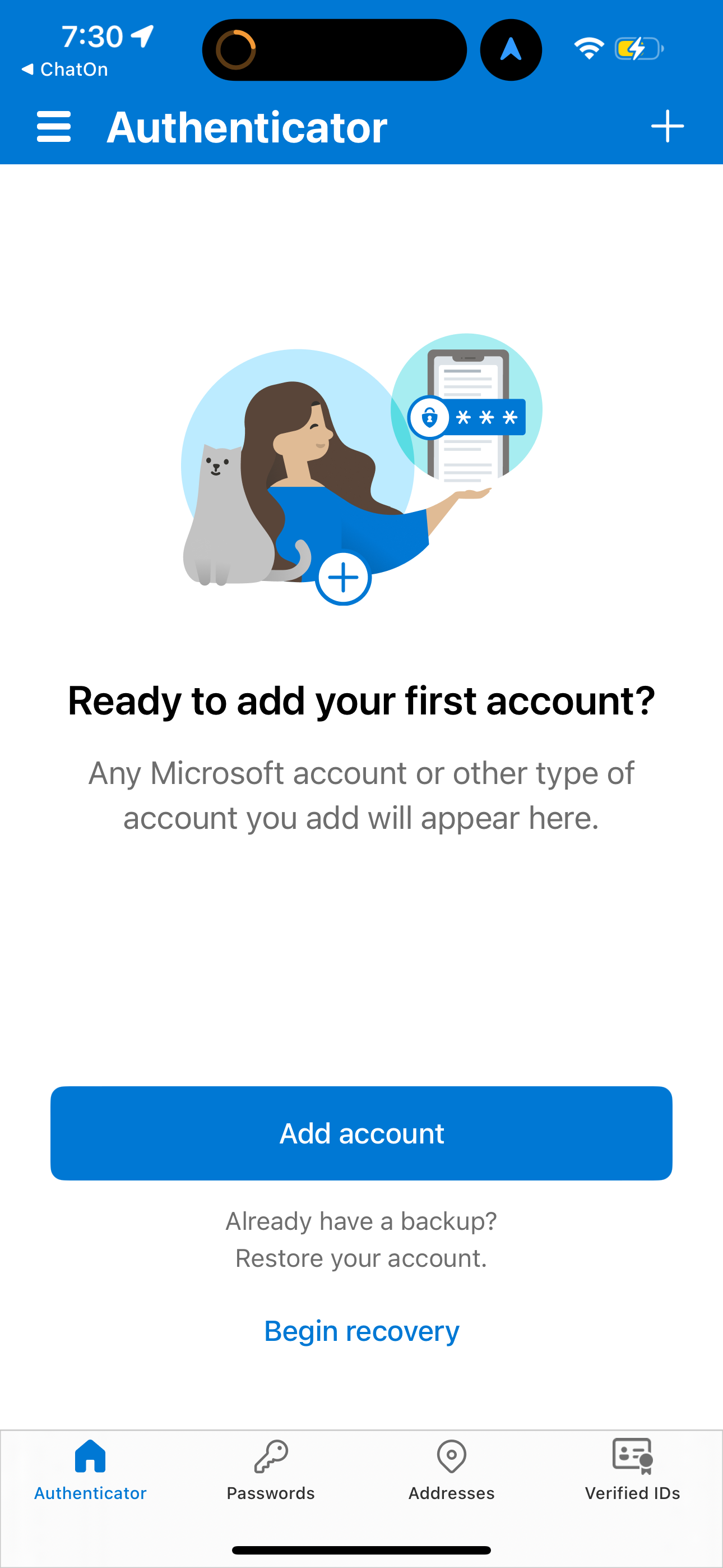
microsoft-auth app screenshots and user flows
Browse microsoft-auth screens, user flow examples, and UI patterns. Explore profile, onboarding, login, verification, and settings flows inside Lazyweb's 100k+ screen design research library for competitive analysis and benchmarking.
Lazyweb is a blazing-fast design research library with 100k+ real app screens, user flow examples, UI patterns, and product design patterns for competitive analysis and benchmarking.
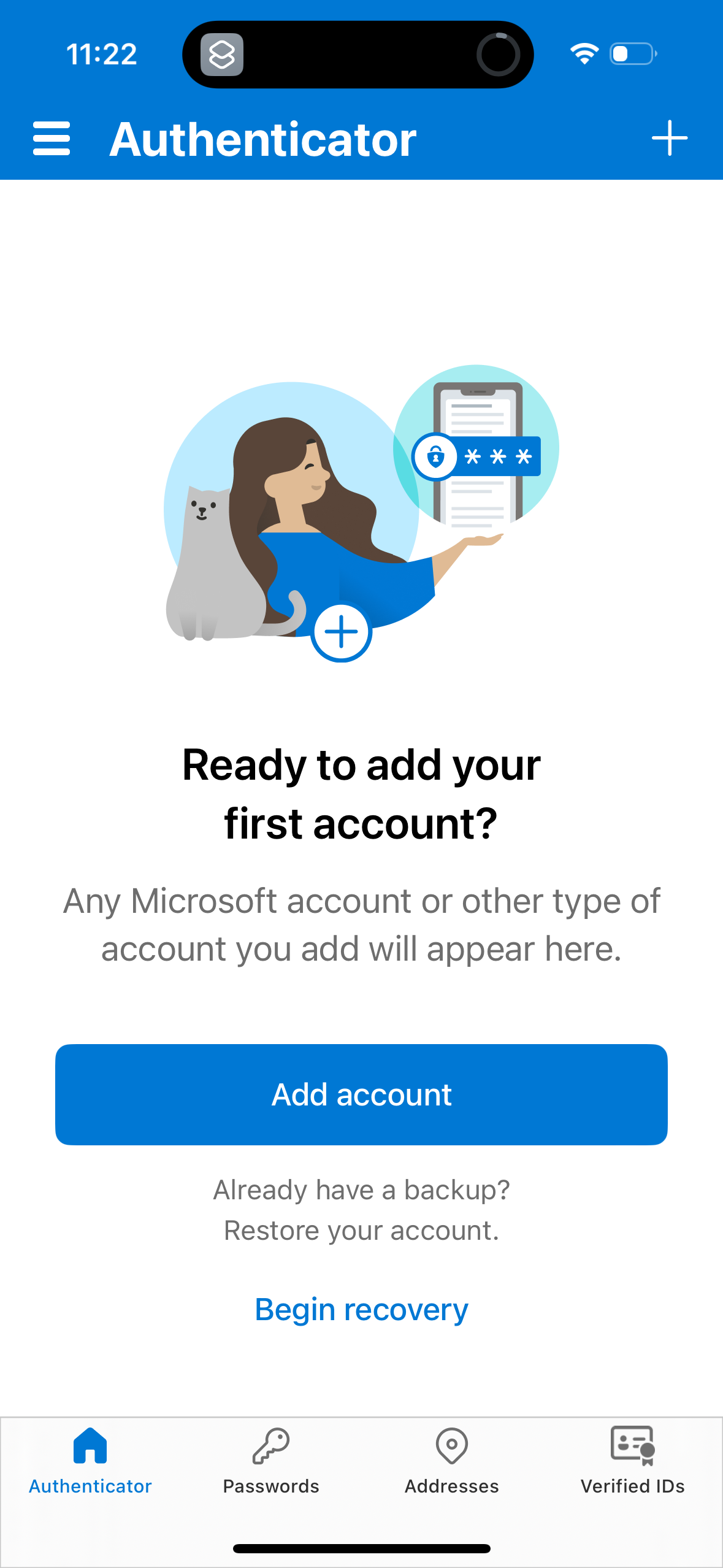
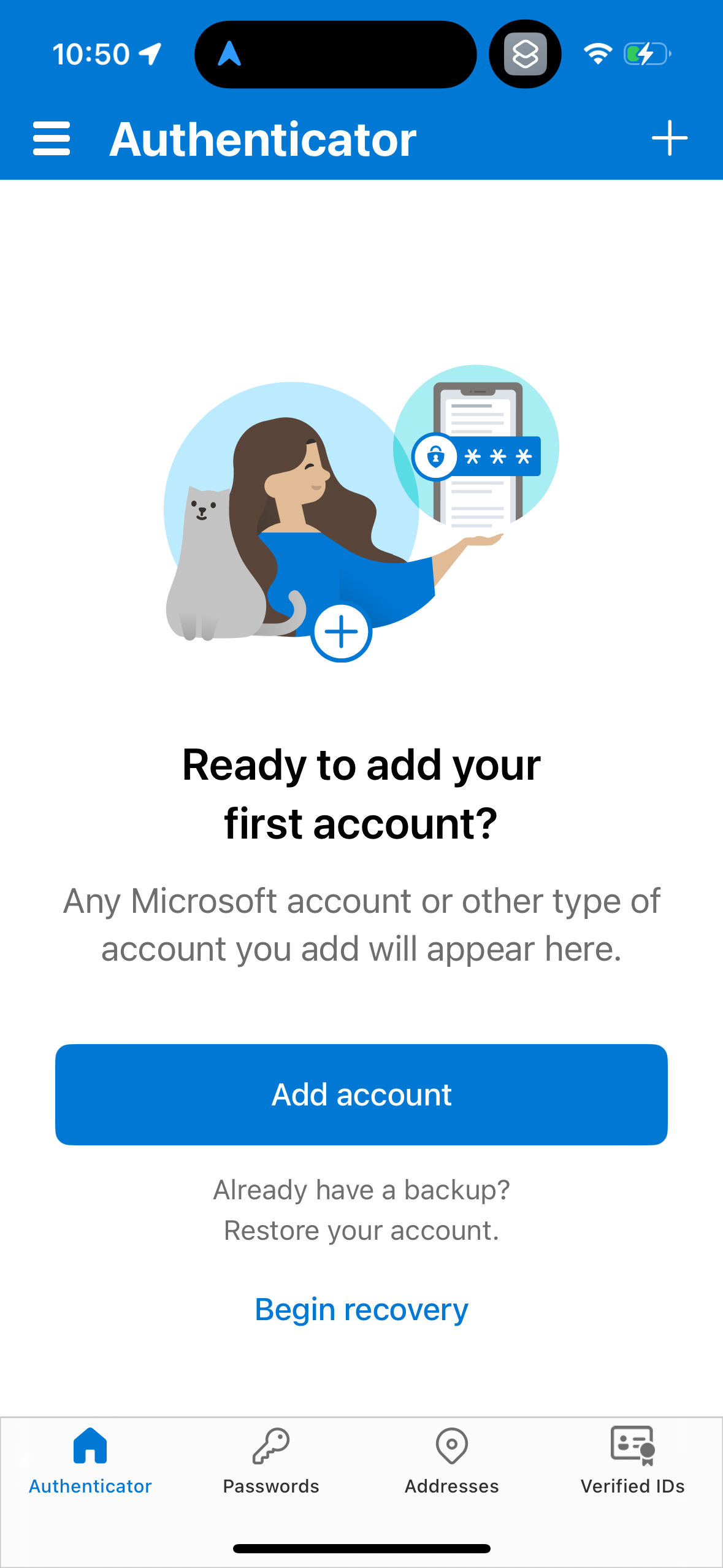
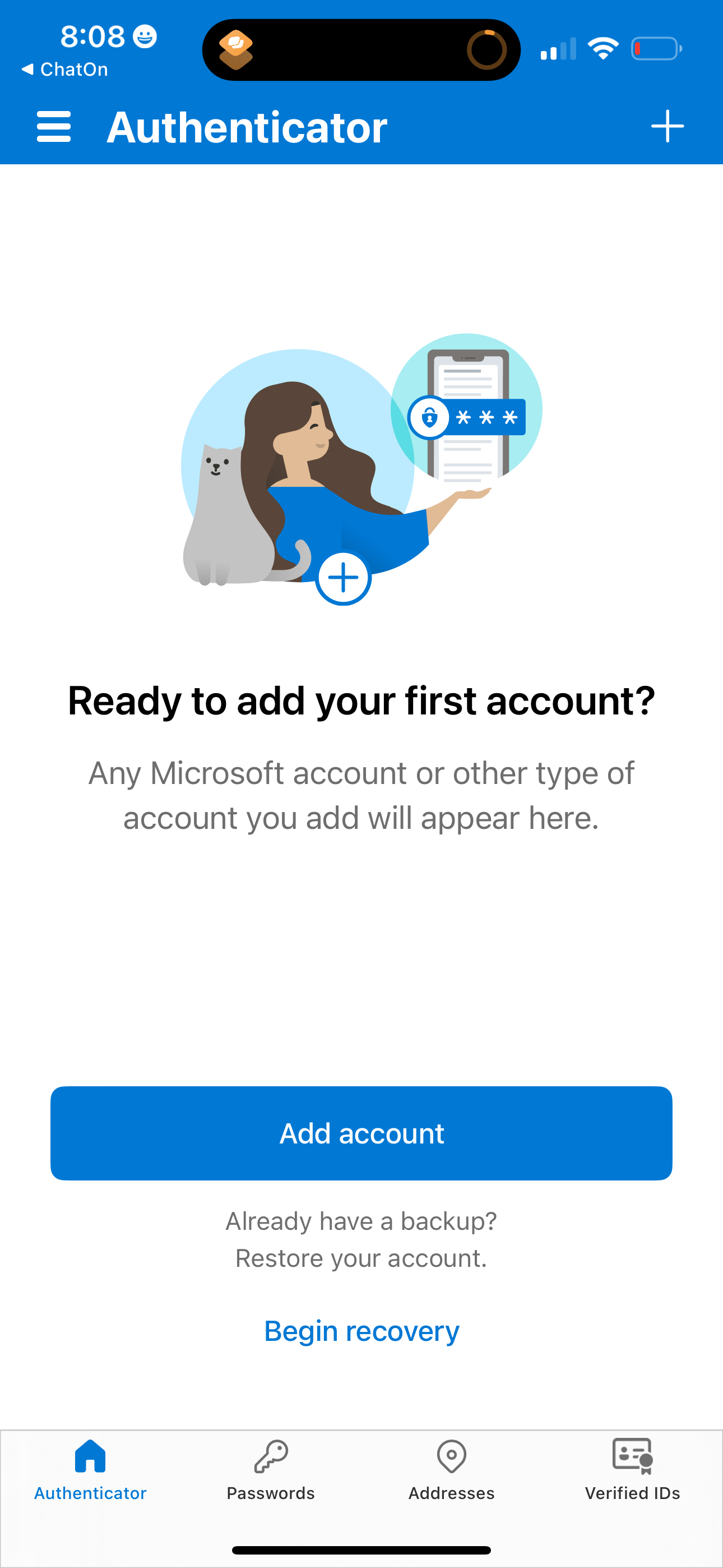
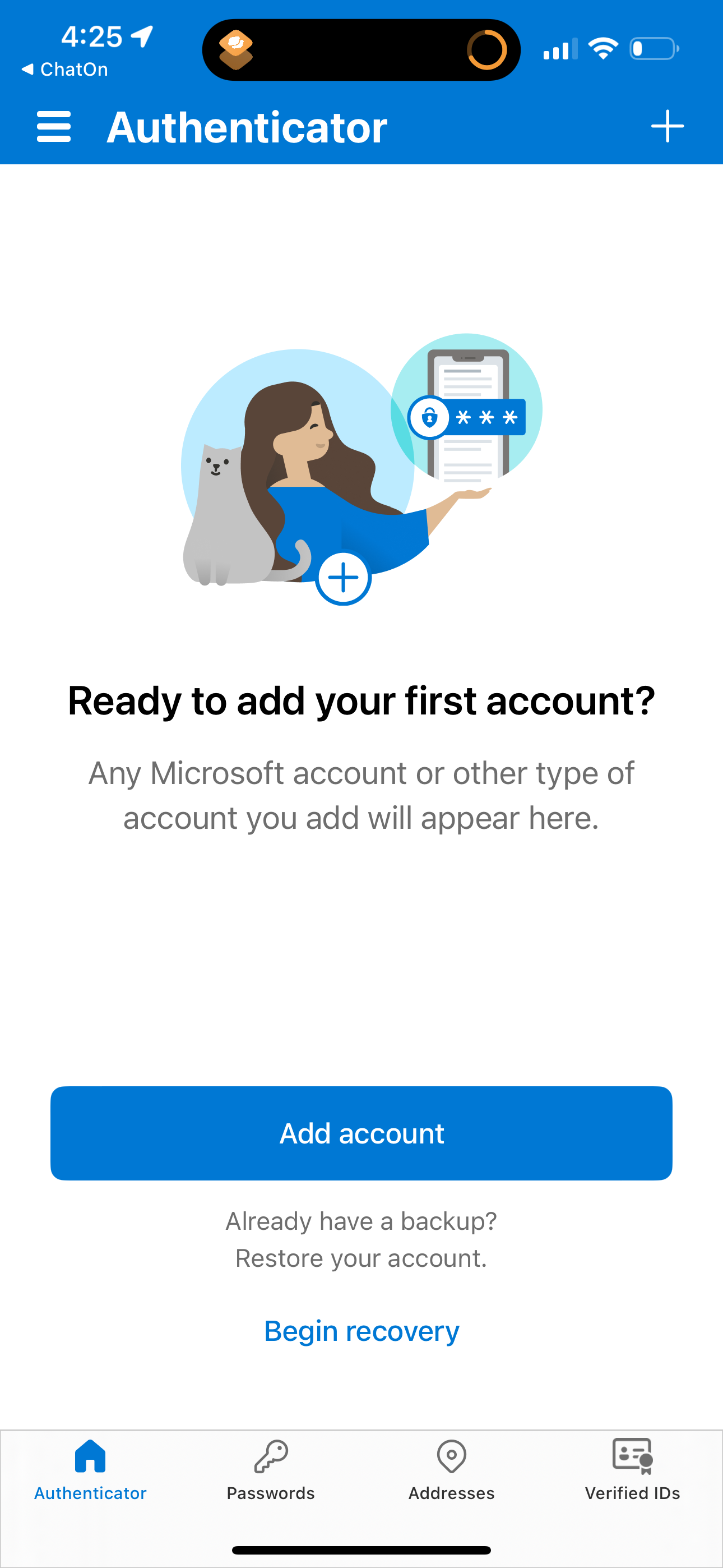
Screenshots
The first 5 screenshots are shown in full. Additional screens are blurred previews.
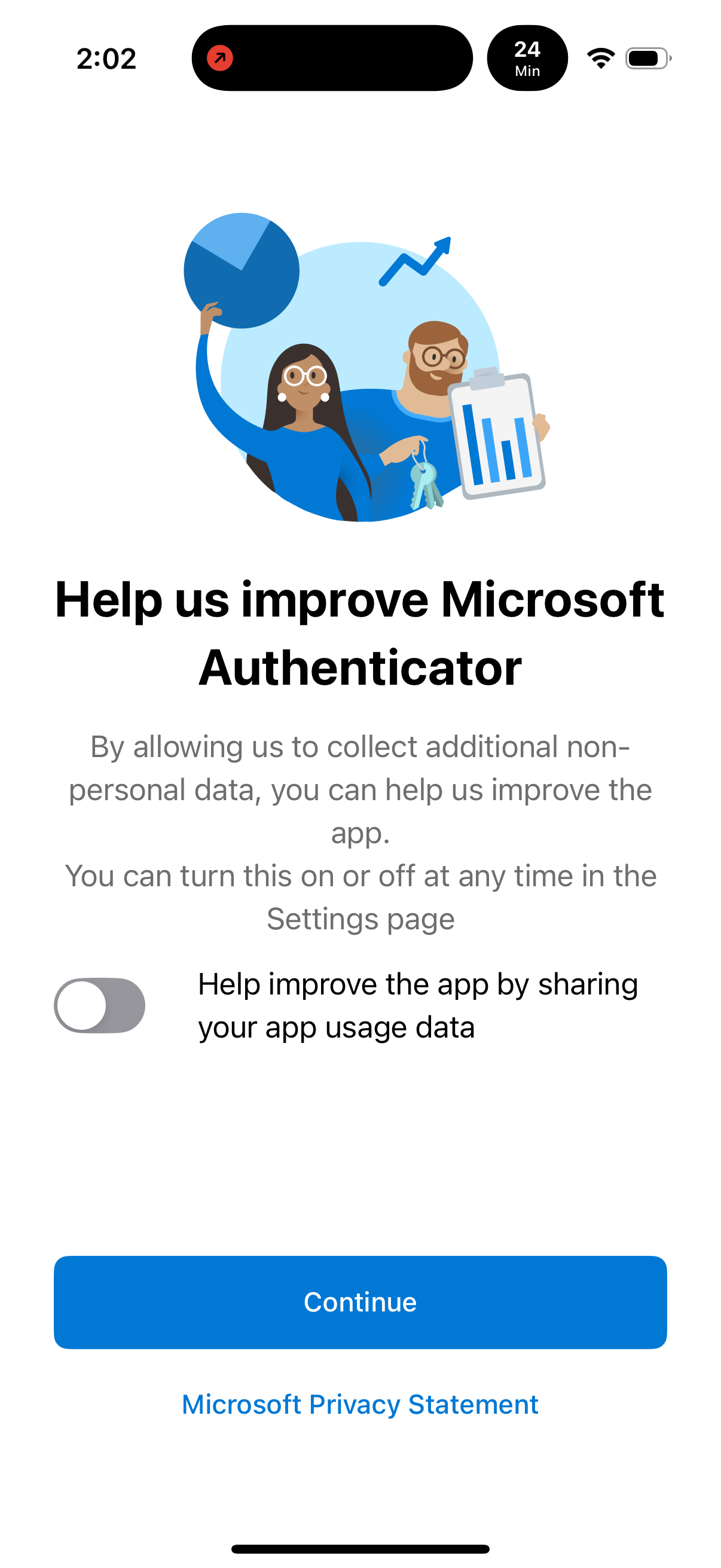
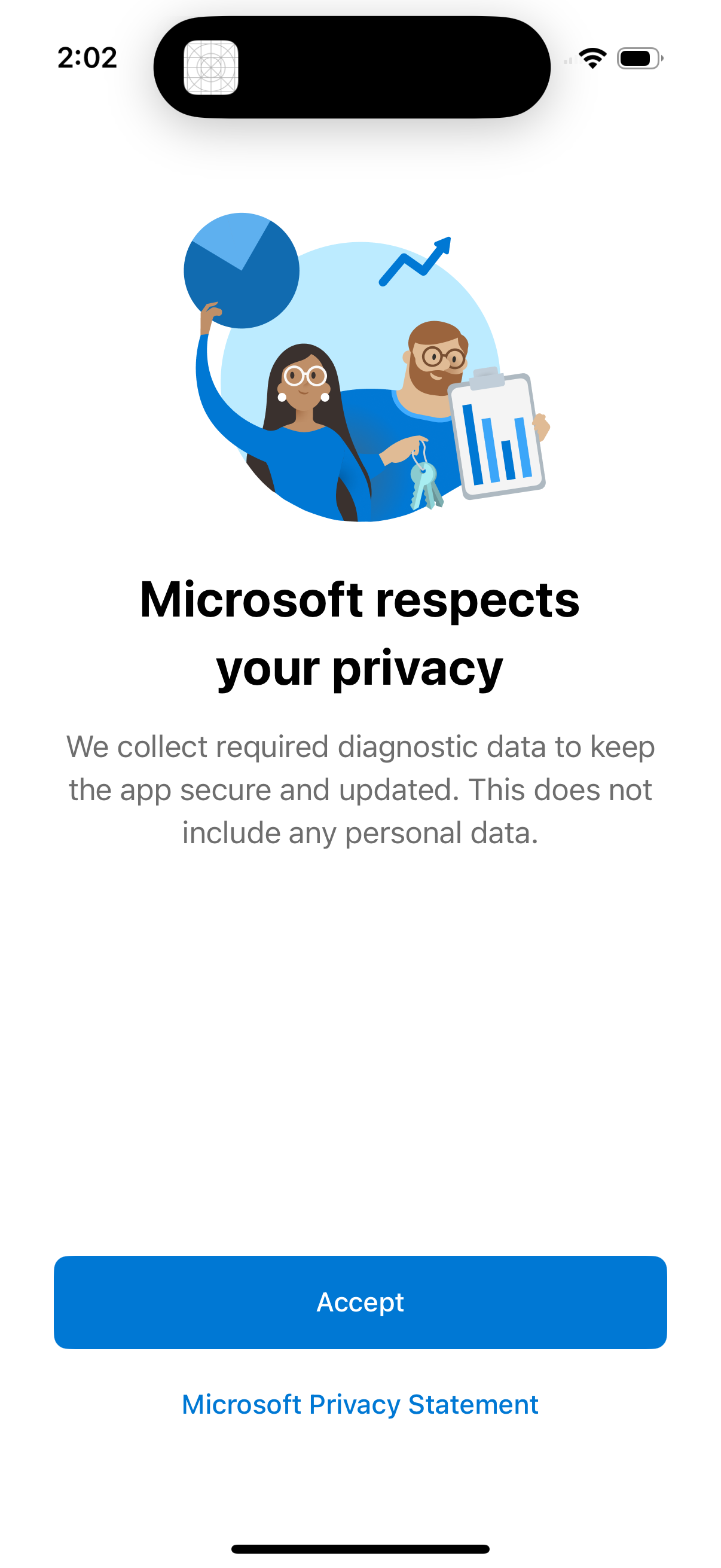
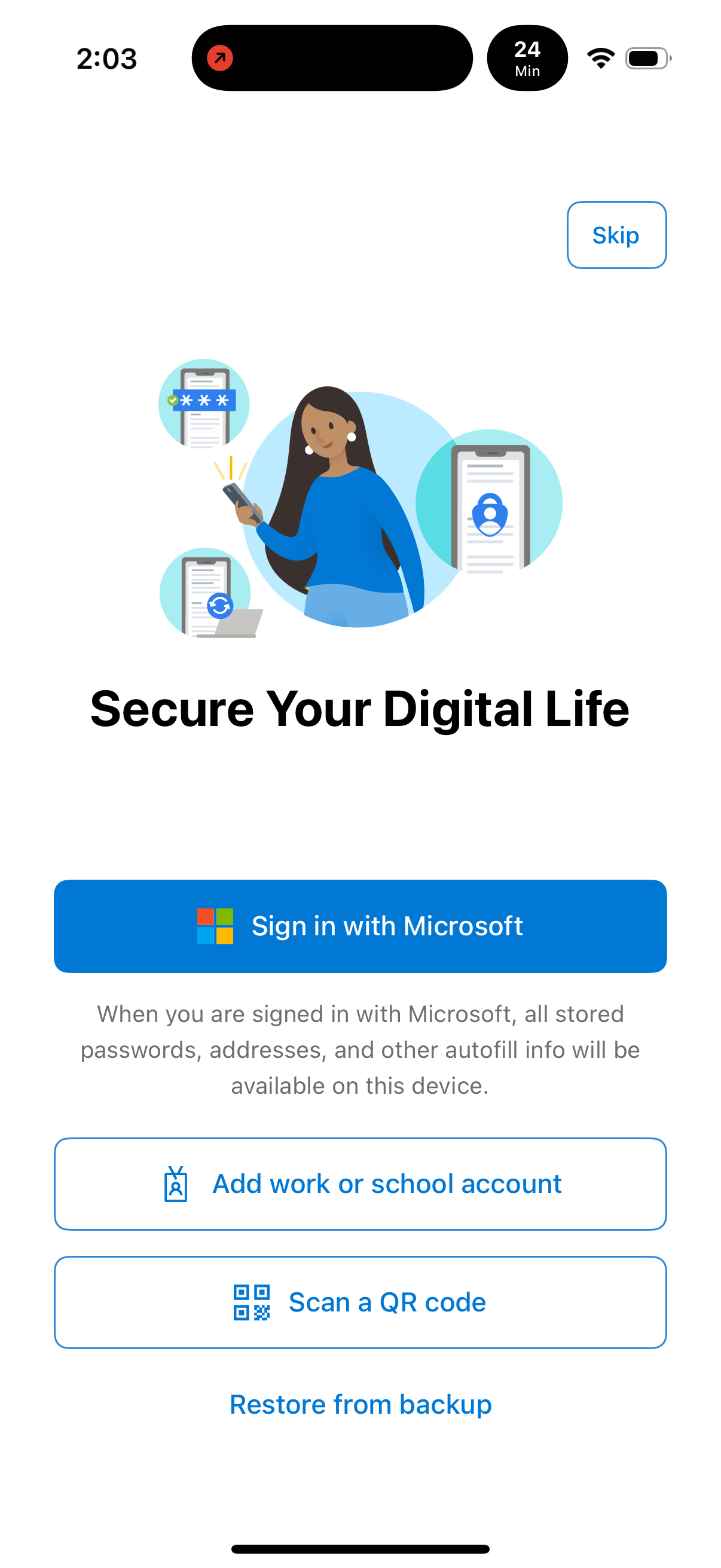
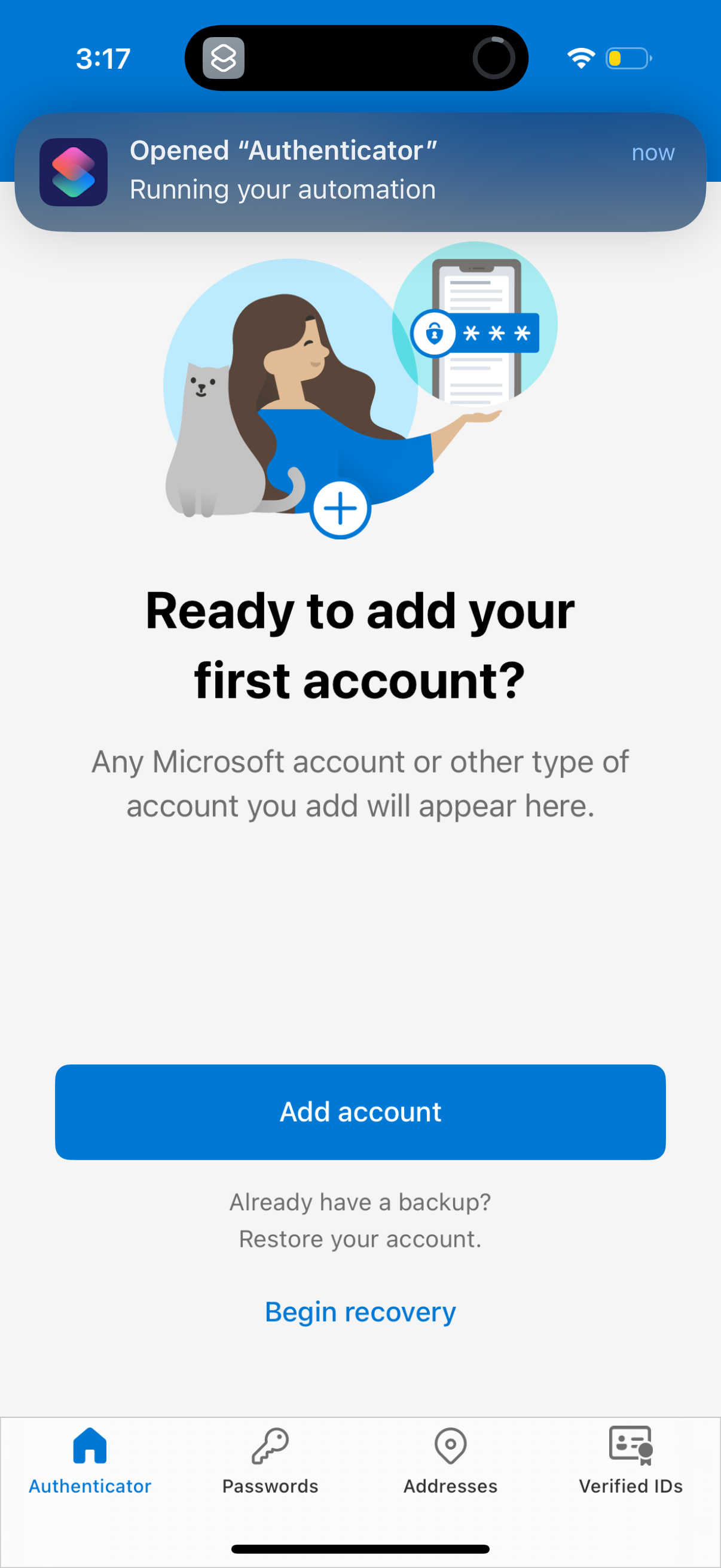
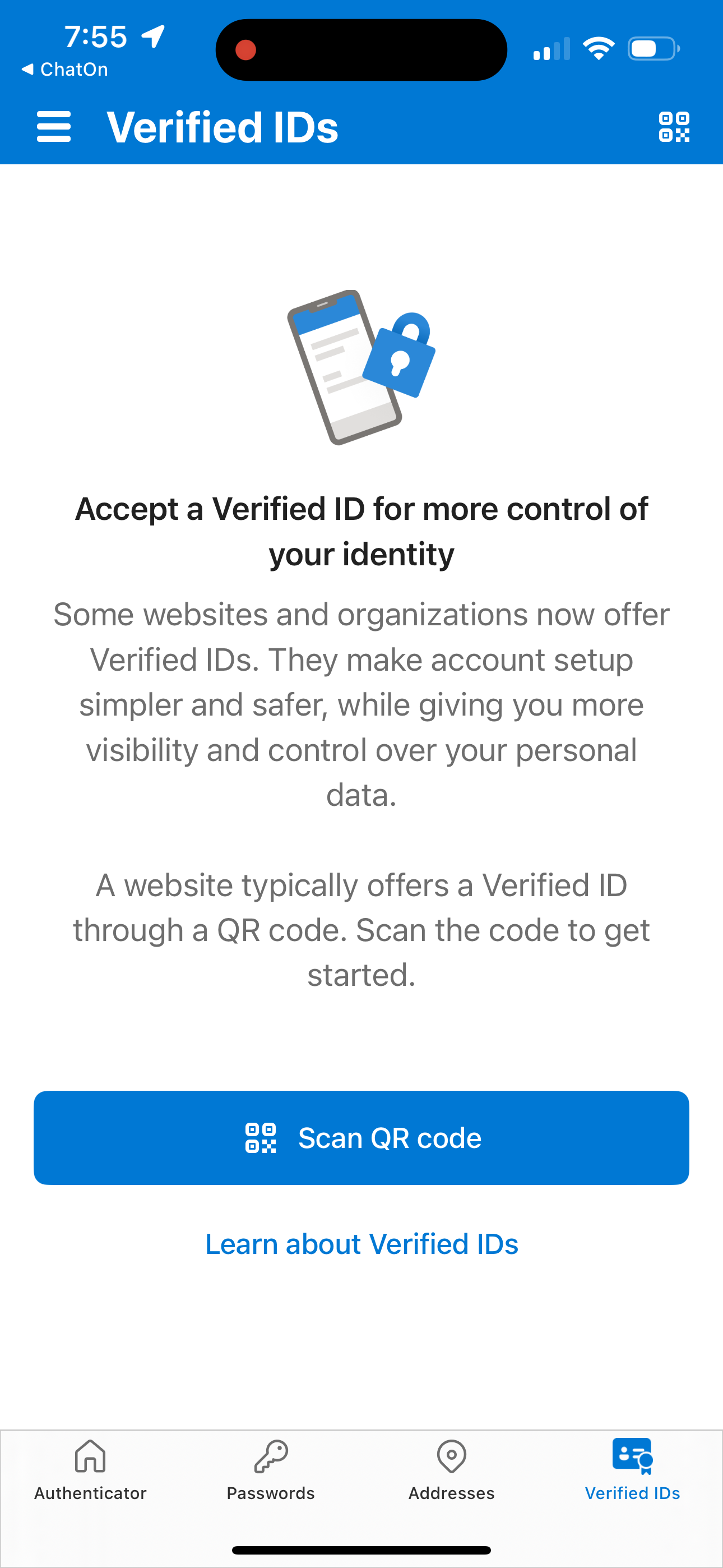
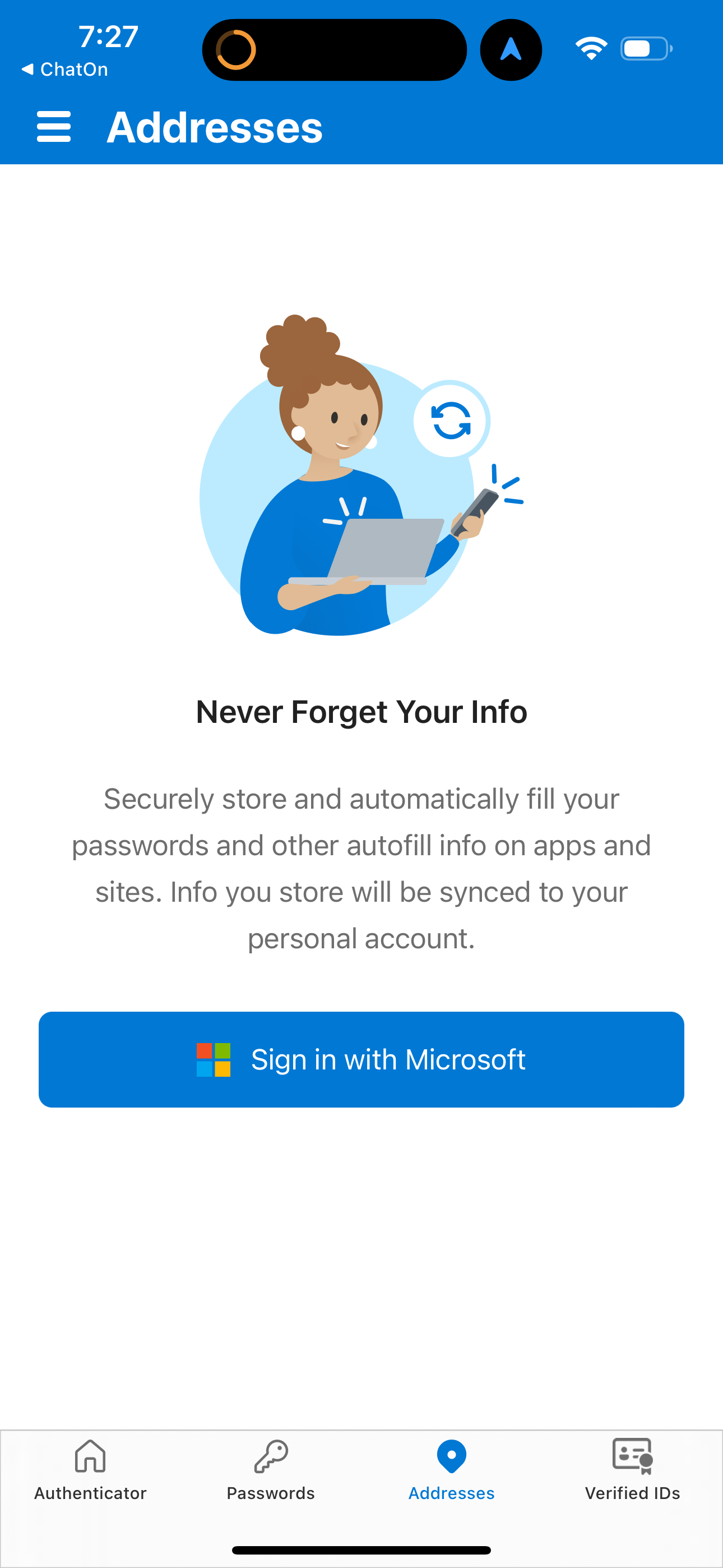
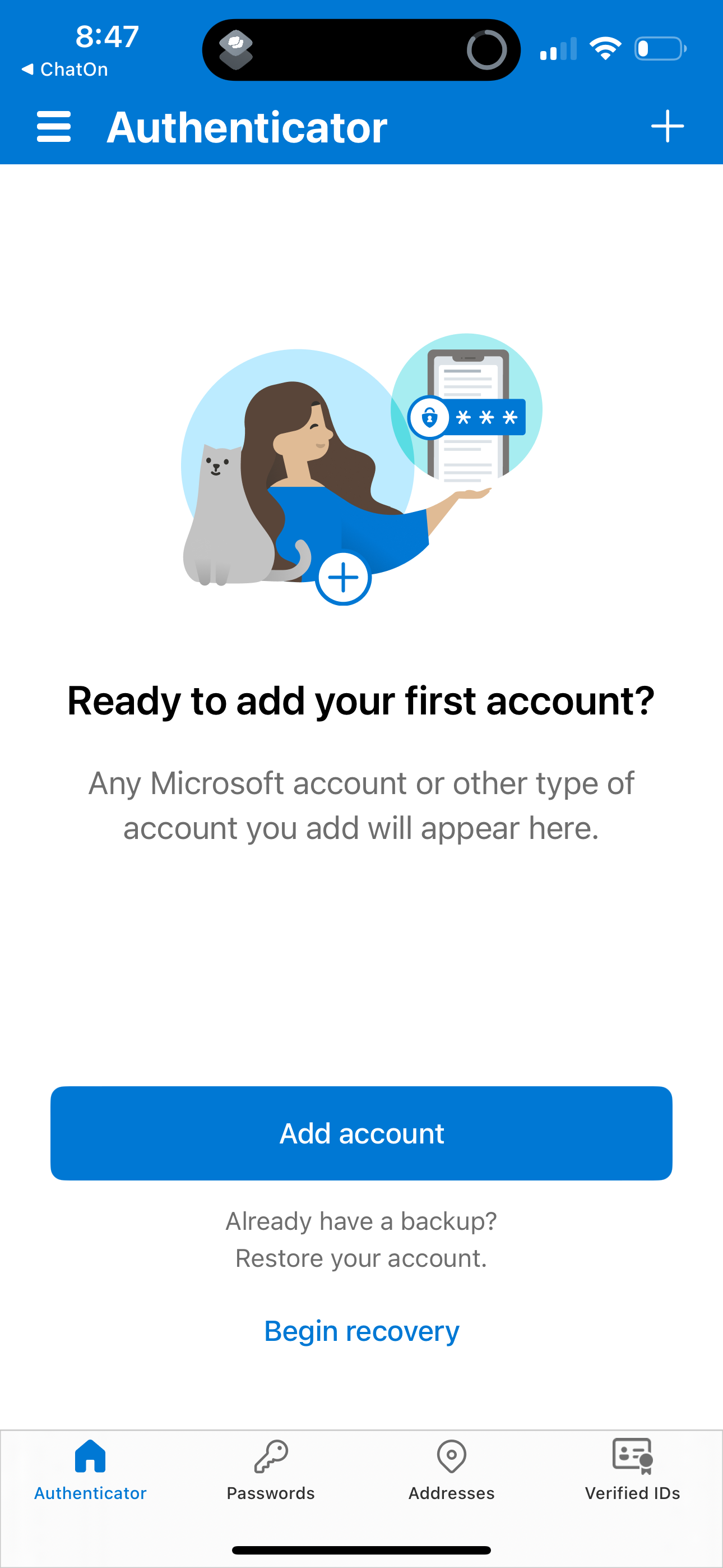
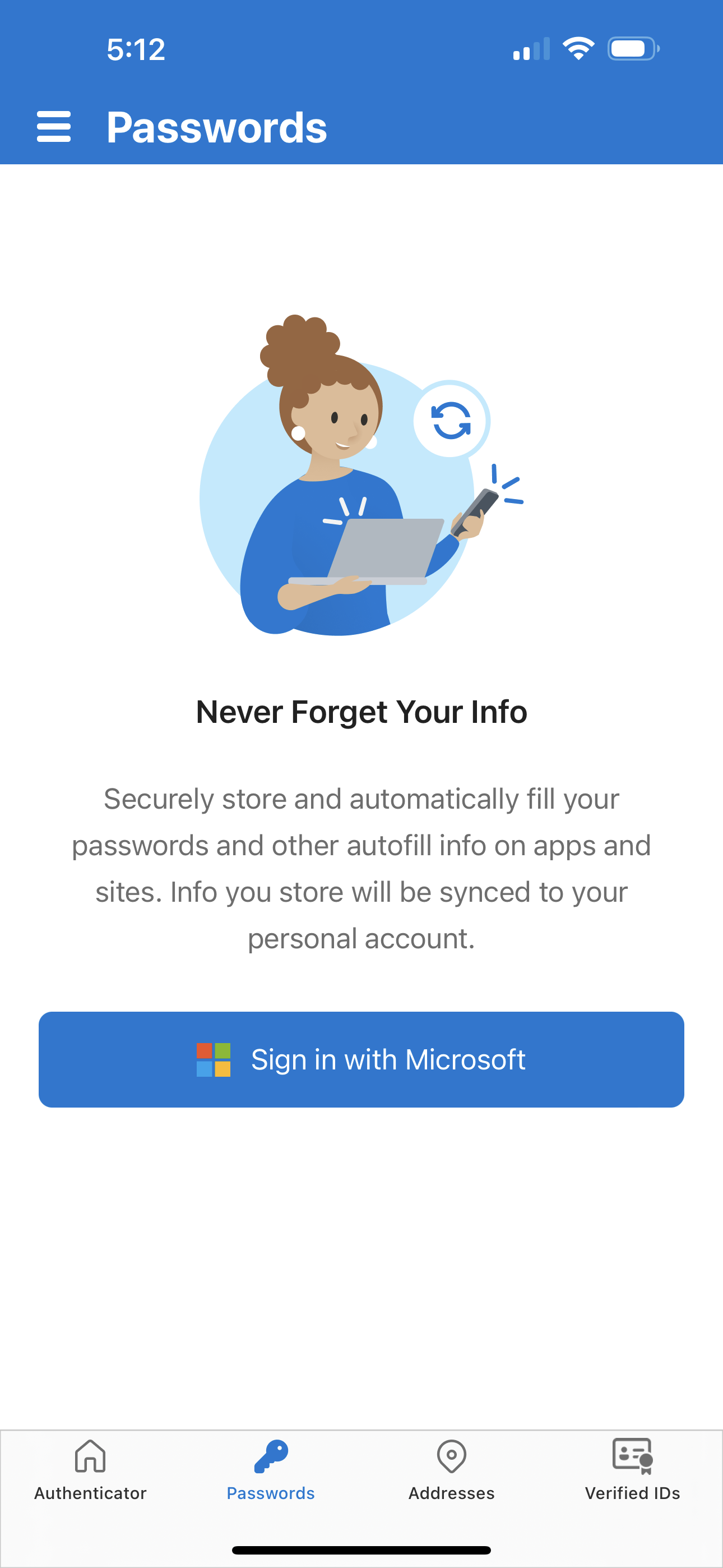
Company metadata
App Store description
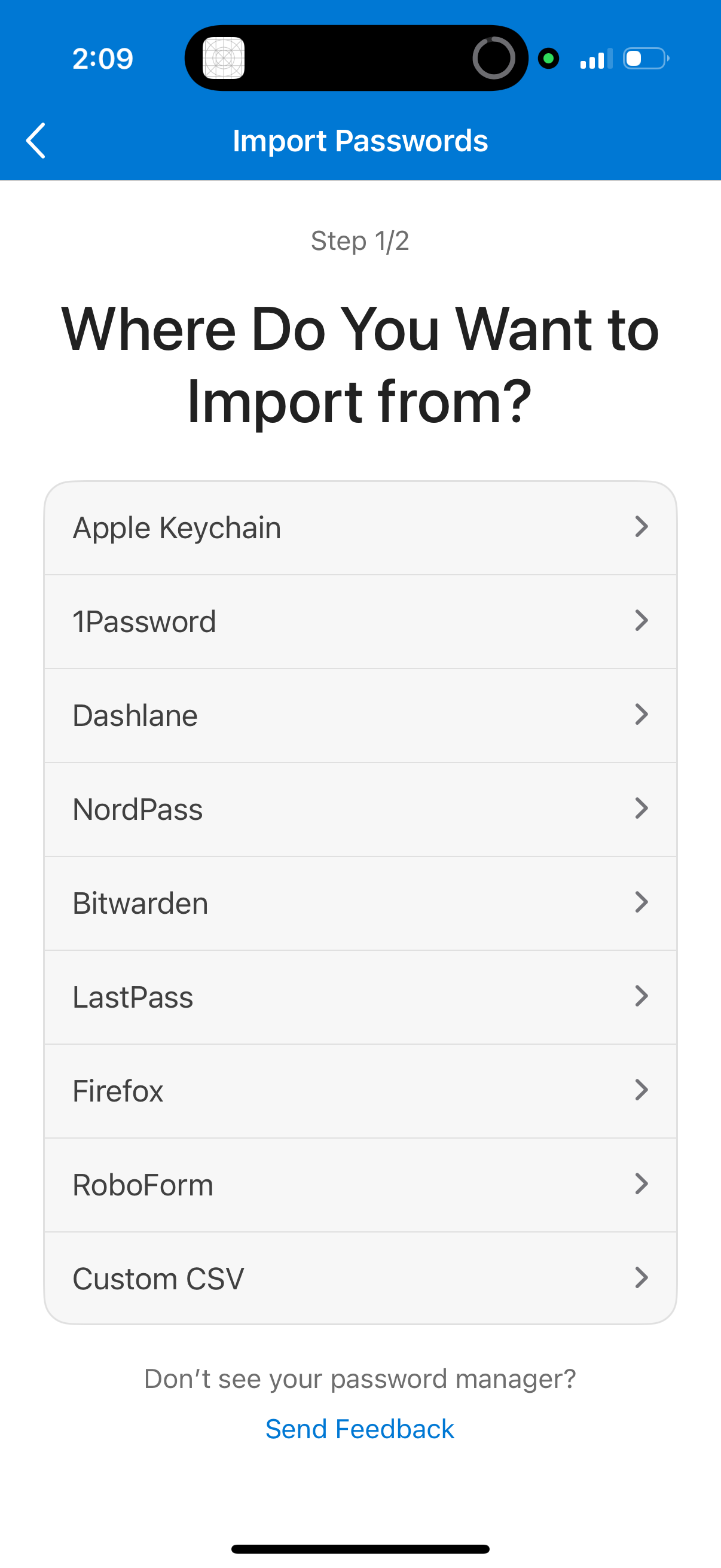
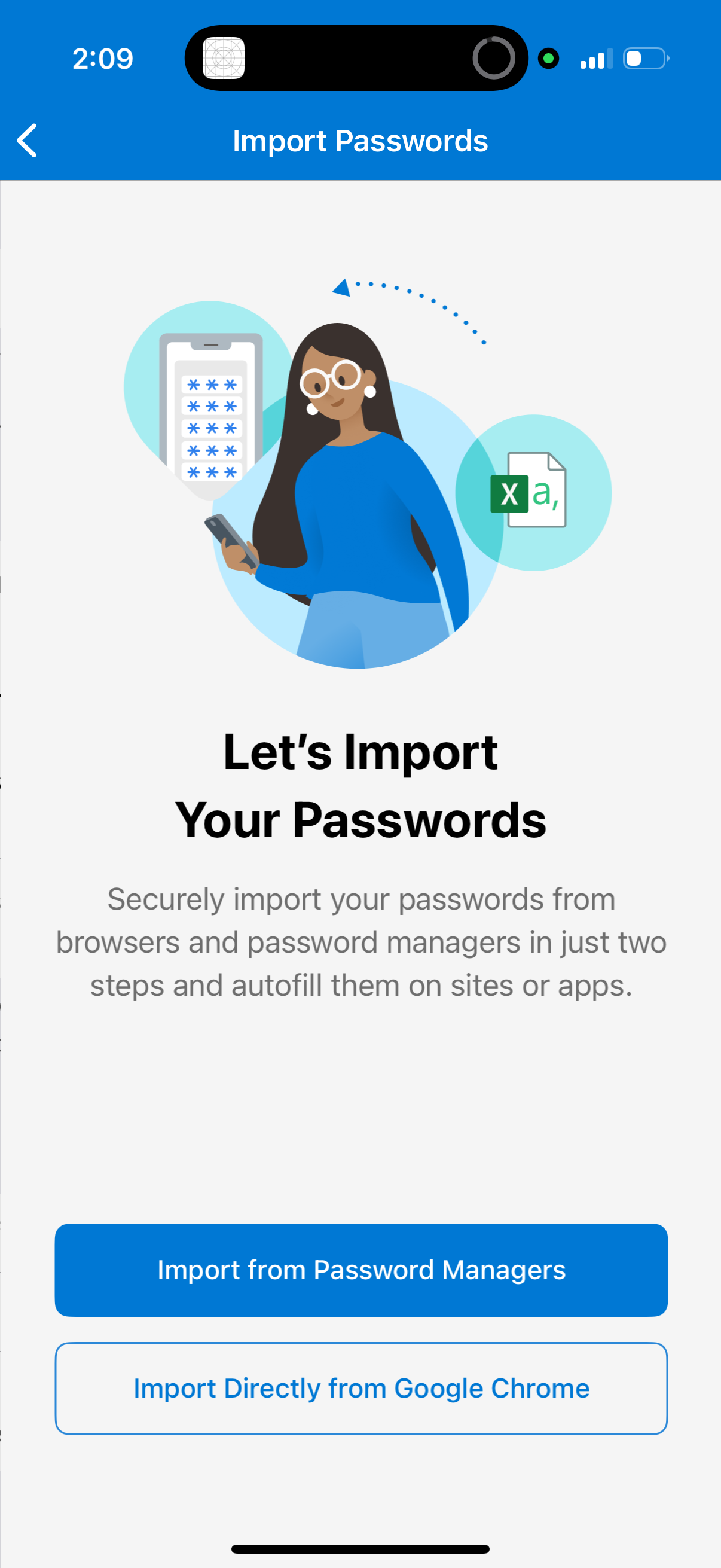
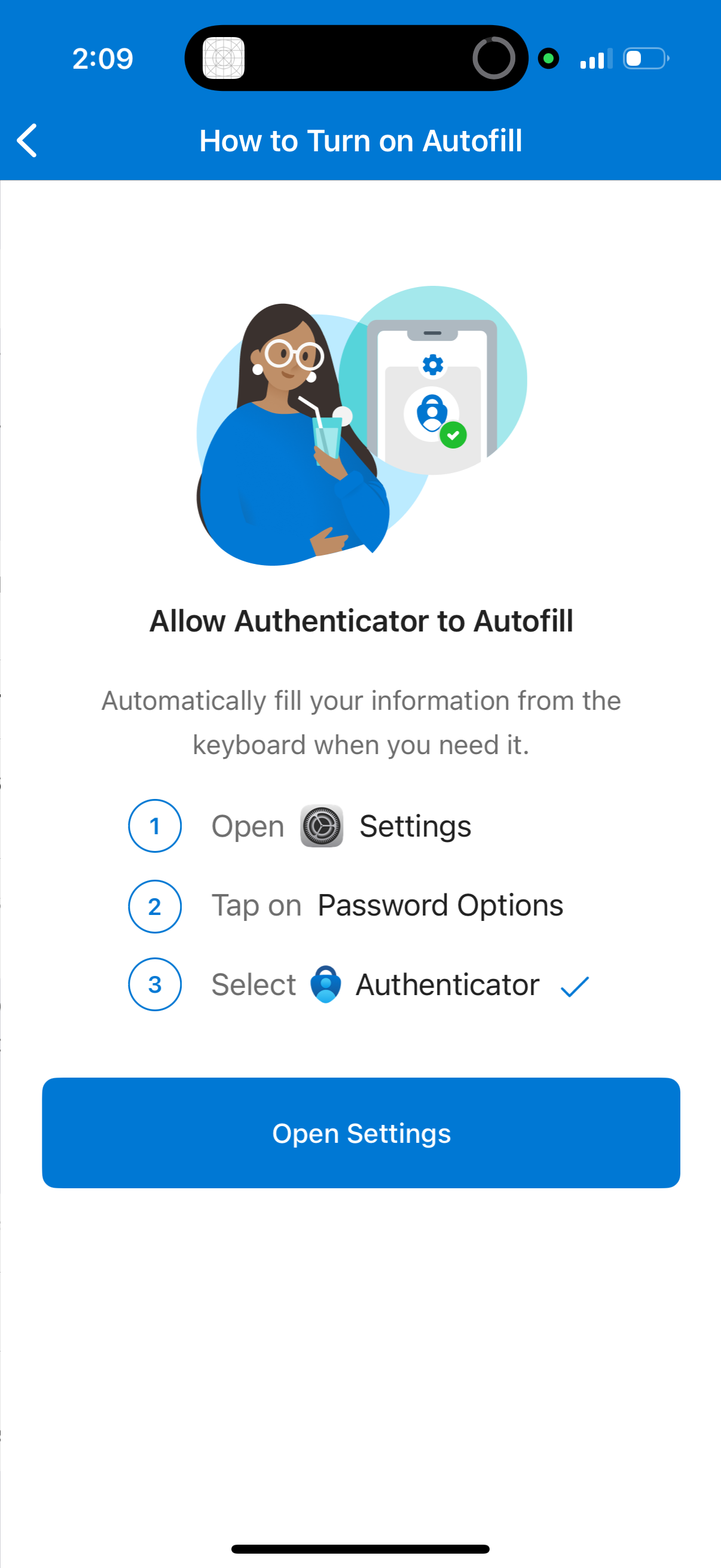
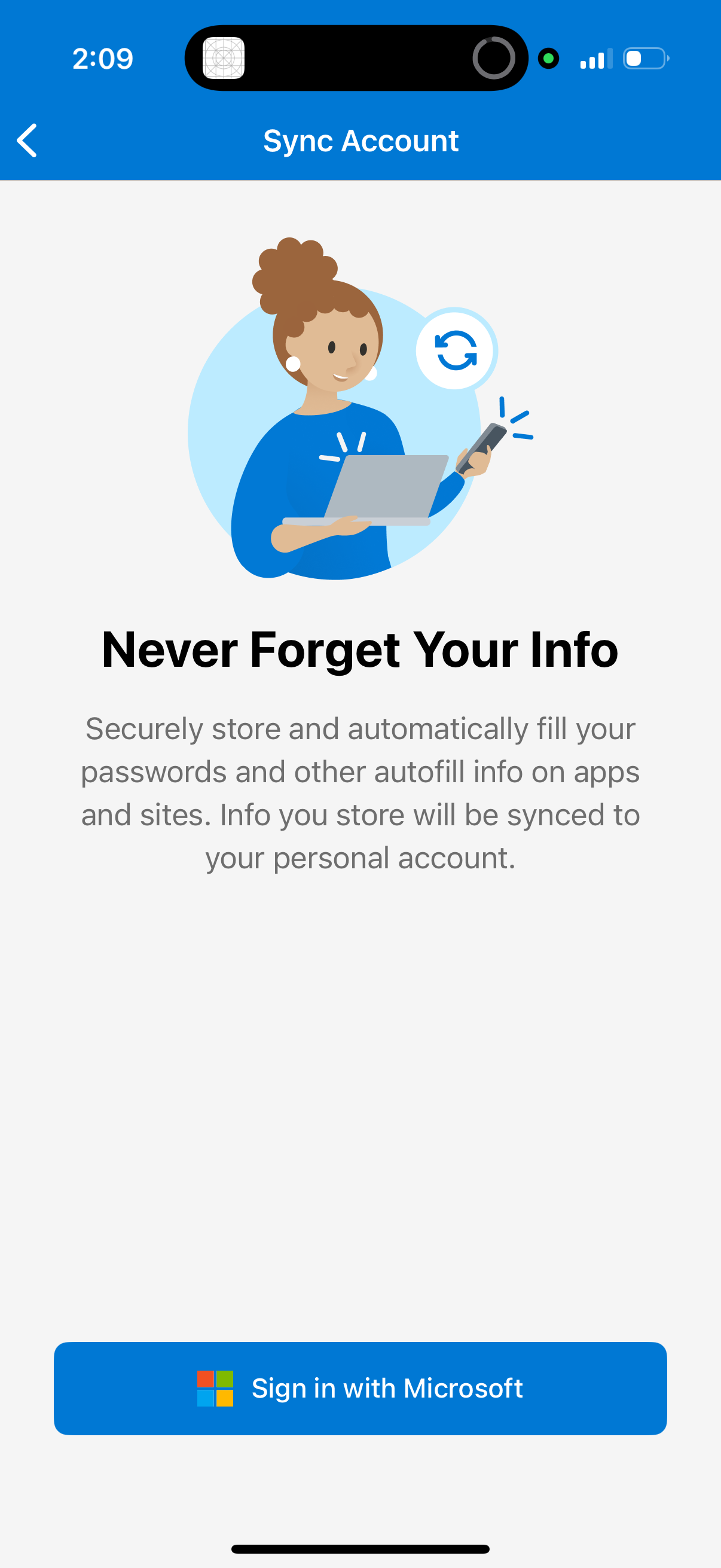
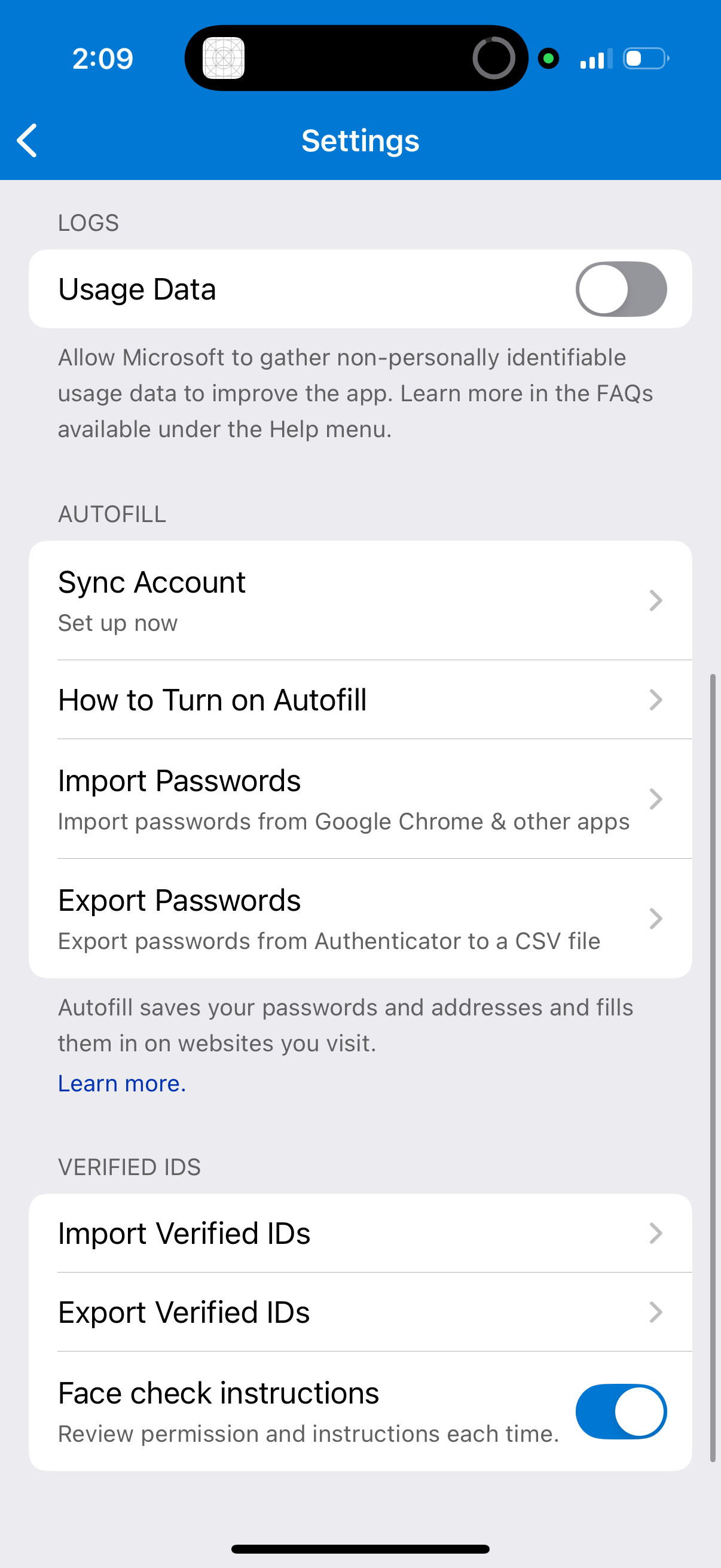
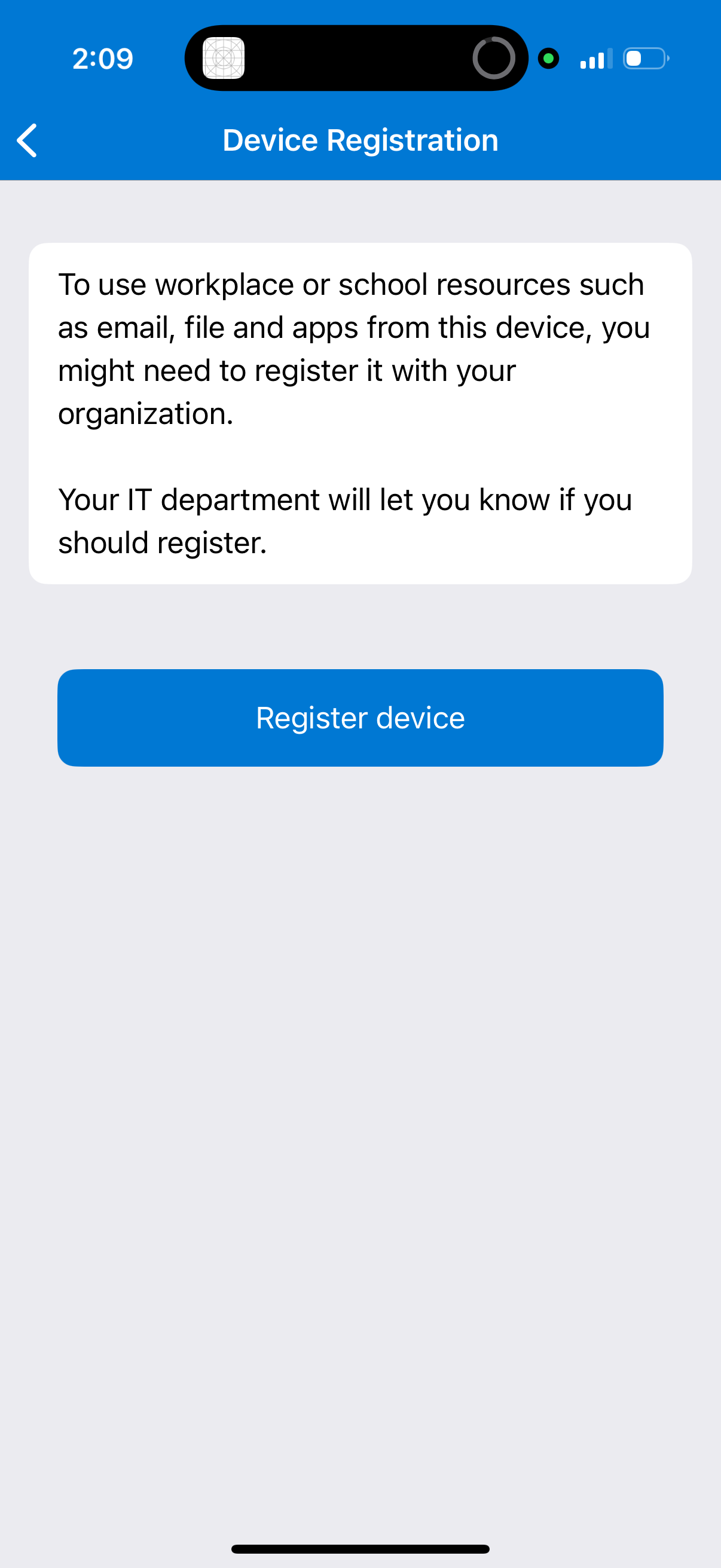
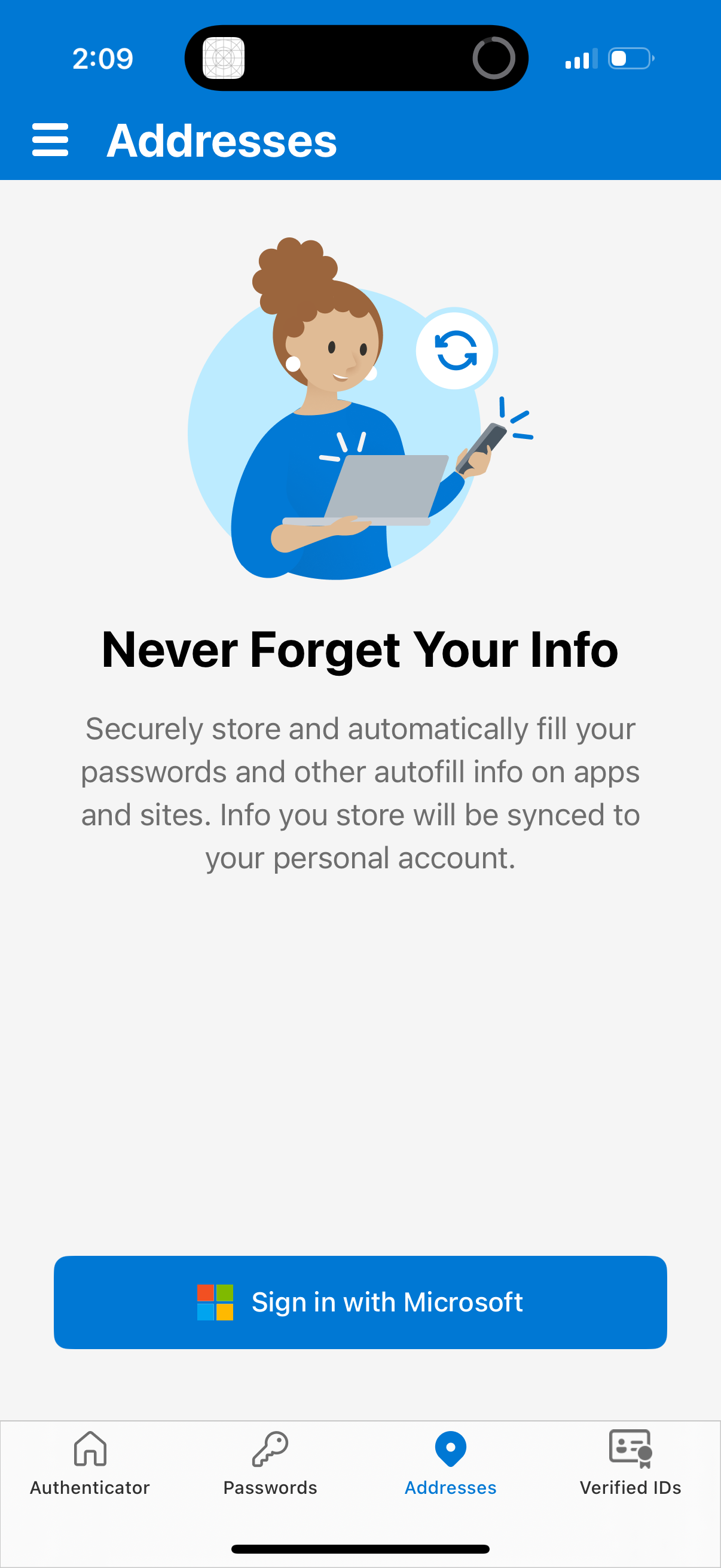
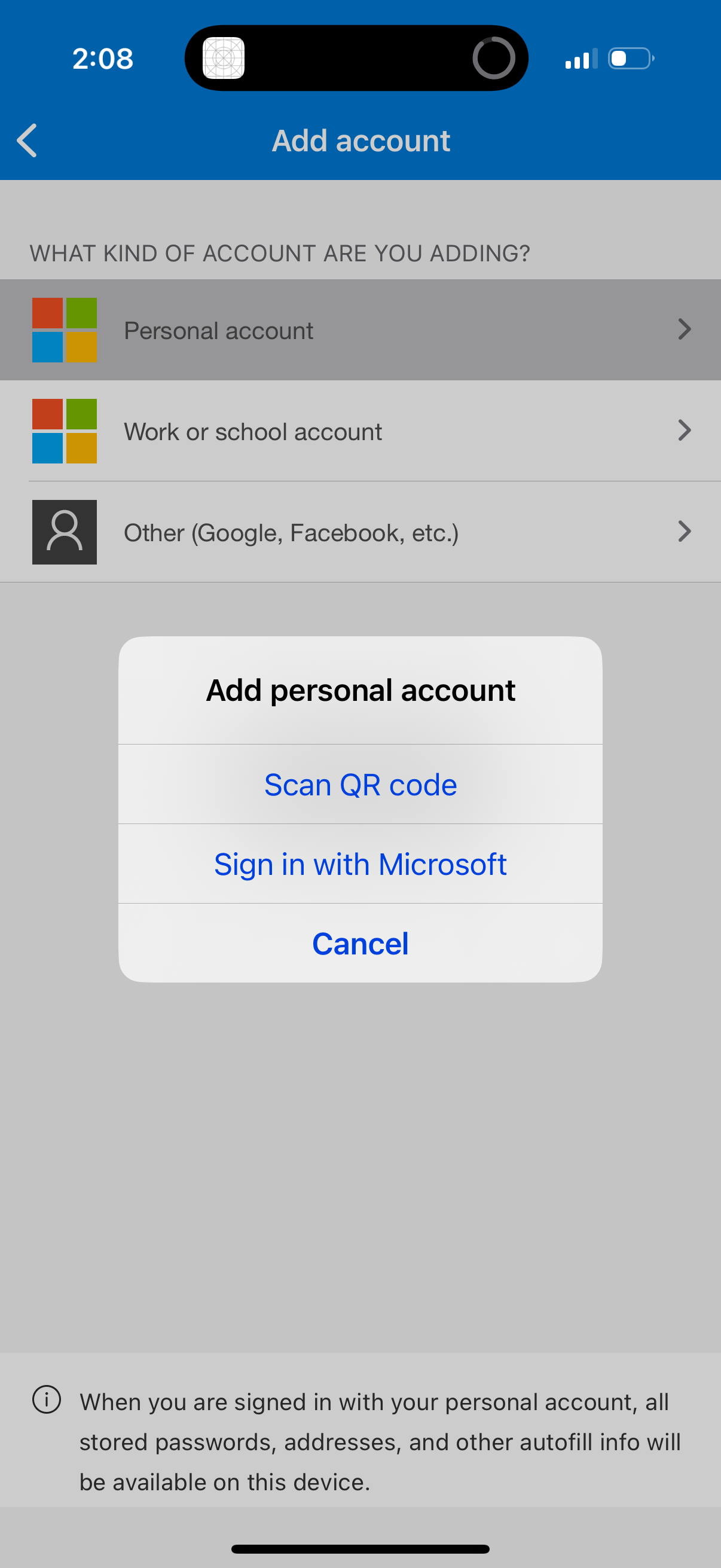
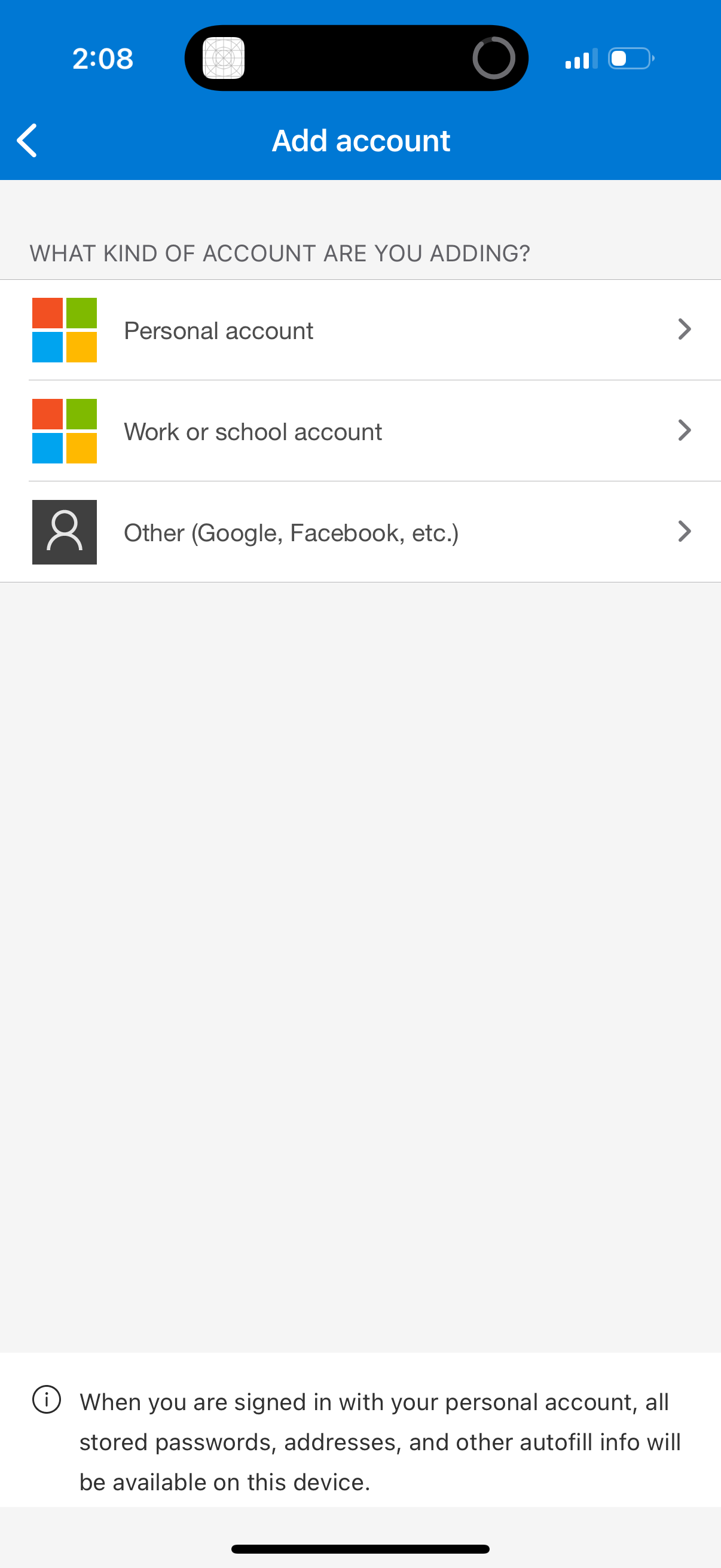
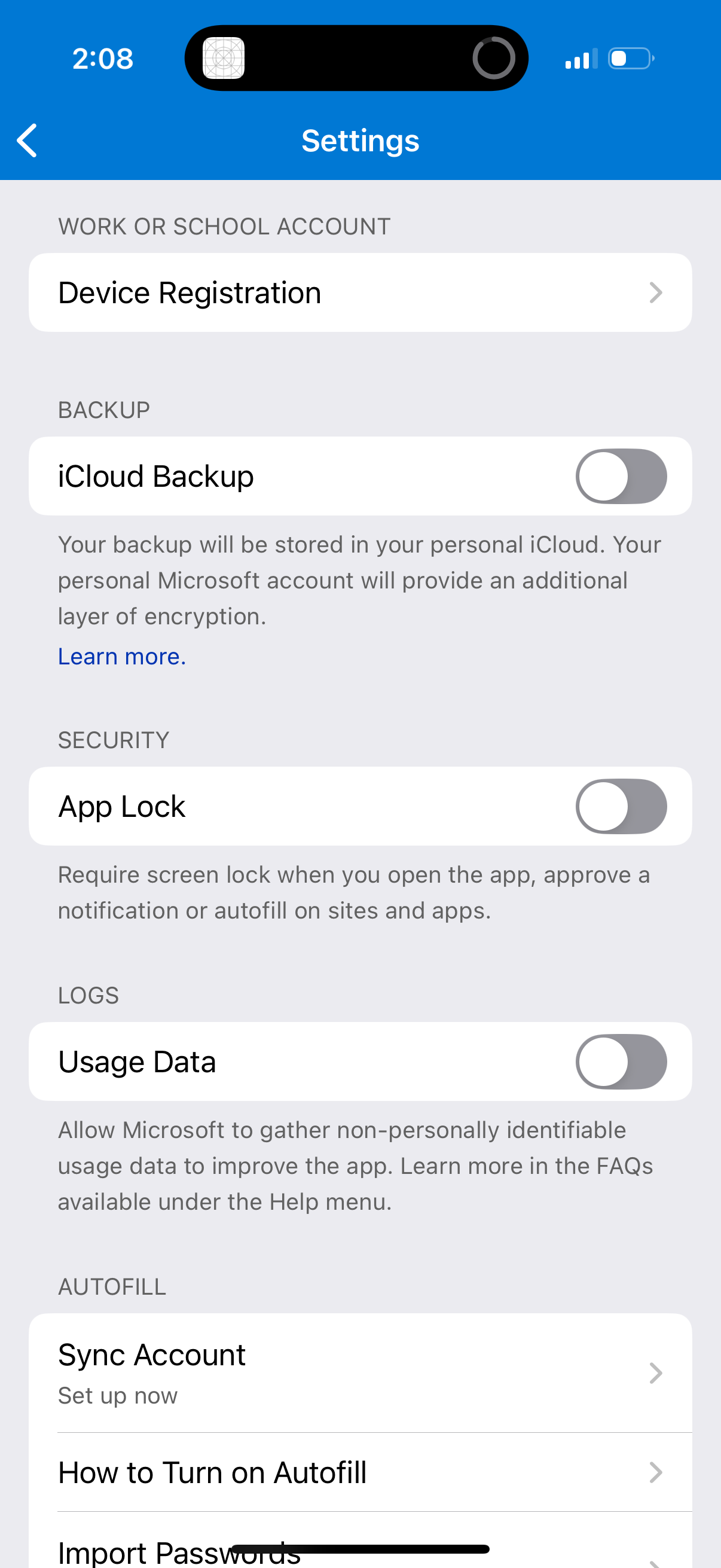
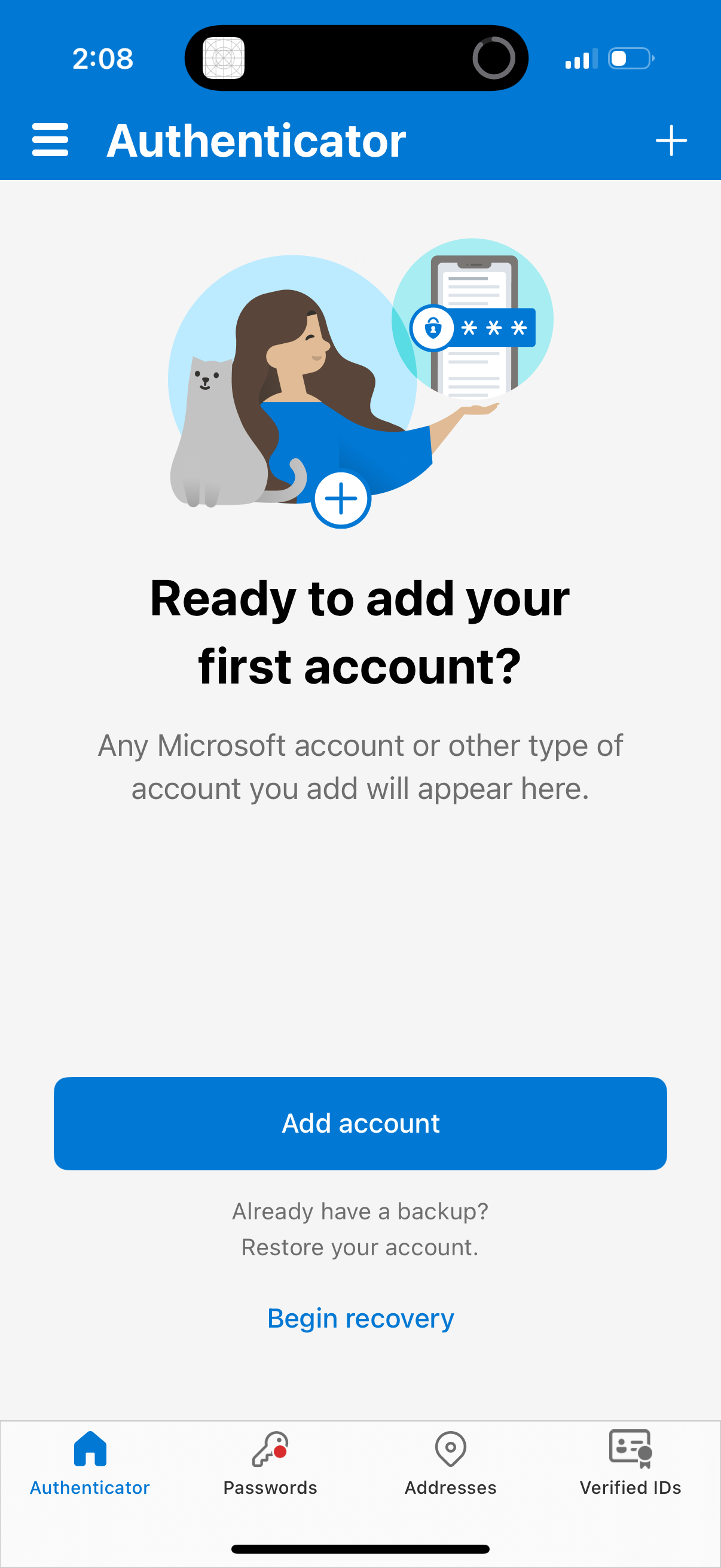
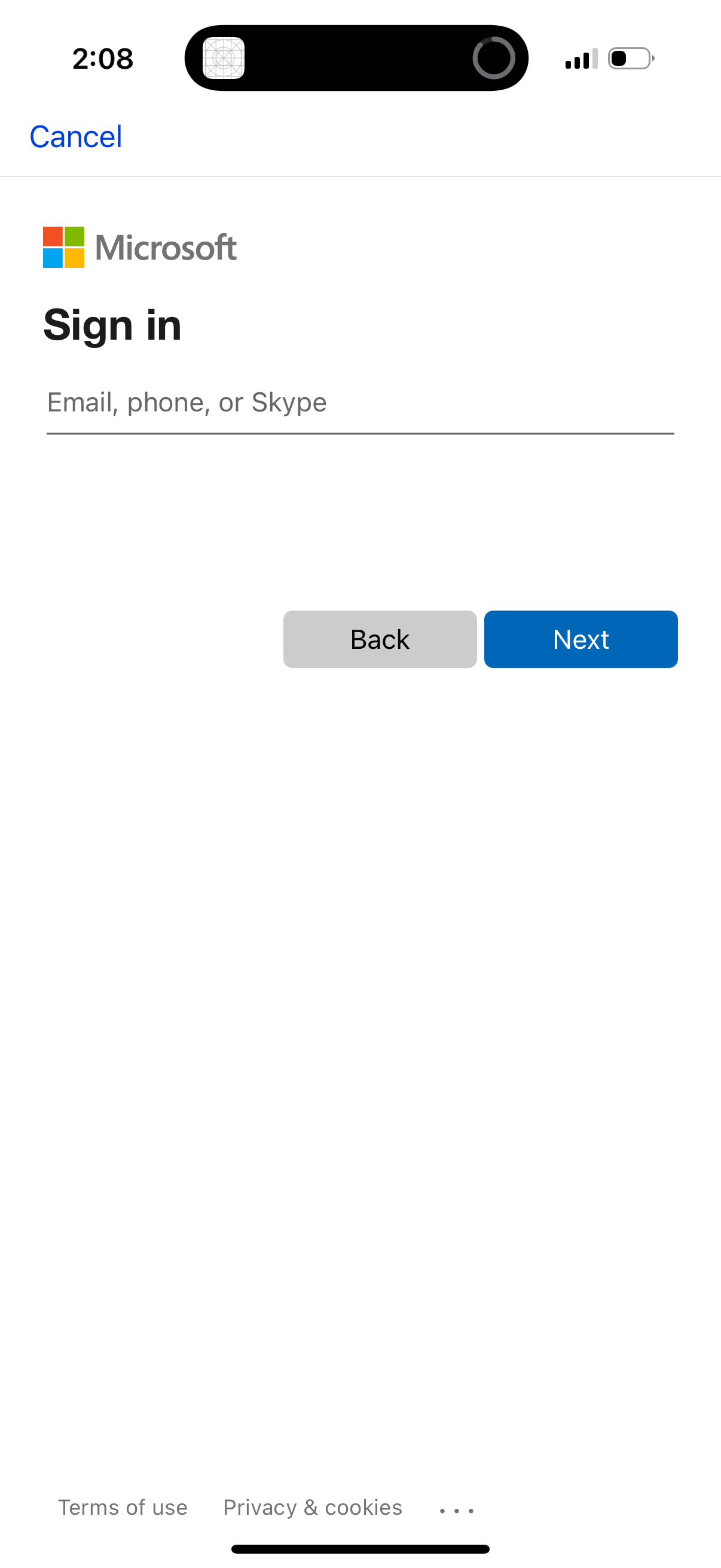
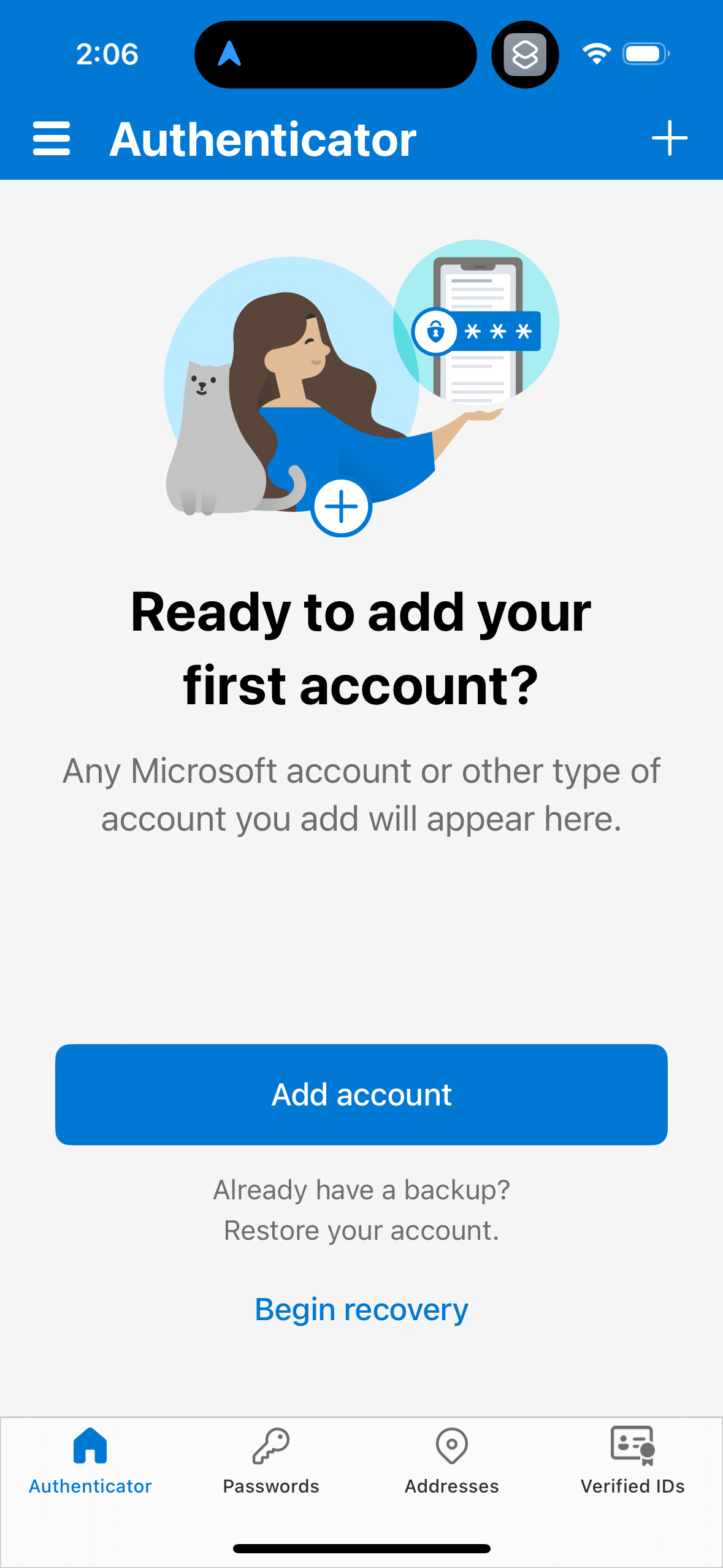
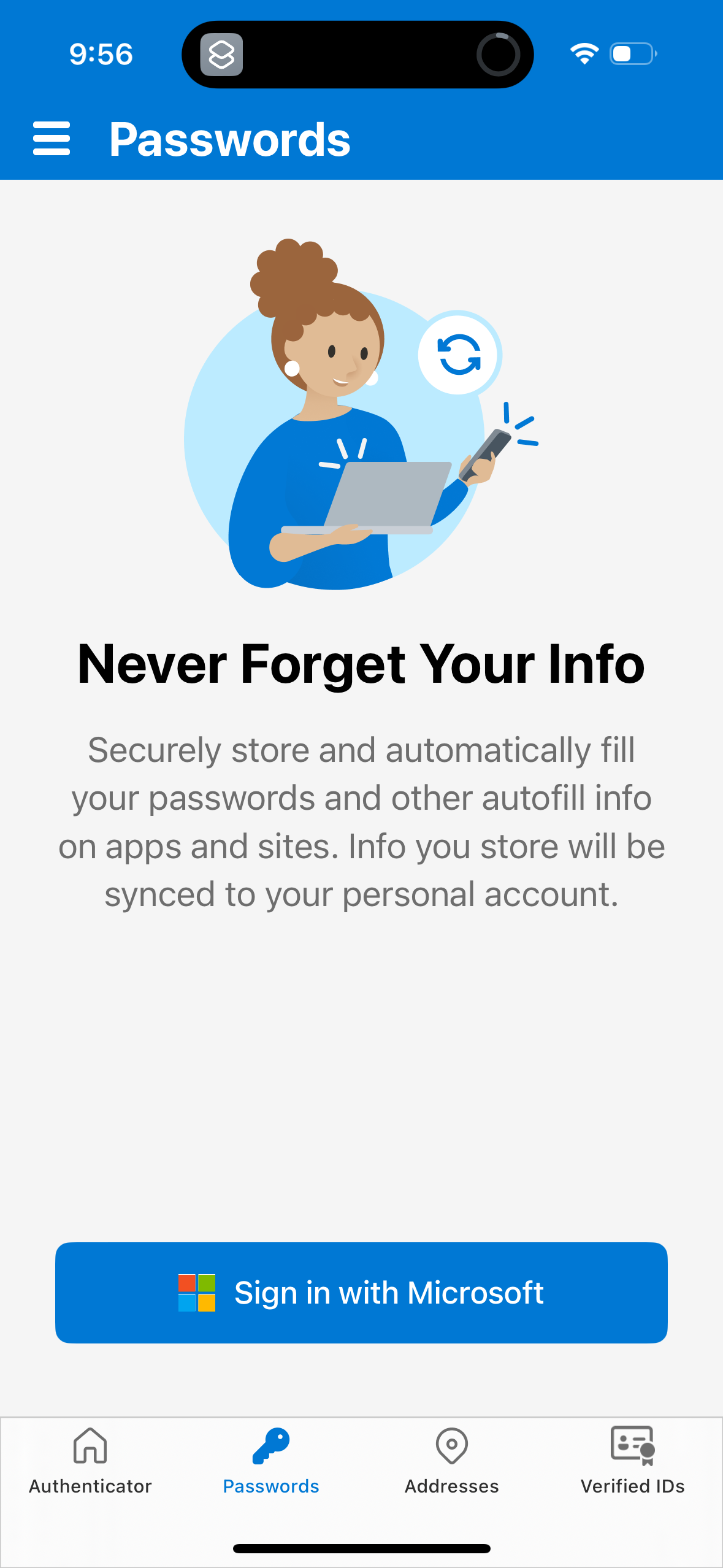
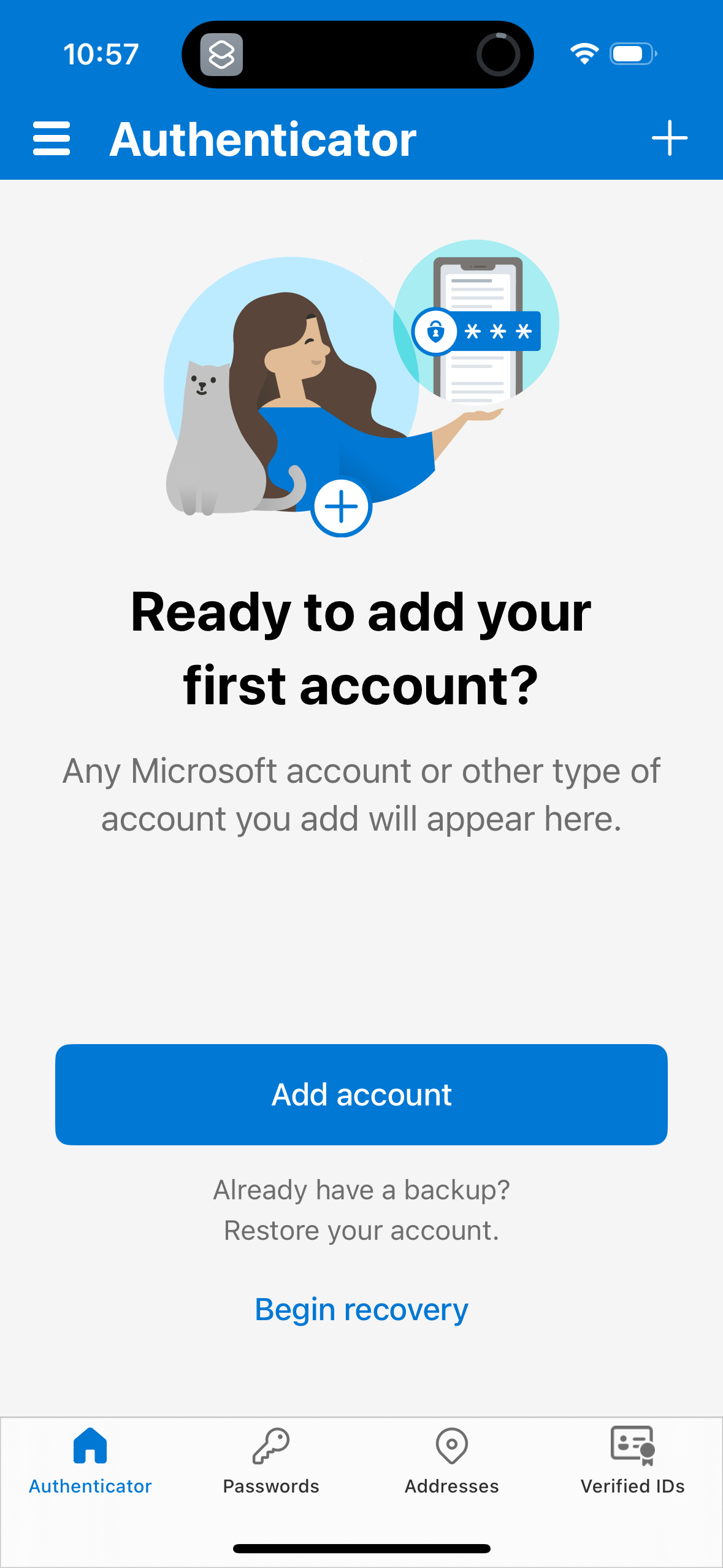
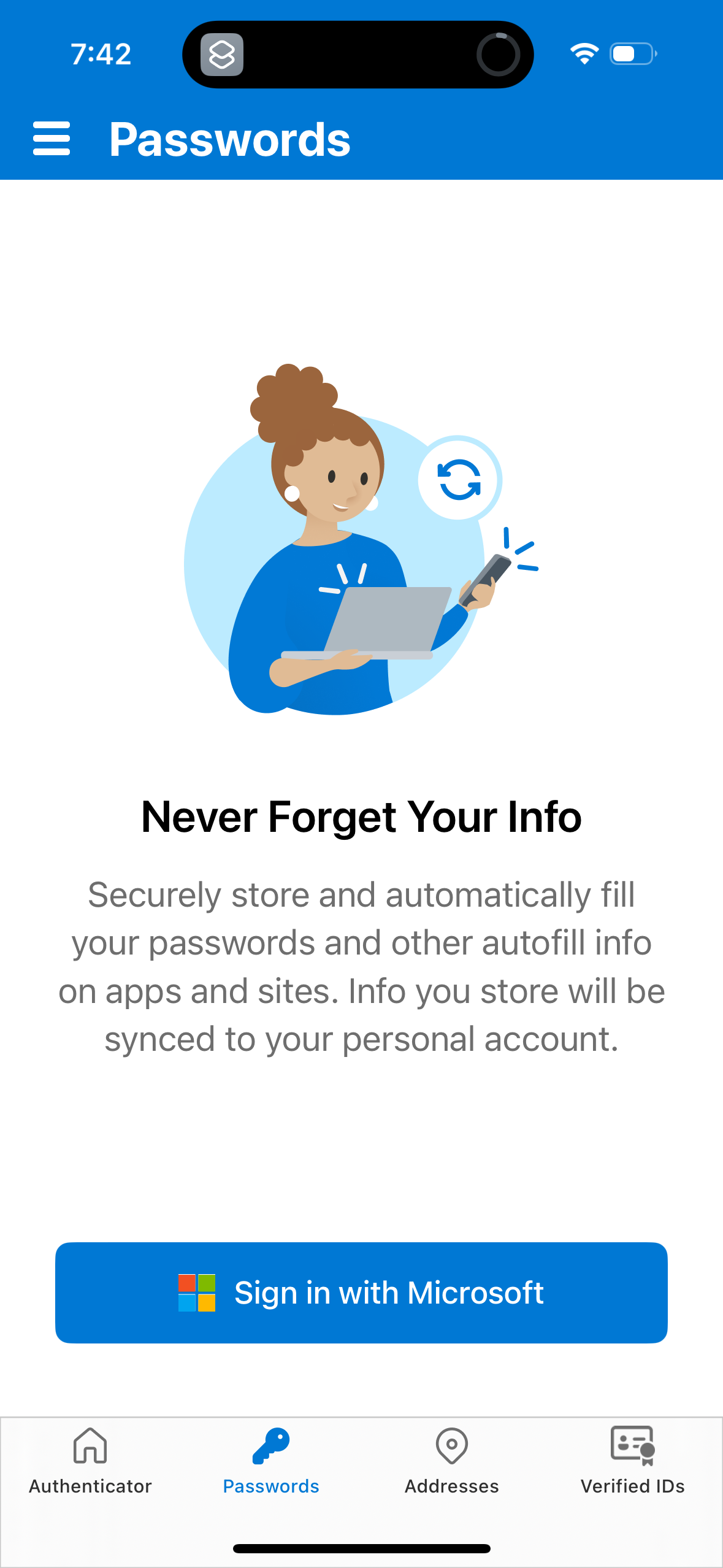
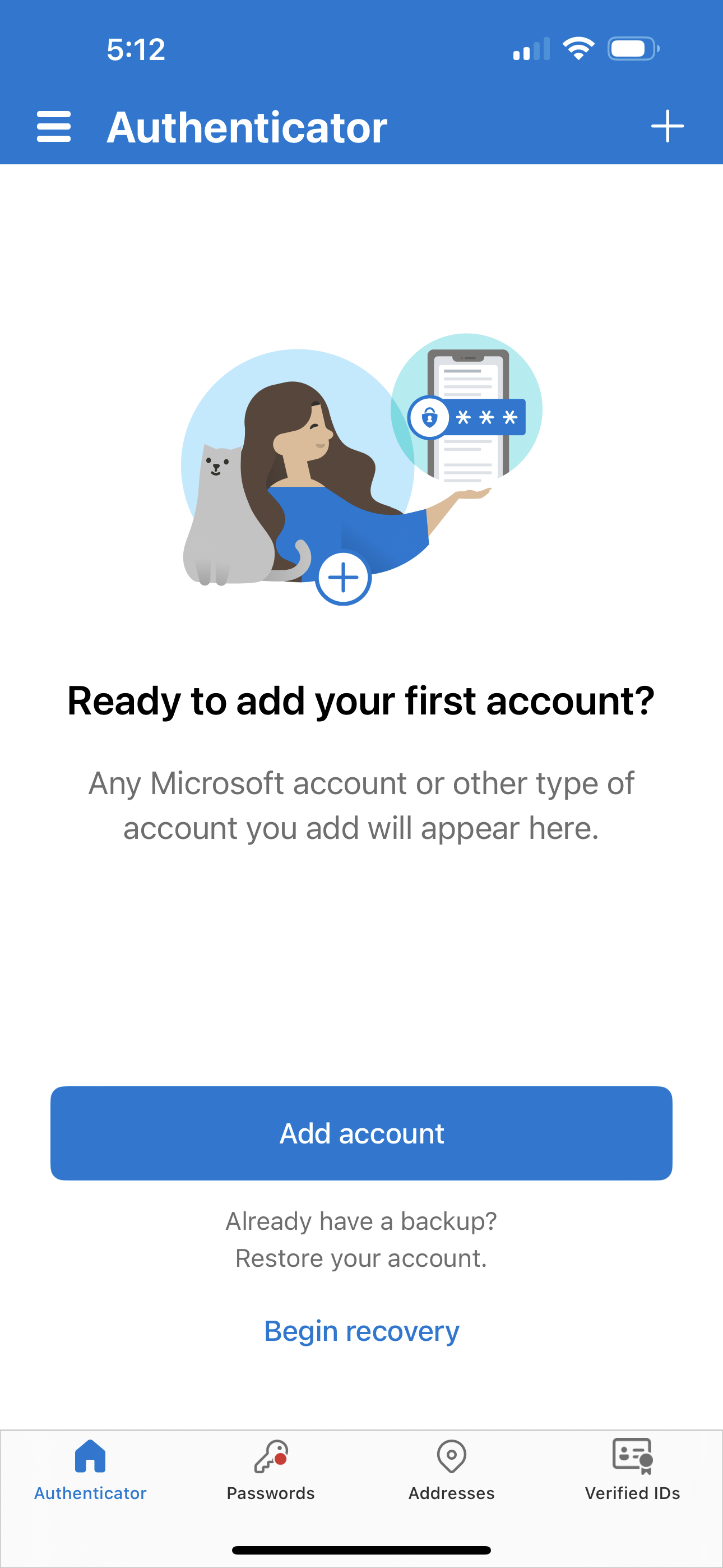
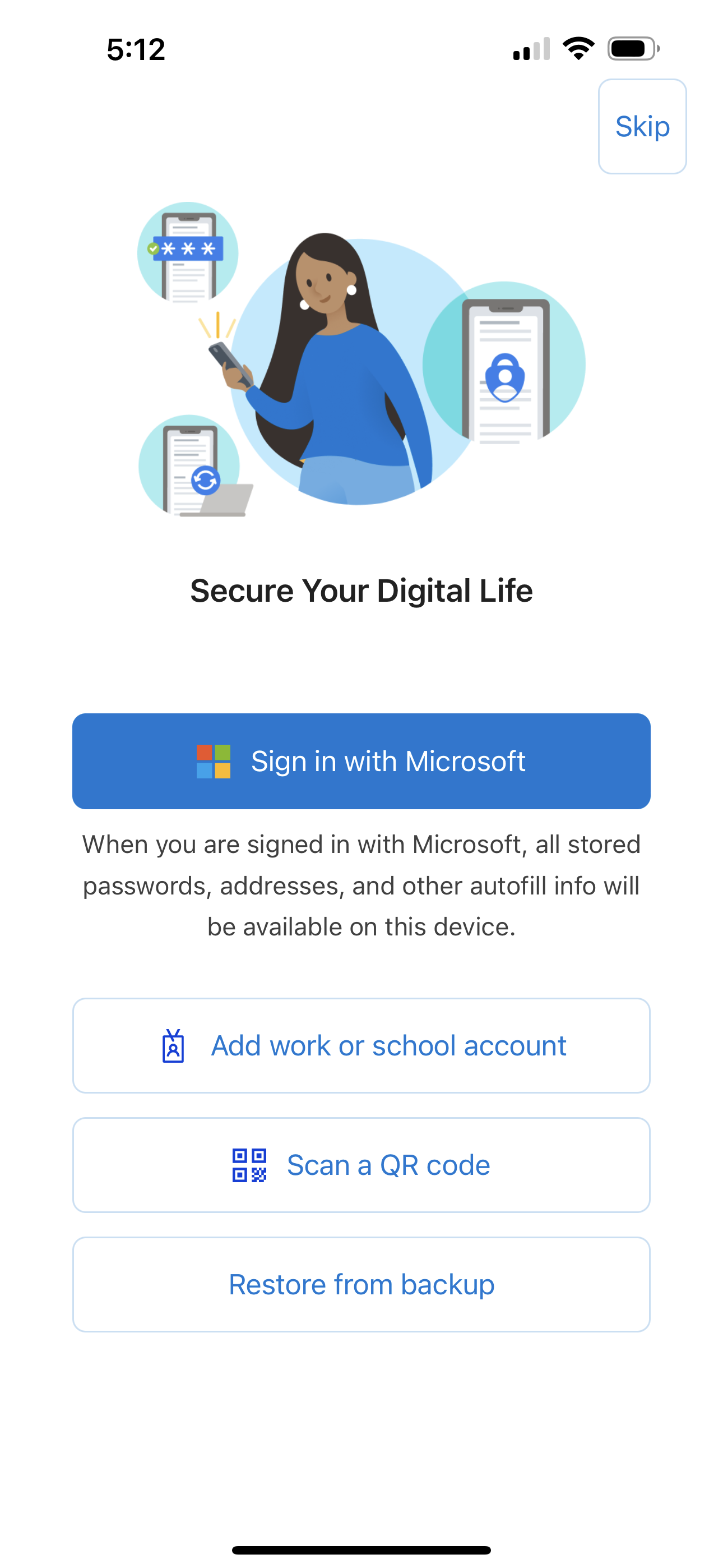
Use Microsoft Authenticator for easy, secure sign‑ins for all your online accounts using multi‑factor authentication, passwordless, or password autofill. You also have additional account management options for your Microsoft personal, work or school accounts. Getting started with multi‑factor authentication Multi factor authentication (MFA)provides a second layer of security. When enabled, during login after entering your password, you’ll be asked for an additional way to prove it’s really you. Either approve the notification sent to the Microsoft Authenticator, or enter the one‑time password (OTP) generated by the app. The OTP codes have a 30 second timer counting down. This timer is so you never have to use the same time‑based one‑time password (TOTP) twice and you don’t have to remember the number. The OTP doesn’t require you to be connected to a network, and it won’t drain your battery. You can add multiple accounts to your app, including non‑Microsoft accounts like Facebook, Amazon, Dropbox, Google, LinkedIn, GitHub, and more. Getting started with passwordless Use your phone, not your password, to log into your Microsoft account. Just enter your username, then approve the notification sent to your phone. Your fingerprint, face ID, or PIN will provide a second layer of security in this two‑step verification process. After you’ve signed in with two factor authentication (2FA), you’ll have access to all your Microsoft products and services, such as Outlook, OneDrive, Office, and more. Getting started with autofill Microsoft Authenticator app can also autofill passwords for you. Sign‑in on the Passwords tab inside the Authenticator app with your personal Microsoft account to start syncing passwords, including the passwords saved in Microsoft Edge. Make Microsoft Authenticator the default autofill provider and start autofilling passwords on apps and sites you visit on your mobile. Your passwords are protected with multi‑factor authentication in the app. You will need to prove yourself with your fingerprint, face ID, or PIN to access and autofill passwords on your mobile. You can also import passwords from Google Chrome and other password managers. Microsoft personal, work or school accounts Sometimes your work or school might ask you to install the Microsoft Authenticator when accessing certain organization resources. You will need to register your device to your organization through the app and add your work or school account. Microsoft Authenticator supports cert‑based authentication by issuing a certificate on your device. This will let your organization know that the sign‑in request is coming from a trusted device and help you seamlessly and securely access additional Microsoft apps and services without needing to log into each.
Compare competitors with Lazyweb
Search every screen, flow, and UX pattern in one place.