Sign up

Login modal prompting users to sign in to access free comics, with primary CTA buttons to continue via Email, Google, Apple, or Facebook. Includes a close icon, “see other options” dropdown link, and footer links to terms and privacy.

Google “Sign in with Google” account chooser screen for continuing to an app (WEBTOON), showing a list of saved Google accounts with avatars, email addresses, and signed-out status. Users can select an account to sign in or choose “Use another account,” with a close button to dismiss the login flow.
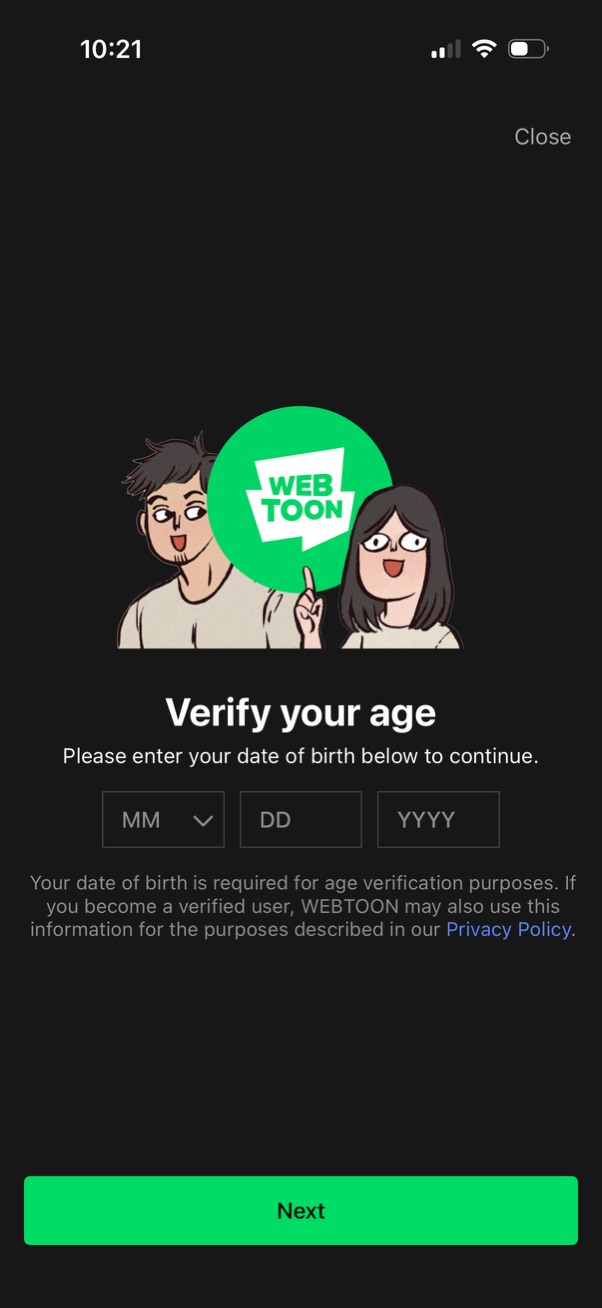
Age verification screen prompting the user to enter their date of birth using MM/DD/YYYY fields to continue. Includes a Close option, privacy policy note, and a primary “Next” button to submit the DOB.

Sign-up consent screen prompting users to accept required Terms of Use and optionally opt in to email updates via checkbox rows. Includes a Close button and a disabled Sign up CTA that becomes available after completing the required agreement.
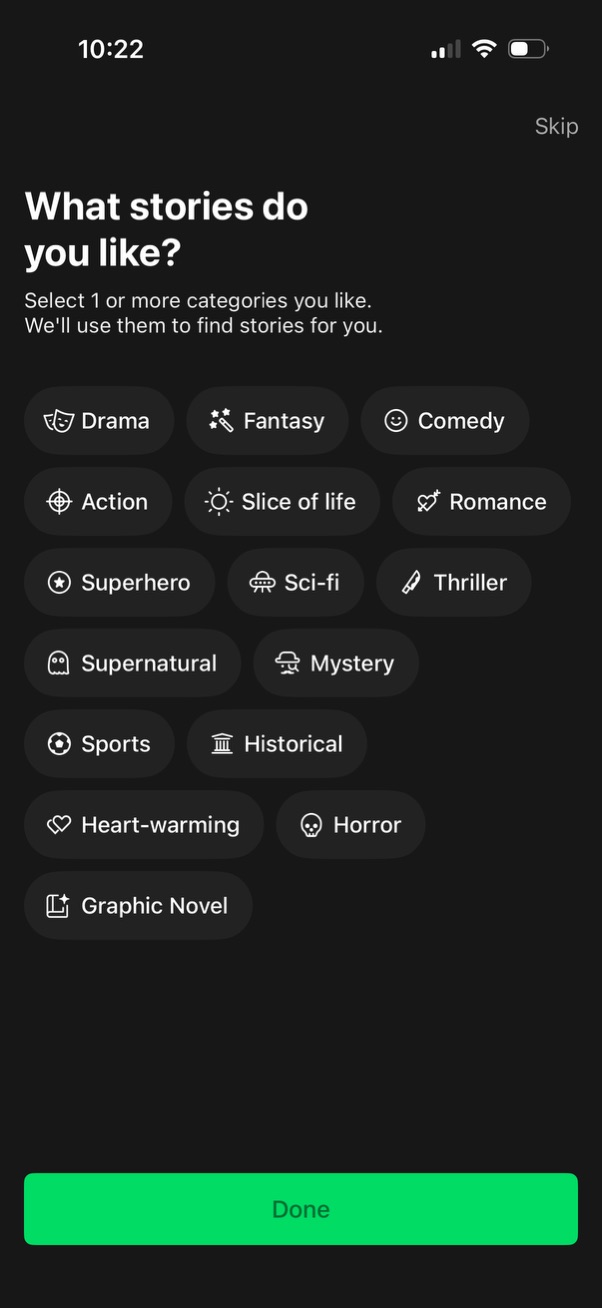
Onboarding preference screen for a story/reading app asking users to select one or more story categories (e. g.

Browse screen for a webtoon/comics app showing “Popular Series by Category” with pill tabs (Drama, Fantasy, Comedy, Action, Slice of life) and a ranked grid of series cover cards displaying rank numbers and view counts. Includes actions to earn “Free Coins,” access cart/locker, navigate to full category list, a promotional banner, and bottom tab navigation (Home, Watch, Search, Canvas, My).