Sign in
App splash/loading screen for a reading/fiction app featuring the tagline “Read Your Adventures” centered over a large logo on a dark gradient background, with the Webnovel brand shown at the bottom and no interactive actions.
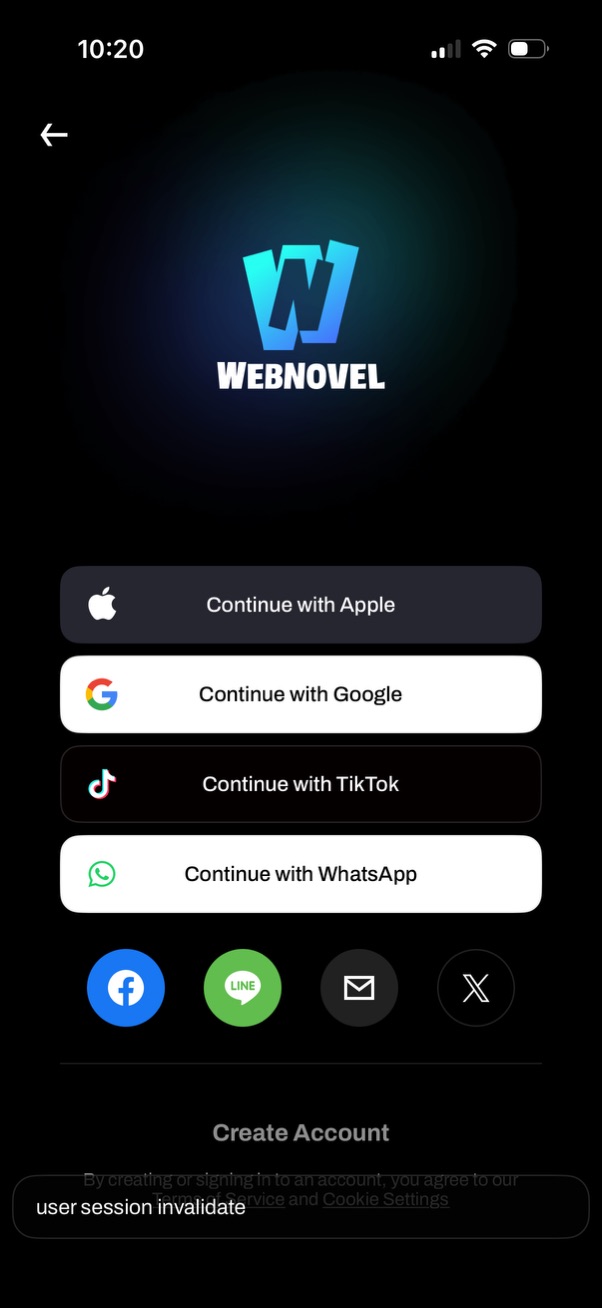
Login/sign-up screen for a reading app offering multiple social authentication options, including Continue with Apple, Google, TikTok, and WhatsApp. Additional quick-login icons for Facebook, Line, email, and X are shown, along with a Create Account option and a back navigation button.

iOS system web authentication dialog prompting the user to allow an app to use google. com for sign-in, warning that the app and website may share information.

Google “Sign in with Google” account chooser screen prompting the user to select an existing Google account (showing avatars, email addresses, and signed-out status) to continue to a third-party app. Includes an option to use another account plus close/back controls in a modal web view.
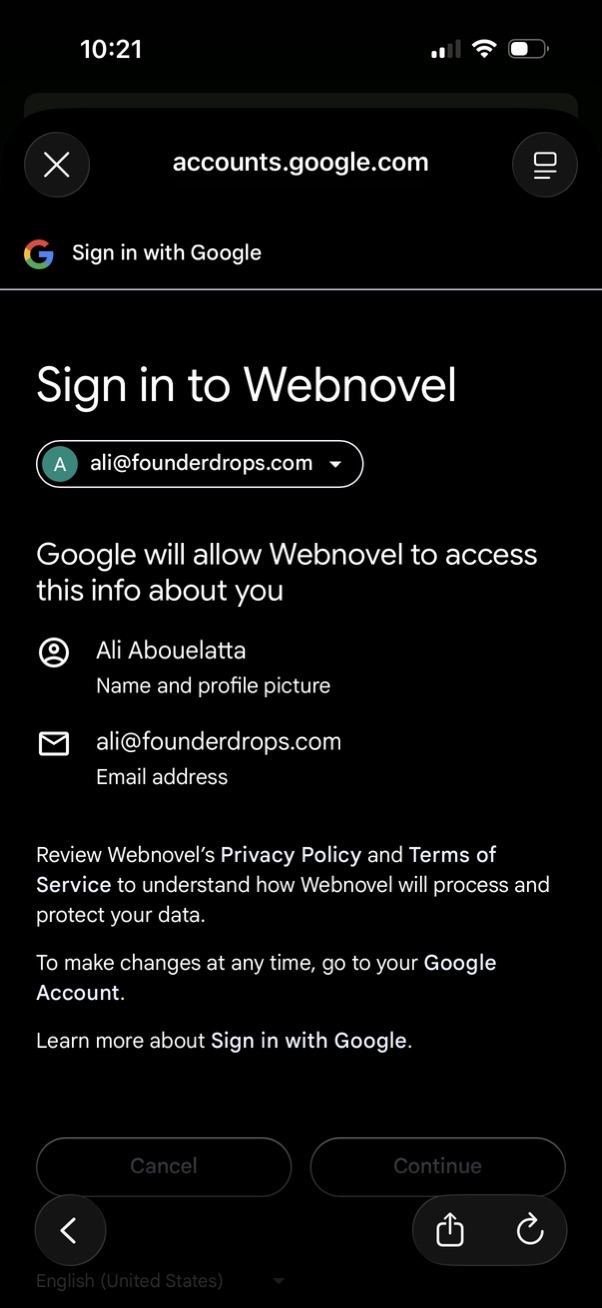
Third-party authentication consent screen for “Sign in with Google” to access an app account, showing the selected Google account and the specific data to be shared (name/profile picture and email). Includes primary actions to continue or cancel and links to the app’s privacy policy and terms.

Full-screen promotional pop-up overlay in a reading app announcing a new “Reading Challenge” and prompting users to select a challenge level, with a primary “Check it out” CTA button and a close (X) icon over the featured/home content.