Sign in

App launch splash screen with centered logo and brand name on a solid background, showing a loading/entry state before the main experience. Branding-focused startup screen with no user actions available.
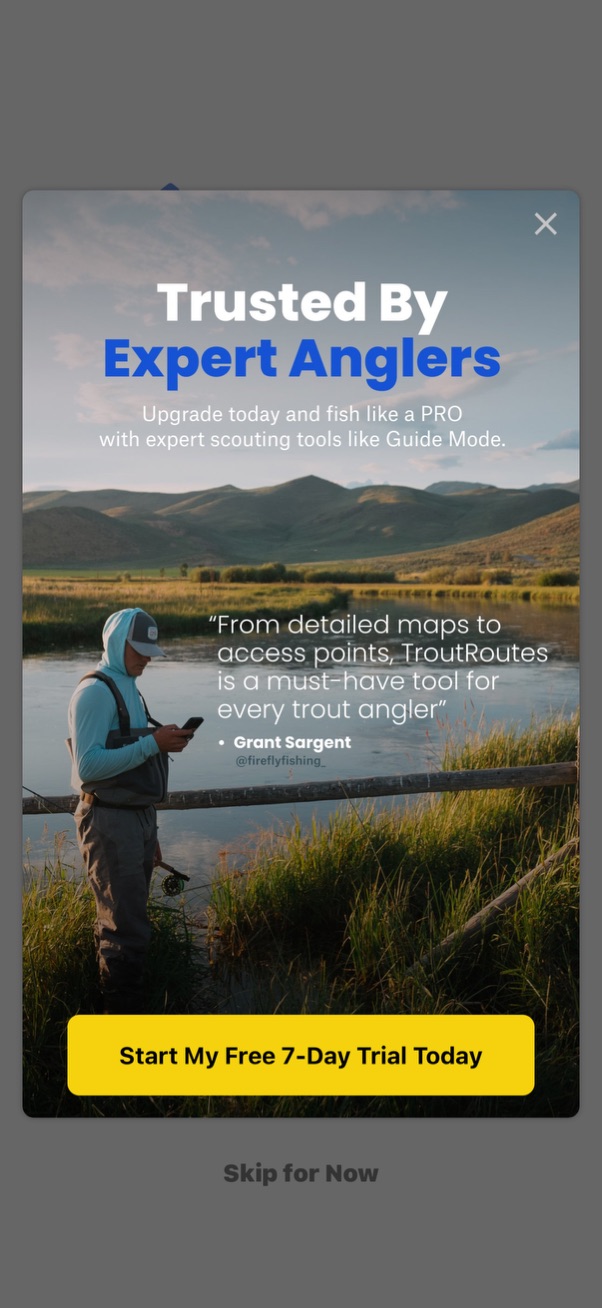
Full-screen subscription upsell modal promoting an upgrade with social proof (“Trusted by Expert Anglers”) and a testimonial, featuring a primary CTA button to start a free 7-day trial plus options to close or skip for now.
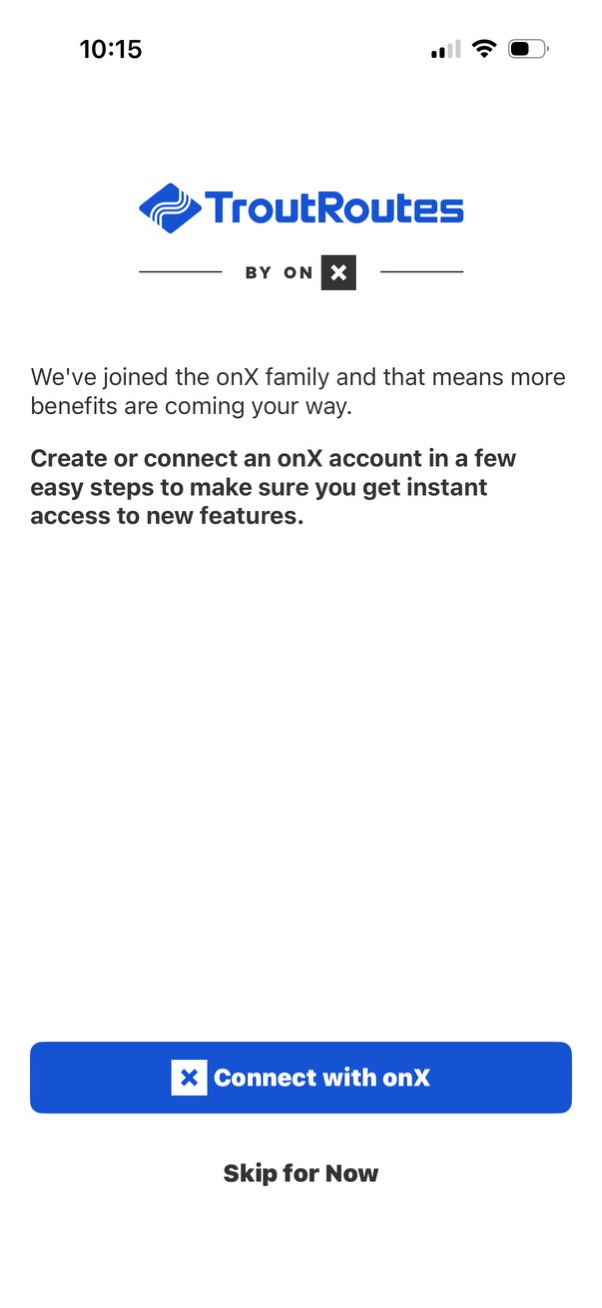
Onboarding prompt announcing a partnership and asking users to create or connect an existing account to access new features. Primary CTA button connects with the third-party account provider, with a secondary “Skip for now” option to dismiss.
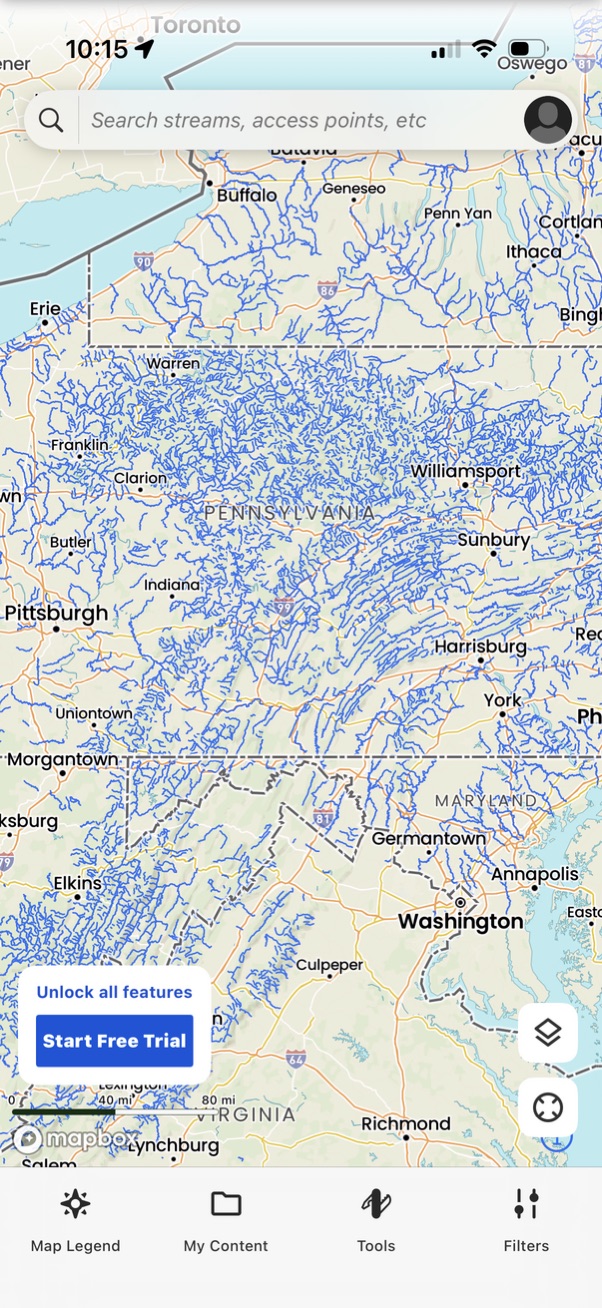
Interactive map screen showing waterways/streams with a top search bar to find streams and access points, plus map controls (layers and locate) and a bottom navigation for map legend, saved content, tools, and filters. Includes a promotional banner to unlock all features and start a free trial.
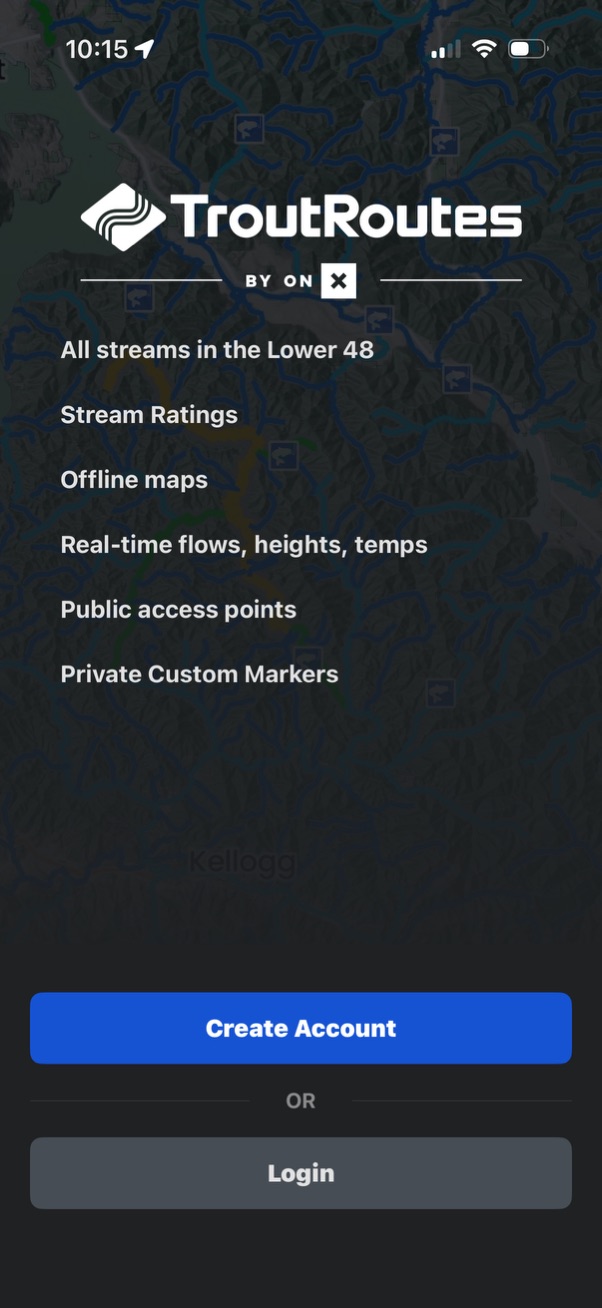
Welcome screen for a fishing/stream mapping app highlighting key features like stream ratings, offline maps, real-time flow/height/temperature data, public access points, and custom markers. Primary actions are to create an account or log in.
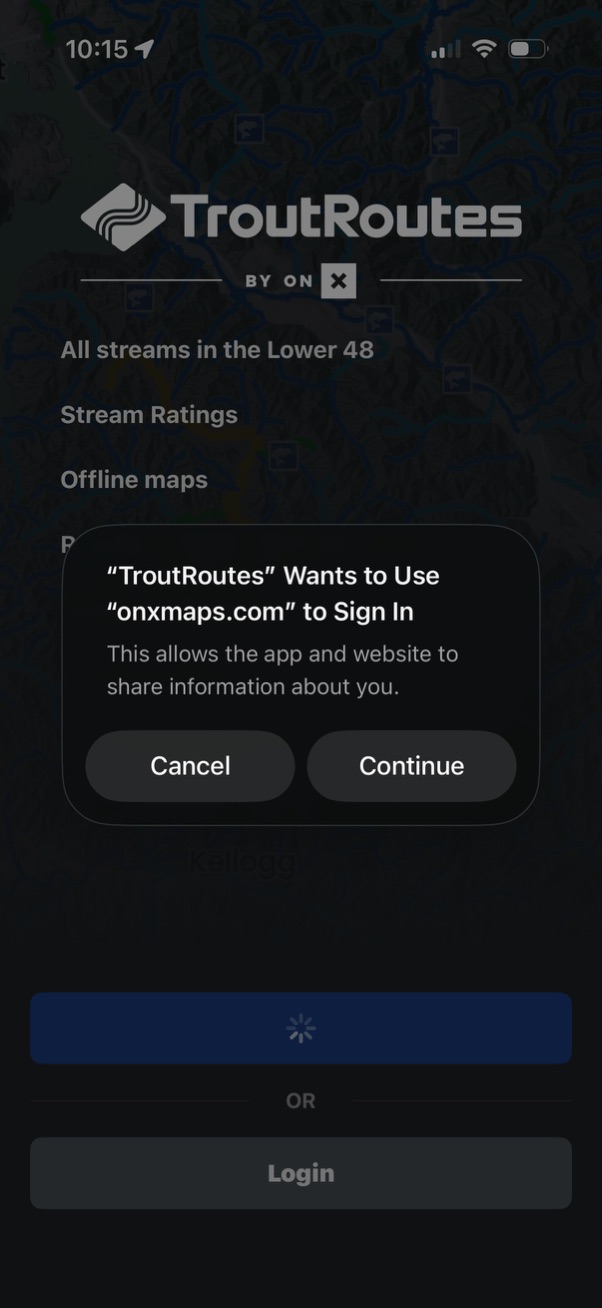
Mobile app login screen with an iOS system dialog requesting permission to use an external website (onxmaps. com) for single sign-on, offering Cancel or Continue.
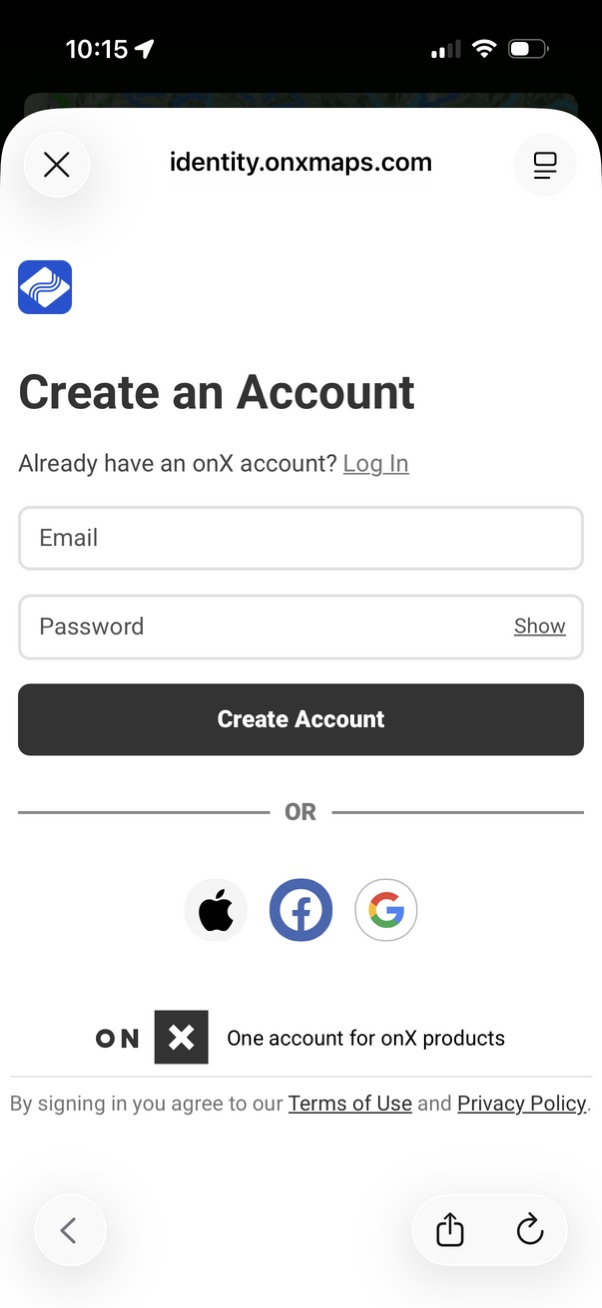
Account creation screen with email and password fields (including a show/hide password toggle) and a primary “Create Account” button, plus a link to log in for existing users. Offers social sign-up options via Apple, Facebook, and Google and includes terms of use and privacy policy links.
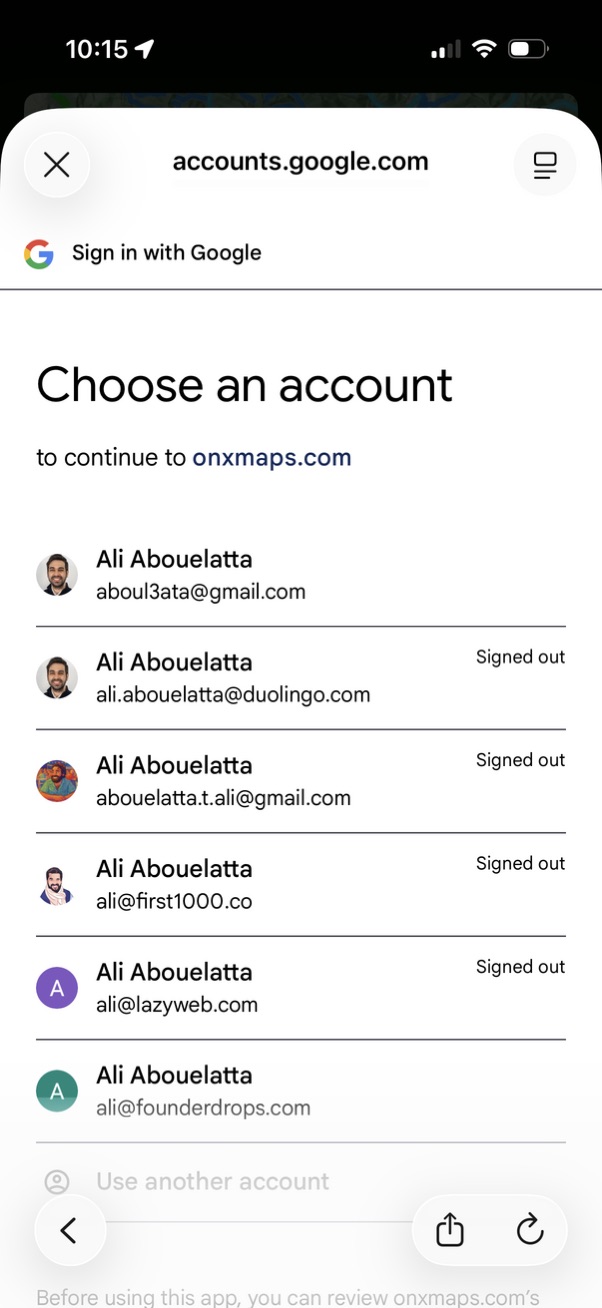
Google “Sign in with Google” account chooser screen prompting the user to select an existing Google account to continue to a website, showing a list of saved accounts with avatars/emails and signed-out status. Includes an option to use another account and controls to close or go back in the authentication flow.
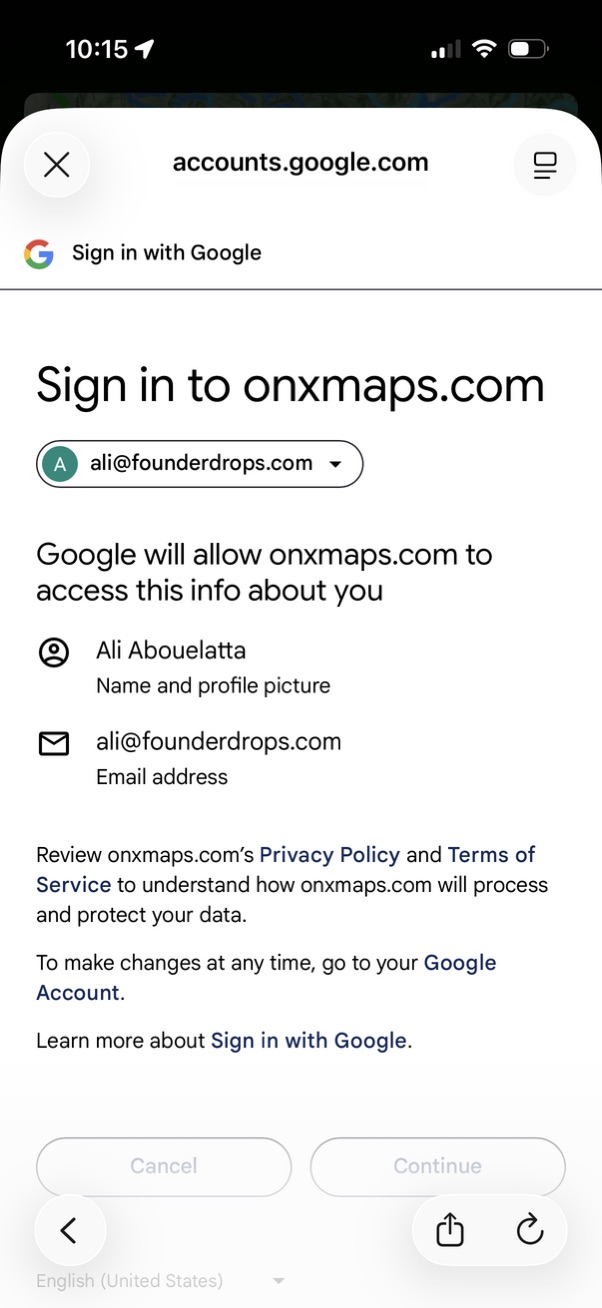
Google OAuth “Sign in with Google” consent screen for logging into a third‑party website, showing the selected Google account and the specific data the site will access (name/profile picture and email). Includes links to privacy policy and terms plus primary actions to cancel or continue.
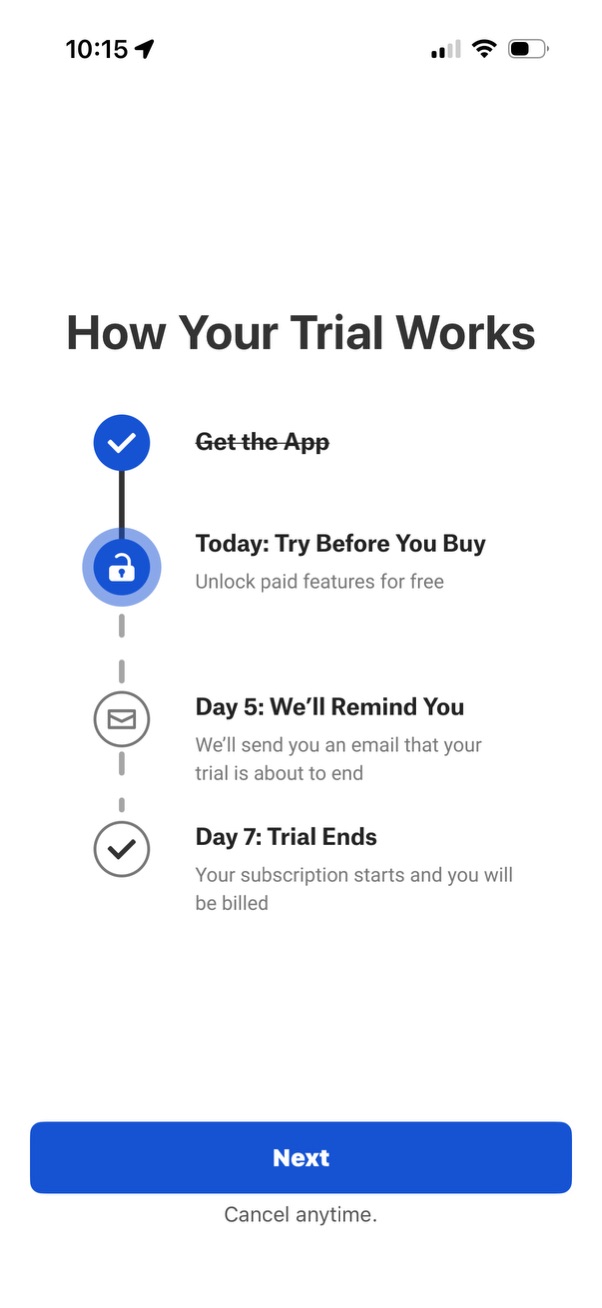
Onboarding subscription screen explaining how a free trial works using a step-by-step timeline (get the app, try paid features free today, reminder email on day 5, trial ends and billing starts on day 7). Includes a primary “Next” button and copy indicating the user can cancel anytime.