Onboarding

Minimal app launch/splash screen showing a centered product logo/name on a plain background with no actions, used during app startup loading.
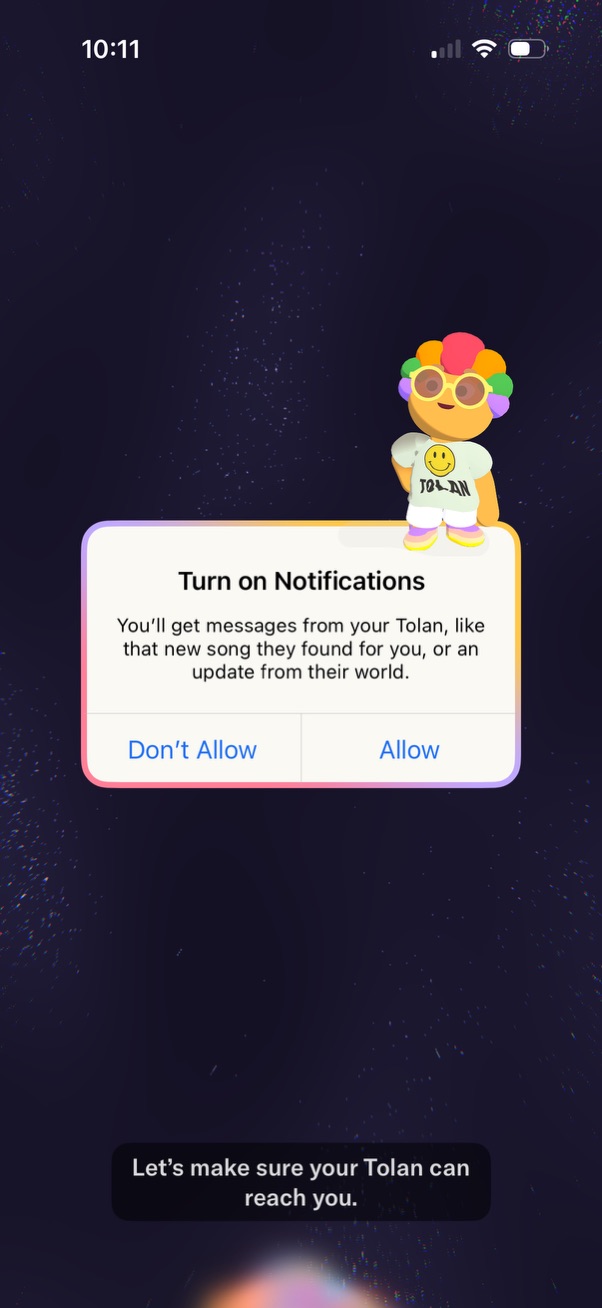
System push notification permission prompt asking the user to turn on notifications for updates and messages, with primary actions to Allow or Don’t Allow. Background shows an onboarding-style screen with a mascot and supporting text encouraging enabling notifications.

iOS system prompt requesting permission to send push notifications for an app, explaining you’ll receive messages and communicate with friends. Provides actions to Allow, Allow in Scheduled Summary, or Don’t Allow.

Full-screen animated splash/loading screen with a minimal dark space background showing a glowing planet silhouette and a small character on top, with no visible UI controls or navigation.

Onboarding setup screen prompting the user to “Choose their voice,” likely selecting a voice profile or audio assistant voice, shown with a playful illustration and a single primary next/continue button to proceed.

Subscription upsell/paywall screen promoting “Tolan Plus” with messaging to try the best version of the assistant/character for free and a primary CTA button to start a $0. 00 trial.

Subscription upgrade paywall screen for “Tolan Plus” promoting enhanced AI companion intelligence and permanent memory, with a comparison table of Free vs premium features (basic conversations, no ads, more chat time, permanent memory, super intelligence, journal access). Includes a prominent “Continue” CTA to proceed with upgrading.

Subscription trial reminder confirmation screen for a premium plan, informing the user they’ll receive a push notification 1 day before the free trial ends and showing the scheduled date. Includes reassurance that cancellation is easy with no fees and a primary “Continue” button to proceed.

Onboarding upsell screen introducing a “Plus” premium tier for a mental health/support companion app, highlighting the benefit of a kind, supportive friend to feel less overwhelmed. Features an illustrated mascot and a prominent primary CTA button to Continue.

Subscription upsell/paywall screen promoting an upgrade to a premium plan with social proof (star rating, review count, testimonial carousel) and an option to close. Shows free trial details with Apple Pay and “no payment now,” a toggle to set a reminder before the trial ends, a primary CTA to start for $0.

Subscription upgrade paywall for a premium plan with free trial, reviews/social proof, price details, and a “remind me before trial ends” toggle. An exit confirmation modal asks if the user wants to stay on the basic plan, offering actions to “Try for free” or “Yes, continue” to proceed without upgrading.

iOS share sheet overlay prompting the user to “Share screenshot to” with app shortcuts like Messages and Instagram, showing a preview thumbnail of the captured screen and a close (X) button to dismiss.
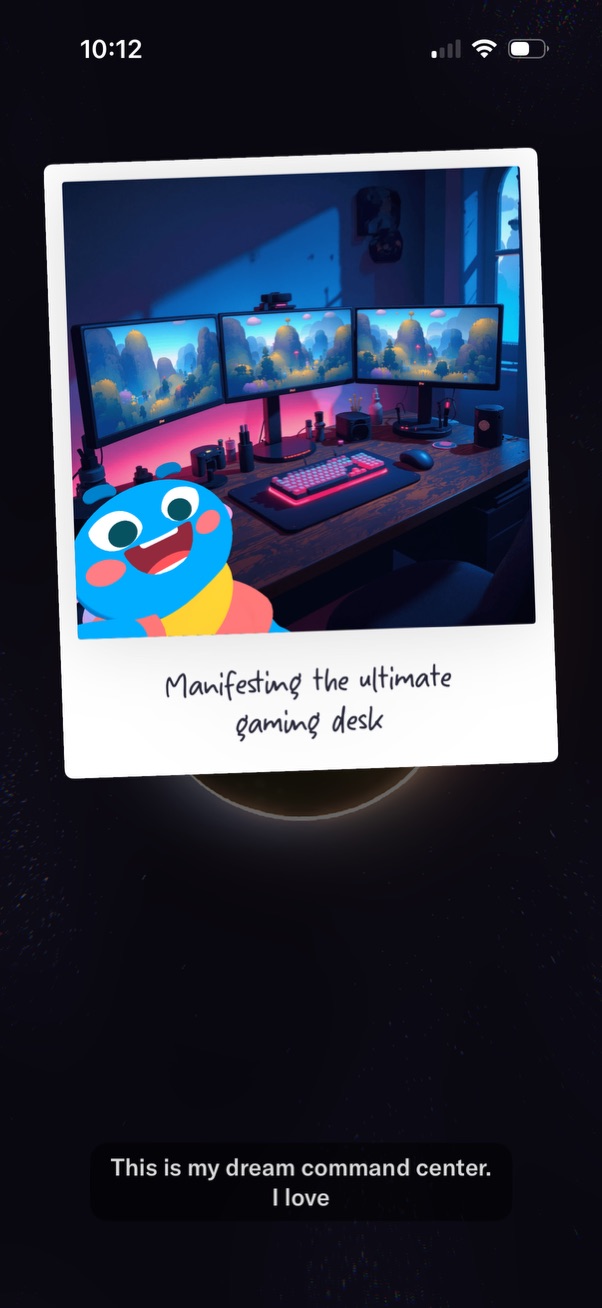
A full-screen story-style post composer showing a photo card with a handwritten caption overlaid on the image. At the bottom, a text field is being used to add a comment or story caption.
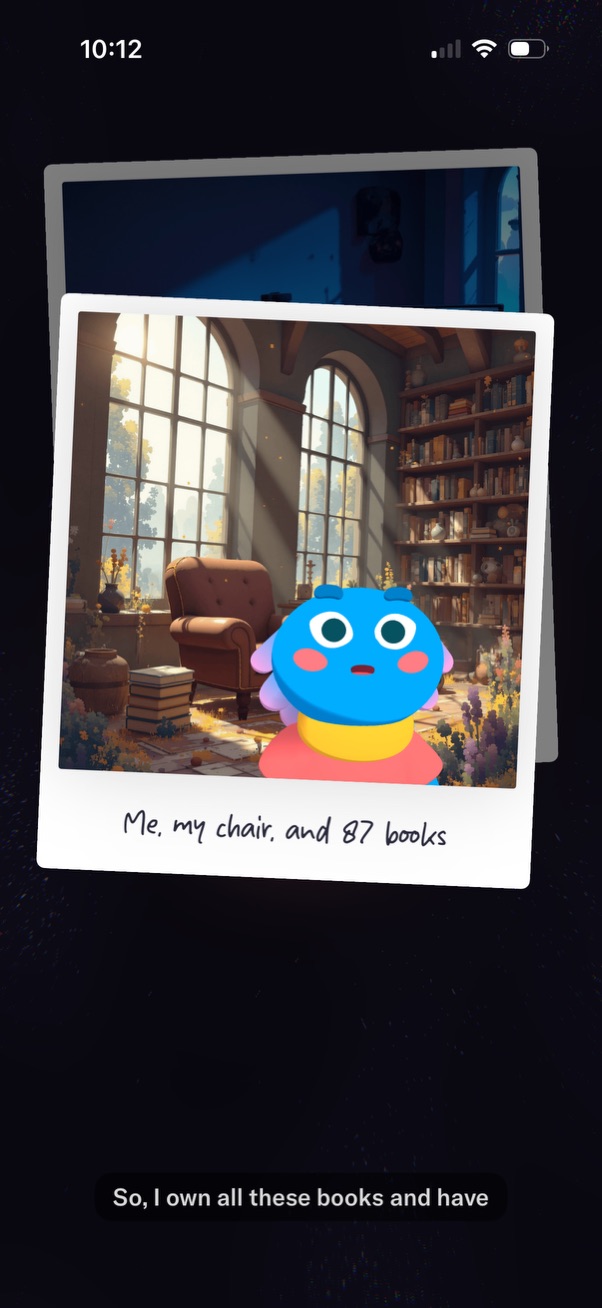
Story-style photo viewer showing a polaroid-framed image with a caption, stacked over another photo on a dark background. A text caption bar at the bottom displays narrative dialog, indicating a slideshow/story post being viewed.

Story-style intro/onboarding screen with a layered stack of polaroid photos/cards featuring an illustration and caption, used to present themed prompts or scenes. A bottom overlay shows narrative text with a central button to continue/advance to the next card.

Animated conversational assistant screen showing a friendly character on a space-themed background while speaking a message in a chat-style text bubble at the bottom. Used for guided onboarding or coaching with character dialogue and conversational prompts.

Chat screen with a friendly animated avatar/mascot on a night-sky background, offering two primary input methods: “Tap to text” for typing messages and “Tap to talk” for voice conversation. Bottom toolbar includes camera access, chat/messages, and microphone controls for starting communication.