Submit feedback (to developer)
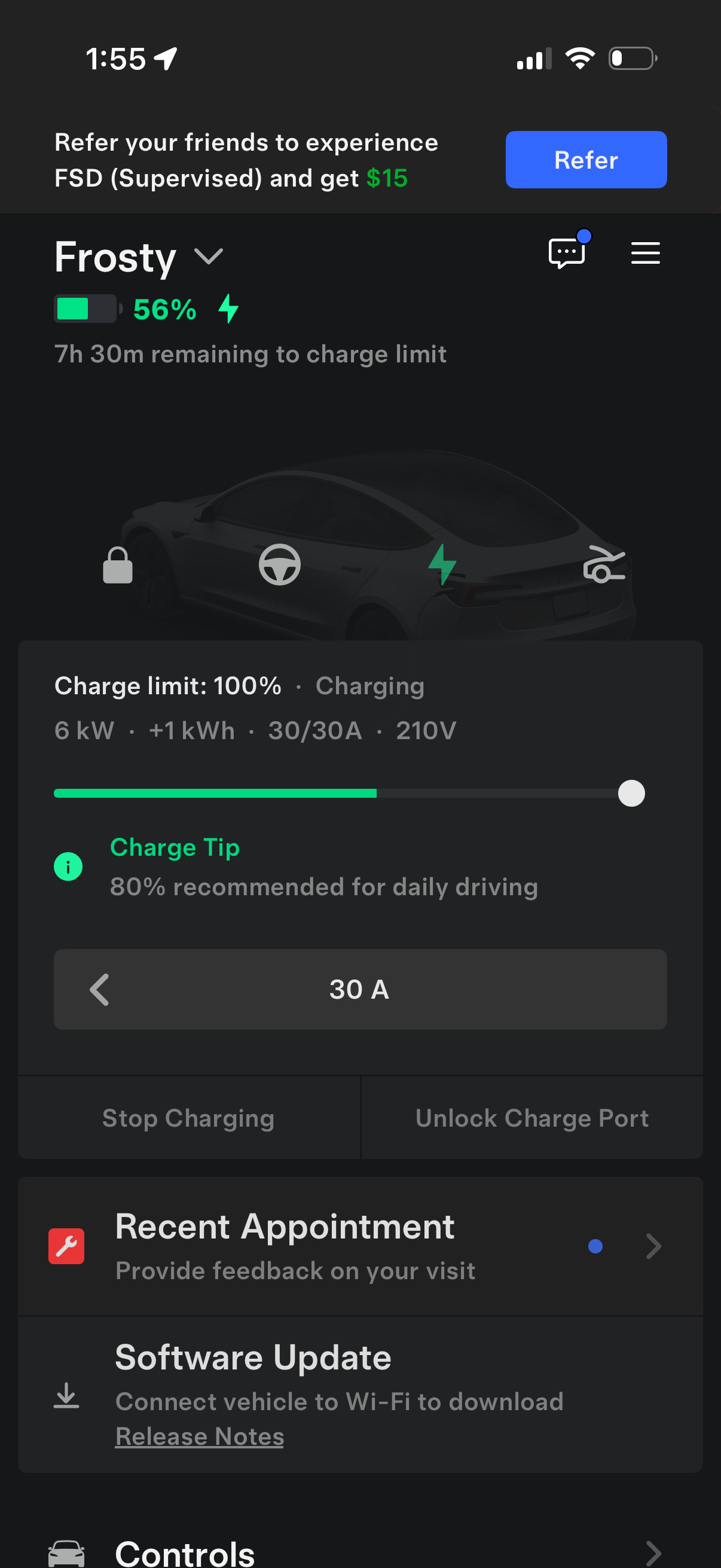
Electric vehicle charging status screen showing current battery percentage and estimated time to reach the charge limit, with controls to adjust charge limit via slider and set charging amperage. Provides actions to stop charging or unlock the charge port, plus quick cards for recent appointment feedback and software update information.
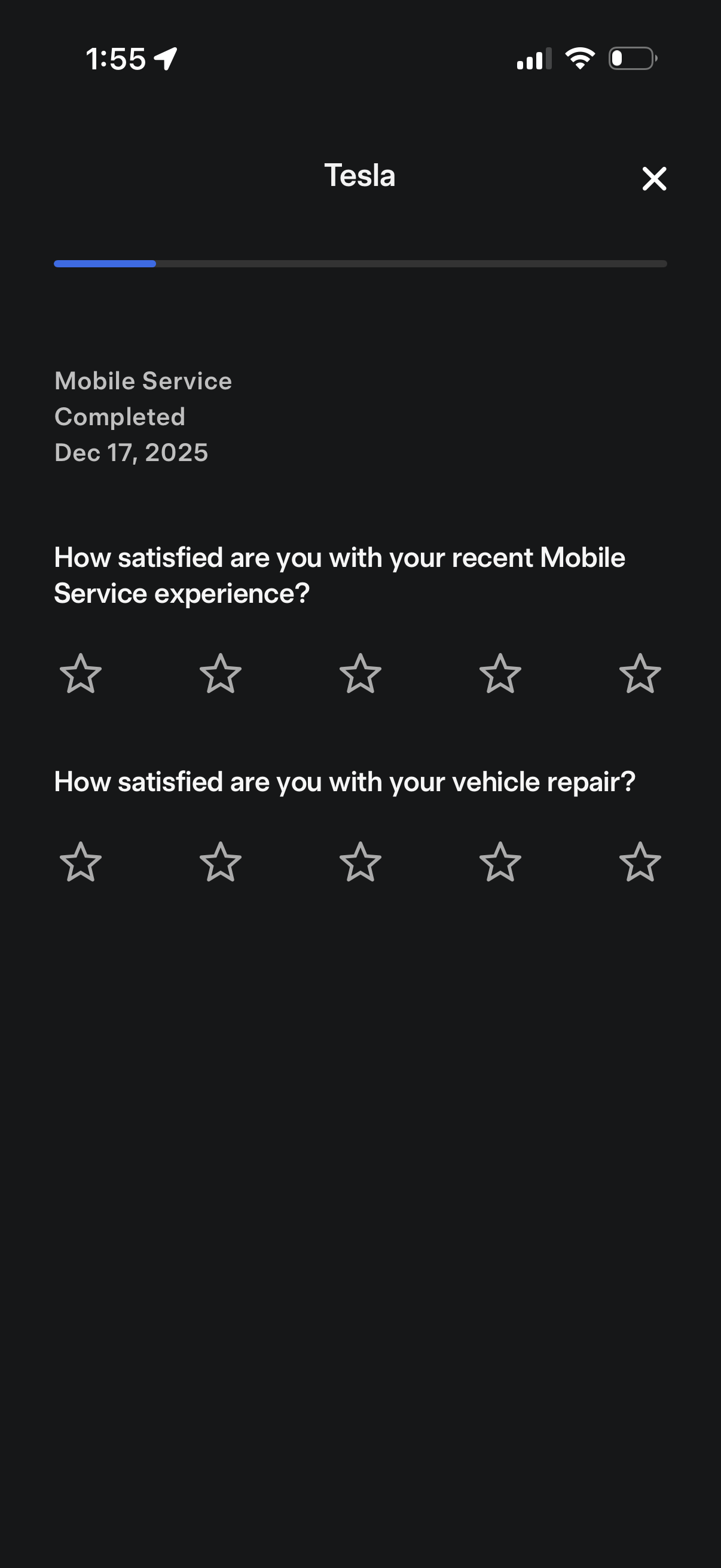
Post-service feedback screen for a completed mobile vehicle service, showing the service date and asking users to rate satisfaction with the overall mobile service experience and the vehicle repair using 5-star rating controls, with a close/dismiss button.
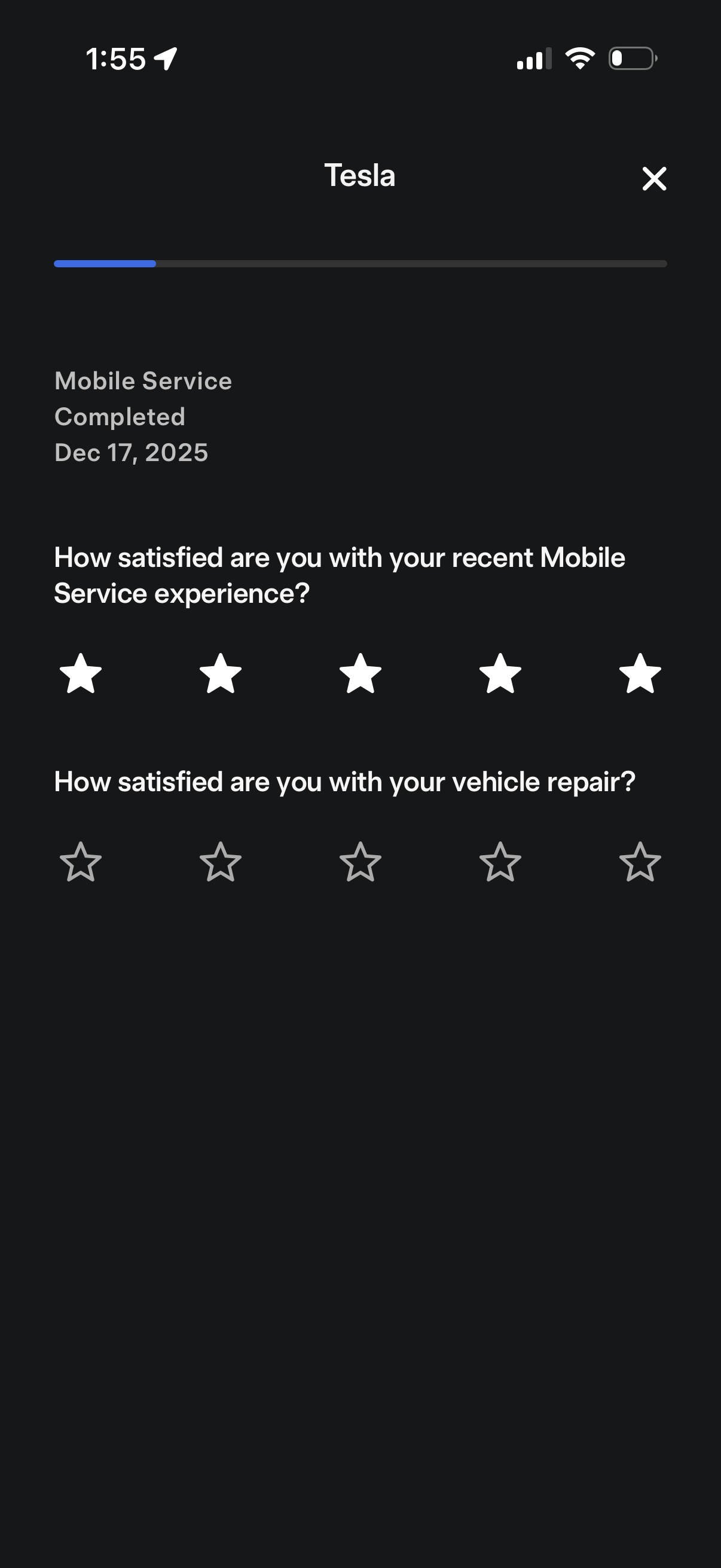
Post-service feedback screen for a completed mobile vehicle service request, showing the completion date and asking users to rate satisfaction using star ratings. Includes separate rating questions for the overall mobile service experience and the vehicle repair, with a close/dismiss button.
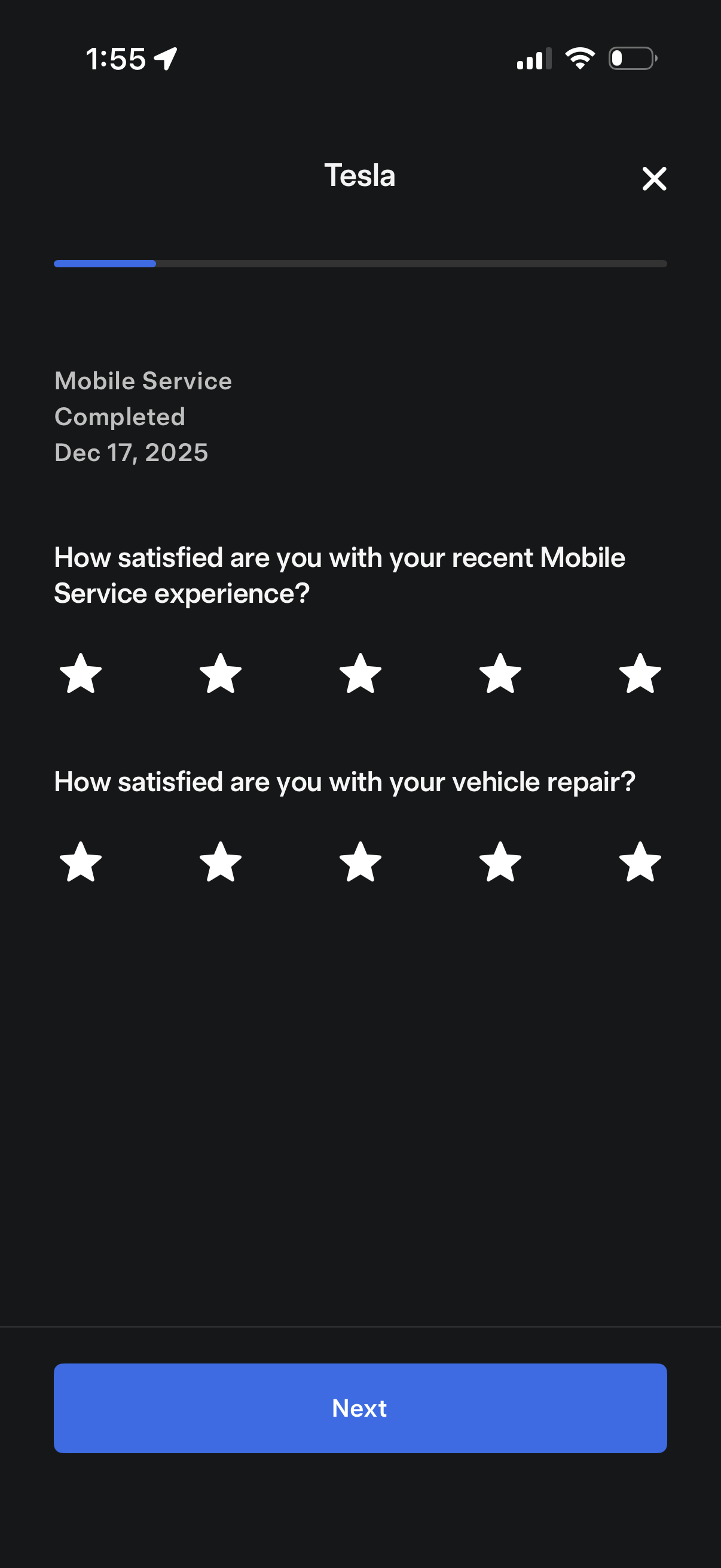
Post-service feedback screen for a completed mobile service appointment, asking users to rate satisfaction with the overall mobile service experience and the vehicle repair using 5-star ratings. Includes a progress indicator, close button, and a primary “Next” button to continue the survey.
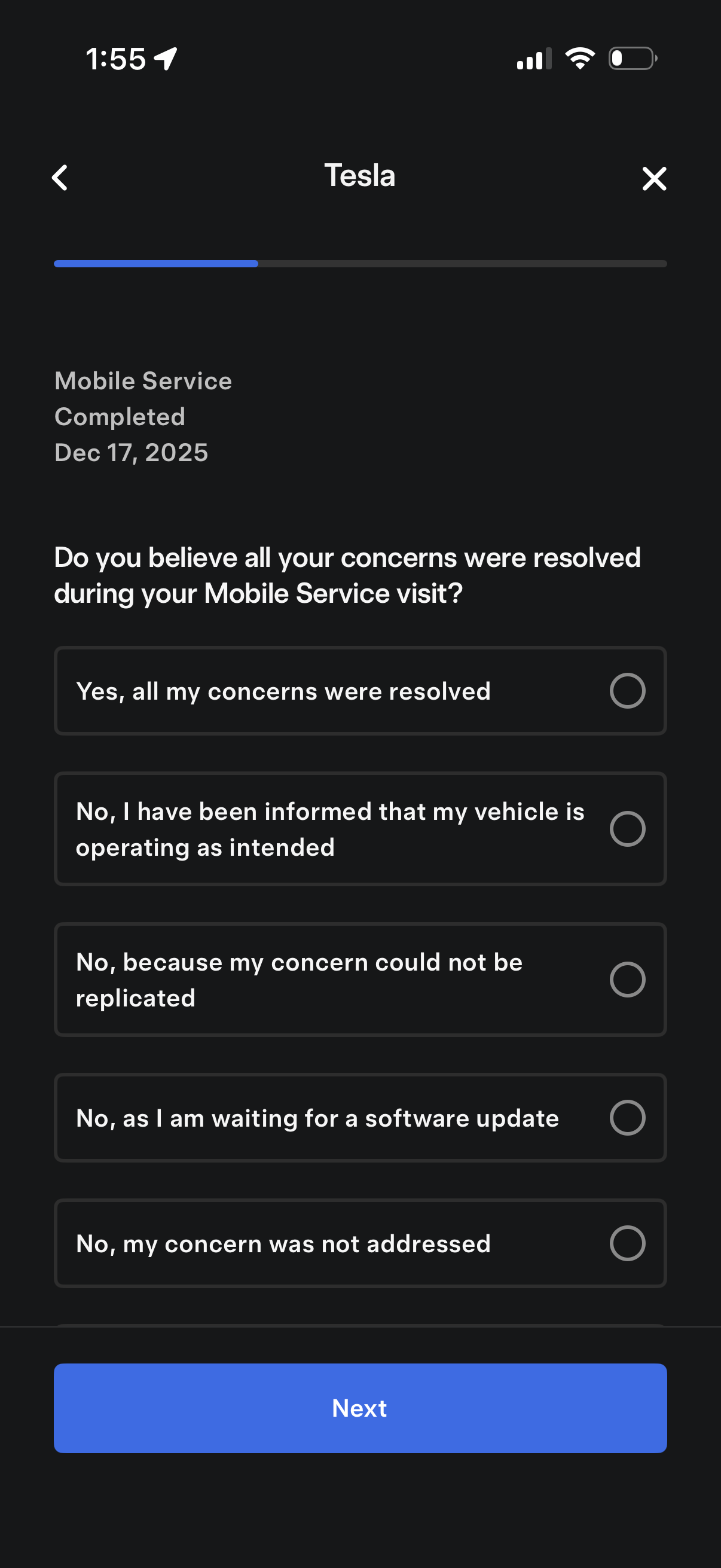
Post-service feedback survey screen for a completed mobile vehicle service visit, asking whether all concerns were resolved. Users select a single radio-button response with multiple “yes/no” reasons (resolved, operating as intended, couldn’t replicate, waiting for software update, not addressed) and tap Next to continue.
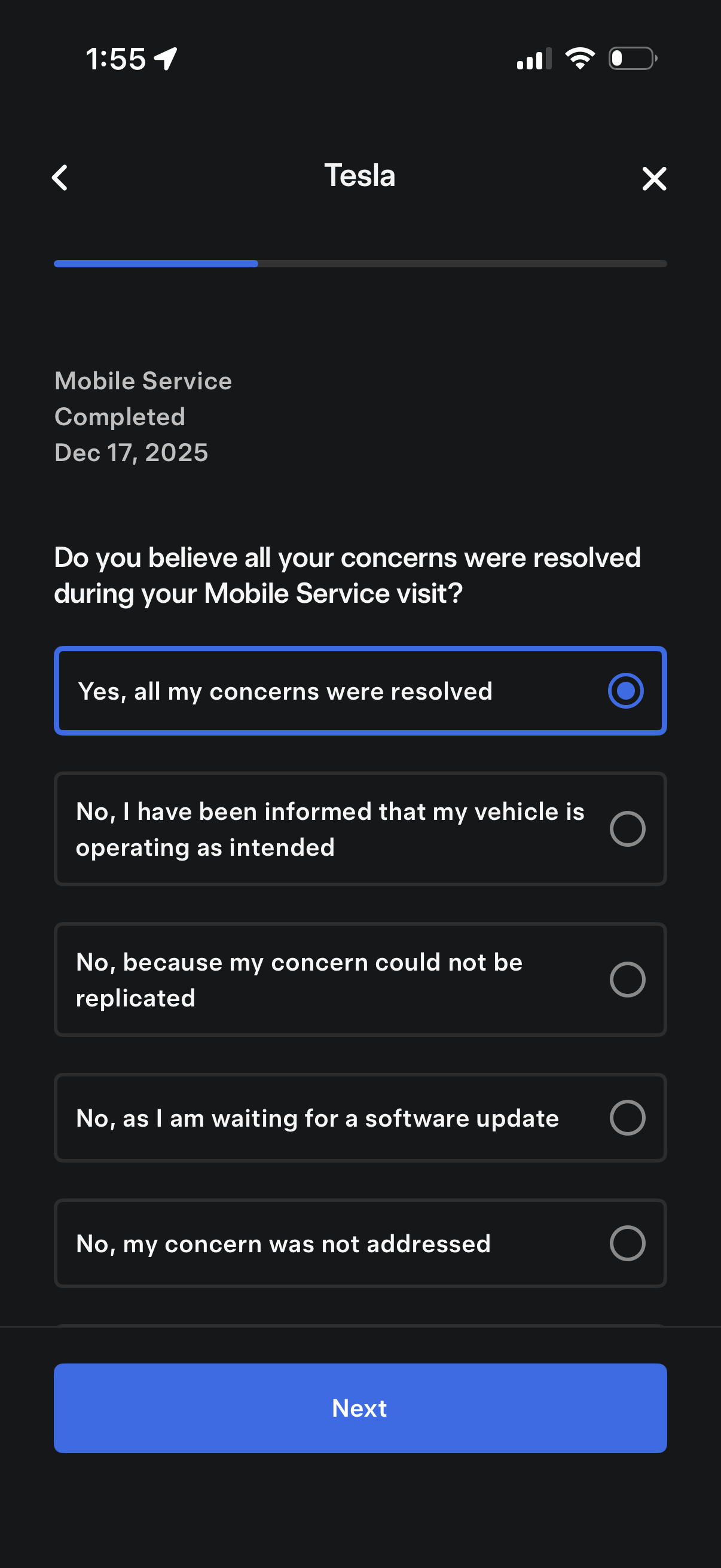
Post-service feedback survey screen for a completed mobile vehicle service visit, asking whether all concerns were resolved with single-select radio options for different outcomes (resolved, operating as intended, could not replicate, waiting for software update, not addressed). Includes navigation controls and a primary Next button to continue the questionnaire.

Post-service feedback screen asking the user to rate satisfaction with communications before, during, and after a completed mobile service appointment, using a 5-star rating scale. Includes appointment status/date context and navigation controls to go back or close.
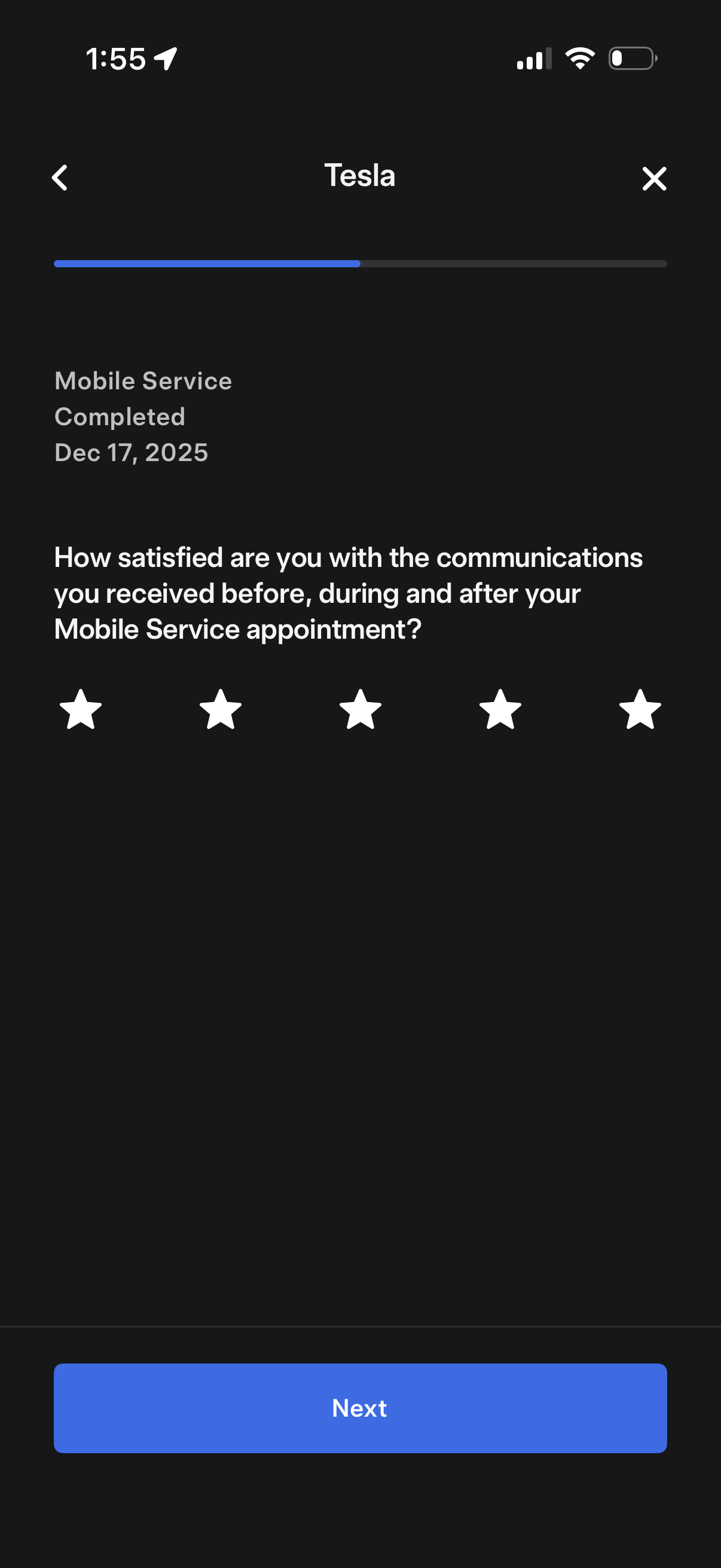
Post-service feedback survey screen for a completed mobile service appointment, asking the user to rate satisfaction with communications before, during, and after the appointment using a 5-star rating. Includes progress indicator, back/close controls, and a primary “Next” button to continue the questionnaire.

Post-service feedback screen for a completed mobile service appointment, asking the user to rate the support received from a mobile technician using a 1–5 star rating. Includes appointment status and date, plus back and close navigation controls.
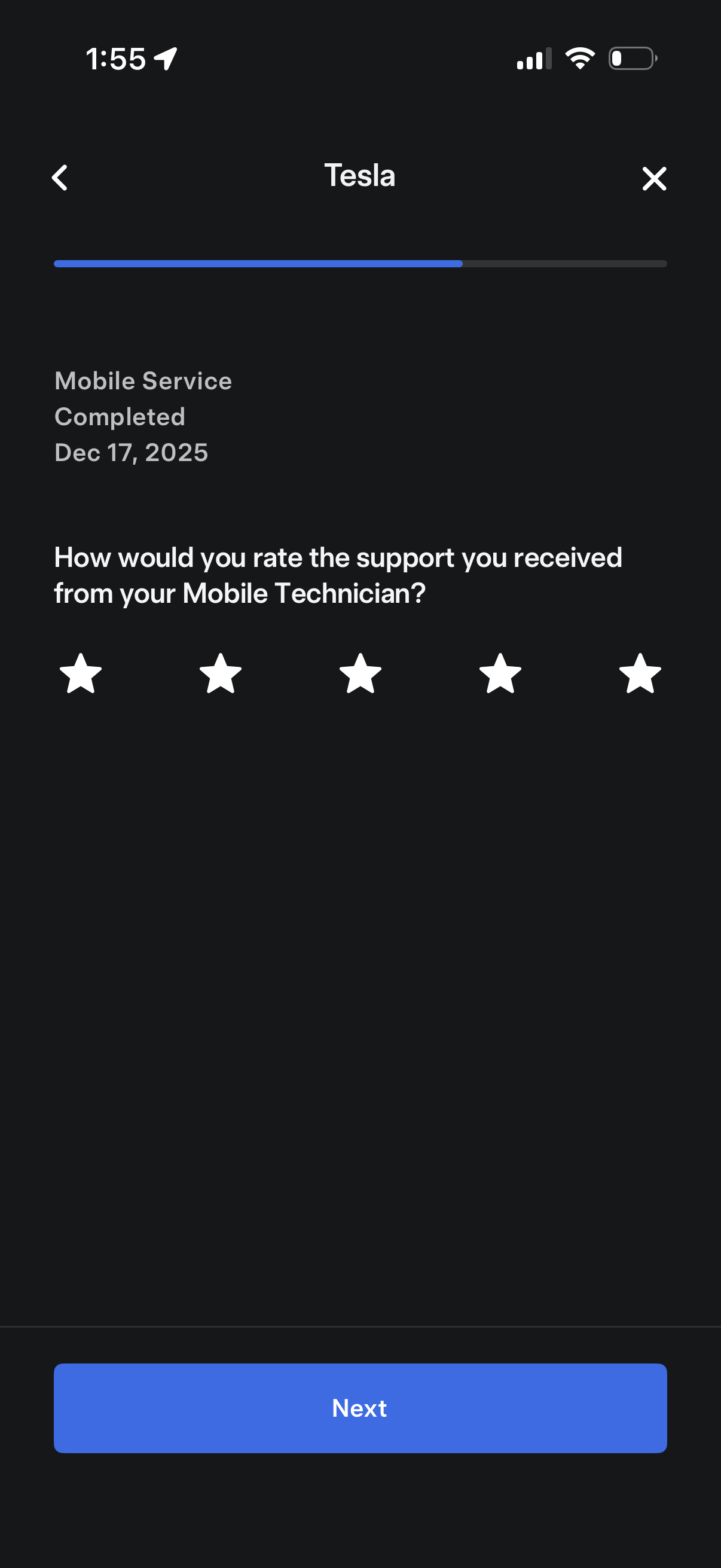
Post-service feedback screen for a completed mobile service appointment, asking the user to rate the support received from a mobile technician using a 5-star rating. Includes back/close controls, a progress indicator, and a primary “Next” button to continue the survey.
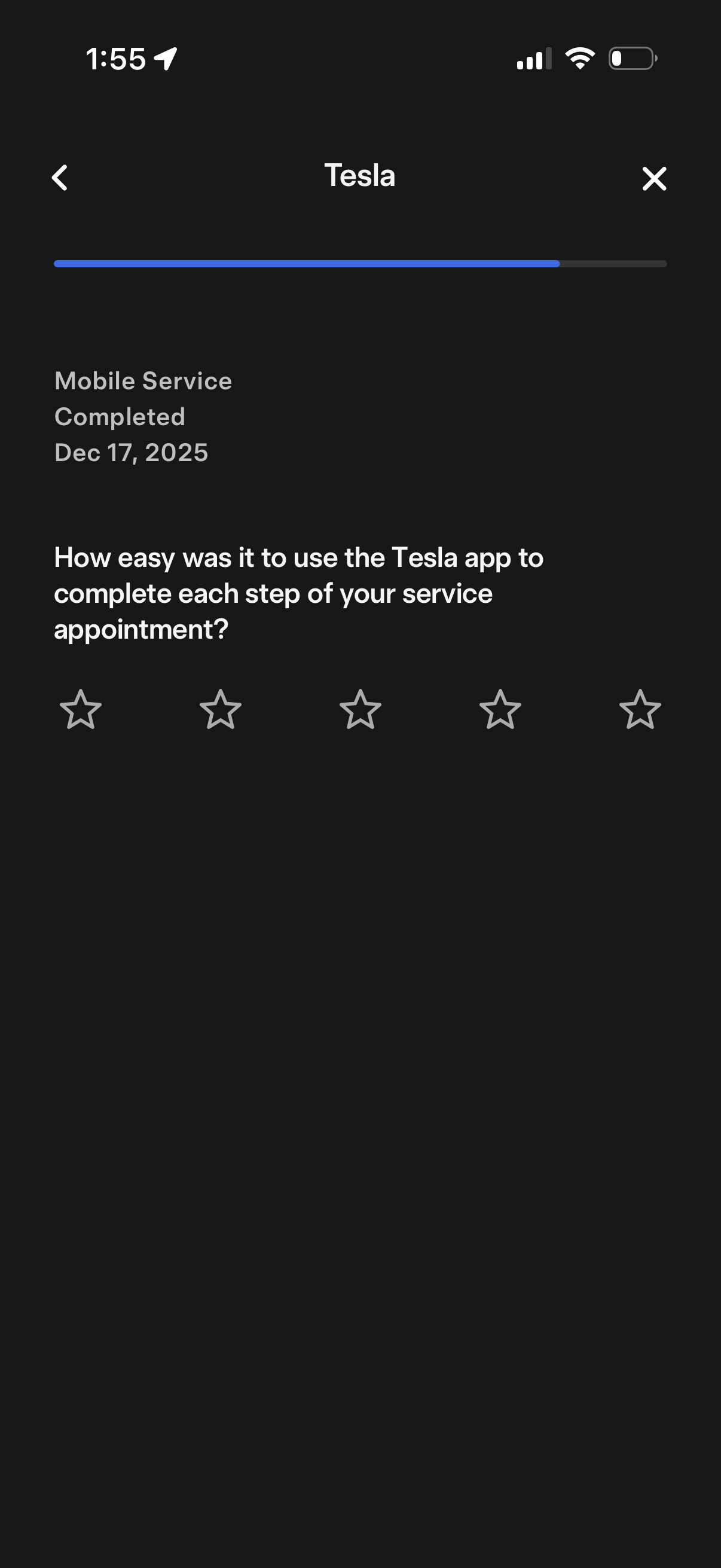
Post-service feedback screen for a completed mobile service appointment, asking how easy it was to use the app to complete each step. Includes a 5-star rating input with back and close controls.
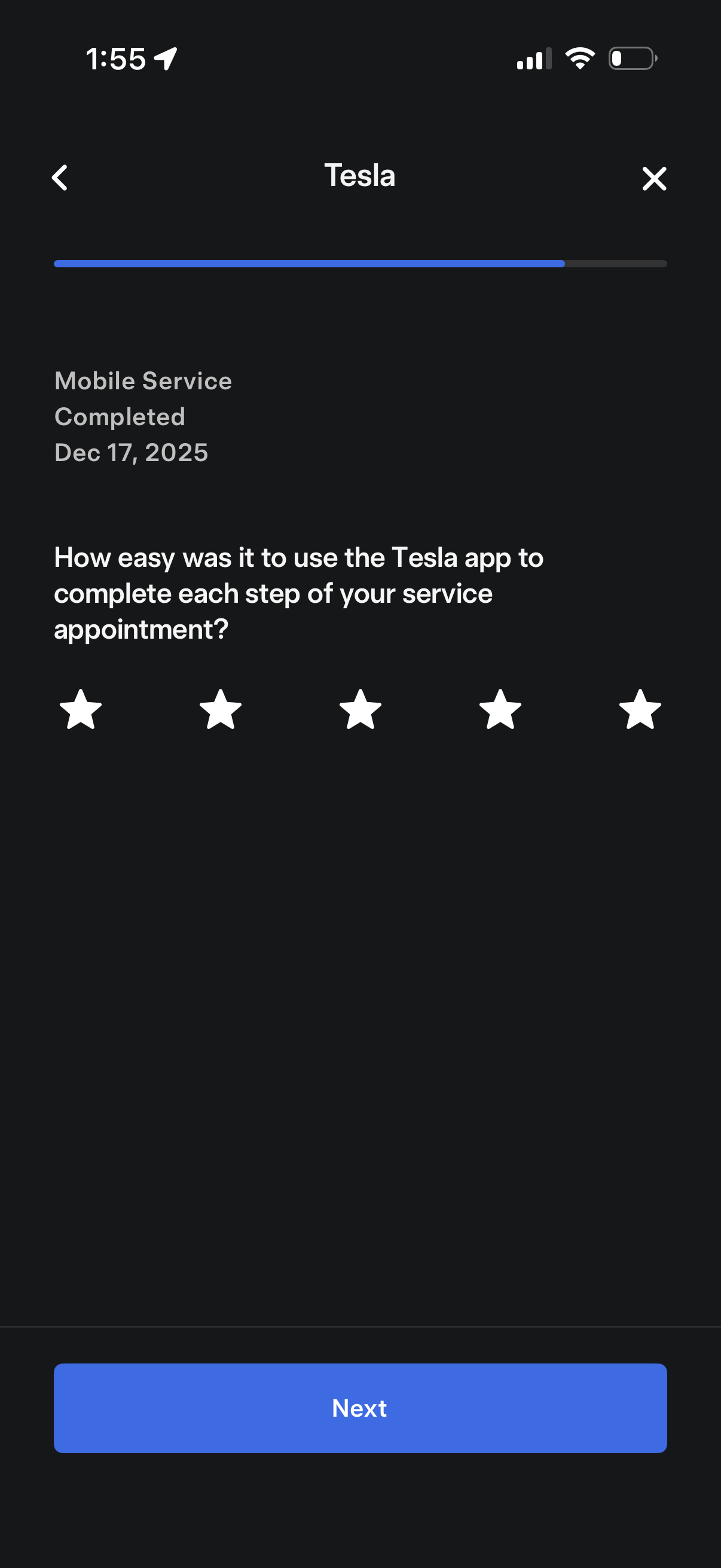
Post-service feedback screen for a completed mobile service appointment, asking the user to rate how easy the app was to use with a 5-star rating selector. Includes a progress indicator and a primary Next button to continue the survey, with back and close controls.
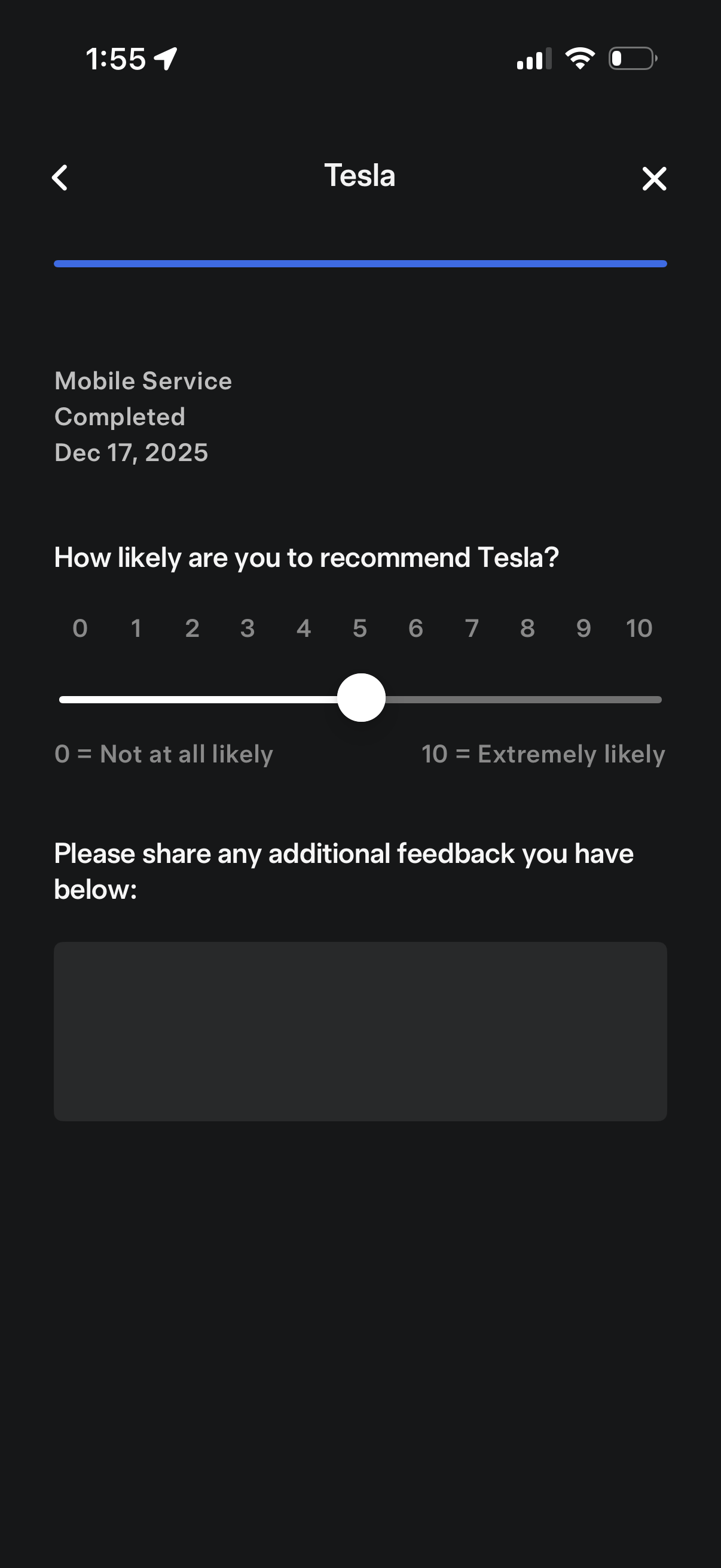
Post-service customer feedback screen asking for an NPS rating on how likely the user is to recommend the brand, using a 0–10 slider with “not at all likely” to “extremely likely” labels. Includes an open text field to provide additional comments, with back and close navigation controls.
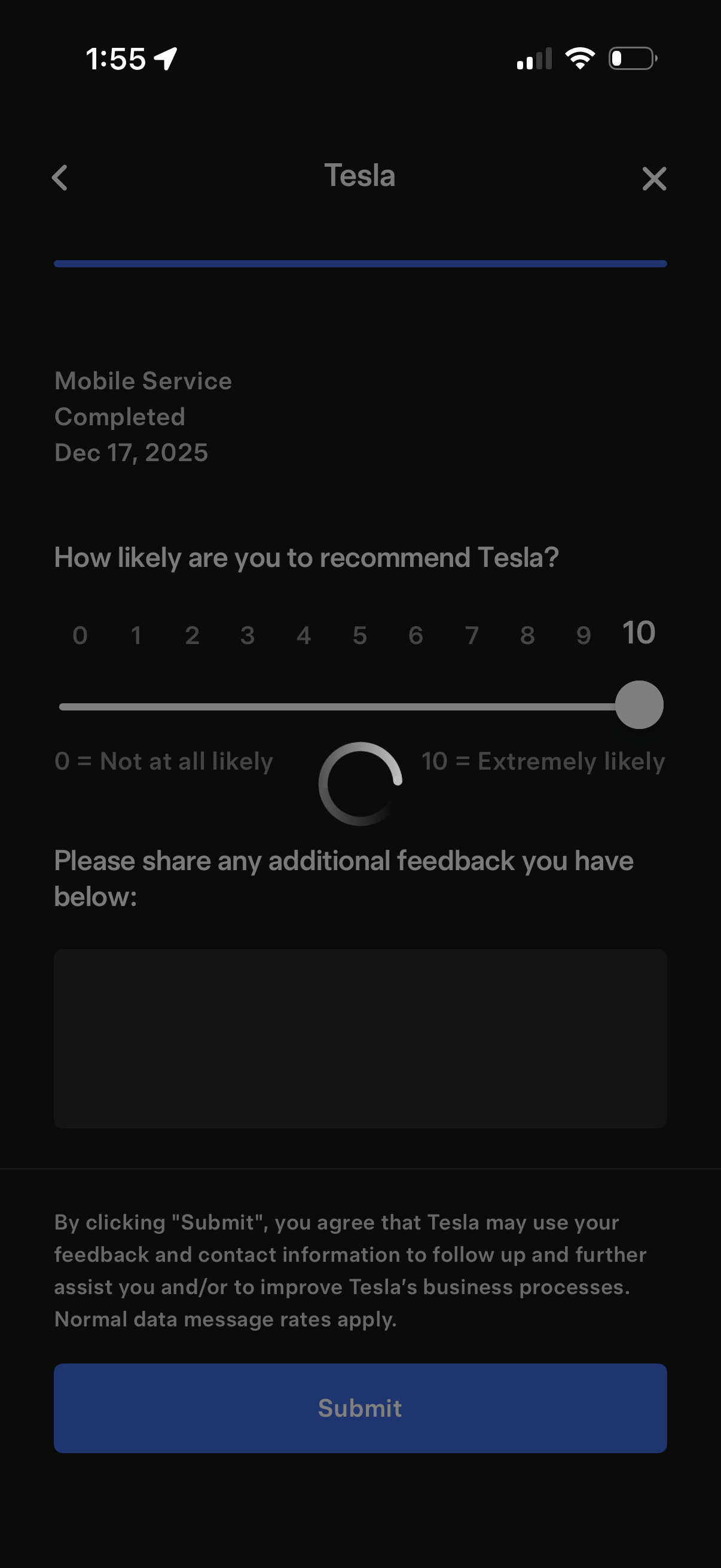
Post-service feedback screen prompting users to rate how likely they are to recommend the company on a 0–10 NPS slider, optionally add written comments in a text field, and submit the survey, with context showing the service completion date.
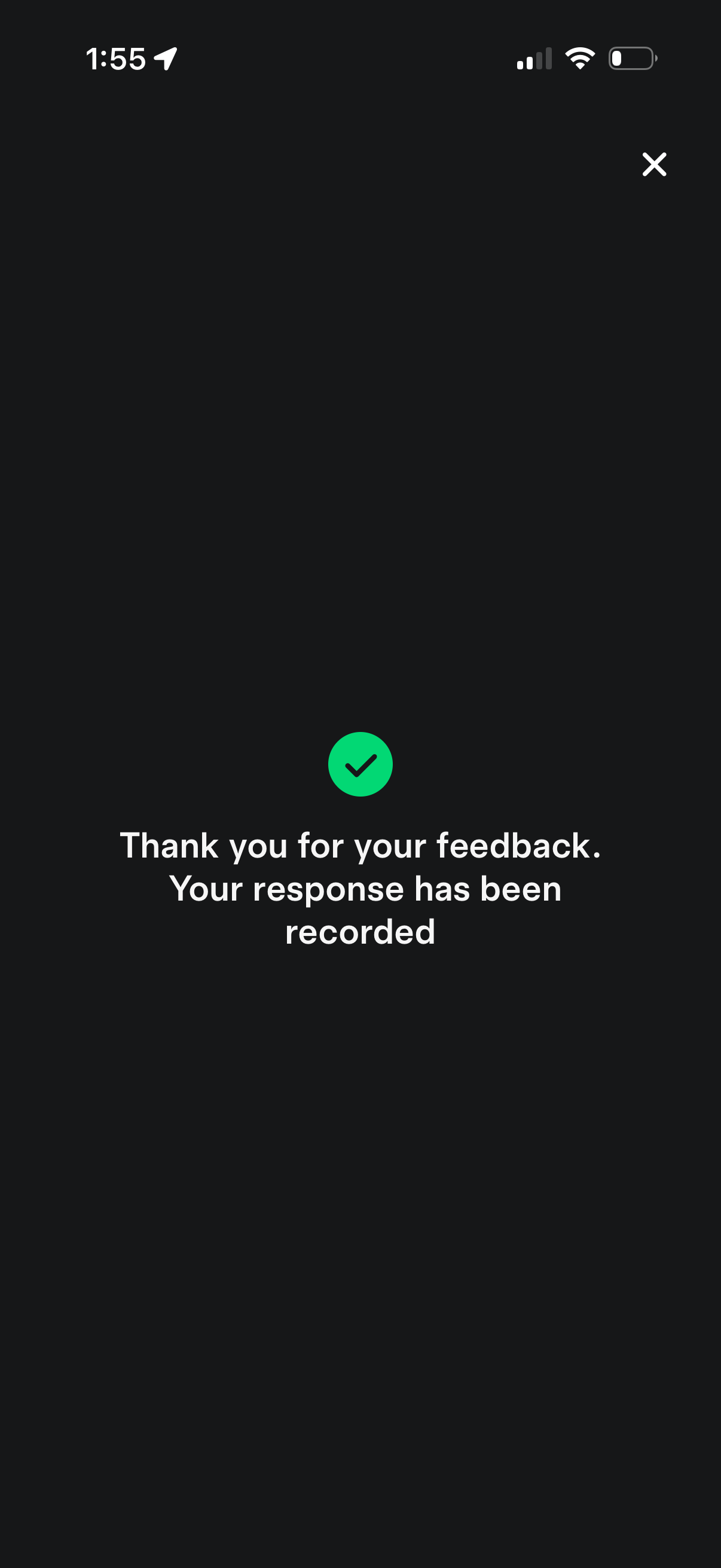
Confirmation success screen after submitting feedback, showing a checkmark icon and message that the response has been recorded. Includes a close (X) button to dismiss and return to the app.