Onboarding
App welcome/landing screen showing the product name and tagline, with primary authentication actions to either Get Started (sign up/onboarding) or Sign In for existing users.
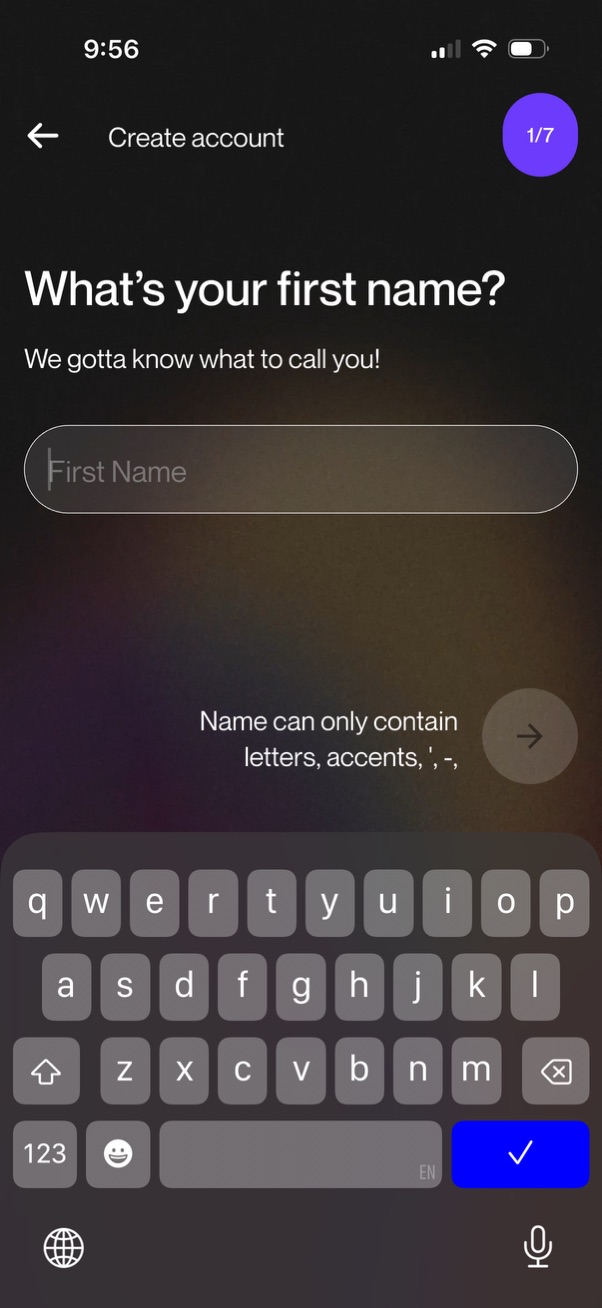
Create account onboarding step asking for the user’s first name with a single text input field and validation hint about allowed characters. Includes a progress indicator (step 1 of 7), back navigation, and a next/continue arrow button to proceed.

Account creation step asking for a phone number to send an SMS verification code, with a country code selector and mobile number input field. Includes links to use email instead, contact support, view terms and privacy policy, and a forward/continue button with step progress indicator.

Two-factor authentication login verification screen prompting the user to enter a 6-digit SMS code sent to a masked phone number. Includes a resend code option with countdown timer, a contact support link for troubleshooting, and a button to submit/continue.

Login verification screen prompting the user to take a selfie as an identity check, with a progress indicator showing step 2 of 7 in the authentication flow. Includes navigation back and a camera capture action to proceed with selfie verification.

Account creation onboarding step prompting the user to enter their birthday for age verification, featuring a date input field with clear (X) control and a next arrow button. Includes a progress indicator showing step 3 of 7 in the signup flow.
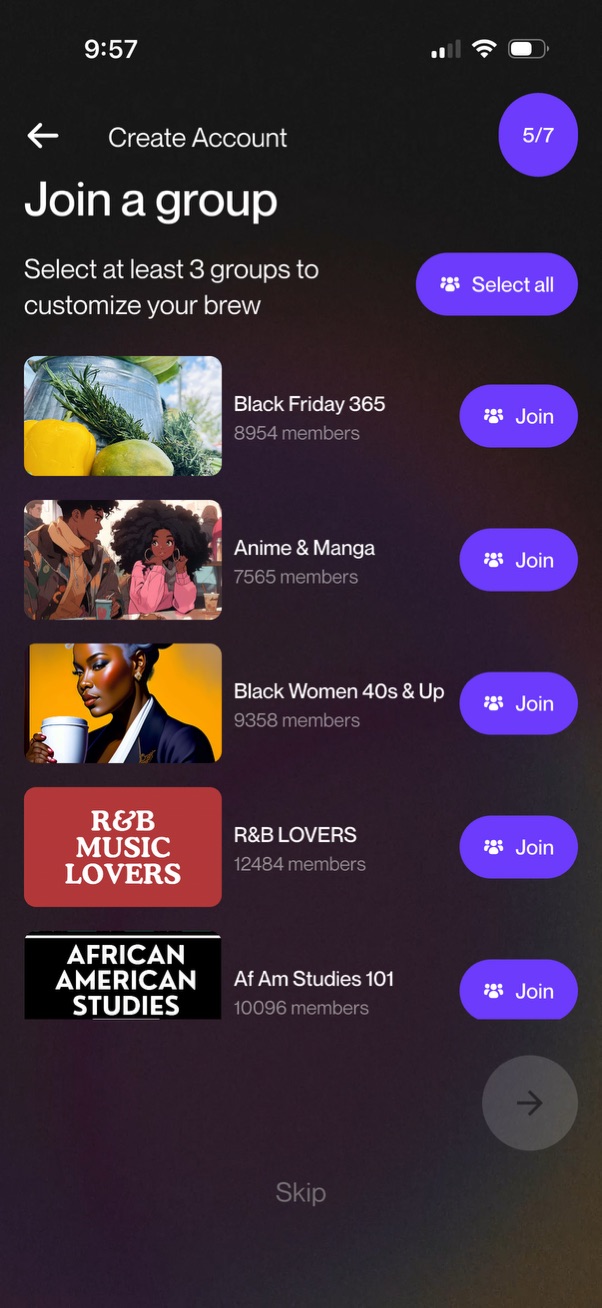
Account creation onboarding screen prompting users to join interest-based groups by selecting at least three, showing a scrollable list of groups with thumbnails, member counts, and individual “Join” buttons plus a “Select all” option. Includes a step progress indicator, a skip option, and a next/continue arrow to proceed after making selections.

Onboarding permission prompt asking the user to invite friends/contacts to the app, with a primary “Allow” button to grant access and a secondary “No thanks” option to skip.

Onboarding permission prompt asking the user to enable push notifications for the app, explaining “Get Notified” and offering primary action “Allow” with secondary option “No thanks. ” The screen is branded with the app name and previews notification-style cards to illustrate what alerts will look like.

A social app home feed screen is covered by a modal prompting the user to provide an email address, explaining it will be used for account contact about flagged/deleted posts and product updates. The popup’s primary call to action is a large “Let’s do it” button to proceed with adding an email.

Profile settings edit screen for updating an email address, featuring a back navigation arrow, a single email input field, and a prominent Save button to confirm changes.

Social feed screen showing a user’s post with an embedded vertical video player, including playback time/progress overlay and audio controls. A top in-app notification banner confirms an action (“Successfully saved email”) with a checkmark, while the feed highlights a featured prompt/card above the post.