Onboarding

Onboarding welcome screen for a voice AI assistant/text-to-speech app showcasing voice avatar options and a value proposition about reading, talking, and answering with preferred voices. Primary call-to-action buttons let users start setup with “Get Started” or sign in via “I Already Have an Account.
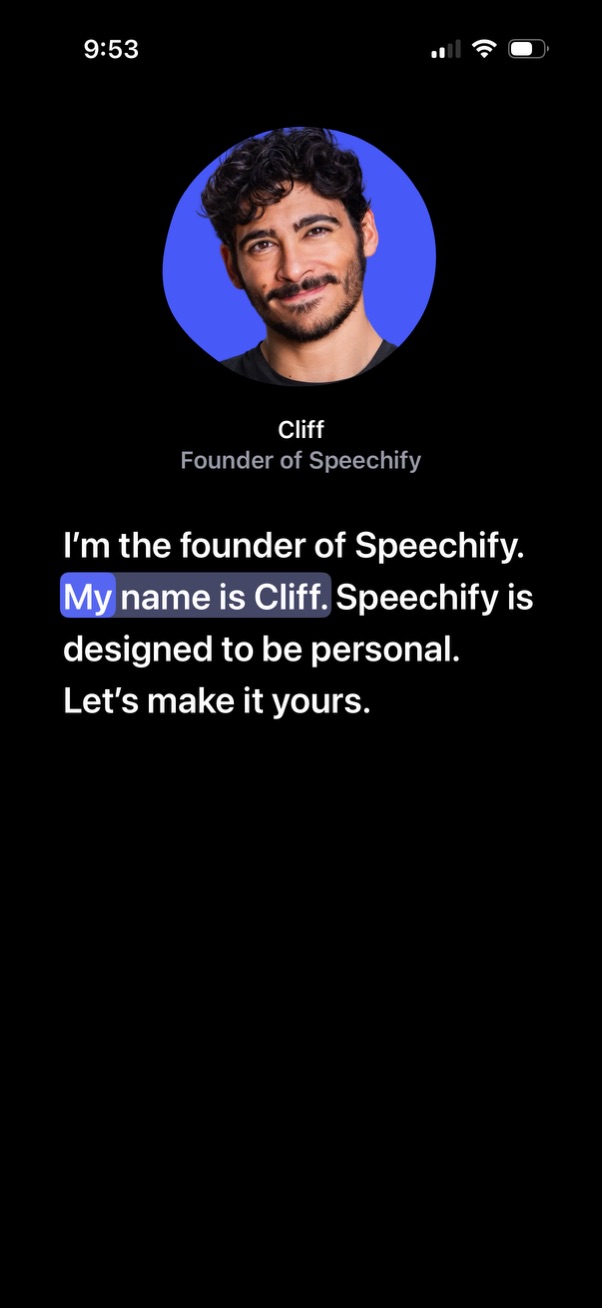
Onboarding introduction screen featuring a profile avatar, name and role (founder), and a personalized welcome message explaining the app is designed to be personal. The screen uses highlighted text emphasis to guide the user into a personalization/setup flow.
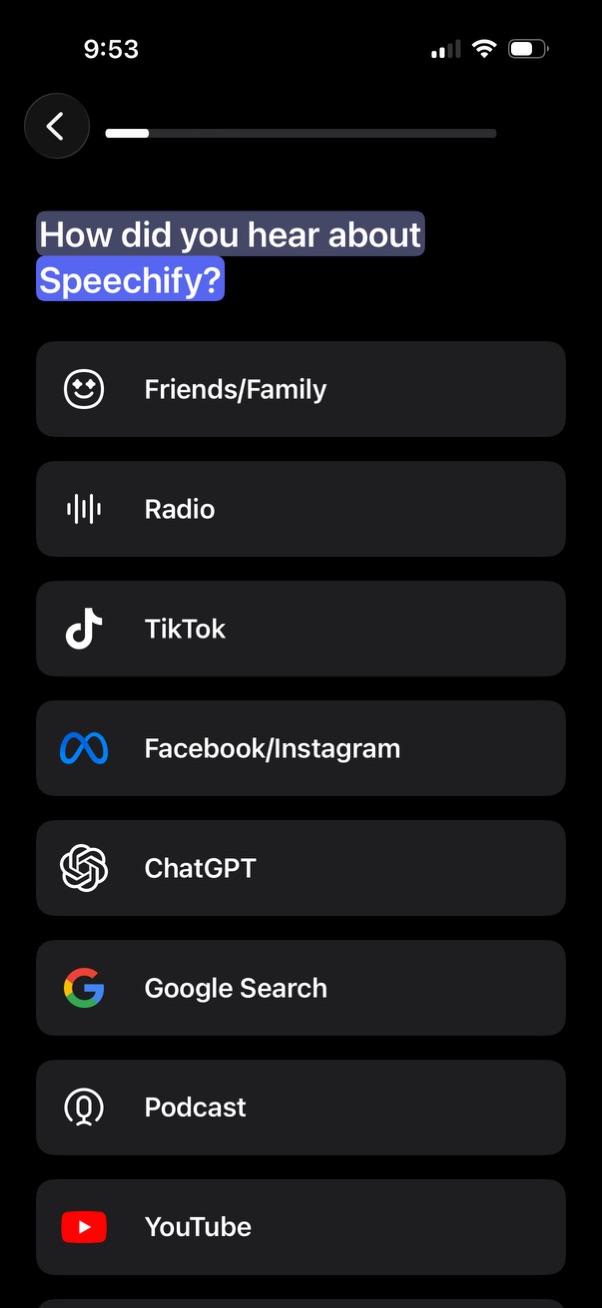
Onboarding survey screen asking “How did you hear about” the app, with a progress indicator and back button. Users choose a single acquisition source from tappable options like friends/family, radio, TikTok, Facebook/Instagram, ChatGPT, Google search, podcast, and YouTube.

Onboarding profile setup screen prompting the user to select their gender, with three tappable options (Male, Female, Other). Includes a back arrow and a progress indicator at the top to show onboarding step completion.
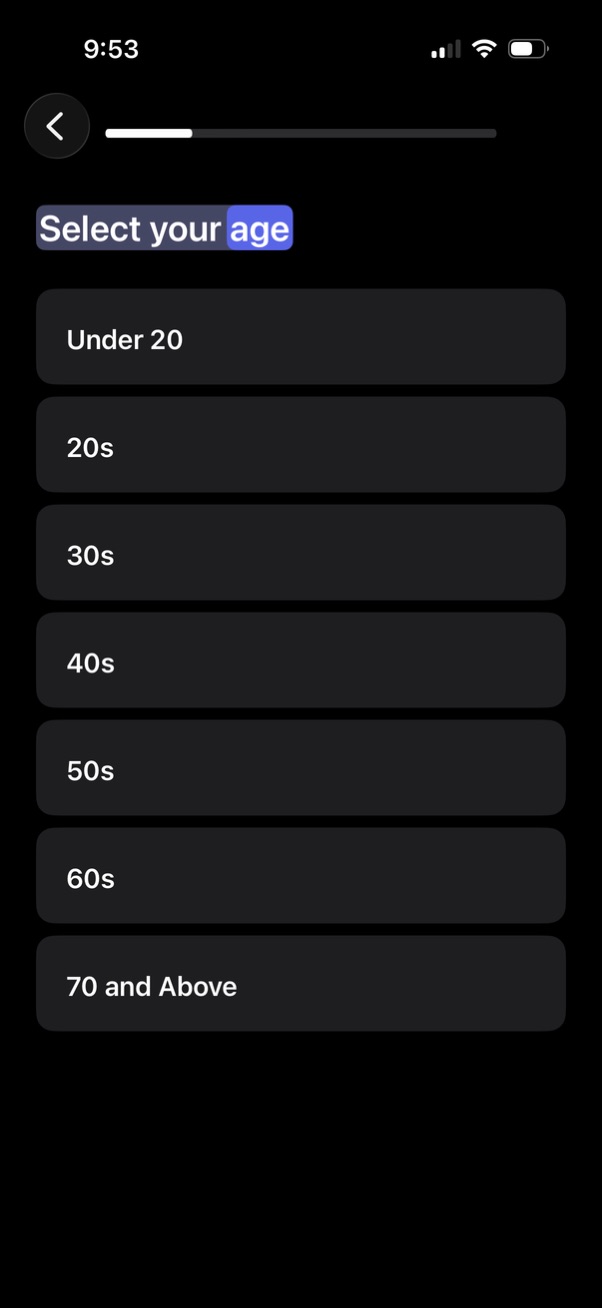
Onboarding form screen prompting the user to select their age range, showing a vertical list of large tappable options (Under 20, 20s–60s, 70 and above) with a back button and progress indicator at the top.

Onboarding sign-up form screen asking “What is your first name? ” with a single text input field and a primary Continue button.
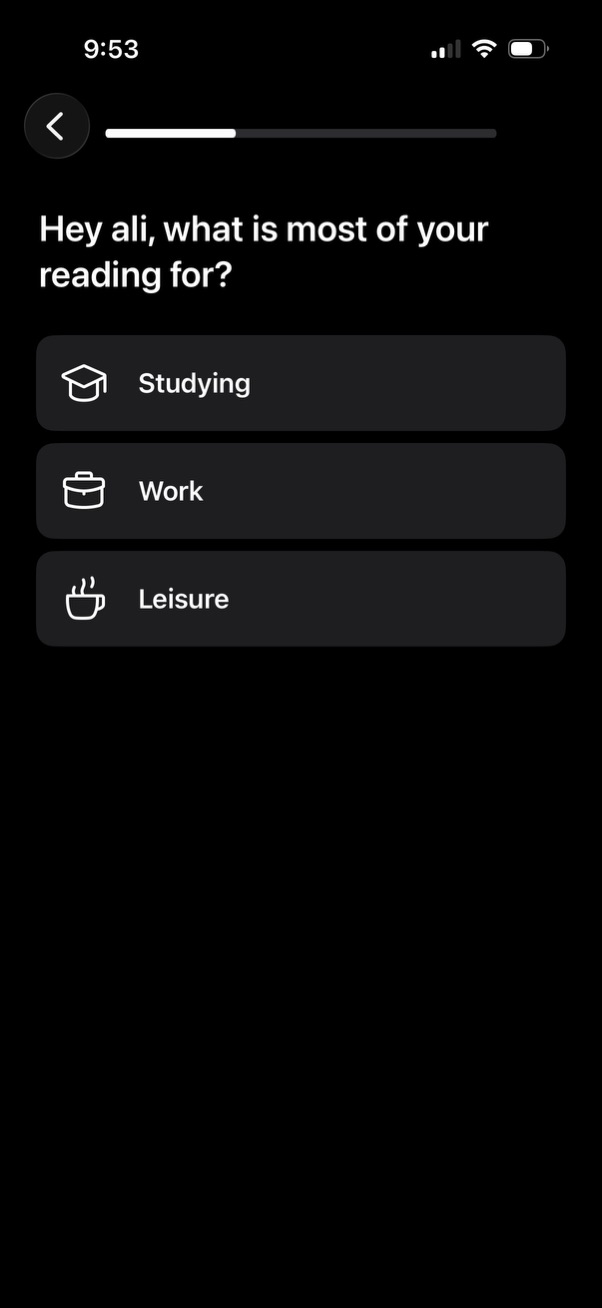
Onboarding preference question screen asking the user what they mainly read for, with a progress indicator and back button. Provides three selectable options as large buttons with icons: Studying, Work, and Leisure.

Onboarding preference selection screen for a text-to-speech/reading app asking what content the user wants to read, with multi-select options like PDFs/documents, physical books, online articles, and emails. Includes a progress indicator, back navigation, and a disabled Continue button that becomes available after selecting choices.

Onboarding survey question screen asking the user how much time they spend reading per day, with a progress indicator and back button. Provides multiple-choice time range options (less than 15 minutes to 2+ hours) as tappable selection cards with icons.

Onboarding upsell screen for a speed-reading app highlighting the benefit “Read 3 times more in the same time” with a before/after comparison graphic. Includes a progress indicator, back button, and primary “Continue” call-to-action to proceed.
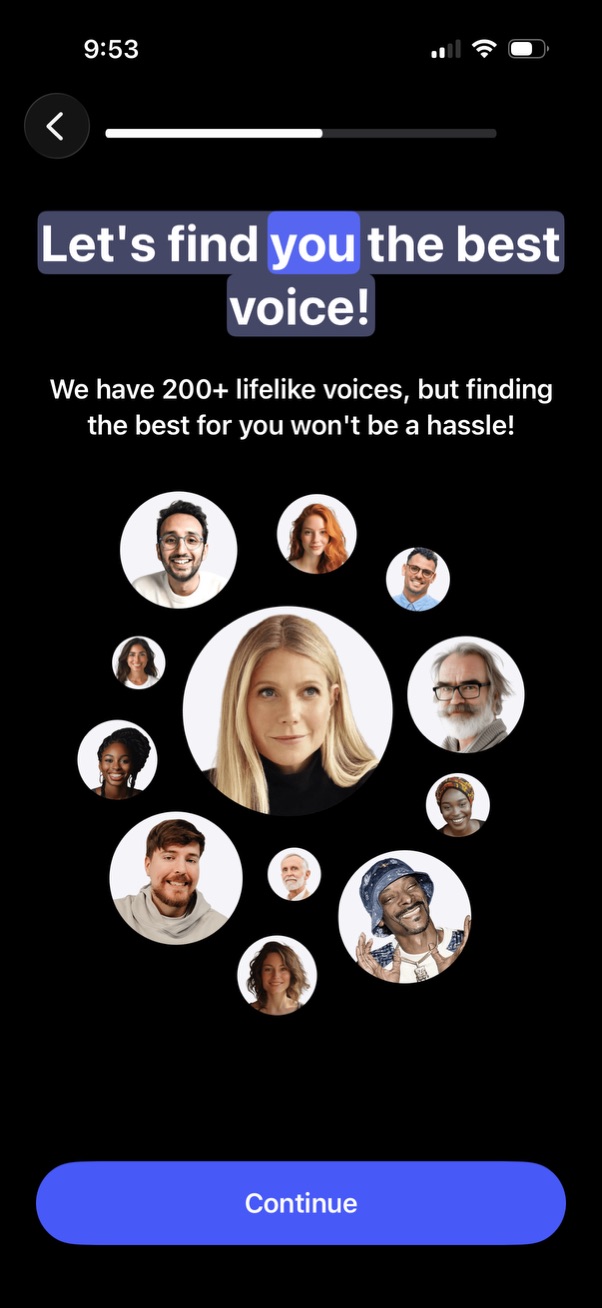
Onboarding screen for a text-to-speech or AI voice app prompting users to find the best voice from 200+ lifelike options, illustrated with a collage of avatar faces. Includes a back button, progress indicator, and a primary “Continue” call-to-action to proceed with voice selection.

Voice selection onboarding screen asking “What type of voice do you want to find? ” with a grid of category buttons for Conversational, Narration, Acting, Professional, Meditation, and Educational, plus a back arrow and progress indicator for a multi-step flow.
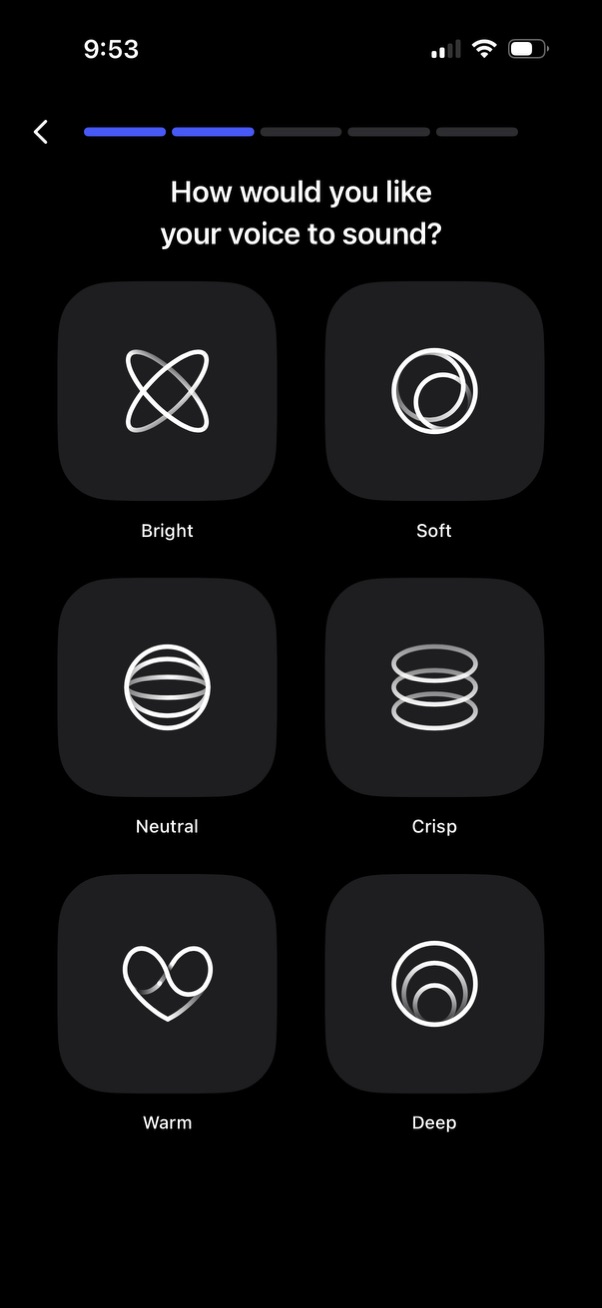
Voice customization setup screen asking “How would you like your voice to sound? ” with a progress indicator and back navigation, presenting a grid of selectable tone presets such as Bright, Soft, Neutral, Crisp, Warm, and Deep.
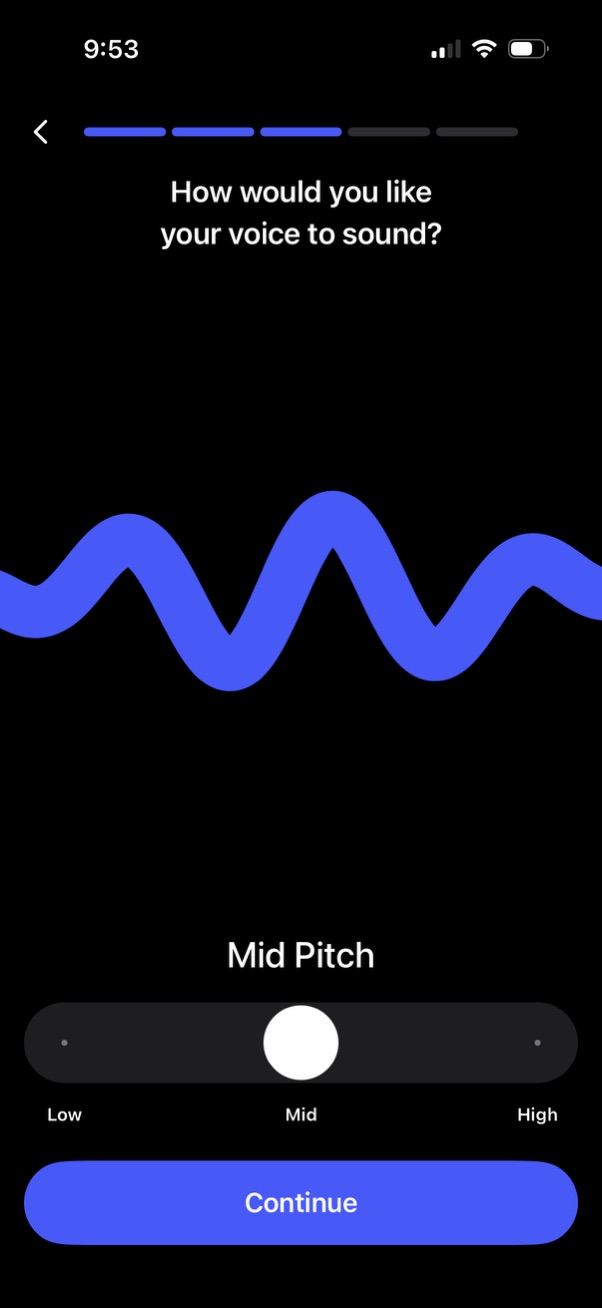
Voice customization onboarding screen asking “How would you like your voice to sound? ” with a waveform preview and a pitch slider to choose low, mid, or high.
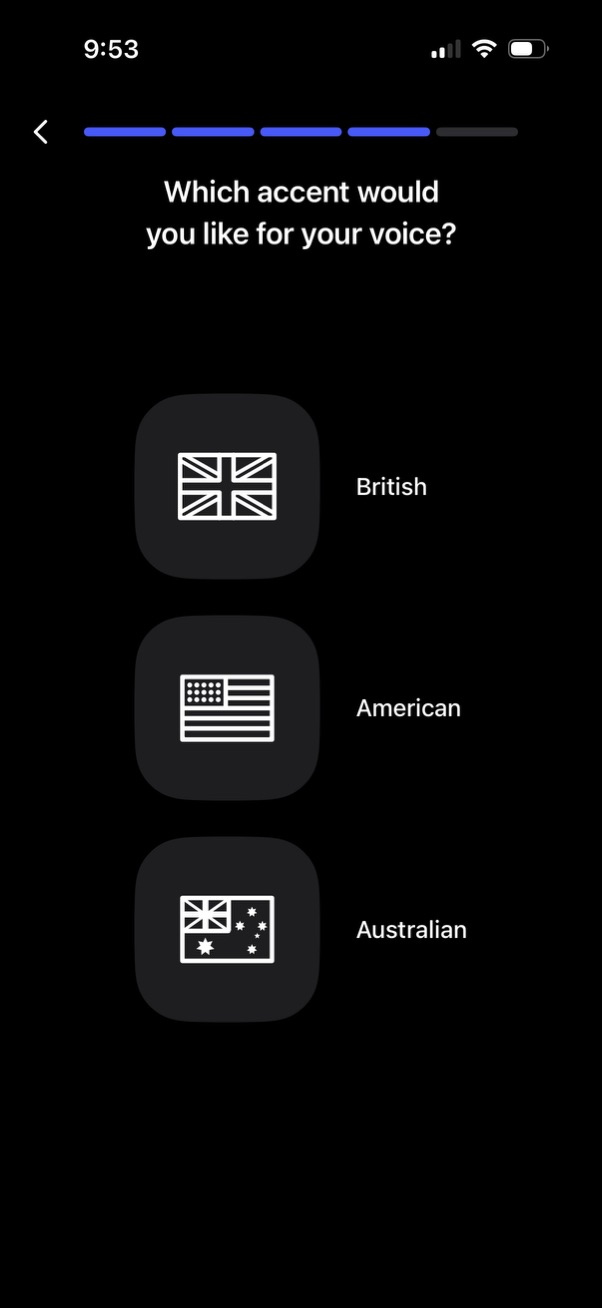
Onboarding settings screen asking the user to choose a voice accent for text-to-speech or AI voice, showing selectable options with flag icons for British, American, and Australian. Includes a back button and a progress indicator at the top to show setup steps.
A full-screen loading state for a voice or audio matching feature, showing an illustration and the message “Looking for the perfect voices for you…” while the app searches or generates personalized voice recommendations. This screen indicates an in-progress step with no user actions besides waiting for results.
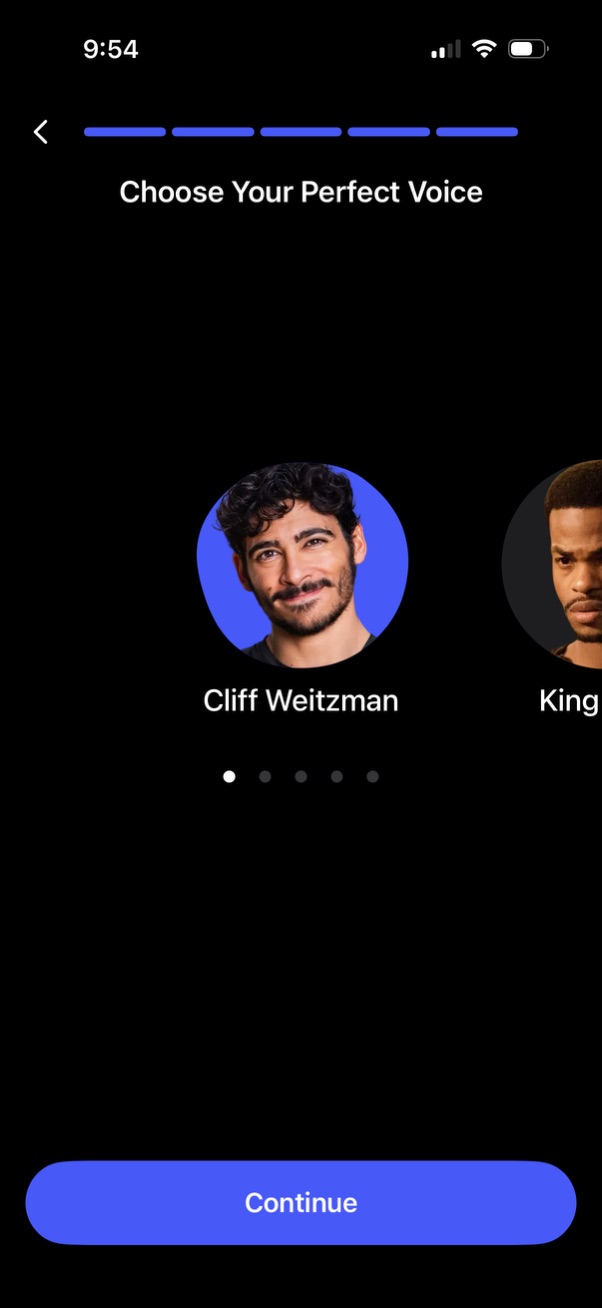
Voice selection screen in an onboarding flow prompting users to choose a “perfect voice,” featuring a horizontally swipeable carousel of voice profiles with avatars and names plus pagination dots. Primary action is a large “Continue” button, with a back arrow and progress indicator at the top.

Onboarding welcome screen for an audio or music app prompting the user to customize their listening experience, with a brief reassurance it will only take a minute. Provides a primary “Continue” call-to-action to proceed to personalization setup.

iOS App Tracking Transparency permission pop-up asking whether to allow an app to track user activity across other companies’ apps and websites for ad attribution, with primary actions to “Ask App Not to Track” or “Allow” displayed over the app’s content screen.
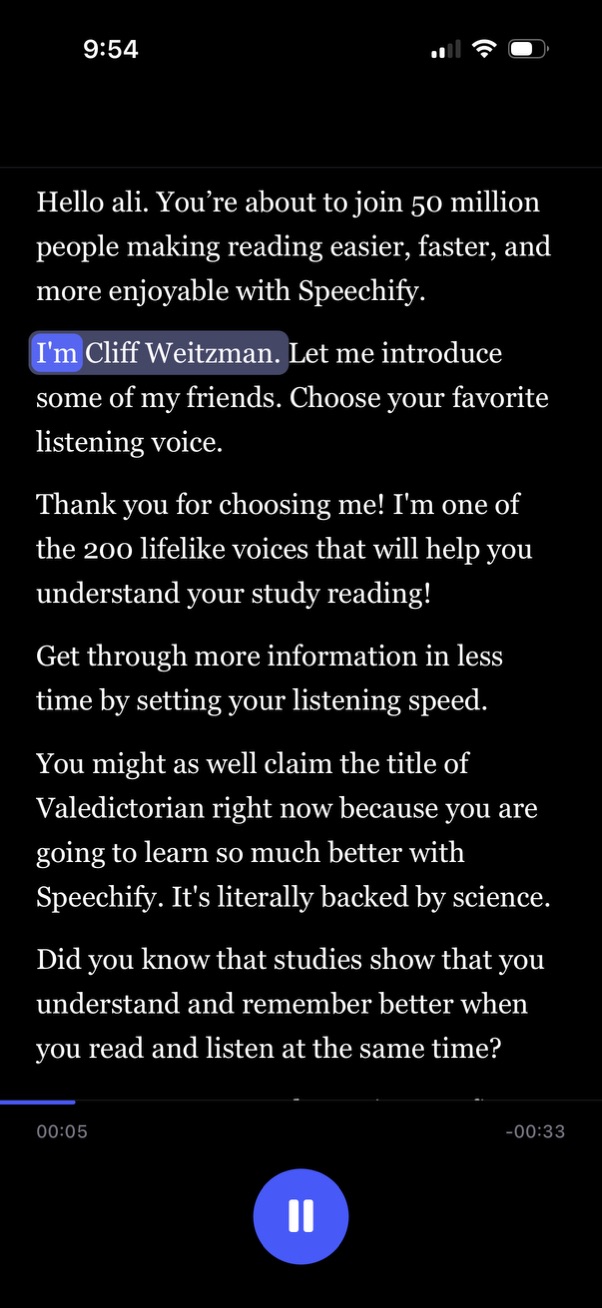
Text-to-speech reading player screen showing highlighted text as it’s being read aloud, prompting the user to choose a preferred listening voice. Includes audio playback controls with a progress bar, elapsed/remaining time, and a large pause/play button for controlling narration speed and playback.

Text-to-speech reading screen showing an article with audio playback controls and a highlighted spoken sentence. A prominent “Pick a voice” button opens voice selection to change the narrator for listening while reading.

Text-to-speech reading screen for study content showing an article-like passage while audio plays, with a prominent play/pause button, progress bar and time indicators, and an option to adjust listening speed. Includes a voice/avatar indicator and focuses on continuing through narrated reading while following along on screen.

Text-to-speech reading screen showing an article in dark mode while audio is playing with a progress bar and voice avatar. A floating control lets users pick the listening speed, with the current playback rate set to 1x.

A bottom-sheet modal for selecting audio playback or text-to-speech listening speed, showing the current speed with estimated duration and controls to increase/decrease. Users can pick from preset multipliers (0.

A dark-themed loading or progress screen informing the user that the app is finalizing their personalized listening plan, indicating an onboarding/personalization step while the service prepares recommendations.
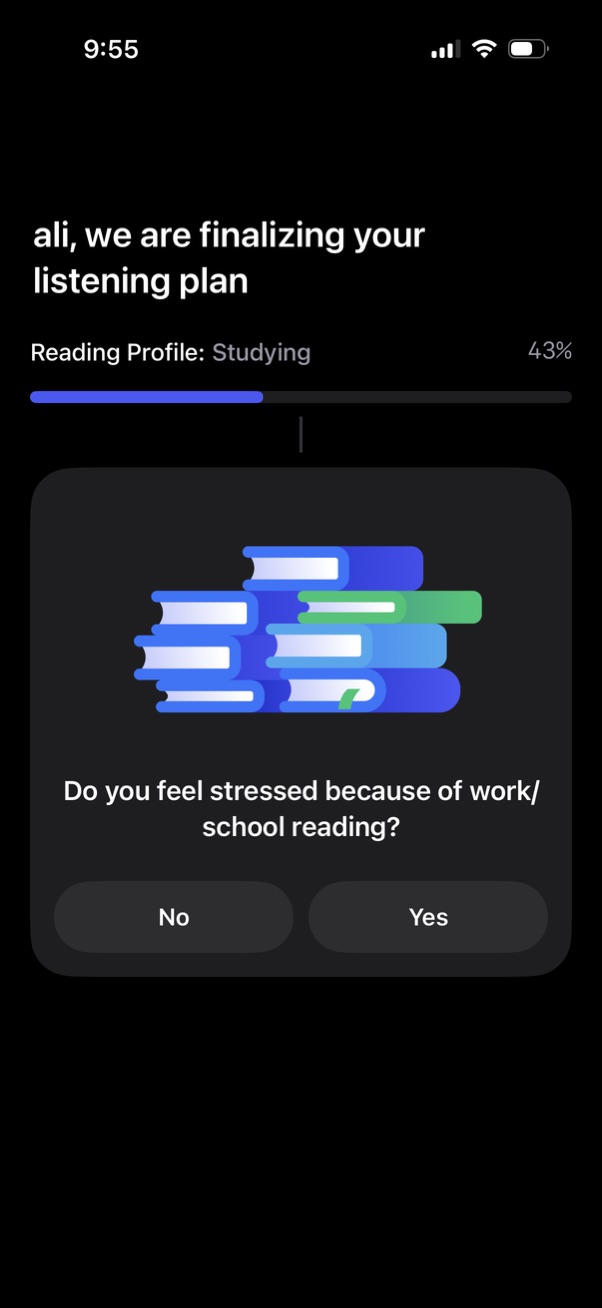
Personalization onboarding screen for a listening/reading app showing progress toward finalizing a study listening plan, with a questionnaire asking if the user feels stressed by work/school reading and Yes/No response buttons.

Onboarding progress screen for a reading/listening app that’s finalizing a personalized plan, showing selected profile details (e. g.

Onboarding confirmation screen for a text-to-speech listening app showing a summary of selected preferences (reading profile, main usage like PDFs/documents, and voice & playback speed) with checkmarks. A prominent Continue button finalizes the personalized listening plan.

An in-app App Store rating prompt modal asks users to rate the app with a 1–5 star selector and a “Not Now” dismiss button. The dialog appears over an authentication screen offering “Continue with Apple,” “Continue with Google,” and “Continue with Email” sign-in options and links to terms of use and privacy policy.

A modal pop-up thanks the user for their star rating feedback and prompts them to write an app review, showing a 5-star indicator with primary actions “Write a Review” and “OK. ” The dialog overlays a sign-in screen with options to continue with Google or email and links to terms of use and privacy policy.

iOS login/signup screen prompting users to save progress and sign in, showing options like Continue with Apple and Continue with Email. An Apple system modal appears requesting permission for the app to use a web domain (google.
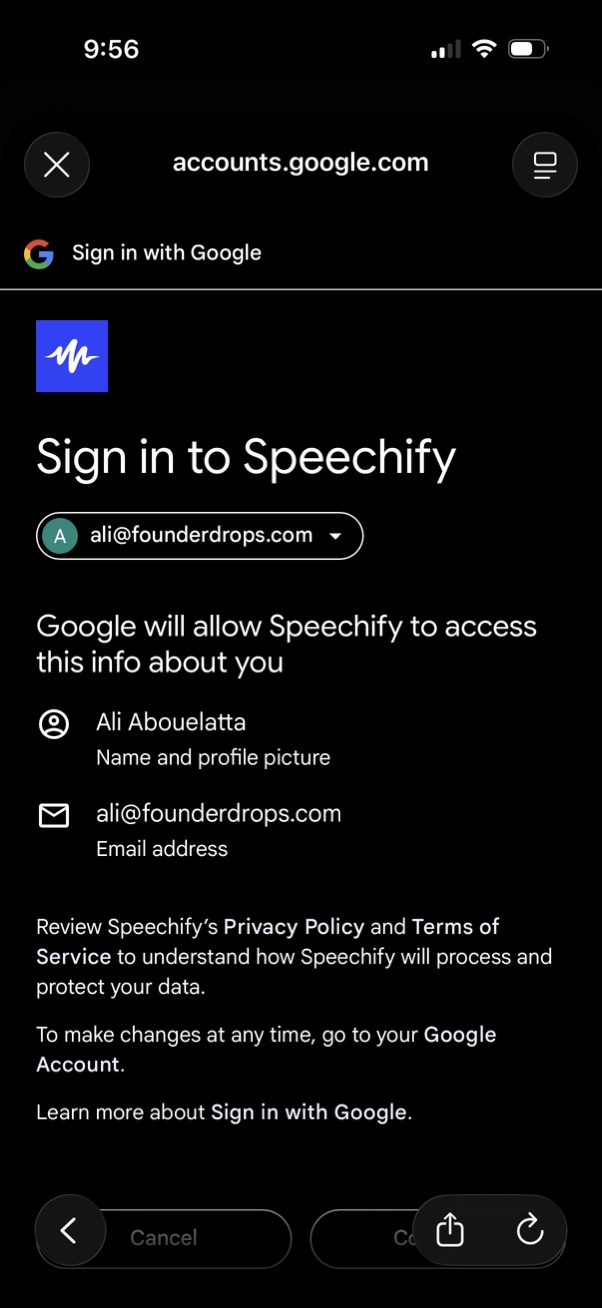
Google OAuth “Sign in with Google” consent screen for signing into an app, showing the selected Google account and the permissions requested (name/profile photo and email address). Includes links to the app’s privacy policy and terms, with options to cancel or continue the sign-in.
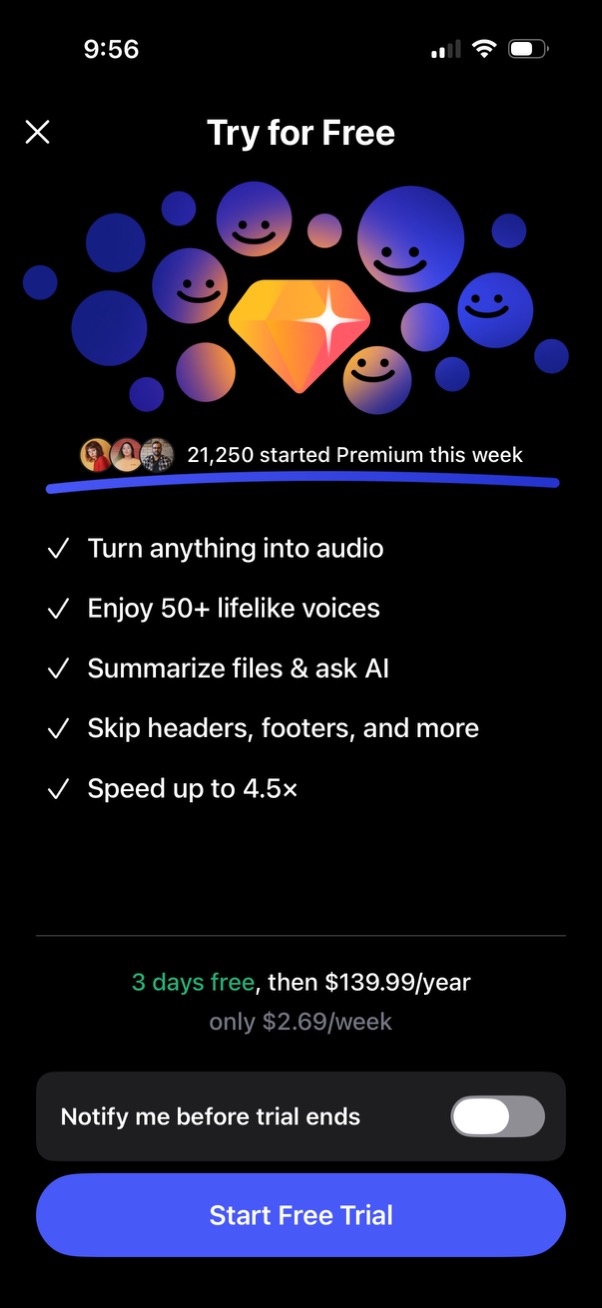
Premium subscription paywall offering a free trial, highlighting benefits like turning content into audio, 50+ voices, summarizing files with AI, skipping headers/footers, and 4. 5x playback speed.
App onboarding/intro overlay promoting the product’s value (“experience the power of Speechify”) with a prominent Skip option to dismiss. The screen sits over a main app shell with a bottom navigation bar (Home, Library, create/add via plus button, Books, Assistant).