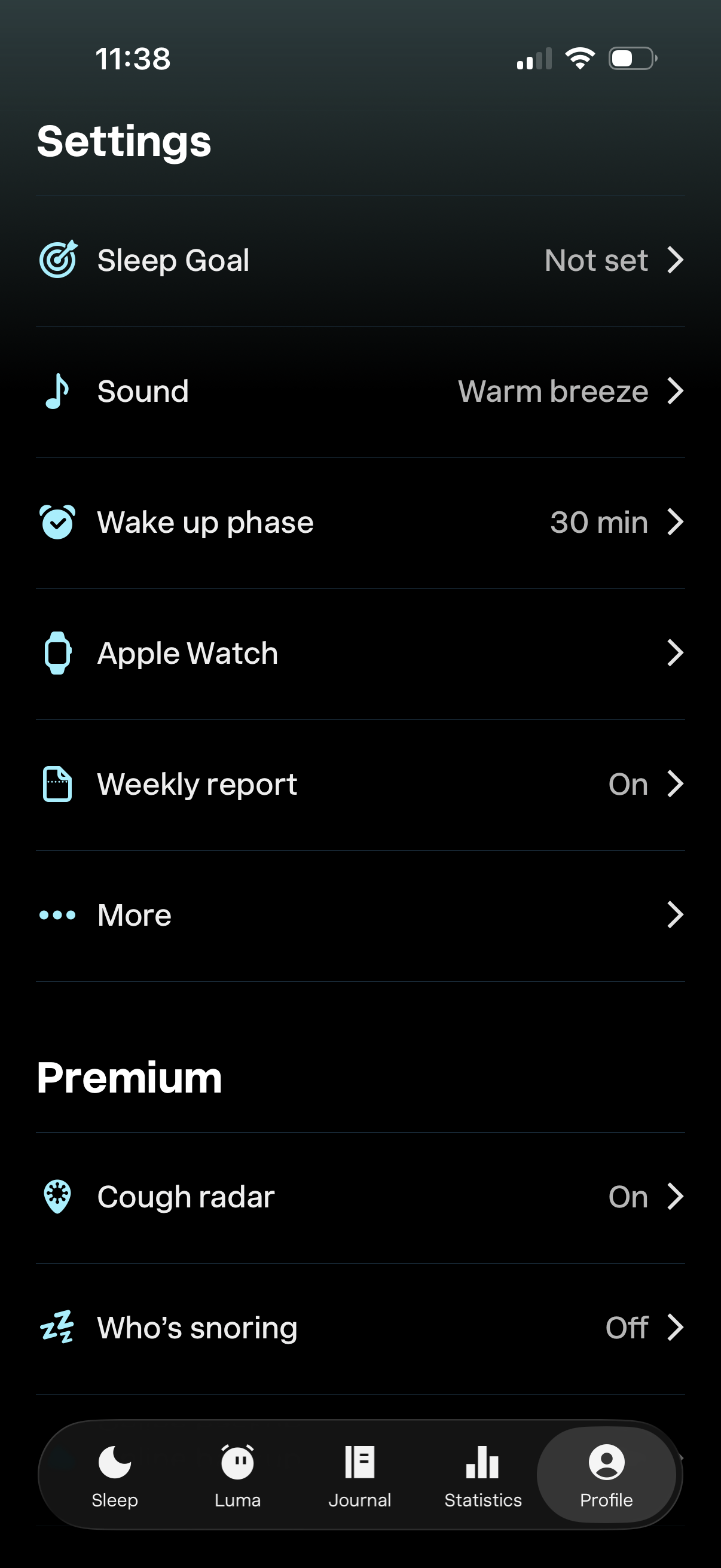
Settings screen for a sleep tracking app where users can configure sleep goal, select a sleep sound, set wake-up phase duration, connect an Apple Watch, and enable weekly reports. Includes premium feature toggles like cough radar and “who’s snoring,” plus navigation to more options.

Sleep goal introduction screen in a sleep tracking app, explaining the benefits of consistent bed and wake times with an info icon and back navigation. Primary call to action is a “Create a Sleep Goal” button to start setting up a sleep schedule/target.
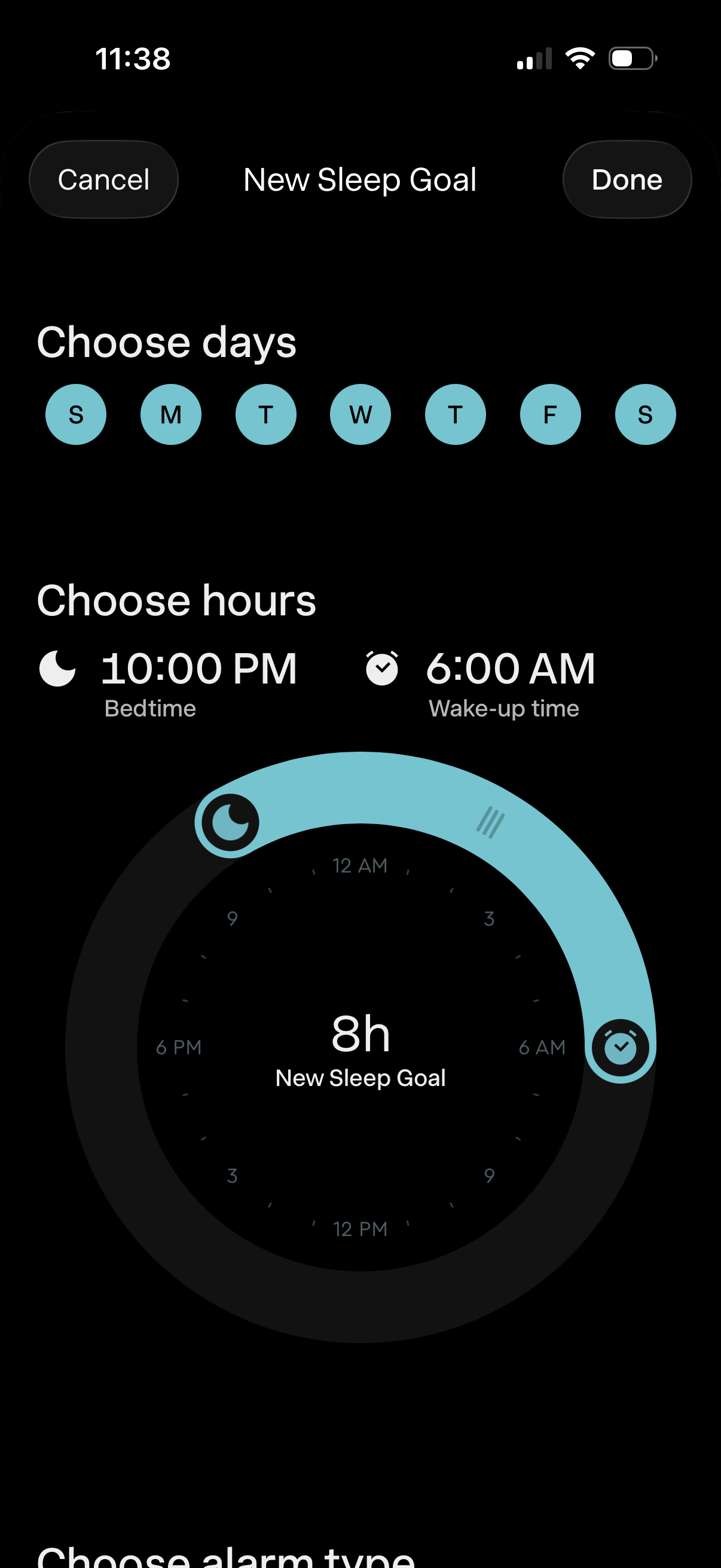
Sleep goal setup screen where users select which days of the week the schedule applies and set bedtime and wake-up time. A circular time range picker adjusts the sleep duration, with Cancel and Done actions to discard or save the new sleep goal.
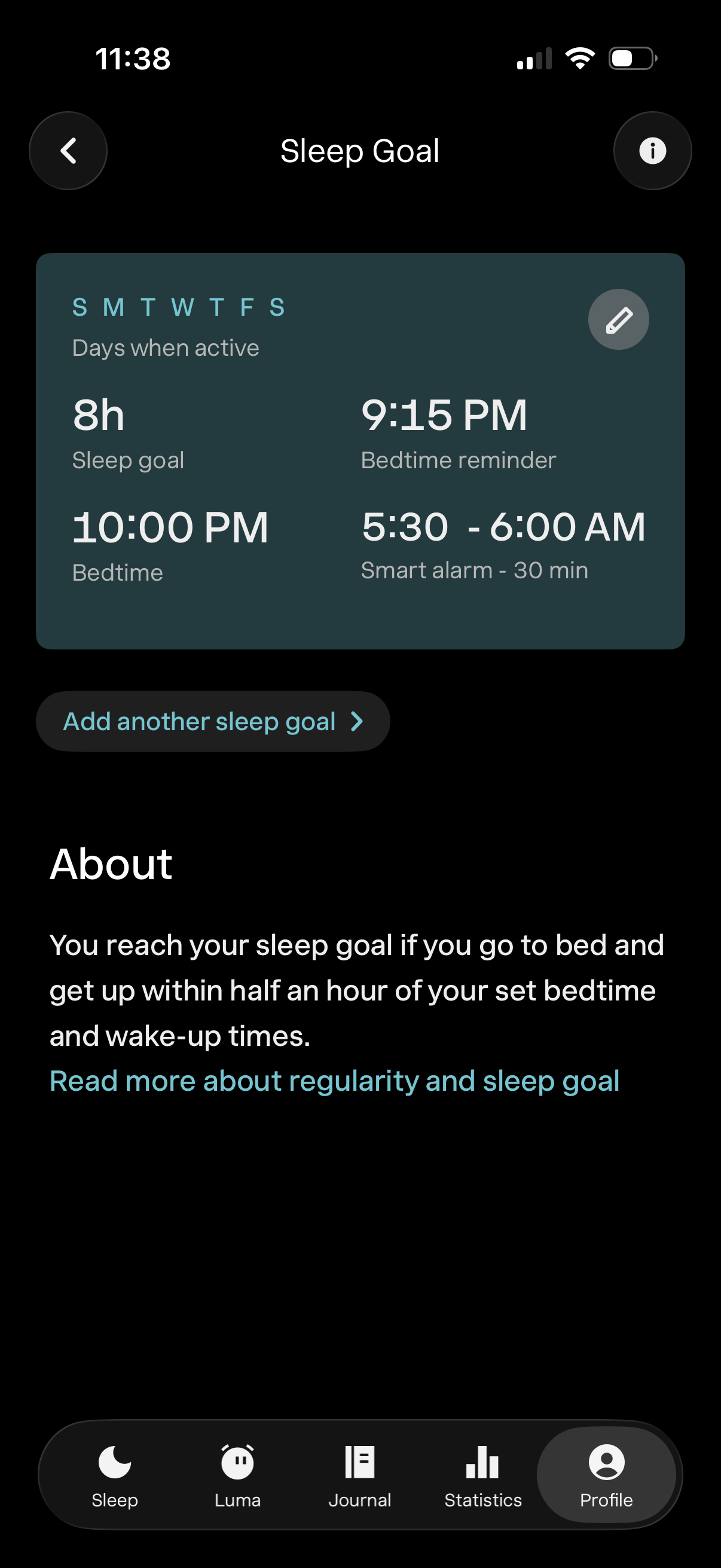
Sleep goal settings screen for a sleep tracking app showing the active days schedule and configured targets including total sleep hours, bedtime, bedtime reminder time, and smart alarm wake-up window, with an edit icon to modify the goal. Includes a CTA to add another sleep goal and an informational “About” section explaining how goals are measured.
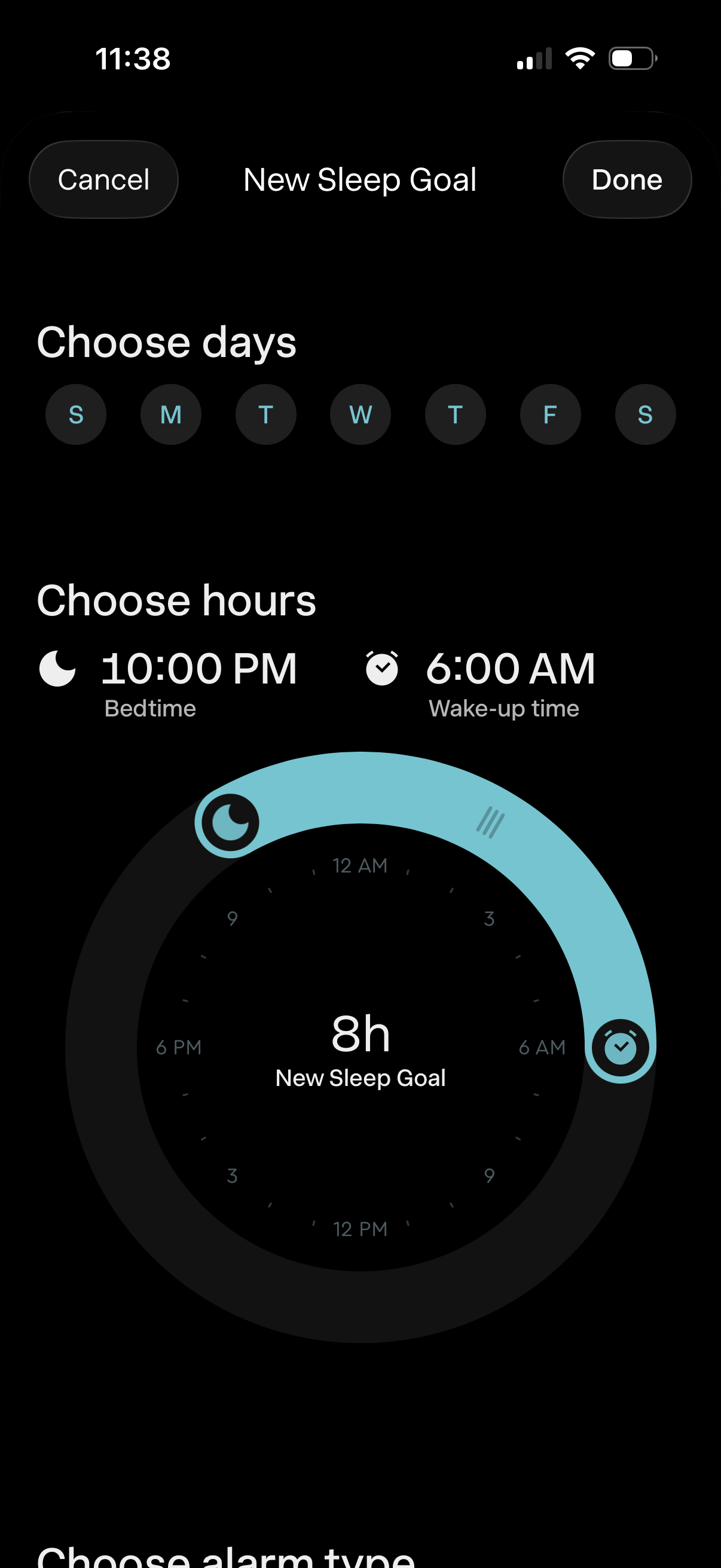
Sleep goal setup screen for creating a new sleep schedule, letting users choose repeat days and set bedtime and wake-up time using a circular time-range dial that shows total sleep duration. Includes Cancel and Done actions to discard or save the new sleep goal.

Sleep goal setup screen where users choose which days to follow a schedule and set bedtime and wake-up time using a circular time picker that shows the total sleep duration. Primary actions are Cancel or Done to discard or save the new sleep goal.
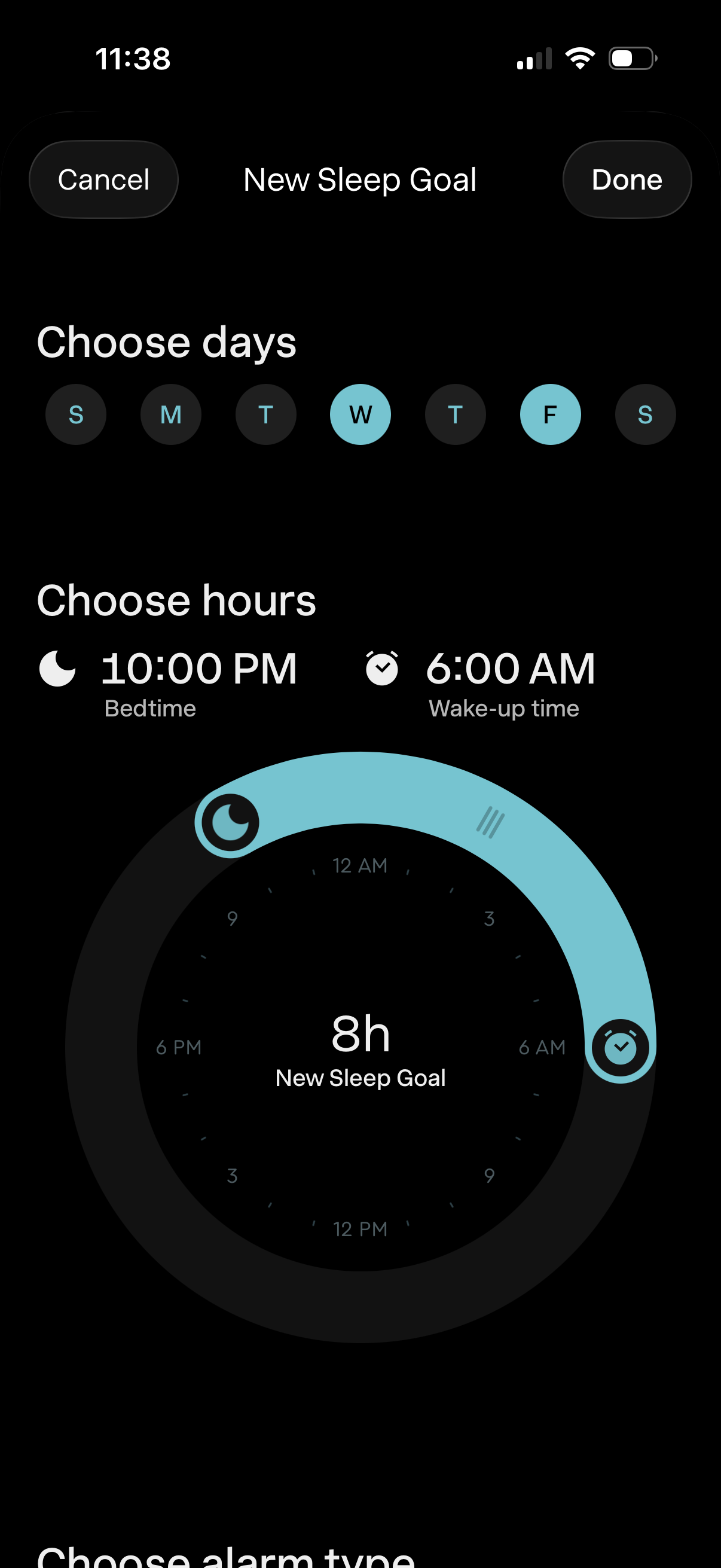
Sleep goal setup screen where users choose which days of the week the schedule applies and set bedtime and wake-up time using a circular dial to define total sleep duration. Includes Cancel and Done actions to discard or save the new sleep goal.
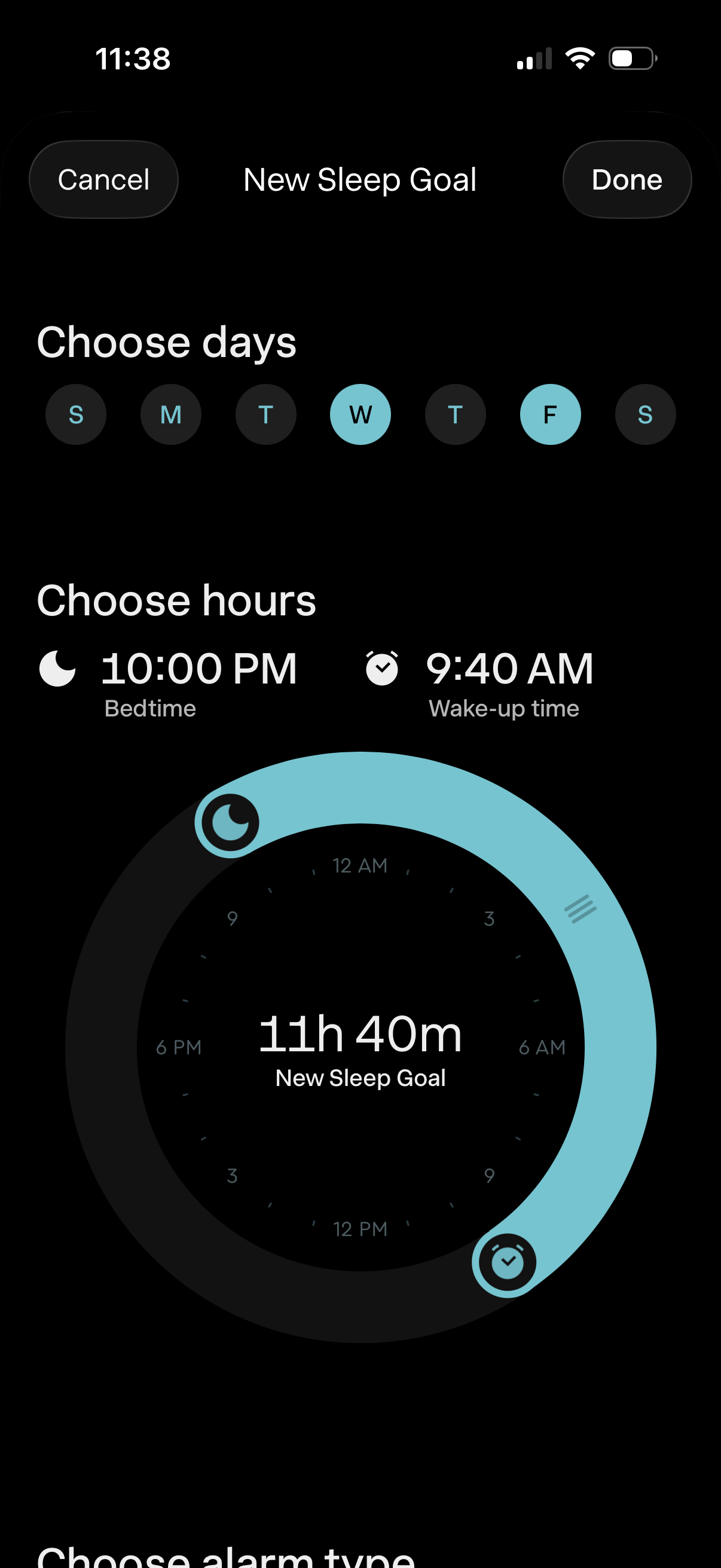
Sleep goal setup screen where users select which days of the week the schedule applies to and set bedtime and wake-up time using a circular dial that displays total sleep duration. Includes Cancel and Done actions to discard or save the new sleep goal.
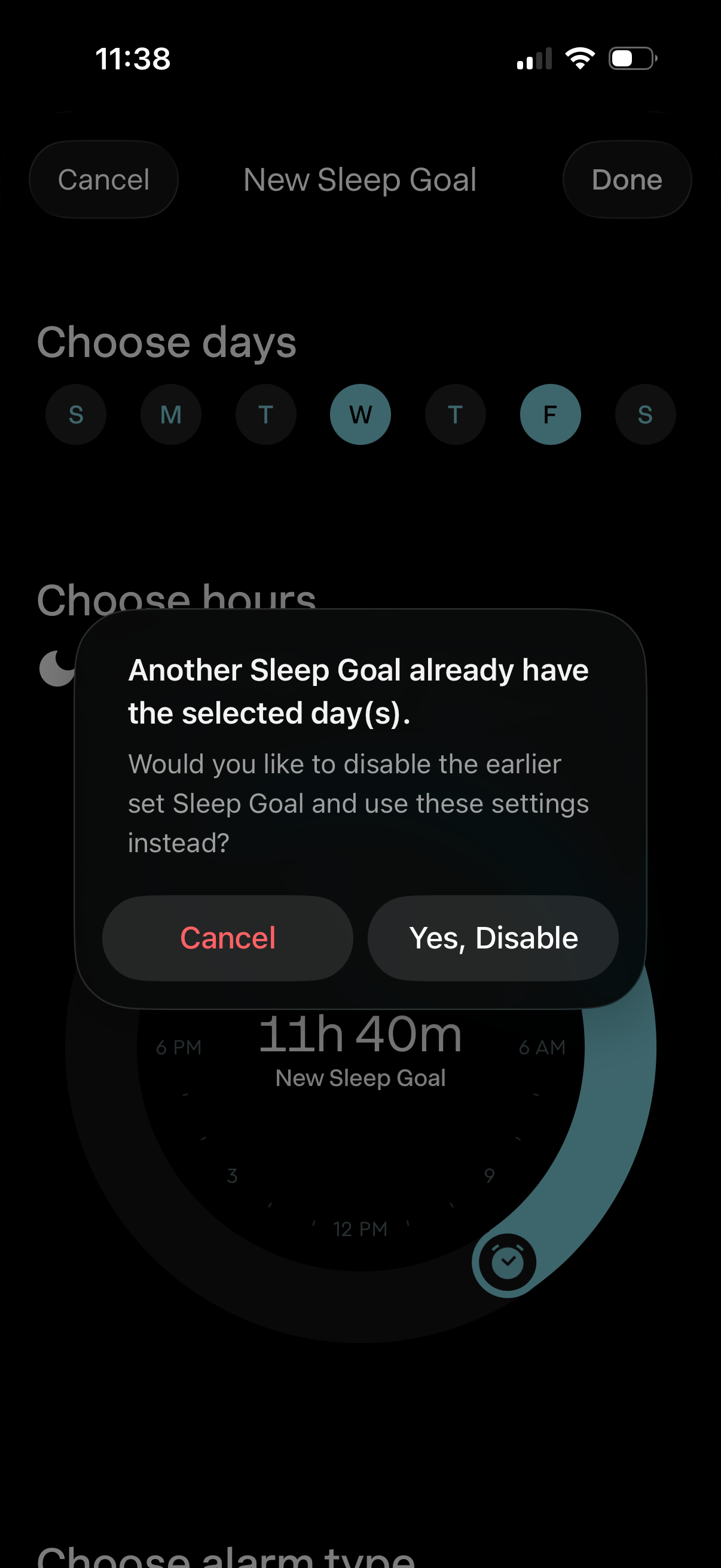
Sleep goal setup screen where users select recurring days of the week and configure sleep hours, with Cancel/Done actions. A modal alert appears warning that another sleep goal already uses the selected days and asks whether to cancel or disable the earlier goal and apply the new settings.
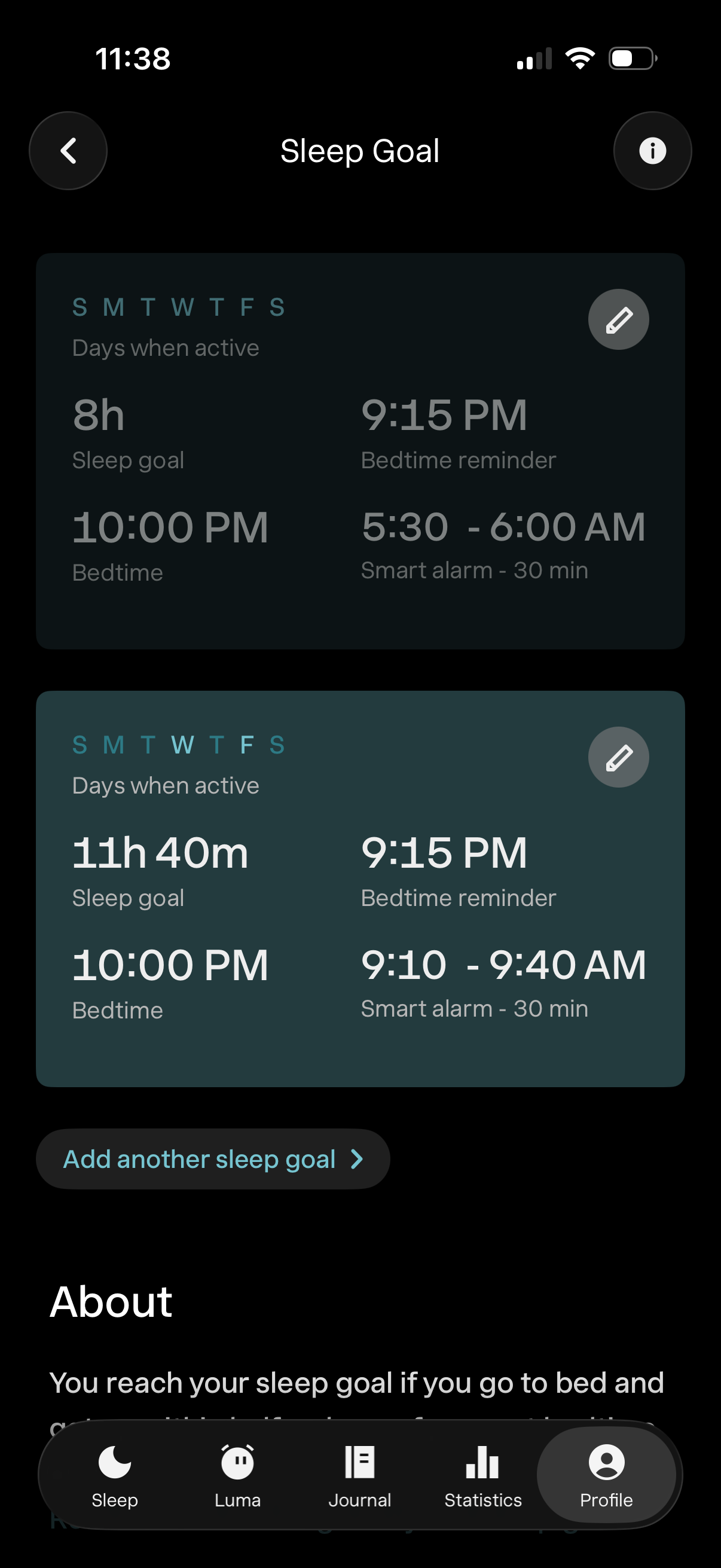
Sleep Goal settings screen showing multiple sleep schedules with editable cards for selecting active days and configuring sleep duration, bedtime, bedtime reminder time, and a smart alarm wake window. Users can tap an edit icon per schedule, add another sleep goal, navigate back, or open an info/help section.
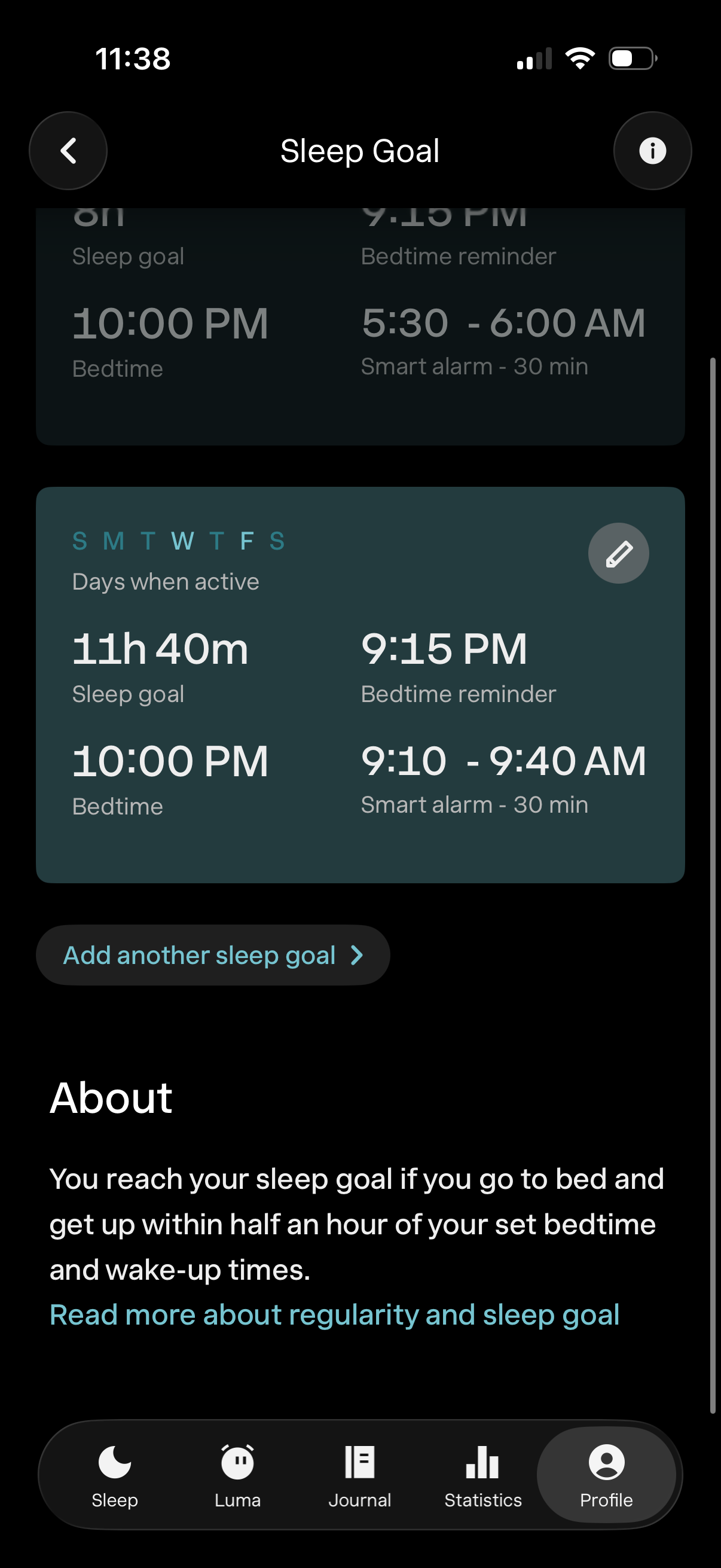
Sleep goal settings screen showing a weekly schedule card with days active, target sleep duration, bedtime, bedtime reminder time, and a smart alarm wake-up window, with an edit button to modify the goal. Includes an “Add another sleep goal” action and an About section explaining how the sleep goal is reached.