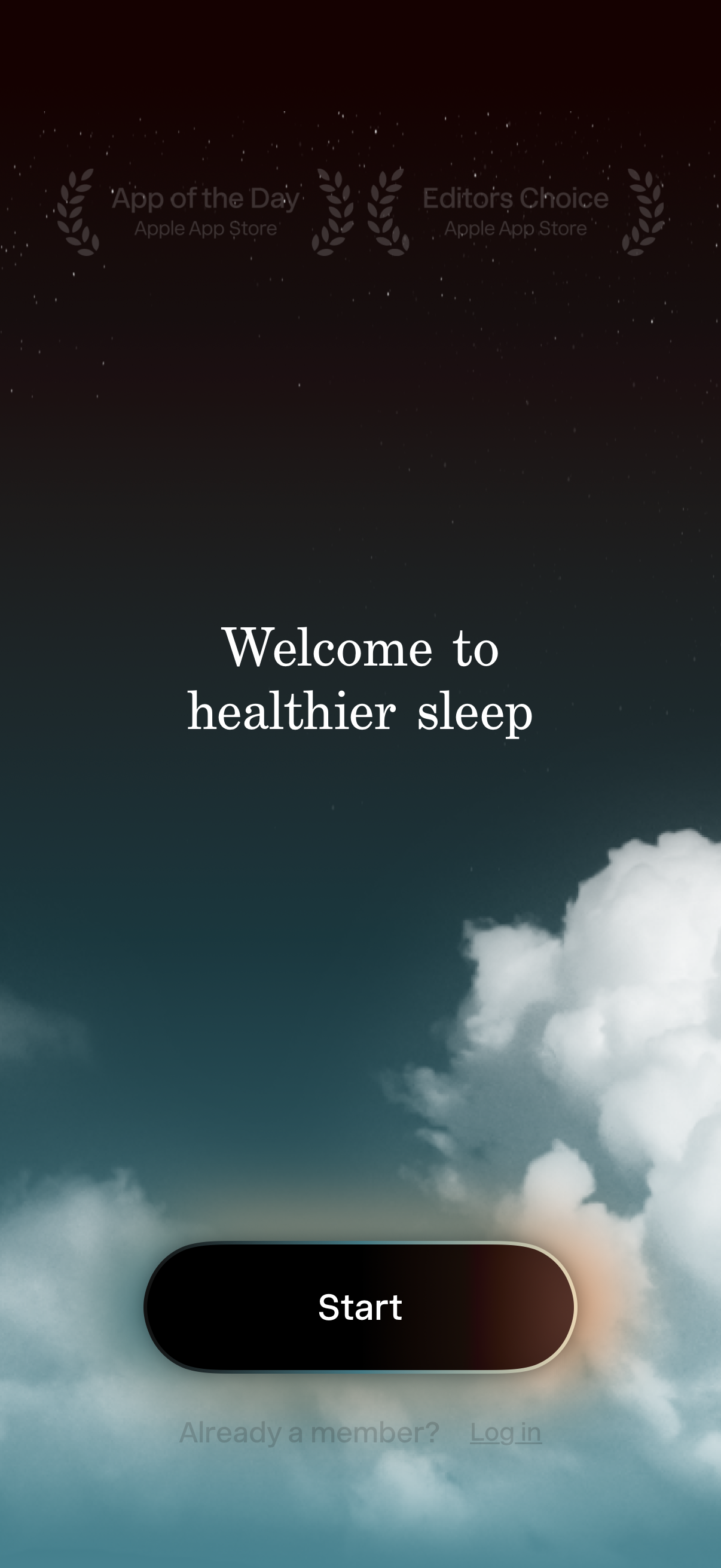
Sleep and wellness app welcome/onboarding screen with a calming night-sky background, introducing “healthier sleep” and prompting users to begin setup. Primary action is a large Start button with a secondary option for existing users to log in.
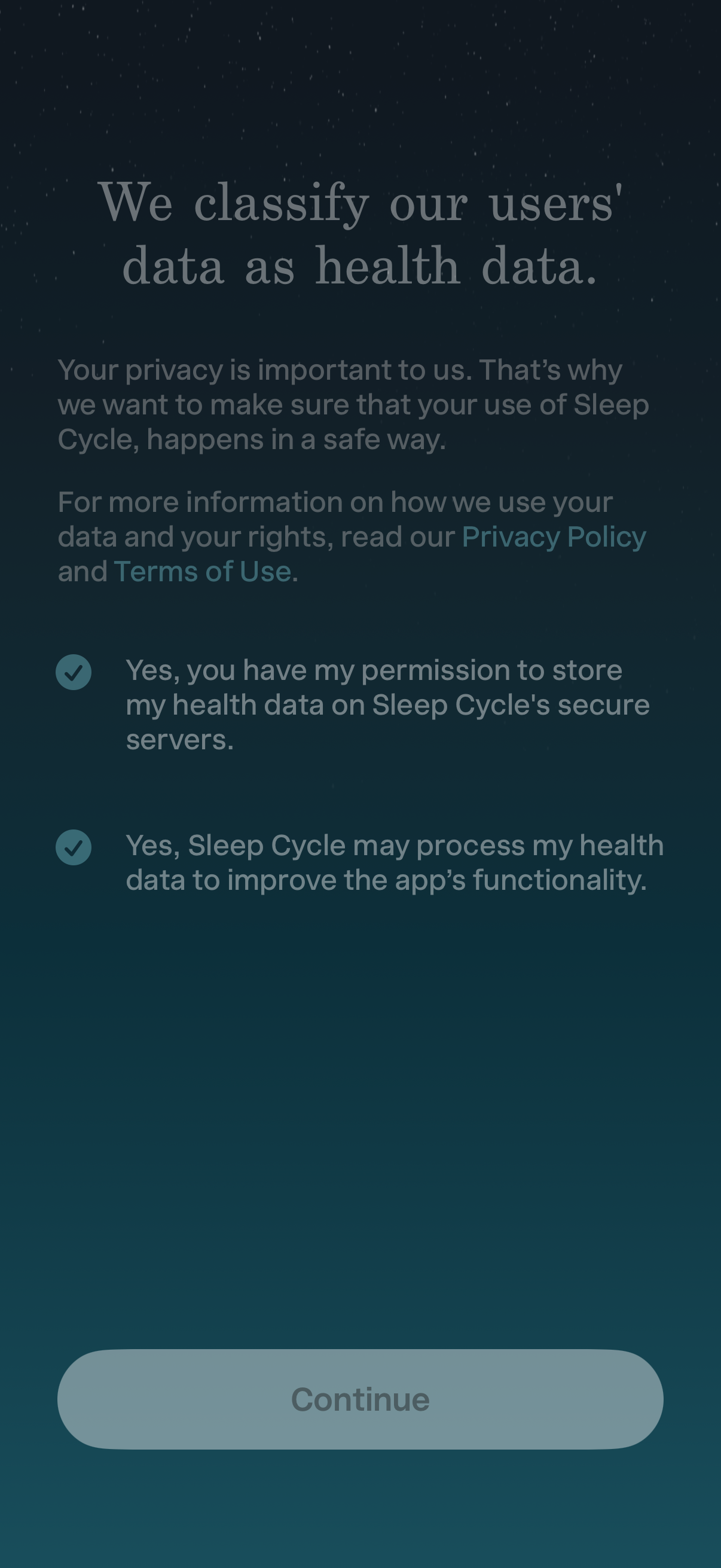
Privacy consent screen explaining that user data is classified as health data, with links to the Privacy Policy and Terms of Use. Users must confirm two opt-in checkboxes to allow storing and processing health data on secure servers before tapping Continue.
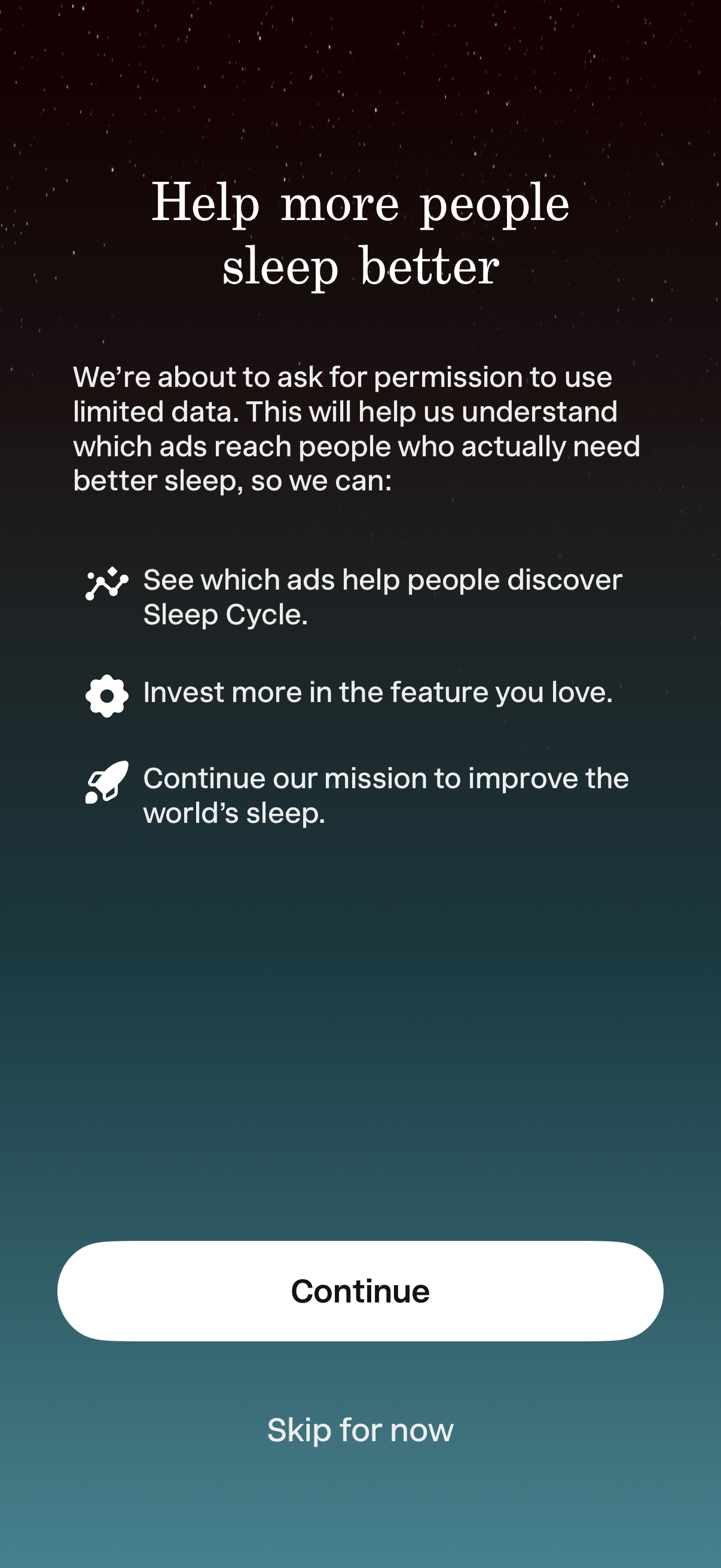
Permission prompt explaining that the app wants to use limited data to measure ad effectiveness and improve product investment, listing benefits like tracking which ads drive installs and supporting the mission. Users can proceed with a primary Continue button or choose Skip for now.

Onboarding screen for a sleep tracking app explaining data usage and prompting the iOS App Tracking Transparency permission to allow or ask the app not to track activity across other apps and websites. Provides actions to allow/deny tracking, plus options to continue or skip for now.
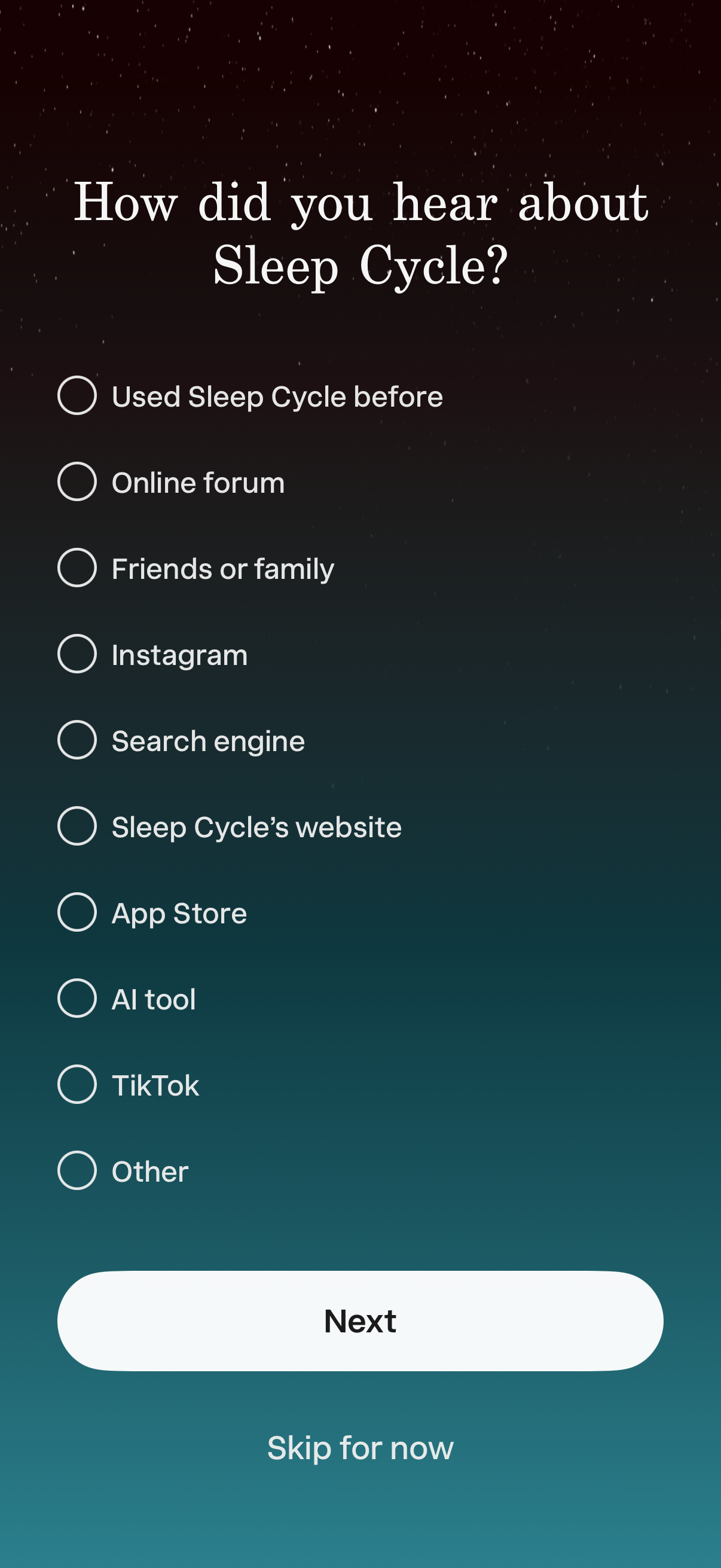
Onboarding survey screen asking “How did you hear about Sleep Cycle? ” with a single-choice radio list of acquisition sources (previous use, online forum, friends/family, Instagram, search engine, website, App Store, AI tool, TikTok, other).
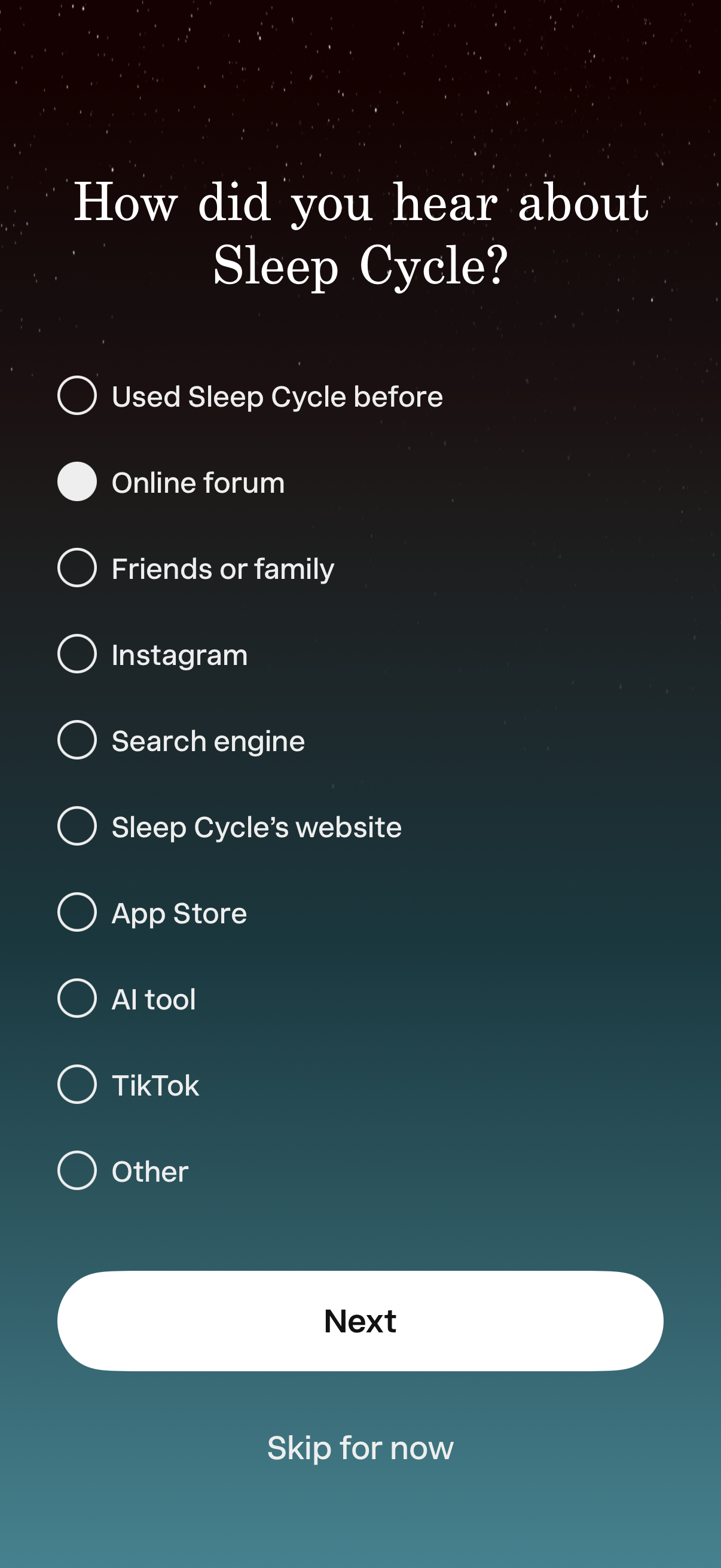
Onboarding survey screen asking “How did you hear about” the app, with a single-select radio list of acquisition channels (e. g.
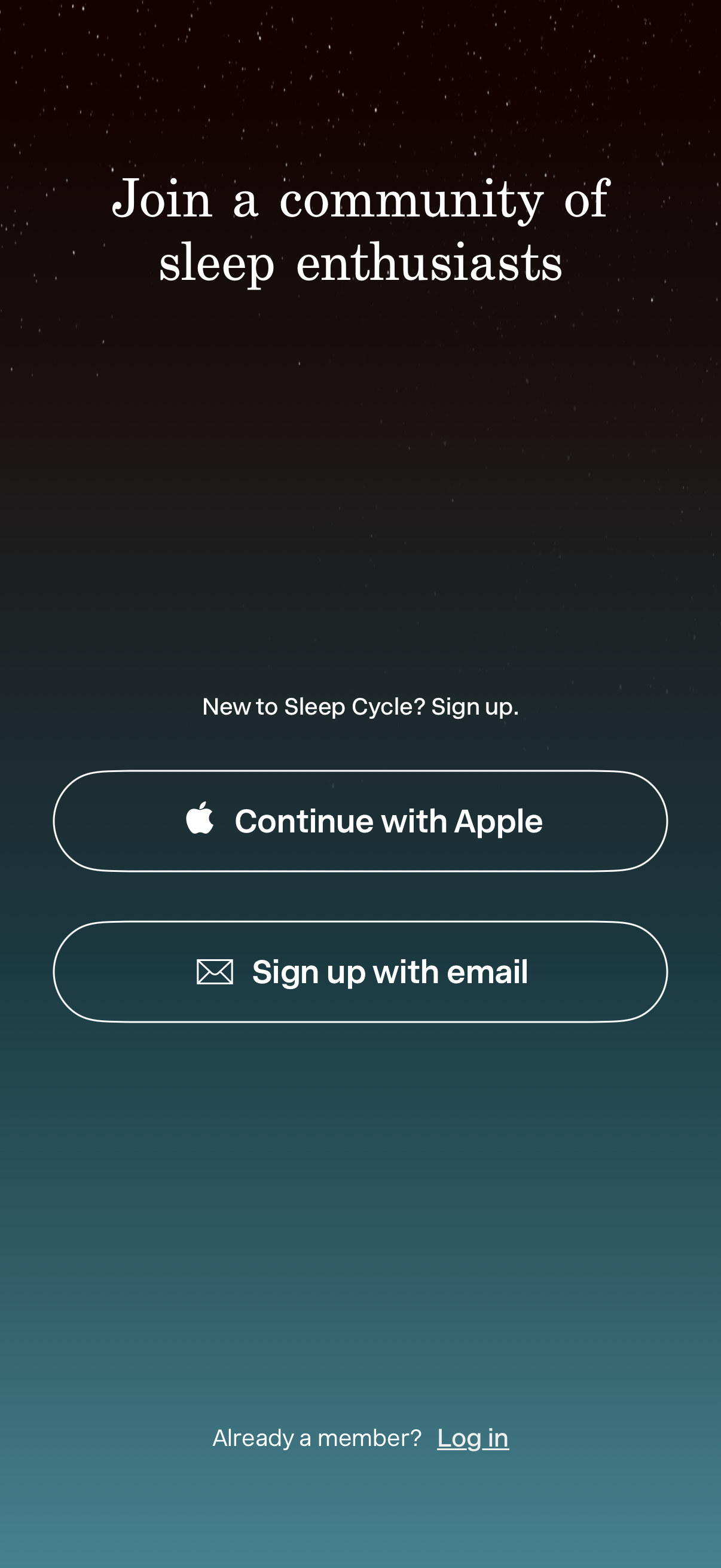
App onboarding sign-up screen inviting users to join a sleep community, offering account creation via “Continue with Apple” or “Sign up with email. ” Includes a secondary link for existing users to log in.
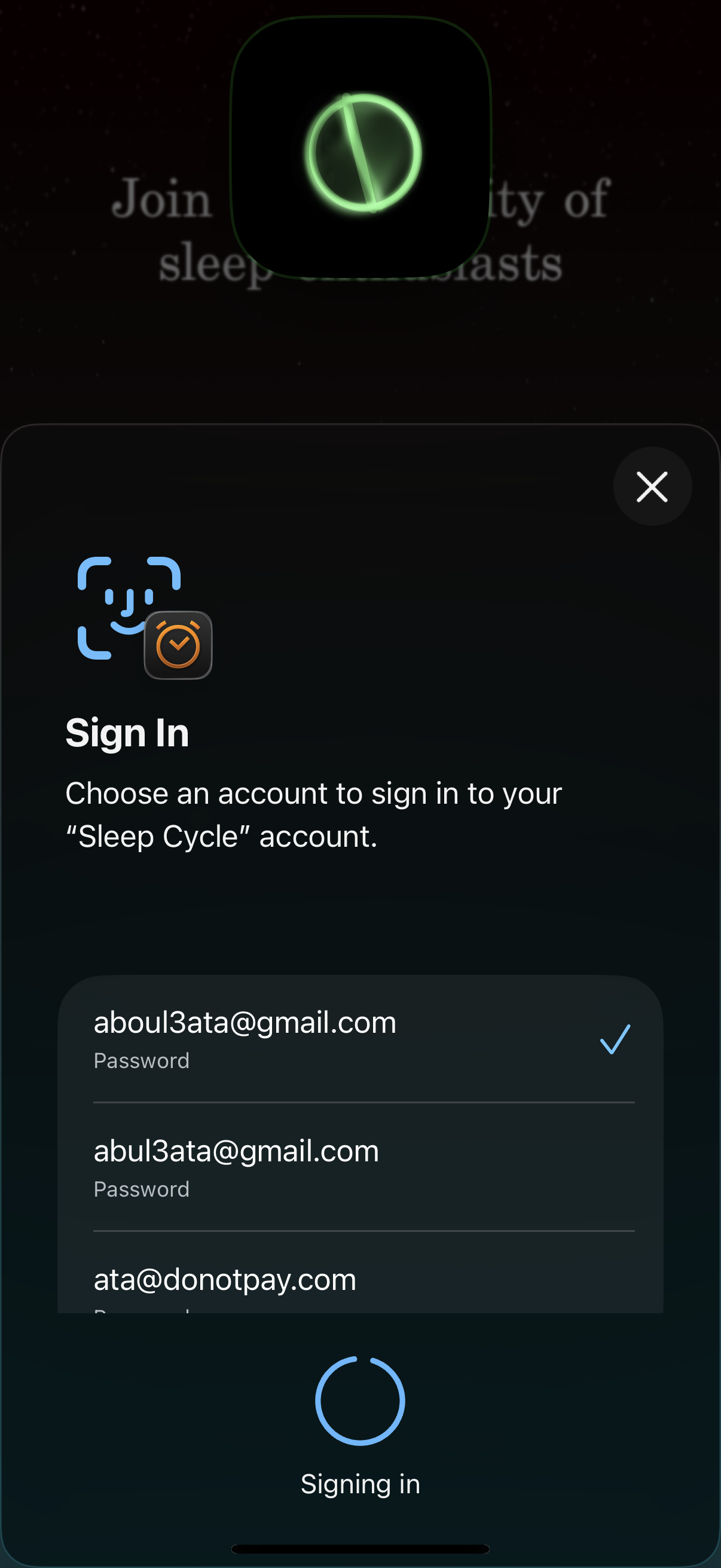
Modal sign-in screen for a sleep tracking app prompting the user to choose an account to log in, showing a list of saved email accounts with password entries and a selected checkmark. Includes a close button and a loading state indicator reading “Signing in.
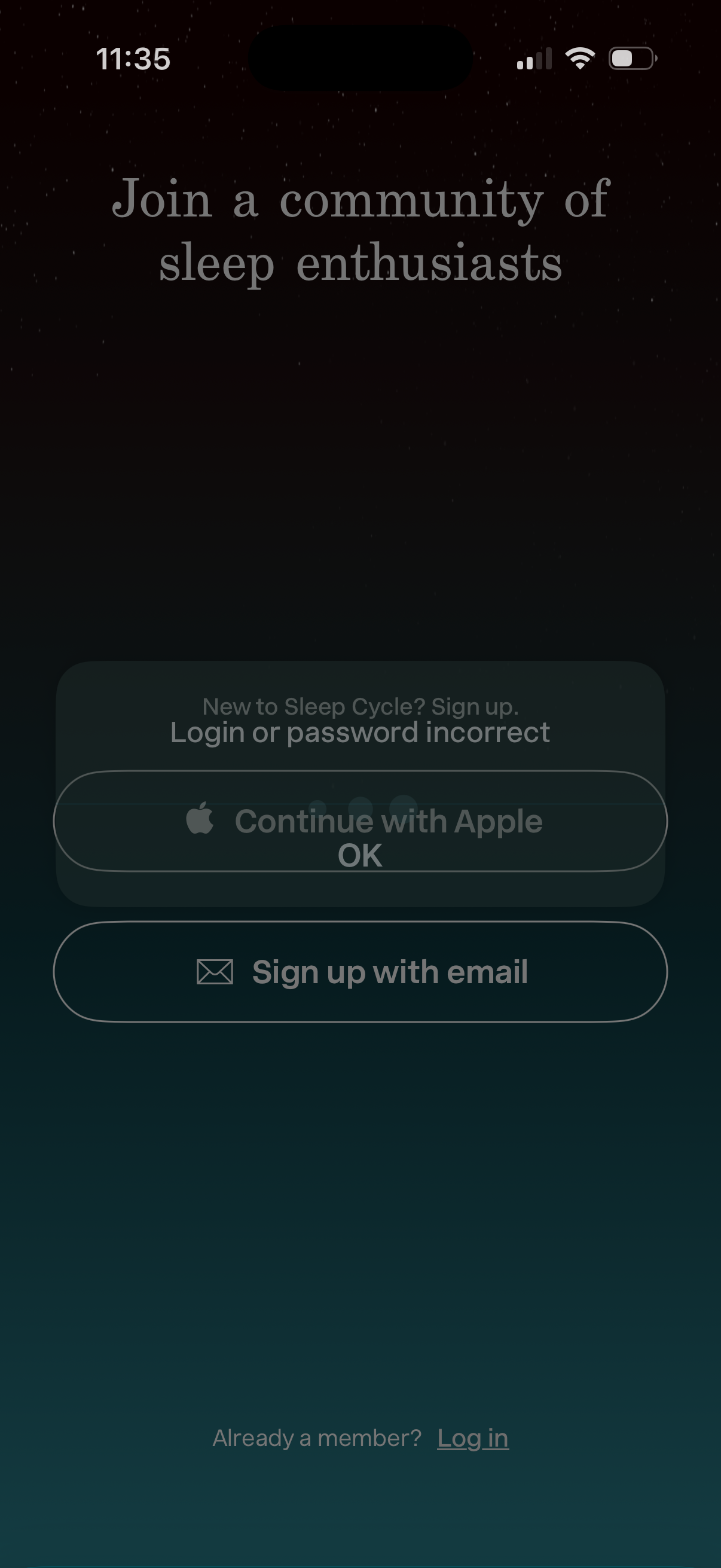
Sleep tracking app onboarding screen encouraging users to join the community, with sign-up options to continue with Apple or create an account with email. An inline login error message indicates “Login or password incorrect,” with a link for existing members to log in.
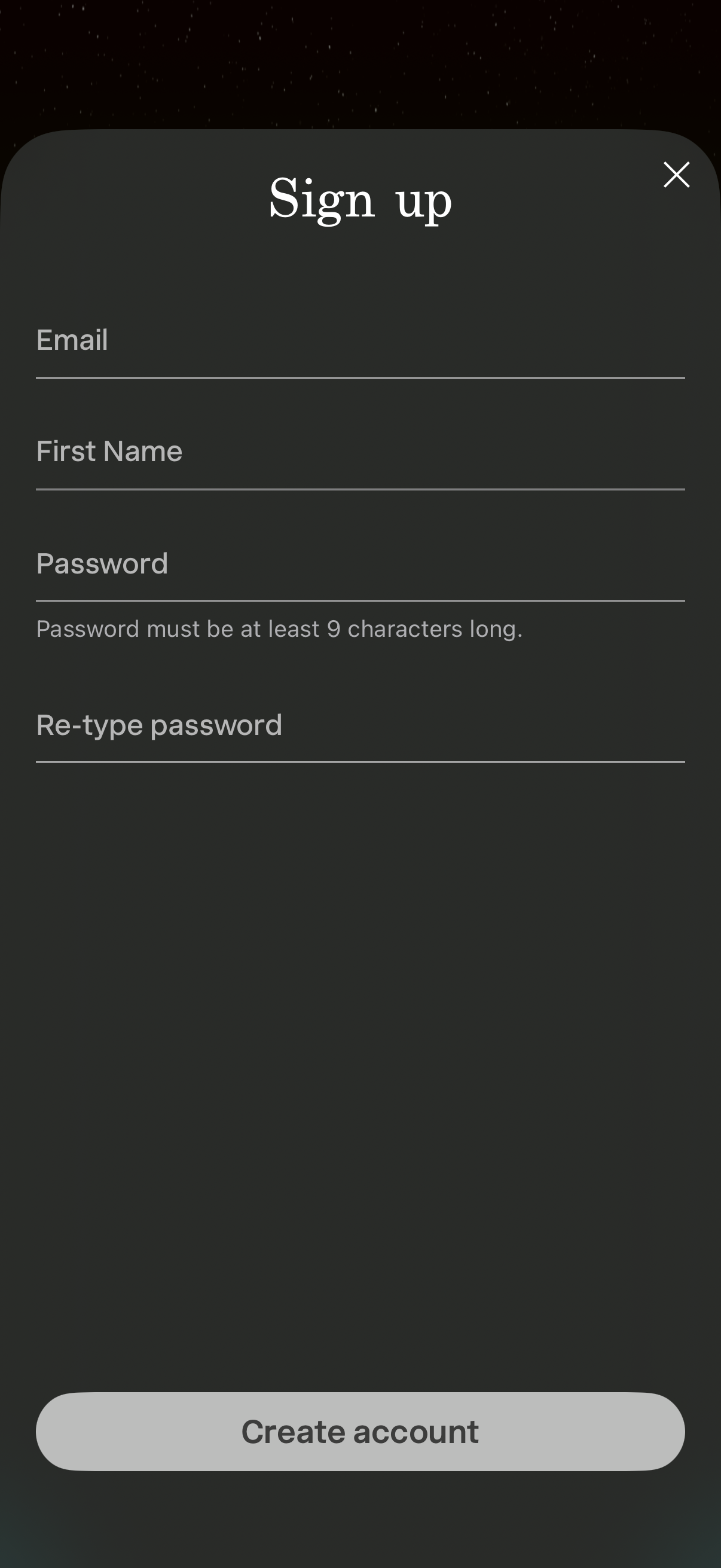
Sign up / create account form modal with fields for email, first name, password, and re-type password, including a password length requirement hint. Primary action is a large “Create account” button with an X close icon to dismiss the screen.
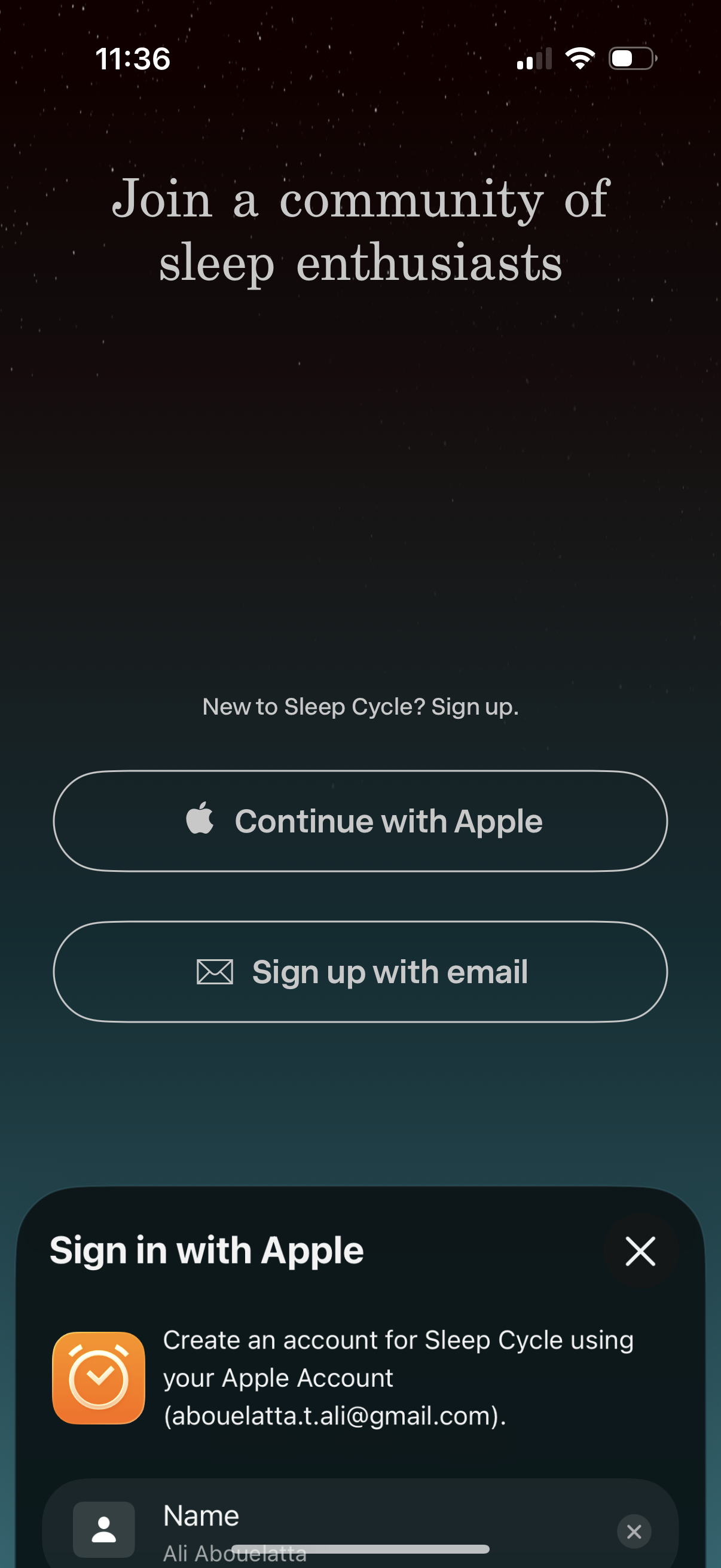
Sleep app onboarding sign-up screen inviting users to join a community, with primary actions to continue with Apple or sign up with email. An Apple sign-in bottom sheet is opened to create an account, showing prefilled account details and a close button.

Sleep app onboarding personalization screen asking users to select their primary goals for better sleep using single-select radio options (e. g.

Onboarding personalization screen for a sleep app asking the user to choose their primary goal to tailor their sleep journey, with single-select radio options like tracking sleep, reducing snoring, listening to sleep recordings, falling asleep easier, waking rested, reducing nighttime awakenings, improving well-being, or sleeping for performance. A prominent Next button advances after selecting a goal.

Onboarding prompt in a sleep tracking app encouraging users to enable push notifications for bedtime routine guidance, weekly summaries, and sleep insights. A primary “Next” button advances to the system notification permission step.
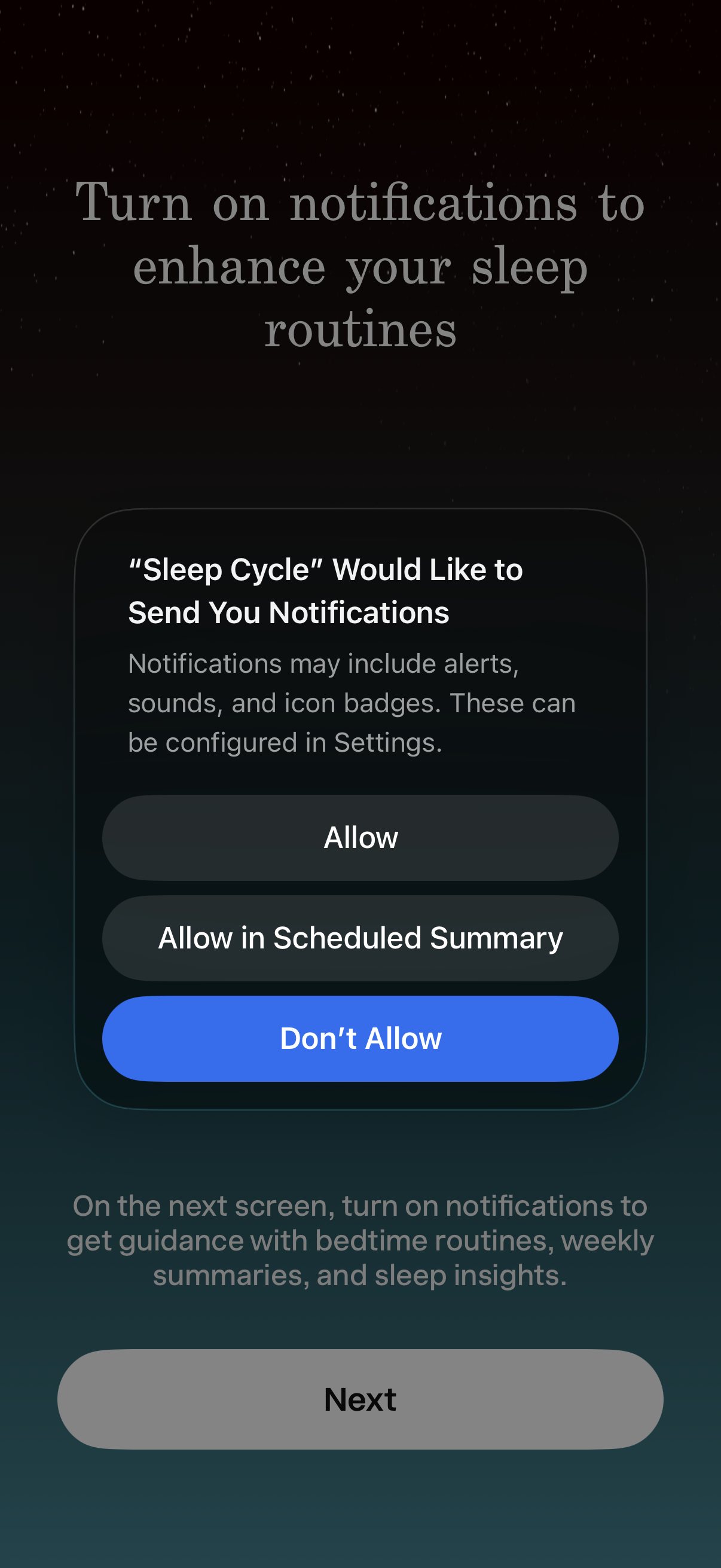
Onboarding screen prompting users to enable push notifications to improve sleep routines, with an iOS permission modal offering Allow, Allow in Scheduled Summary, or Don’t Allow. Includes explanatory copy about alerts and sleep insights plus a Next button to continue setup.

Subscription paywall screen explaining how a 7-day free trial works using a timeline (instant access today, reminder on day 5, trial ends on day 7) and highlighting benefits like sleep tracking and programs. Primary action is a “Start free trial – 7 days” button with pricing details, cancel anytime note, and links to restore purchase, redeem code, terms, and privacy.

Sleep tracking app screen to set a smart wake-up alarm by selecting a wake time (e. g.