Onboarding
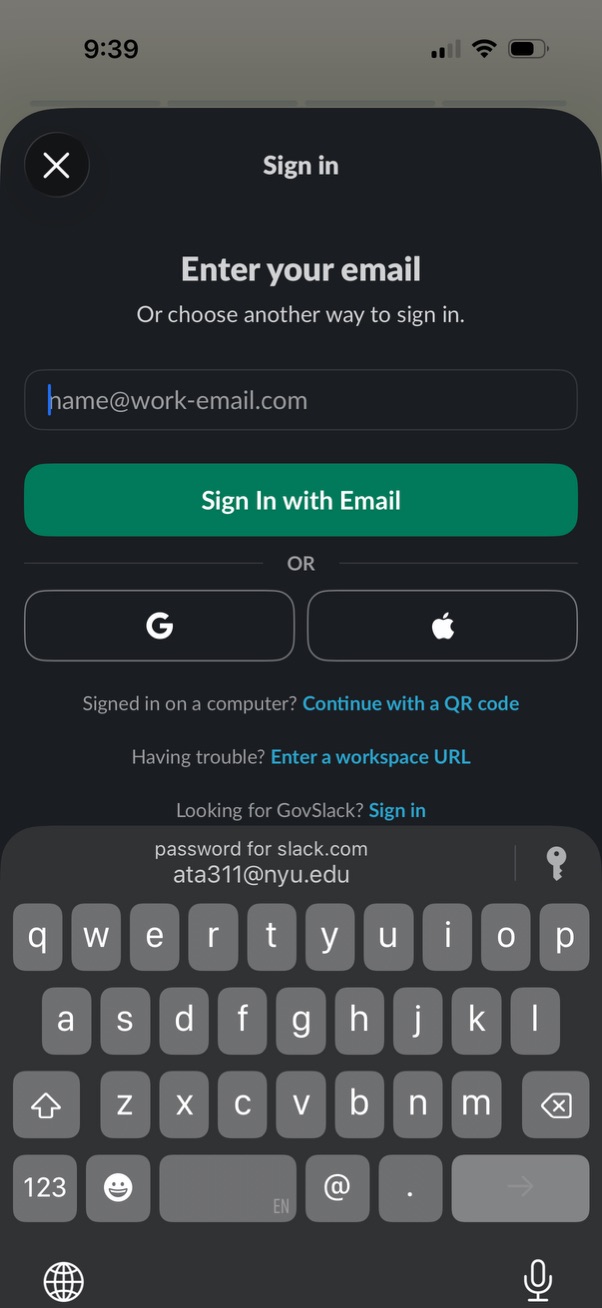
Sign-in screen prompting the user to enter an email address and continue with a “Sign in with Email” button, with alternative authentication options for Google and Apple. Includes links to continue with a QR code for desktop sign-in, enter a workspace URL for troubleshooting, and a GovSlack sign-in option, with a close button to dismiss the modal.

Onboarding “Get Started” screen for Slack prompting new users to create a new workspace for their organization. Includes a primary Get Started CTA button, an option to try a different email if the team is already on Slack, and links to terms and privacy policies.
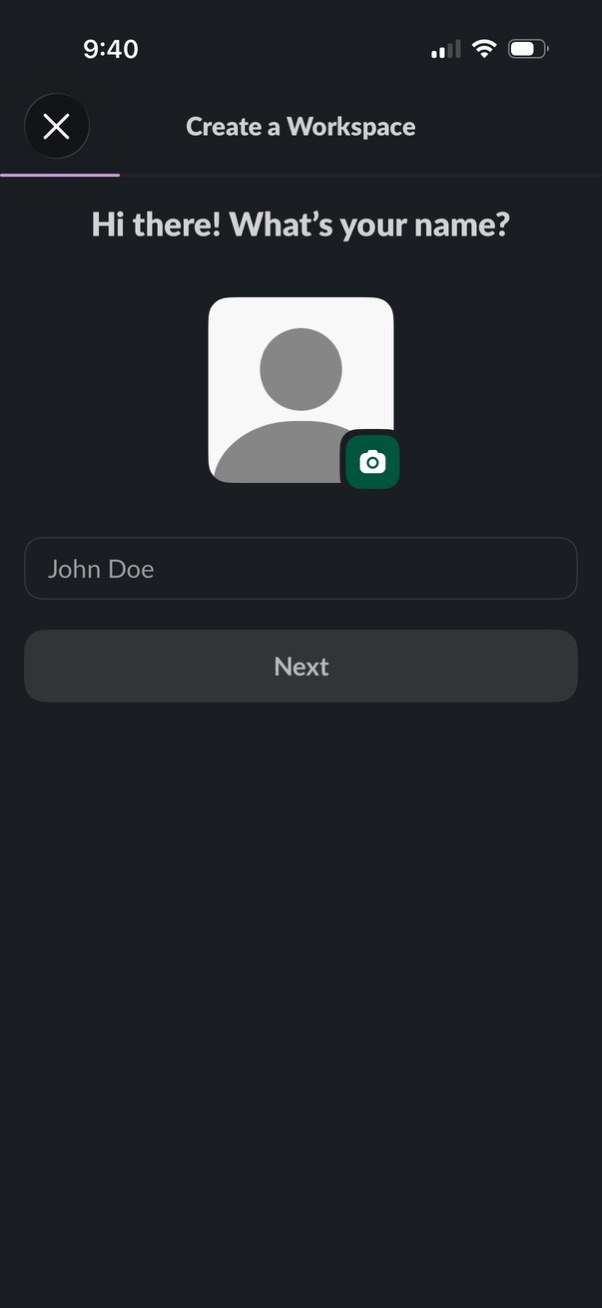
Workspace creation onboarding screen asking the user to enter their name and optionally add a profile photo via a camera icon. Includes a text input field, a Next button to continue, and a close button to exit setup.
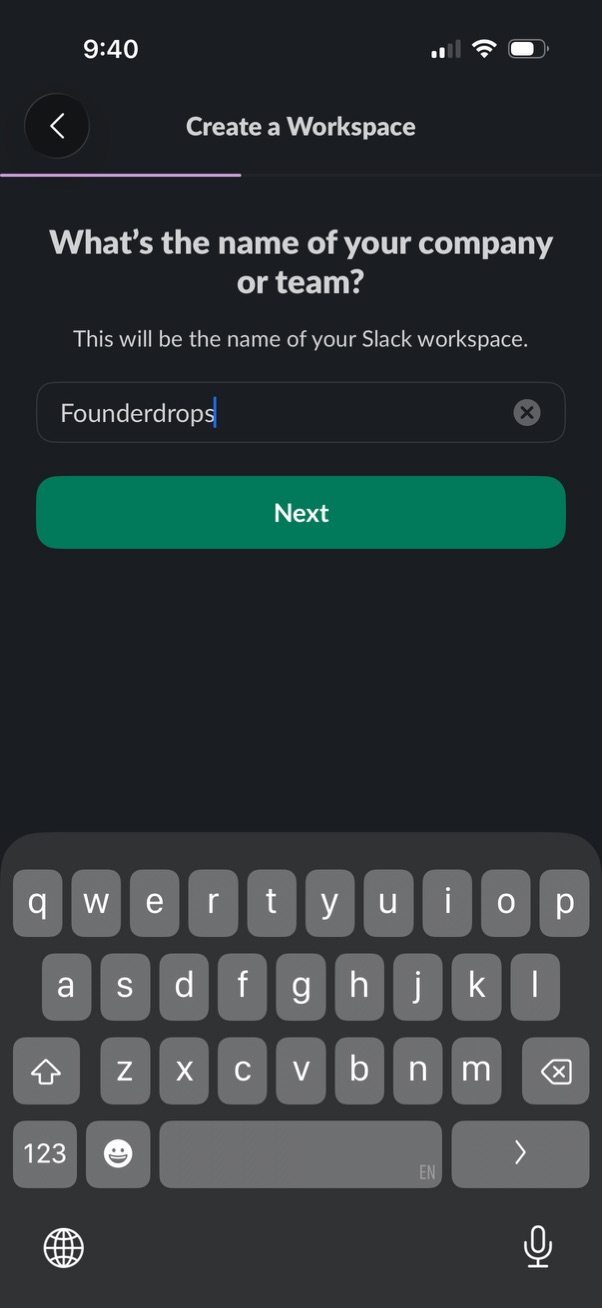
Workspace creation step asking the user to enter a company or team name in a single text field, with a clear button to delete input. Primary action is a “Next” button to continue, with a back arrow to return to the previous step.
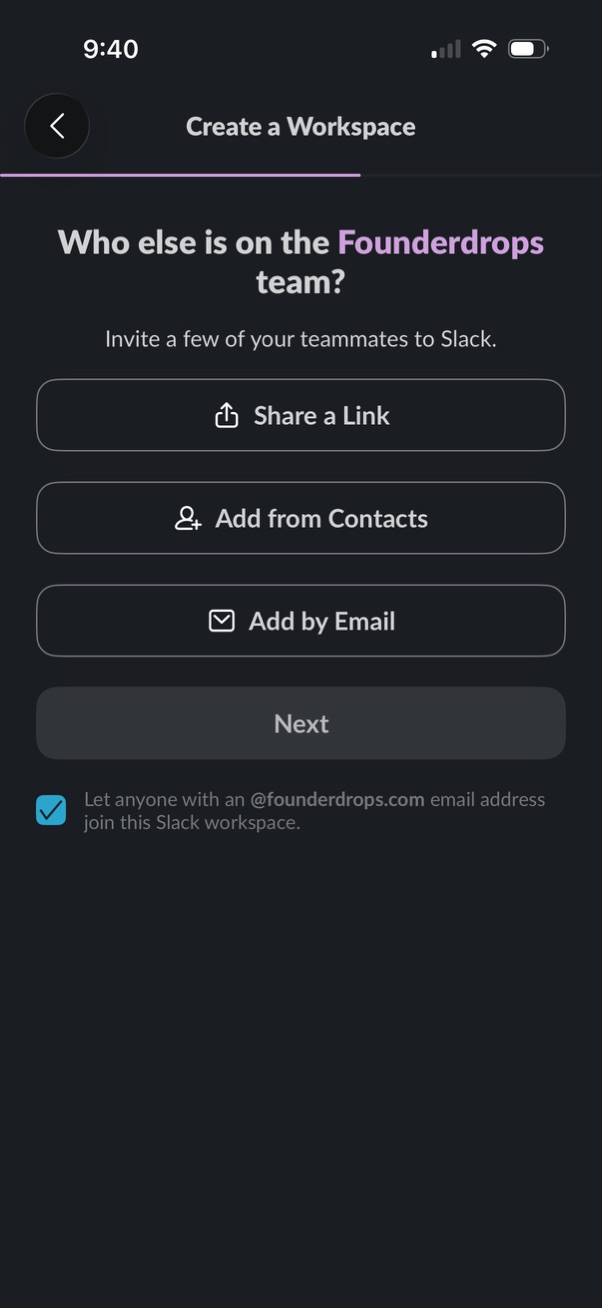
Workspace creation step that prompts the user to invite teammates, offering options to share an invite link, add people from contacts, or add by email before continuing with a Next button. Includes a toggle to allow anyone with the company email domain to join the workspace automatically.

Workspace creation onboarding screen prompting the user to name the project their team is working on, with a single text input field and explanatory helper text. Includes a back button and a primary “Next” button to continue to the next step.

Workspace creation onboarding screen prompting the user to name a team project with a single text input field and clear-text icon. Includes back navigation and a primary “Next” button to continue setup.

Notification permission onboarding screen encouraging users to enable push notifications, with a preview of an incoming message alert. Primary CTA is “Turn On Notifications” with an option to skip and a back button.

Notification onboarding screen prompting the user to enable app push notifications, with a system permission modal offering Allow, Allow in Scheduled Summary, or Don’t Allow options. Includes navigation controls (back, skip) and a primary “Turn On Notifications” call to action explaining alerts for important messages.

Home screen of a team chat app showing a workspace sidebar with saved items and drafts/sent shortcuts, a list of channels with an option to add a channel, and a direct messages section with “start a new message. ” Bottom navigation includes Home, DMs, Activity, More, plus a search button and a floating action button to compose/create.

App launch splash screen with a dark background and centered Slack logo, indicating the messaging/collaboration app is loading or starting up. No actions or navigation options are shown.

Onboarding welcome screen for a workplace messaging app introducing the product with an illustration and headline, offering primary CTA “Go on…” to continue setup and secondary actions to Sign in or Accept invitation. Designed as an entry point for new and returning users before authentication.
Onboarding splash screen introducing the Slack messaging app with a preview of a chat conversation interface. Includes a “Skip” action to bypass the introduction and proceed into the app.

Intro onboarding screen for Slack showcasing a preview of the in-app channel chat interface with messages, emoji reactions, and an attachment card. Includes a “Skip” action to bypass the onboarding step.

Onboarding tutorial screen showing a team chat app’s channel list sidebar with channels, locked private channels, and an unread message badge. A “Skip” button lets users bypass the walkthrough.

Workspace channel list screen in a team messaging app showing text channels, locked/private channels, and direct messages in a left sidebar. Includes bottom navigation for home, threads/activity, mentions, and search, plus a floating compose button to start a new message.
Onboarding/welcome screen promoting remote work and collaboration, featuring an illustration of a global team on a world map. Provides a primary “Get Started” call to action and a secondary link to accept an invitation (e.