Permissions Onboarding
Dark splash/loading screen for a messaging app showing only the app logo centered on a black background, indicating the app is launching or initializing with no user actions available.
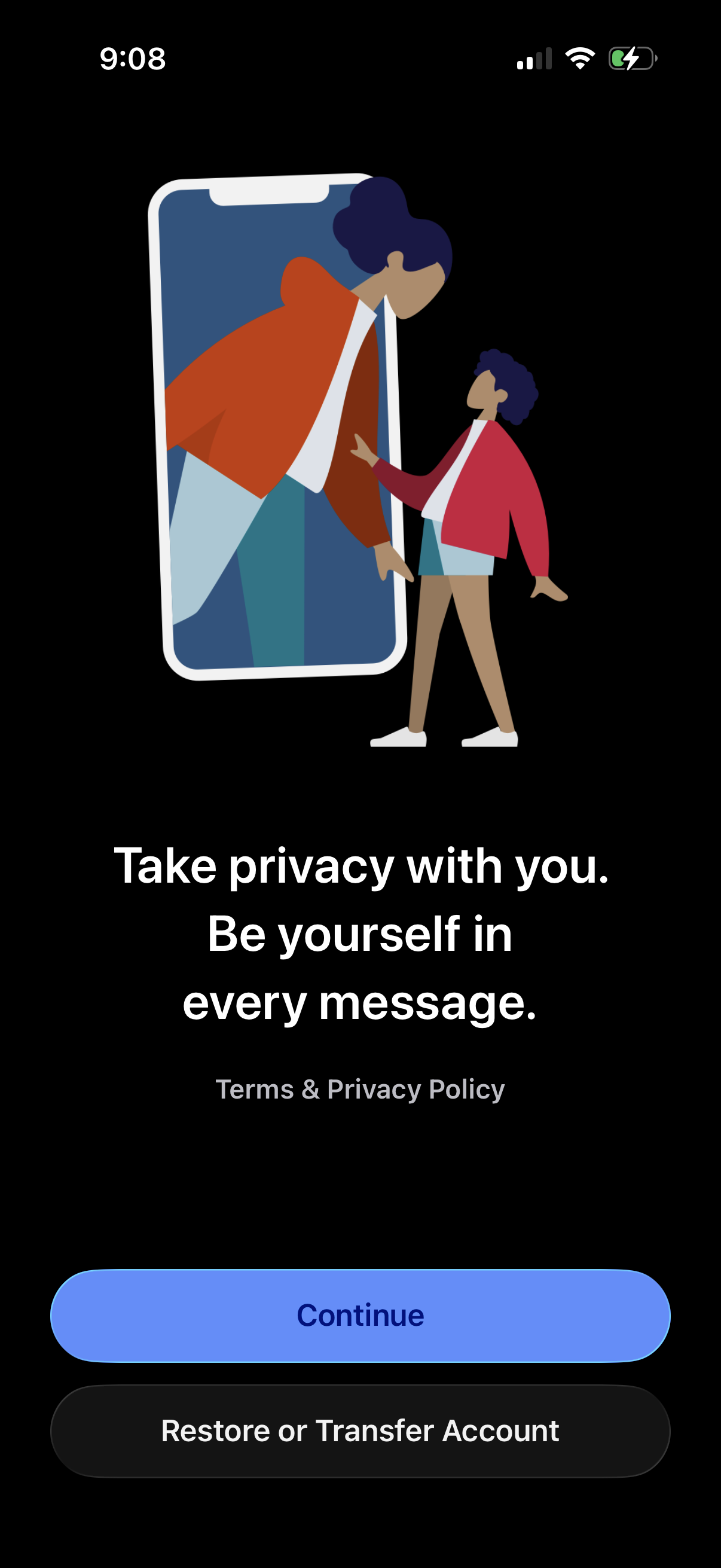
Privacy-focused messaging app onboarding/welcome screen highlighting “Take privacy with you” with a link to Terms & Privacy Policy. Primary actions are a prominent Continue button and a secondary Restore or Transfer Account option for existing users.
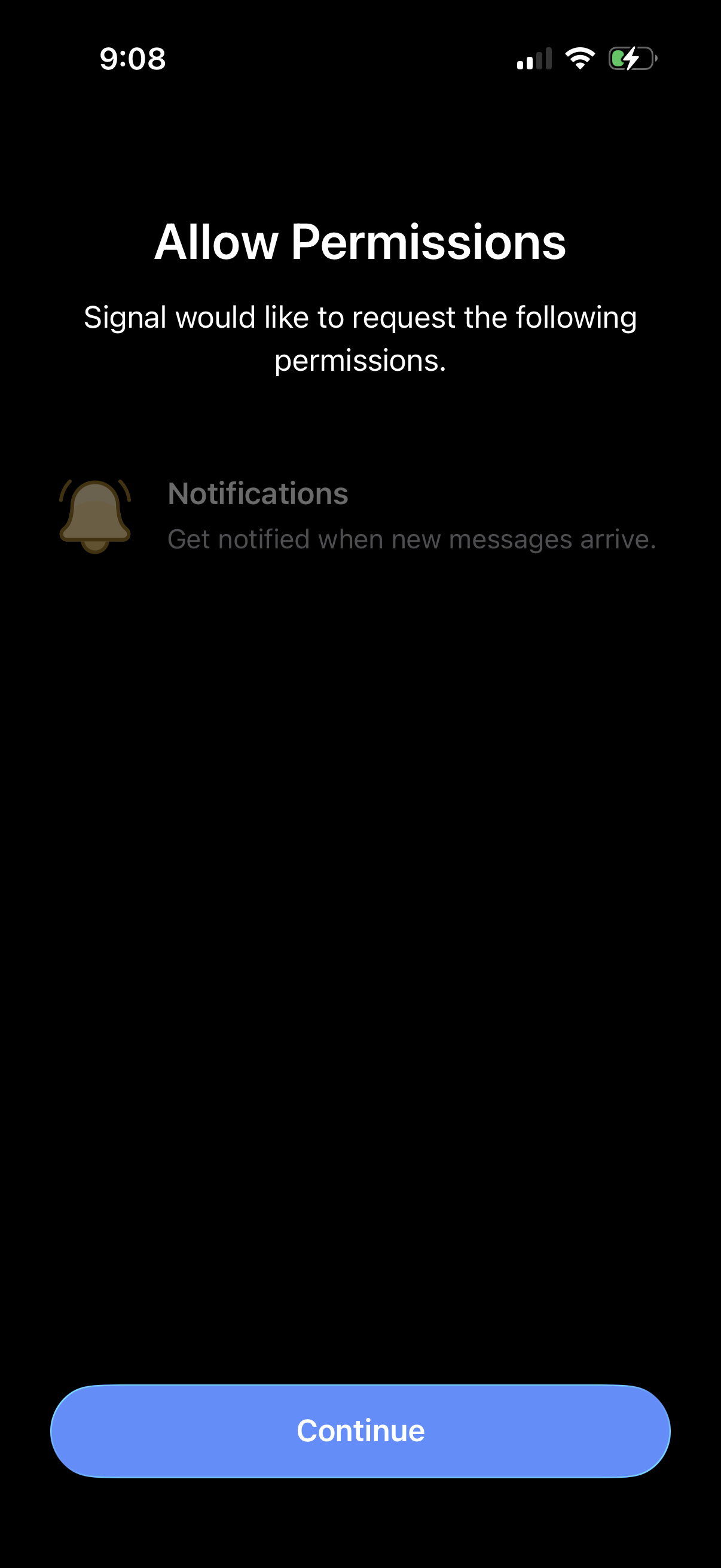
Permission request onboarding screen asking the user to allow notifications so they can be alerted when new messages arrive. Includes a prominent Continue button to proceed with enabling permissions.
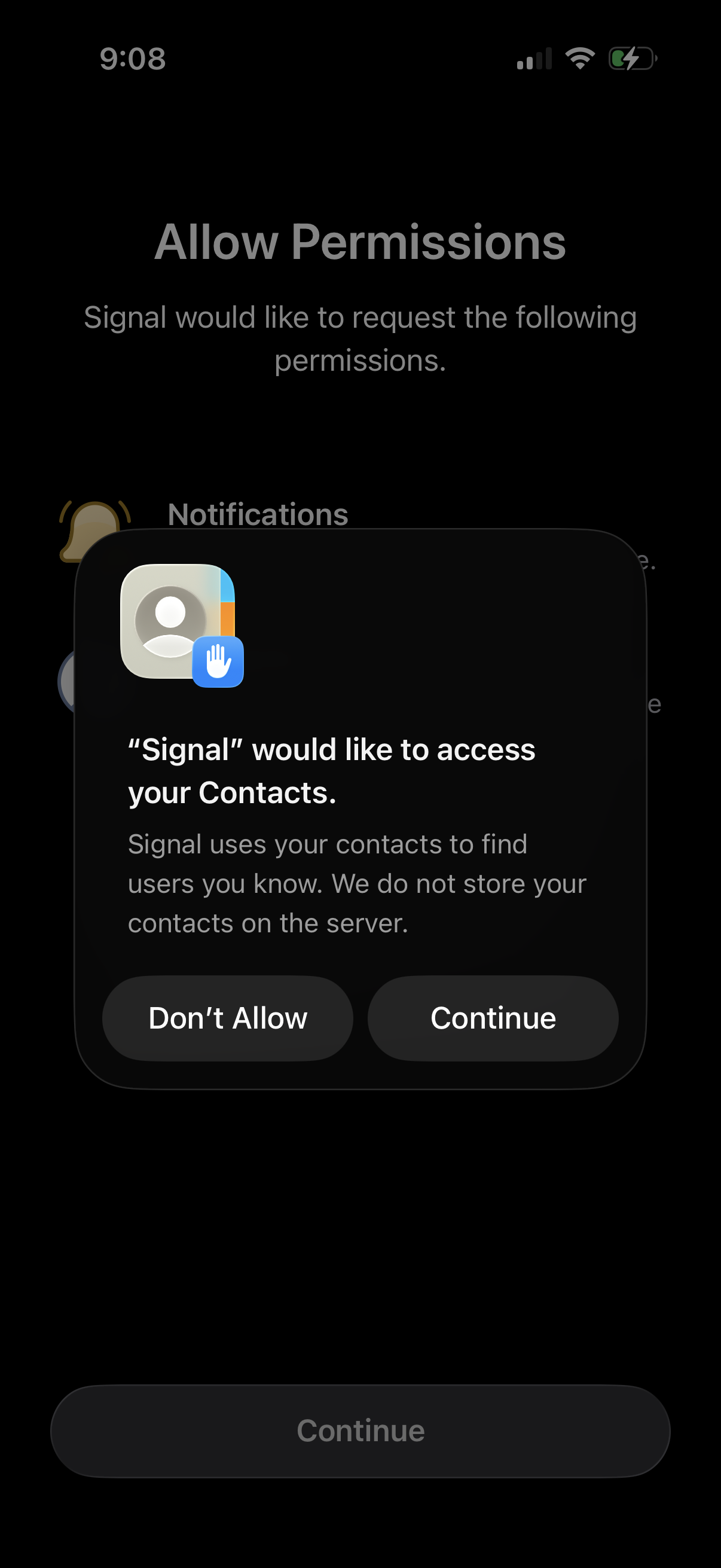
iOS permission request screen during onboarding prompting the user to allow a messaging app to access their Contacts to find people they know, with a system modal offering primary actions to Continue (allow) or Don’t Allow.
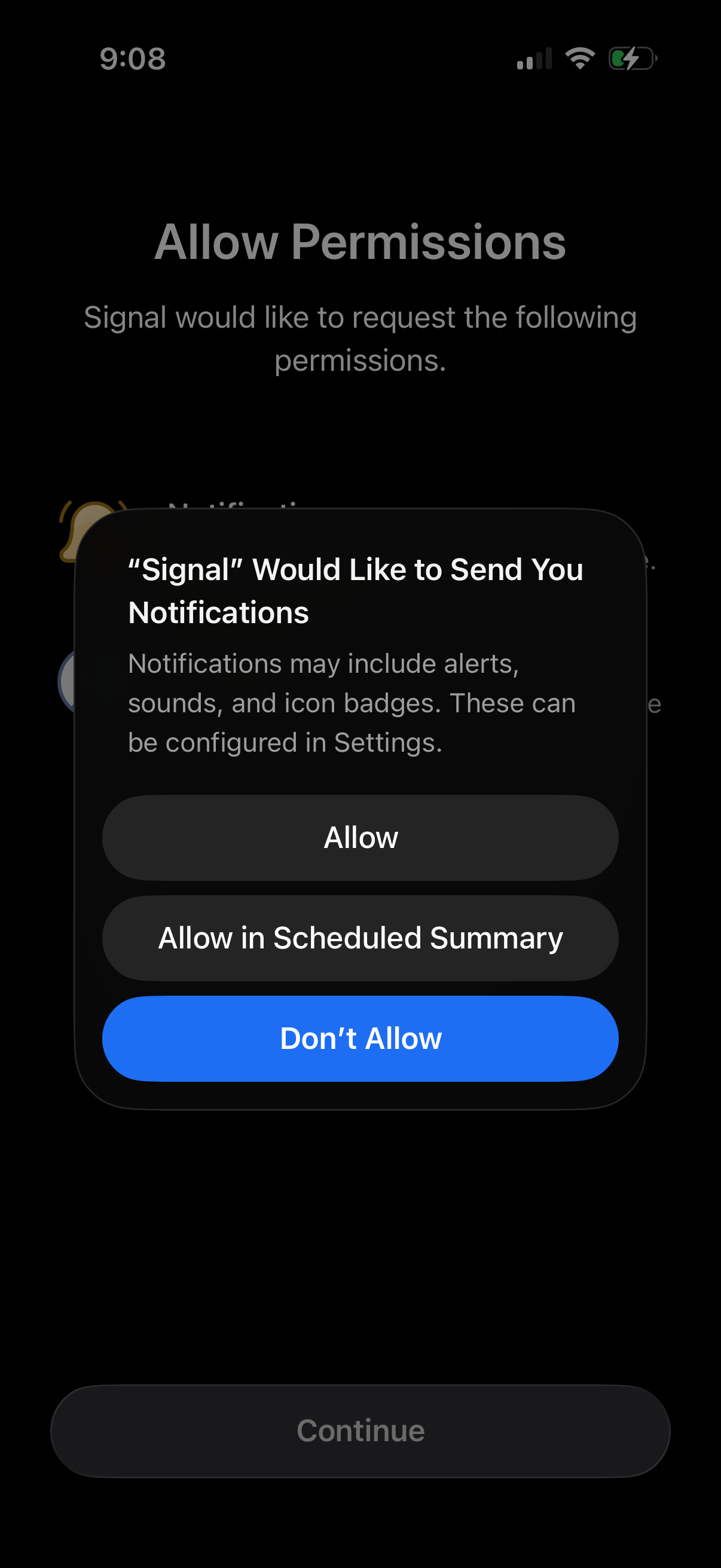
iOS permission request screen during app onboarding prompting the user to enable push notifications for the app. A system modal offers actions to Allow, Allow in Scheduled Summary, or Don’t Allow before continuing setup.
iOS permission request screen during onboarding prompting the user to allow a messaging app to access their Contacts to find people they know, with a system modal offering primary actions to Continue (allow) or Don’t Allow.
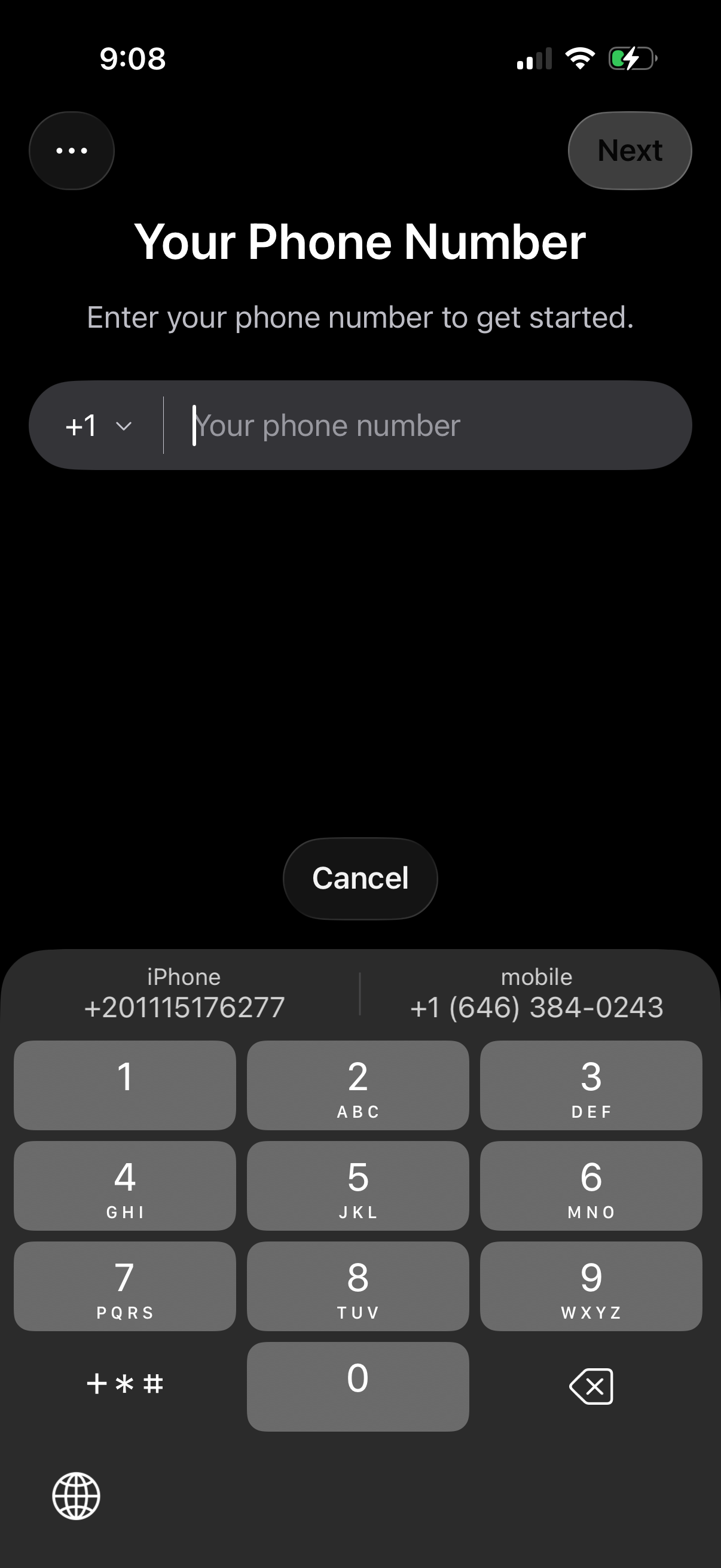
Phone number entry screen for onboarding or sign-in, prompting the user to enter their phone number with a country code selector. Includes a Next button to continue, a Cancel option, and an overflow menu while the numeric keypad is open.
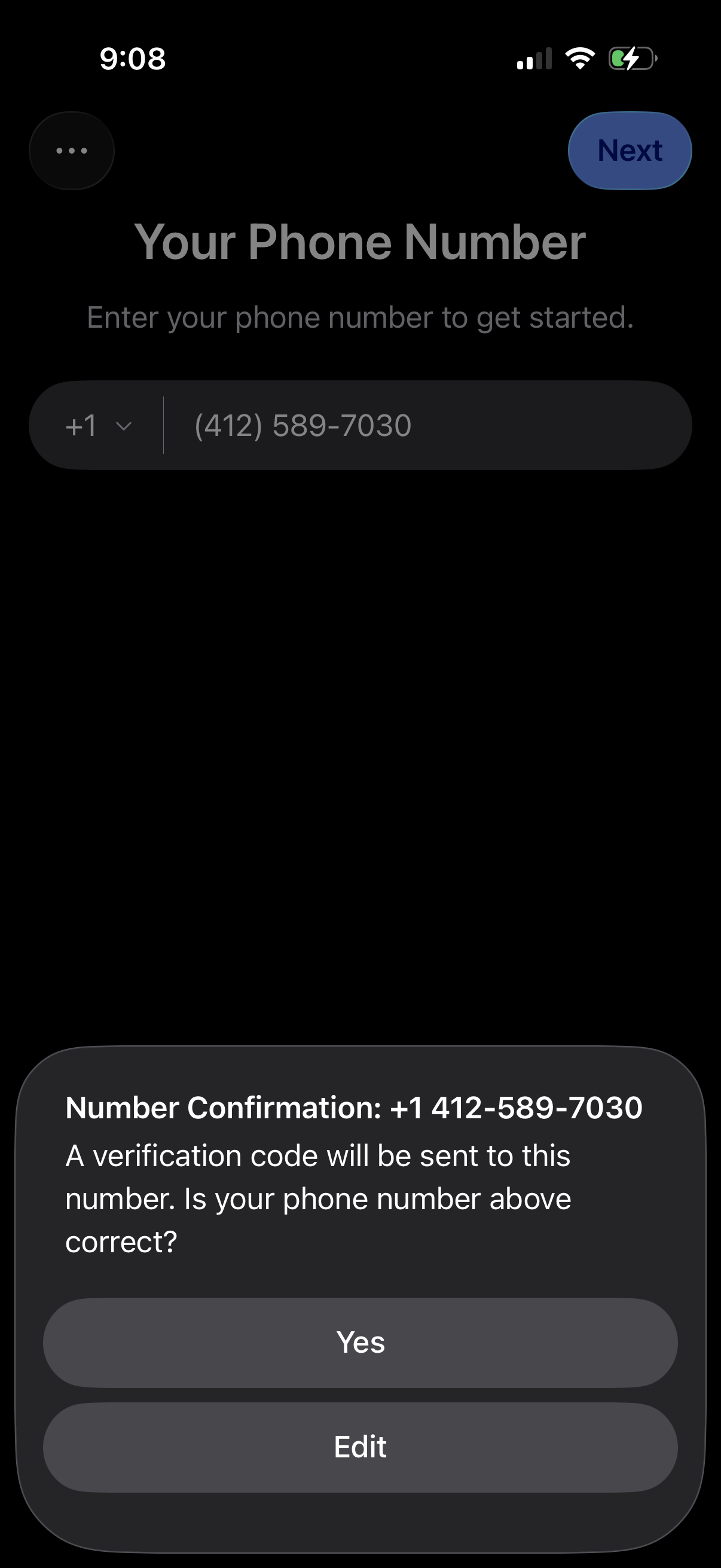
Phone number entry screen for sign-up/onboarding with a country code selector, phone number input field, and a Next button to proceed. A bottom sheet modal confirms the entered number and explains a verification code will be sent, offering Yes to confirm or Edit to change.
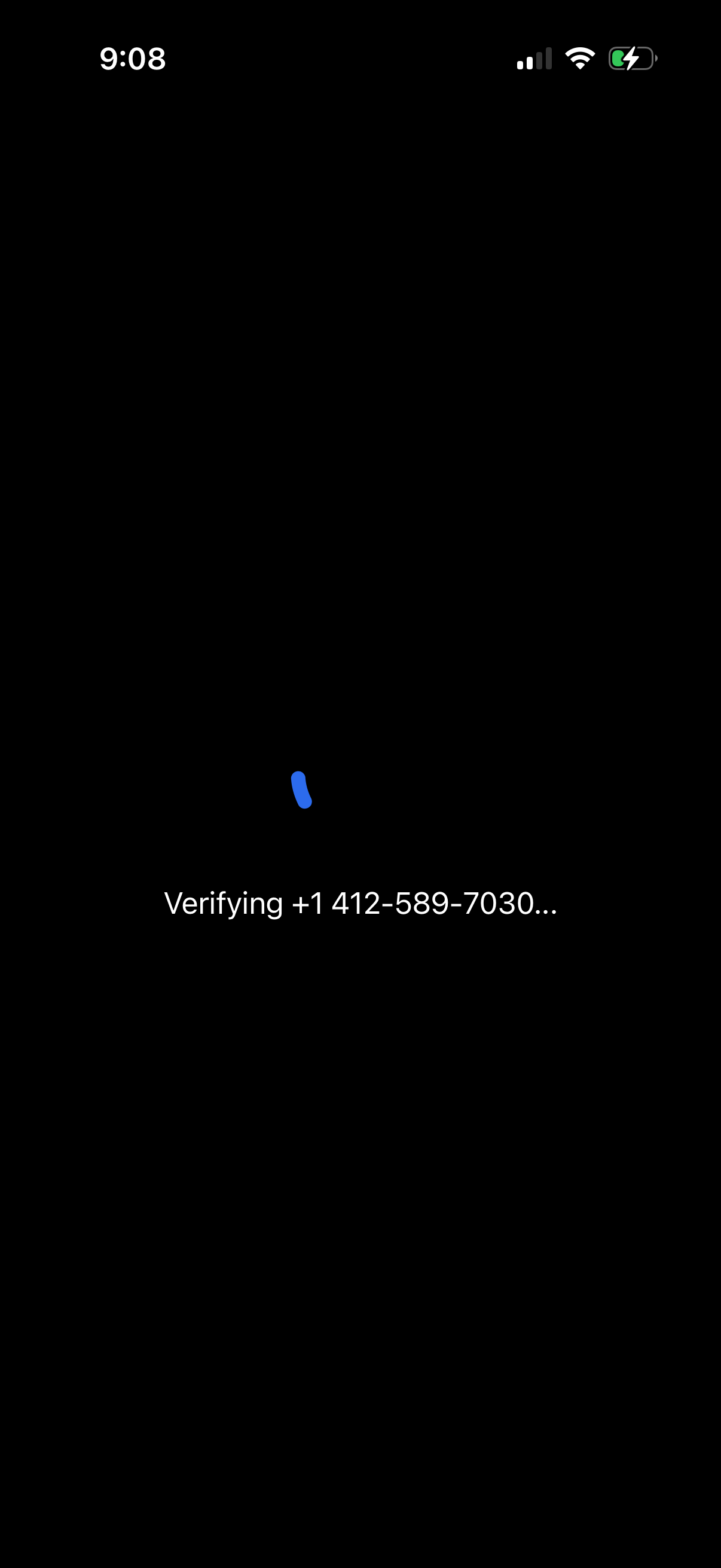
A full-screen loading state during phone number verification, showing a spinner and the message “Verifying +1…” to indicate the app is confirming an SMS/OTP login or signup authentication step.
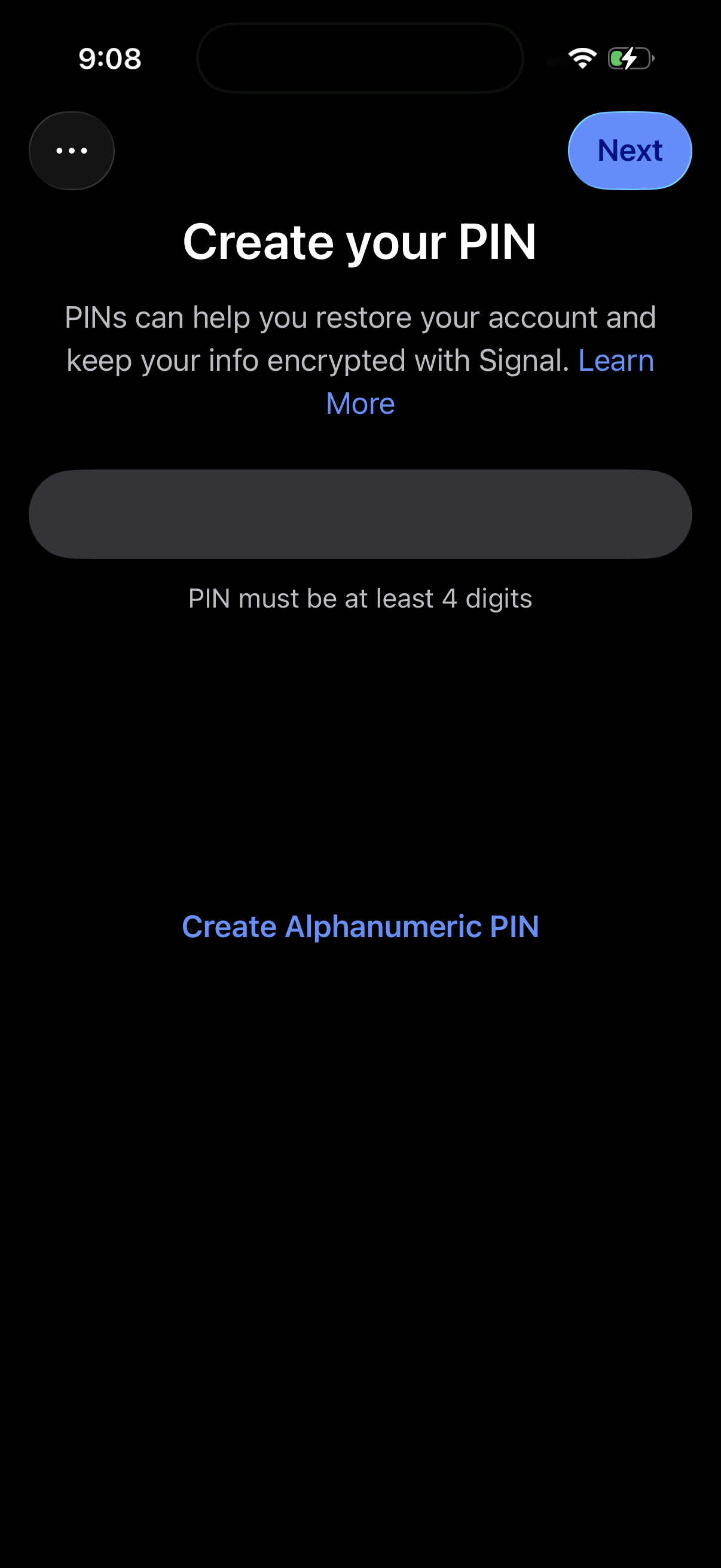
Account setup security screen prompting the user to create a PIN to restore their account and keep information encrypted, with a PIN entry field and requirement of at least 4 digits. Includes a Next button to continue, a Learn More link, and an option to create an alphanumeric PIN instead.
Account setup security screen prompting the user to create a PIN to restore their account and keep information encrypted, with a PIN entry field and requirement of at least 4 digits. Includes a Next button to continue, a Learn More link, and an option to create an alphanumeric PIN instead.