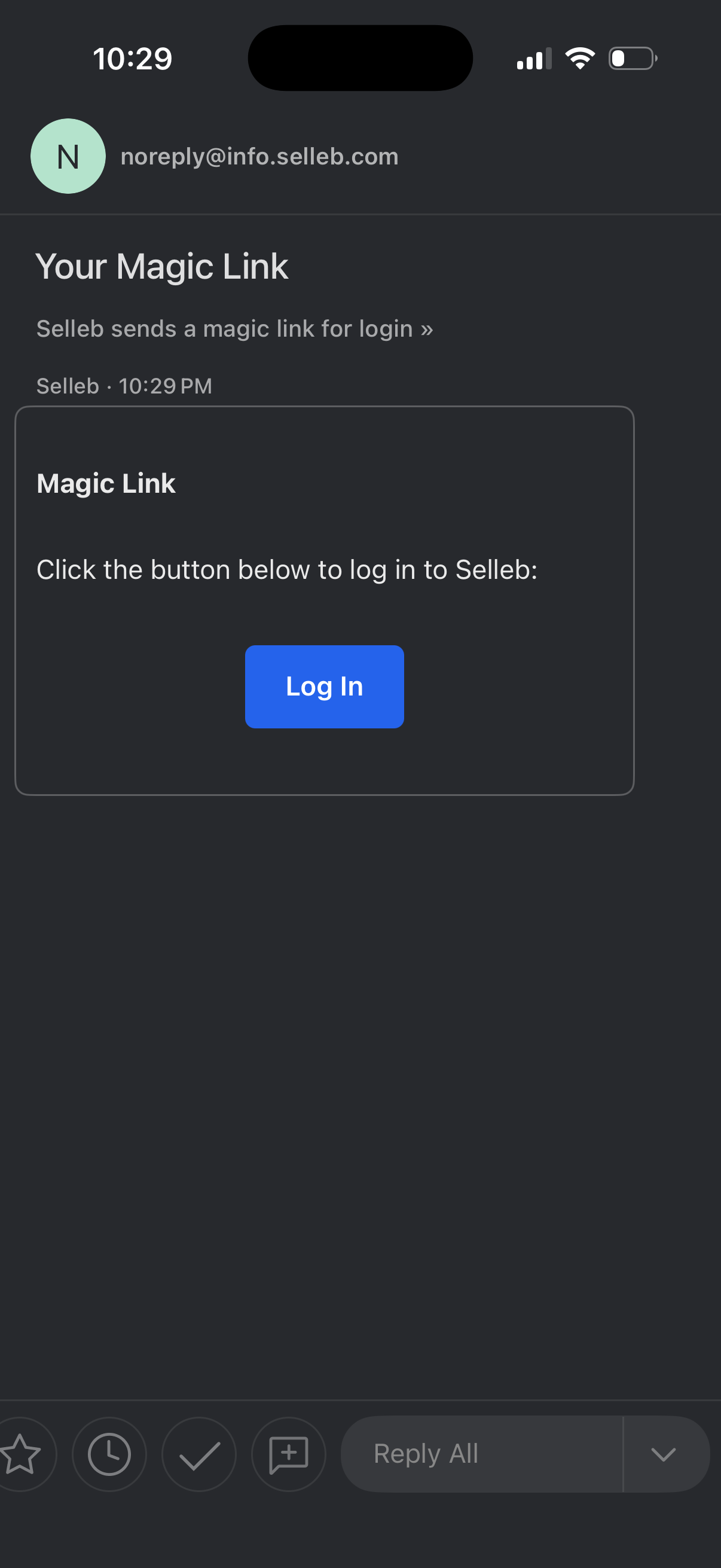
Email inbox message displaying a passwordless “magic link” login email, instructing the user to click a prominent “Log In” button to securely sign in to the service. The screen highlights one-tap authentication via emailed login link instead of entering a password.
A blank loading or transition screen in an iOS app with a black background and only the status bar visible, indicating an intermediate state with no content or actions displayed yet.
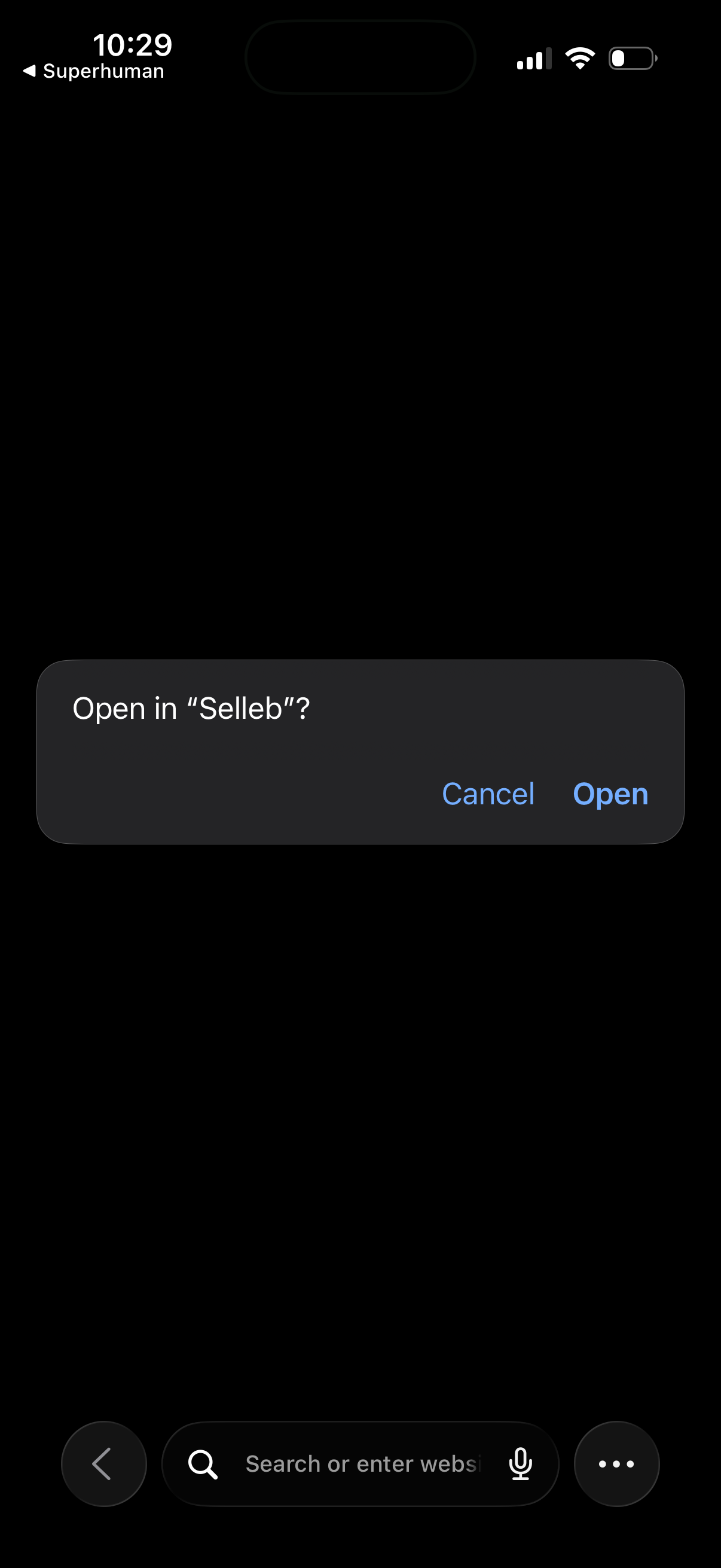
iOS system confirmation modal prompting the user to open a link in another app, with primary action “Open” and secondary action “Cancel” over a dark background. This screen supports deep linking/hand off from a browser or email client to an installed app.
A blank loading screen showing a centered spinner/activity indicator while content is being fetched, with a back arrow in the top-left to return to the previous page. This is an in-app web view or Safari-based view displaying a progress state during navigation.
Minimal loading screen with a centered spinner indicating content is being fetched. Includes a top back arrow for navigation while the page loads.
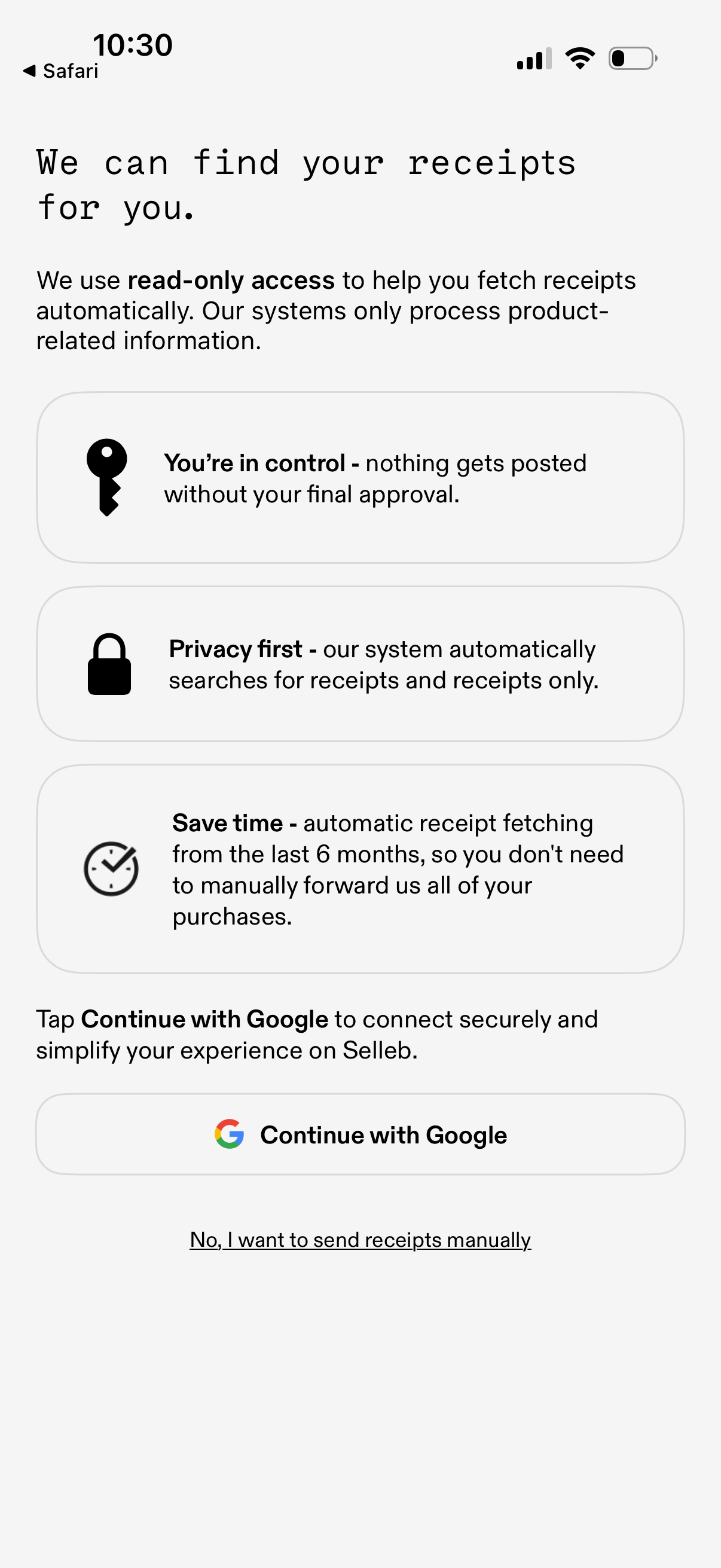
Onboarding consent screen for automatic receipt fetching that explains read-only access, privacy, and user control over posting, highlighting time saved by scanning the last 6 months of receipts. Primary action is “Continue with Google” to securely connect an account, with an alternative link to send receipts manually.