add location based reminder
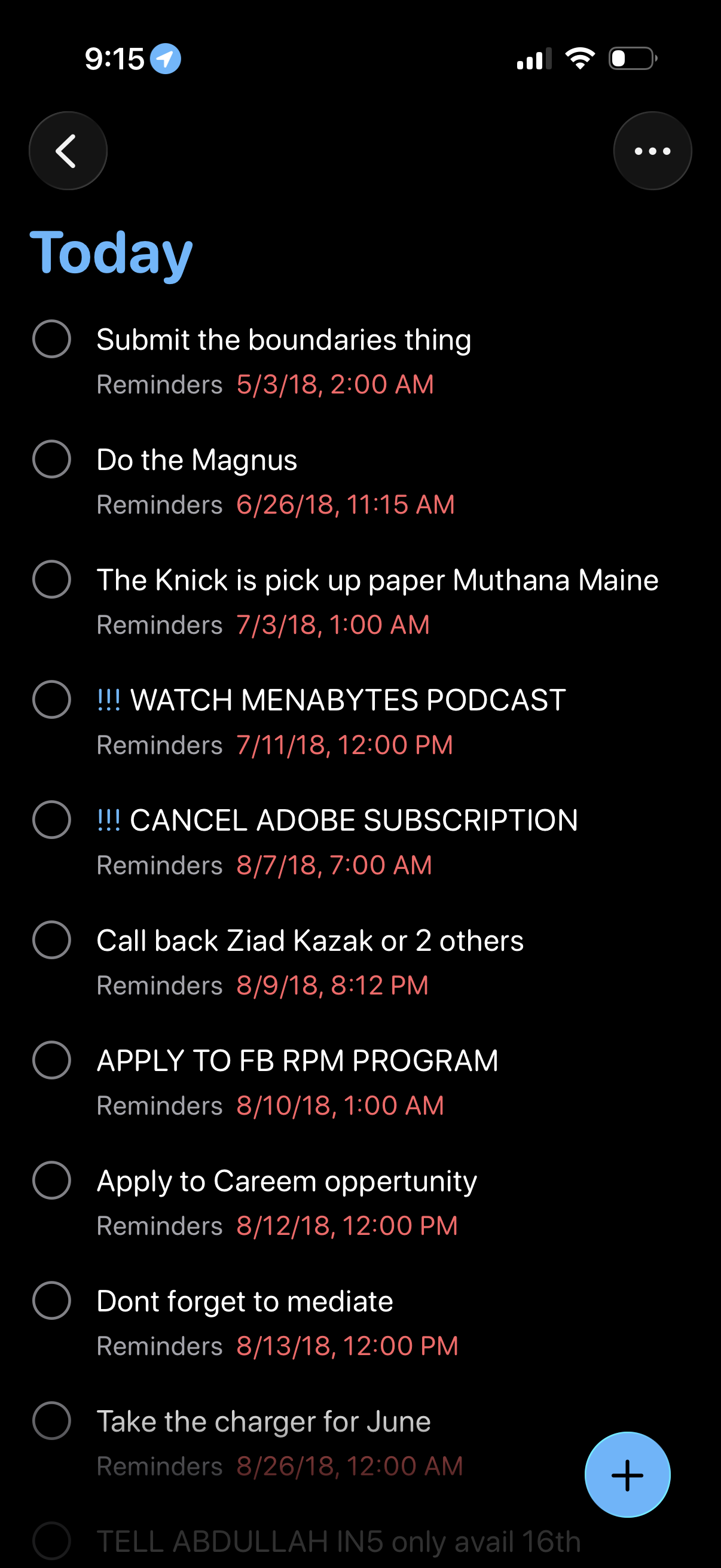
Dark-mode reminders/task list screen showing a “Today” section with multiple to-do items, each with an empty completion checkbox and a scheduled reminder date/time beneath. Top navigation includes back and overflow menu, and a floating plus button to add a new reminder.
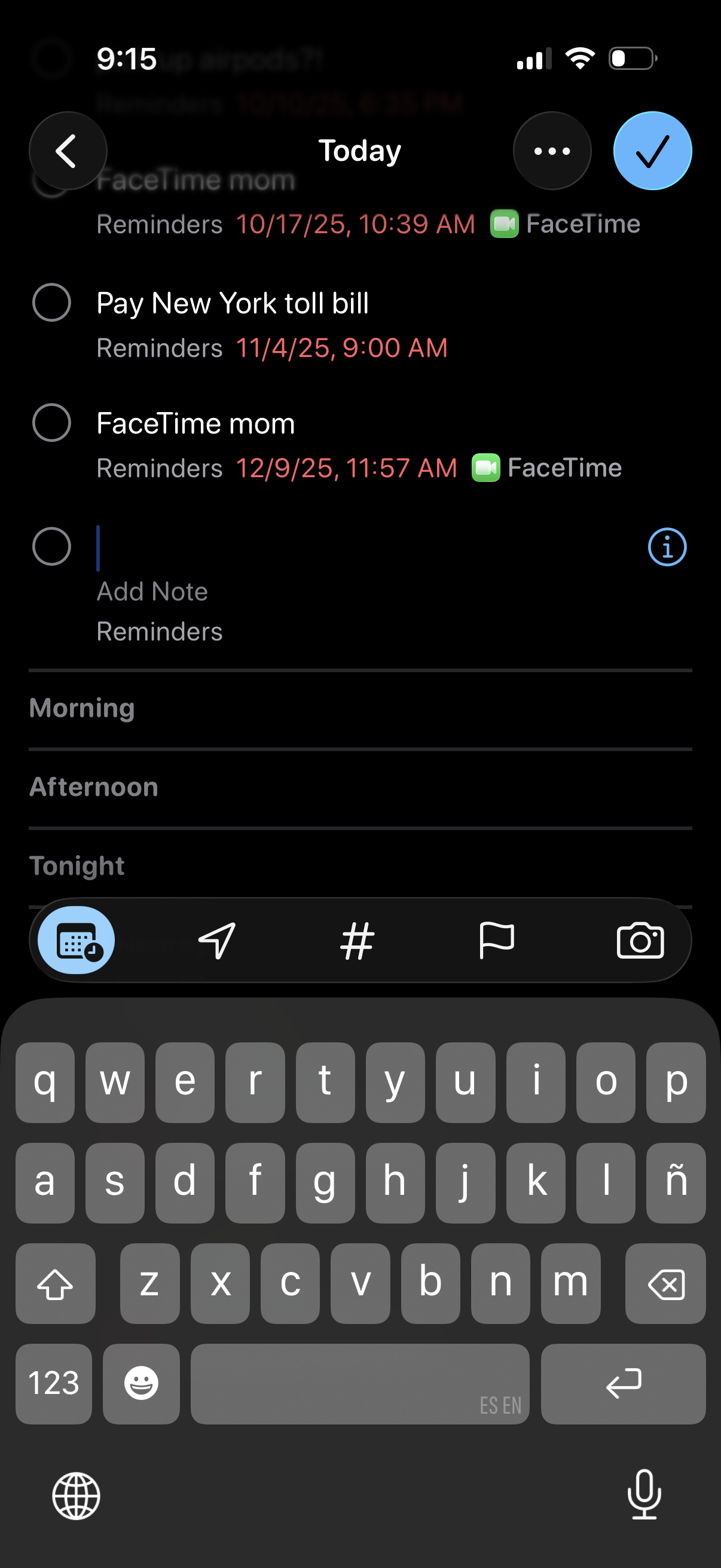
Daily reminders list screen showing tasks with due dates/times and app icons, allowing users to mark items complete with check circles, open more options via an overflow menu, and confirm changes with a checkmark. Includes an inline “Add Note” text field with keyboard for quickly adding a note or new reminder in the Today view.
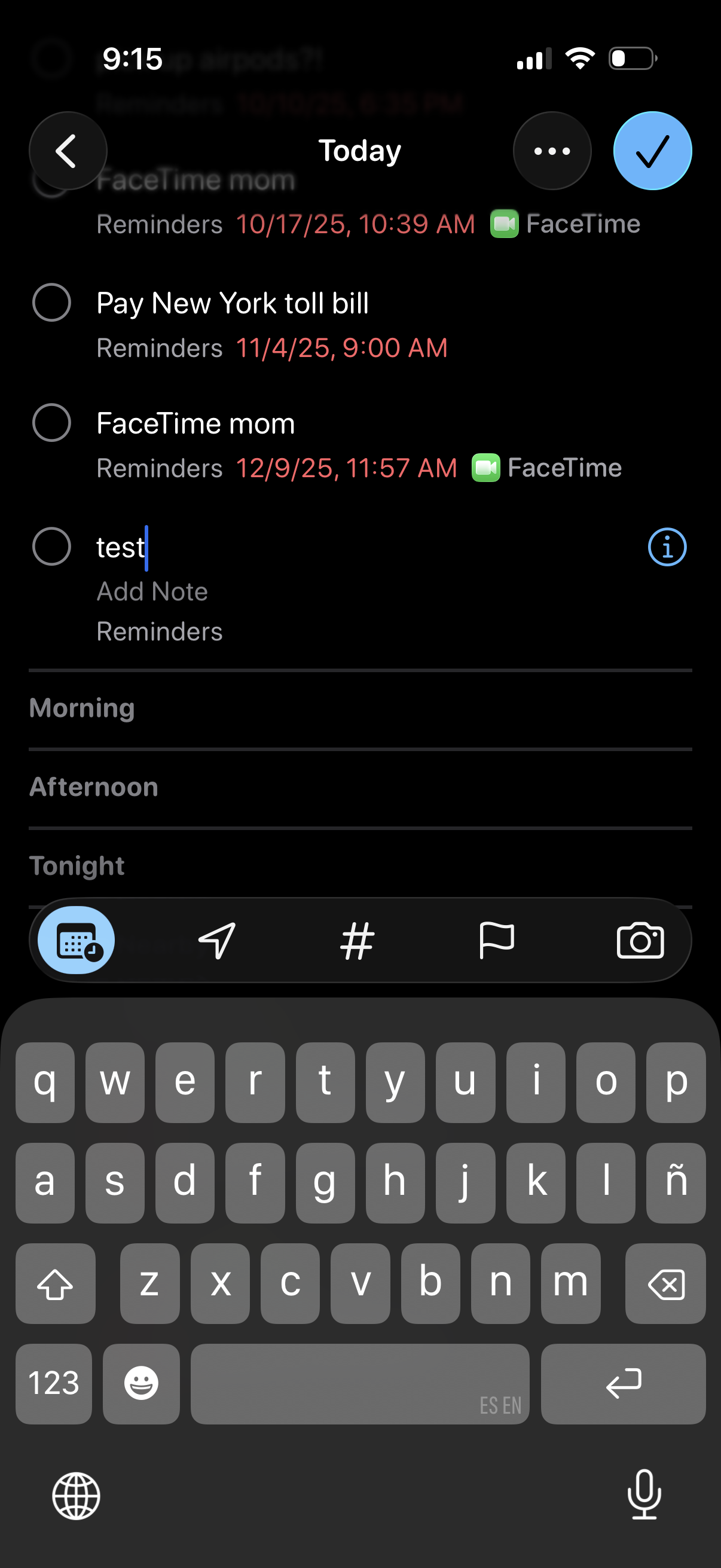
Task manager to-do list screen showing “Today” reminders with scheduled dates/times and related app icons, letting users mark tasks complete via circular checkboxes and open task details. An inline text field is used to add a new reminder, with back, more options, and save/confirm actions in the header.
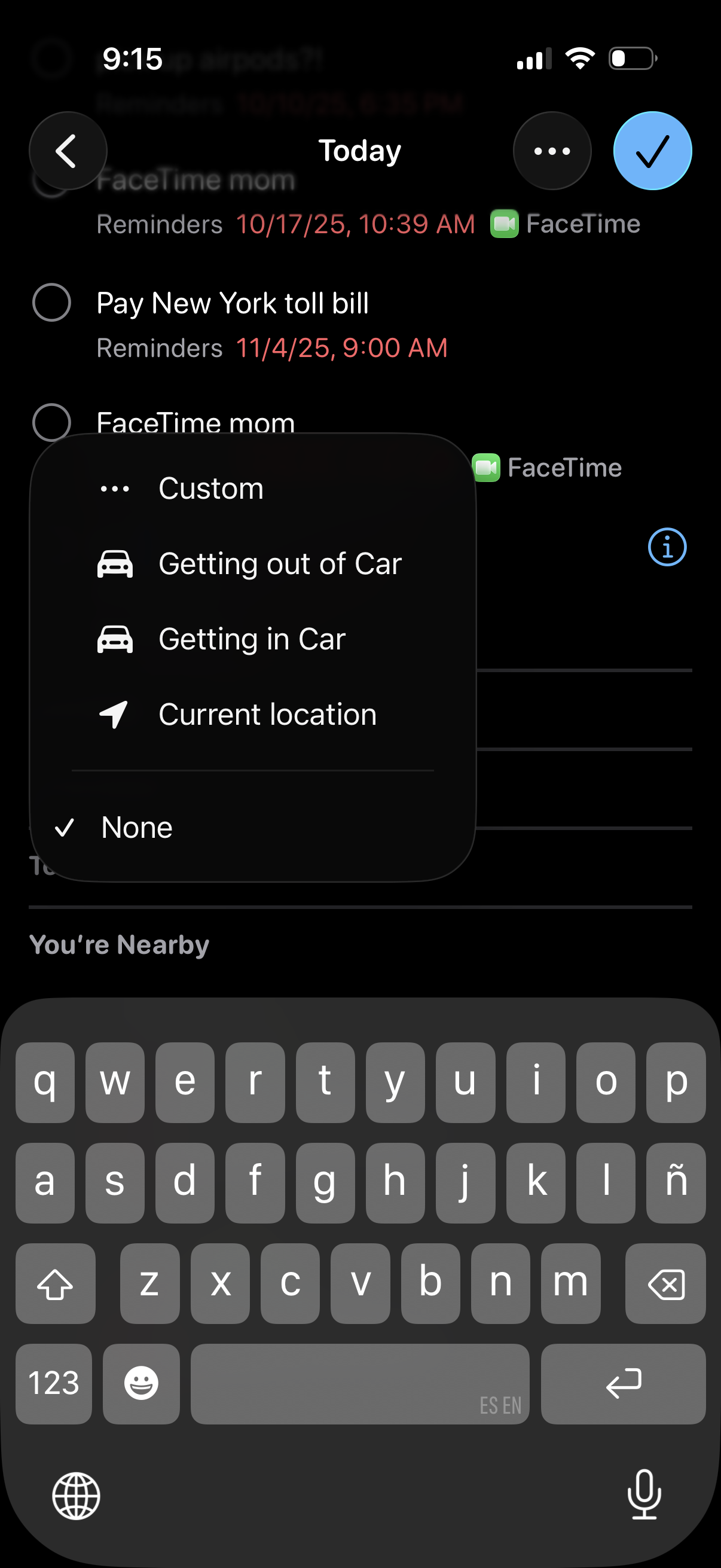
Reminders app “Today” list showing tasks with due date/time and an associated app (e. g.
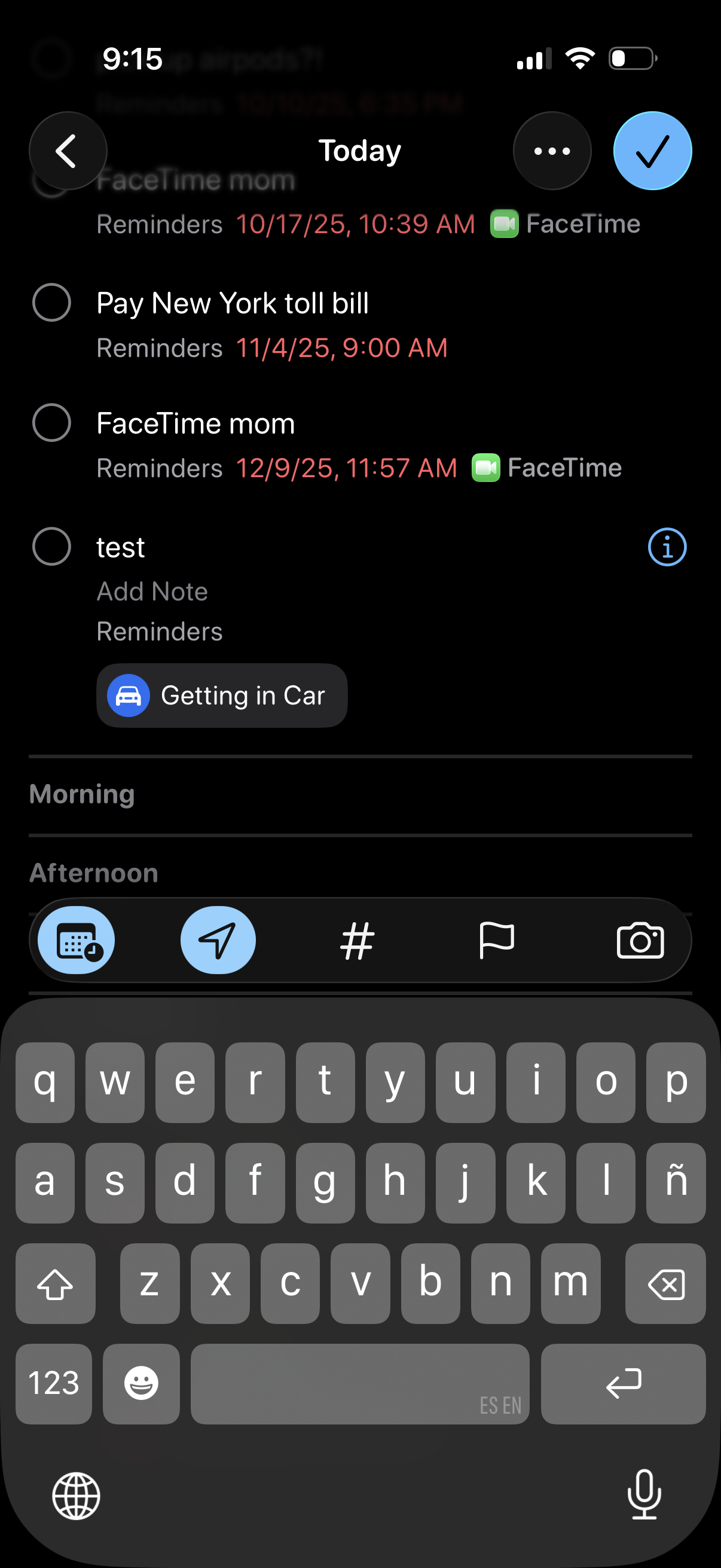
Daily reminders list screen showing upcoming tasks with circular checkboxes to mark complete, due date/time details, and linked app icons like FaceTime. Includes navigation/back, overflow menu, and a quick add note/input area with suggestions (e.
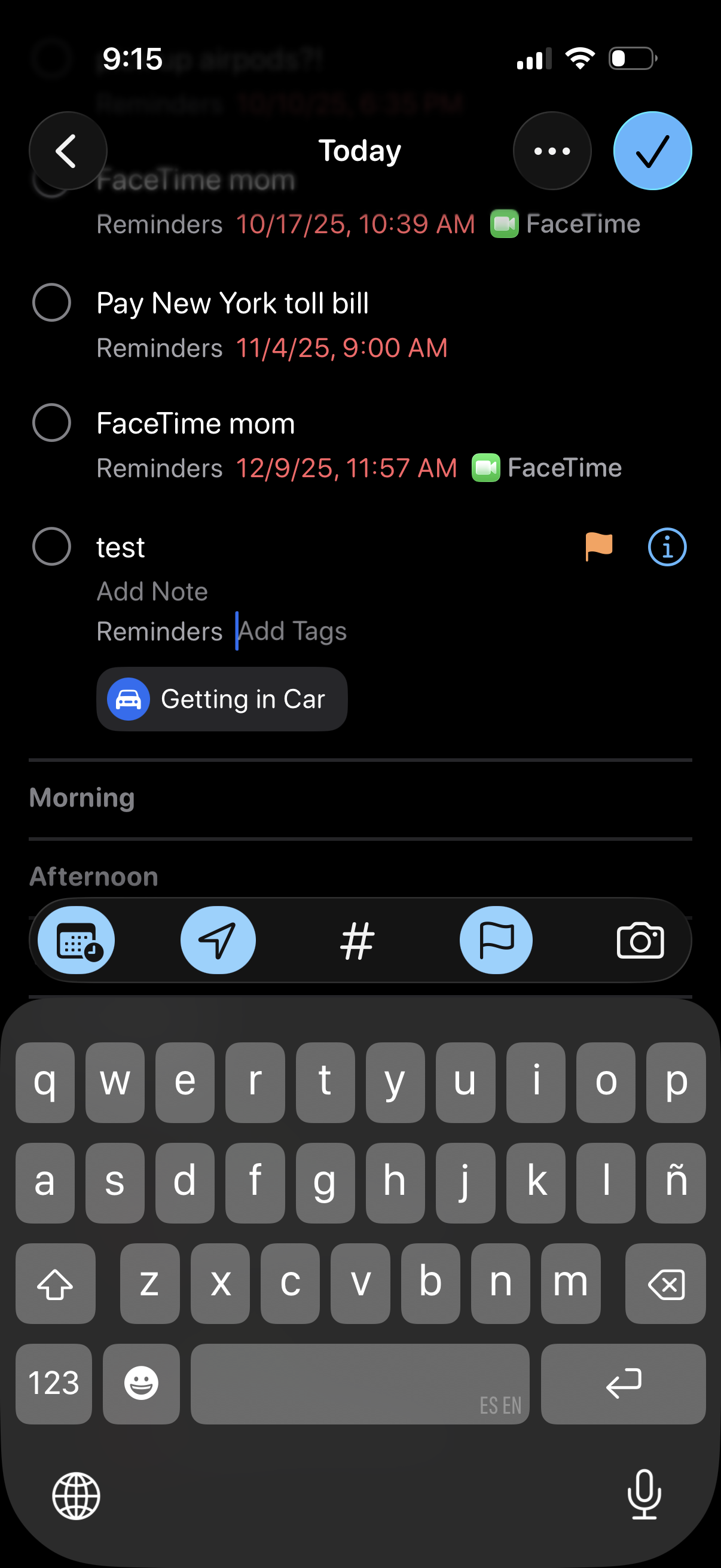
Task list view for “Today” showing reminders with checkbox completion, due date/time, and app links (e. g.
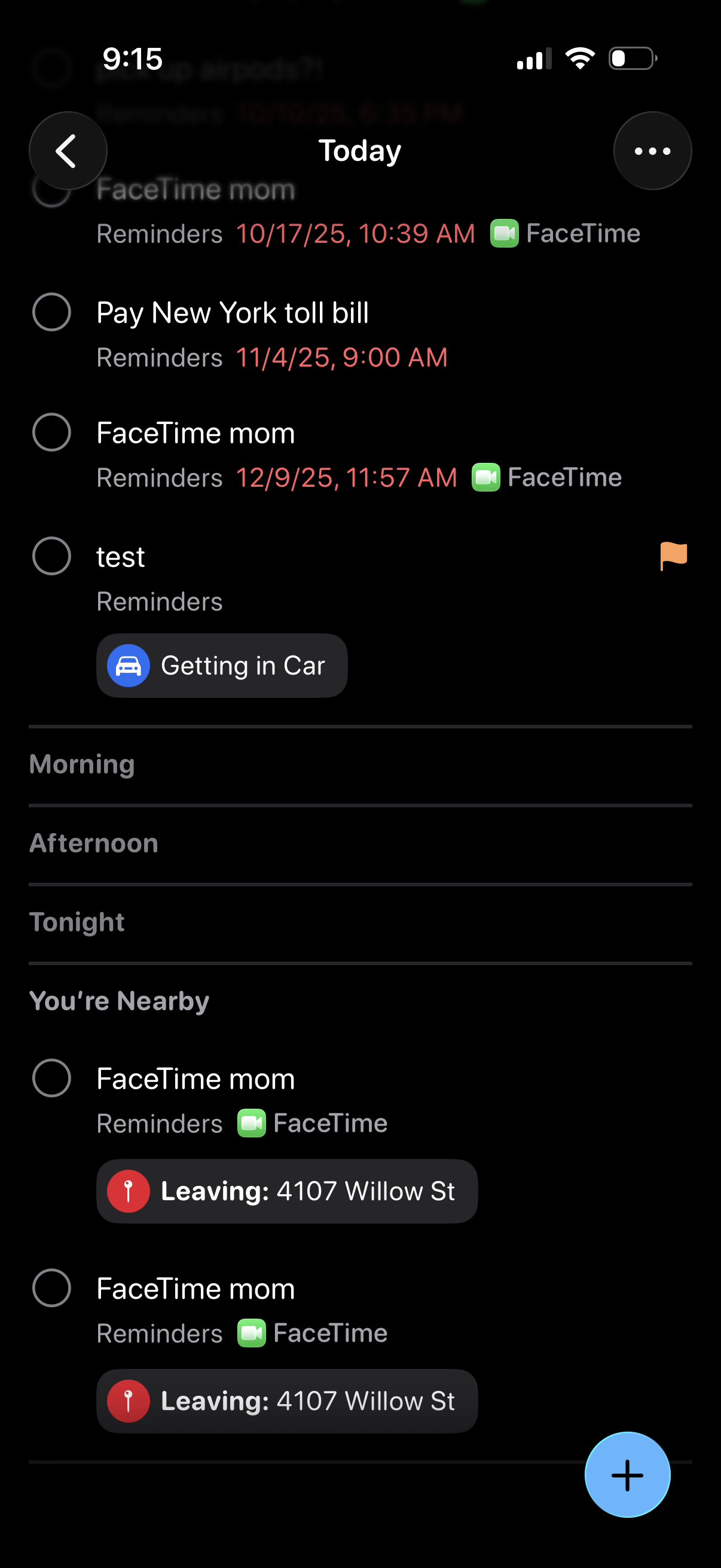
Task and reminders list for Today showing upcoming to-dos with due dates/times, completion check circles, and linked app actions (e. g.