complete intro walkthrough
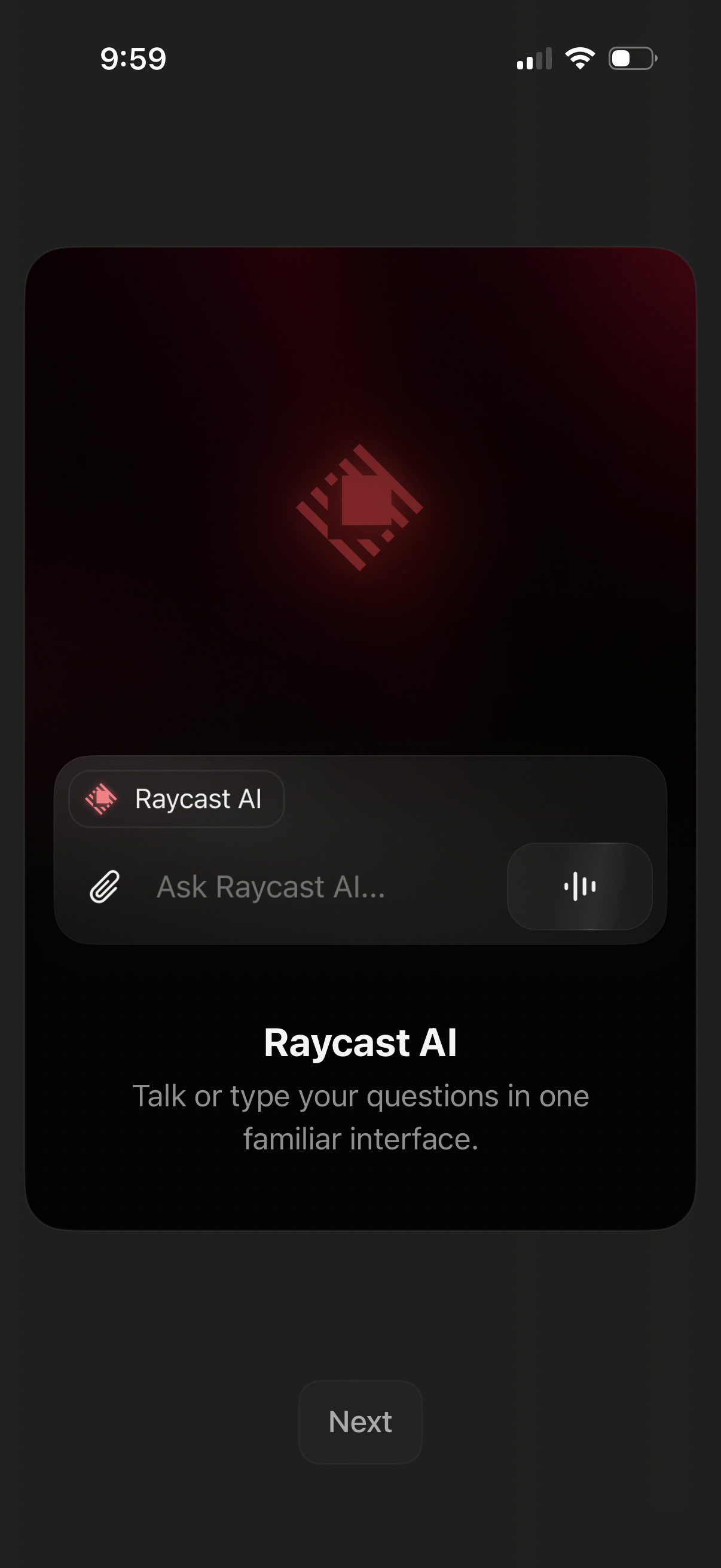
Onboarding screen introducing an AI assistant interface with a chat-style input that supports typing, attaching files, and voice input. Includes a brief value proposition and a primary “Next” button to continue setup.
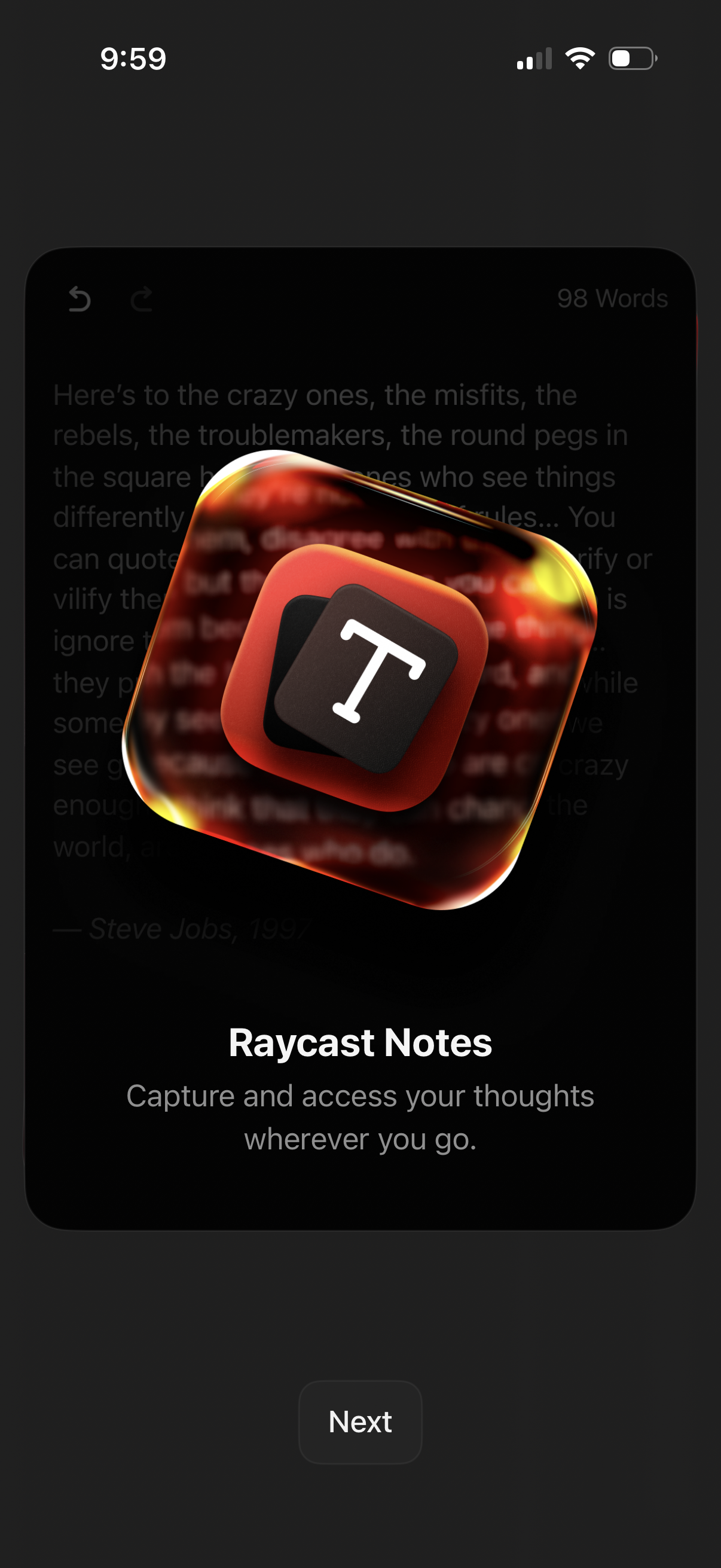
Onboarding introduction screen for a notes app highlighting “Raycast Notes” with a short value proposition about capturing and accessing thoughts anywhere. Provides a primary “Next” button to proceed through the onboarding flow.
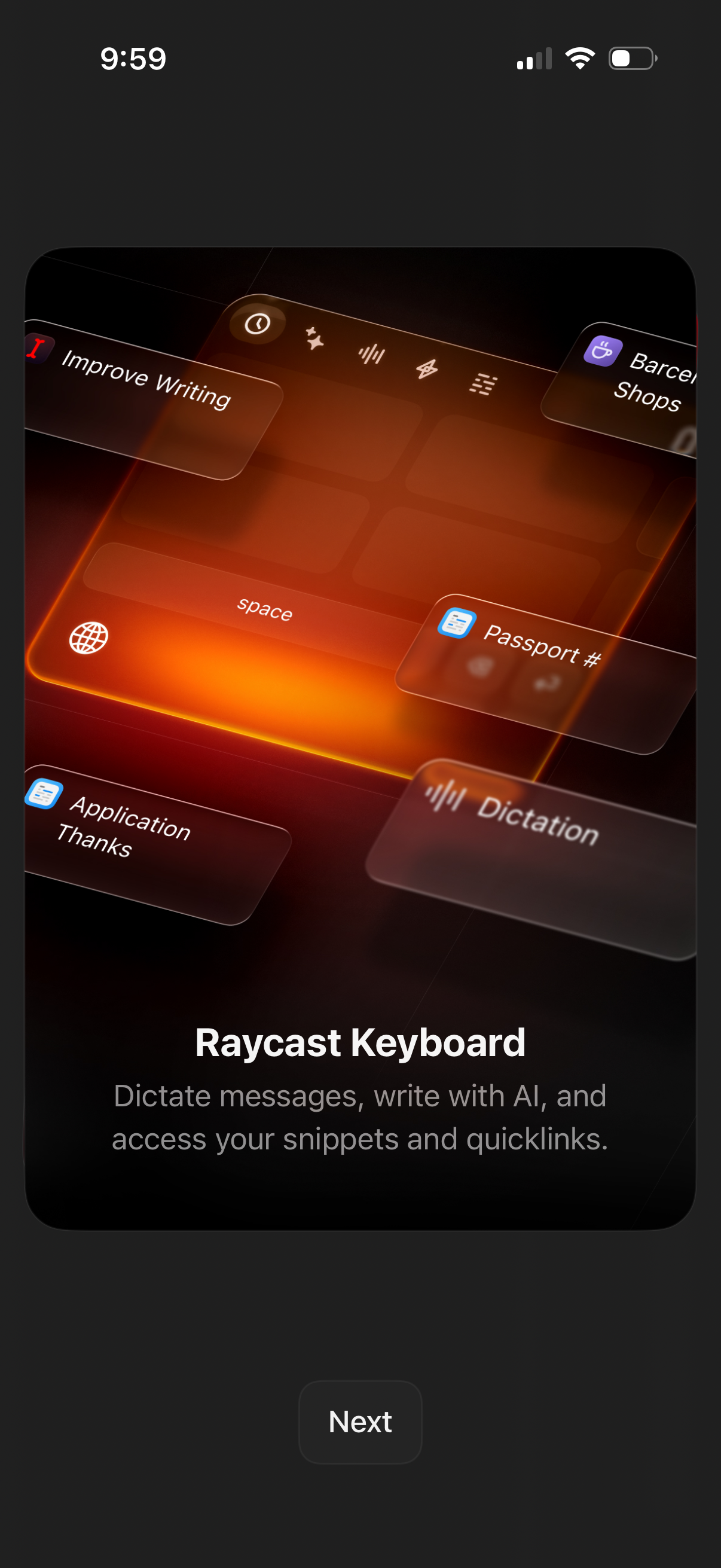
Onboarding introduction screen for a custom AI keyboard called Raycast Keyboard, highlighting features like dictation, AI writing assistance, and quick access to saved snippets and quicklinks. Large preview image of the keyboard with shortcut tiles and a primary “Next” button to continue setup.
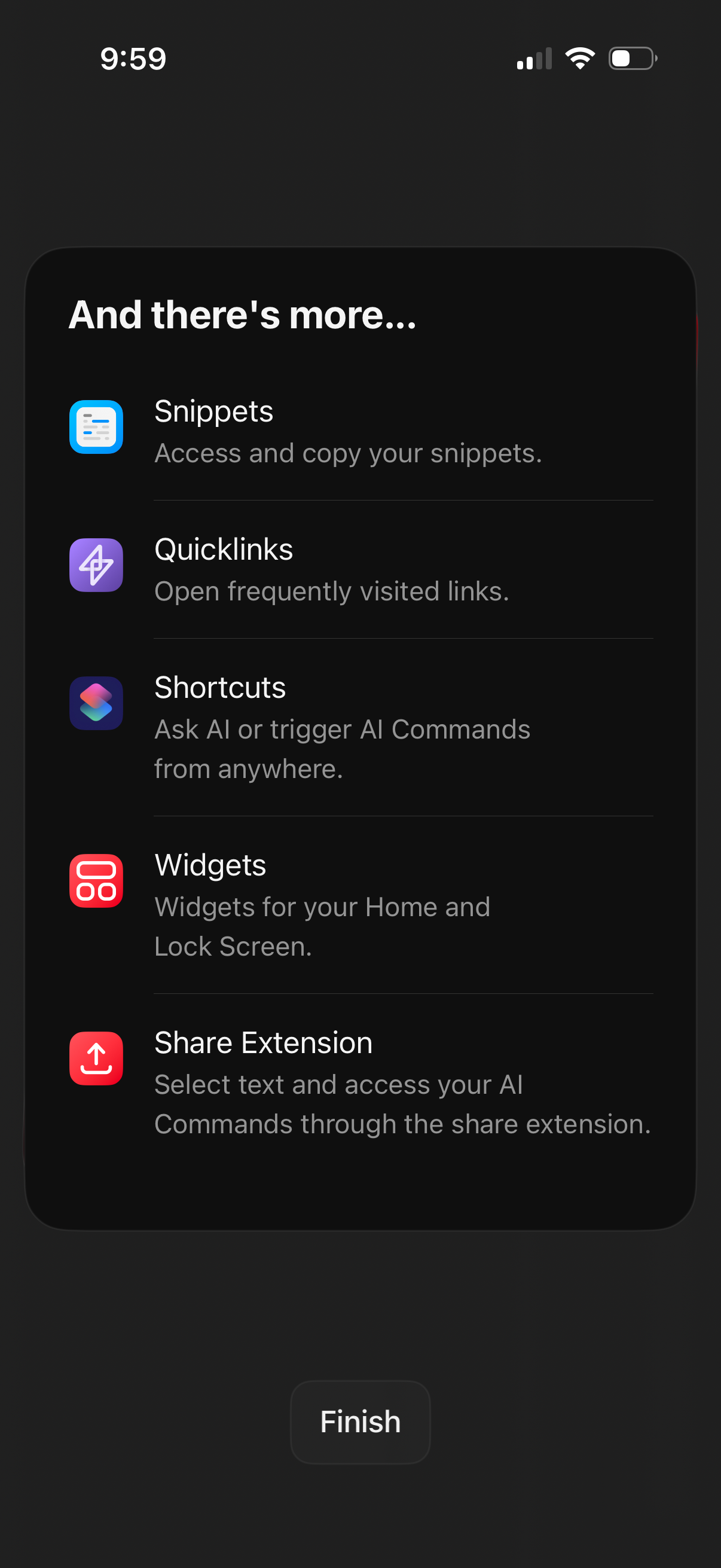
An onboarding or feature-discovery screen that highlights additional app capabilities in a list, including Snippets (copy/paste saved text), Quicklinks (frequently visited links), Shortcuts (trigger AI commands), Widgets (home/lock screen widgets), and a Share Extension (access AI commands from the share sheet). A single “Finish” button completes the setup/intro flow.
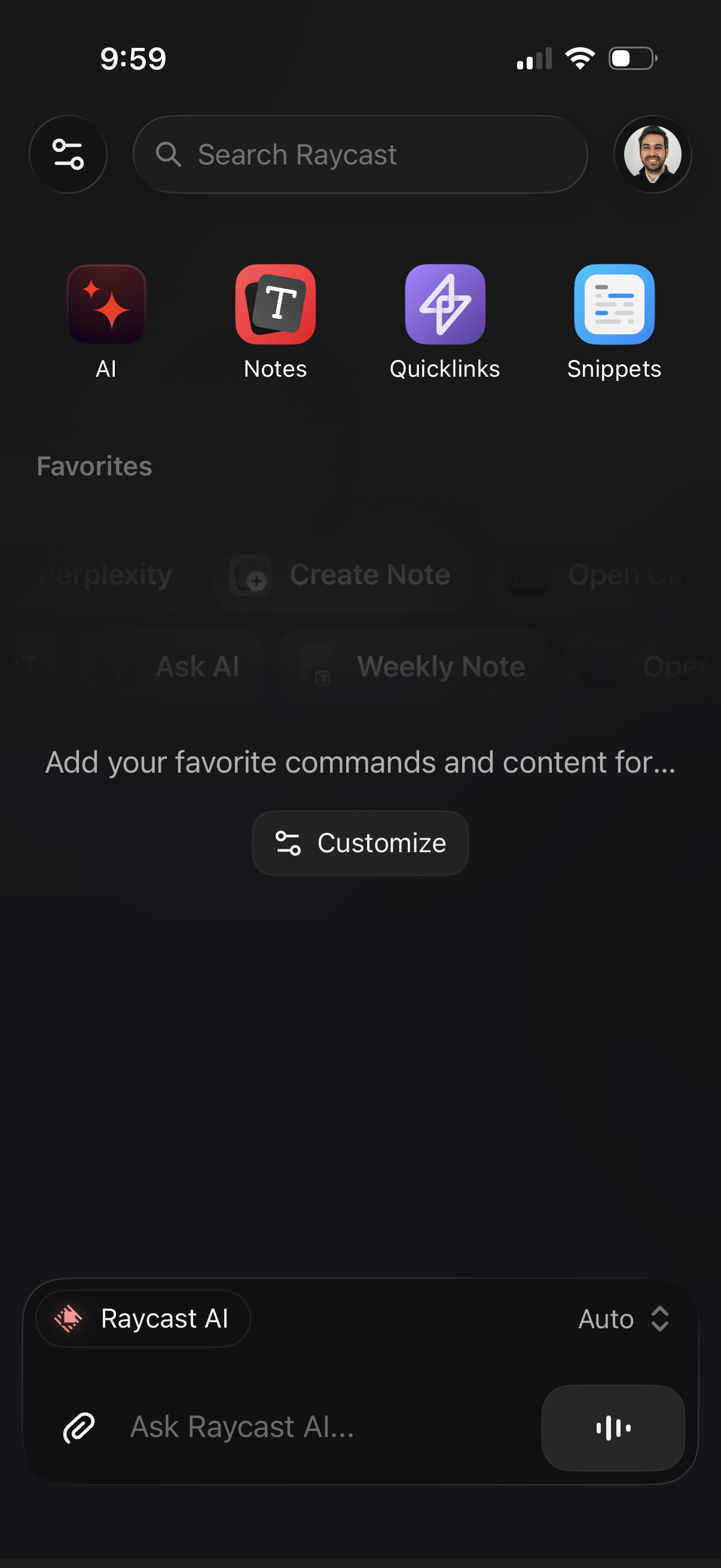
Home/dashboard screen for a productivity launcher app with a global search bar and quick-access tiles for AI, Notes, Quicklinks, and Snippets, plus a profile button and settings/filter icon. Includes an empty Favorites section with a “Customize” action and a bottom AI chat input (“Ask Raycast AI”) with attachment and voice controls.