attach photo to chat
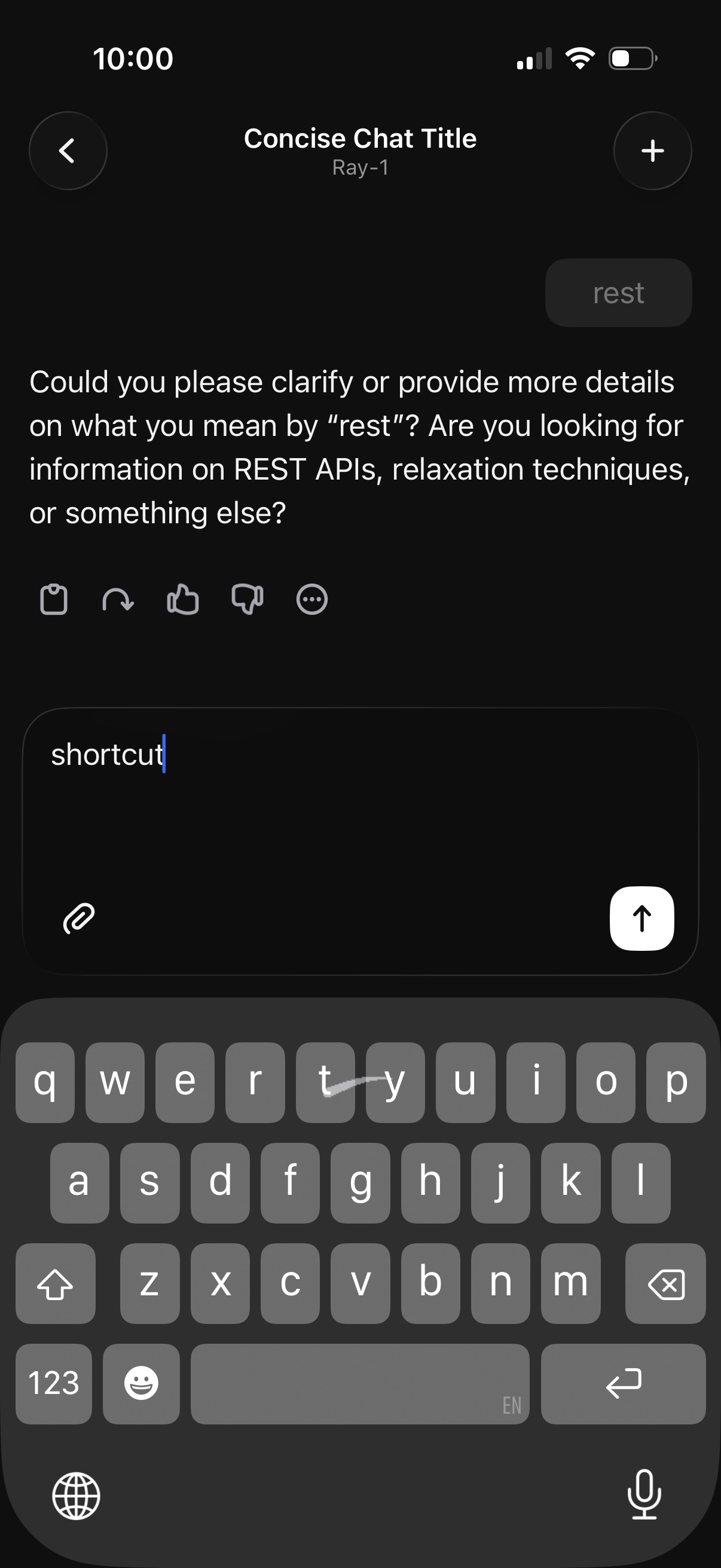
Dark-mode AI chat conversation screen showing a chat title header with back and new chat buttons, an assistant message with quick feedback actions (copy, regenerate, thumbs up/down), and a text input composer with attachment and send controls while the user is typing a reply.
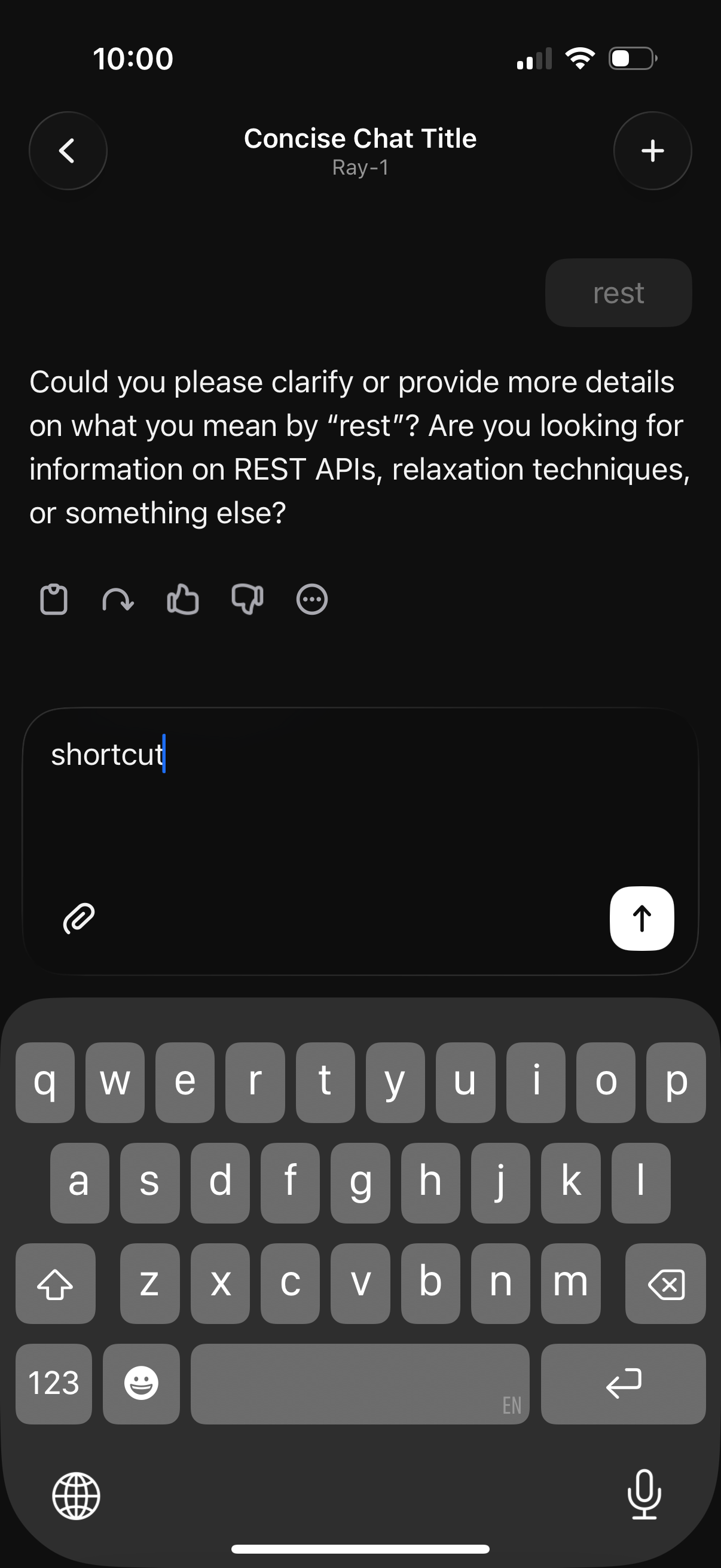
Dark-mode AI chat conversation screen showing an assistant message with quick action icons (copy, regenerate, like/dislike, more options) and a text composer with attachment button and send arrow. The user is typing a new prompt in the input field, with back navigation, chat title header, and a plus button for starting or adding to chats.
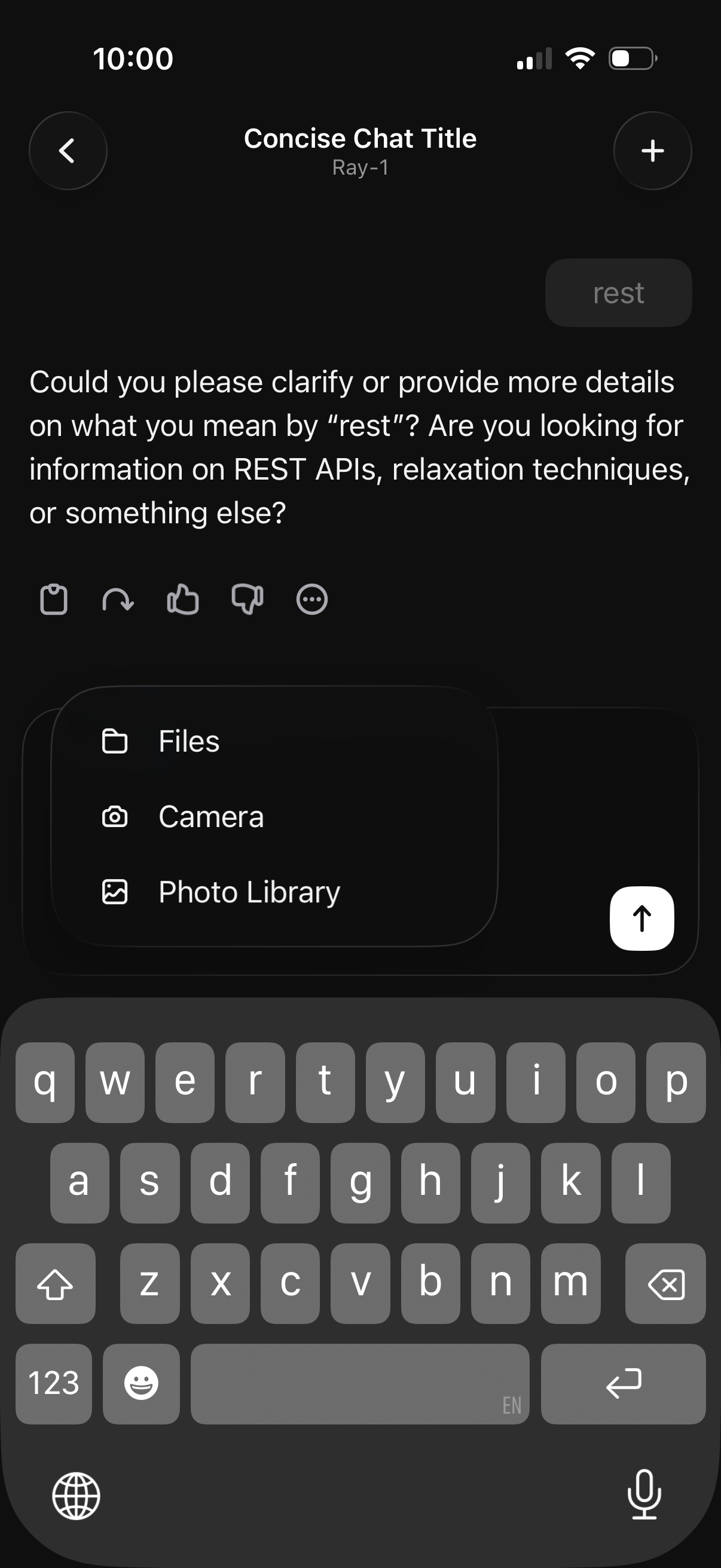
AI chatbot conversation screen in dark mode showing a response with quick action icons (copy, regenerate, like/dislike, more options) and a message composer. An attachment picker is open from the input bar offering to add Files, take a Camera photo, or choose from Photo Library, with a send button ready to submit.
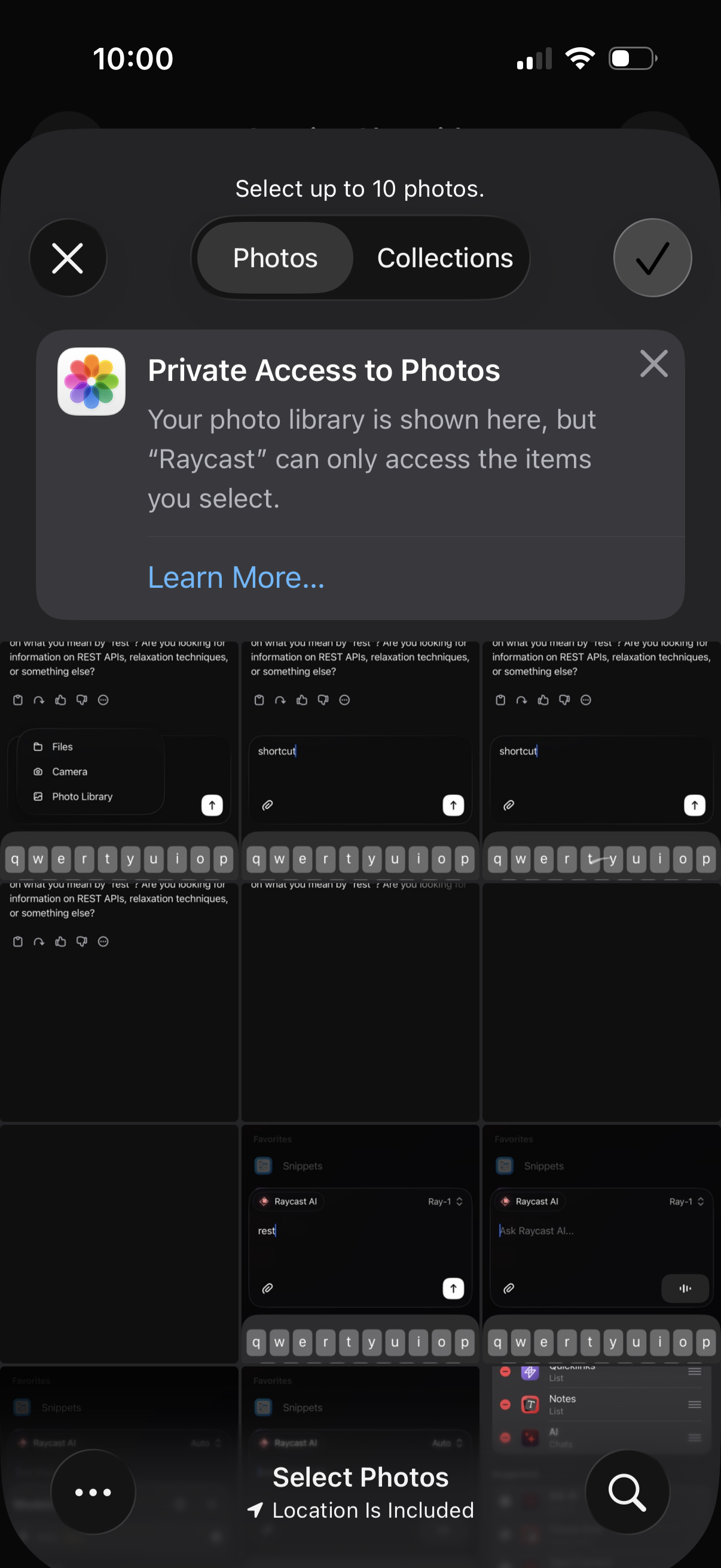
iOS photo picker modal prompting the user to select up to 10 photos, with tabs to switch between Photos and Collections and a grid of recent images. A “Private Access to Photos” permission notice explains that the app can only access selected items, with close and confirm checkmark actions.
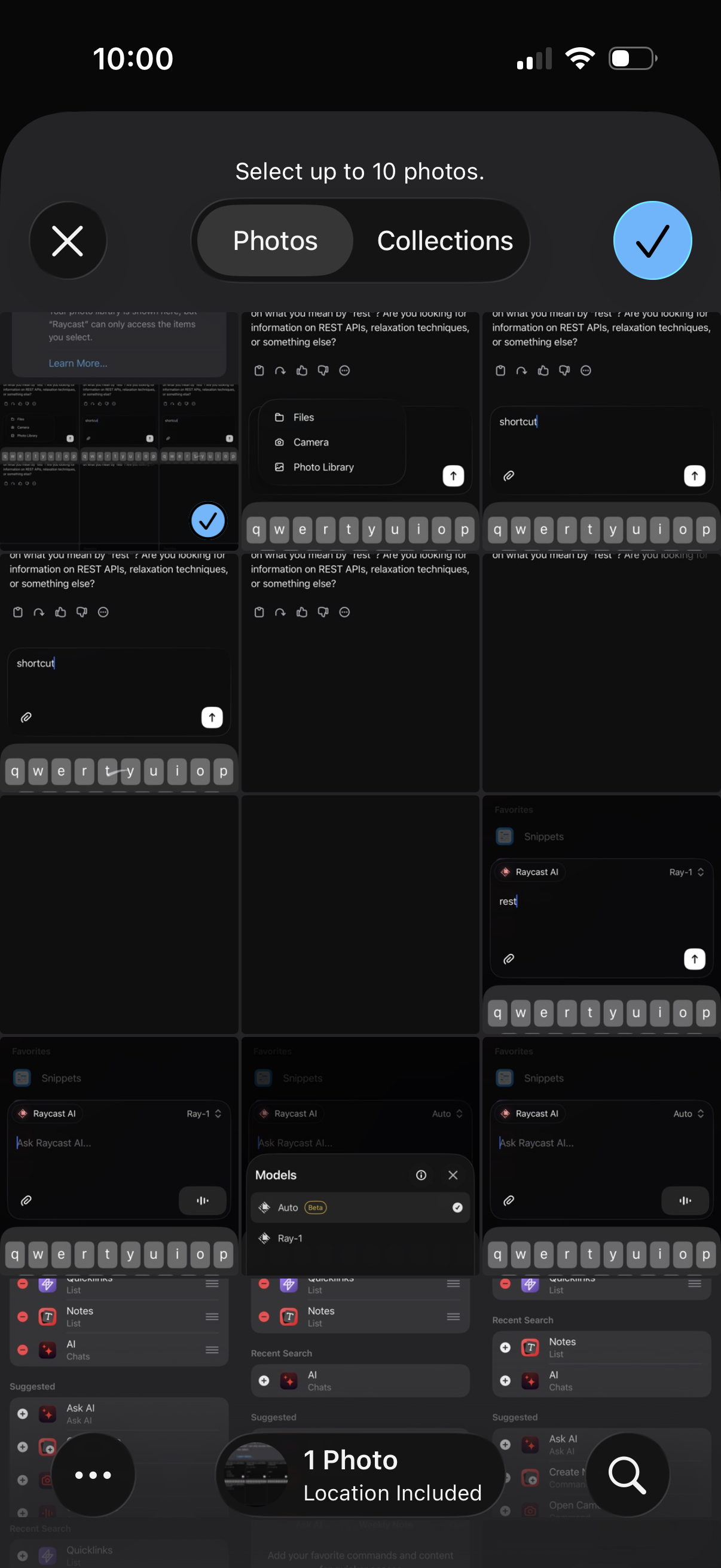
Multi-select photo picker in a dark-themed iOS gallery showing a grid of recent images with a “Select up to 10 photos” header and tabs to switch between Photos and Collections. Users can select images with checkmarks, cancel with an X, confirm selection with a check button, and use the bottom search/control bar showing selected item count and location info.
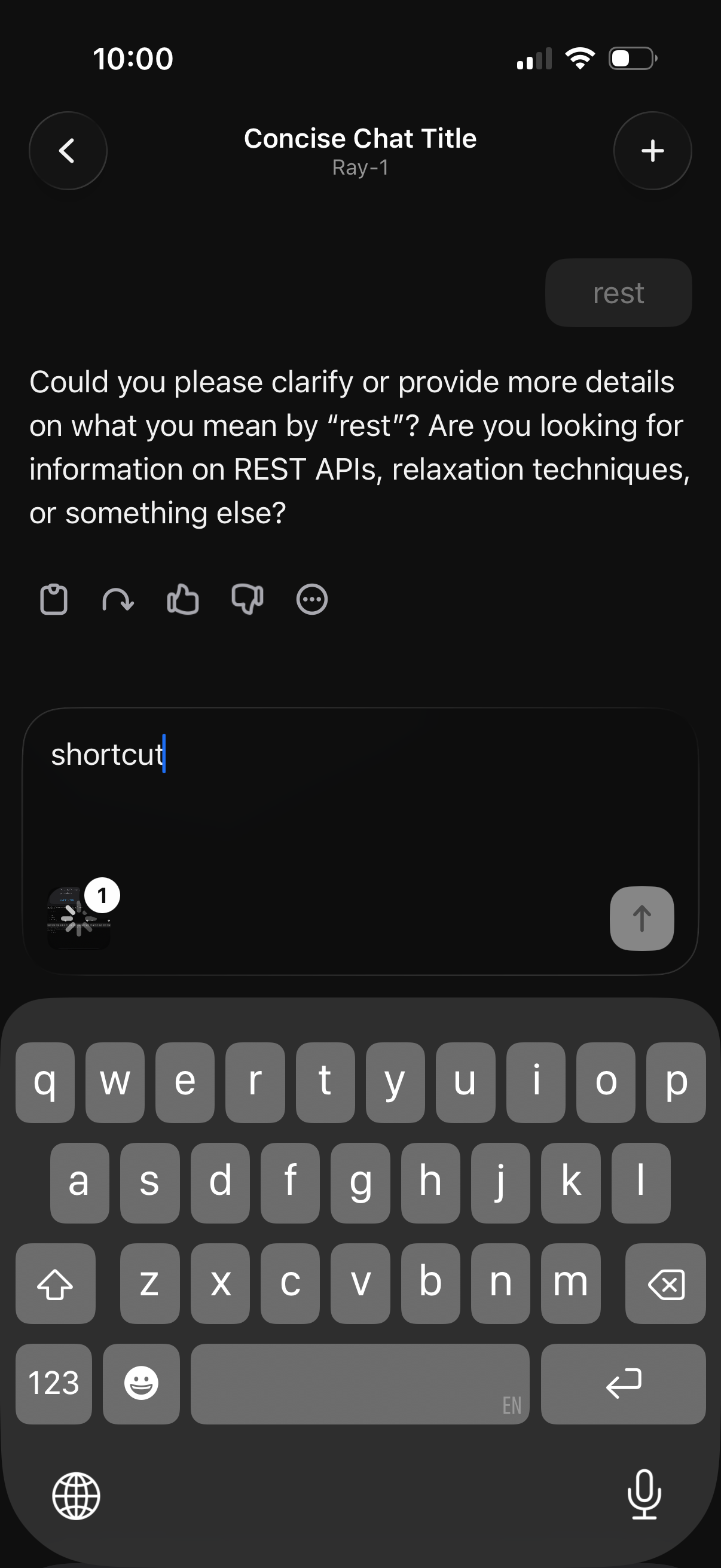
Dark-mode AI chat conversation screen showing an assistant response with quick reaction actions (copy, regenerate, like/dislike, more) and a message composer with text input, attachment/preview, and send button. Header includes back navigation, chat title, and an add/new chat or options button.
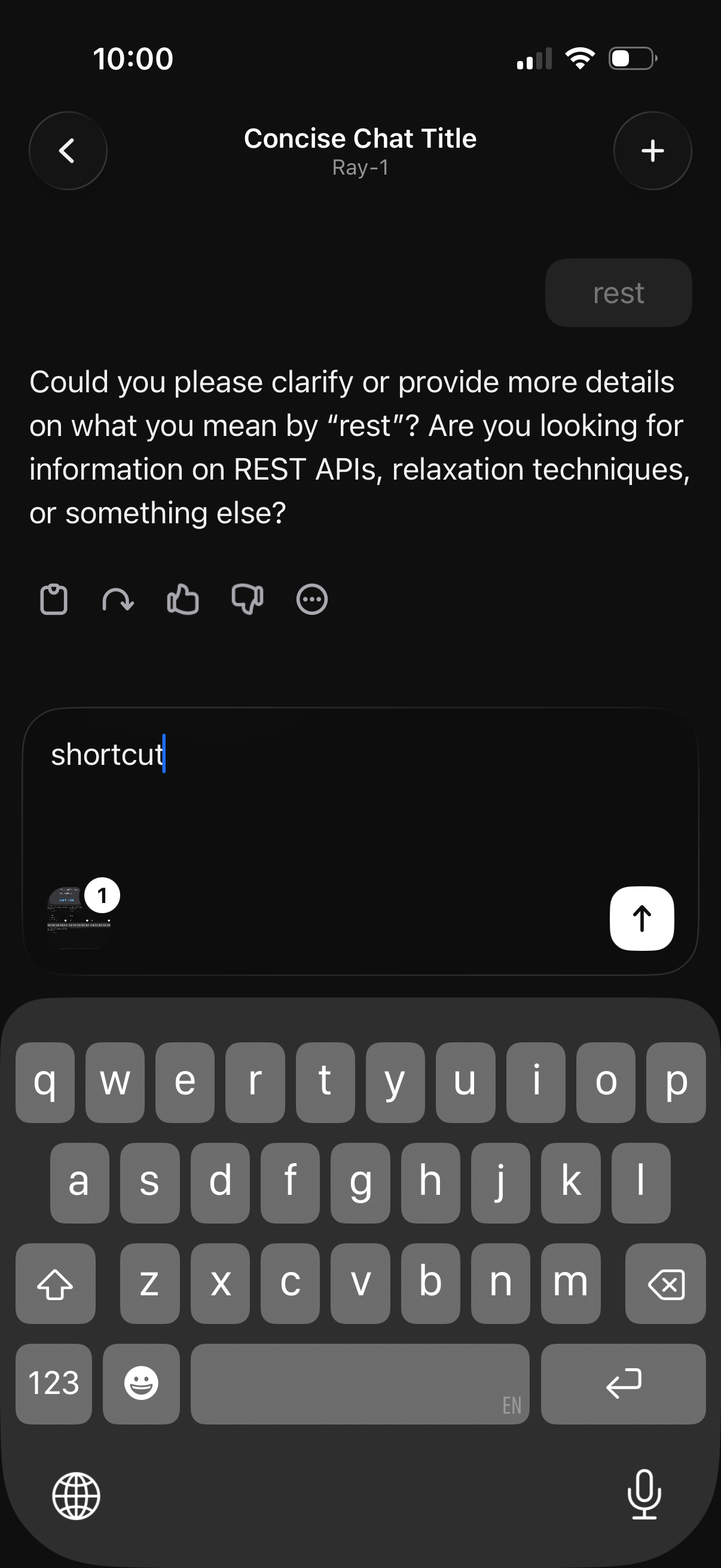
Dark-mode AI chat conversation screen showing a bot response with message actions like copy, regenerate/reply, thumbs up/down feedback, and more options. Includes a top navigation bar with back and add/new chat buttons, plus a message composer with keyboard and send button for typing a new prompt.
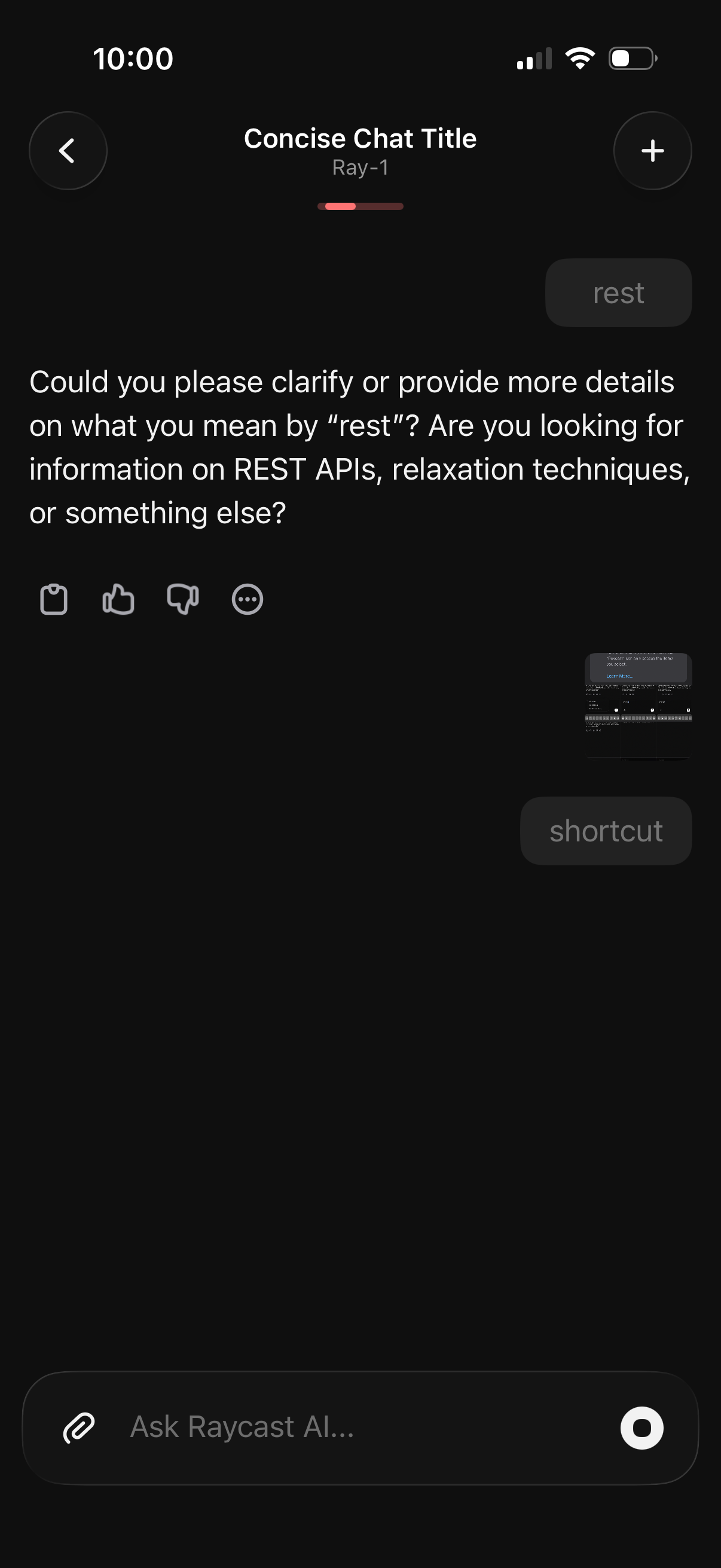
Dark-mode AI chat conversation screen showing an assistant message clarifying a user’s ambiguous prompt, with options to like/dislike or provide feedback on the response. Includes a back button, add/new chat control, input field with attachment icon, and a voice/microphone send button for asking a new question.
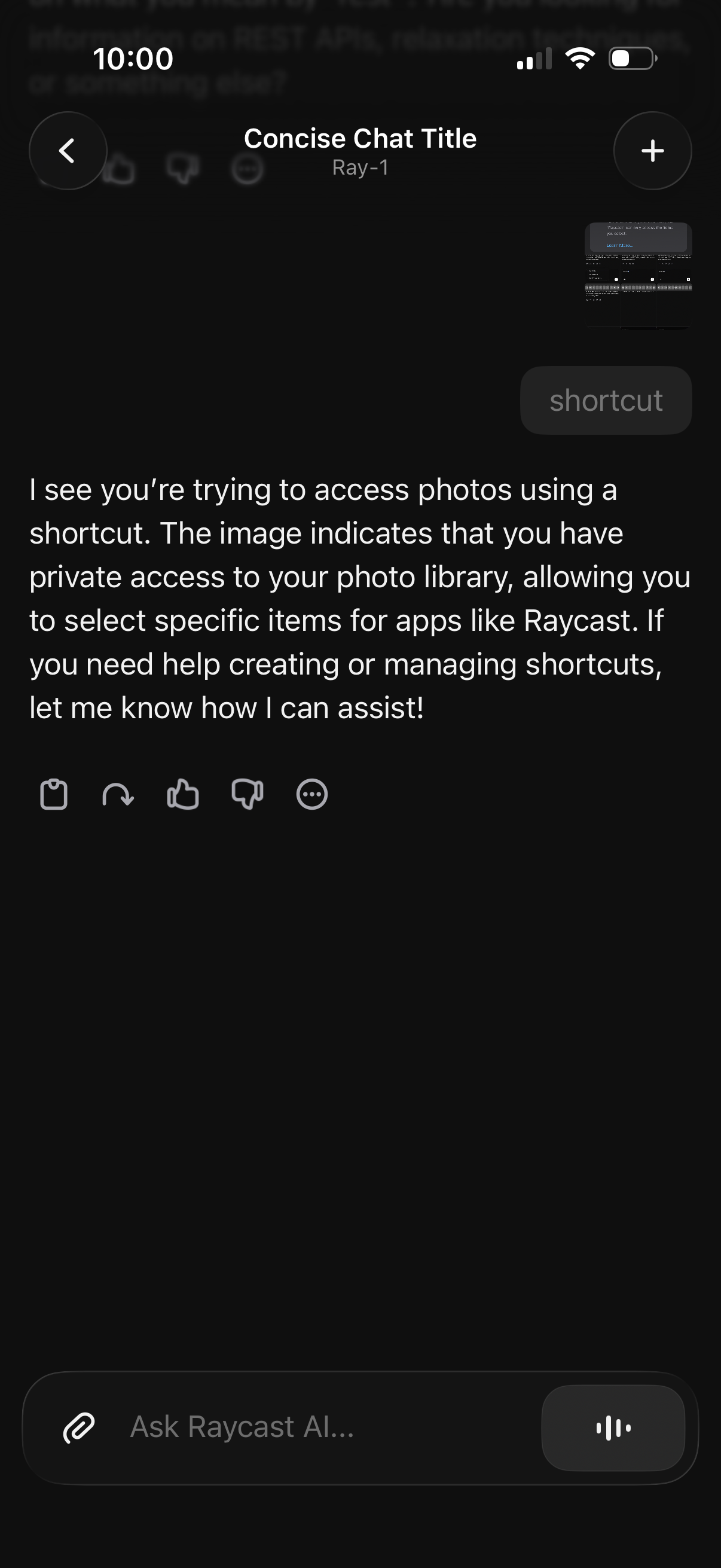
AI chat conversation screen showing an assistant response and quick reaction/actions (copy, reply, thumbs up/down, more options). Includes a message composer with attachment button, text input to ask the AI, and a voice input/microphone control, plus navigation back and an add/new chat button in the header.