Passkey Setup
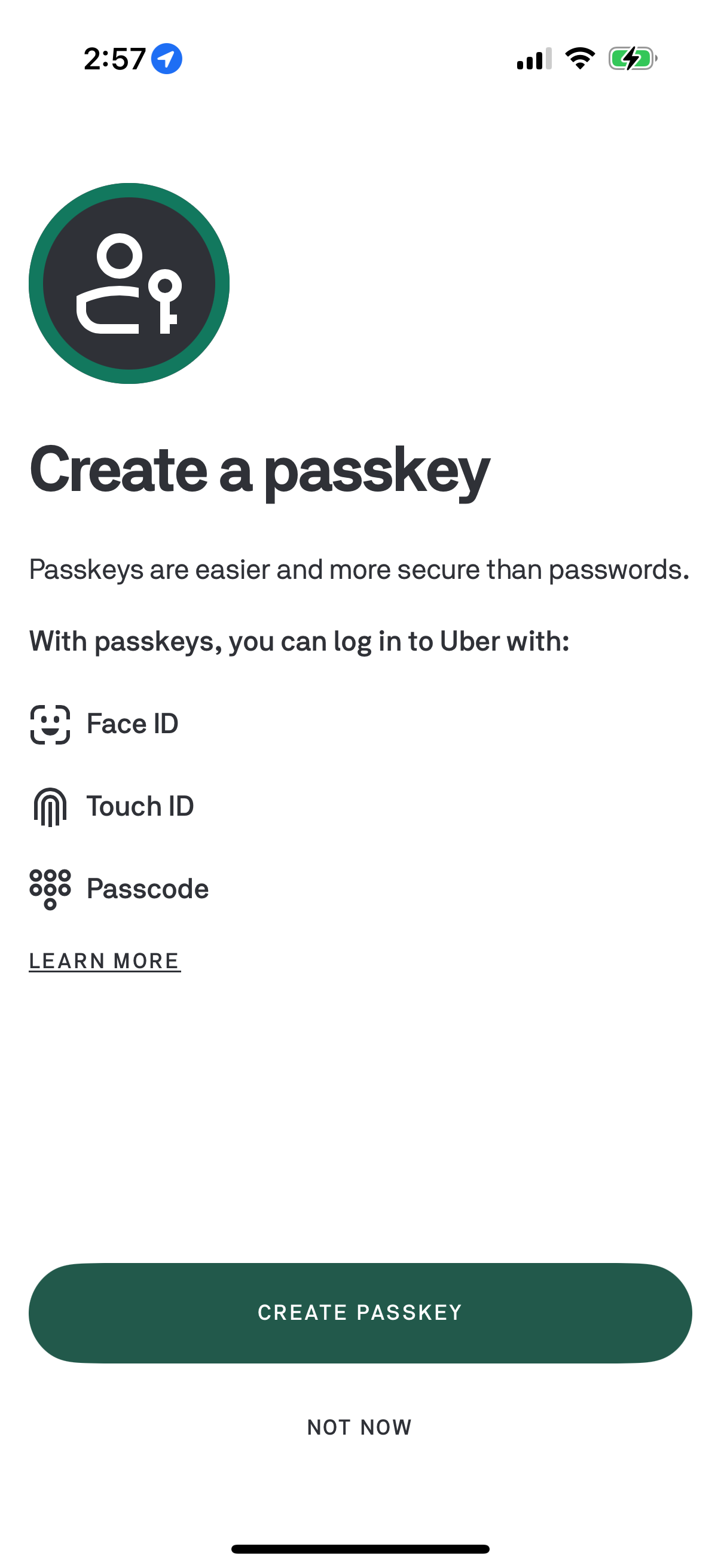
Authentication setup screen prompting users to create a passkey as a more secure alternative to passwords, explaining sign-in methods like Face ID, Touch ID, or device passcode. Provides primary actions to create the passkey or skip for now, plus a “Learn more” link for additional details.
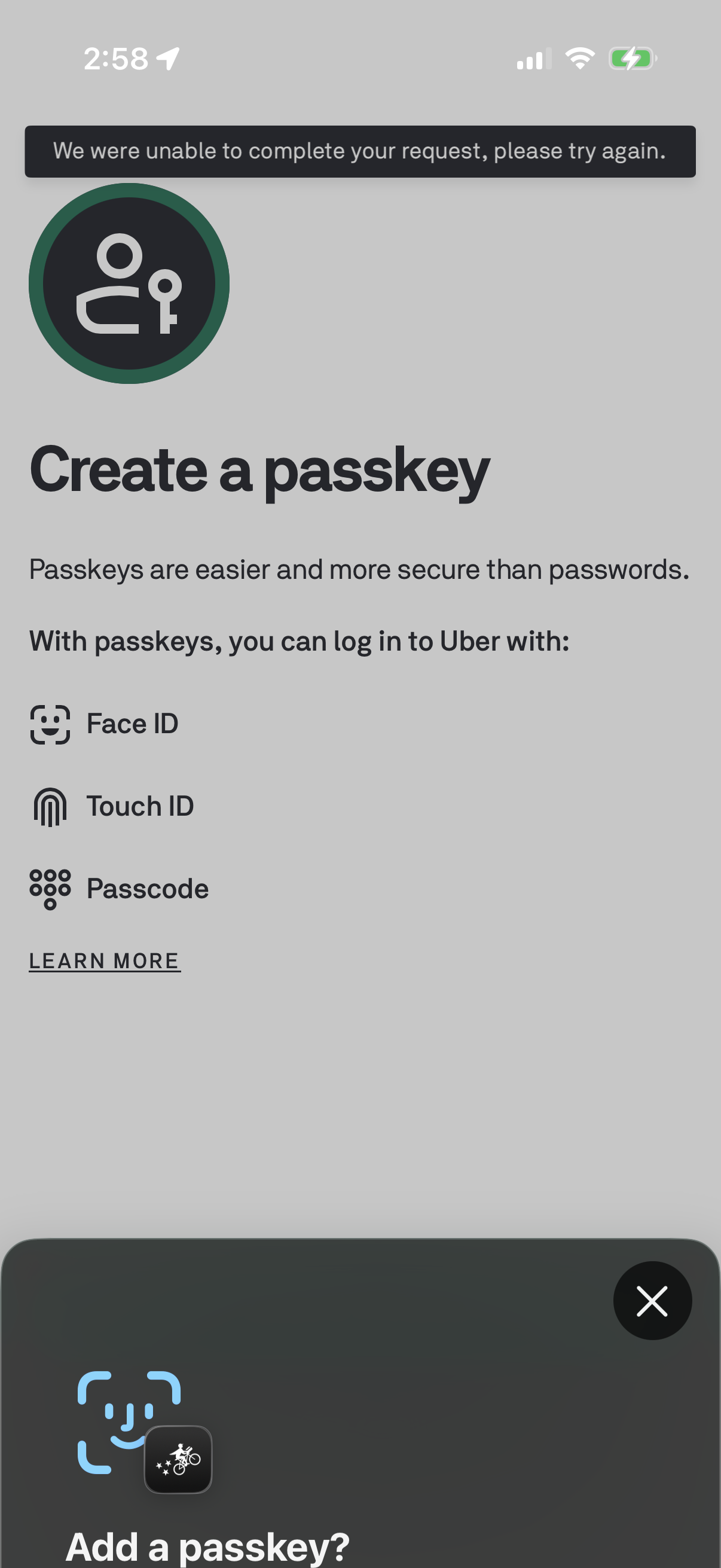
Passkey creation onboarding screen explaining that passkeys are more secure than passwords and can be used to log in with Face ID, Touch ID, or device passcode, with a “Learn more” link. A top error banner indicates the request couldn’t be completed and prompts the user to try again while a bottom sheet asks to add a passkey with a close option.
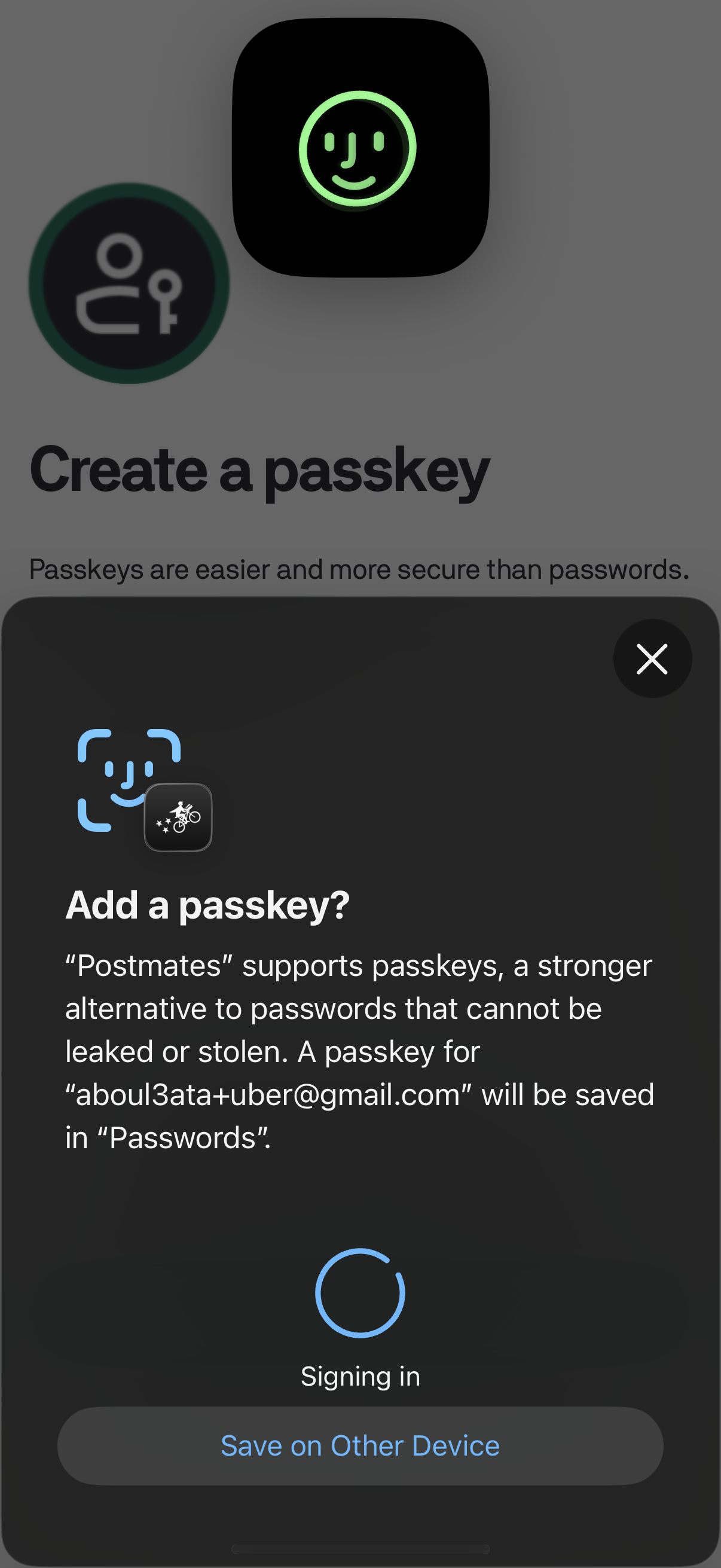
Modal prompt during sign-in asking the user to add/create a passkey for an app as a secure alternative to passwords, showing Face ID/passkey scanning feedback and “Signing in” progress. Includes actions to close the dialog or choose “Save on Other Device” to store the passkey elsewhere.
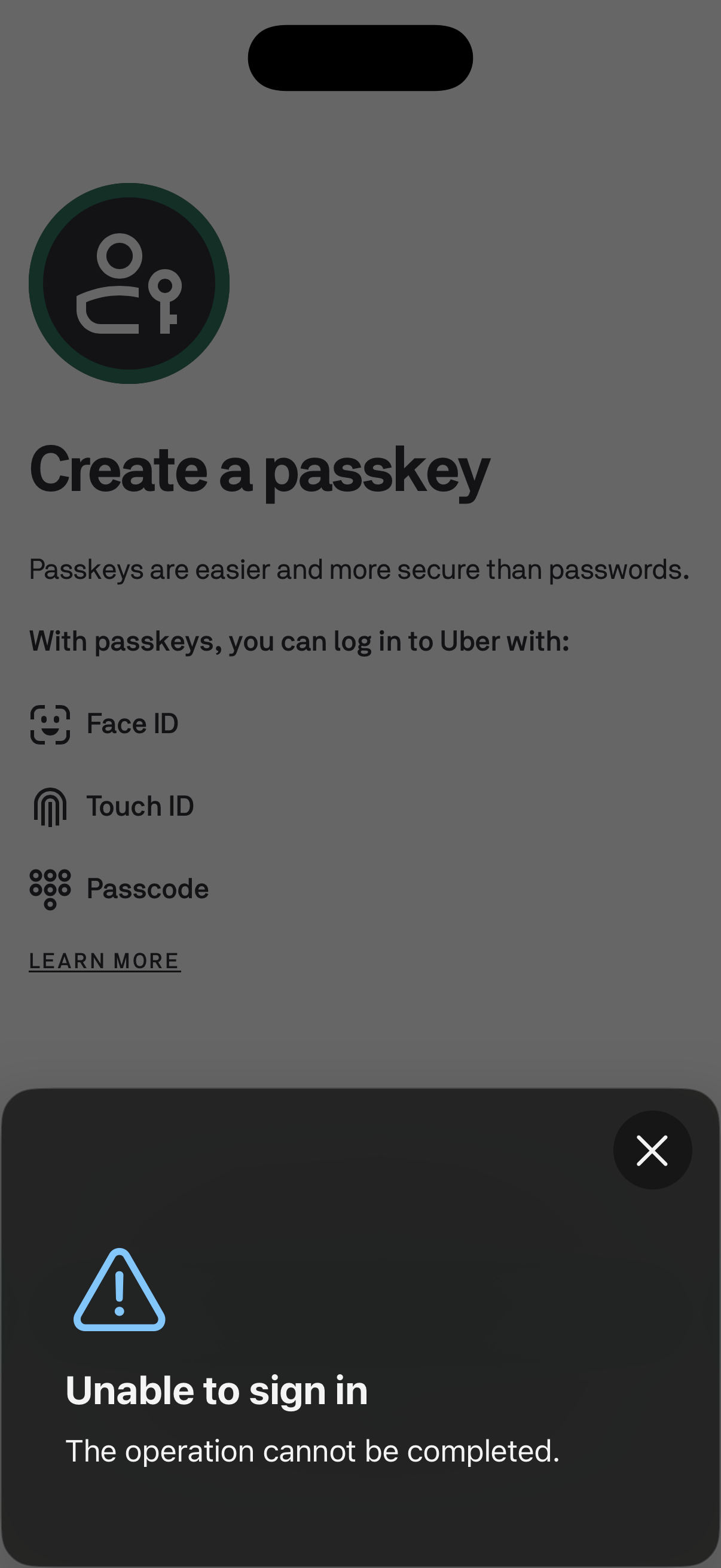
Authentication setup screen prompting the user to create a passkey for passwordless sign-in, explaining that they can log in using Face ID, Touch ID, or device passcode with a “Learn more” link. A bottom error sheet overlays the page showing an “Unable to sign in” message with a close (X) action.

Minimal black loading or splash screen with a centered bicycle courier icon, indicating the app is launching or processing with no user actions available.
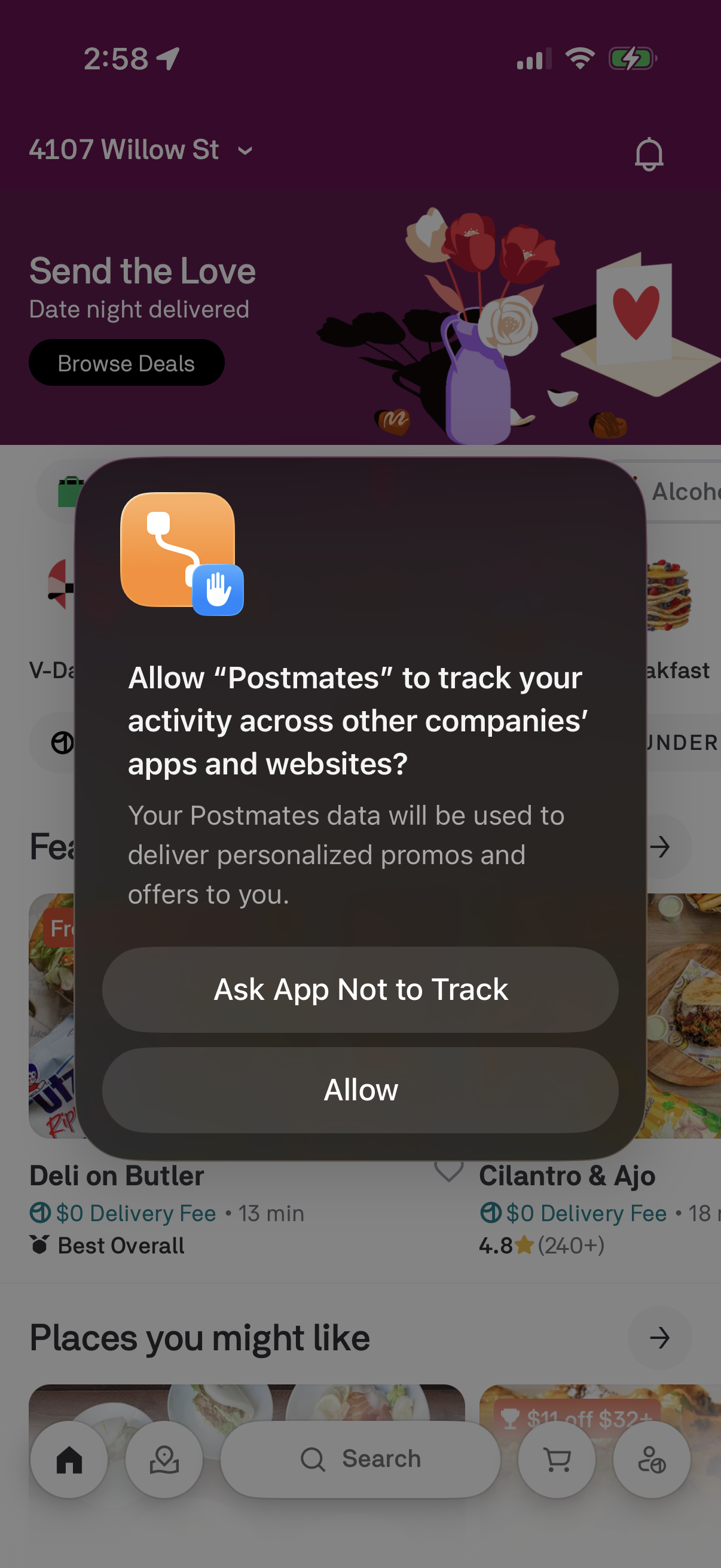
An iOS App Tracking Transparency permission modal asks whether to allow the app to track activity across other apps and websites for personalized promos, with primary actions to “Ask App Not to Track” or “Allow,” shown over a food delivery home screen with deals and search.