Onboarding
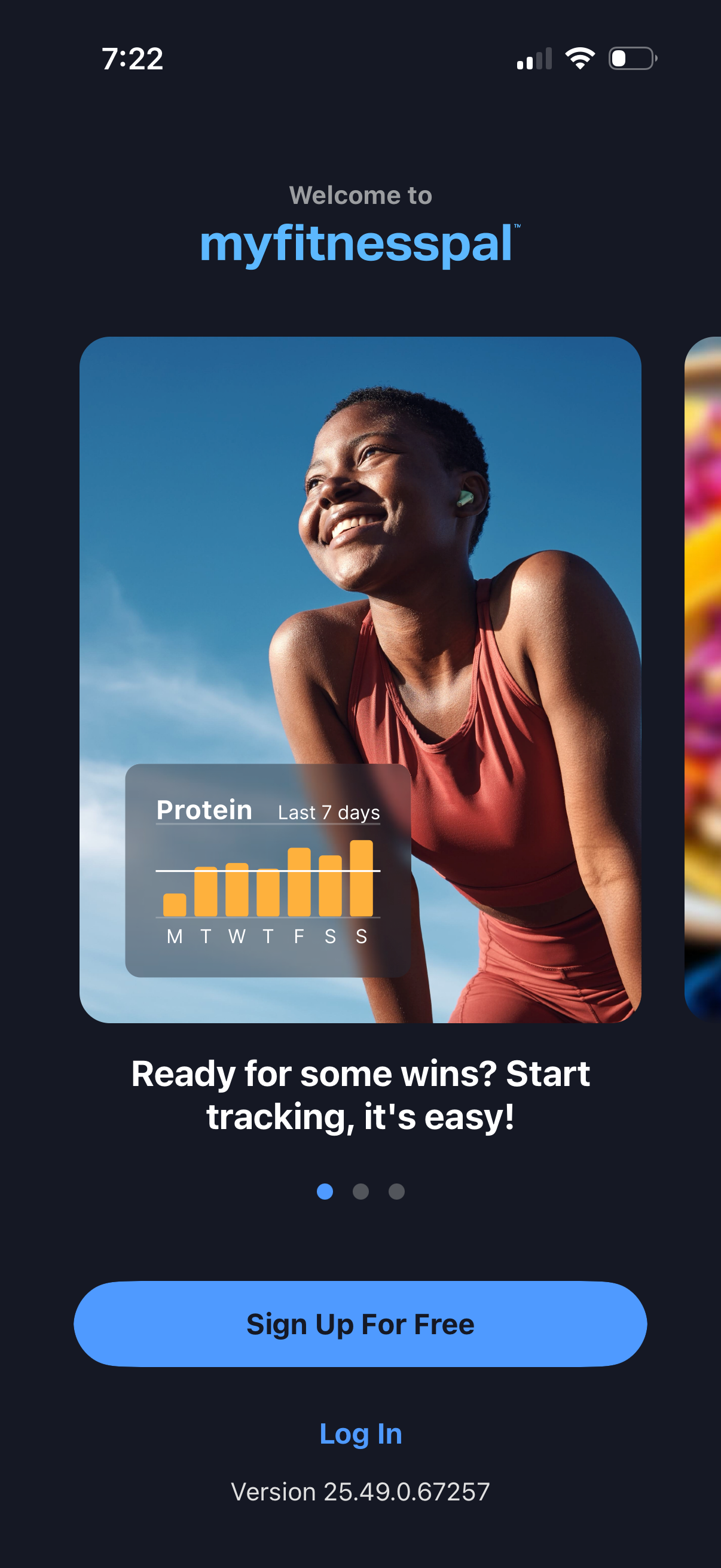
Welcome/onboarding screen for a fitness and nutrition tracking app (MyFitnessPal) with a carousel highlighting progress insights like protein intake charts. Primary actions are to sign up for free or log in to start tracking.
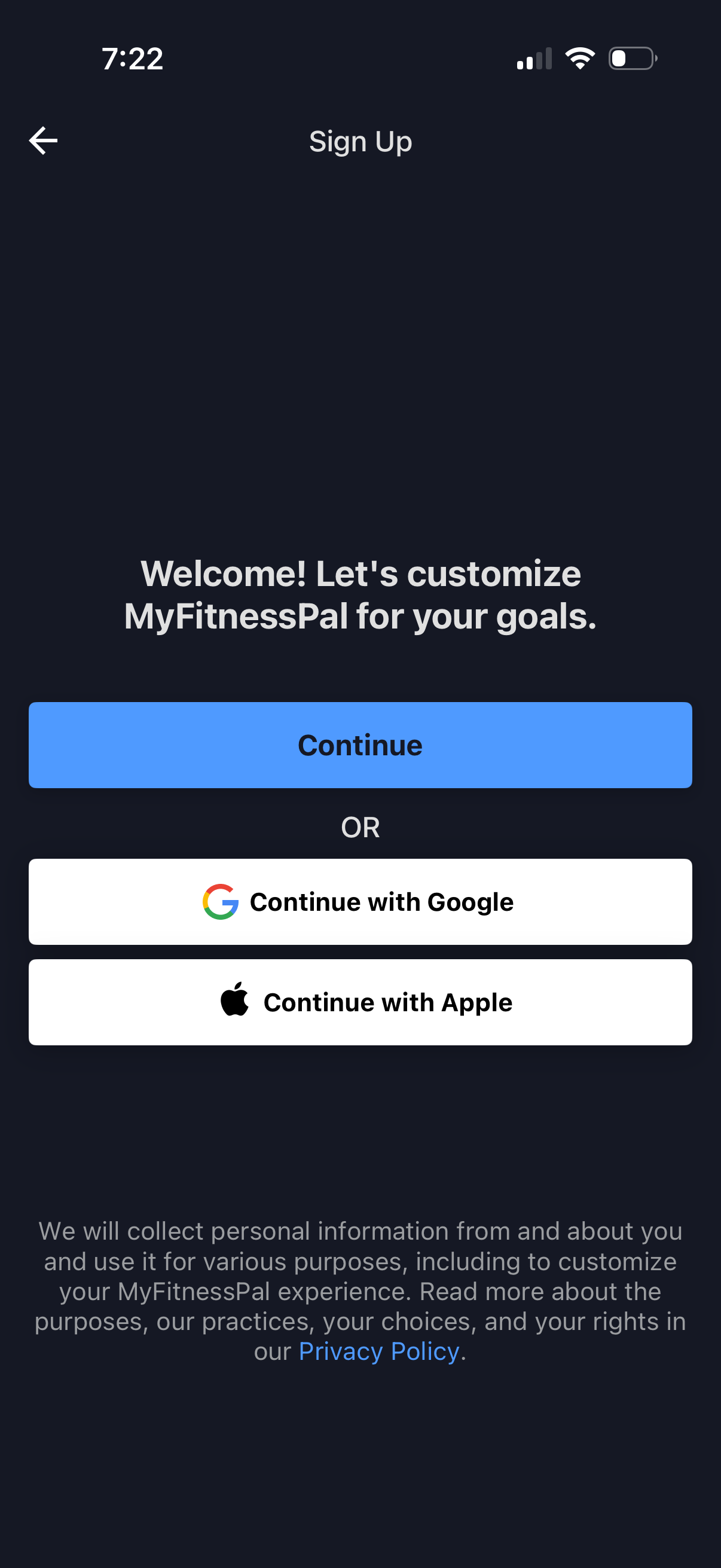
Fitness app sign-up/welcome screen prompting users to customize the experience for their goals, with a primary Continue button and alternative social sign-in options to continue with Google or Apple. Includes a back arrow and privacy policy/consent text about collecting personal information.
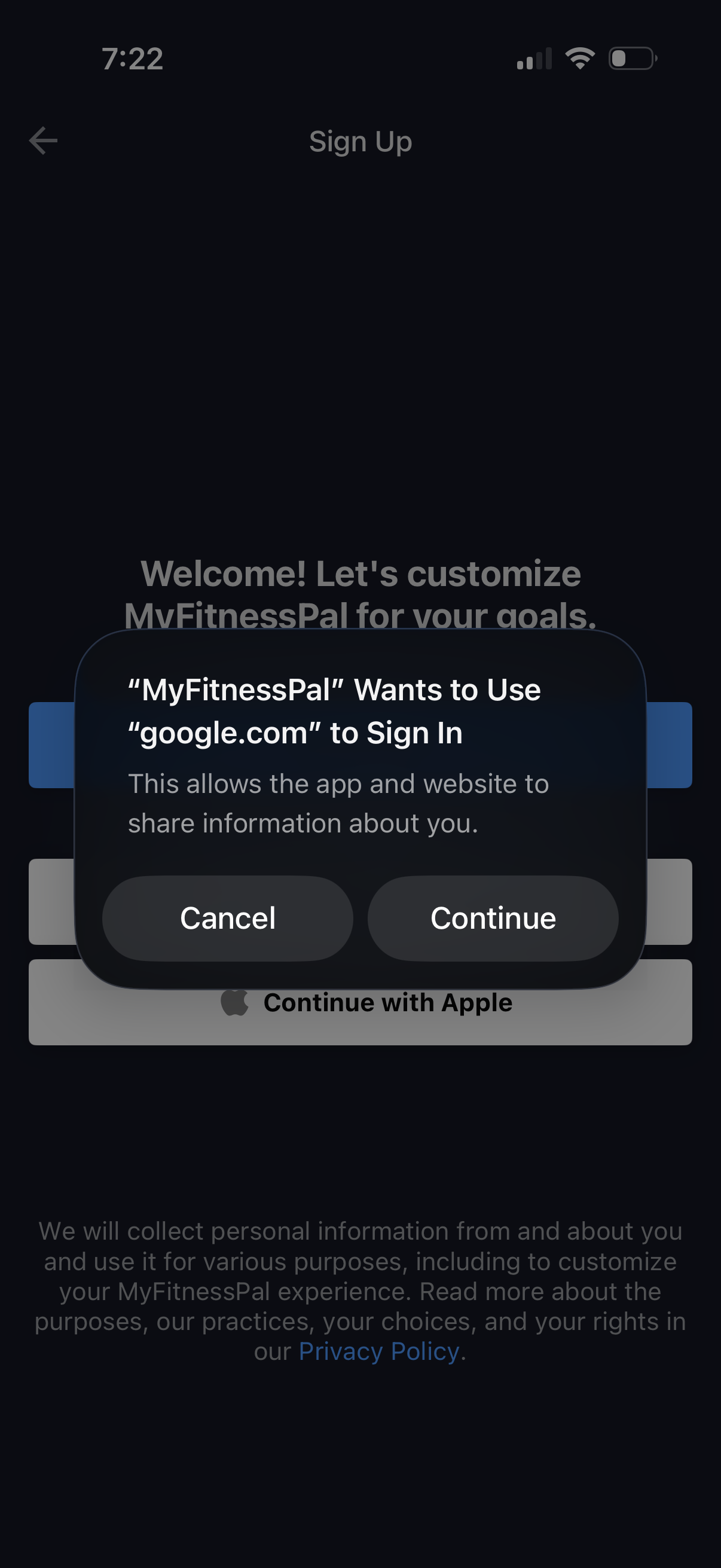
Sign up screen for a fitness app with social login options, overlaid by an iOS permission dialog asking to use a web account (google. com) to sign in.
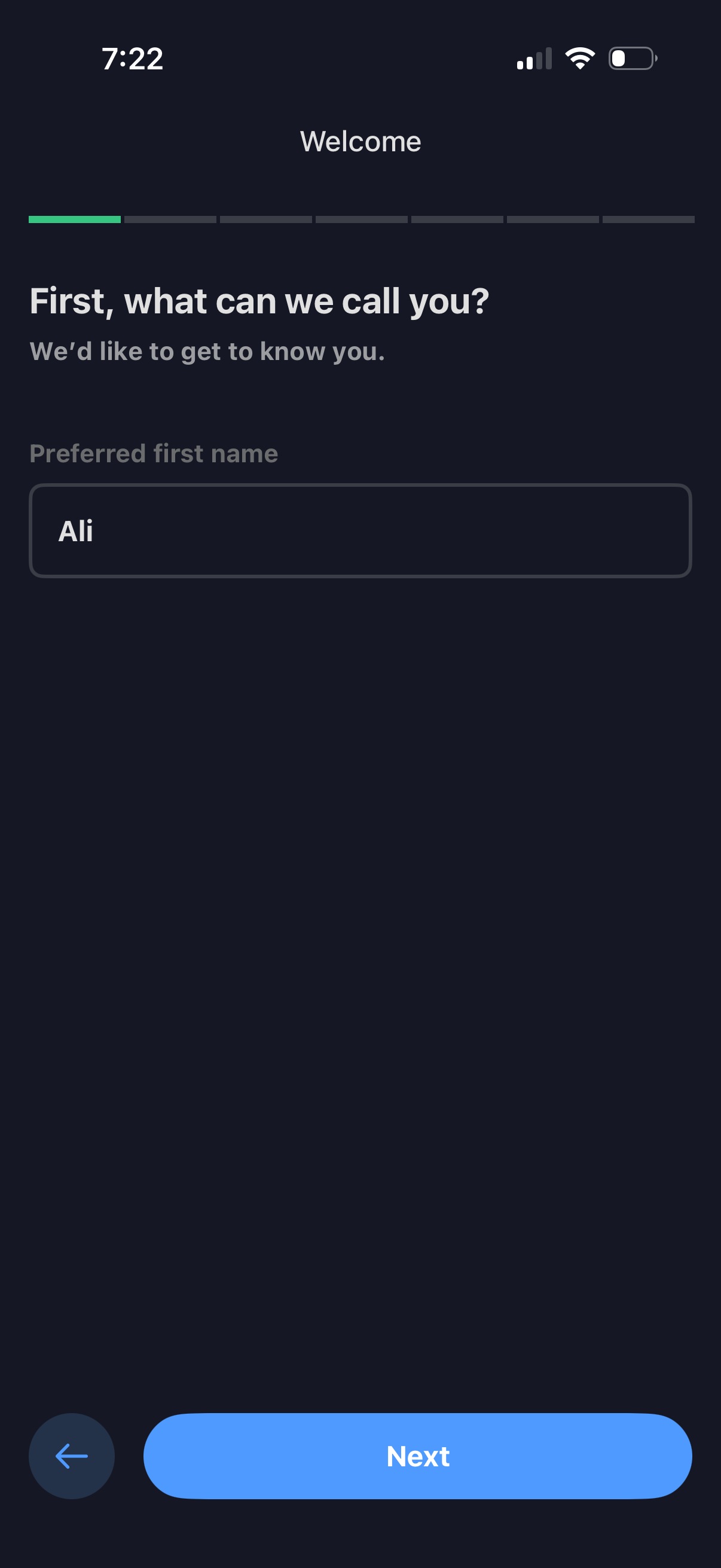
Onboarding welcome screen asking the user for their preferred first name with a single text input field and a progress indicator. Includes back navigation and a primary “Next” button to continue setup.
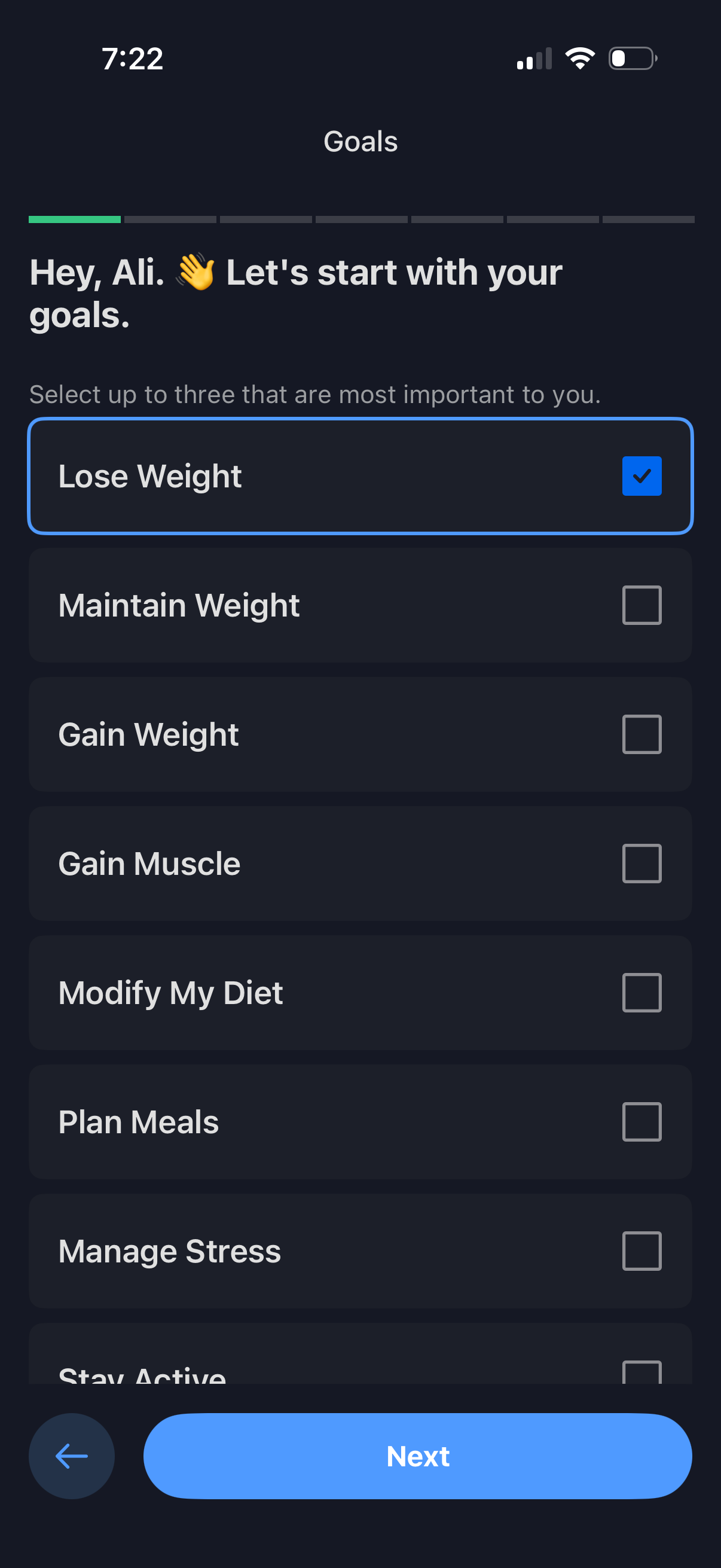
Onboarding goals selection screen for a fitness or wellness app where users choose up to three primary objectives (e. g.
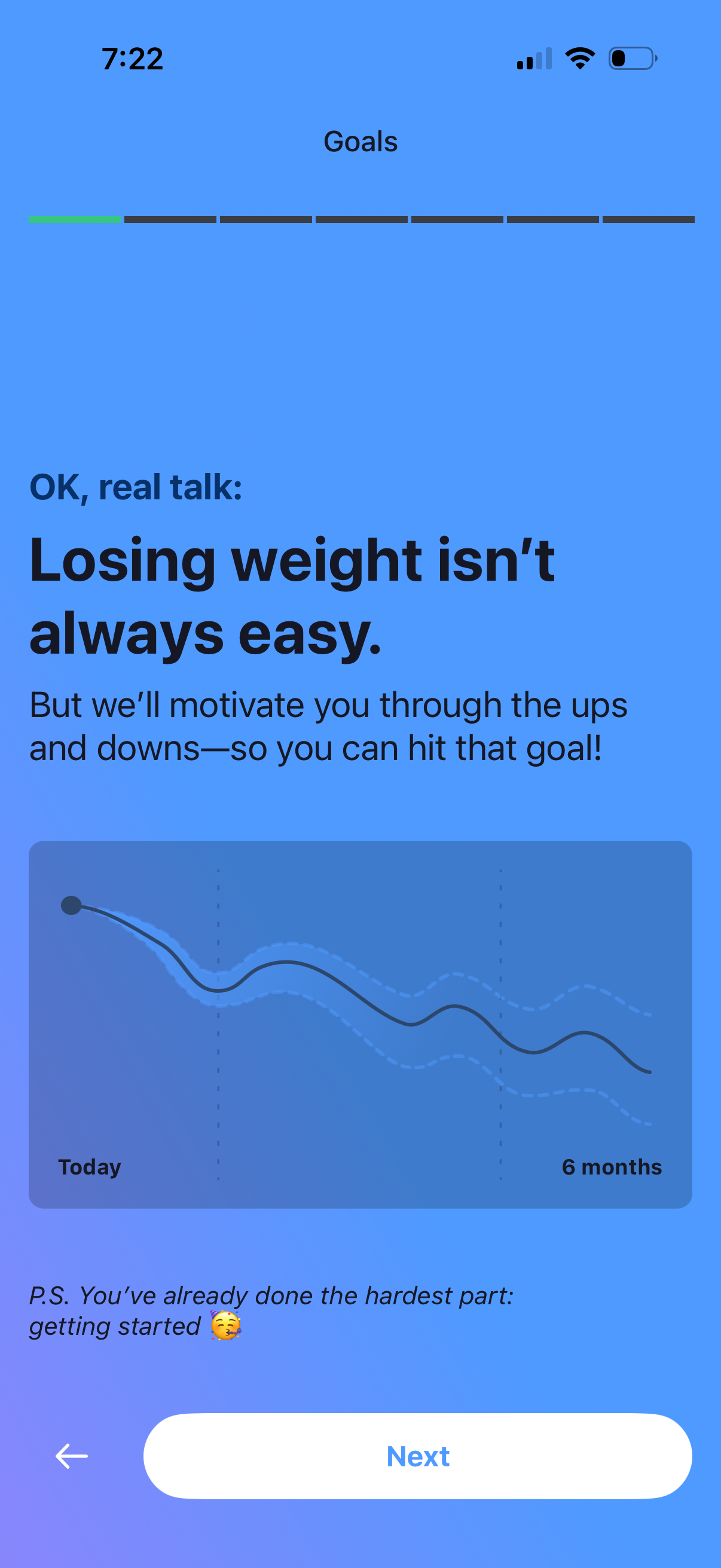
Fitness/weight-loss onboarding screen in a “Goals” flow that reassures users about the difficulty of losing weight and promises motivation, with a progress indicator, illustrative timeline chart, back navigation, and a primary “Next” button to continue setup.
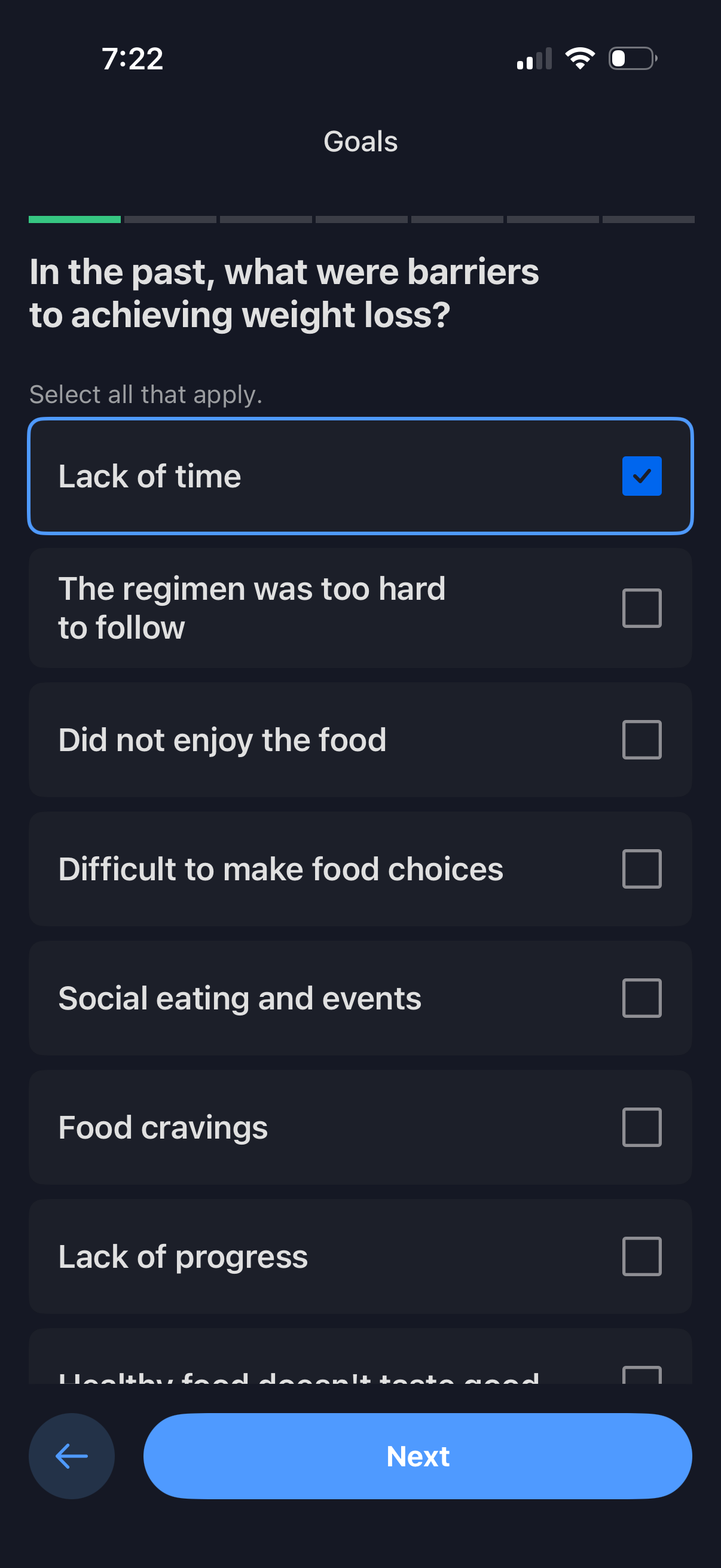
Onboarding goals survey screen asking users to select past barriers to achieving weight loss using a multi-select checklist (e. g.
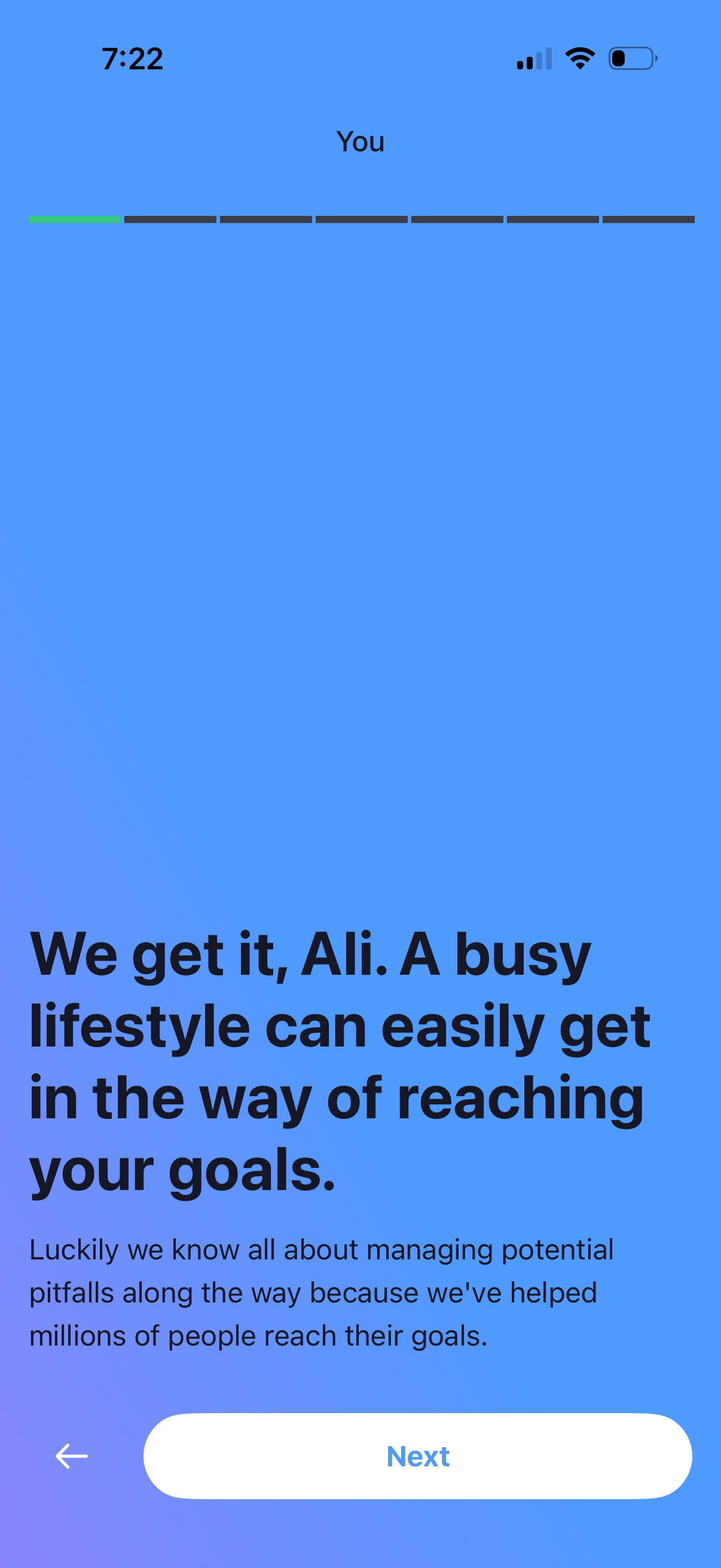
Personalized onboarding/intro screen in a goal or habit app that addresses the user’s busy lifestyle and sets expectations for reaching goals. Includes a top step progress indicator, a back arrow, and a large “Next” button to continue the onboarding flow.
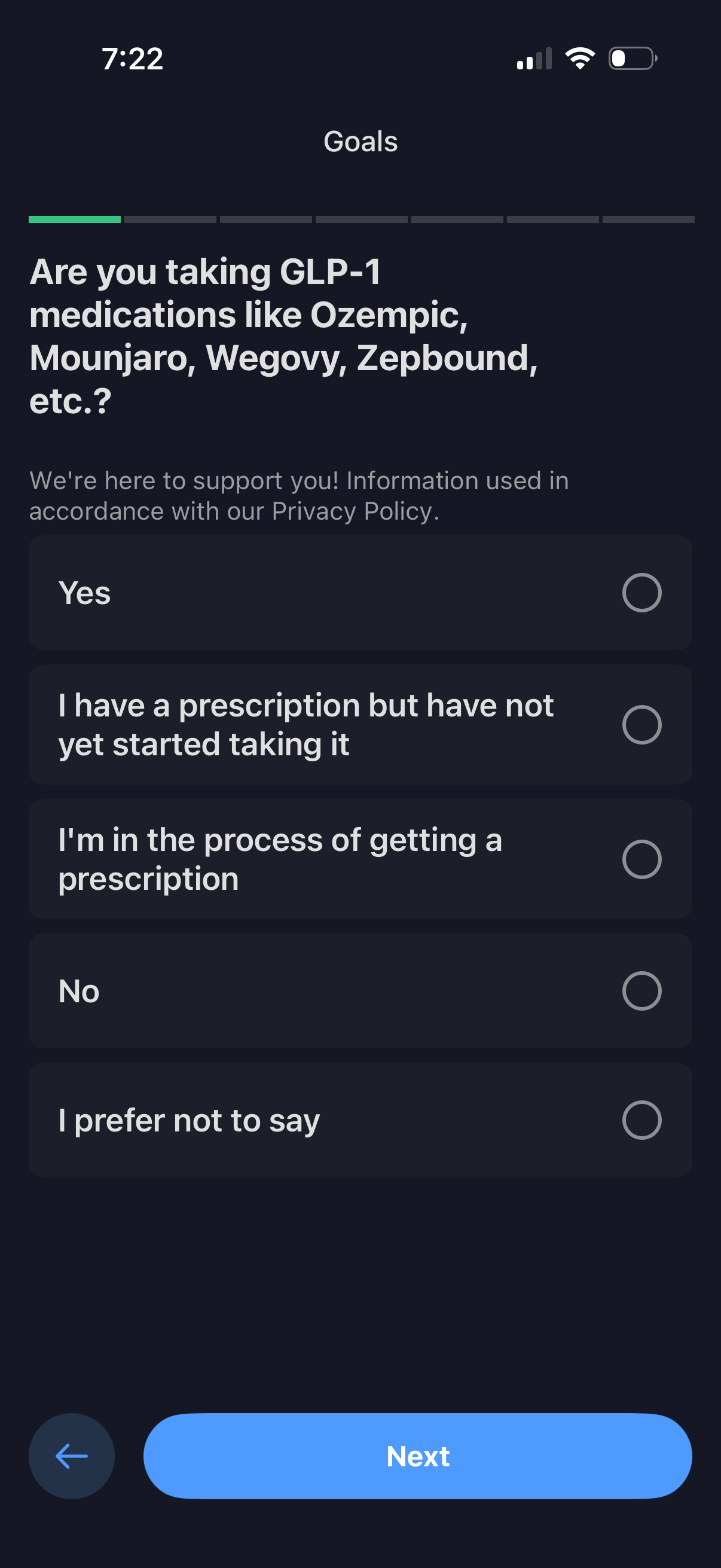
Health goals onboarding question screen asking whether the user is taking GLP‑1 medications (e. g.
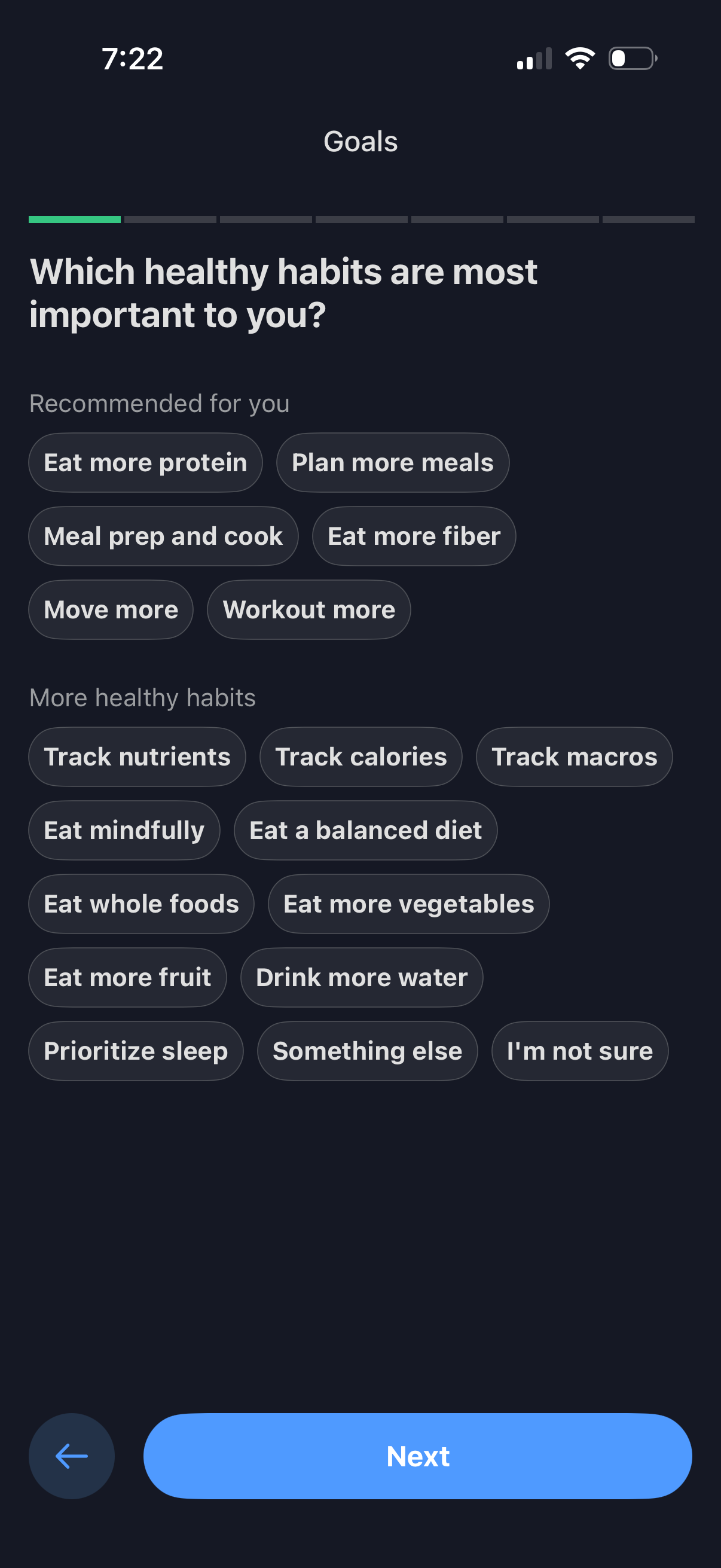
Goal-setting onboarding screen for a health/nutrition app asking “Which healthy habits are most important to you? ” with selectable pill chips for recommended and more habit categories (e.
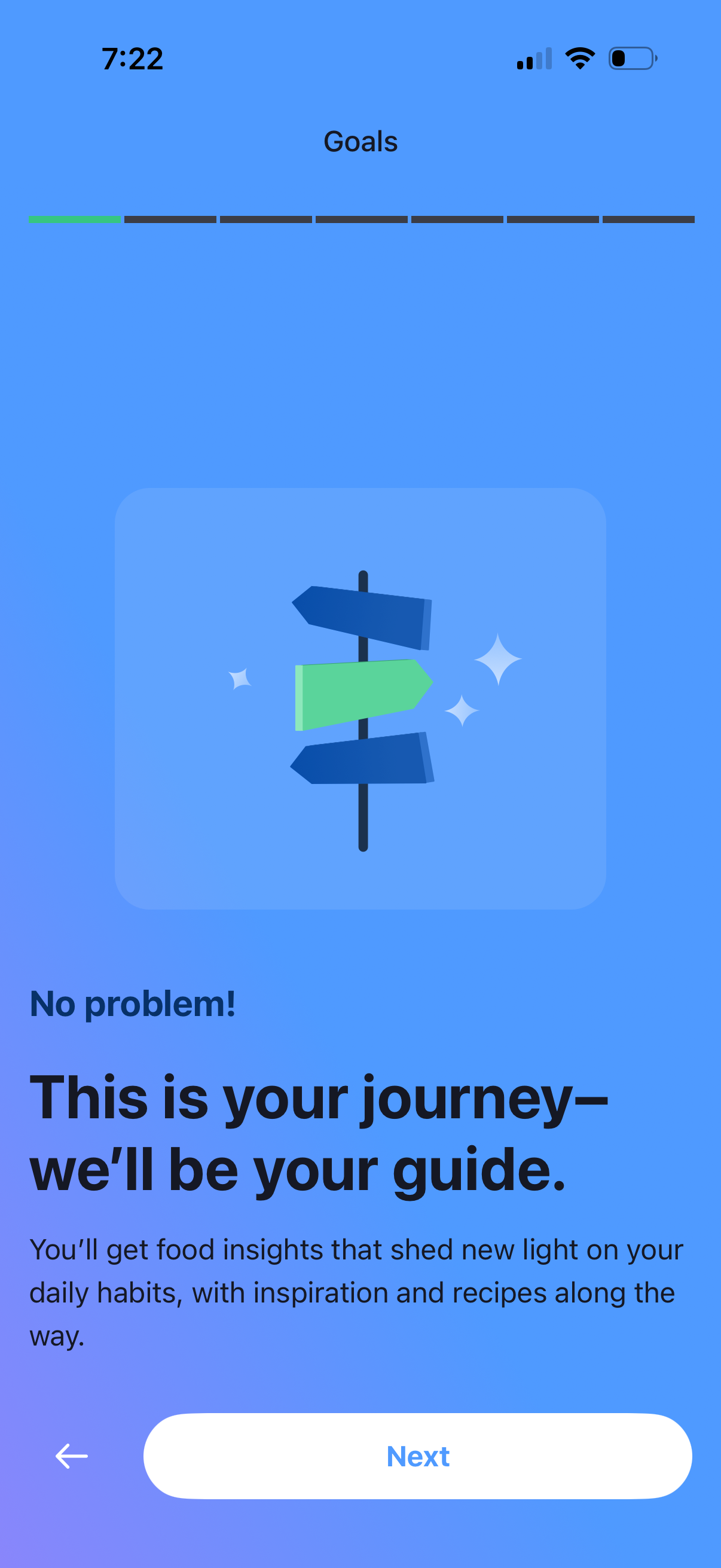
Onboarding “Goals” step for a nutrition/food tracking app with a progress indicator, an illustration and explanatory text about receiving food insights, plus back navigation and a primary “Next” button to continue setup.
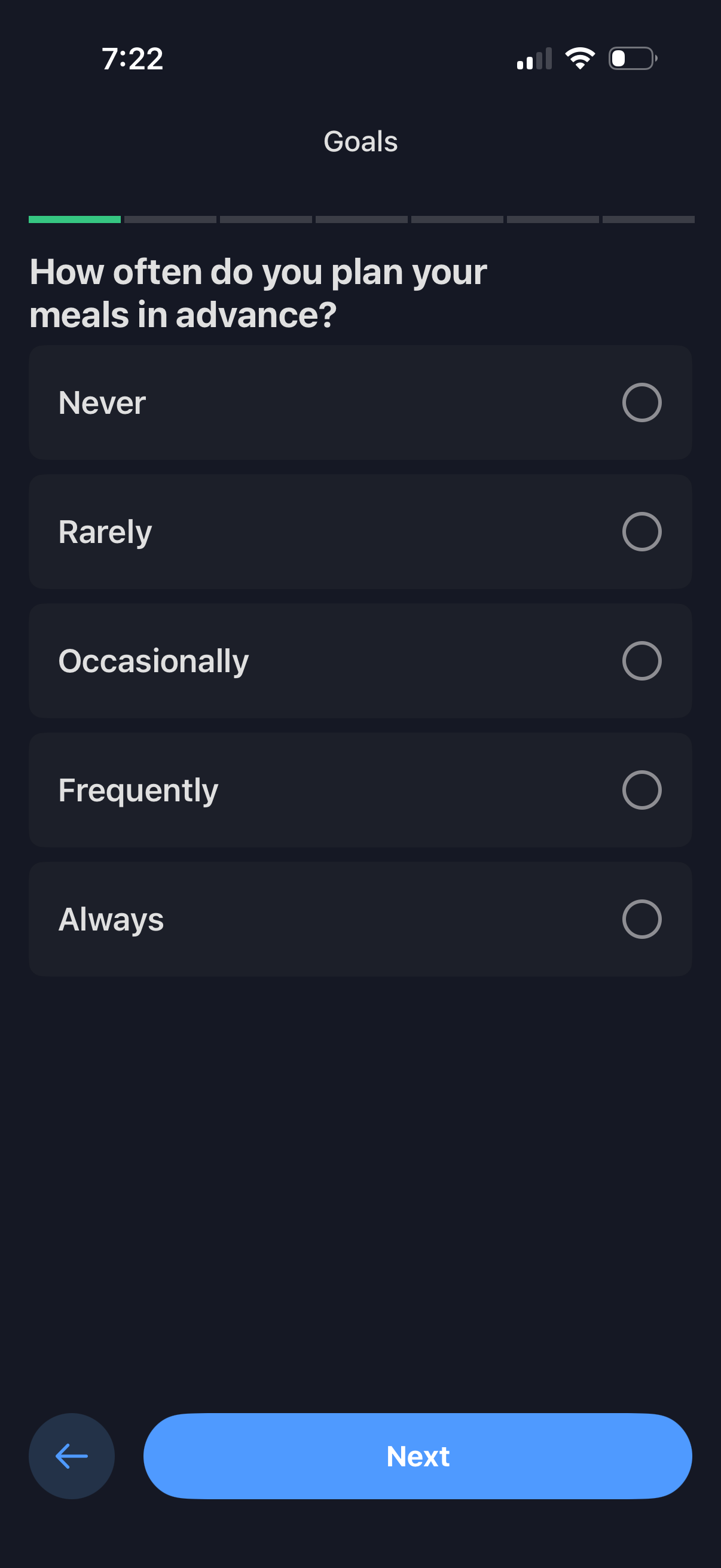
Goal-setting onboarding questionnaire screen asking how often the user plans meals in advance, with single-select radio options from Never to Always and a progress indicator. Includes back navigation and a primary Next button to continue.
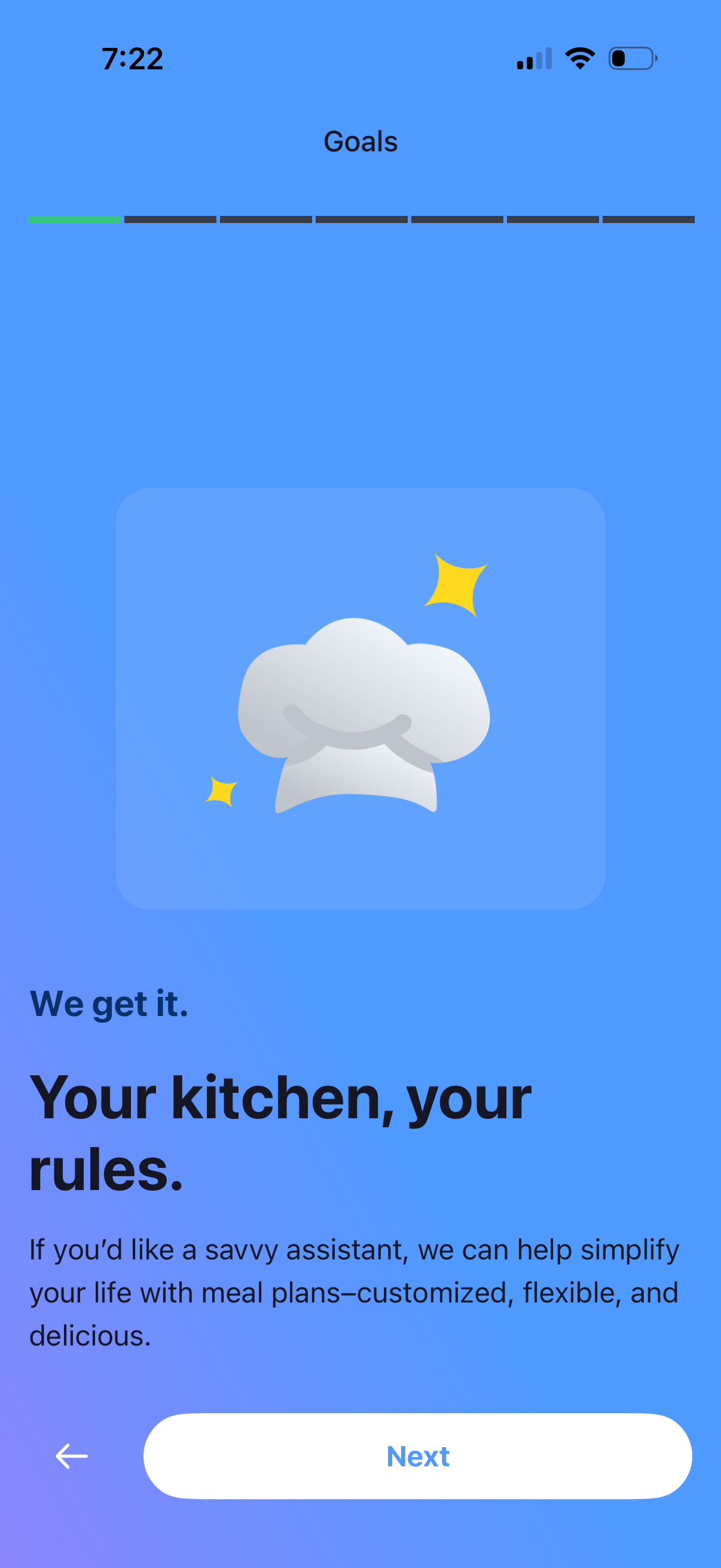
Onboarding step in a meal planning app under “Goals,” introducing a personalized kitchen/meal plan assistant with an illustration, progress indicator, and messaging about customized flexible meal plans. Primary action is a “Next” button to continue setup, with a back arrow to return.
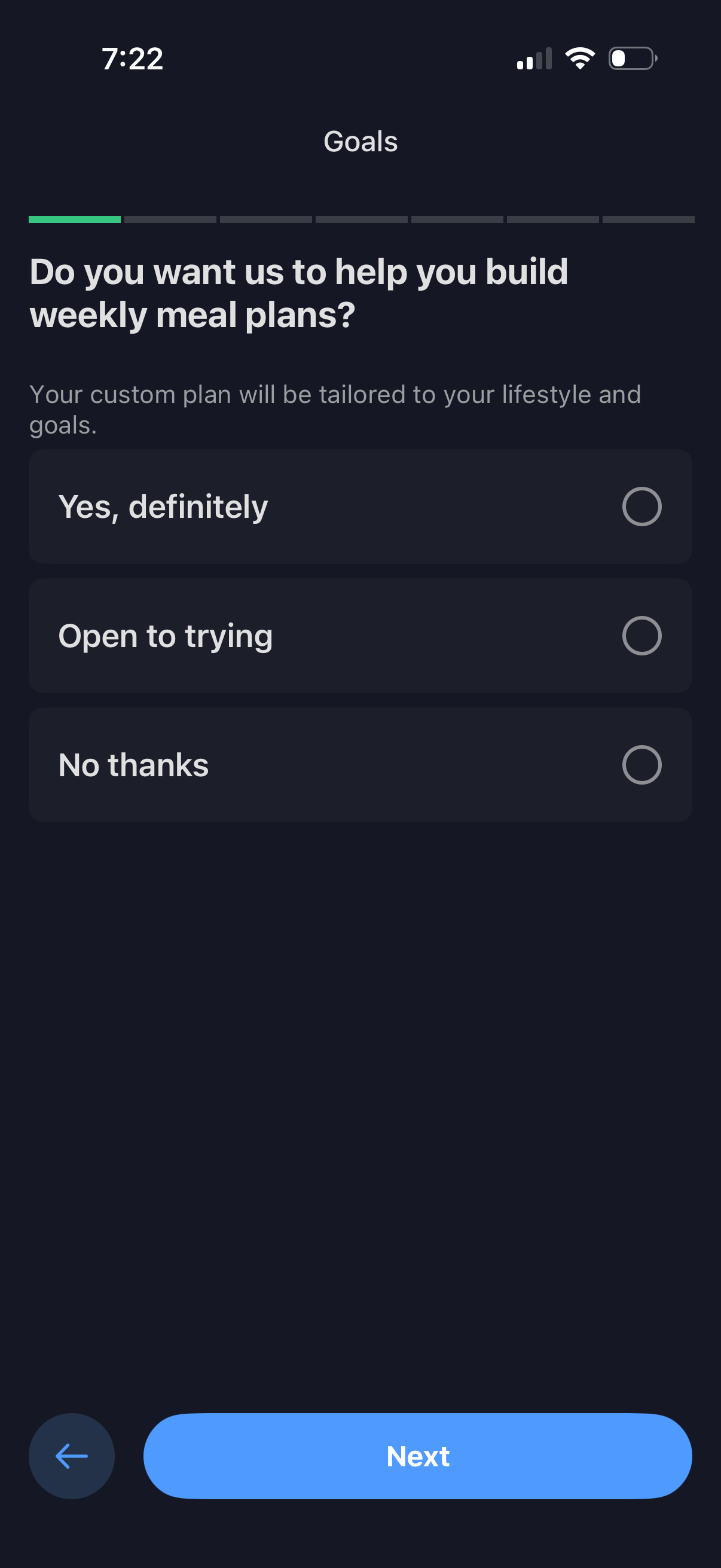
Onboarding goals questionnaire screen in a meal planning app asking whether the user wants help building weekly meal plans, with single-select radio options (Yes, definitely; Open to trying; No thanks). Includes a progress indicator, back button, and a primary Next button to continue setup.
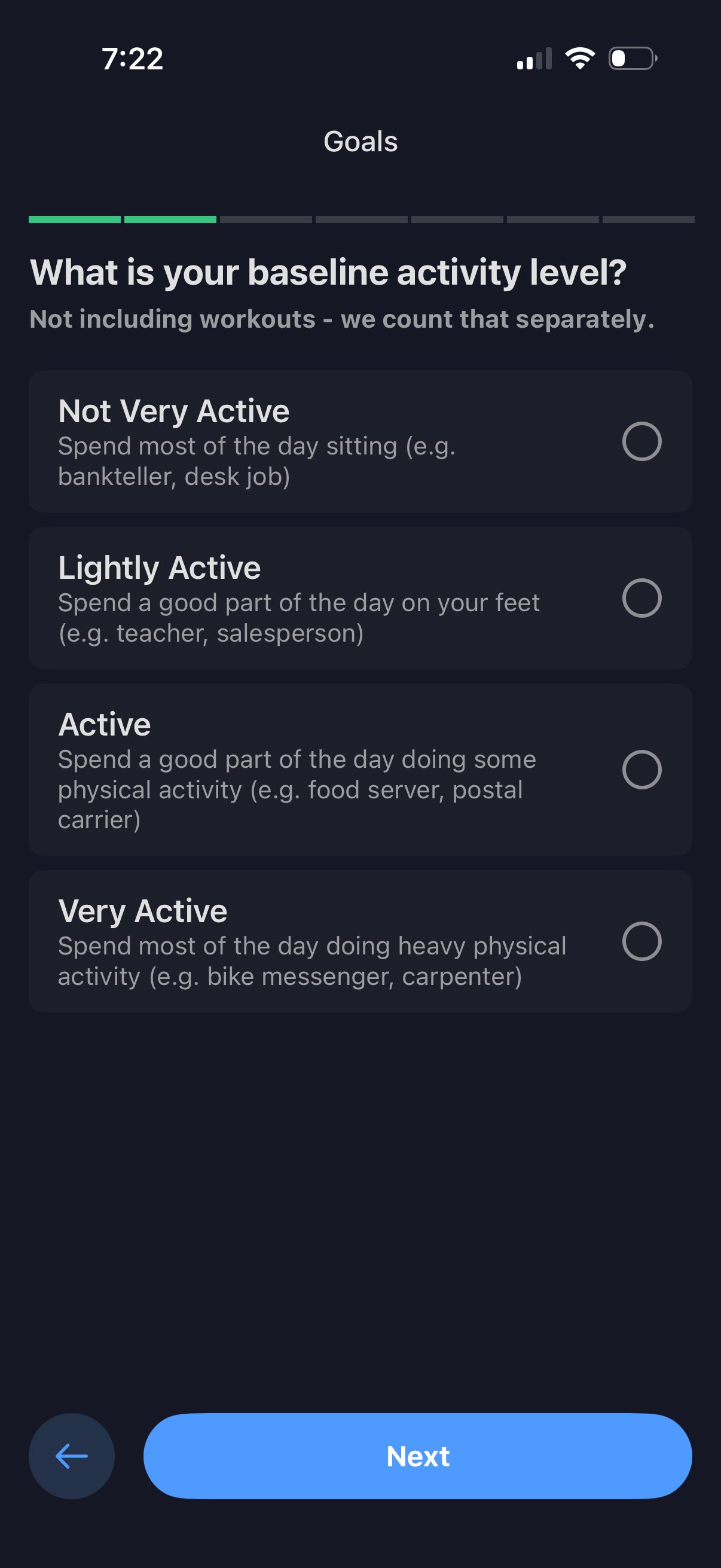
Onboarding goals screen in a fitness/health app asking the user to select their baseline daily activity level (excluding workouts) using radio options: Not Very Active, Lightly Active, Active, or Very Active. Includes a progress indicator, a back button, and a primary “Next” call-to-action to continue setup.
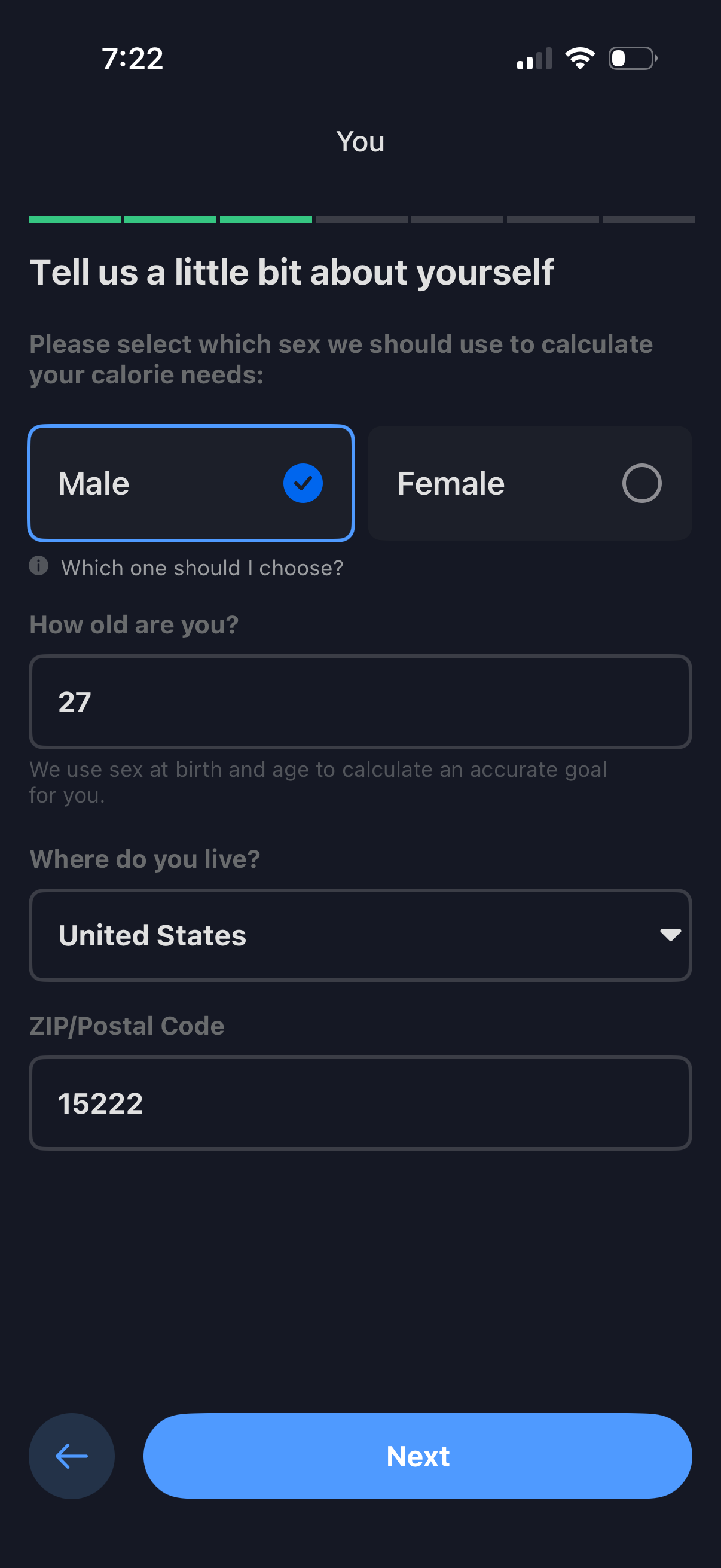
Onboarding profile form for a health/fitness app that collects personal details to calculate calorie needs, including sex selection (male/female), age input, country dropdown, and ZIP/postal code field. Includes a progress indicator, back navigation, and a primary “Next” button to continue setup.
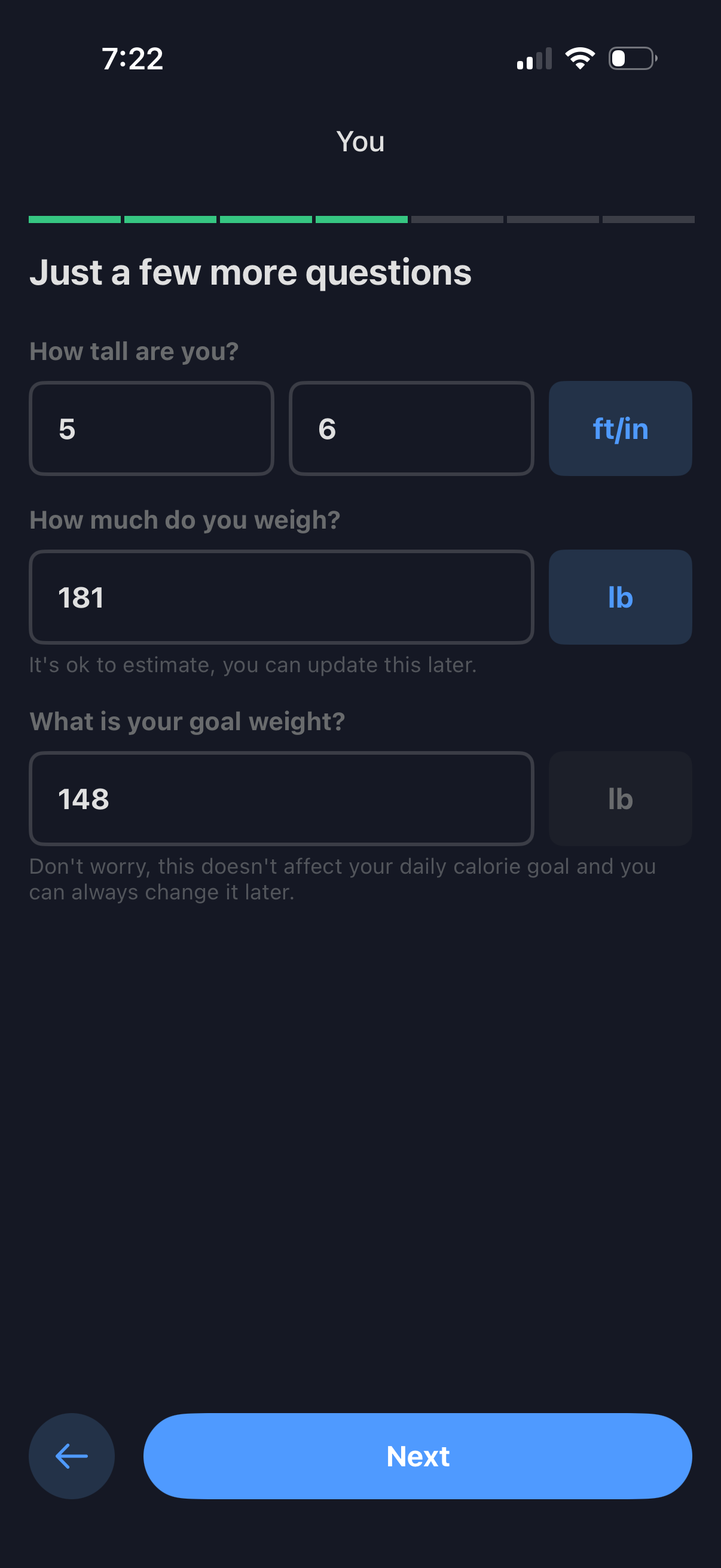
Onboarding questionnaire screen for a health/fitness app where the user enters height (feet/inches), current weight, and goal weight with unit selectors. Includes a progress indicator, optional estimation guidance, a back button, and a primary “Next” CTA to continue setup.
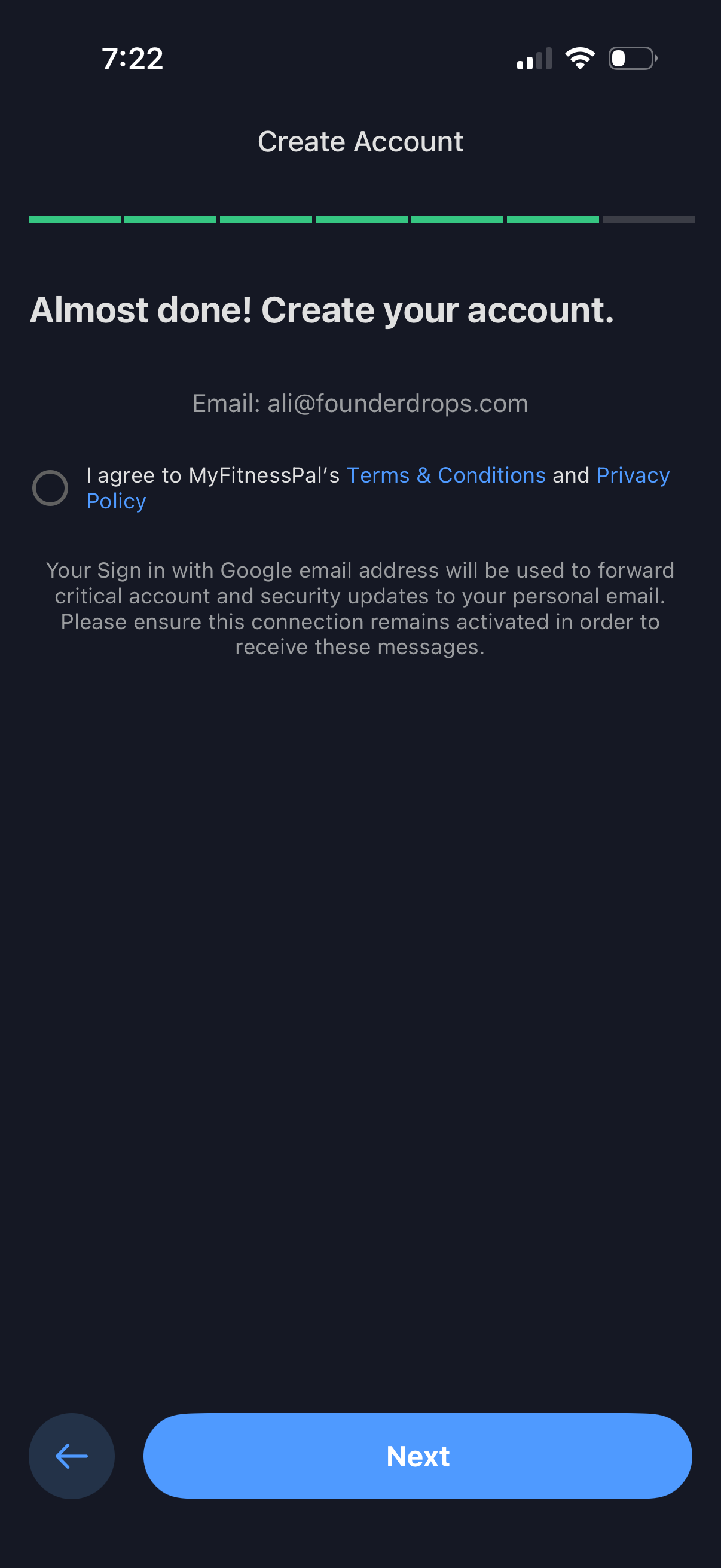
Account creation confirmation step in an onboarding flow showing the user’s email address and a required checkbox to agree to Terms & Conditions and Privacy Policy. Includes a progress indicator, explanatory text about using the Google sign-in email for critical updates, and navigation controls with a back button and “Next” to continue.
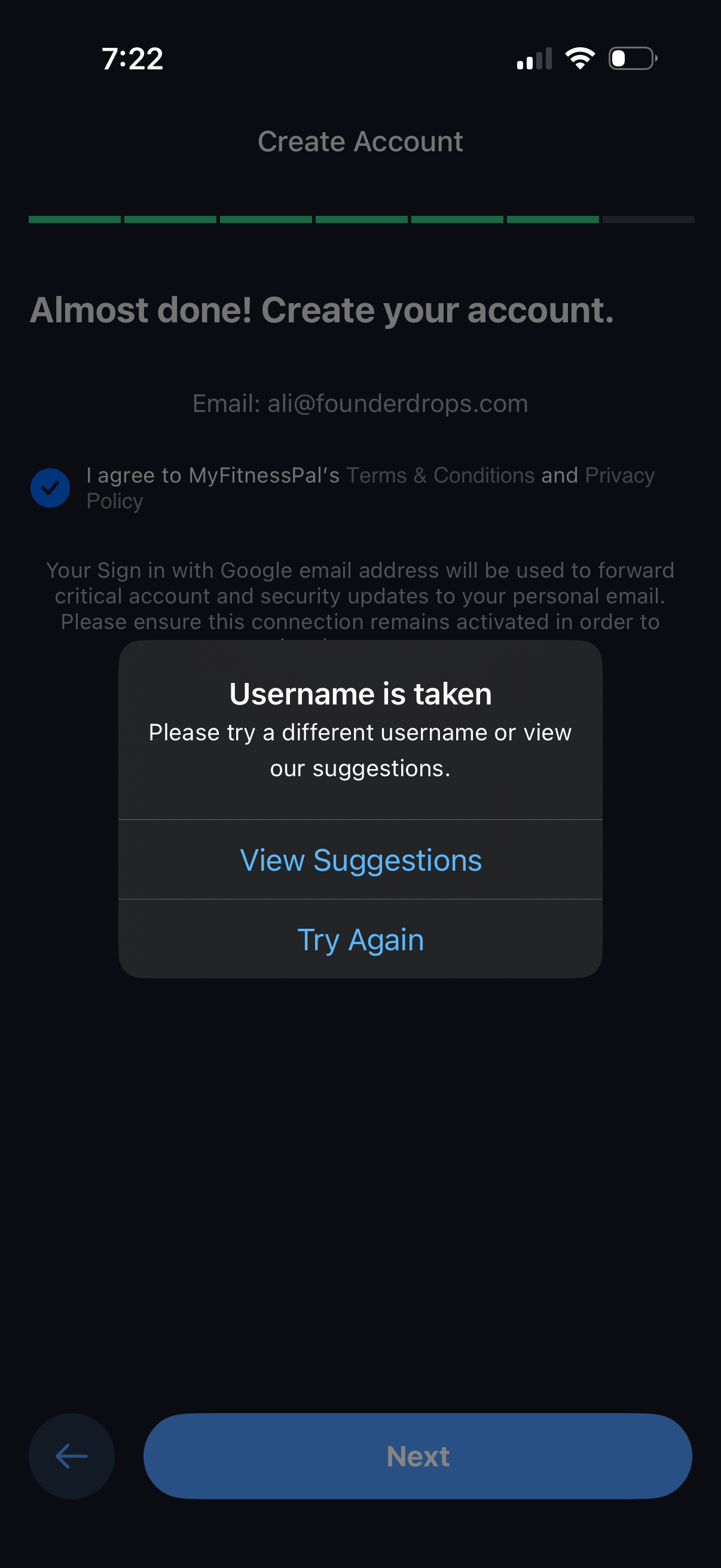
Account creation onboarding screen with a progress indicator and terms/privacy agreement, interrupted by an error modal stating the chosen username is already taken. The alert offers actions to view username suggestions or try again, with a disabled Next button in the background.
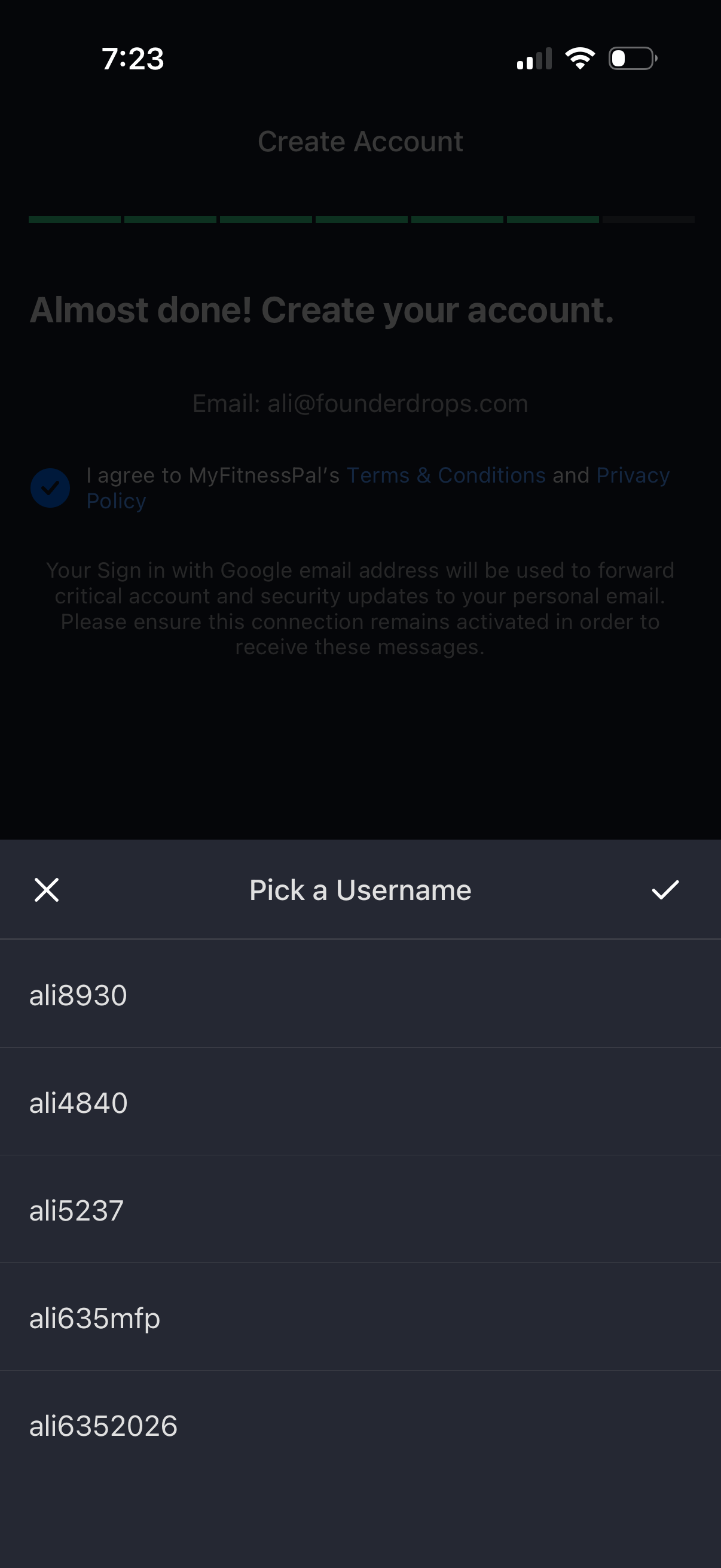
Account creation screen with progress indicator prompting the user to finish setup by selecting a username, showing suggested username options in a bottom sheet. Includes email confirmation, a terms and privacy policy consent checkbox, and controls to cancel or confirm the username selection.
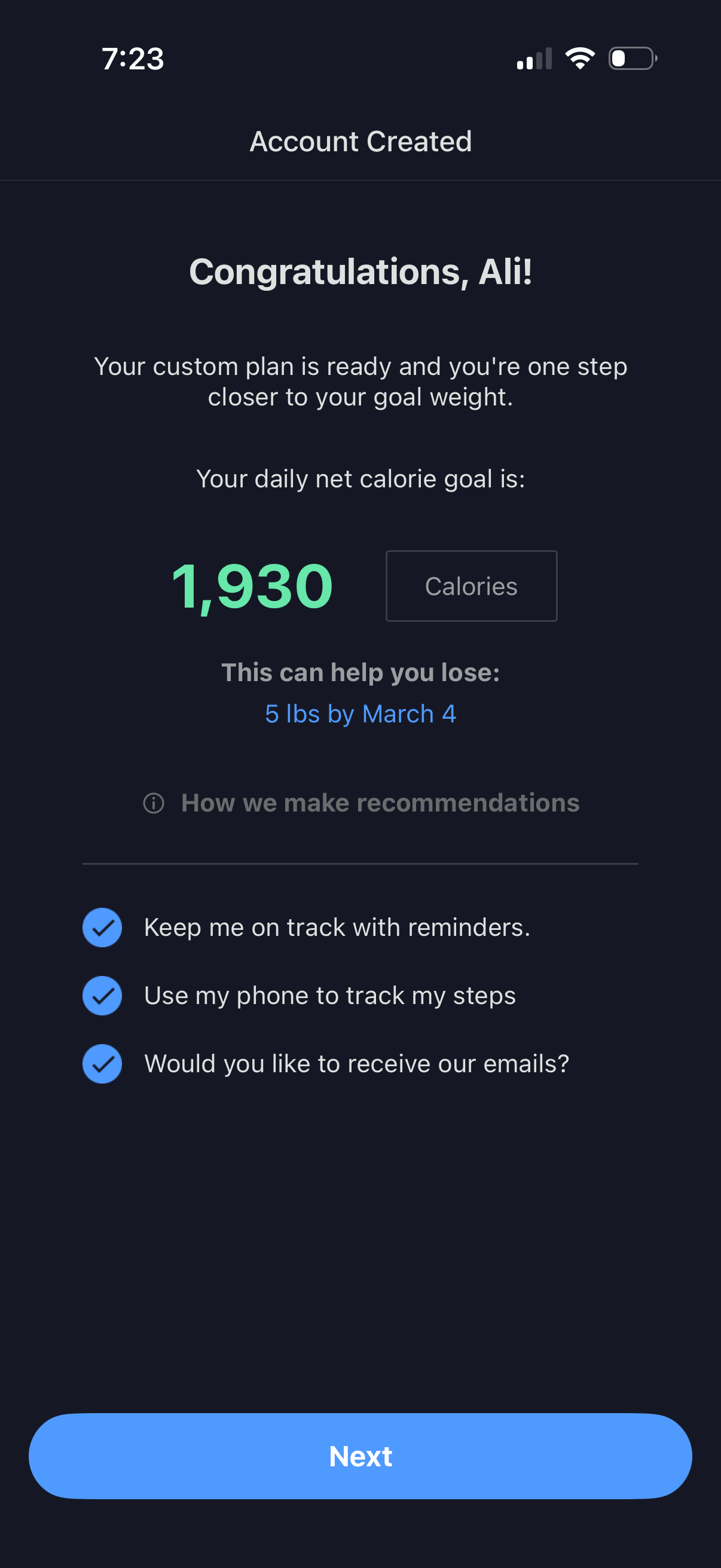
Account creation success screen for a weight loss and calorie tracking app showing the user’s personalized daily net calorie goal and projected weight loss timeline, with an info link about recommendations. Includes opt-in toggles for reminders, step tracking via phone, and marketing emails, plus a primary Next button to continue onboarding.
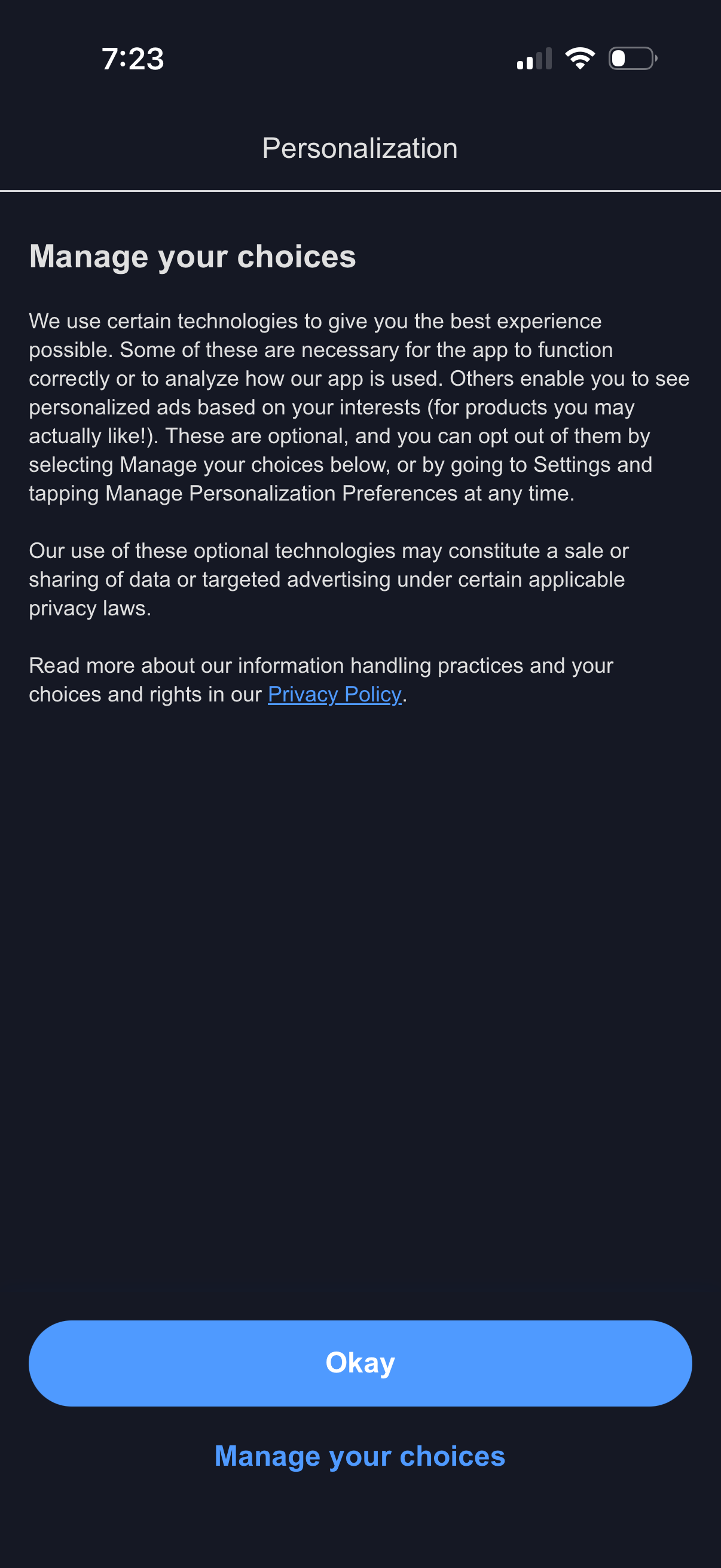
Privacy personalization consent screen explaining optional tracking technologies and targeted advertising, with a link to the privacy policy. Primary actions are to accept by tapping “Okay” or open “Manage your choices” to adjust personalization preferences/opt out.
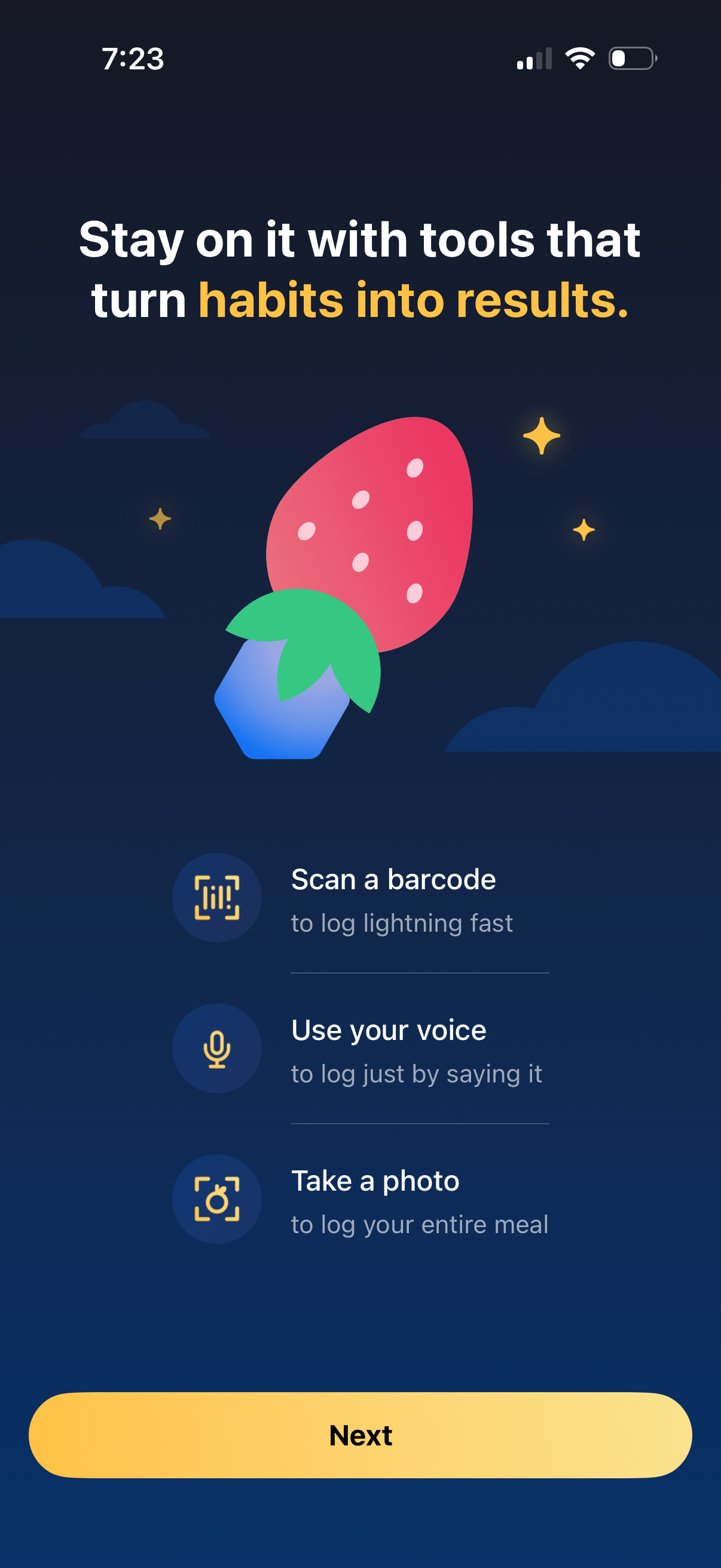
Onboarding feature-intro screen for a habit or nutrition tracking app highlighting fast logging tools. It presents options to scan a barcode, use voice input, or take a photo to log meals, with a primary “Next” button to continue.
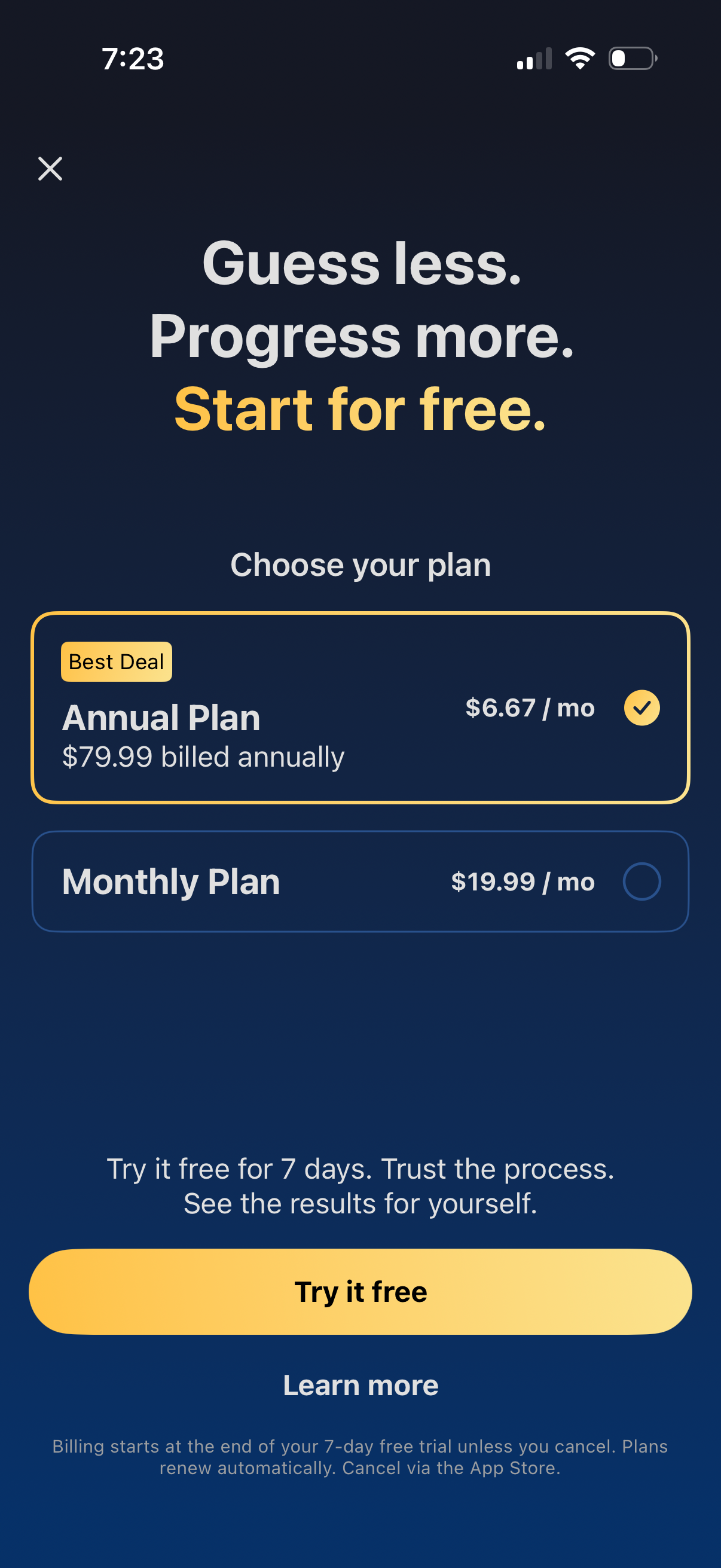
Subscription paywall screen prompting users to start a free trial and choose a pricing plan, with selectable annual and monthly options showing price per month and billing details. Includes a prominent “Try it free” CTA, a “Learn more” link, and cancellation/auto-renewal fine print with a close button to dismiss.
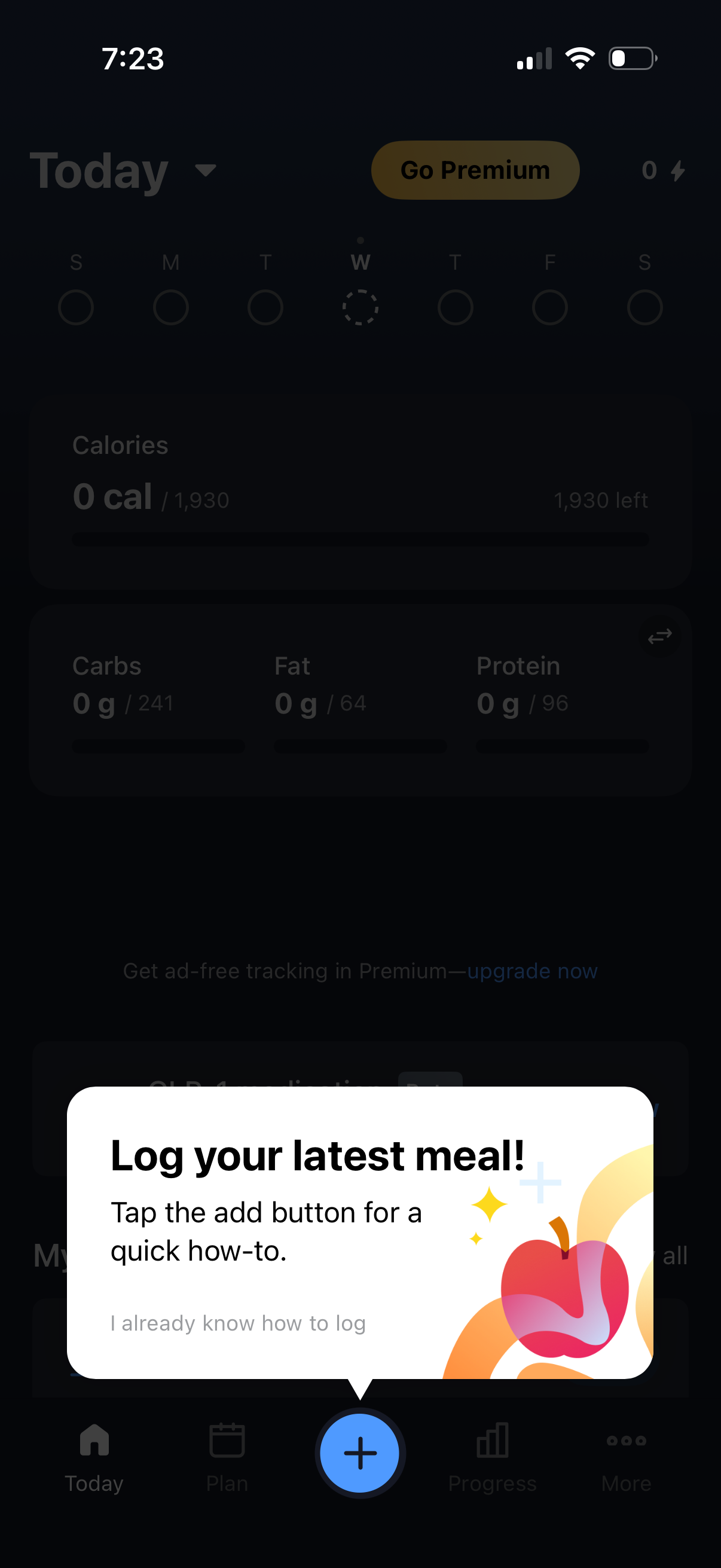
Nutrition tracking dashboard for “Today” showing calorie budget remaining and macro goals (carbs, fat, protein) with a weekly day selector and a “Go Premium” upsell. A coachmark tooltip prompts the user to tap the central plus button to log their latest meal, with an option to dismiss if they already know how to log.