Phone Number Purchase

Mobile plan signup step prompting the user to choose a phone number for a 12‑month unlimited plan, with options to keep/port an existing number or get a new number assigned by ZIP code. Includes an optional checkbox to mark the plan as for a kid and a primary Continue button with a close icon to exit.

Mobile plan signup screen for choosing a phone number, offering options to keep/transfer an existing number or get a new number. A confirmation modal warns about not transferring the current number and provides primary and secondary actions to confirm (“I’m sure”) or go back.

Screen to get a new phone number by entering a ZIP code, explaining the number will be location-based. Includes a ZIP code input field with a disabled Continue button and an option to allow location access to auto-fill the ZIP code.

Account creation details form asking for first name, last name, and email, with helper text explaining why the information is required and a “Why is this required? ” link.

Full-screen processing/loading status page indicating a background task is running (“Magic in Progress”) and warning the user it may take a few minutes and not to leave the screen. Used during long-running operations like generating content or setting up a feature.

A processing/loading screen indicating “Behind the Scenes Magic in Progress” and warning that the task may take a few minutes and users should not exit the screen while the app completes an operation in the background. Includes a friendly mascot illustration with a short reassurance message.

App onboarding/setup loading screen indicating “Magic in Progress,” telling the user the process may take a few minutes and not to leave the screen while background setup completes. Includes an informational tip message from a mascot, suggesting more pro tips will appear during the wait.

A full-screen processing/loading state that says “Behind the Scenes Magic in Progress” and warns the user the task may take a few minutes and not to leave the screen. Includes an informational tip encouraging enabling auto-renew to avoid service interruptions while the background setup completes.

A full-screen loading/progress state that says “Behind the Scenes Magic in Progress,” warning the user the process may take a few minutes and not to leave the screen. An illustration with a speech bubble promotes a refer-a-friend incentive/credit while the background task completes.

Full-screen loading or processing state with a centered message (“Behind the Scenes Magic in Progress”) indicating a task is running in the background. A small status indicator with a checkmark suggests progress/completion feedback while the user waits.
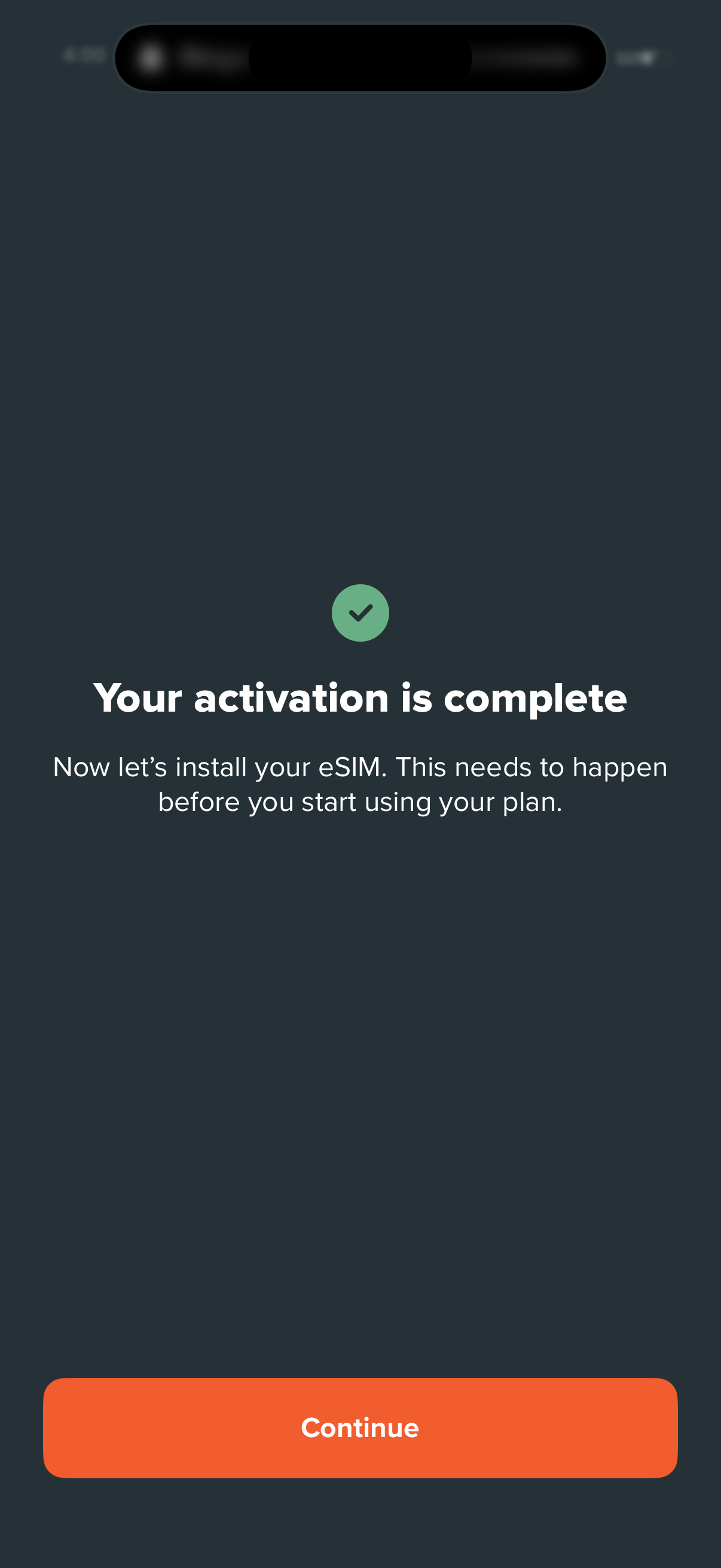
Confirmation screen indicating activation is complete and prompting the user to install an eSIM before using their plan. Includes a success check icon, explanatory text, and a primary “Continue” button to proceed to eSIM installation.

Onboarding step prompting the user to install an eSIM to start using a new phone number, with a primary “Install eSIM” button that opens device settings and a “Skip” option. Includes a help link for troubleshooting/support.