time travel through day
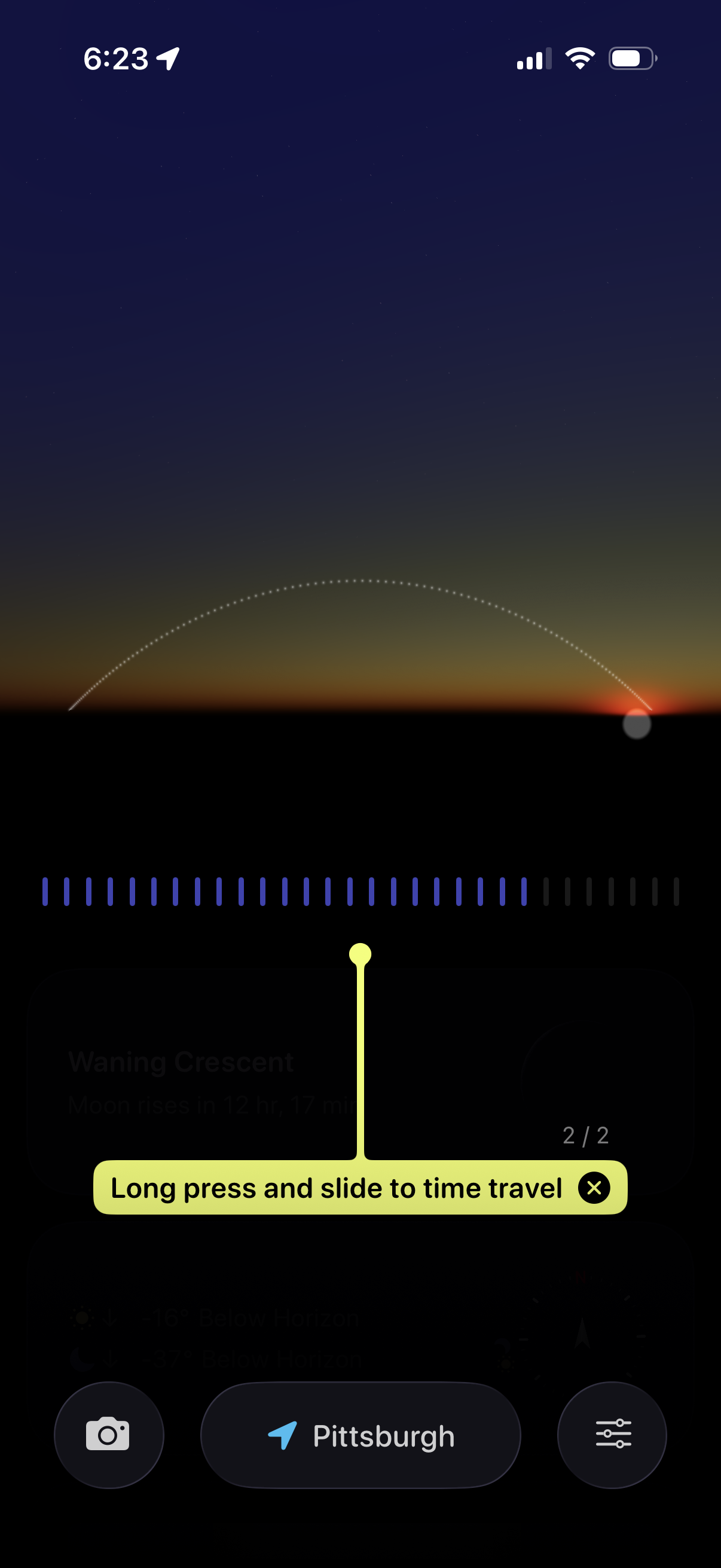
Astronomy/weather visualization screen showing the sun’s path along the horizon with a timeline scrubber for “time travel” by long-pressing and sliding to preview light conditions at different times. Bottom actions include taking a photo/screenshot, selecting the current location, and opening settings/filters.
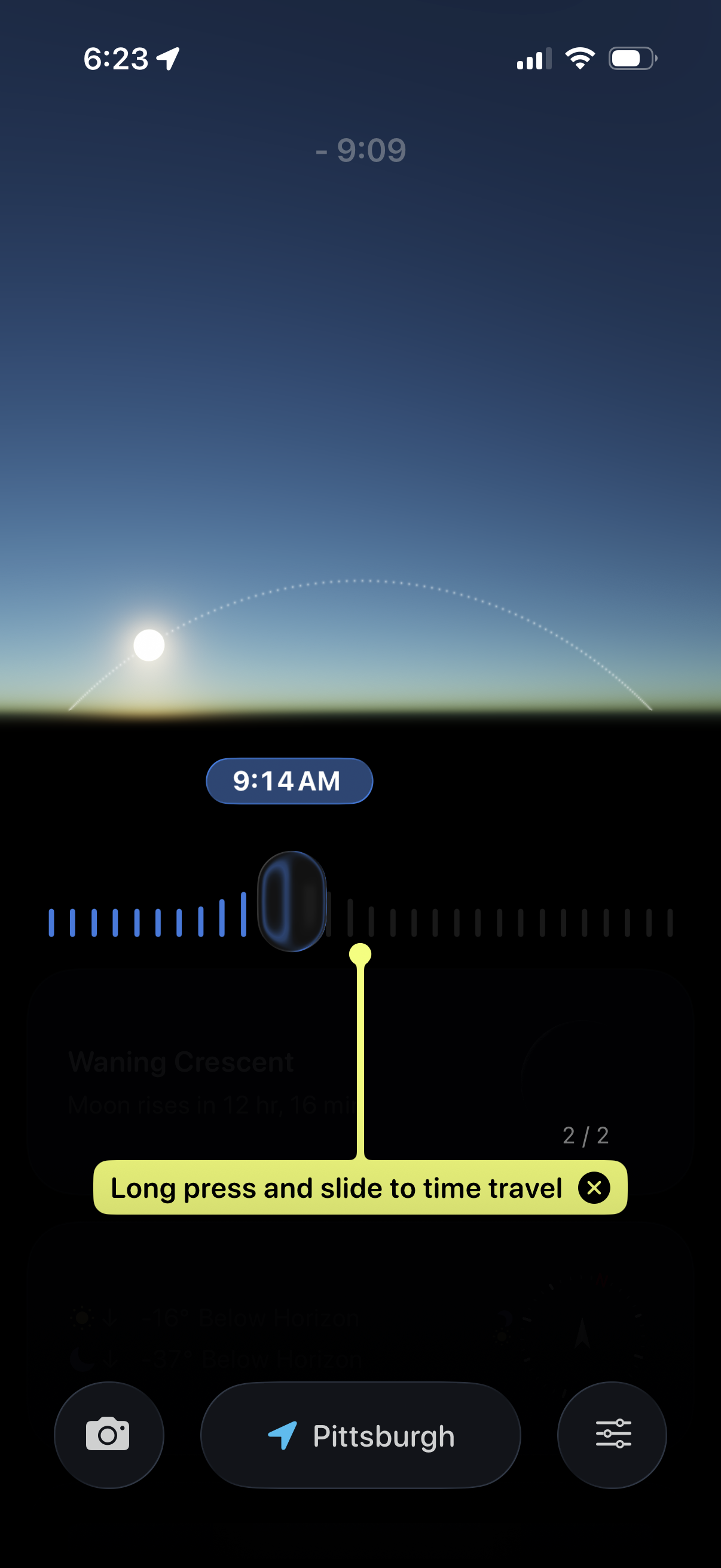
Astronomy sun/moon timeline screen showing the sun’s arc across the horizon with a time scrubber and selected time, allowing users to long-press and slide to “time travel” and preview sky conditions at different times. Includes quick actions for camera/AR view, location selection, and settings/filters.
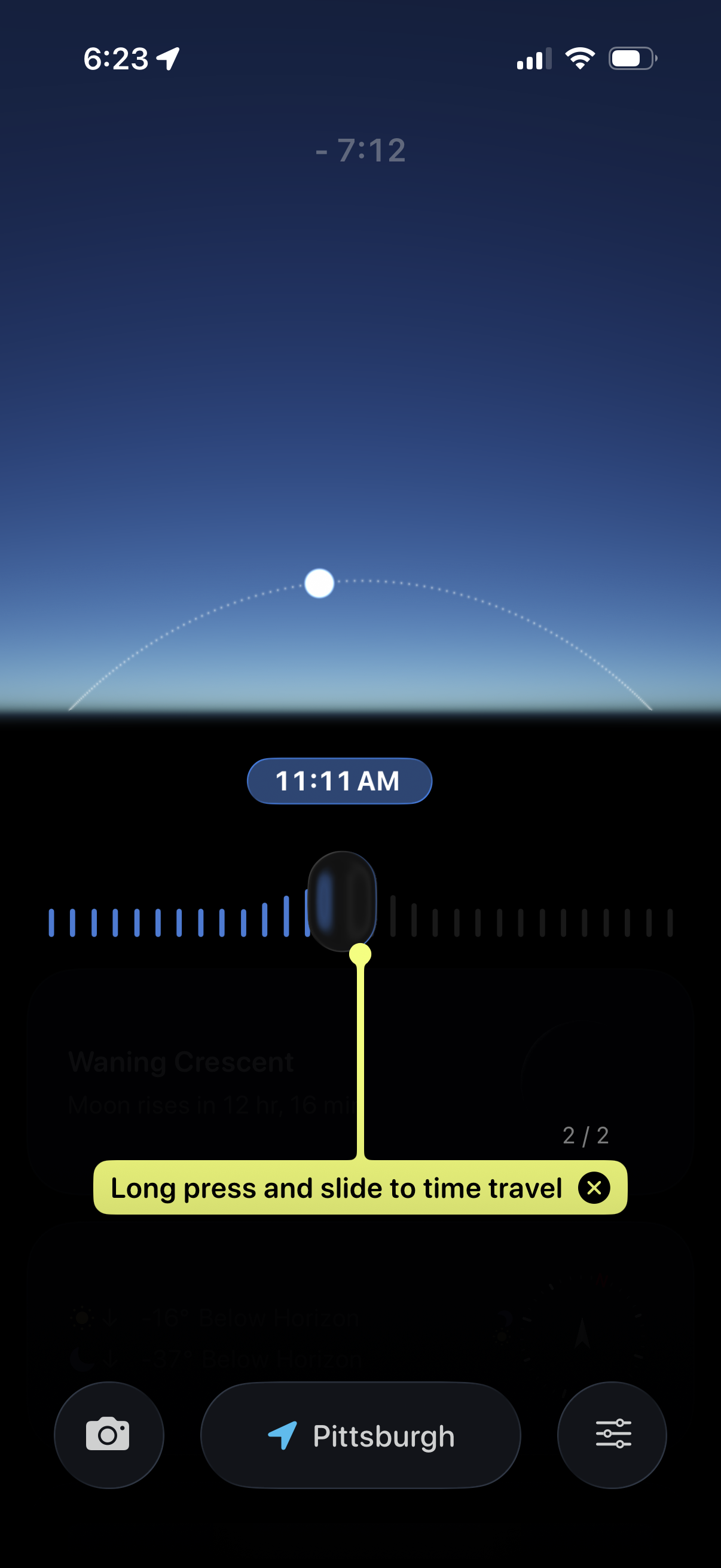
Astronomy/sky tracker screen showing a sun or moon path across the horizon with a draggable time slider for “time travel,” letting users long-press and scrub to preview celestial position at a selected time. Bottom controls include location selection, camera/AR view, and settings.
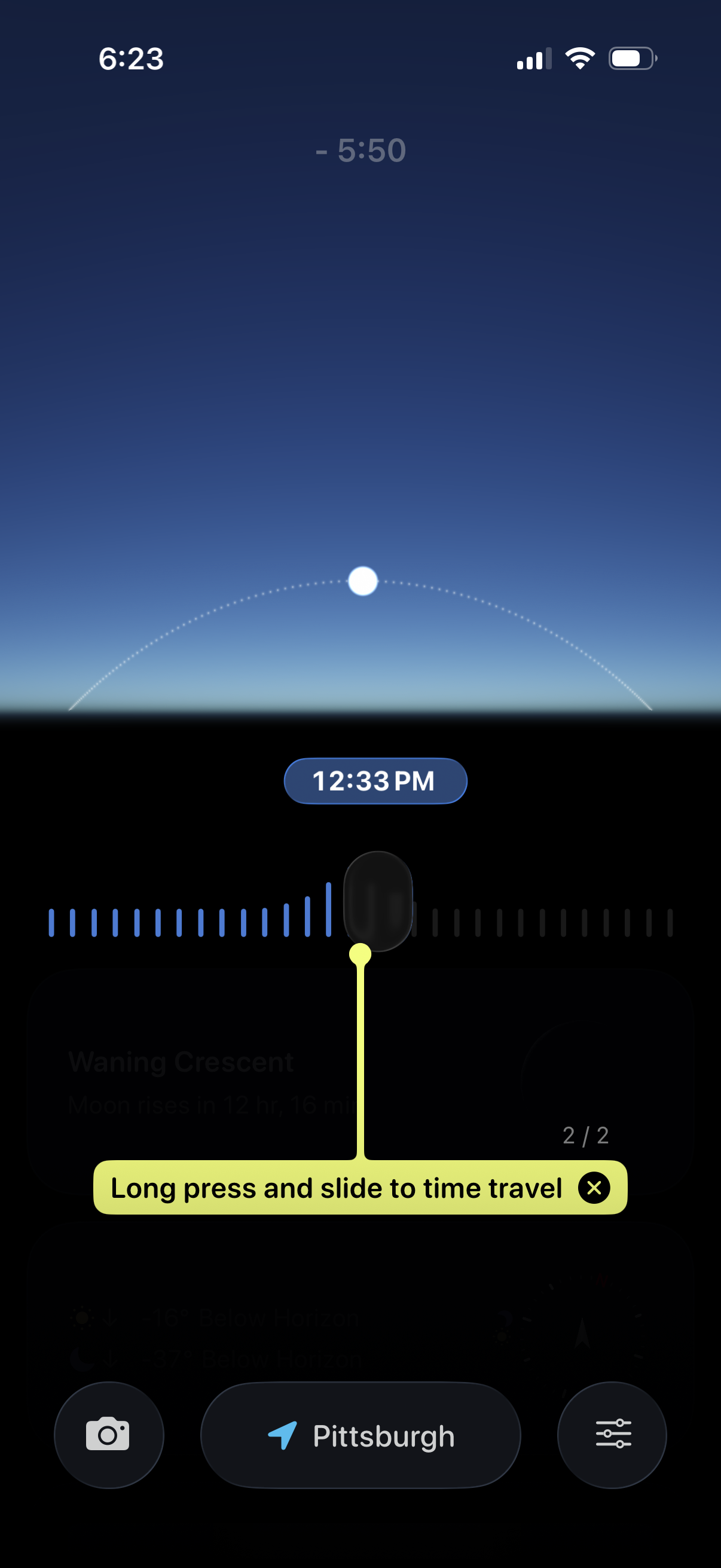
Astronomy/night-sky view with an interactive time-travel timeline where users long-press and slide a handle to scrub through time, showing the selected time and celestial position arc above the horizon. Includes quick actions for taking a photo, selecting location, and opening settings/filters.
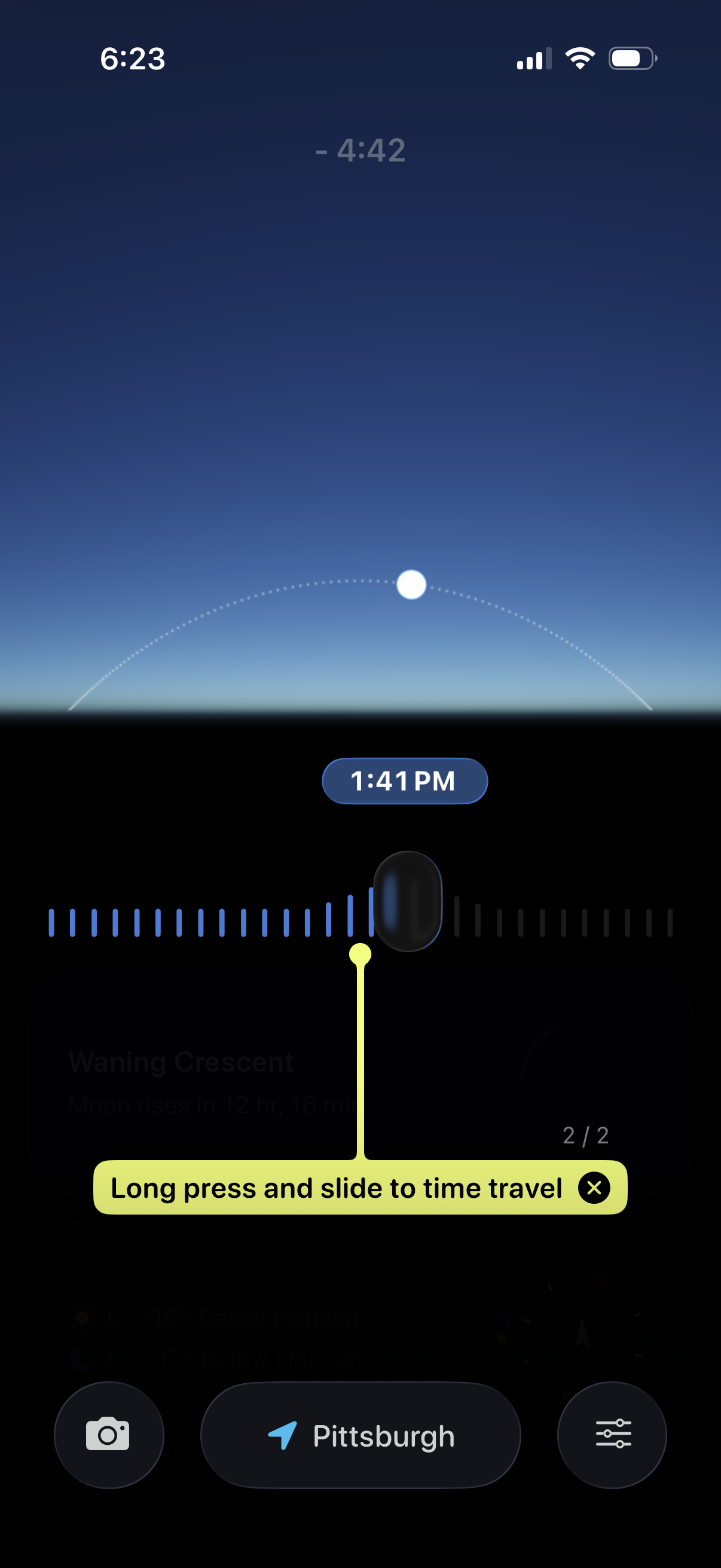
Astronomy/weather app screen showing a sky visualization with a day/night arc and a draggable time slider labeled with the selected time to “time travel” through conditions. Bottom actions include taking a photo, viewing the current location, and opening settings/filters.
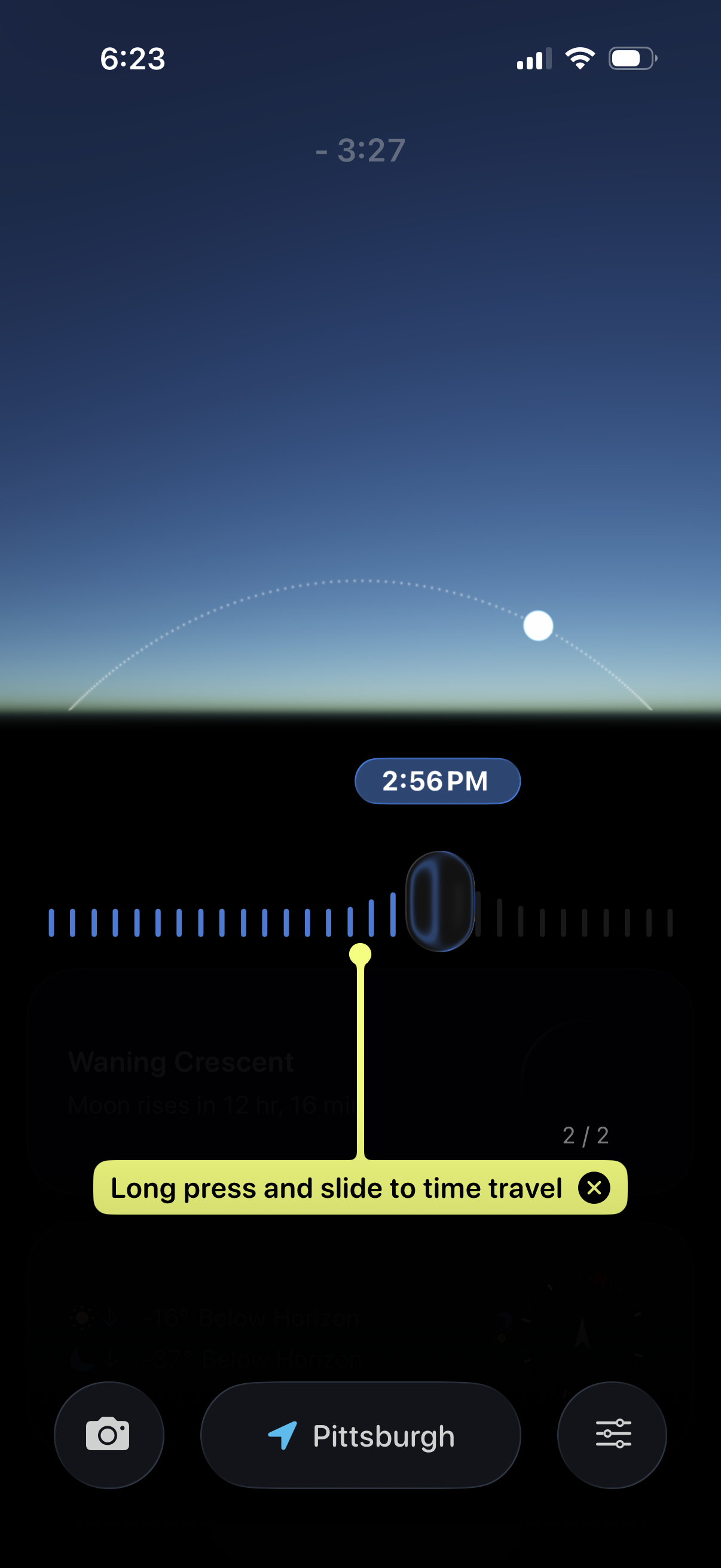
Astronomy weather screen showing the moon’s position along a horizon arc with a time slider labeled 2:56 PM for previewing moonrise/moon phase via “time travel. ” Users can long‑press and drag the timeline to scrub through time, with quick actions for camera/AR view, location selection, and settings.
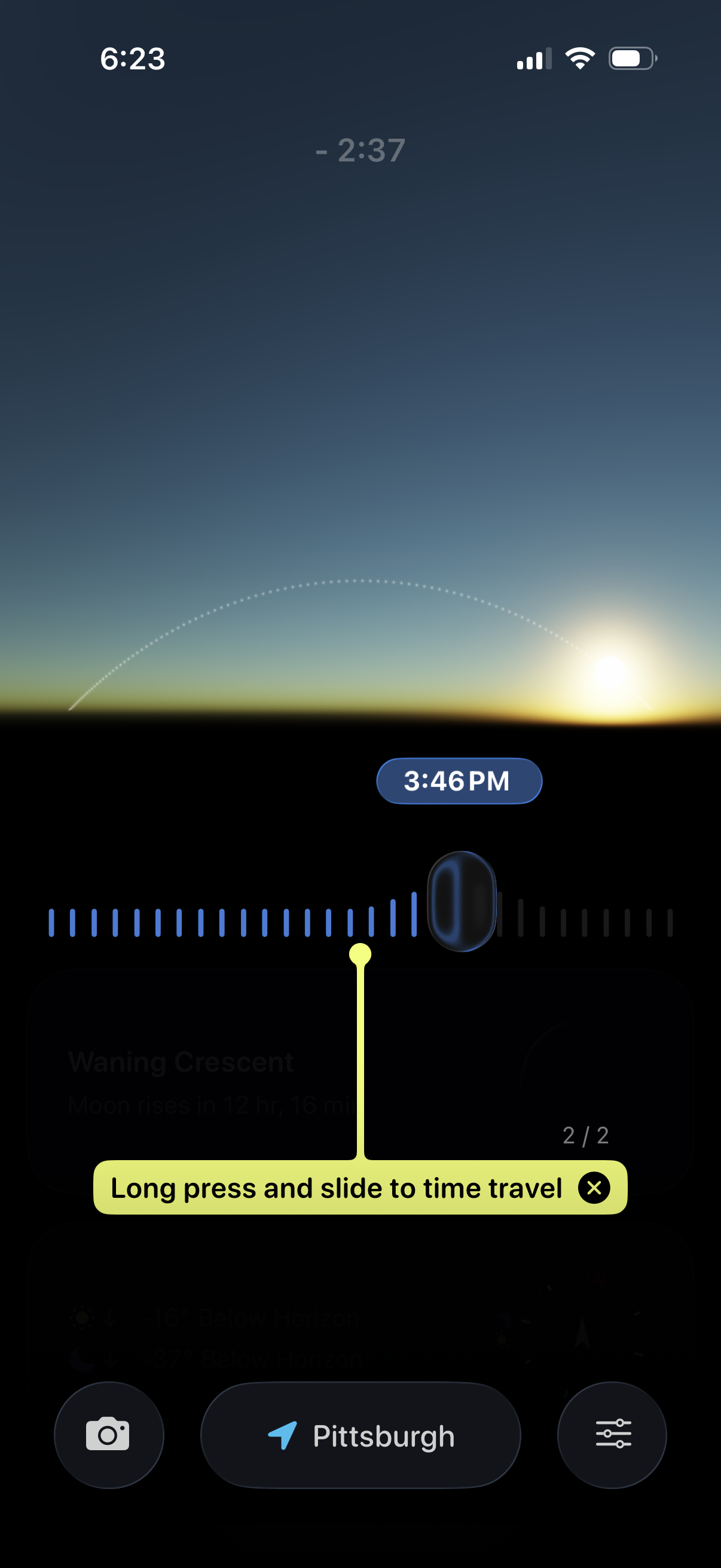
Astronomy weather screen showing a sunset/sunrise timeline with a scrubber to “time travel” through the sky, displaying the selected time and a visual sun path over the horizon. Includes location selection and quick actions for camera view and settings/filters.
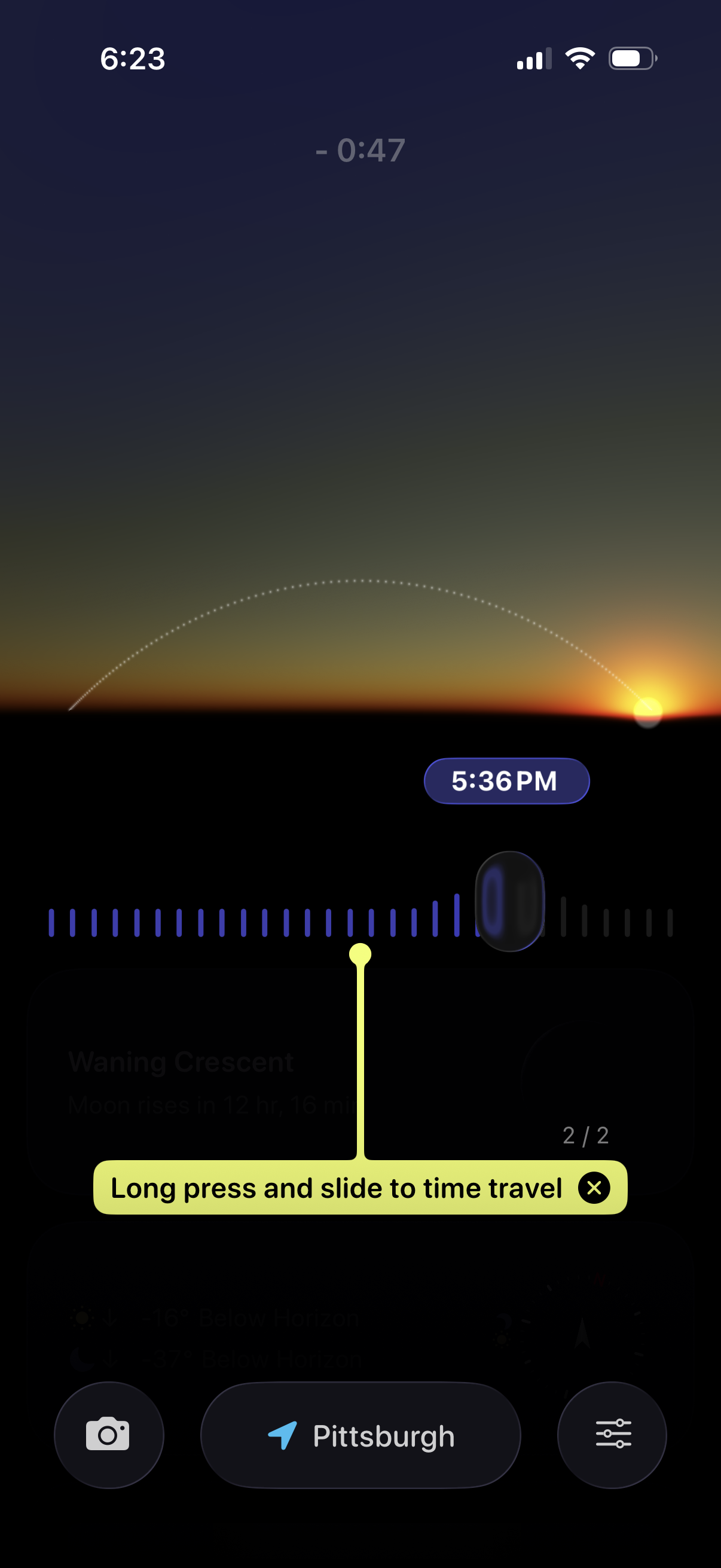
Astronomy sun tracking screen showing a horizon visualization with the sun position and a timeline scrubber to “time travel” by long-pressing and sliding to view sunset/sunrise times. Includes a selected time label, location selector, and quick actions for camera/AR view and settings.
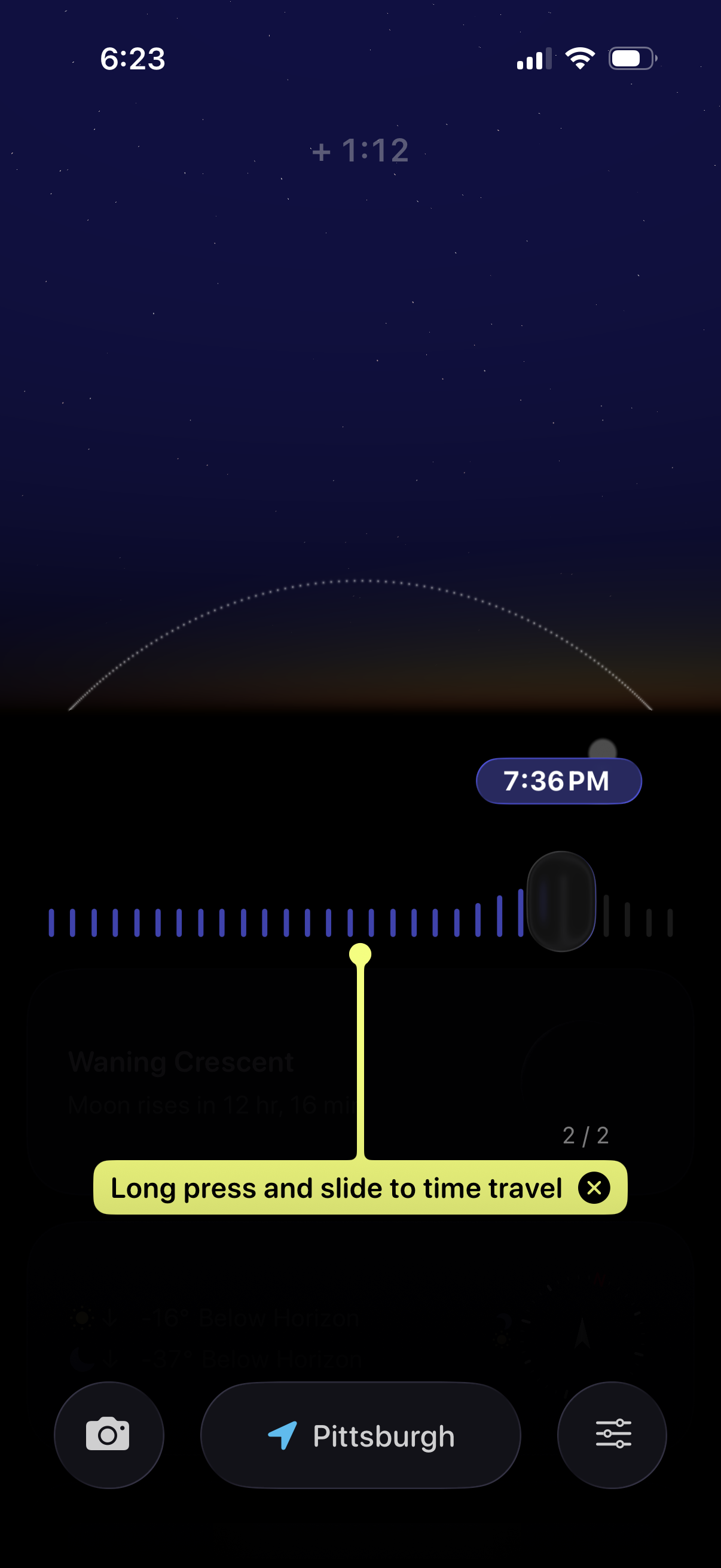
Astronomy/sky tracker screen with a night sky horizon view and an interactive time slider that lets users long-press and drag to “time travel” to preview sky conditions at a selected time (e. g.
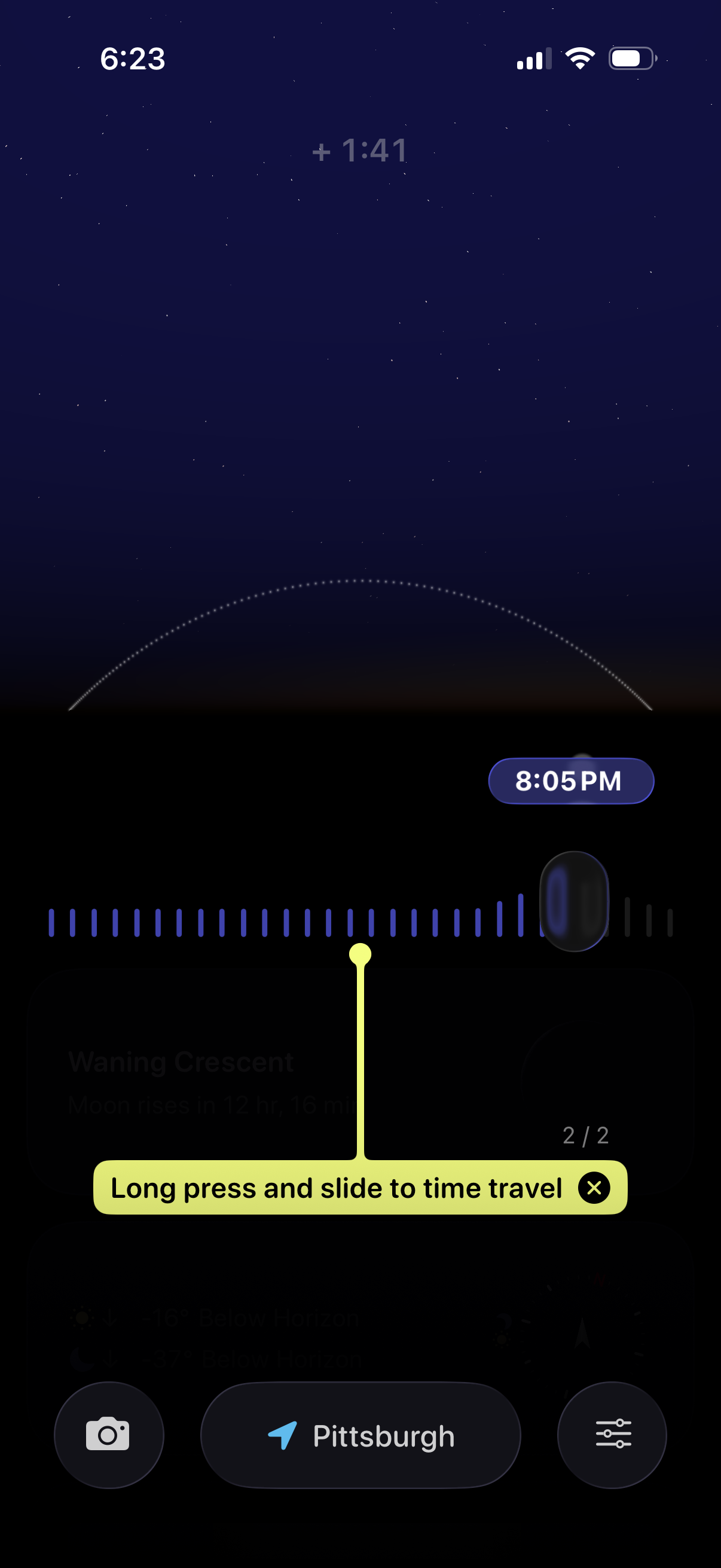
Astronomy/sky tracker screen showing a night sky view with a time travel timeline slider to scrub through hours and preview celestial positions, with a tooltip instructing the user to long-press and slide and a selected time indicator. Bottom actions include taking a photo, changing location, and opening settings/filters.
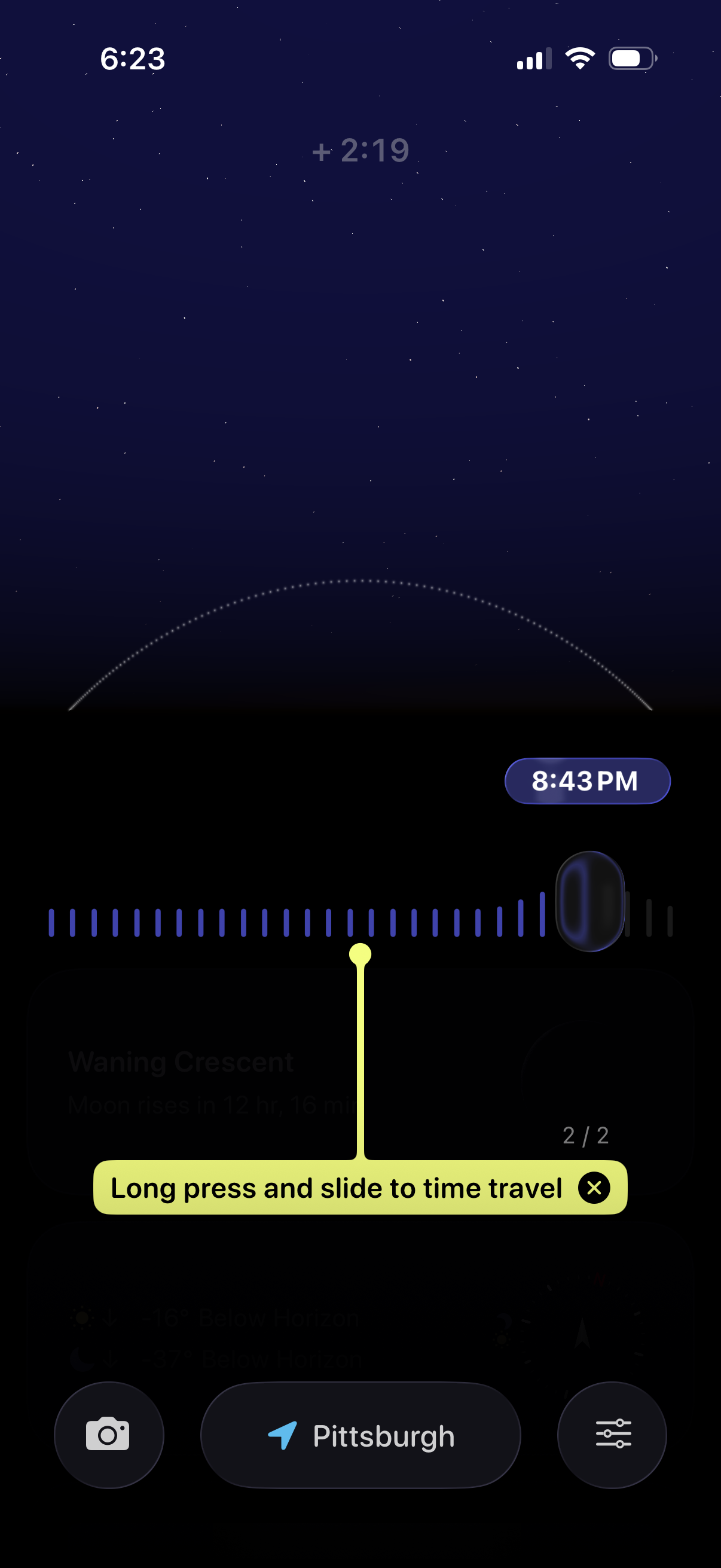
Astronomy/night sky visualization screen with a timeline slider to “time travel” and scrub through hours, showing the selected time and an arc of the moon/sun path across the sky. Includes controls for location selection, camera/AR view, and settings/filters.
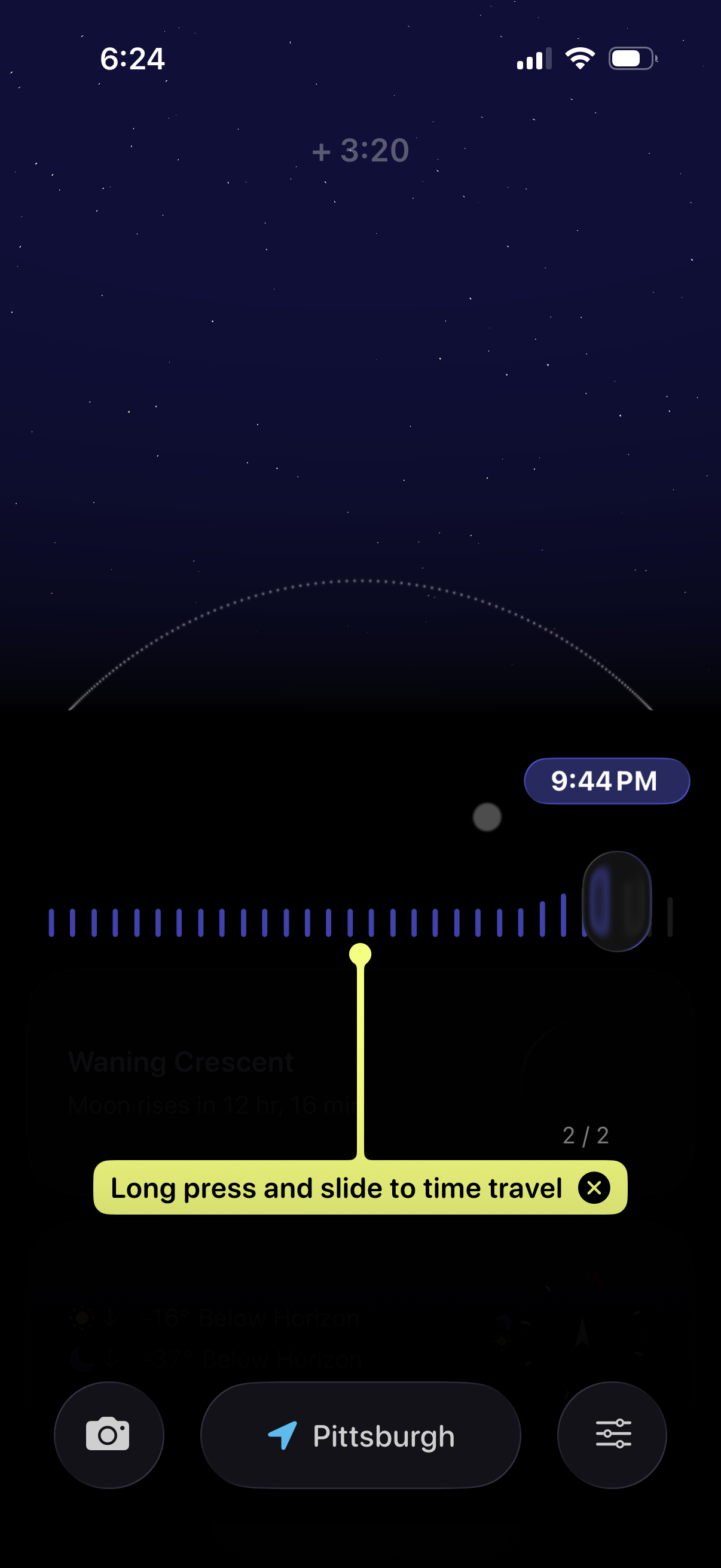
Astronomy sky-view screen showing the moon’s path and current position with a scrubber timeline that lets users long-press and slide to “time travel” to see moonrise/moonset at different times. Bottom actions include taking a photo, selecting a location, and opening settings/filters.
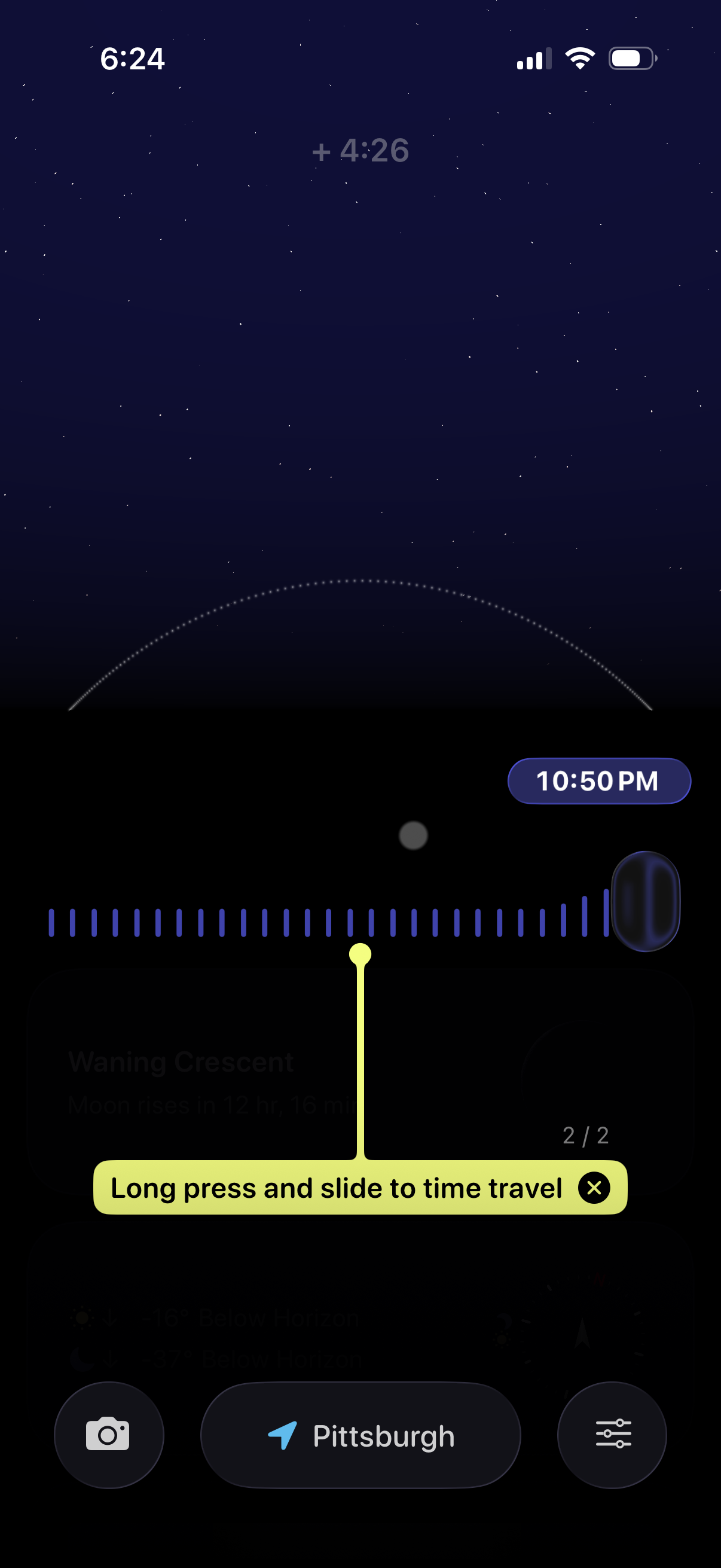
Astronomy sky map screen showing a starry night view with a horizontal time slider to “time travel” and scrub through hours, displaying the selected time and delta. Bottom actions include opening the camera/AR view, changing location, and accessing settings or filters.
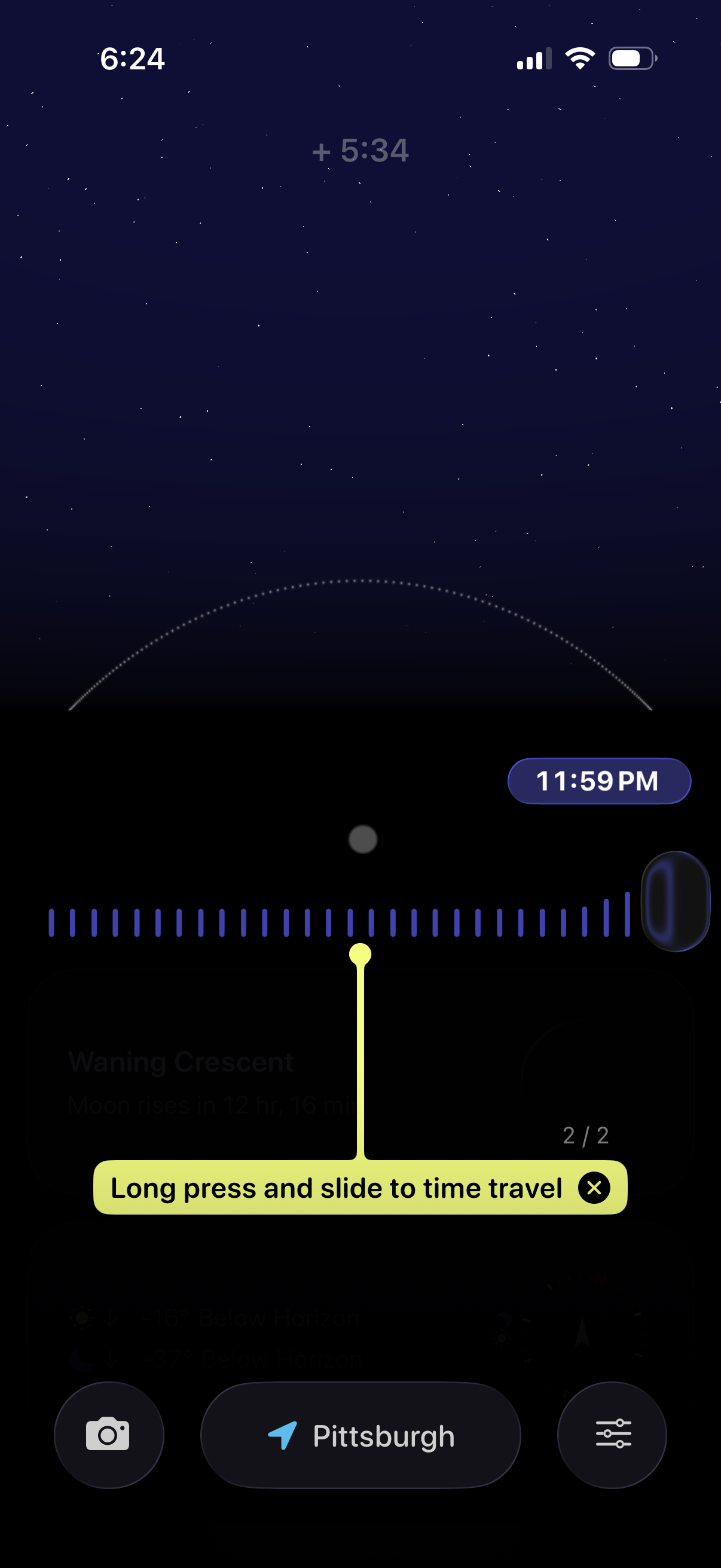
Astronomy/sky tracking screen with a starry night view and a horizontal time timeline scrubber that lets users long-press and slide to “time travel” to a specific time (e. g.