Signup
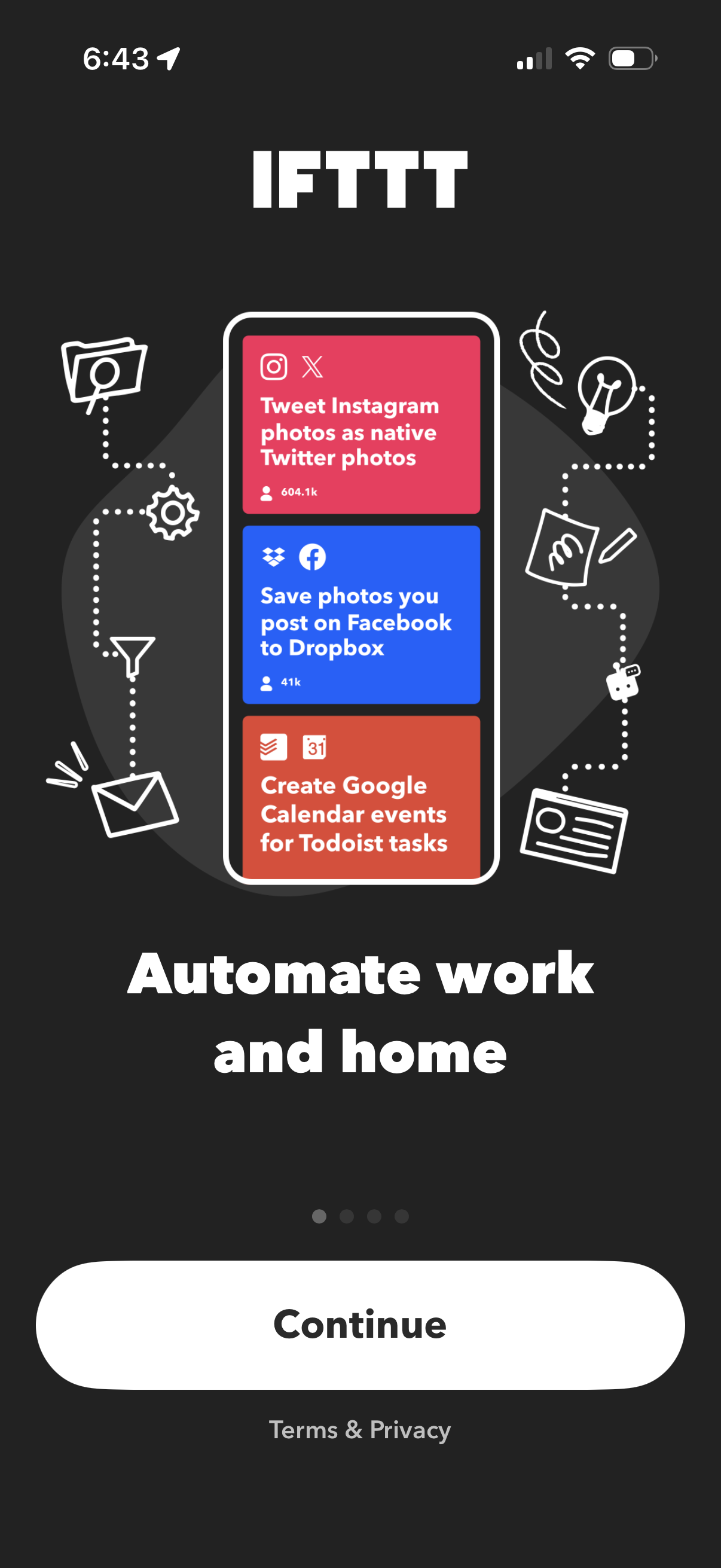
Onboarding splash screen for an automation app promoting “Automate work and home,” showcasing example applet integrations (social posting, saving photos to cloud storage, creating calendar events from tasks). Primary action is a large “Continue” button with a Terms & Privacy link and onboarding progress dots.
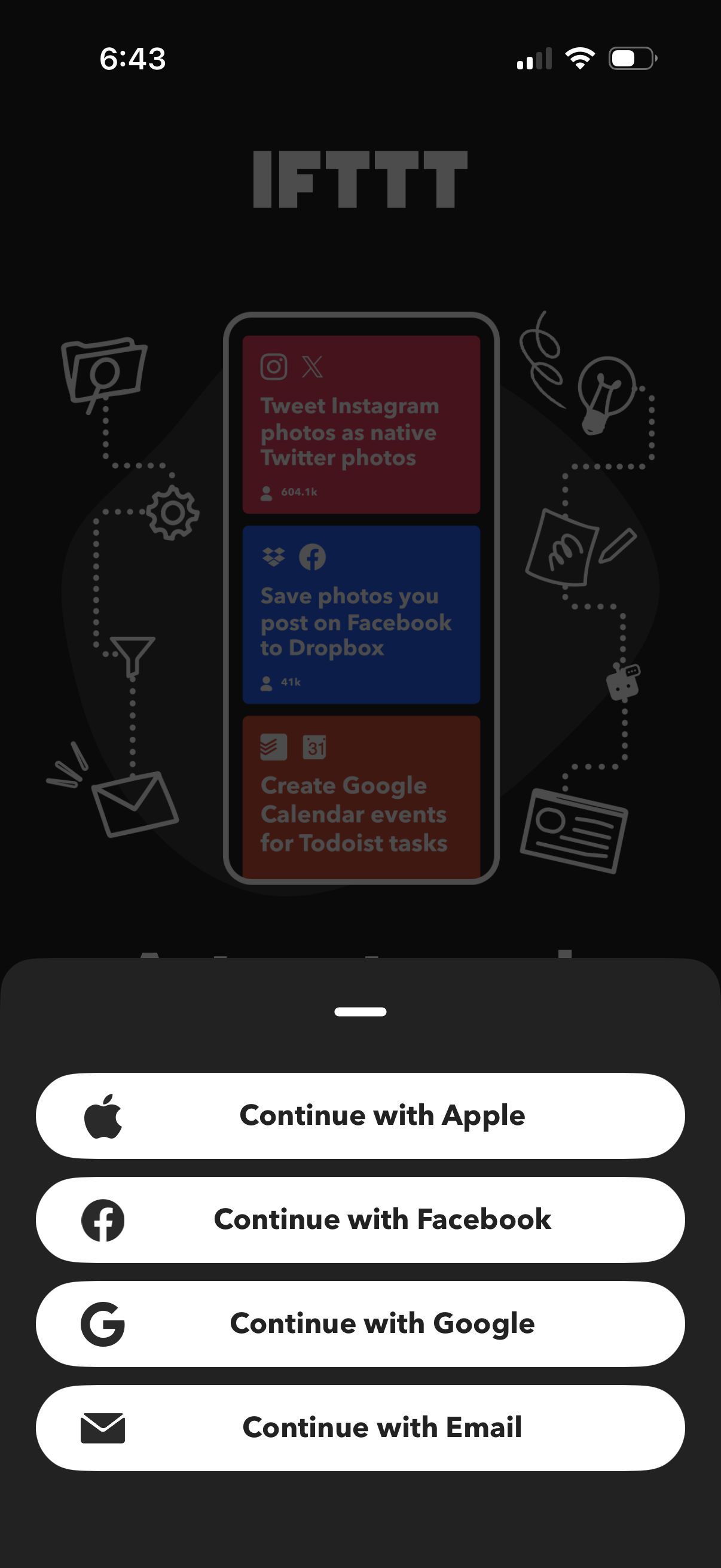
Login/sign-up onboarding screen for an automation app offering social sign-in options. A bottom sheet presents “Continue with Apple,” “Continue with Facebook,” “Continue with Google,” and “Continue with Email” buttons over a branded background showcasing example applet integrations.
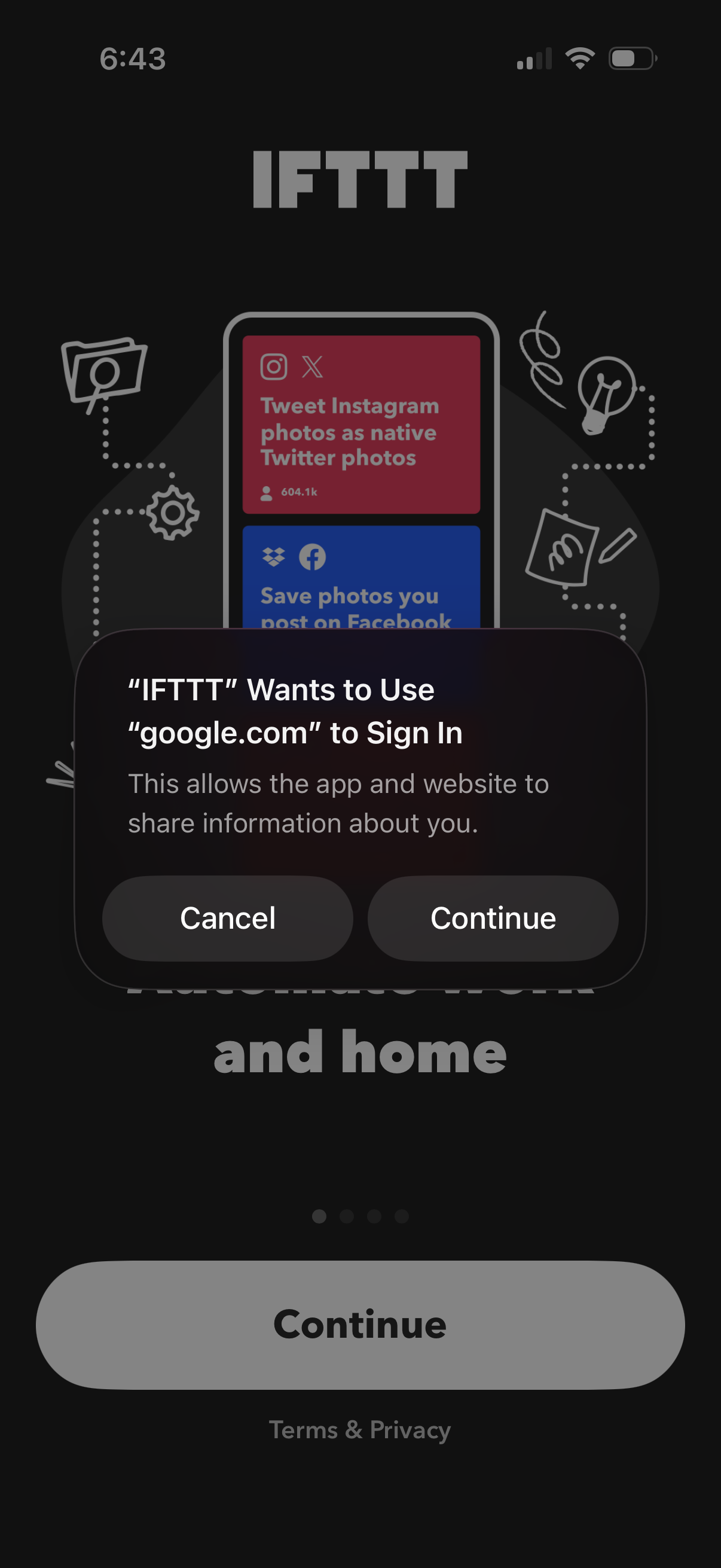
Login/onboarding screen for IFTTT showing a system web sign-in permission prompt to use Google (google. com) for authentication, with actions to Cancel or Continue.
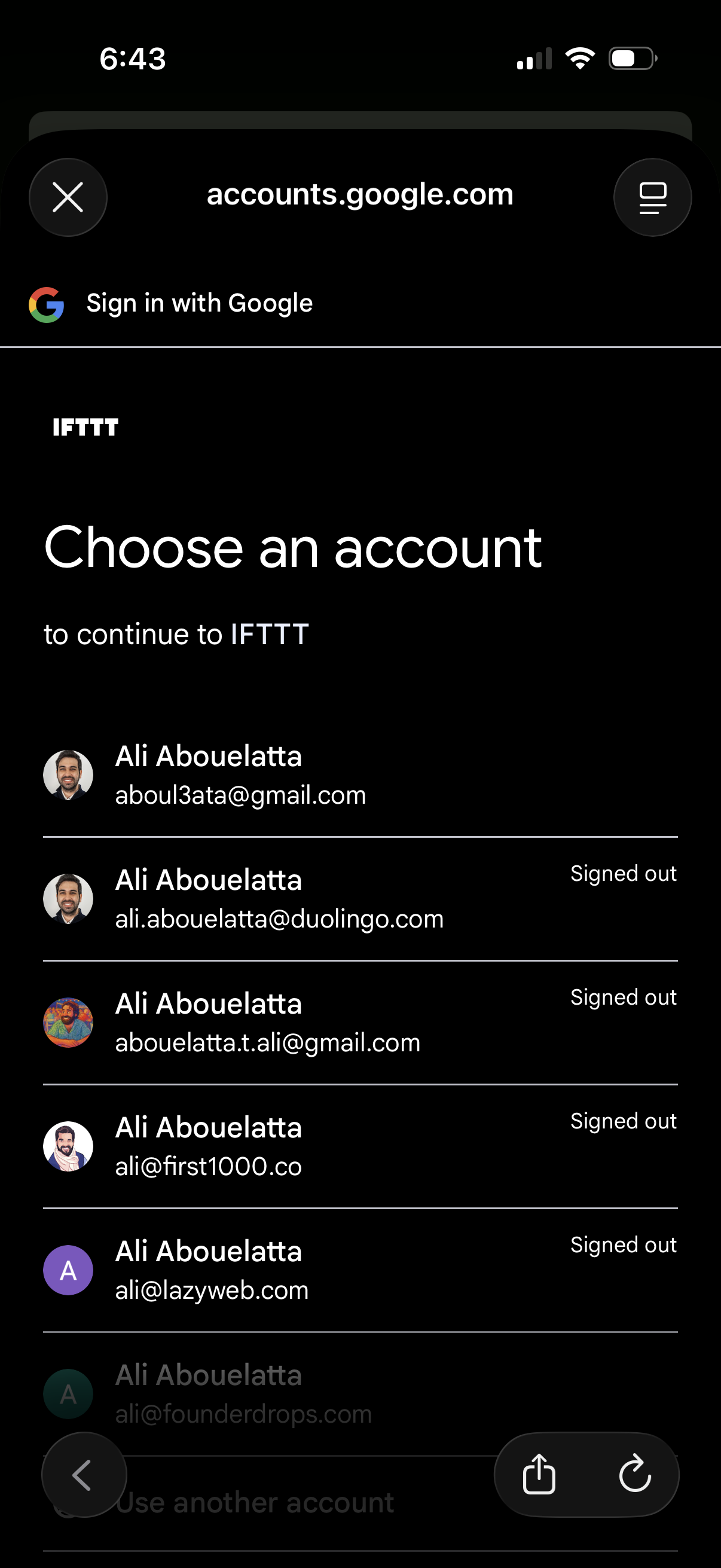
Google OAuth sign-in screen prompting the user to choose a Google account to continue to a third-party app, showing a list of saved accounts with avatars, email addresses, and signed-out status. Users can tap an account to proceed with authentication or choose to use another account.
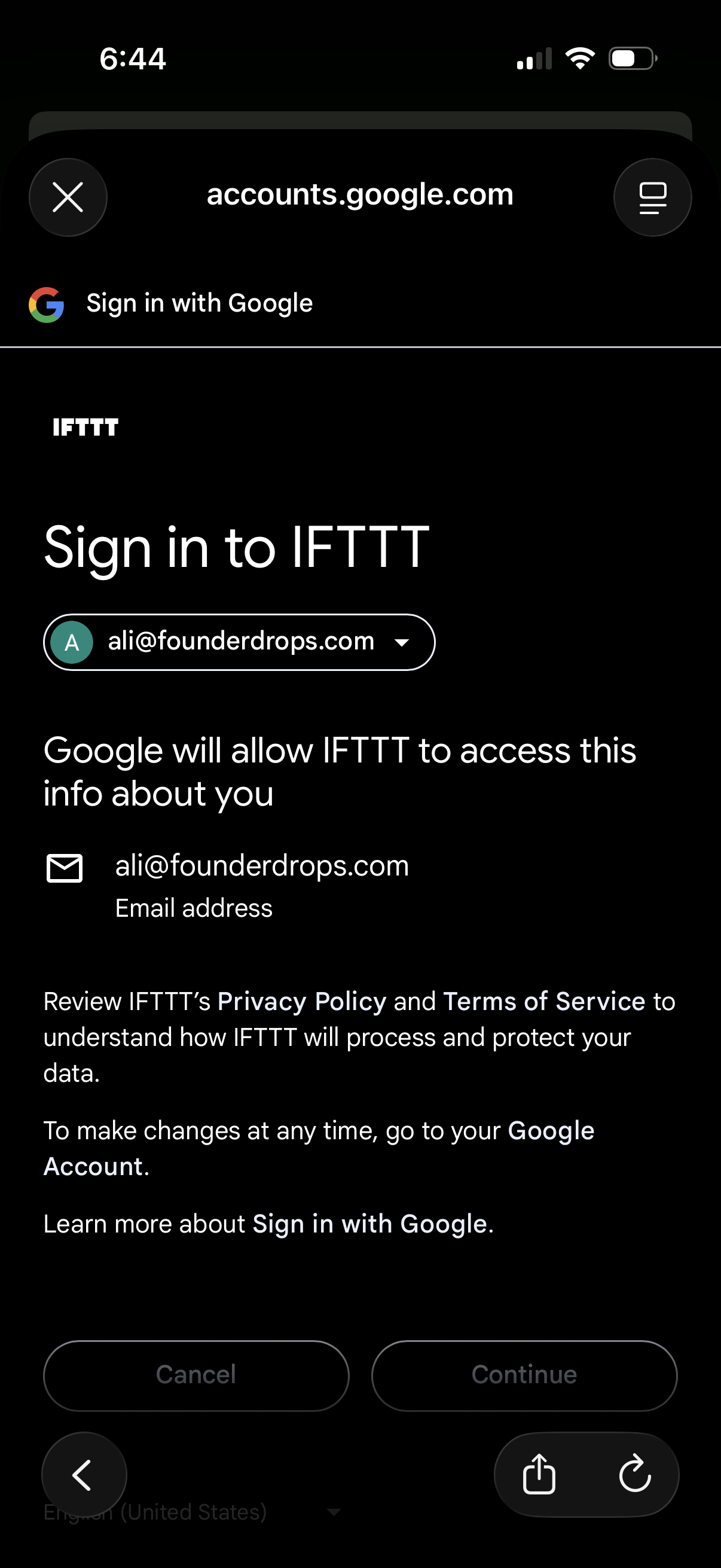
Google OAuth consent screen for signing in to IFTTT, showing the selected Google account and the personal info (email address) IFTTT will access. Provides actions to cancel or continue, with links to privacy policy and terms of service.
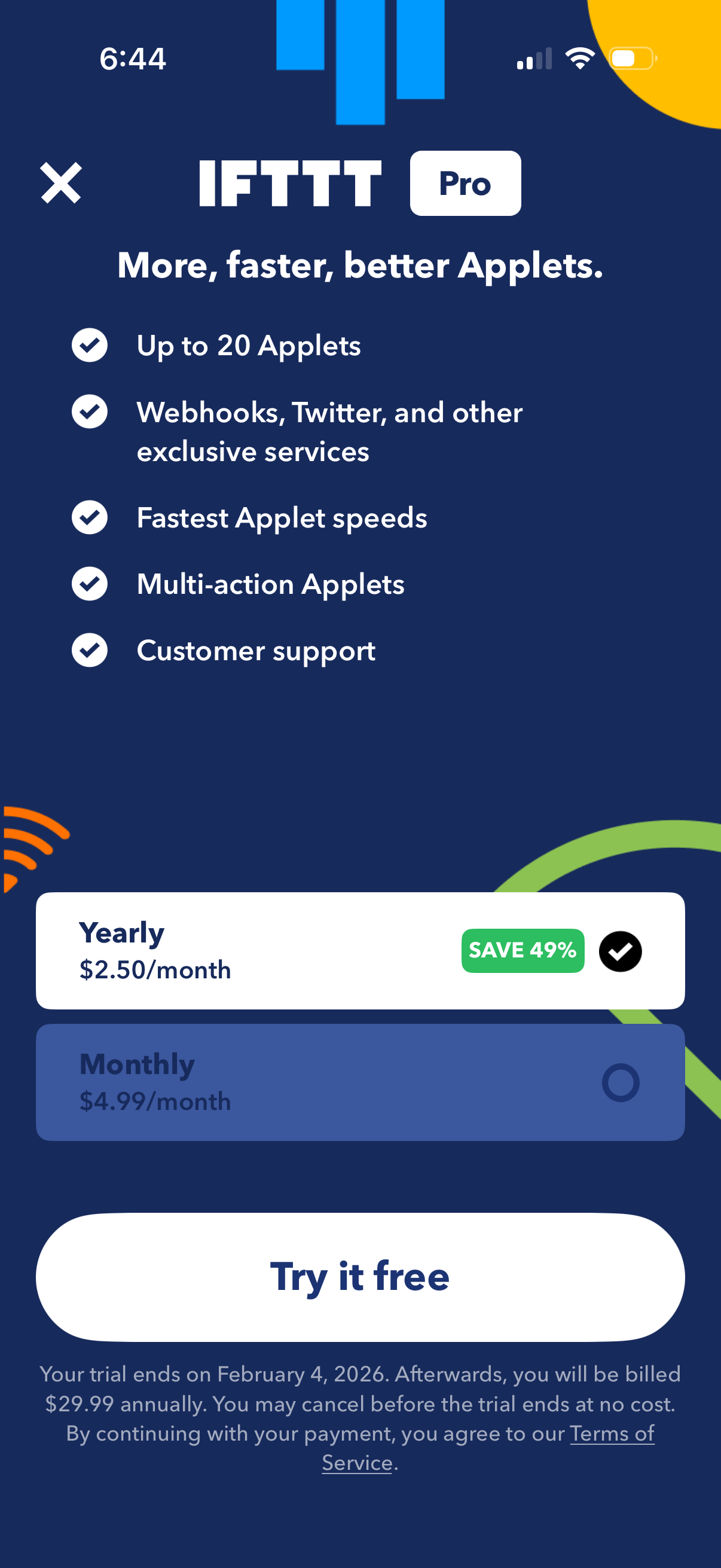
Subscription upgrade paywall for an automation app’s Pro plan, highlighting benefits like more applets, exclusive services, faster speeds, multi-action applets, and customer support. Lets users choose between yearly or monthly pricing with savings, start a free trial via a primary “Try it free” button, and close the screen.