Onboarding
Onboarding welcome/login screen for a habit and energy coaching app featuring a tagline and brand logo, prompting users to sign in or create an account. Provides authentication options to continue with Apple, Google, or Email, plus links to Terms and Privacy.
App sign-in screen offering authentication options (Continue with Apple, Google, or Email) with links to Terms and Privacy. An iOS system permission modal is shown asking to open google.
Google account chooser screen in a mobile web view showing a list of saved user profiles with avatars and email addresses, including signed-out status for some accounts. Allows switching to an existing account or selecting “Use another account” to sign in with a different Google account, with language selection and help/privacy/terms links.
Onboarding sign-up screen asking “What’s your name? ” with a full name text input field and a primary Continue button, including a progress indicator for the multi-step setup flow.
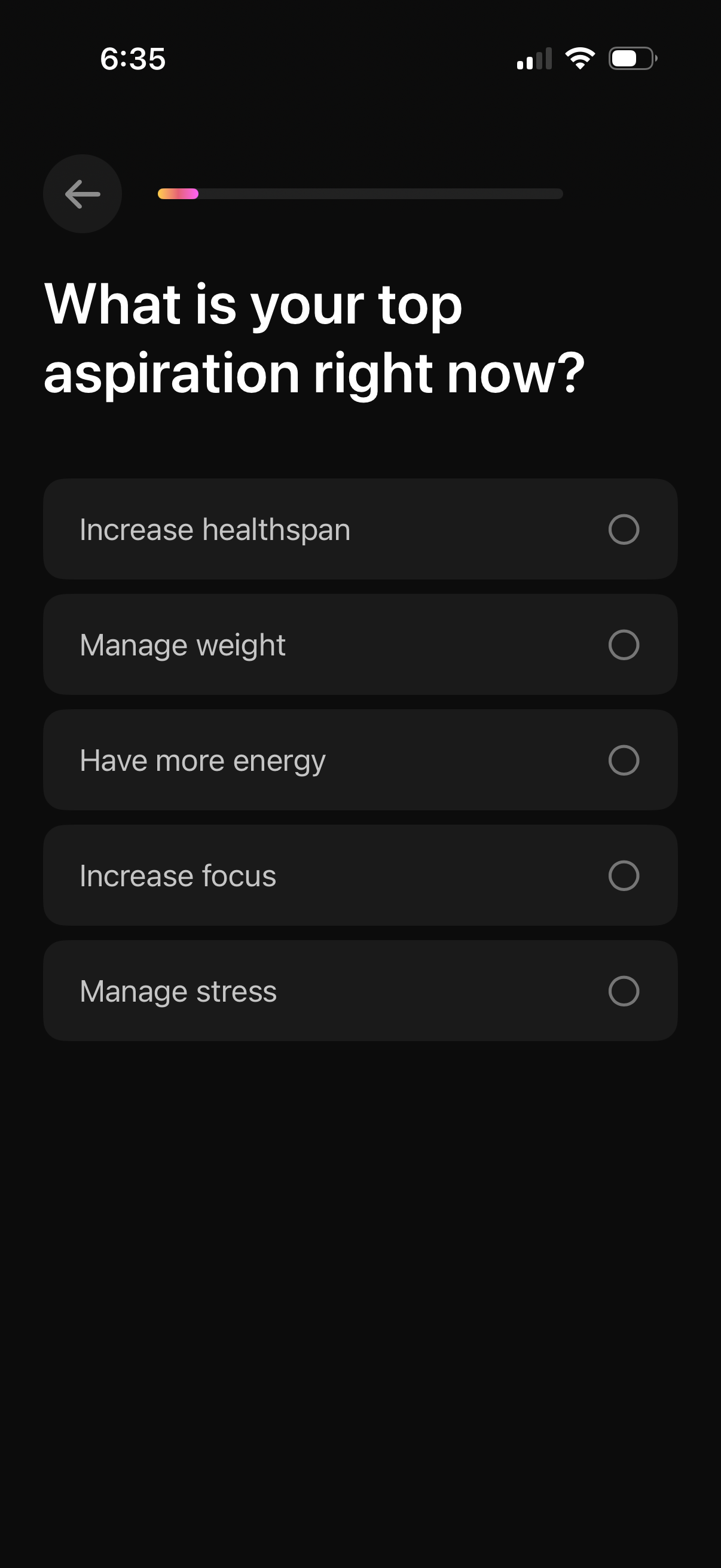
Onboarding questionnaire screen asking the user to choose their top wellness aspiration, with a progress indicator and back button. Presents single-select radio options such as increase healthspan, manage weight, have more energy, increase focus, and manage stress.
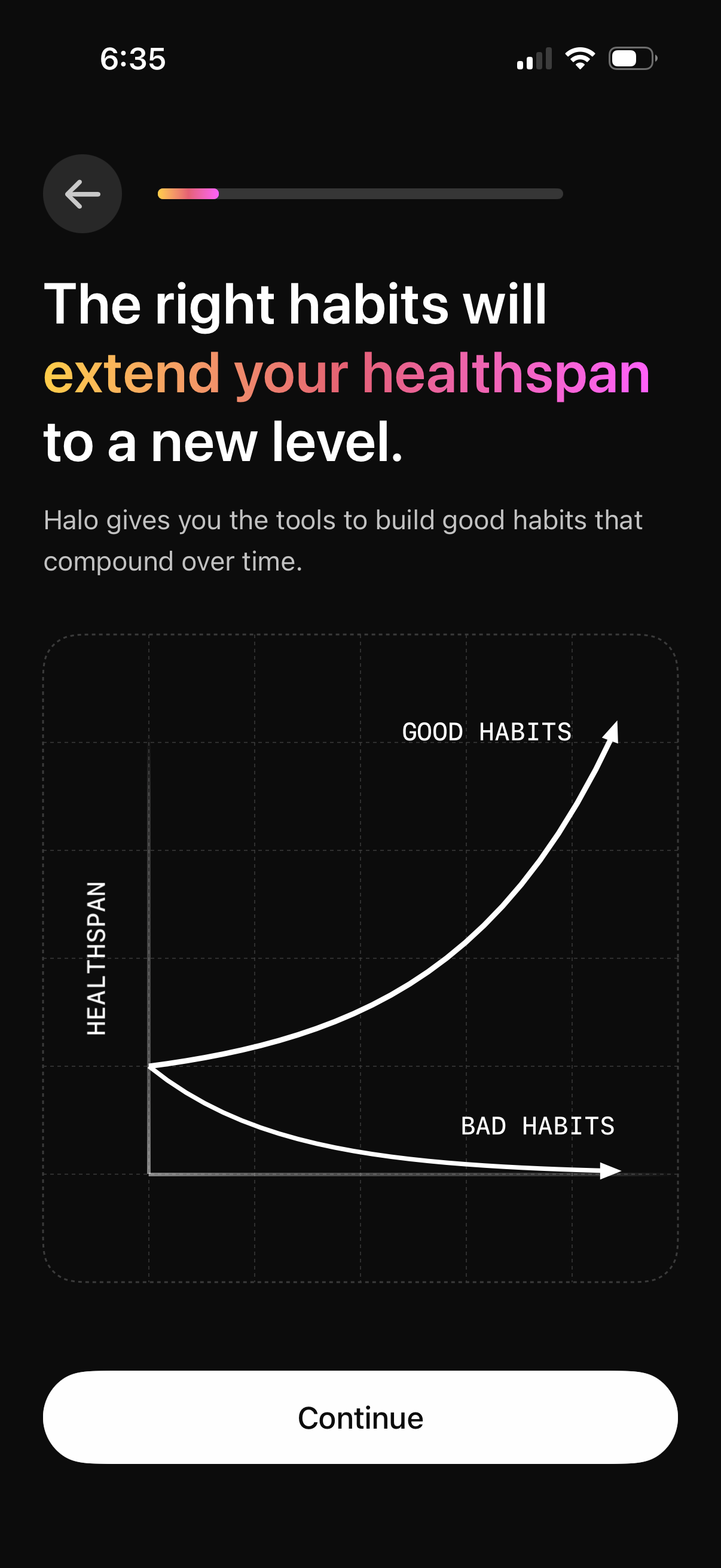
Onboarding education screen for a health and habit-building app explaining how good habits can extend healthspan, with an illustrated chart comparing good vs bad habits over time. Includes a back button, progress indicator, and a primary “Continue” CTA to proceed.
Onboarding education screen for a health and habit-building app explaining how good habits can extend healthspan, with an illustrated chart comparing good vs bad habits over time. Includes a back button, progress indicator, and a primary “Continue” CTA to proceed.
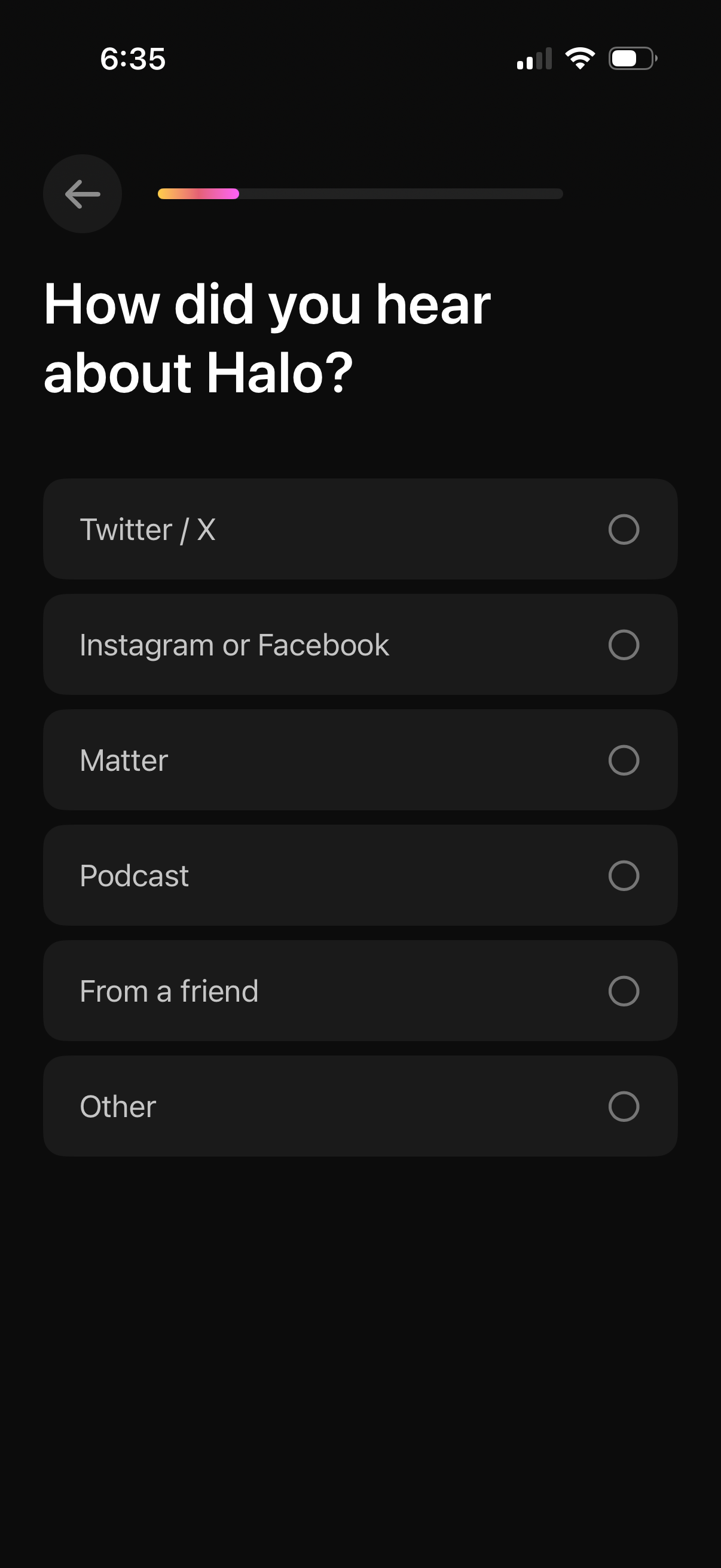
Onboarding survey screen asking “How did you hear about Halo? ” with a progress indicator and back button.
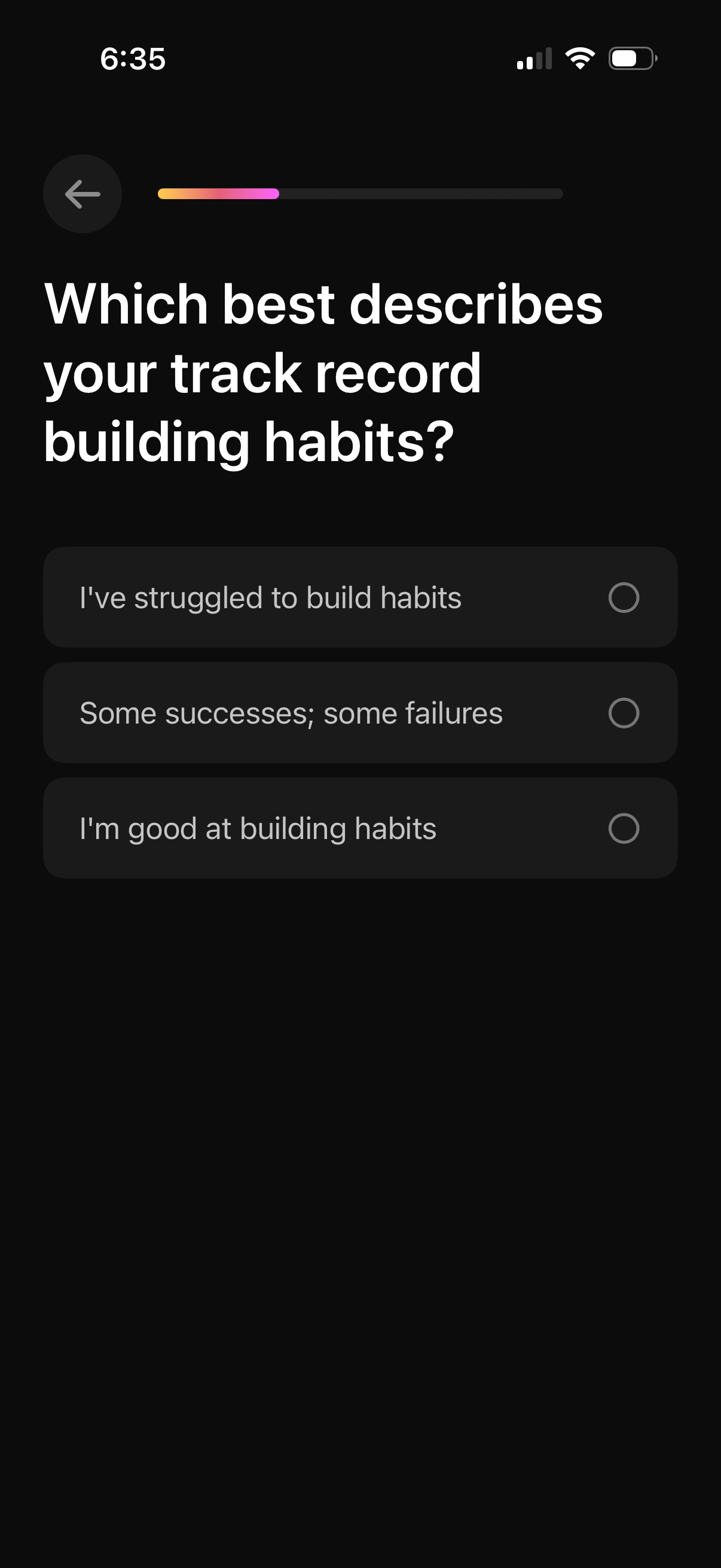
Onboarding questionnaire screen asking users to self-assess their track record building habits, with single-select radio options (struggled, mixed success, good) and a progress indicator plus back navigation. This step helps personalize the habit-building experience based on the user’s current skill level.
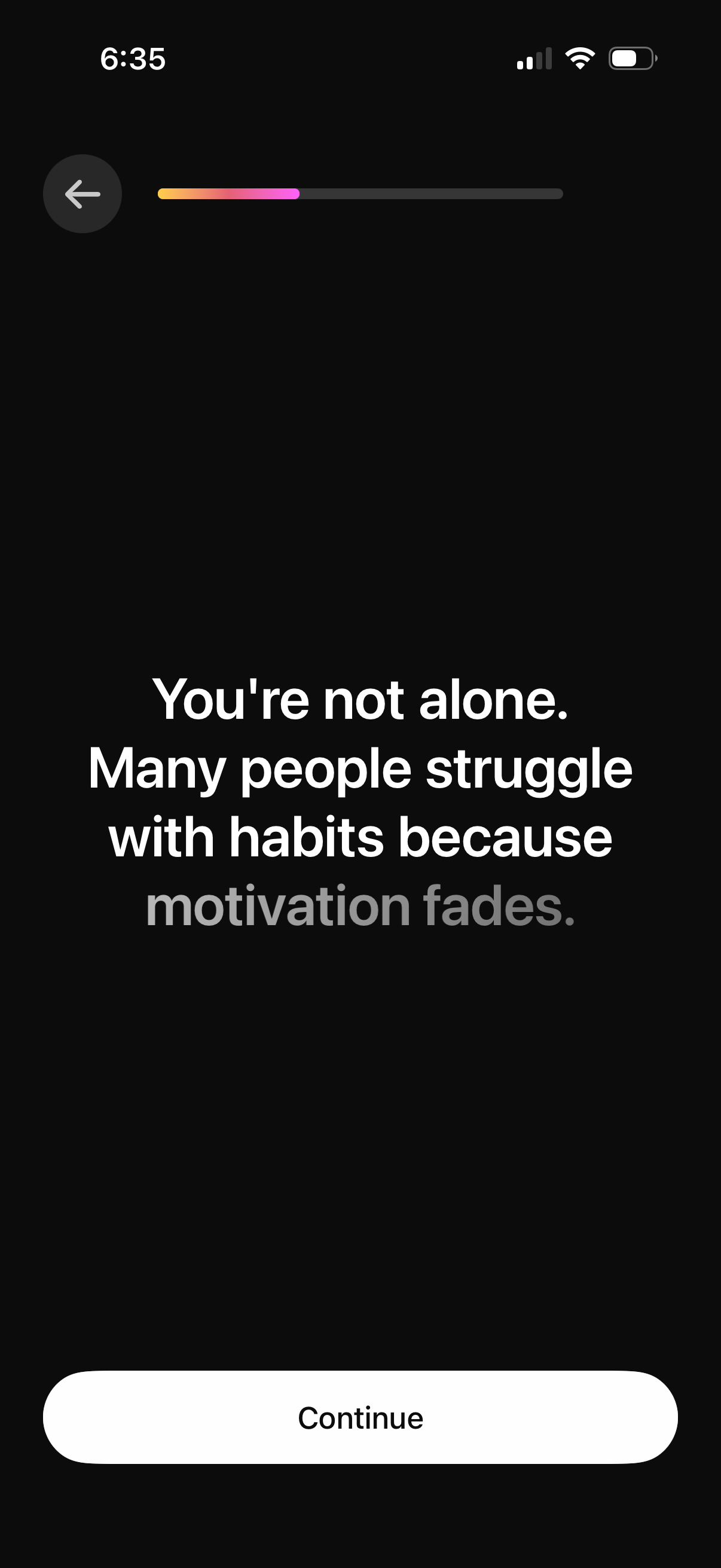
Onboarding/lesson screen in a habit-building app that reassures users with motivational copy about why habits are hard, featuring a top progress indicator, a back button, and a primary “Continue” call-to-action to advance to the next step.
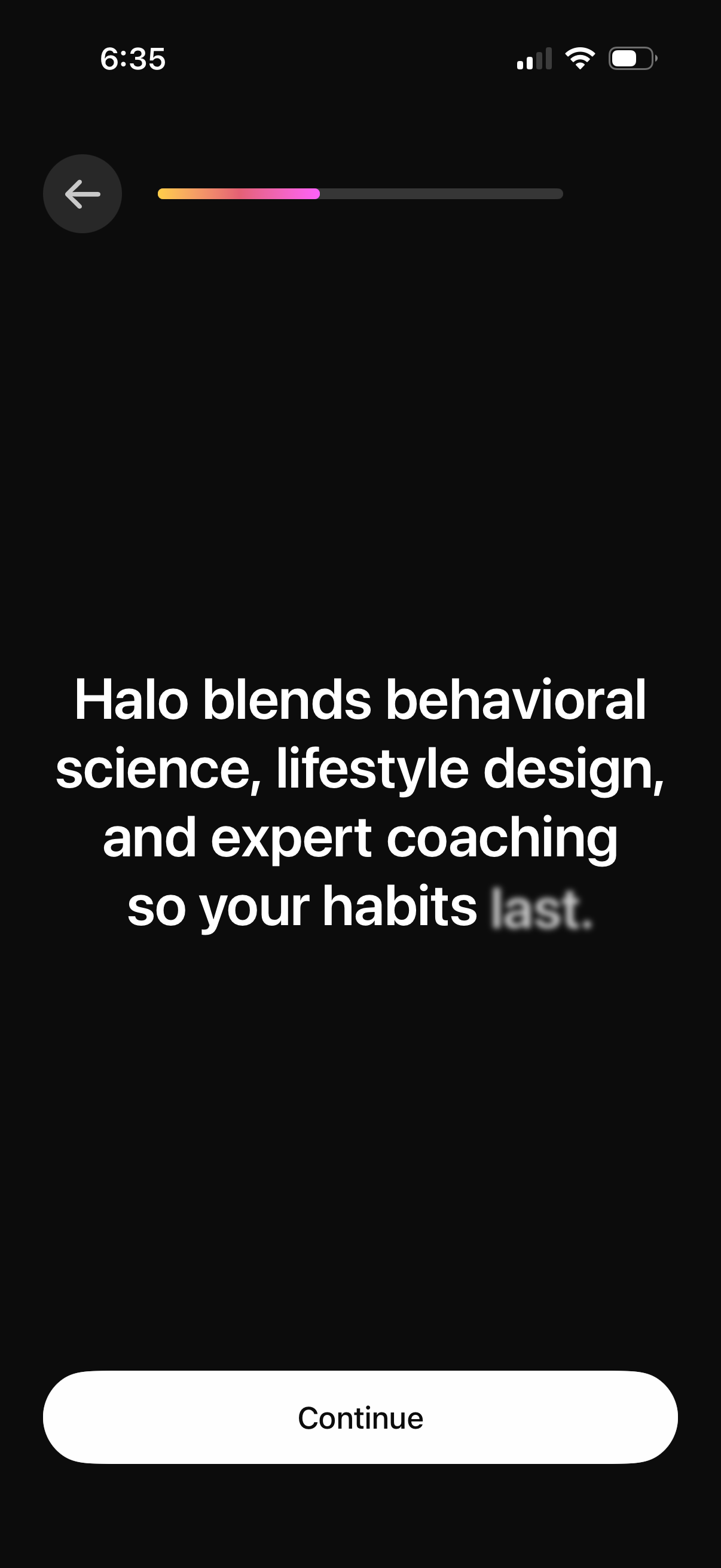
An onboarding/intro slide for a habit-coaching app explaining its approach (behavioral science, lifestyle design, expert coaching) with a progress indicator, back button, and a primary Continue call-to-action to advance through the onboarding flow.
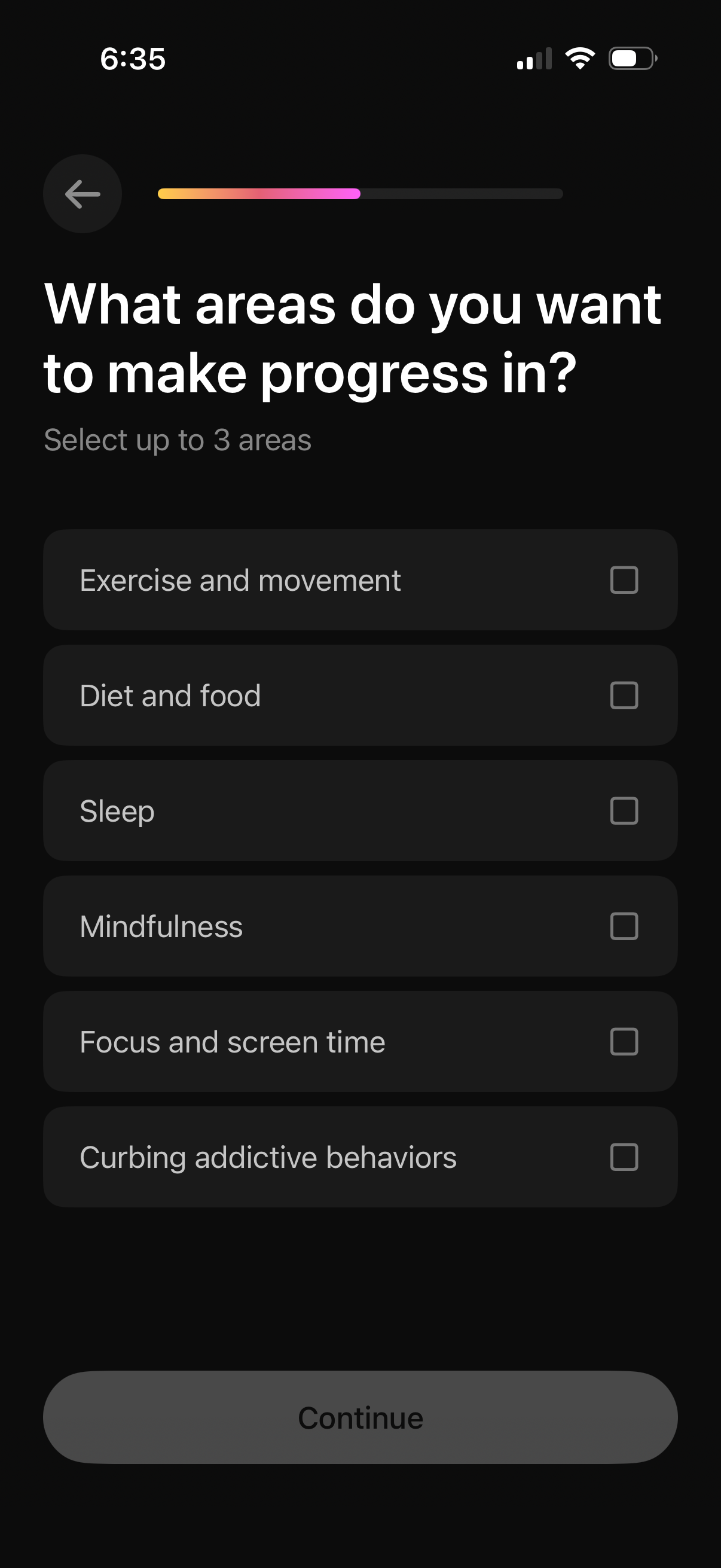
Onboarding goal-selection screen in a wellness or habit app asking what areas the user wants to make progress in, allowing selection of up to three categories via checkboxes (exercise, diet, sleep, mindfulness, focus/screen time, curbing addictive behaviors). Includes a progress indicator, back button, and a primary “Continue” CTA to proceed.
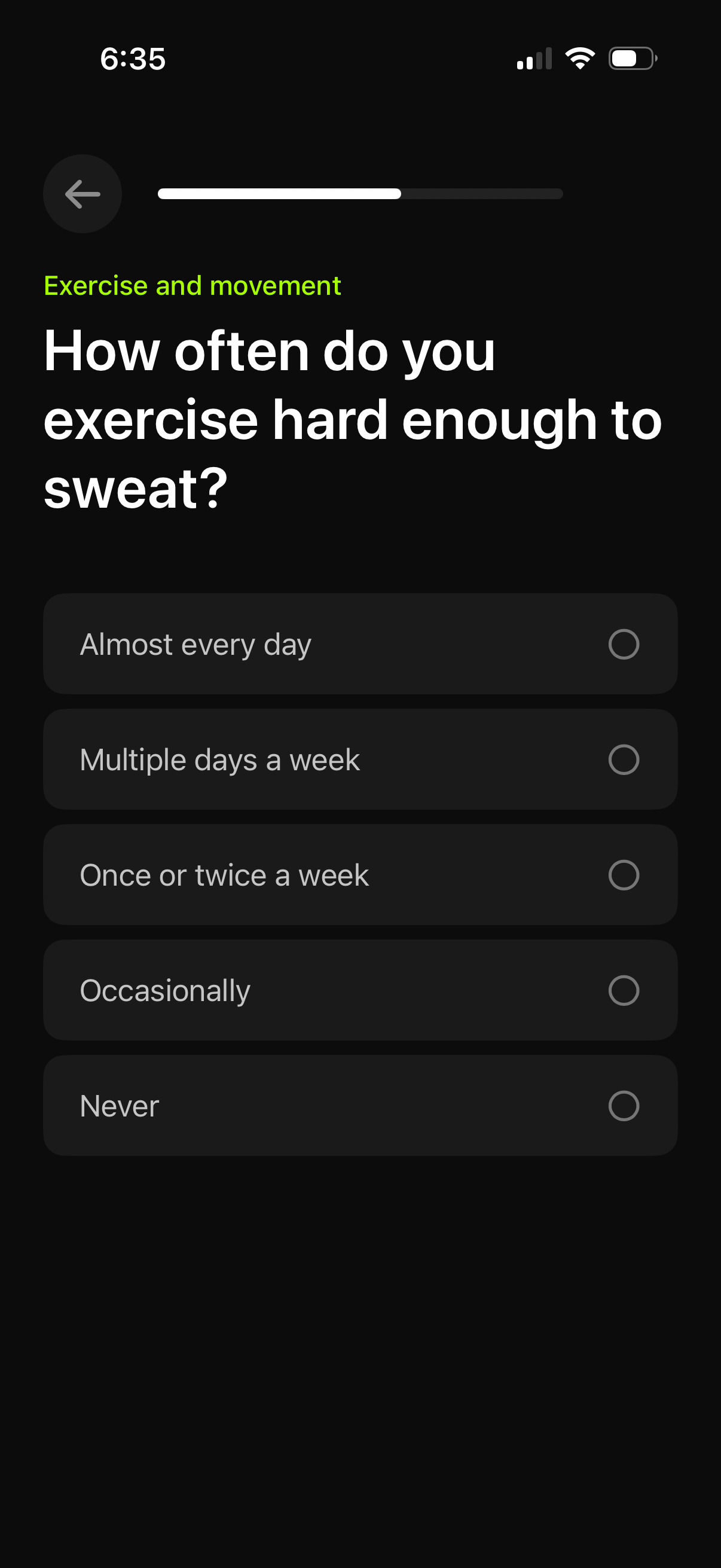
Fitness onboarding questionnaire screen asking how often the user exercises hard enough to sweat, with a progress indicator and back button. Users select one of several radio-button frequency options ranging from almost every day to never.
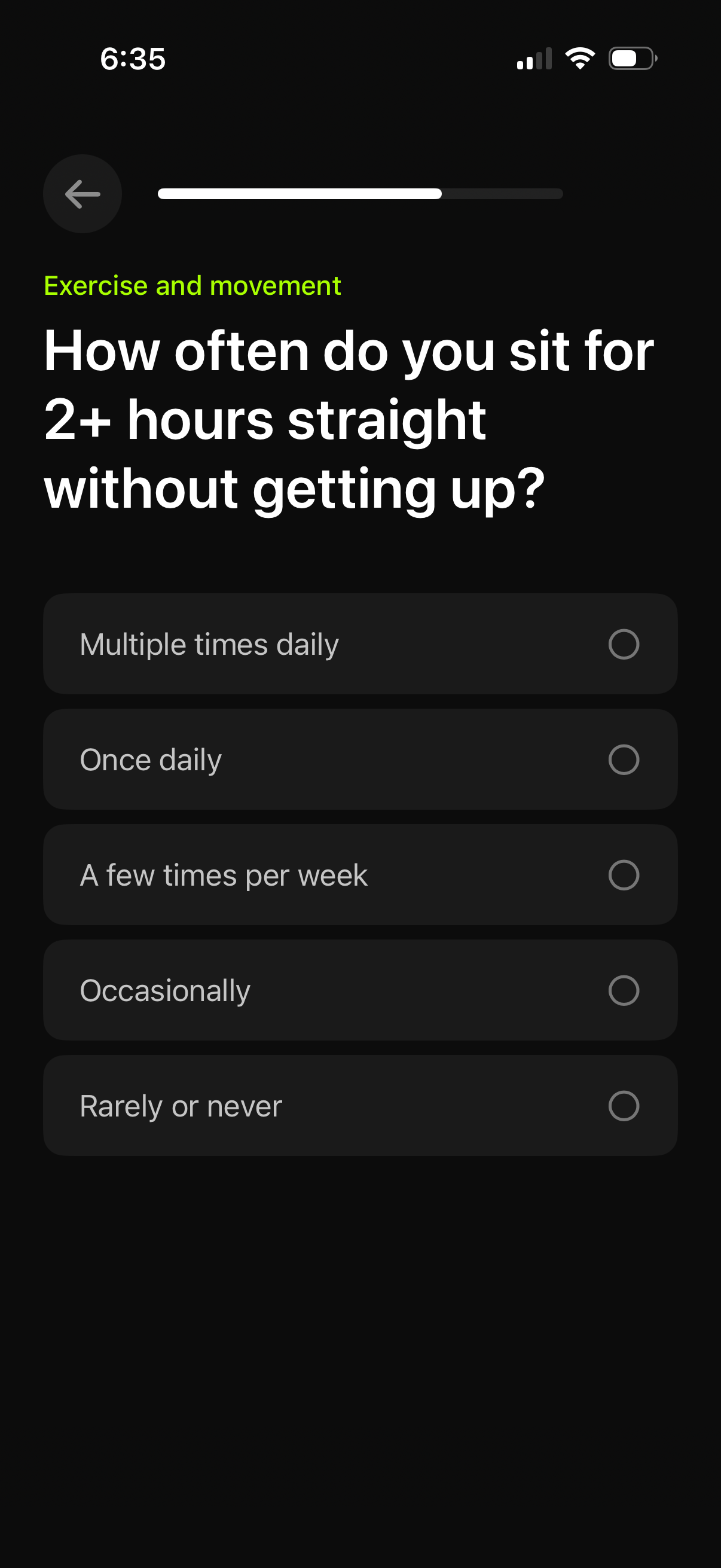
Health and fitness onboarding questionnaire screen under “Exercise and movement” asking how often the user sits for 2+ hours without getting up. Provides single-select radio options from multiple times daily to rarely or never, with a back button and progress indicator.
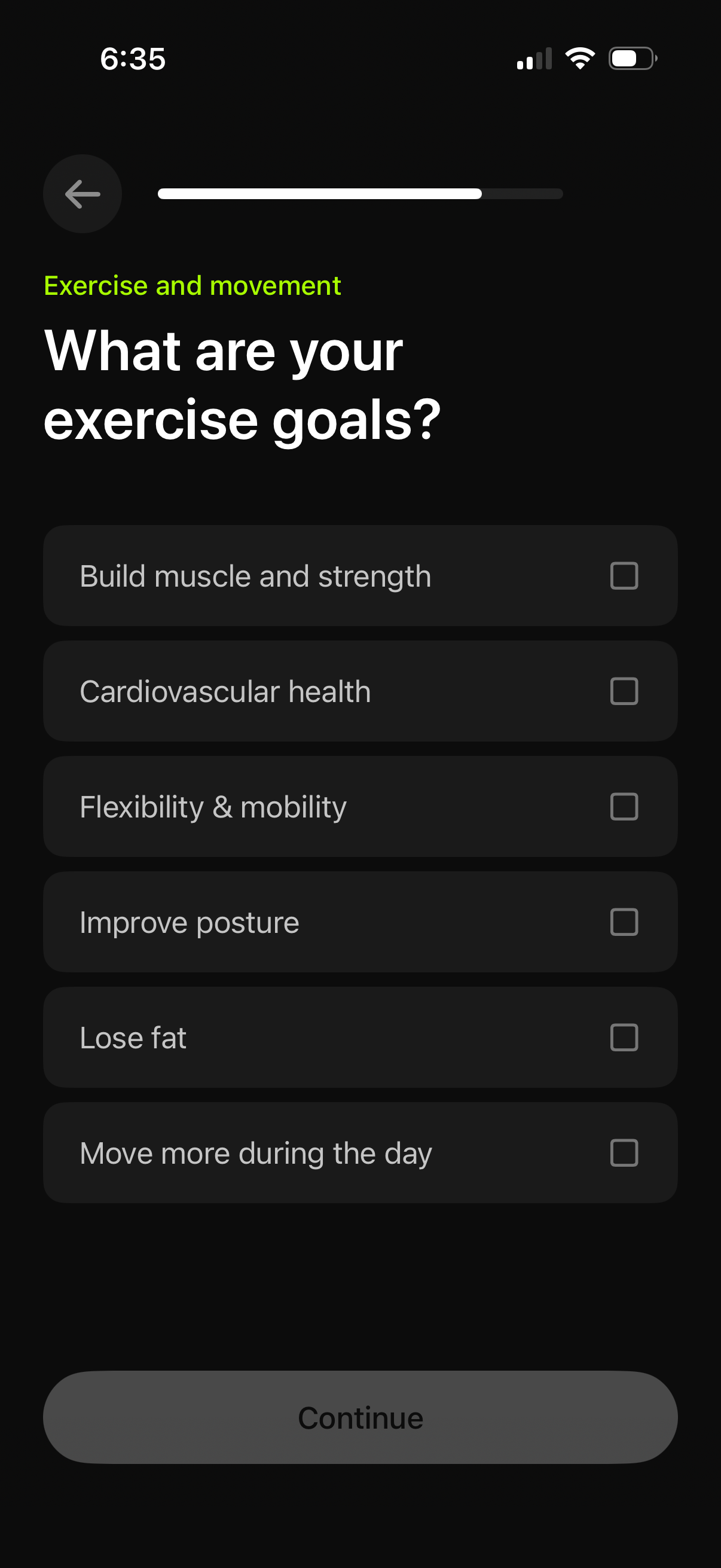
Onboarding questionnaire screen for a fitness or wellness app asking users to select their exercise goals in the “Exercise and movement” category. Users can choose multiple goals via checkbox list items (e.
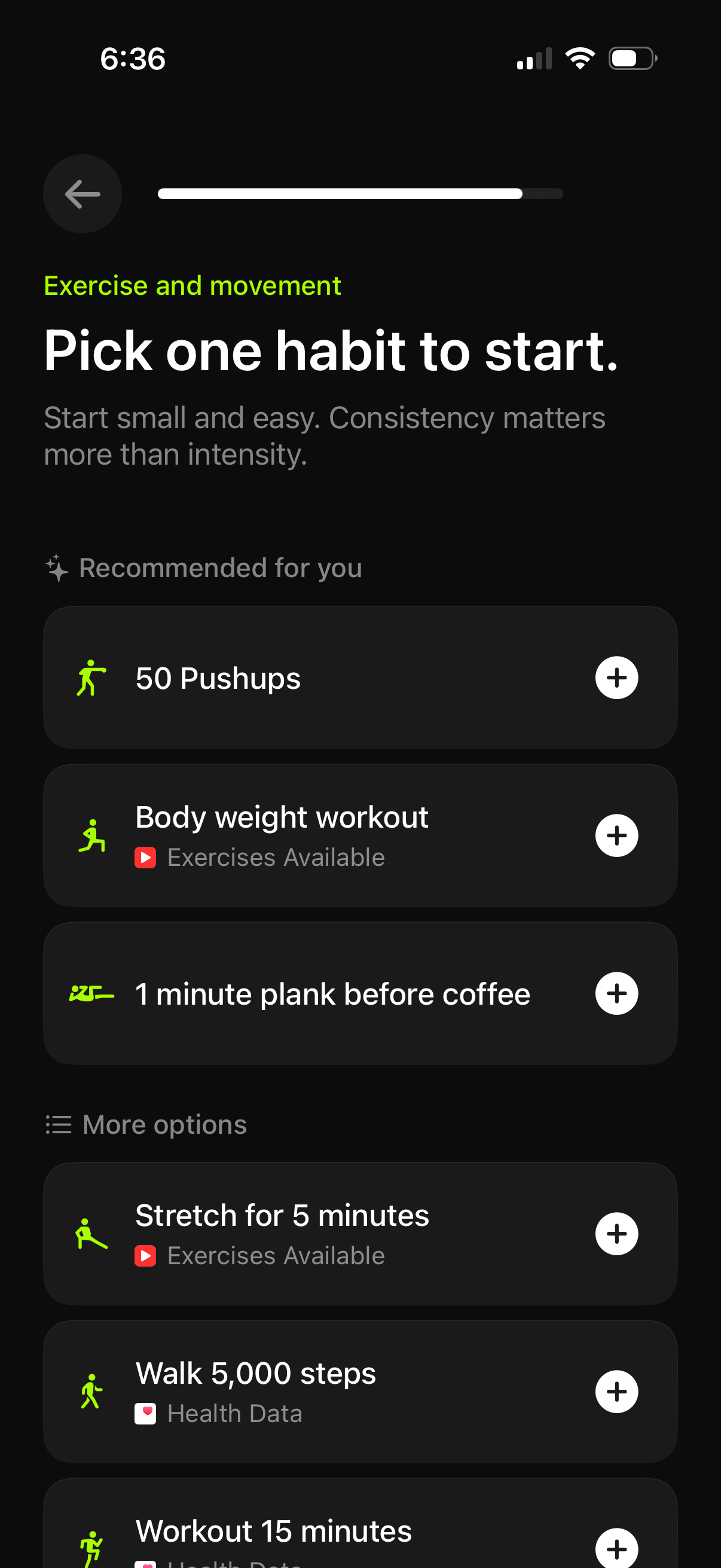
Habit-building onboarding screen for exercise and movement that prompts the user to pick one fitness habit to start, showing recommended and more options like pushups, bodyweight workout, plank, stretching, and step goals. Users can add a habit via plus buttons and see whether routines have available exercises or use health data, with a progress indicator and back navigation.
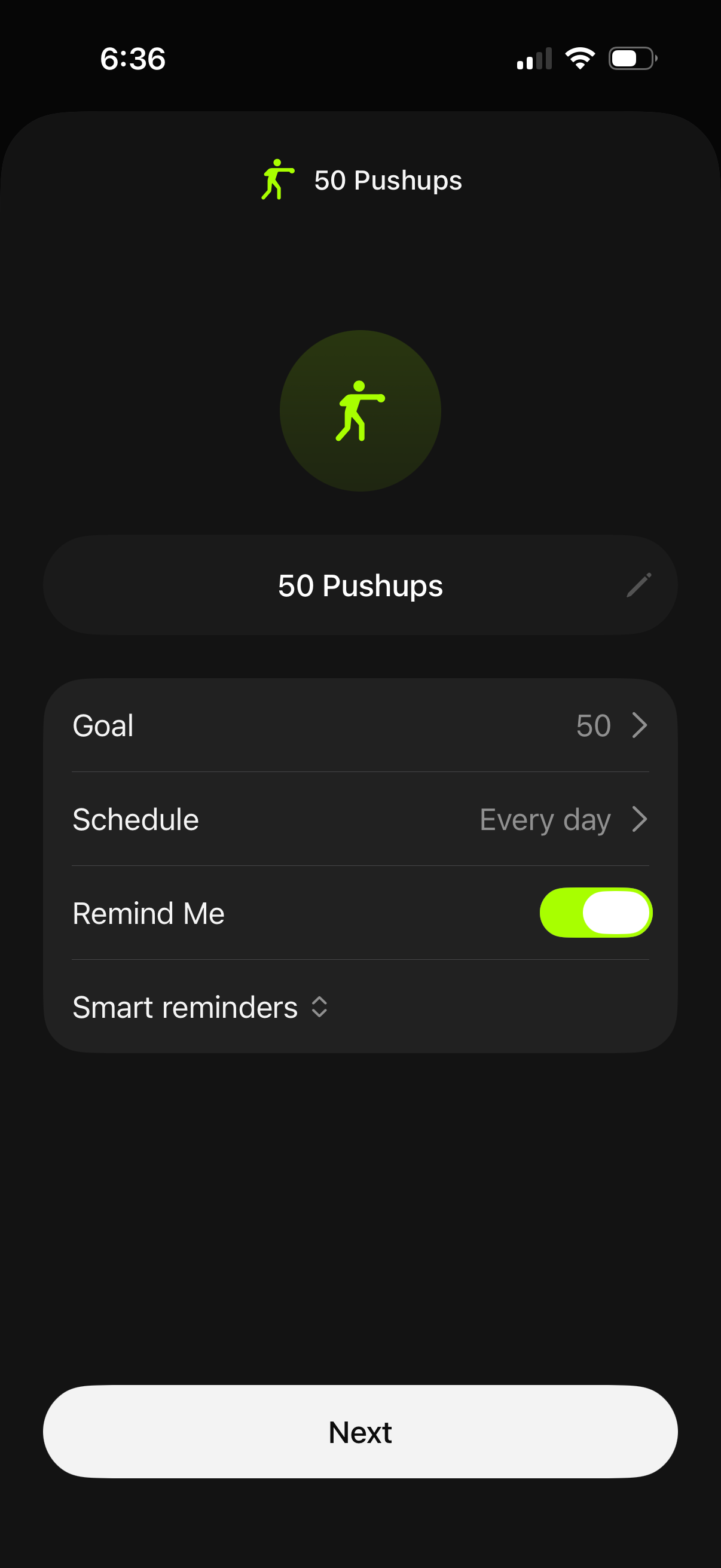
Habit or workout goal setup screen for a “50 Pushups” activity, allowing users to edit the goal count, set a schedule (e. g.
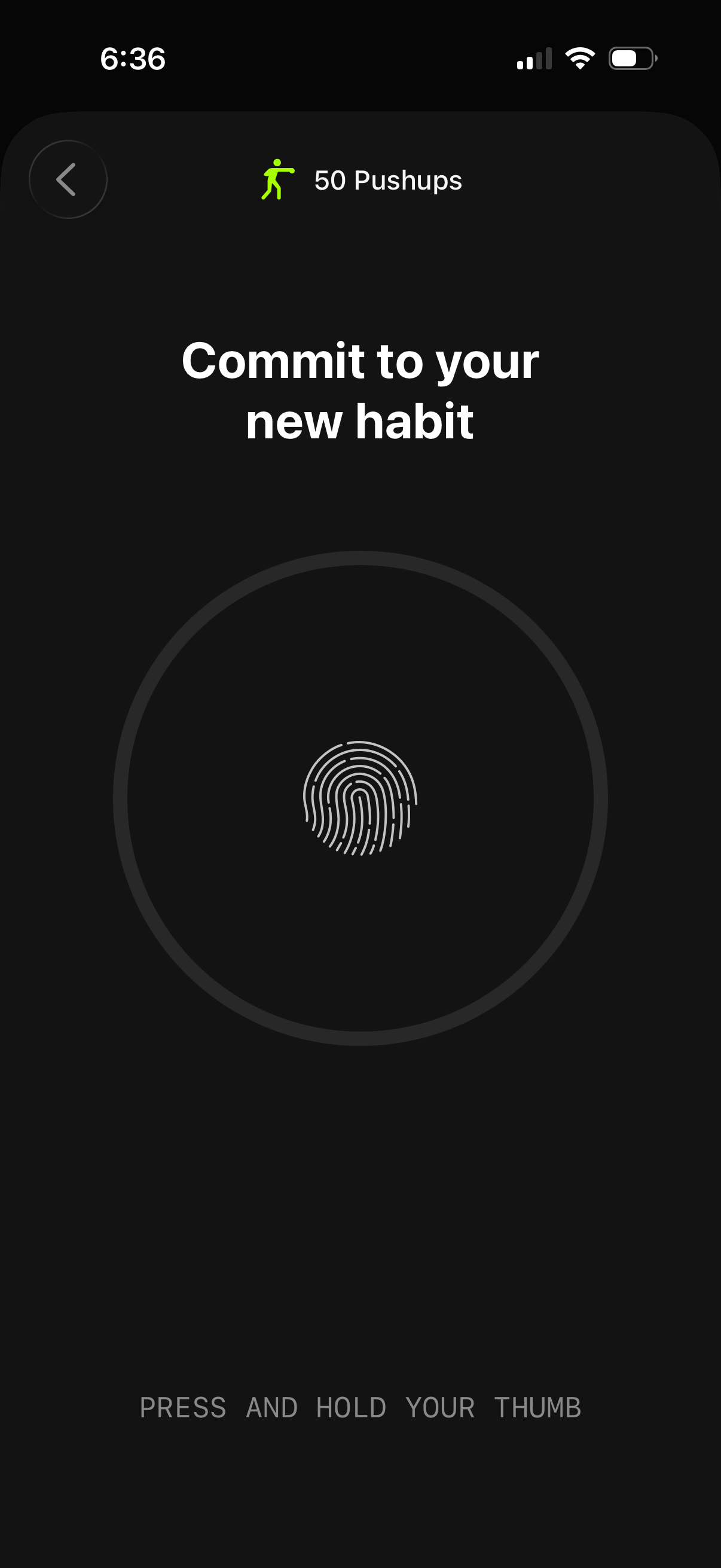
Habit or fitness challenge commitment screen for a goal like “50 Pushups,” prompting the user to confirm starting a new habit by authenticating with Touch ID. Includes a back button and an instruction to press and hold your thumb on a fingerprint scanner to proceed.
Habit or fitness challenge commitment screen prompting the user to confirm starting a new habit (e. g.
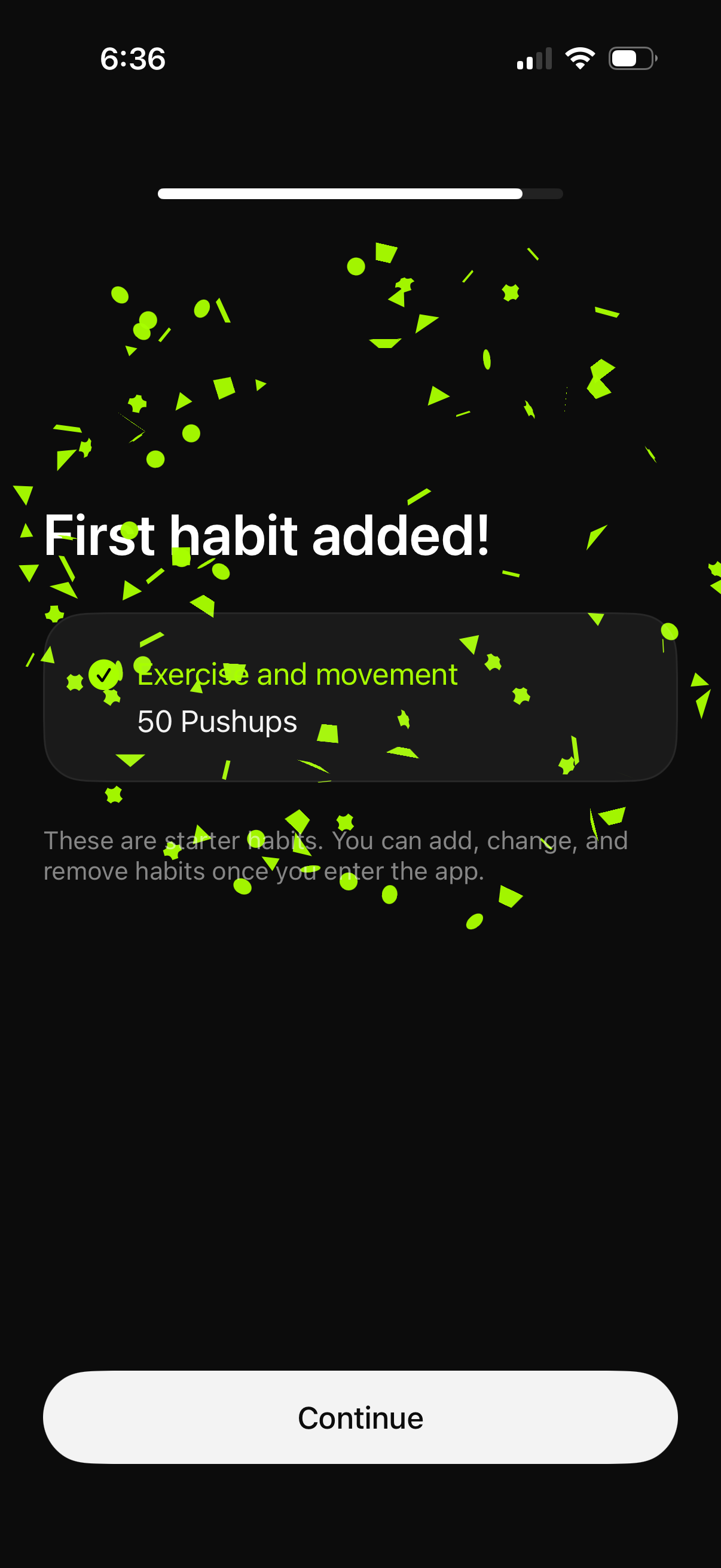
Celebratory confirmation screen in a habit tracking app after creating the first habit, showing the selected category and habit goal (e. g.
Confirmation screen in a habit tracker after creating a new habit, showing a success message and a primary “Continue” button to proceed with setup or onboarding.
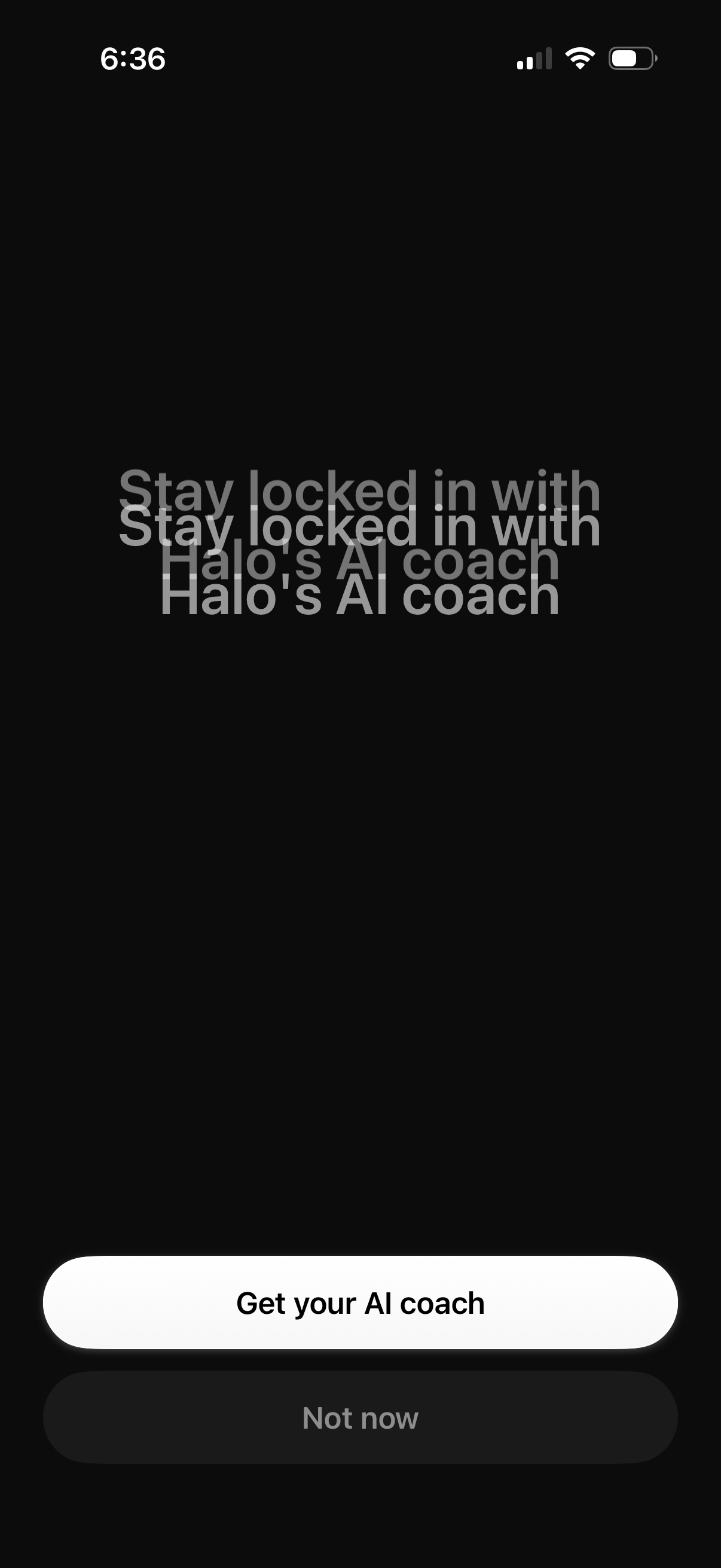
Promotional onboarding upsell screen encouraging users to stay engaged with an AI coach feature, highlighting the value proposition in a full-screen message. Primary CTA button offers “Get your AI coach” with a secondary “Not now” option to dismiss or skip.
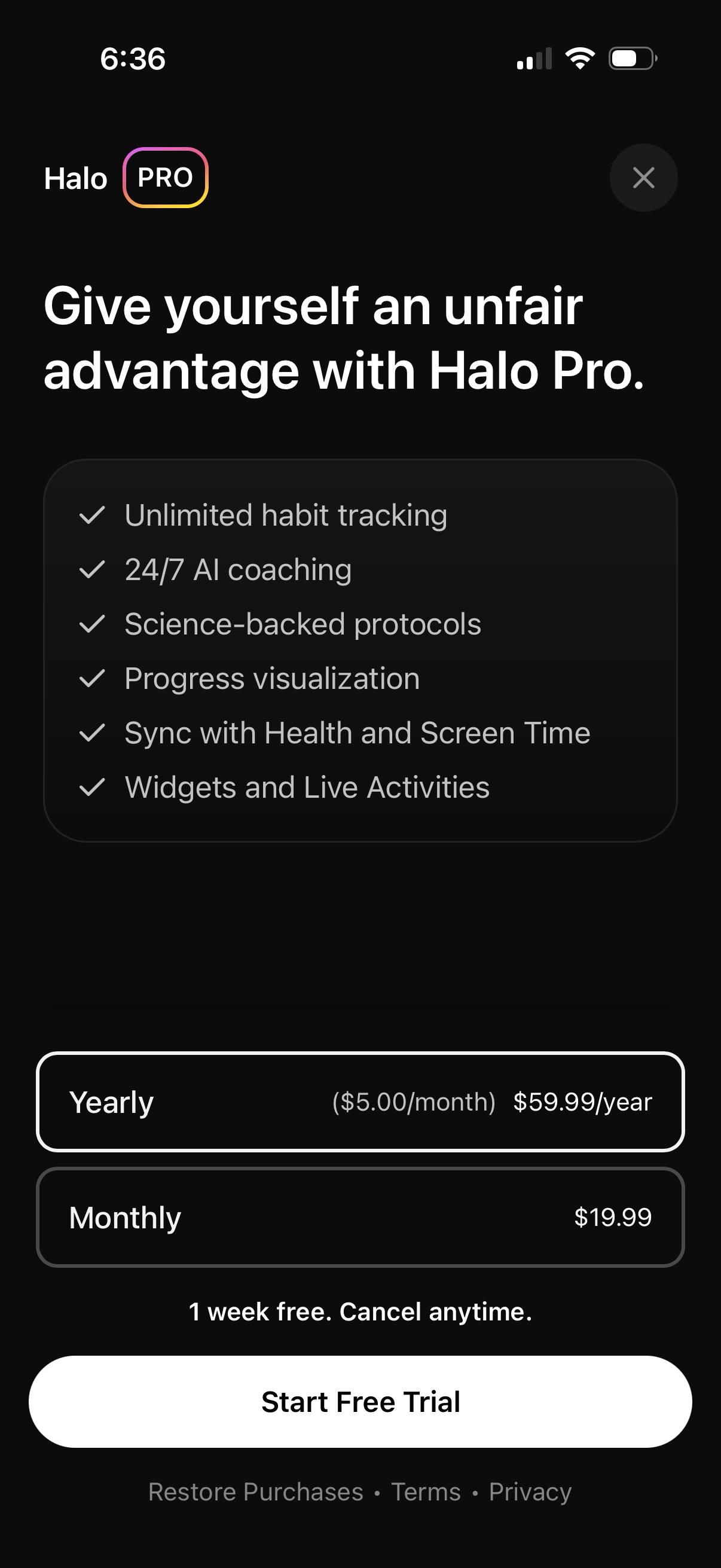
Premium subscription paywall for a habit tracking app promoting “Pro” benefits, listing features like unlimited habits, 24/7 AI coaching, science-backed protocols, progress visualization, health/screen time sync, and widgets/live activities. Users can choose yearly or monthly pricing and start a 1-week free trial, with options to restore purchases and view terms/privacy or close the modal.
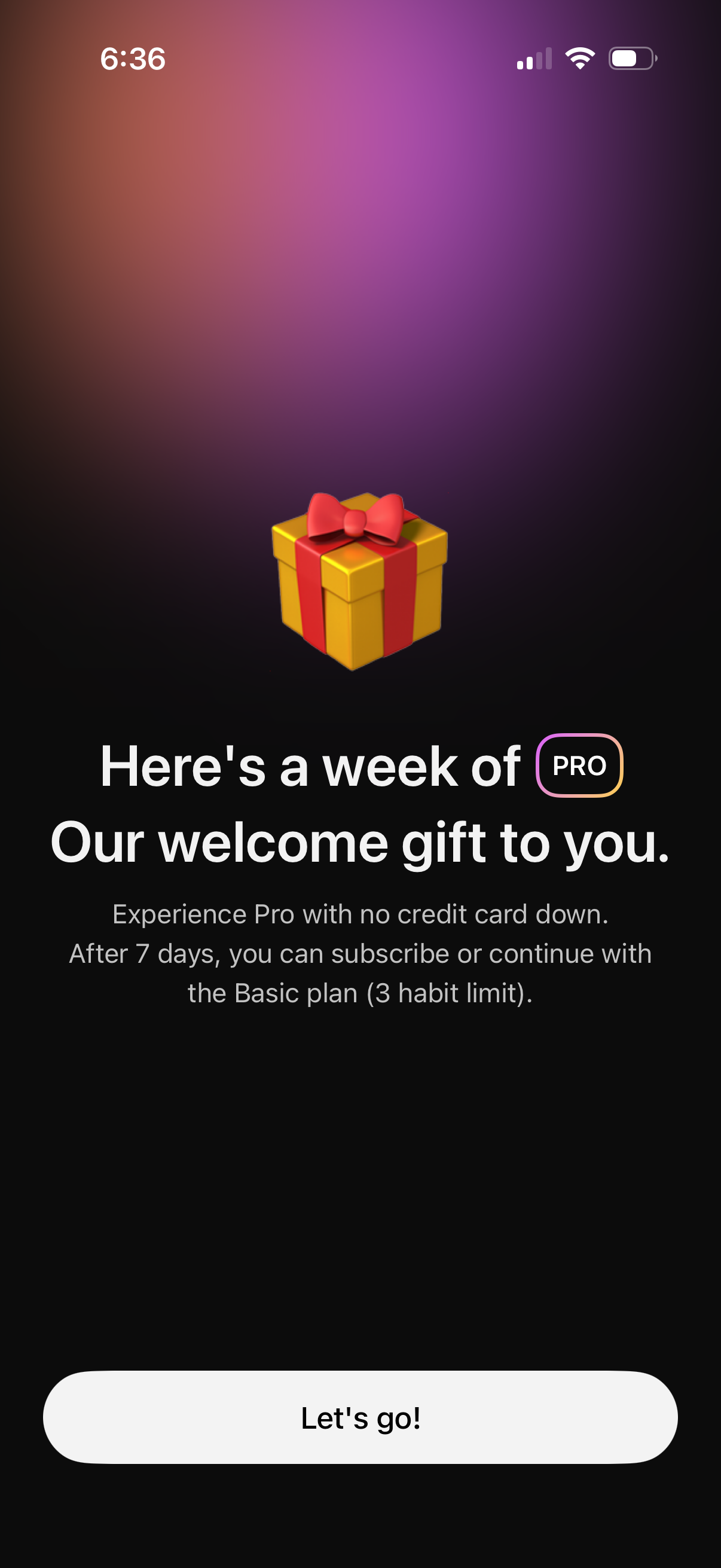
Welcome/upsell screen offering a 7-day free Pro trial as a “welcome gift,” highlighting no credit card required and that users can subscribe after the trial or continue on a limited basic plan. Primary call to action button prompts the user to start the trial (“Let’s go!