Sign up
Minimal onboarding/tutorial screen showing a stylus tapping to confirm a selection, with a large checkmark confirmation card in the center. Includes a prominent “Next” button to proceed to the next step in the setup flow.
App launch splash/welcome screen for a note-taking app showing the GoodNotes logo on a solid background, with a primary “Next” button to continue into onboarding or initial setup.
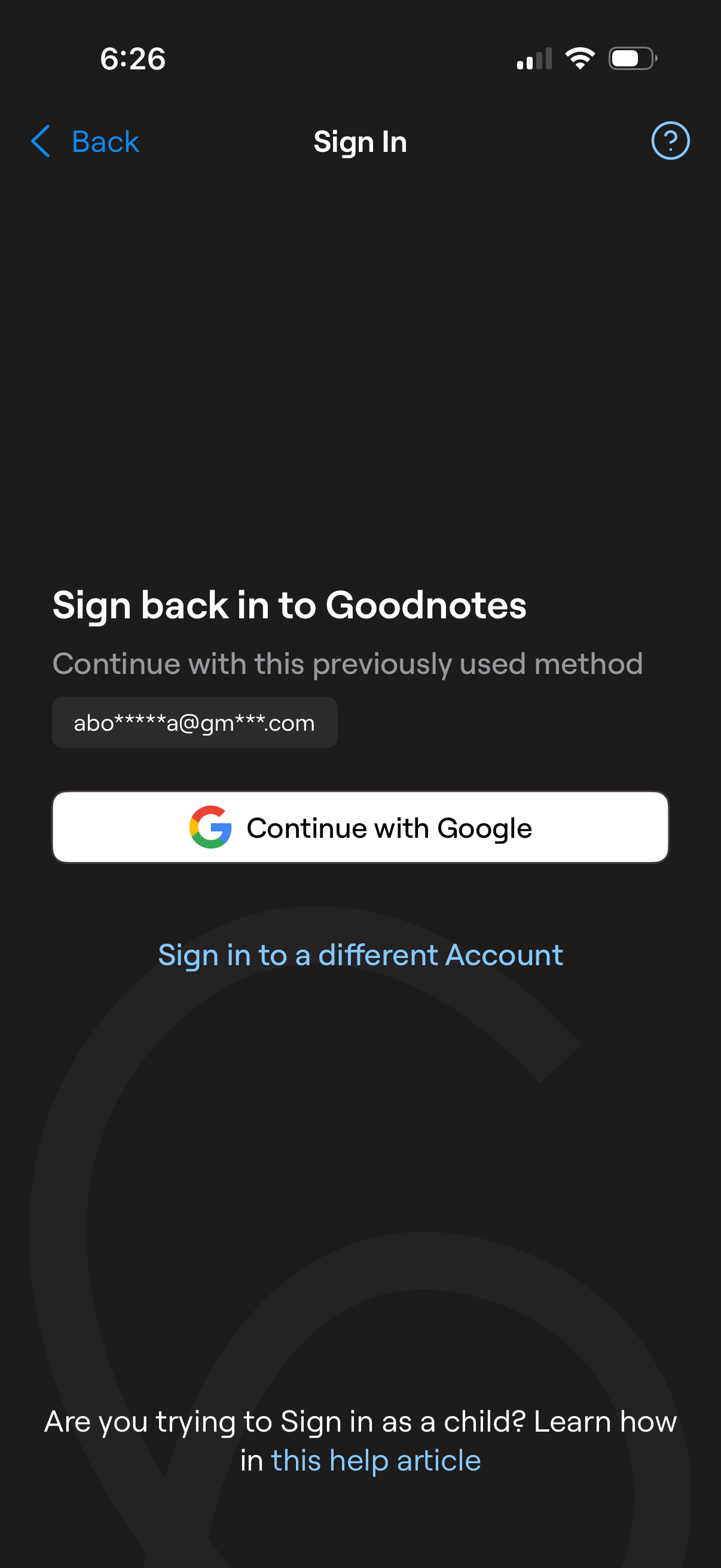
Sign-in screen prompting the user to sign back in using a previously used Google account, with a primary “Continue with Google” button and a masked email shown. Includes an option to sign in with a different account plus back navigation and a help/info link for child sign-in.
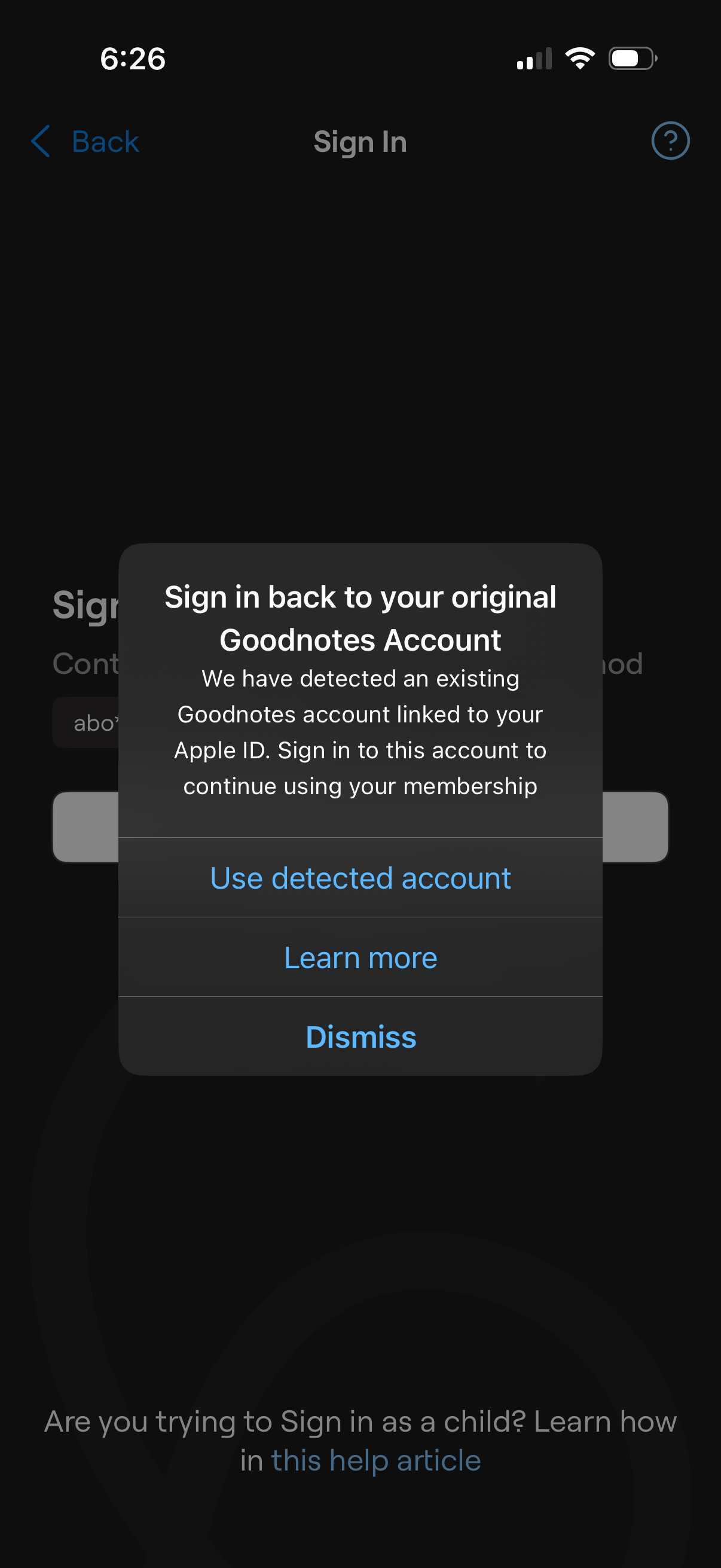
A sign-in screen modal prompts the user to sign back into their original account after detecting an existing account linked to their Apple ID, so they can continue their membership. The alert offers actions to use the detected account, learn more, or dismiss.
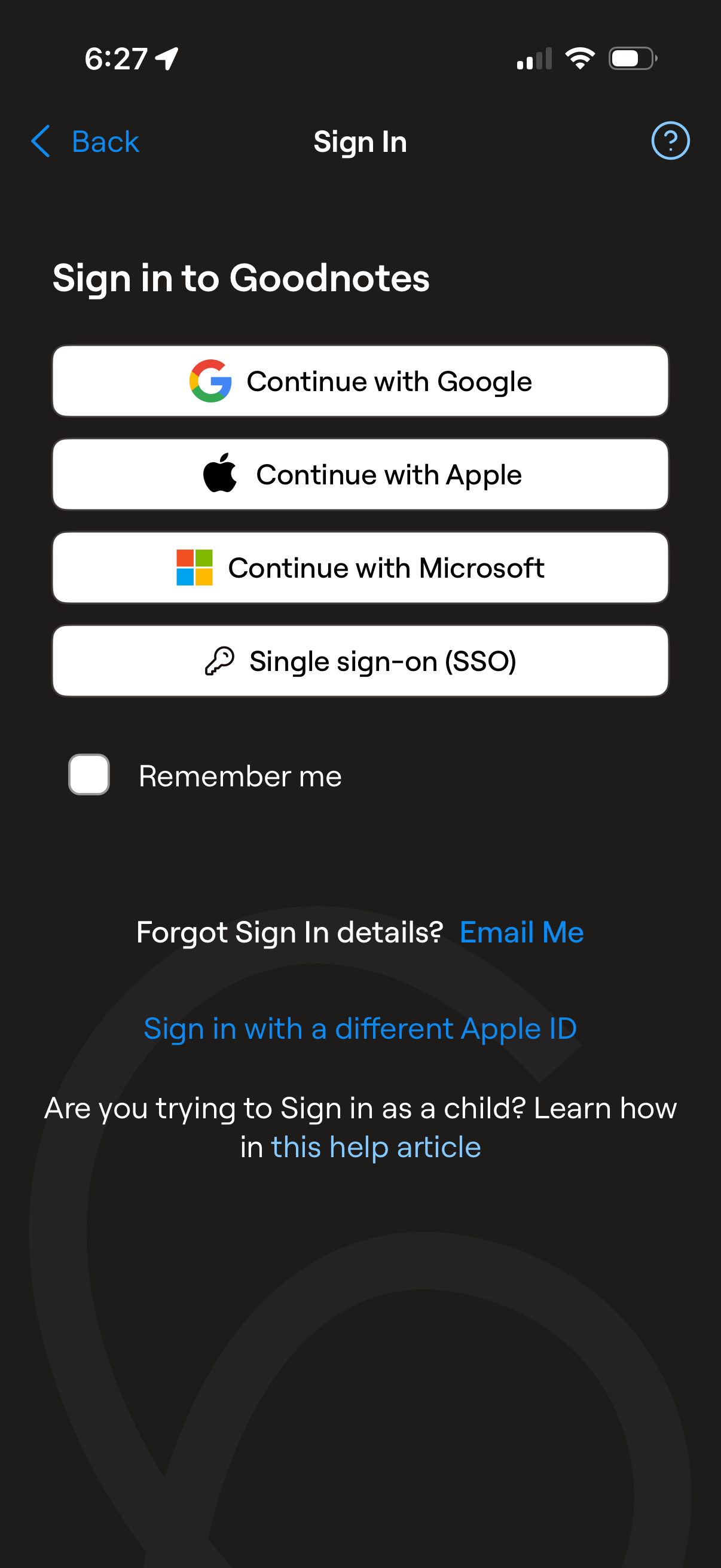
Sign-in screen offering multiple authentication methods, including Continue with Google, Apple, Microsoft, and Single Sign-On (SSO). Includes a “Remember me” checkbox plus account recovery links for forgotten sign-in details and signing in with a different Apple ID, with access to help/support.
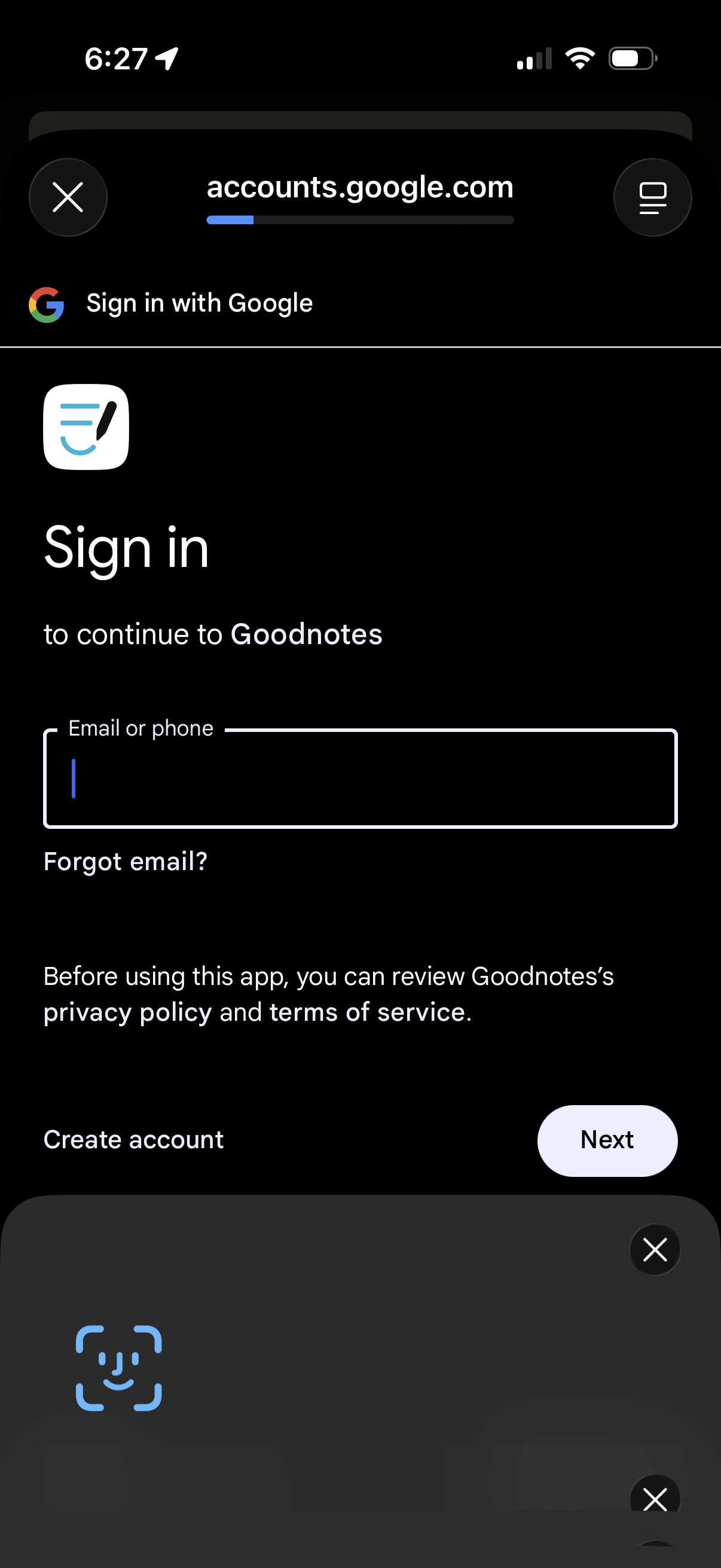
Google OAuth sign-in screen for continuing to an app, prompting the user to enter an email or phone number with links for “Forgot email? ” and “Create account.
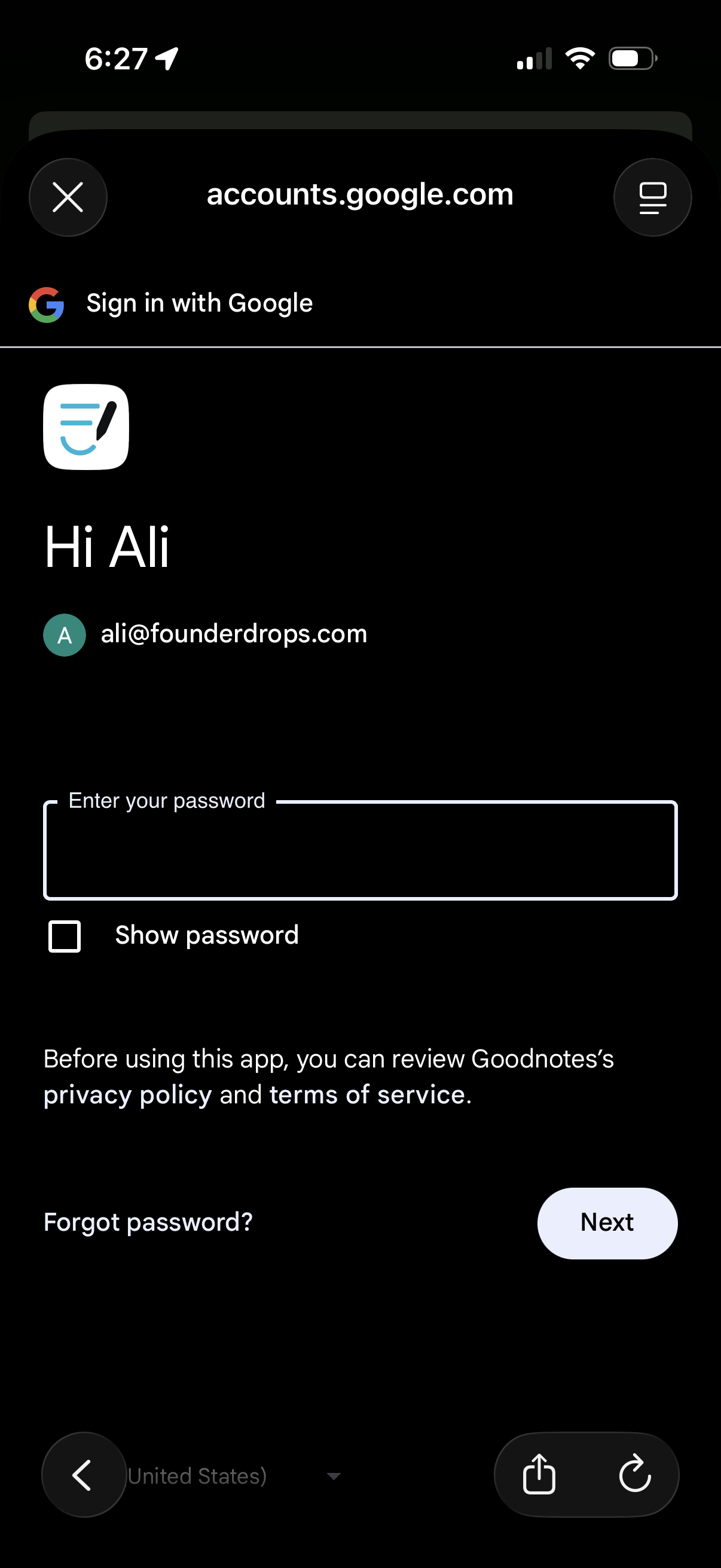
Google sign-in authentication screen within an in-app browser that asks the user to enter their password for a selected account, with options to show password, recover via “Forgot password? ”, and continue with a “Next” button plus links to privacy policy and terms.
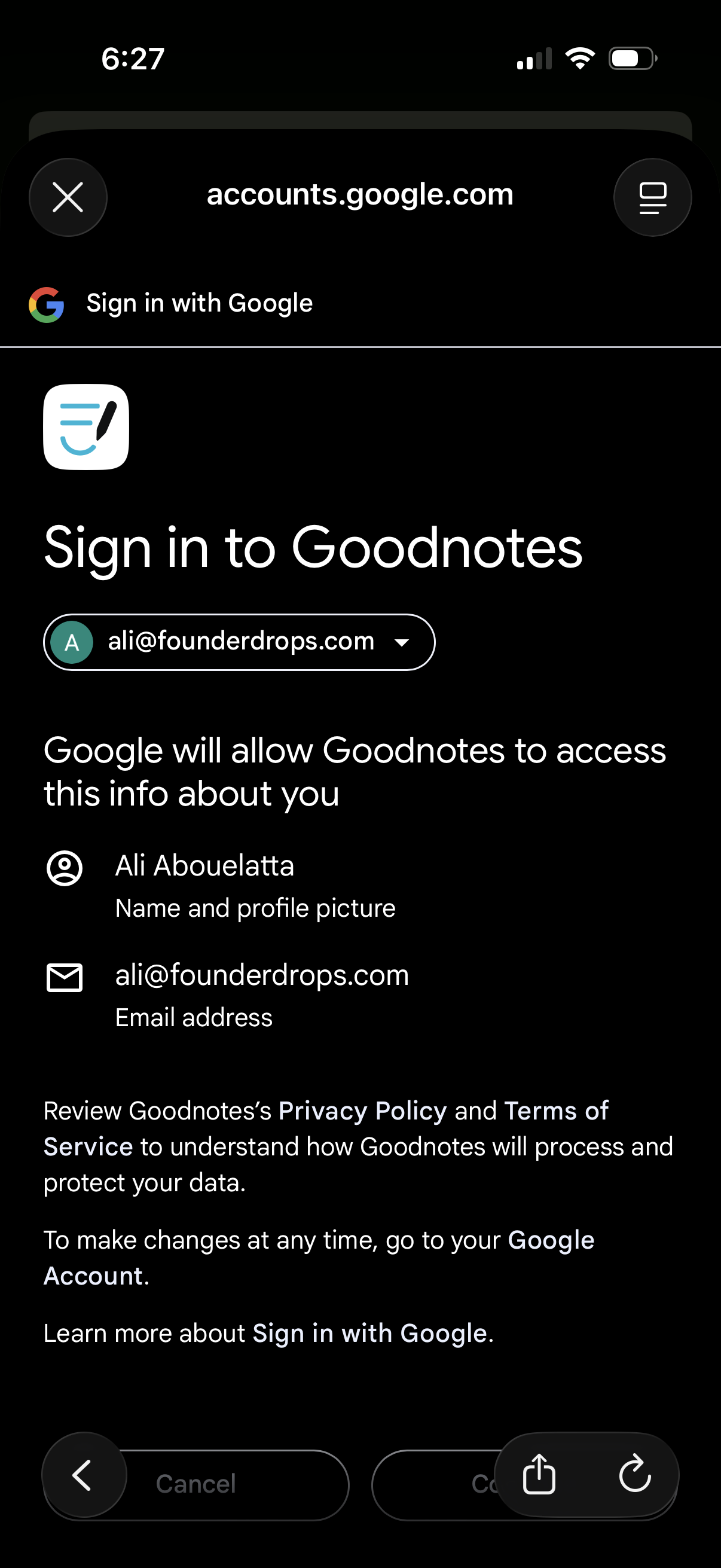
Google OAuth consent screen for signing in to Goodnotes with a selected Google account, showing what personal information the app will access (name/profile photo and email). Provides actions to continue or cancel and links to privacy policy/terms and account settings.
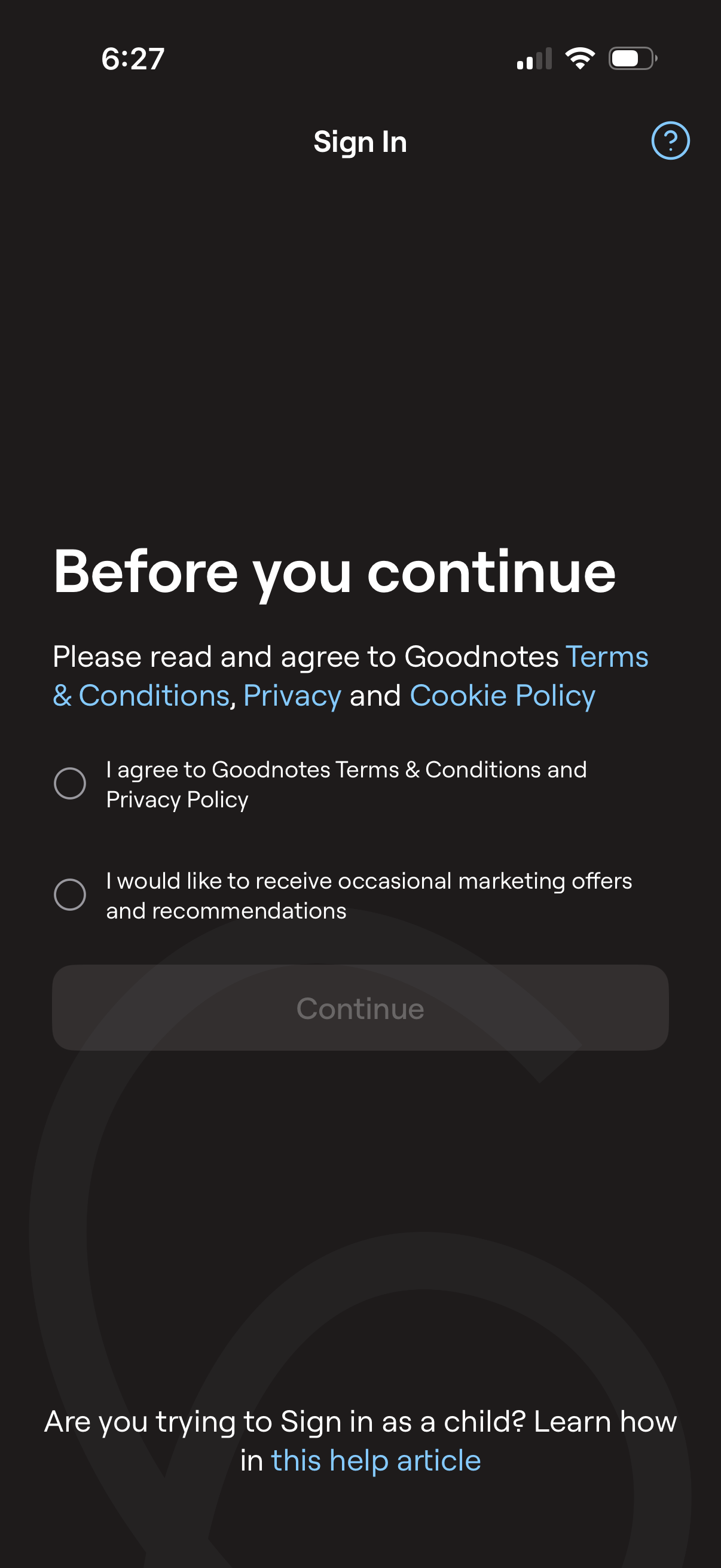
Sign-in onboarding consent screen prompting users to read and agree to the app’s Terms & Conditions, Privacy Policy, and Cookie Policy via a required checkbox, with an optional checkbox to opt in to marketing offers. A disabled Continue button becomes available after acceptance, with help links and a support icon for assistance.
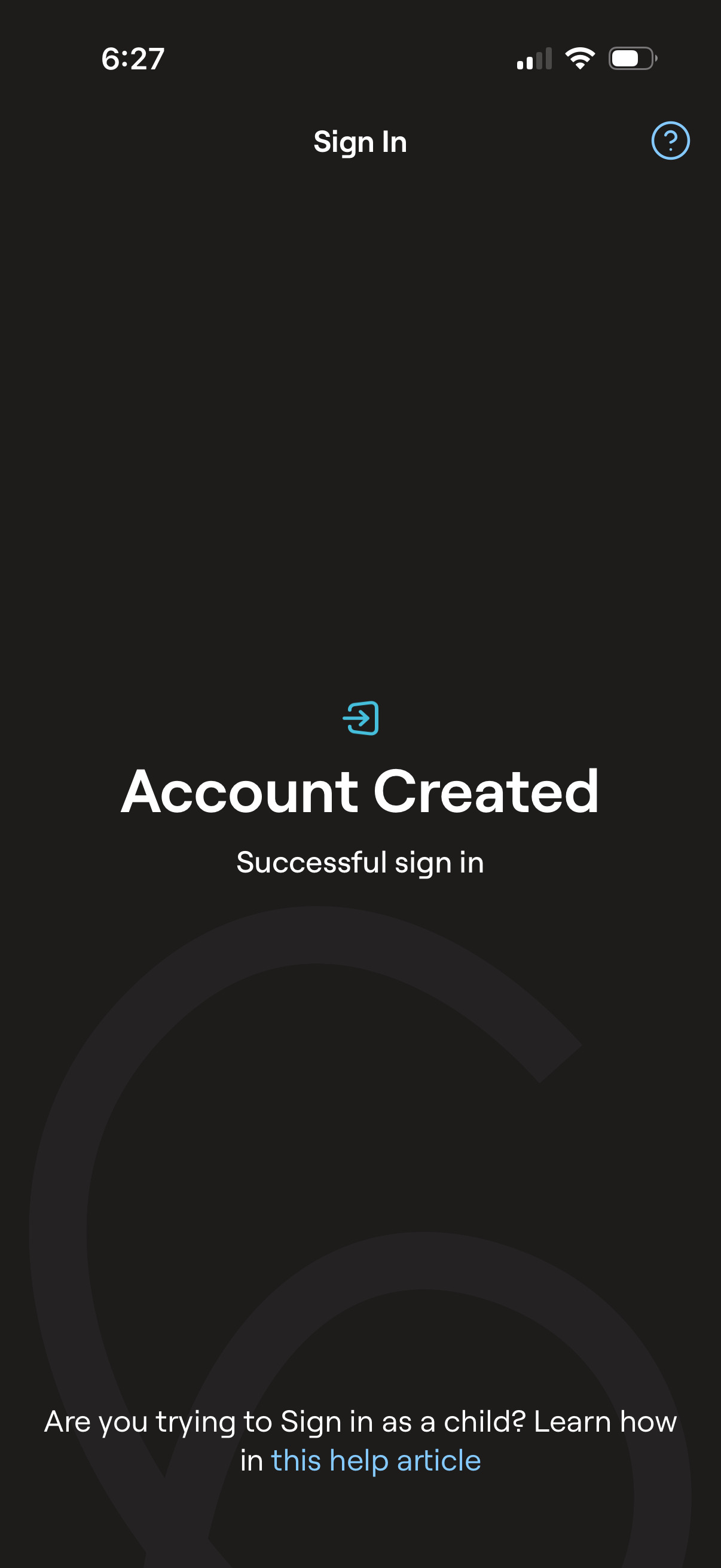
Sign-in confirmation screen indicating the user’s account was created and the sign-in was successful. Includes a help icon and a link to a help article for users trying to sign in as a child.