Onboarding

Privacy consent modal dialog prompting users to read the Terms of Service and Privacy Policy and acknowledge how data is collected, used, and stored. Primary CTA is “Agree and continue” with a secondary “Decline” option.
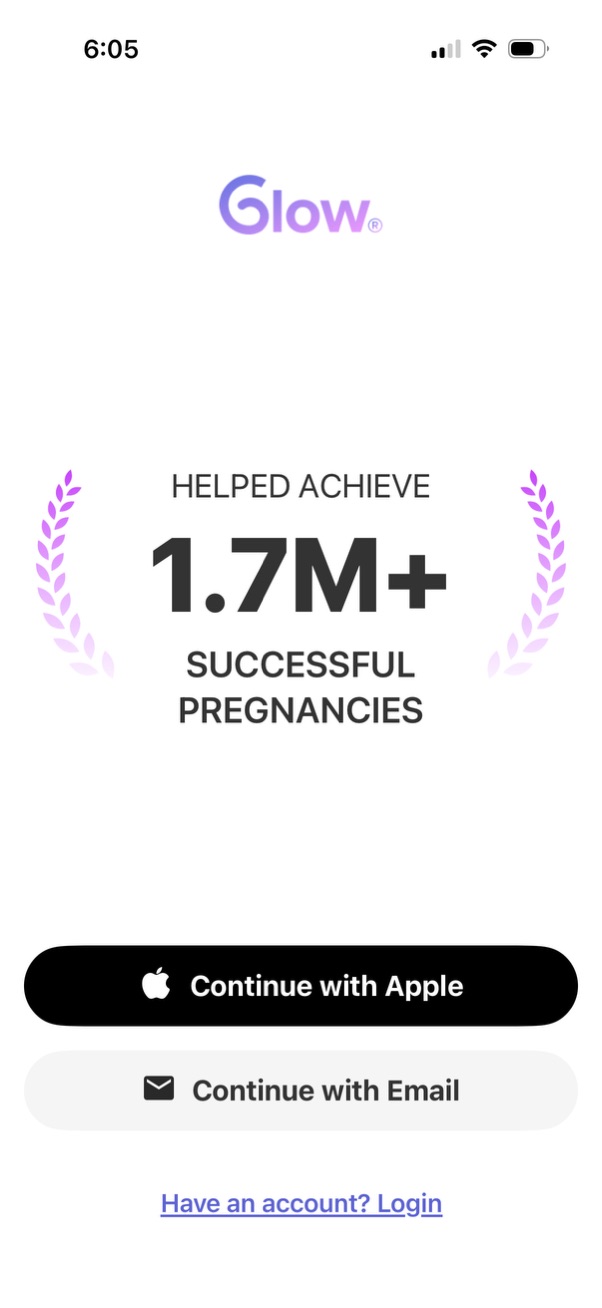
Onboarding sign-up screen for a fertility/pregnancy tracking app featuring a trust metric (“1. 7M+ successful pregnancies”) and primary authentication options to continue with Apple or email.
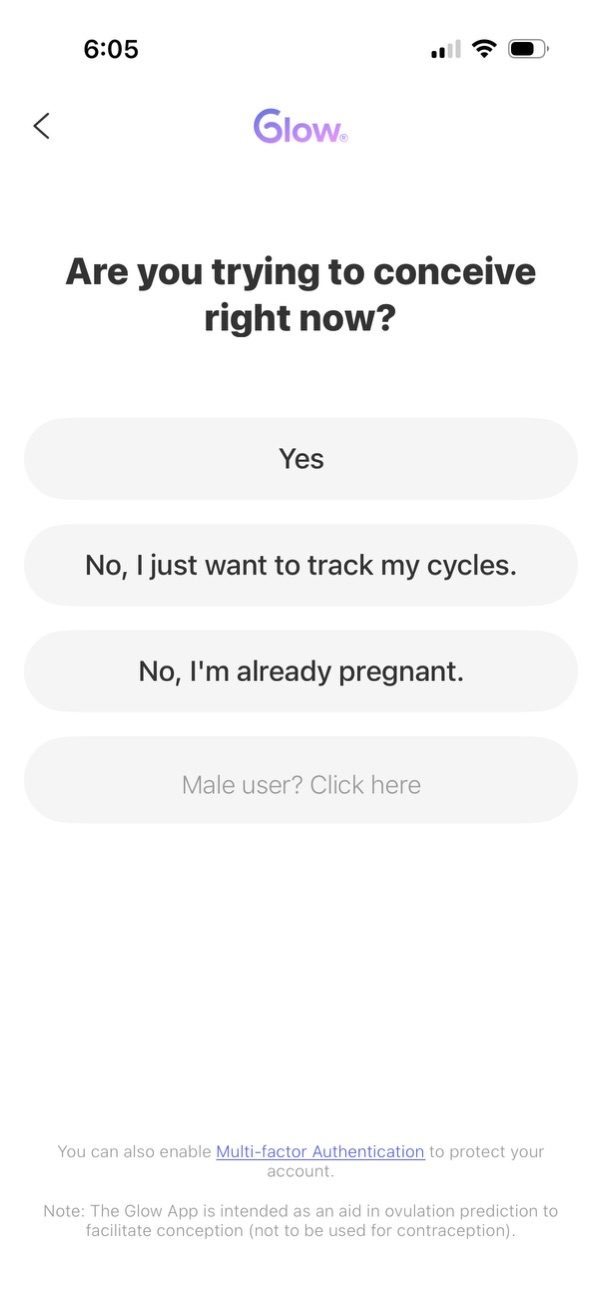
Onboarding question screen for a fertility and menstrual health app asking whether the user is trying to conceive, with options for “Yes,” “No, I just want to track my cycles,” and “No, I’m already pregnant,” plus a link for male users. This step tailors the app experience to pregnancy planning, cycle tracking, or pregnancy mode.

Onboarding profile setup screen asking the user what name they prefer to be called, with a single text input field for first and last name and a Next button to continue. Includes a back navigation arrow and focuses on entering a display name.

Onboarding welcome screen for a fertility/ovulation tracking app, highlighting that predictions are “2x more accurate” with the app and that it helps users get pregnant faster. Includes a primary call-to-action button to begin setup (“Let’s get started”) and a back navigation option.

Onboarding profile screen asking the user to enter their birthday to personalize health insights, featuring an iOS-style date picker (month/day/year) and a primary “Next” button with a back navigation option.

Onboarding health questionnaire screen asking users to select any existing medical conditions, with selectable options like PCOS, thyroid condition, endometriosis, or none. Includes a back button and a disabled “Next” button that becomes available after making a selection.
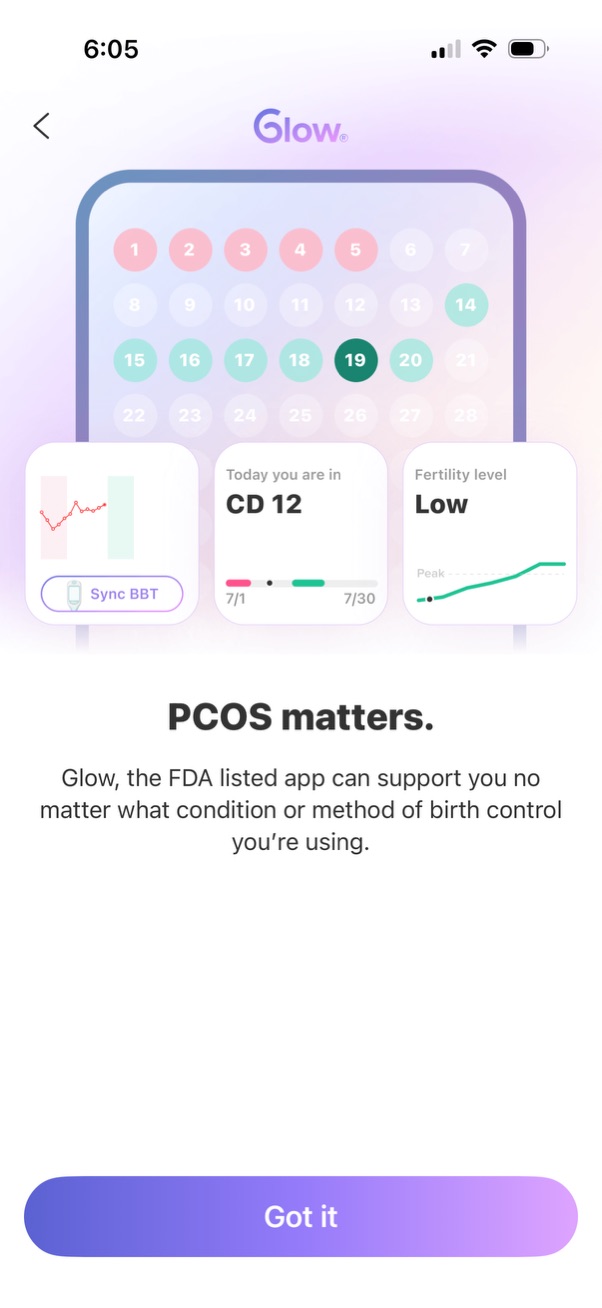
Educational onboarding/informational screen in a fertility and period tracking app highlighting “PCOS matters,” showing a cycle calendar with colored fertile days plus cards for syncing basal body temperature, current cycle day, and fertility level, with a single primary CTA button to acknowledge and continue (“Got it”).

Intro/onboarding screen for a menstrual cycle and fertility tracking app highlighting “Ovulation Day? ” and inviting the user to explore their cycles and fertility.

Onboarding questionnaire screen for a period tracking app asking how regular the user’s menstrual cycle is to tailor the recommended tracking method. Provides three selectable options: predictably consistent, sometimes predictable, or difficult to predict, with a back navigation control.

Period and ovulation tracking onboarding screen showing a circular cycle calendar with current cycle day, ovulation day status, fertility level (high), and countdown to next period in days. Includes a trust-building statistic about prediction accuracy and a primary Next button to continue.

Onboarding form screen for a period tracking app asking the user to enter the average menstrual cycle length (days from start of one period to the next) using a scroll picker. Includes a back button and a “Next” CTA to continue setup.

Onboarding screen for a period tracking app asking the user to select the start date of their last period from a monthly calendar, with guidance that guessing is okay. Includes back navigation and a disabled/enabled “Next” button to continue after choosing a date.
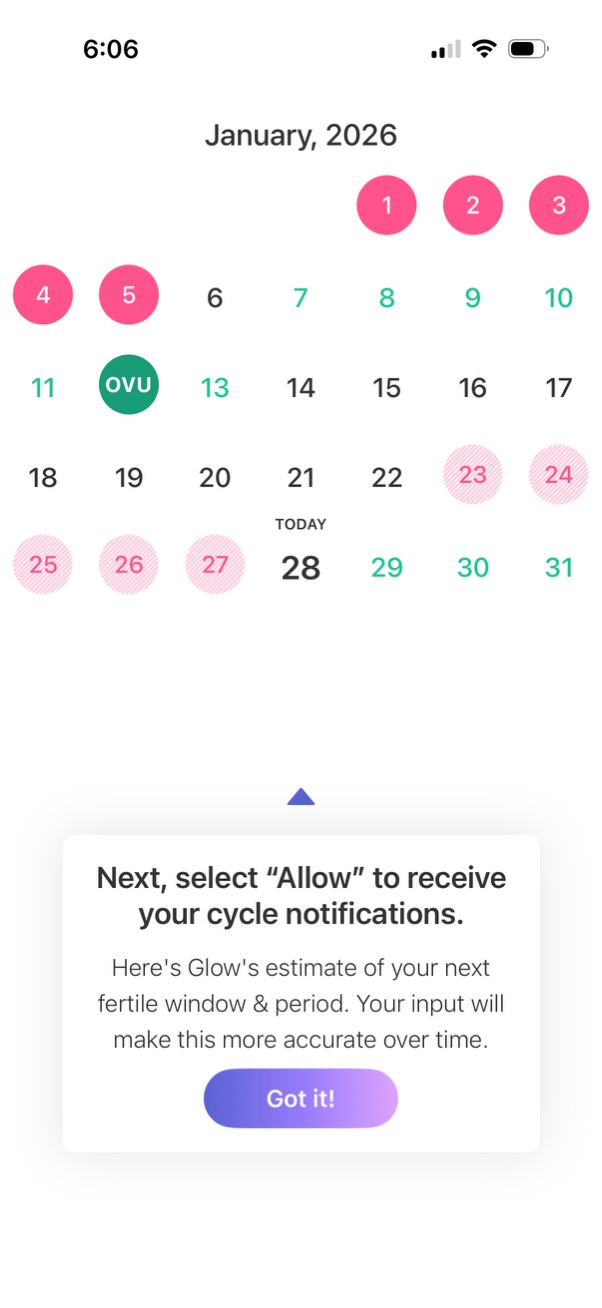
Period and fertility tracking calendar view for a specific month, highlighting predicted period days, fertile window, and ovulation (OVU) with “Today” marked. A bottom sheet prompts the user to allow cycle notifications and explains estimates, with a primary “Got it!

iOS system permission modal requesting to send push notifications for a period/fertility tracking app, offering options to Allow, Allow in Scheduled Summary, or Don’t Allow. The dialog overlays a menstrual cycle calendar view showing month dates and fertility/ovulation markers.
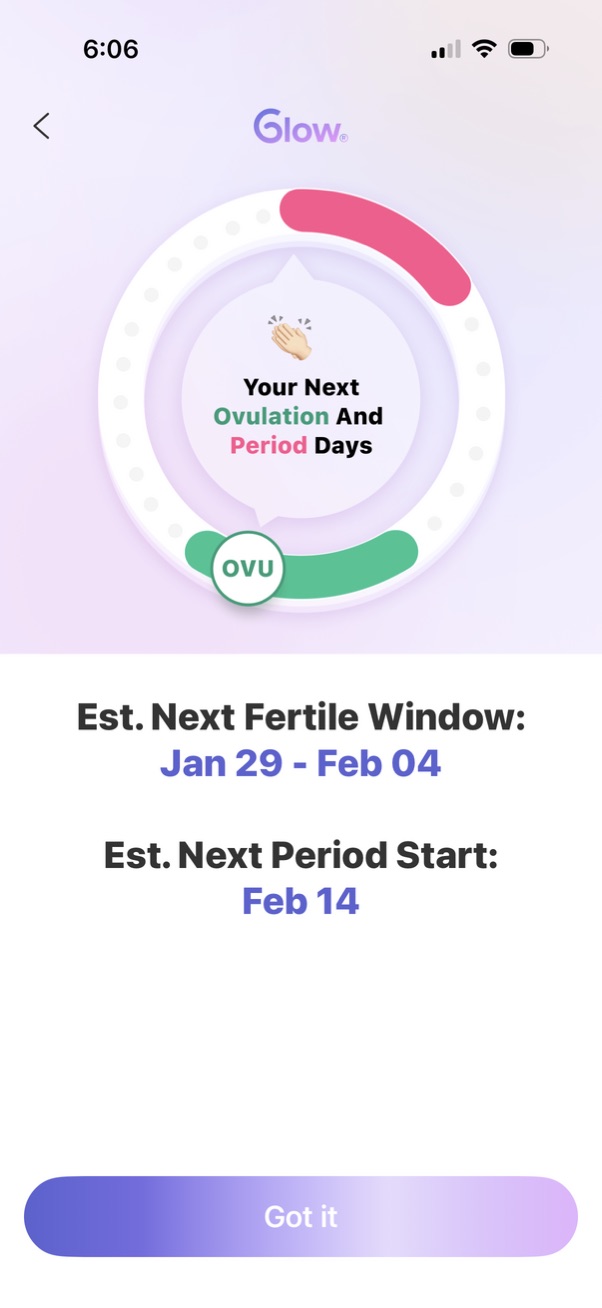
Menstrual cycle tracking screen showing a circular timeline highlighting upcoming ovulation and period days, with estimated next fertile window date range and next period start date. Includes a confirmation CTA button (“Got it”) and back navigation.
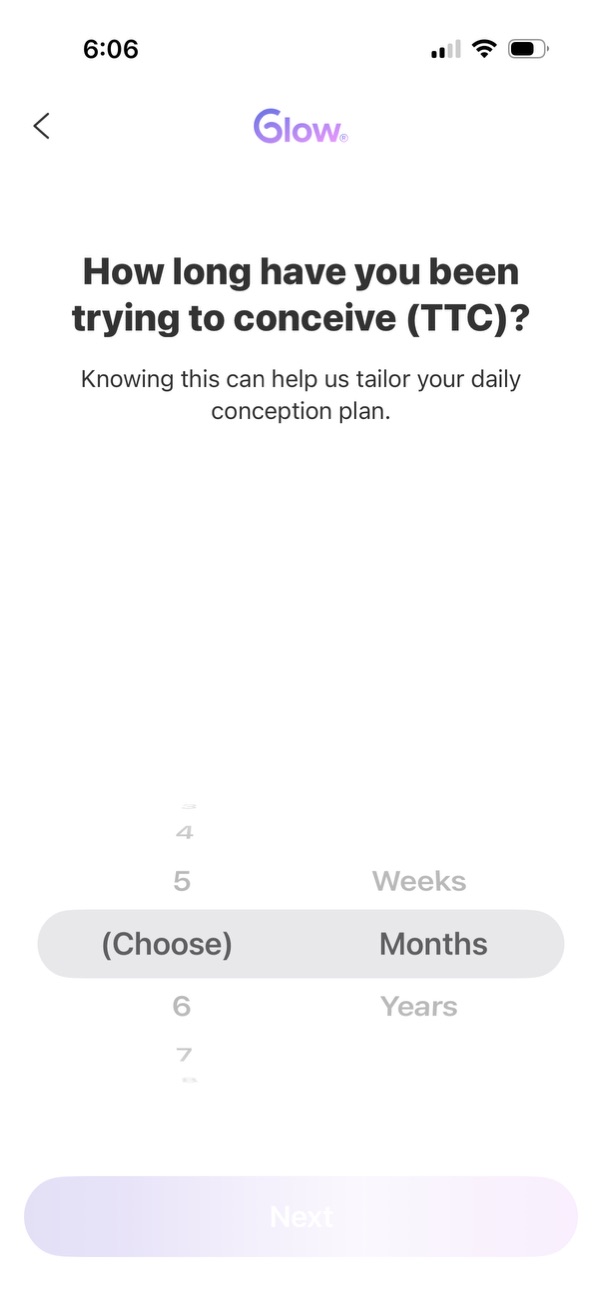
Onboarding questionnaire screen in a fertility/trying-to-conceive app asking how long the user has been trying to conceive (TTC) to personalize a daily conception plan. Includes a wheel picker to select a duration and unit (weeks, months, years) and a primary “Next” button with back navigation.

Fertility/pregnancy tracking app onboarding screen highlighting a success statistic about helping users get pregnant in a few cycles, with an illustration of an ultrasound and pregnancy test. Includes a primary “Next” button and a back arrow to navigate through the onboarding flow.

Pregnancy tracking onboarding screen showing a fetus illustration with summary cards for gestational age and days remaining, baby size/weight compared to fruit, and number of reported symptoms. Includes a reassurance message about supporting TTC through pregnancy and a primary “Noted!

Fertility and conception onboarding question screen asking whether the user knows if they’re trying to conceive on their most fertile days. Provides simple Yes/No selection buttons with a back navigation option.

Educational onboarding screen in a fertility/period tracking app explaining how fertility levels fluctuate throughout the menstrual cycle, shown with a graph highlighting period stages and the fertile window. Includes a back arrow and a prominent “Next” button to continue the tutorial.

Educational fertility tip screen in a menstrual/ovulation tracking app showing a cycle wheel highlighting the ovulation (OVU) window and a message about timing intercourse to increase chances of conception. Includes a back navigation arrow and a primary “Got it” button to dismiss the tip and continue.
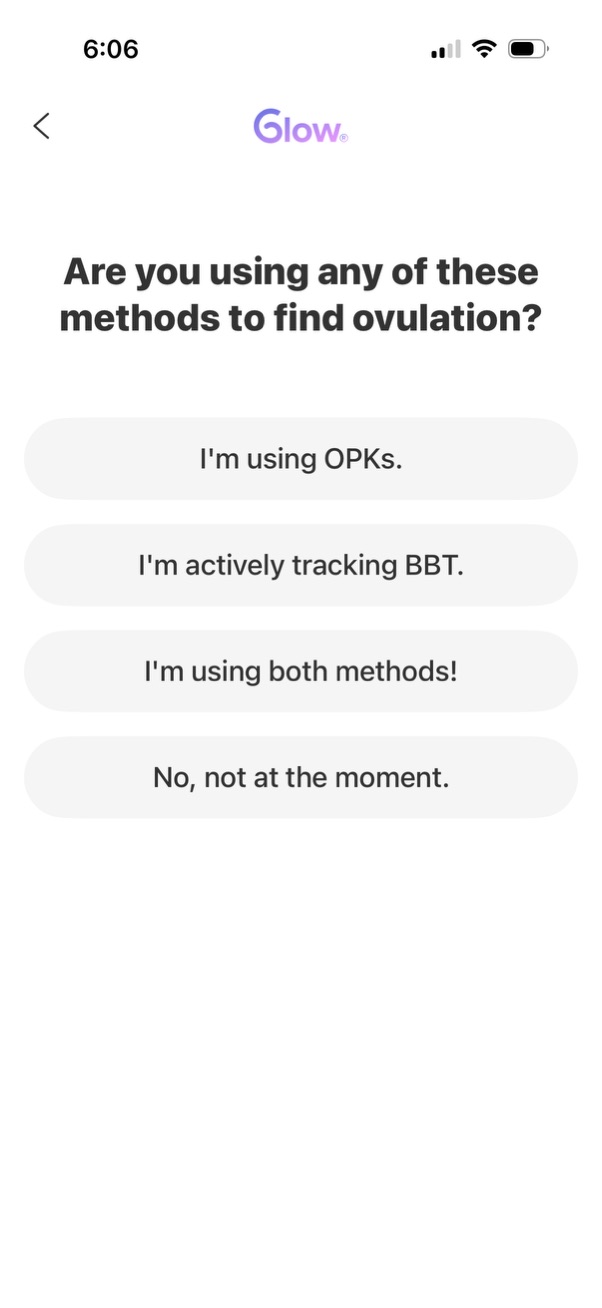
Onboarding survey screen in a fertility/ovulation tracking app asking whether the user uses ovulation predictor kits (OPKs), tracks basal body temperature (BBT), uses both methods, or none, with large single-tap multiple-choice buttons and a back navigation option.

Onboarding education screen for a fertility/ovulation tracking app explaining how ovulation is detected by tracking two body signals: luteinizing hormone (LH) surge and increased basal body temperature (BBT), illustrated with charts. Includes a back arrow and a primary “Next” button to continue the onboarding flow.

Educational onboarding screen in a fertility/ovulation tracking app explaining how to read LH ovulation test strips, showing examples for low, high, and LH peak results and indicating ovulation occurs 24–48 hours after the LH surge. Includes a back button and a large “Next” call-to-action to continue.

Educational onboarding screen in a fertility/ovulation tracking app explaining how basal body temperature (BBT) rise confirms ovulation after it occurs, illustrated with a thermometer and simple chart. Includes back navigation and a primary “Next” button to continue the tutorial.
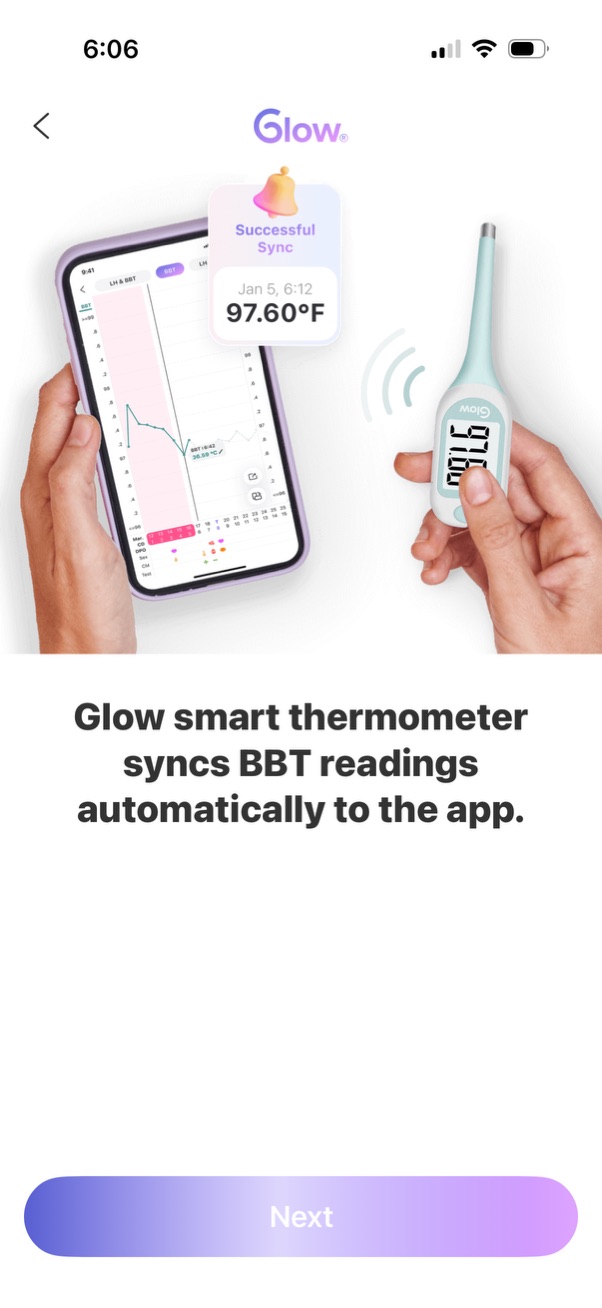
Onboarding/tutorial screen for a fertility tracking app explaining that a smart thermometer automatically syncs basal body temperature (BBT) readings to the app, with a visual “Successful Sync” confirmation and a prominent Next button to continue.

App onboarding screen prompting the user to “Give us a rating” with a five-star review graphic, a testimonial card, and trust messaging about helping users on their TTC (trying to conceive) journey. Includes a back arrow and a primary “Next” button to continue.
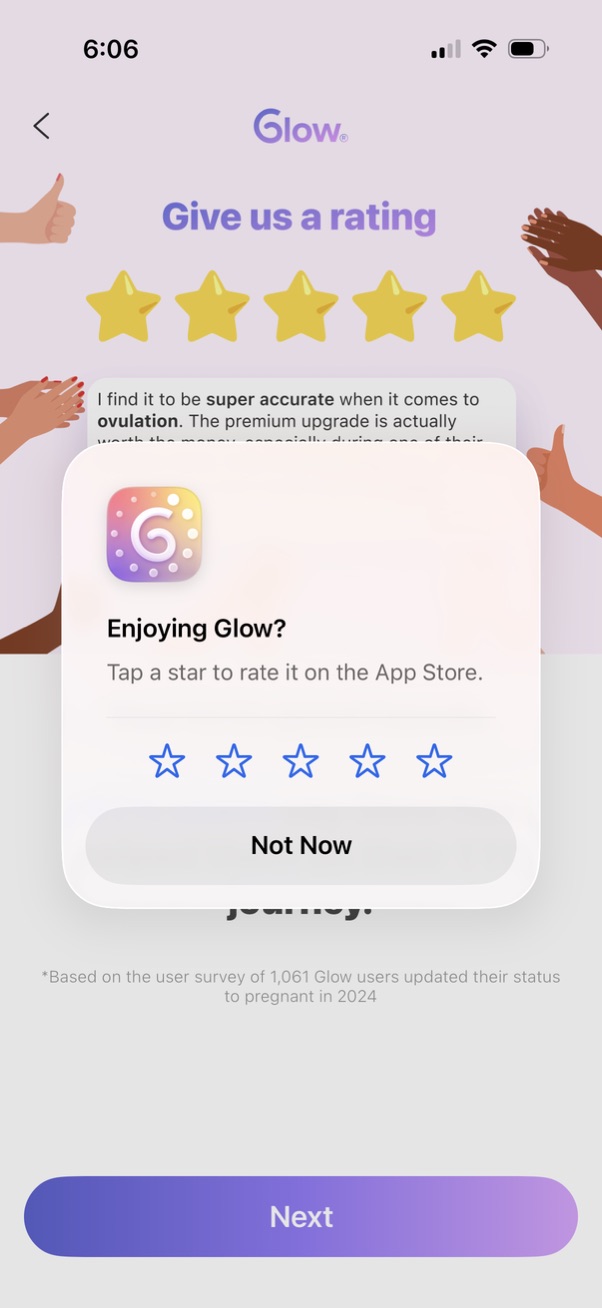
In-app rating prompt overlay asking users if they’re enjoying the app and to tap a star rating to review it on the App Store. Modal includes a 5-star selector and a “Not Now” dismissal option, shown over a feedback/testimonial screen with a “Next” button in the background.

Onboarding setup/loading screen showing “Setting up your plan…” with a large app store rating (4. 7 stars from 130k+ ratings) as social proof.

Onboarding confirmation screen for a period and fertility tracking app announcing that the personalized homepage is ready, previewing dashboard cards like cycle day, fertile window, flow, mood, and symptoms. Primary call-to-action button lets the user “Unlock My Glow” to enter the customized home dashboard, with a back arrow for navigation.
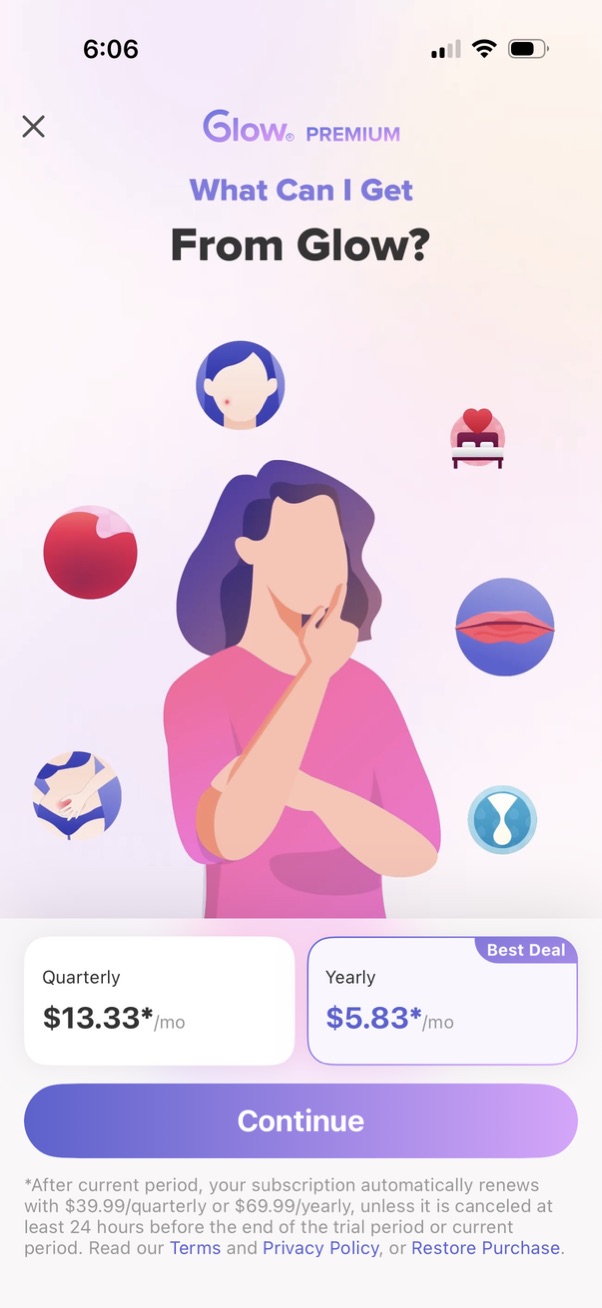
Premium subscription paywall screen explaining “What can I get from Glow? ” with an illustration and feature icons, offering plan selection between quarterly and yearly pricing (yearly marked as best deal).

Premium subscription upsell paywall showing a “one-time offer” with star rating/testimonial carousel and pricing plan selector (quarterly vs yearly marked best deal) plus an optional free trial toggle. Primary action is a large “Continue” button, with close icon and fine print links for terms, privacy policy, and restore purchase.

Premium upsell paywall screen promoting a free trial for a fertility tracking app, showcasing preview content like cycle day, predicted fertile window, and ovulation/pregnancy test logging. Includes reassurance text “No payment due now” and a prominent primary CTA button to start the trial for $0.

Premium subscription onboarding screen offering a free trial with a promise to send a reminder before the trial ends. Shows “No payment due now” and a primary call-to-action button to continue for free.

Premium subscription paywall prompting the user to start a 3-day free trial to continue, showing a timeline of trial access, a reminder before trial ends, and when billing starts with cancel-anytime messaging. Users can skip, choose between monthly or yearly plans, see “no payment due now,” and tap a primary CTA to start the free trial.

Email sign-up screen for account creation, prompting the user to enter an email address to enable data tracking. Includes a single email input field and a primary “Next” button to continue the registration flow.

Password creation screen during signup that asks the user to create a strong password with an input field and visibility toggle, showing password requirements (minimum 8 characters, upper/lowercase, number, special character). Includes a back button and a disabled “Next” CTA that activates once criteria are met.

Period tracking home screen showing a calendar timeline with the current cycle day and a prompt indicating it’s time for a pregnancy test, with a primary action to add a period. Includes navigation to other tabs (Today, Community, friends sync/BFFs, Shop, Inbox) and a banner encouraging viewing a daily cycle overview and syncing cycles with friends.