AI live mode
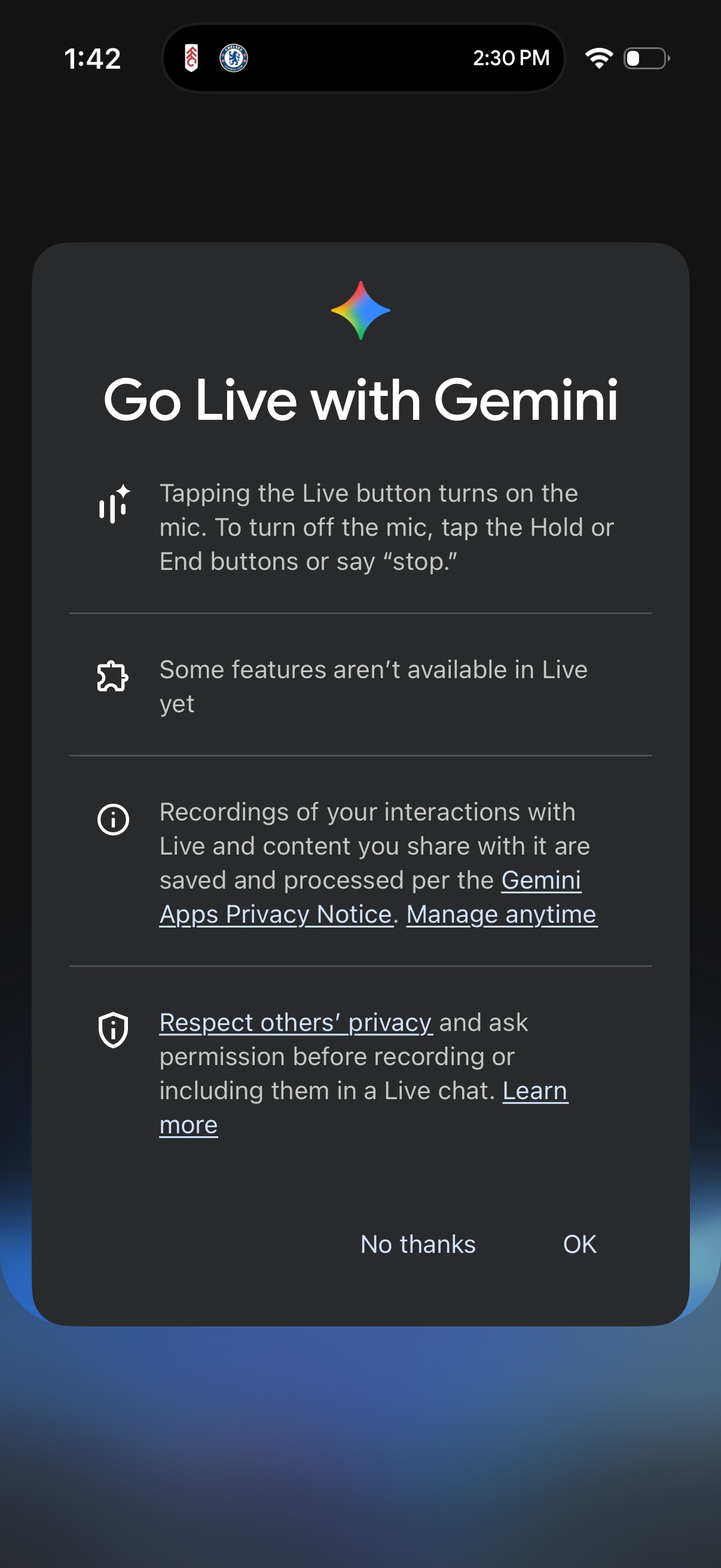
Onboarding permission modal for starting a “Gemini Live” voice chat, explaining that tapping Live turns on the microphone, how to stop/hold, and that some features aren’t available yet. Includes privacy and recording notices with links to manage settings and learn more, plus primary OK and secondary No thanks actions.
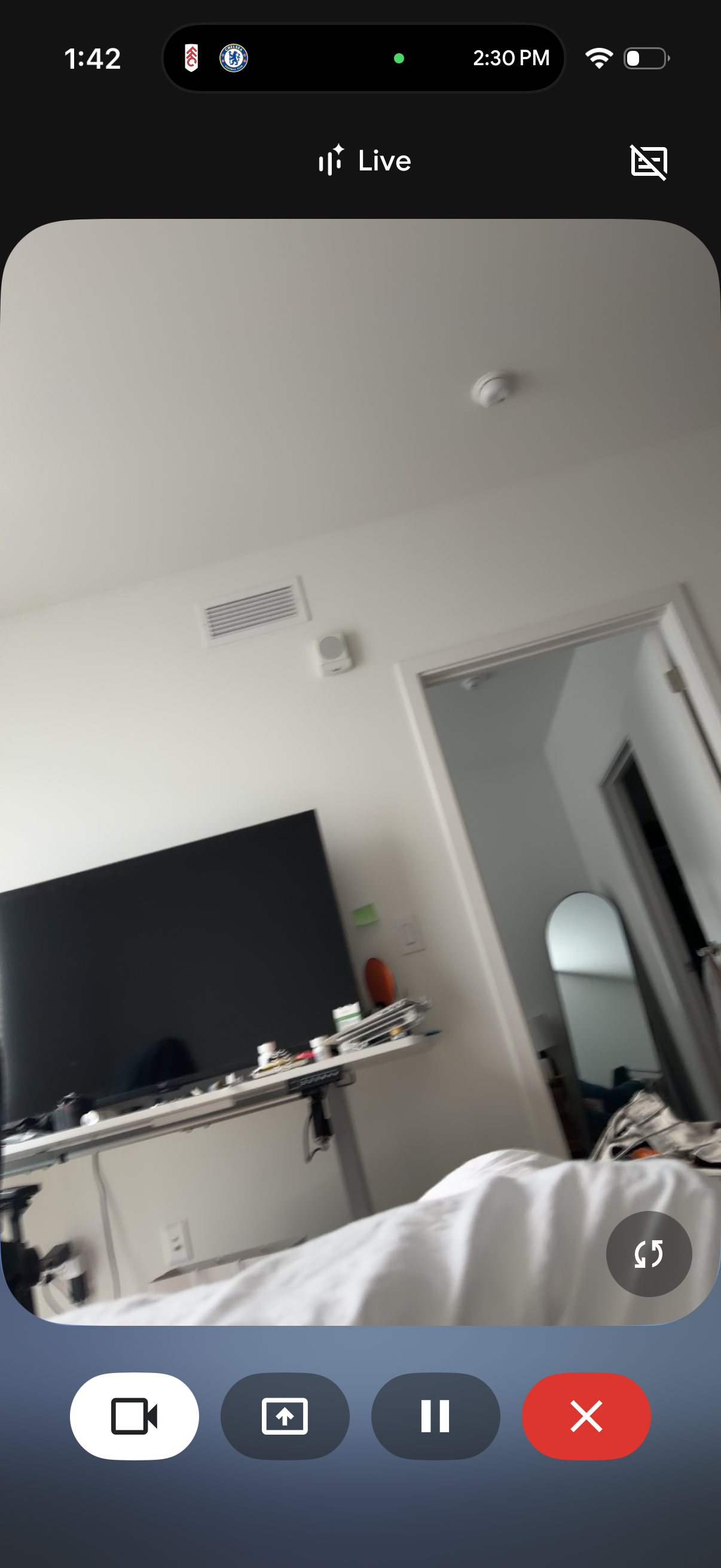
Live video call screen showing the camera feed with in-call controls for switching camera, sharing content, pausing/resuming, and ending the call. Includes a top “Live” status indicator and a mute/disable video toggle.
Live audio playback screen with a minimal “Live” header and a mute/disable-audio icon, showing media controls at the bottom to enable video, share/broadcast, pause, or exit/close the stream.
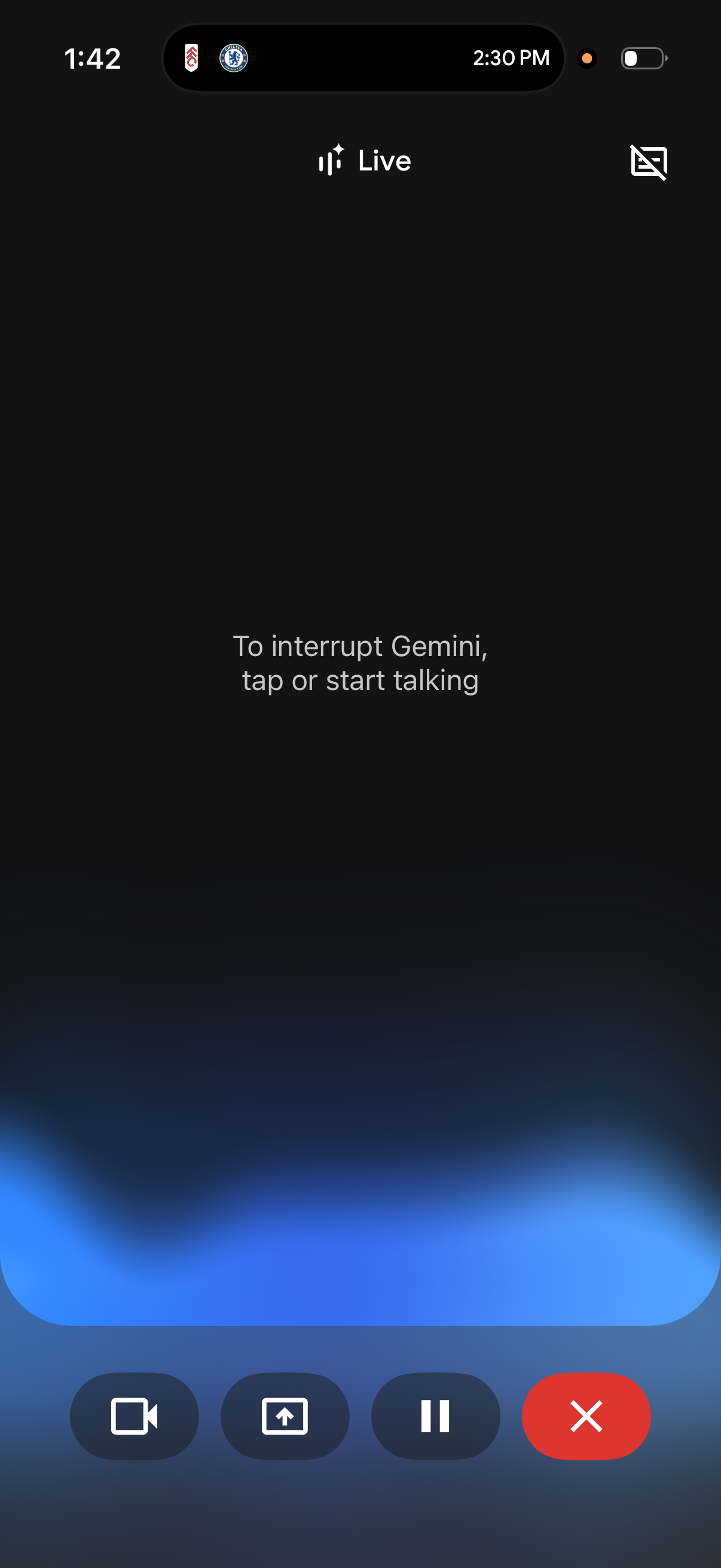
Live video assistant capture screen showing an active “Live” session with guidance text to tap or start talking to interrupt the AI. Bottom action bar includes controls to switch camera, share/upload content, pause the session, and end/close with a prominent red button.