Onboarding
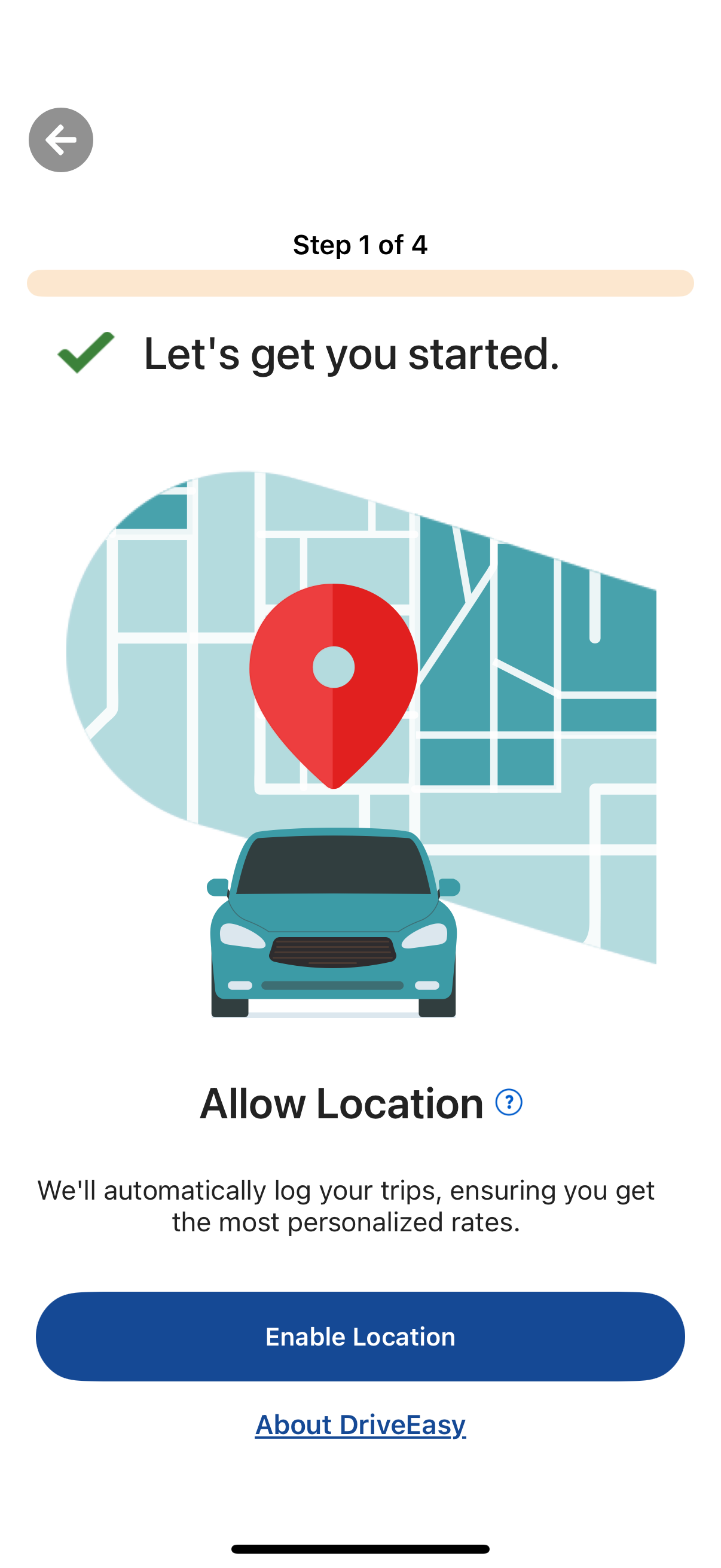
Onboarding setup screen (step 1 of 4) requesting location permission to automatically log trips and provide personalized rates, with an “Enable Location” primary CTA and a back button plus an “About” link.
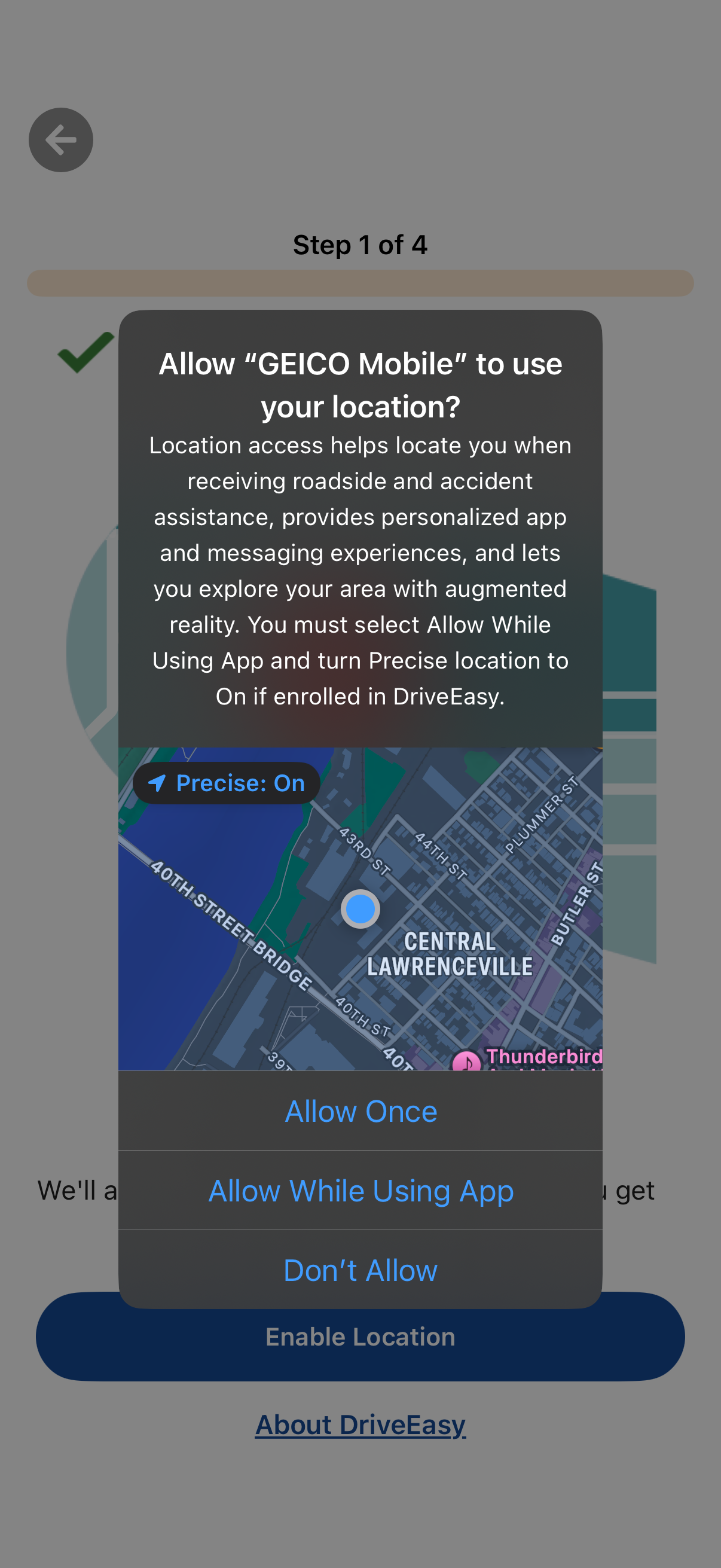
Onboarding step asking the user to enable location services with an iOS permission modal explaining why location and precise location are needed for features like roadside/accident assistance and personalized experiences. The dialog offers Allow Once, Allow While Using App, or Don’t Allow, with an underlying “Enable Location” call to action and an “About” link.
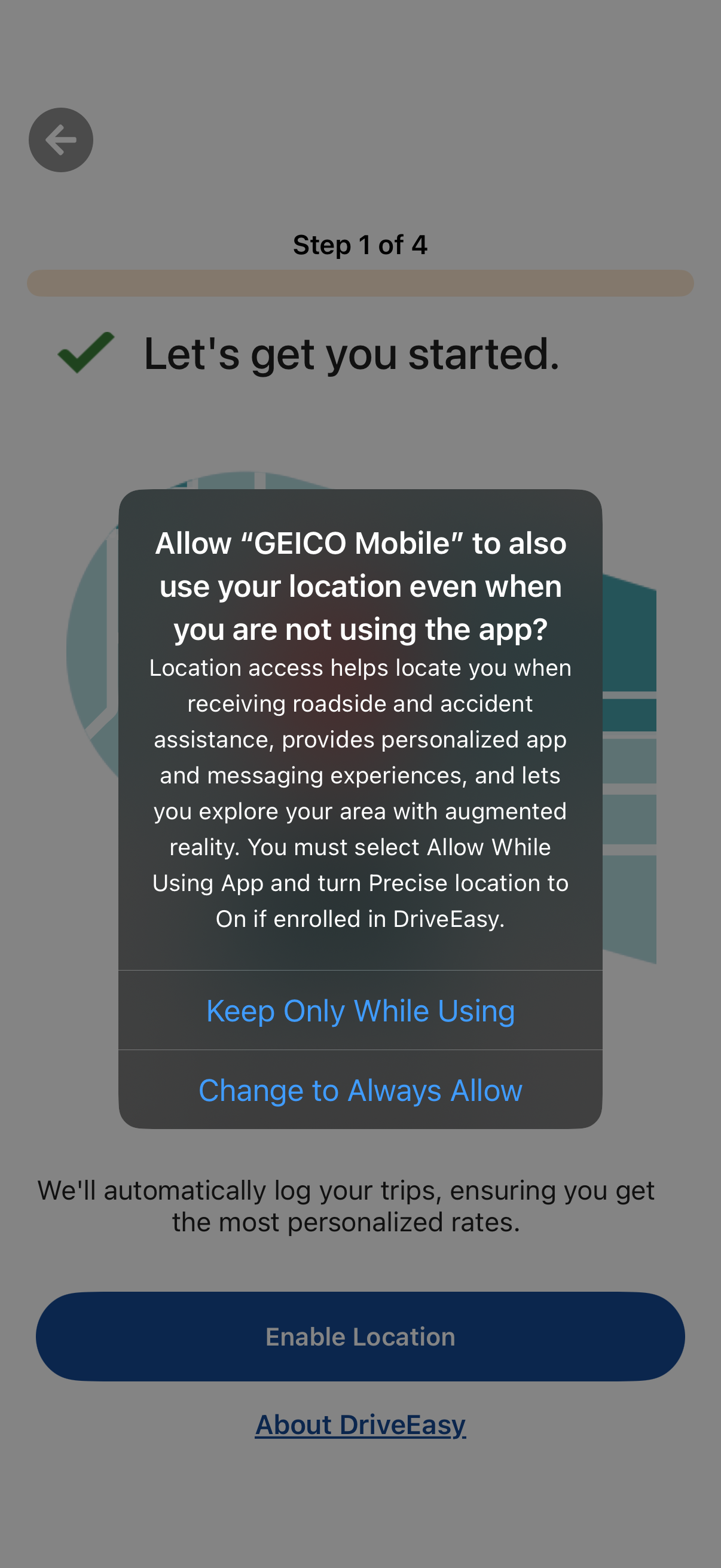
Onboarding setup screen (step 1 of 4) prompting the user to enable location tracking for trip logging and personalized rates, showing a system permission dialog to allow location access “always” vs “only while using” the app. Primary actions include enabling location and viewing more info about the driving program.
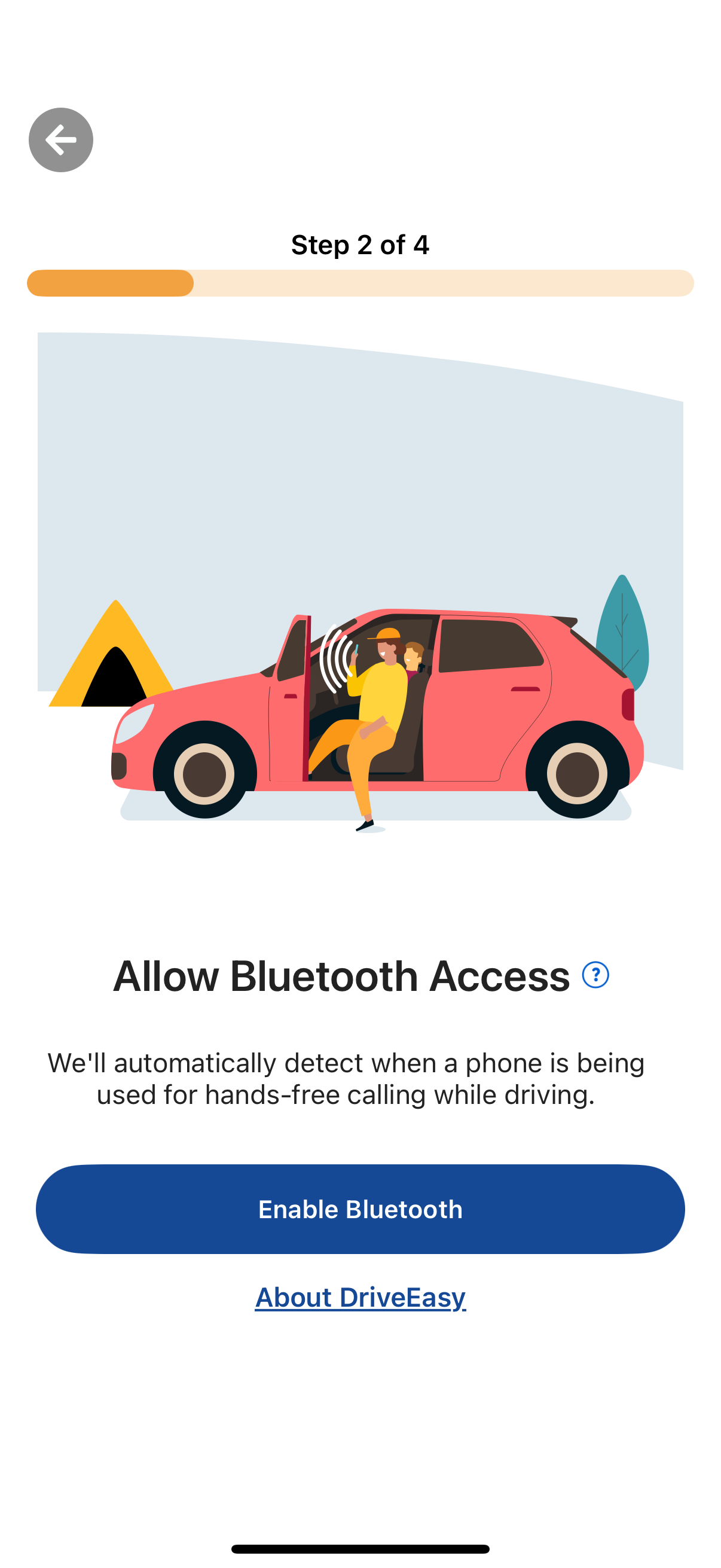
Onboarding permission screen (step 2 of 4) prompting the user to allow Bluetooth access to detect hands-free phone usage while driving. Includes a primary “Enable Bluetooth” CTA, a back button, progress indicator, help/info icon, and a secondary “About” link.
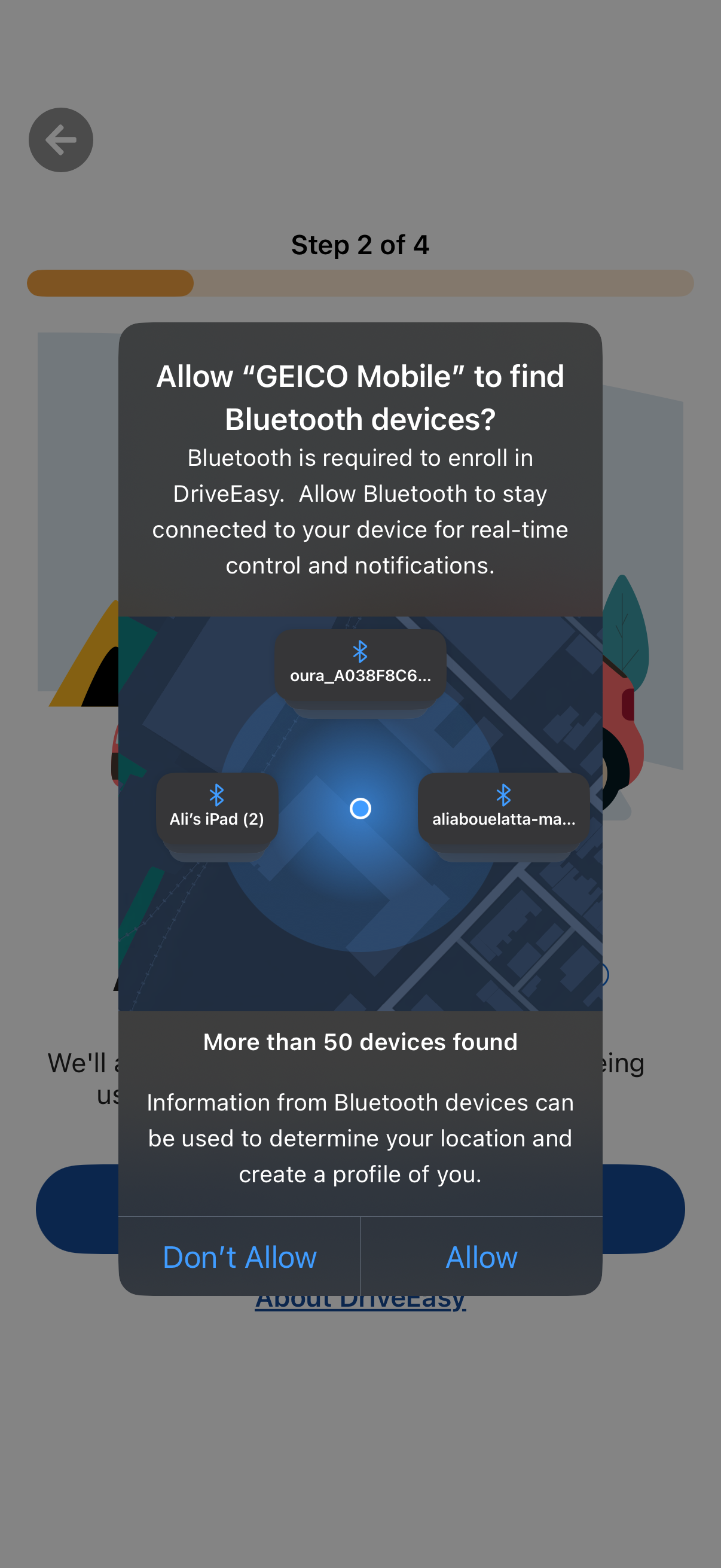
Onboarding setup step prompting the user to grant Bluetooth permission so the app can find and stay connected to nearby Bluetooth devices for enrollment and real-time notifications. A system dialog shows nearby devices found and offers primary actions to Allow or Don’t Allow.
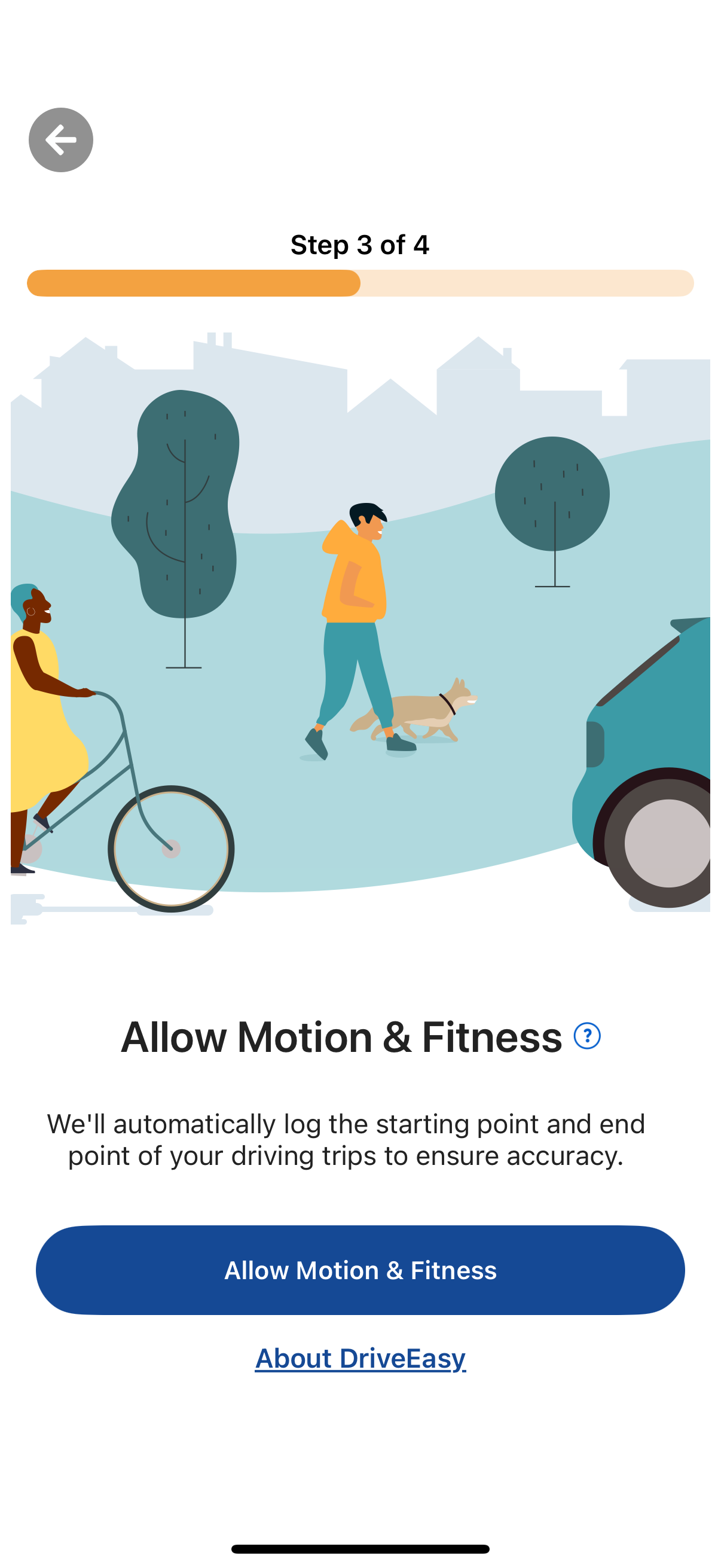
Onboarding permission screen (step 3 of 4) asking users to allow Motion & Fitness access to automatically log driving trip start and end points for accuracy. Includes a primary “Allow Motion & Fitness” CTA, a back button, progress indicator, and a secondary “About” link with info icon for details.
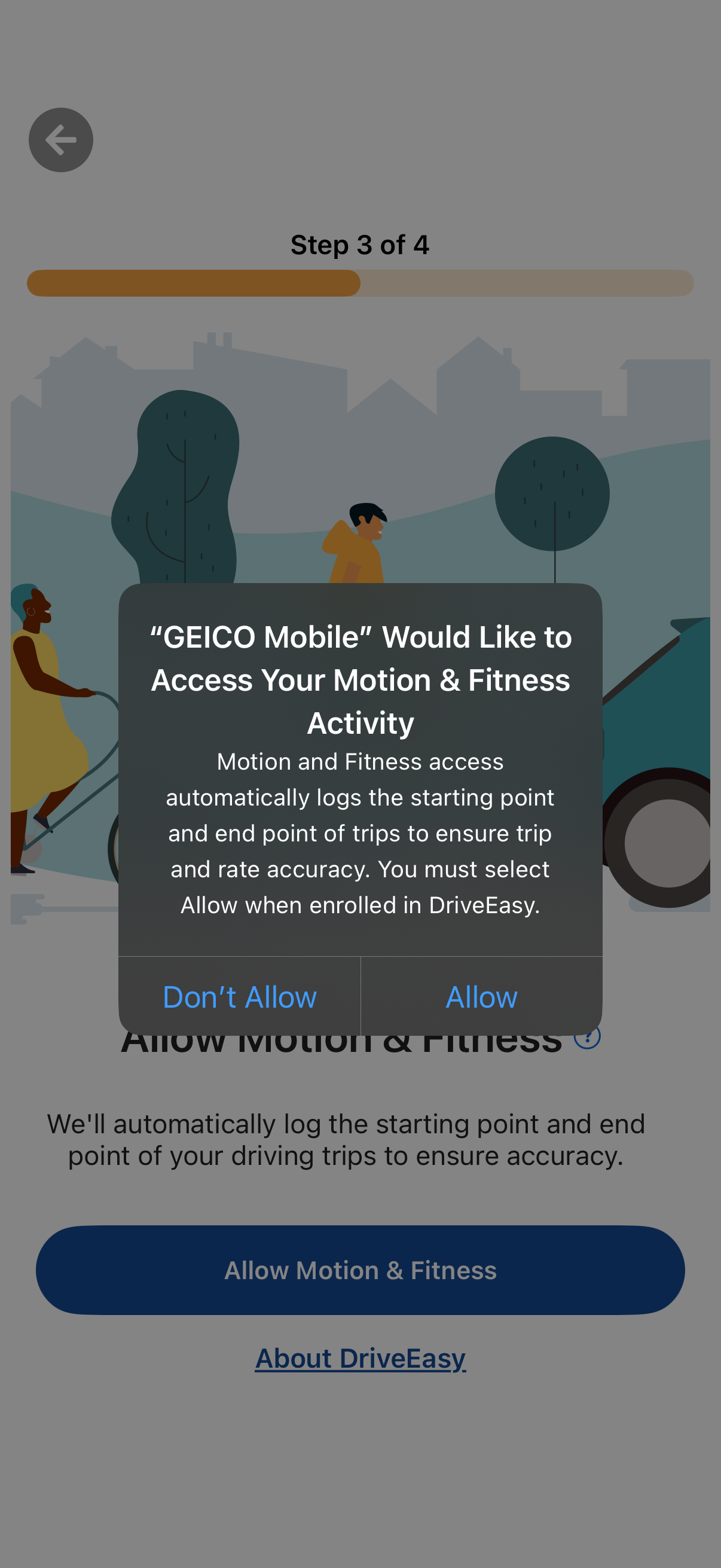
Onboarding step screen prompting the user to grant Motion & Fitness permission for automated trip tracking accuracy, showing an iOS system permission modal with Allow and Don’t Allow options. The page includes a progress indicator (step 3 of 4), an “Allow Motion & Fitness” CTA button, and a link to learn more about the program.
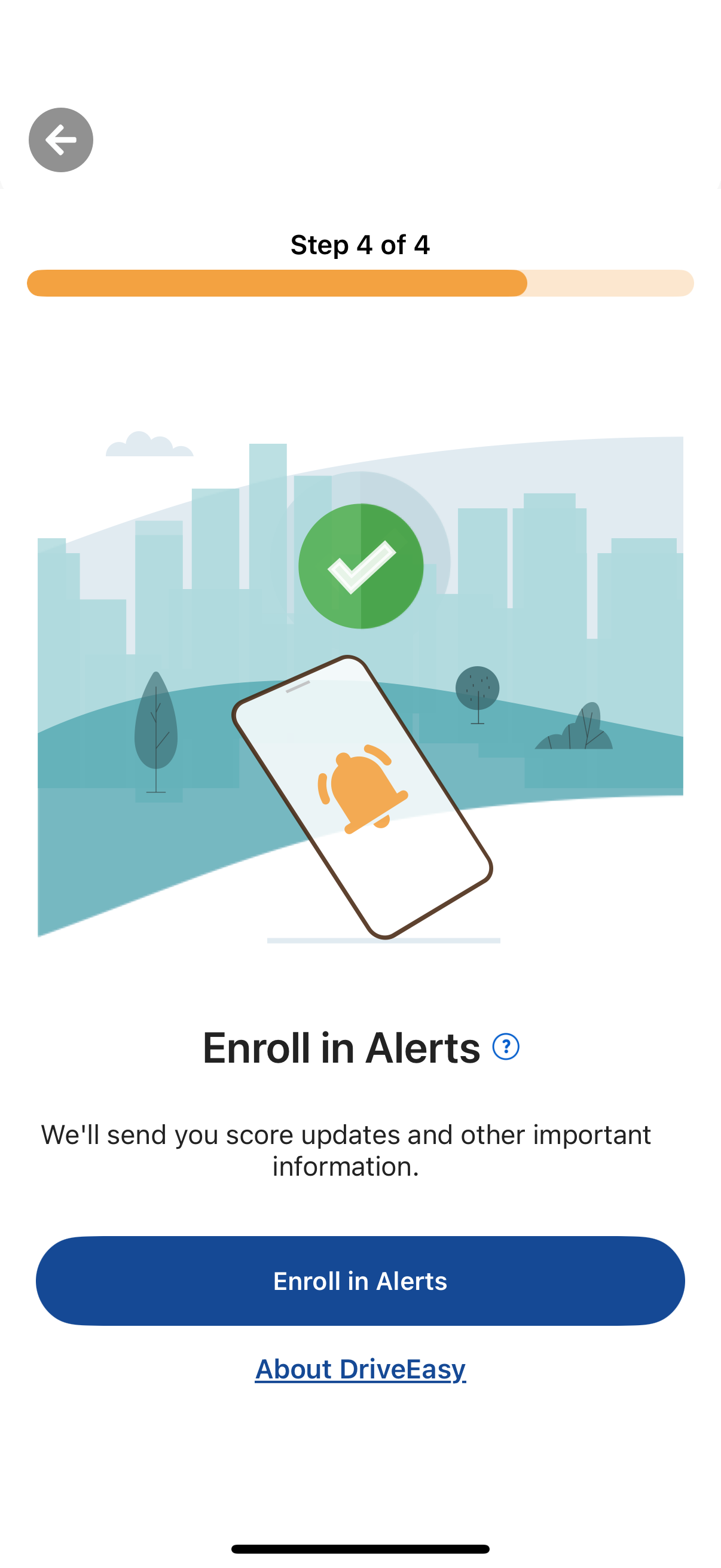
Final step of an onboarding flow prompting the user to enroll in alerts/notifications, with a progress indicator (Step 4 of 4), explanation that alerts will send score updates and important information, and a primary “Enroll in Alerts” CTA plus a secondary “About” link and back navigation.
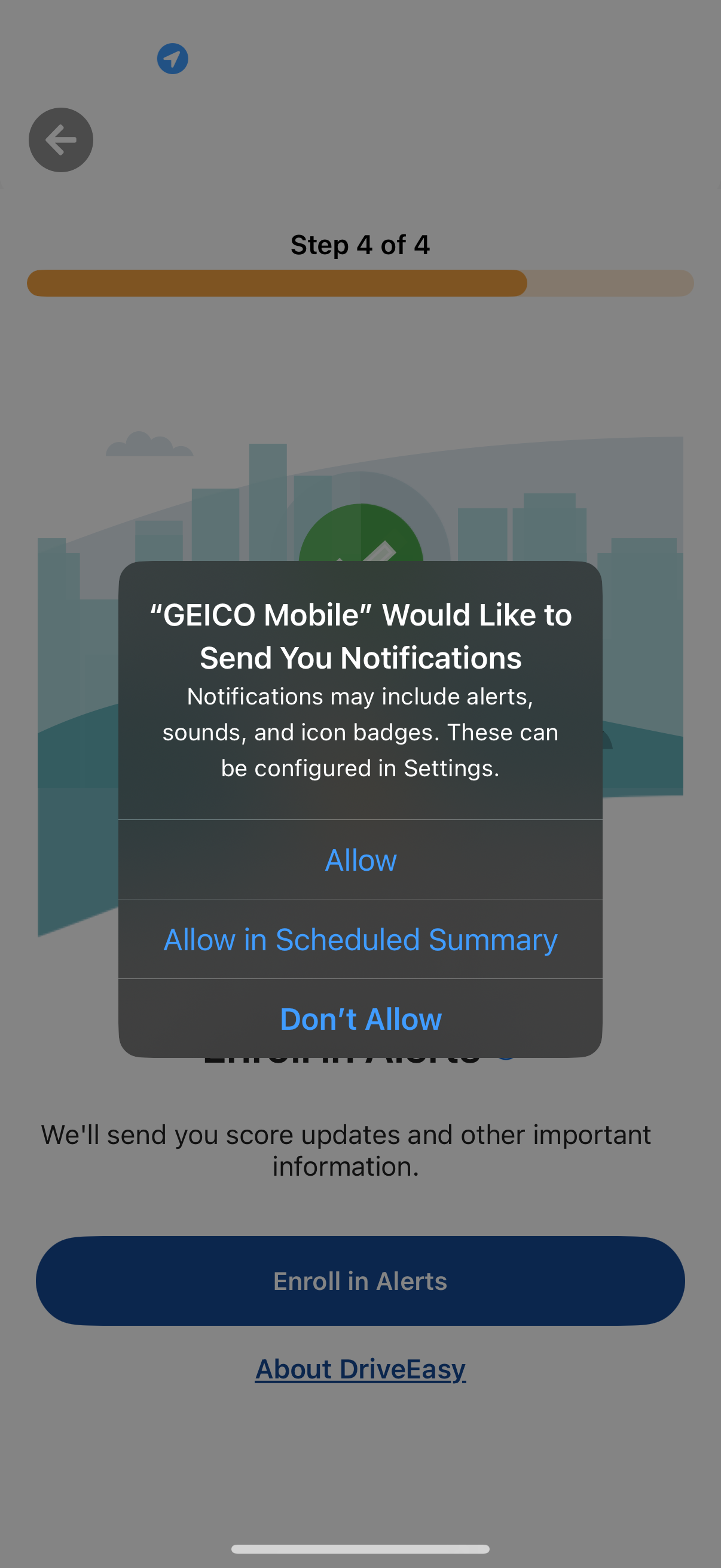
Final step of an onboarding/enrollment flow prompting the user to enable push notifications for alerts and score updates, showing an iOS system permission modal with options to Allow, Allow in Scheduled Summary, or Don’t Allow. The underlying screen includes progress indicator (Step 4 of 4), a primary “Enroll in Alerts” CTA, and a link to learn more.
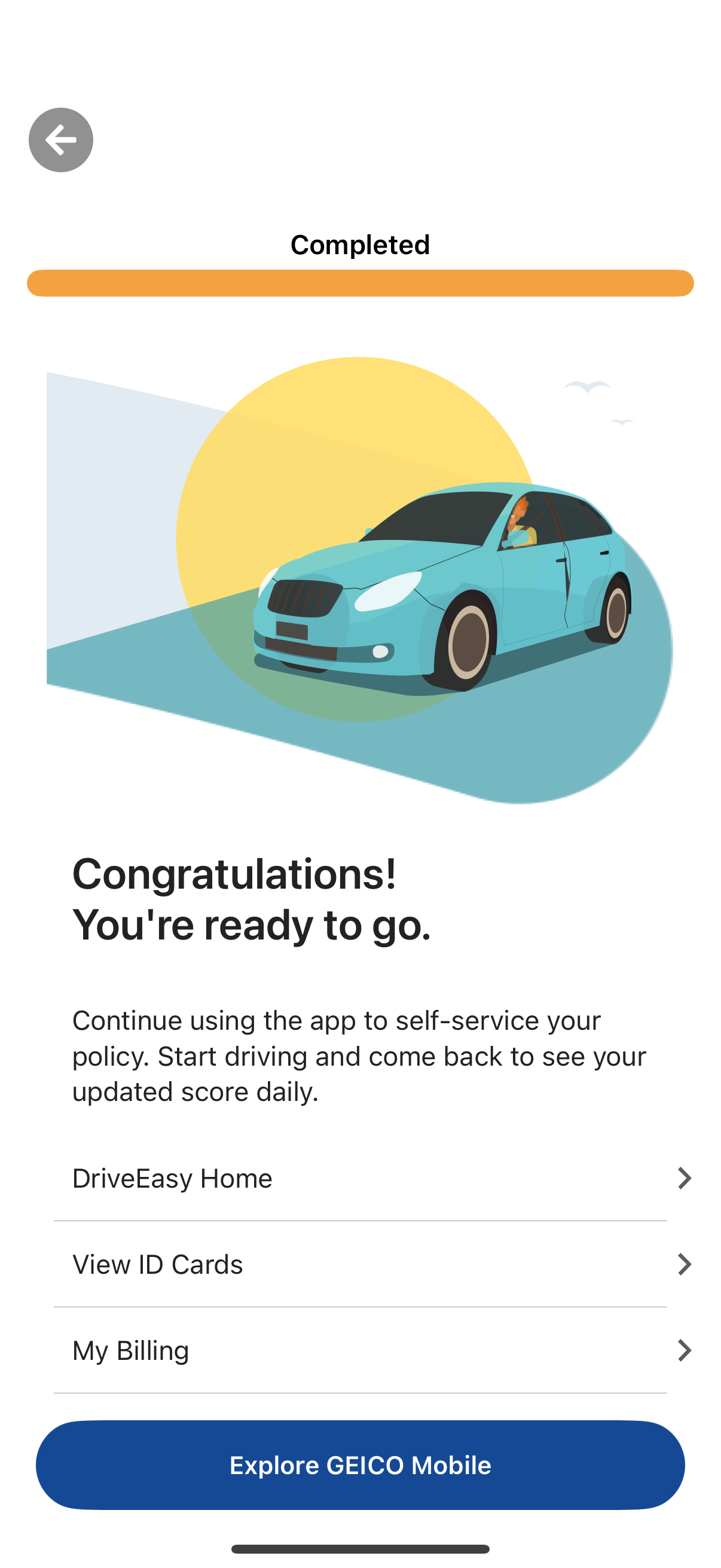
Completion confirmation screen for an auto insurance driving program/setup, showing a “Completed” status and congratulatory message that the user is ready to drive and track an updated score. Provides quick navigation links to the program home, view insurance ID cards, and billing, plus a primary CTA to explore the main insurance mobile app.
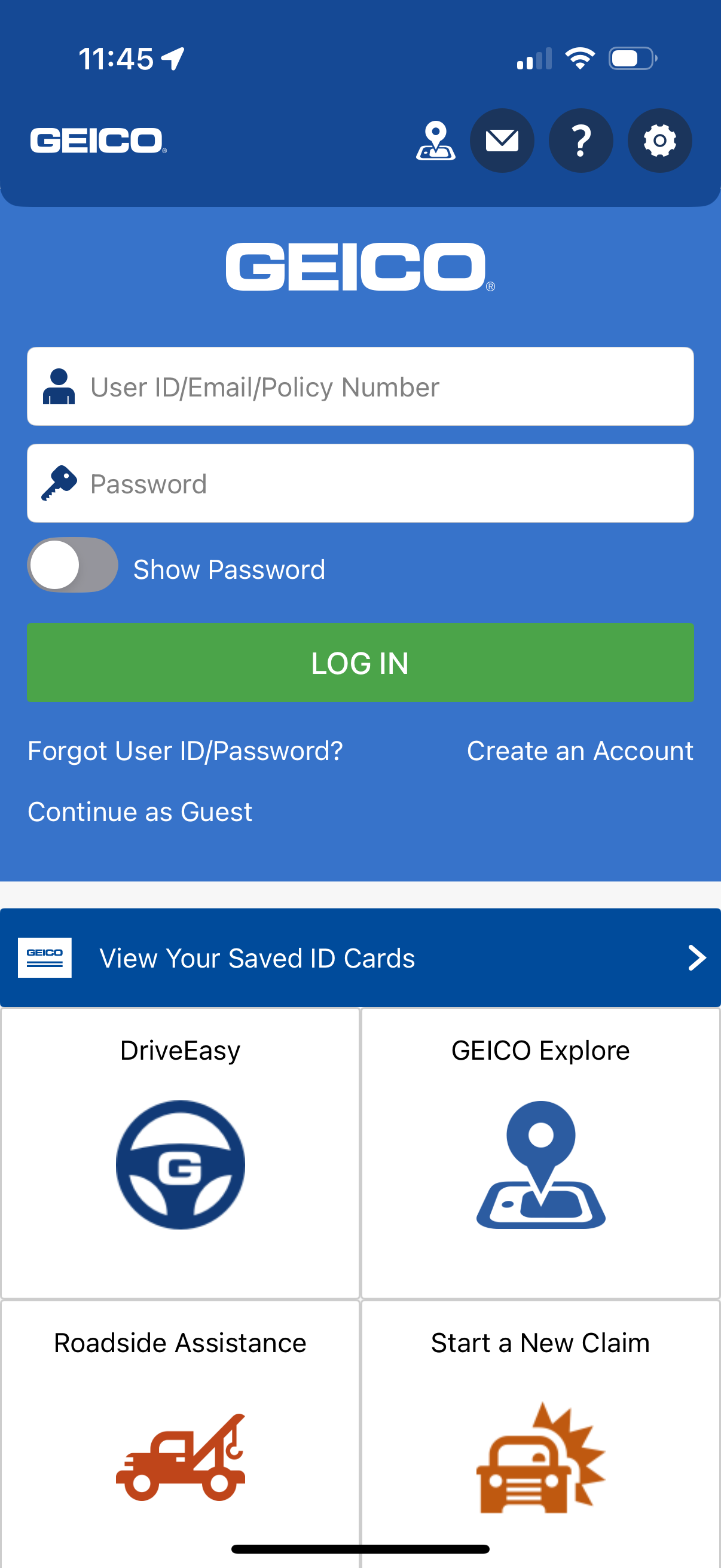
Insurance app login screen with fields for user ID/email/policy number and password, a show password toggle, and a primary Log In button with links to reset credentials, create an account, or continue as guest. Below, quick-access shortcuts let users view saved ID cards and launch key services like DriveEasy, explore, roadside assistance, and start a new claim, with top icons for location, messages, help, and settings.
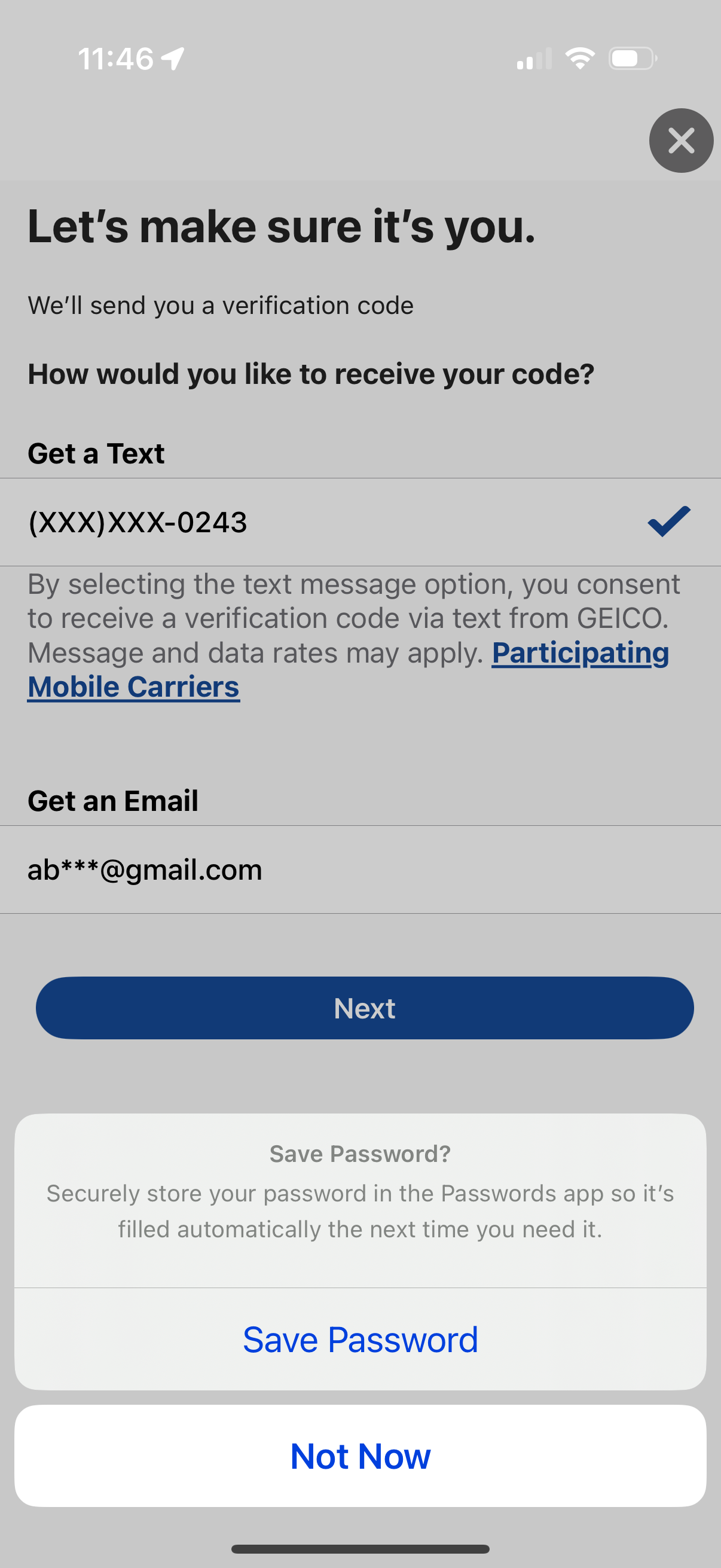
Two-factor authentication screen prompting the user to choose how to receive a verification code, offering SMS to a masked phone number or email to a masked address with a selectable option. Includes a primary Next button to send the code and a close icon to dismiss the flow.
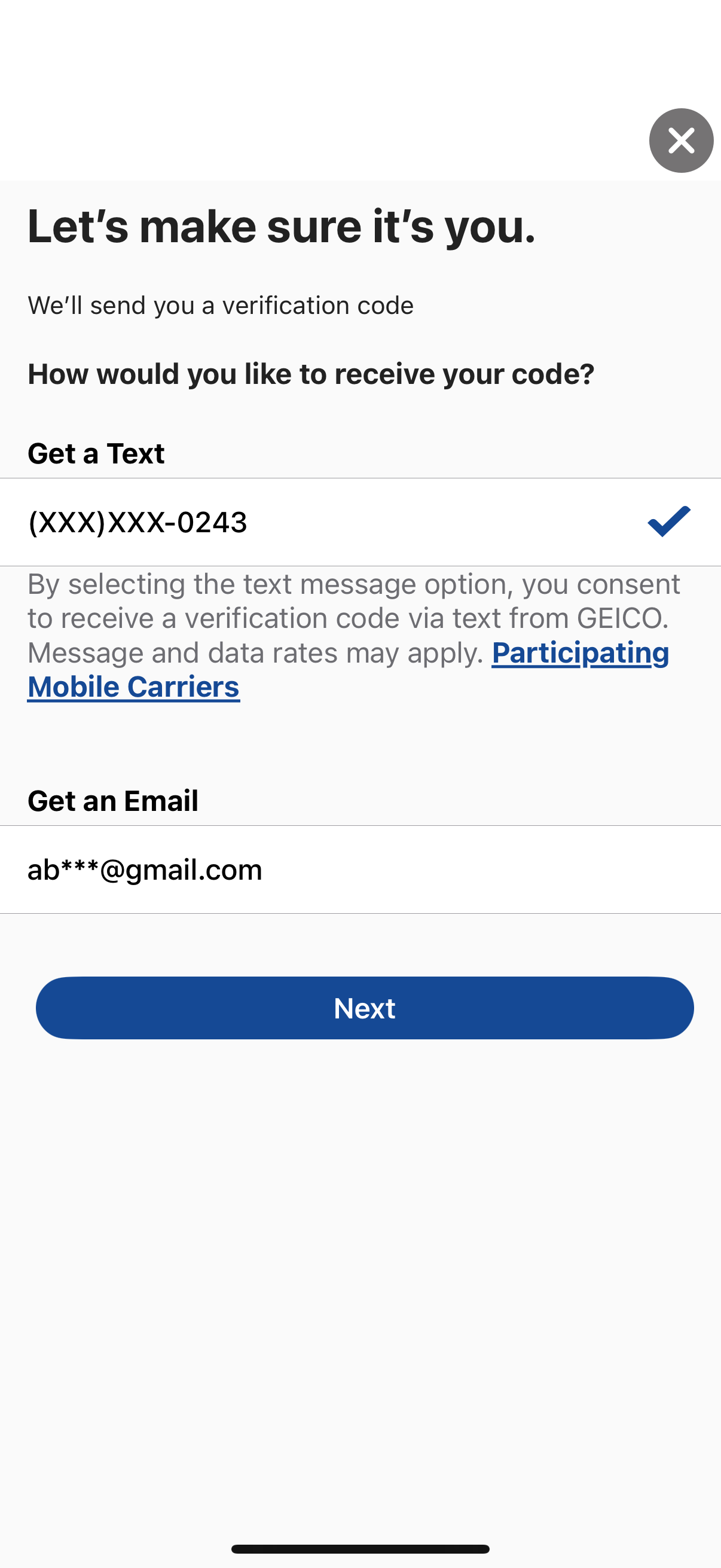
Account verification screen prompting the user to choose how to receive a one-time verification code, offering SMS text to a masked phone number or email to a masked address with consent/carrier info. Includes a selectable option indicator, a primary “Next” button to continue, and a close (X) icon to dismiss.
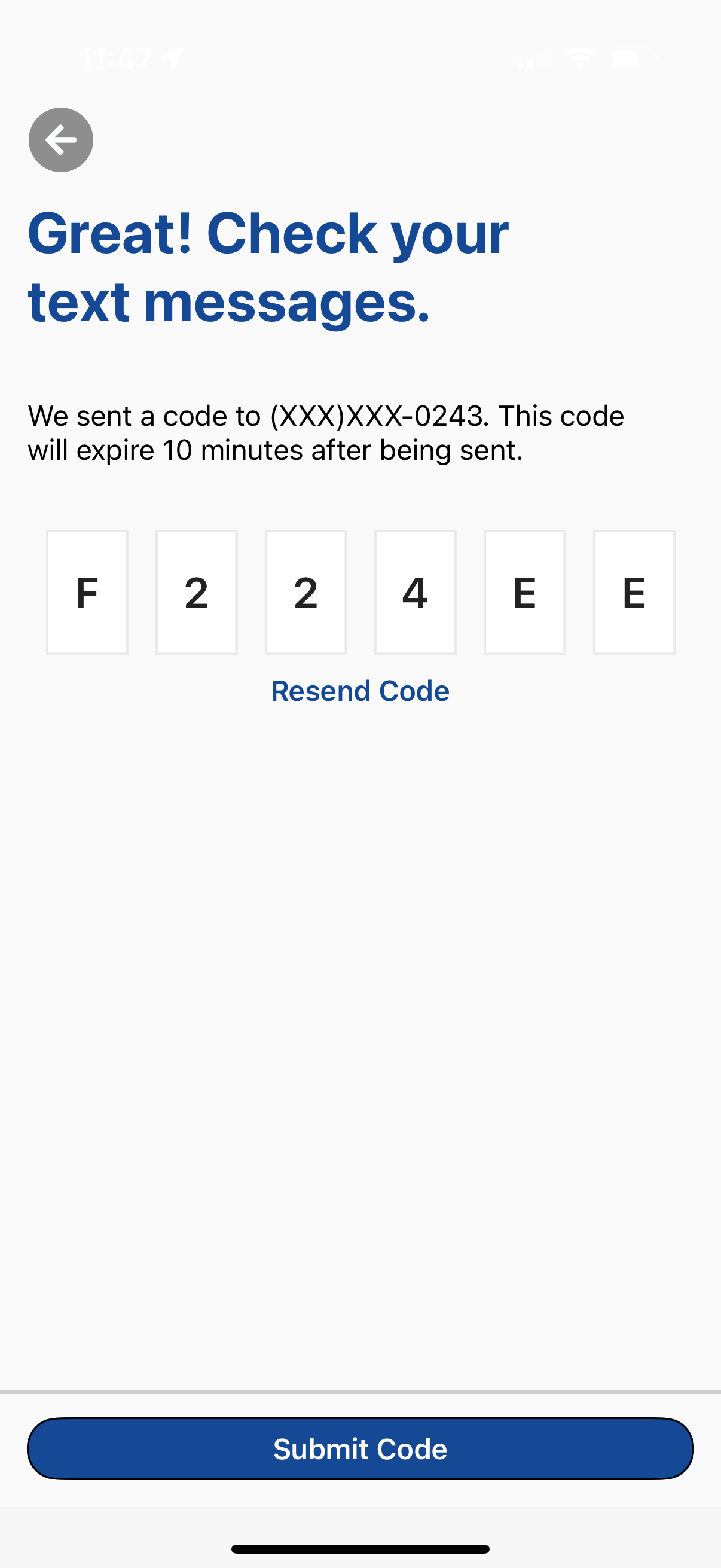
SMS verification code entry screen for phone number authentication, showing a 6-character code input, message about code expiration, and actions to resend the code or submit it to continue. Includes a back button for navigating to the previous step.
Branded loading/splash screen for an insurance mobile app, showing the company logo on a solid background with a centered “Loading…” status indicator while the app initializes or fetches content.
Branded app loading/splash screen showing the company logo on a solid background with a “Loading…” status message while the insurance app initializes or transitions to the main experience.
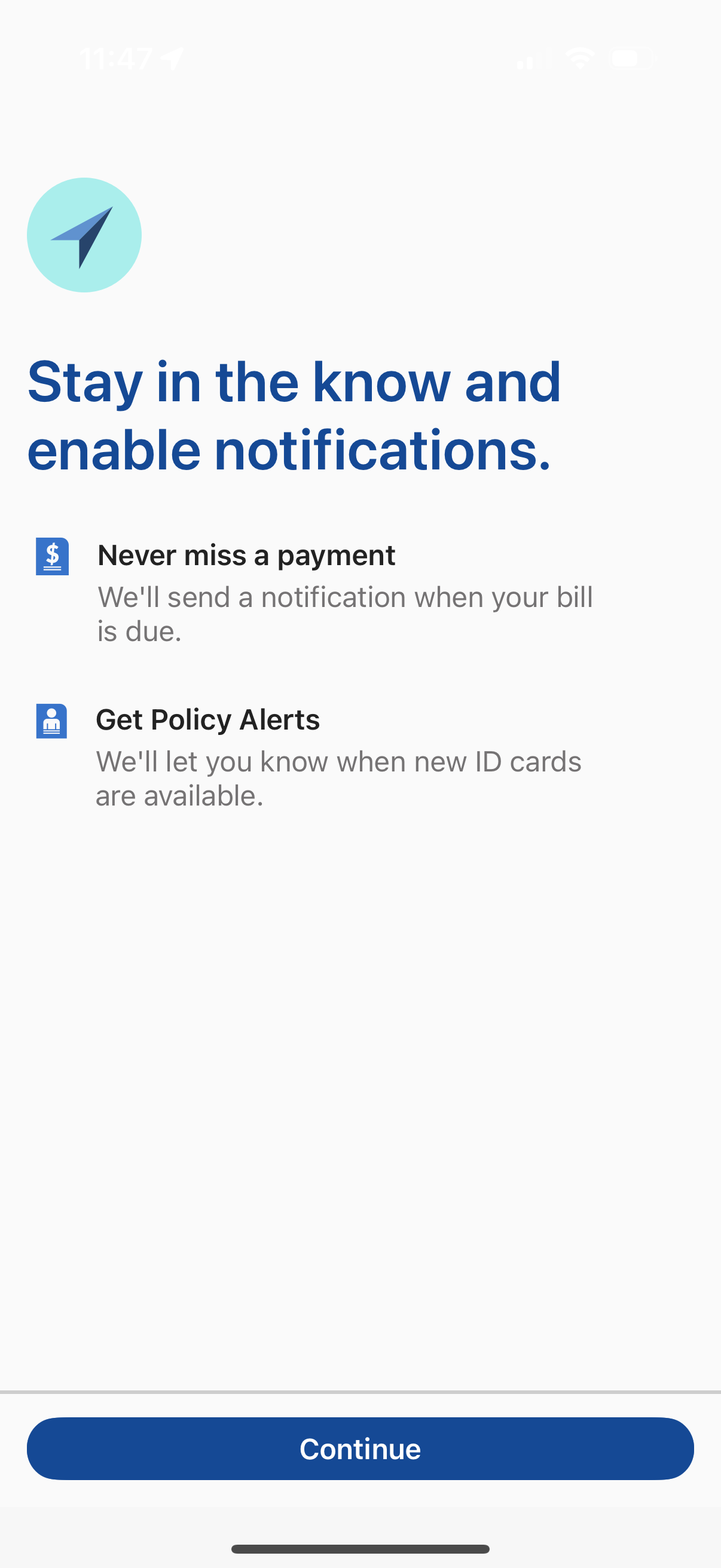
Onboarding permission prompt encouraging users to enable push notifications, explaining benefits like bill due payment reminders and policy alerts such as new ID cards availability. Includes a prominent Continue button to proceed with notification setup.
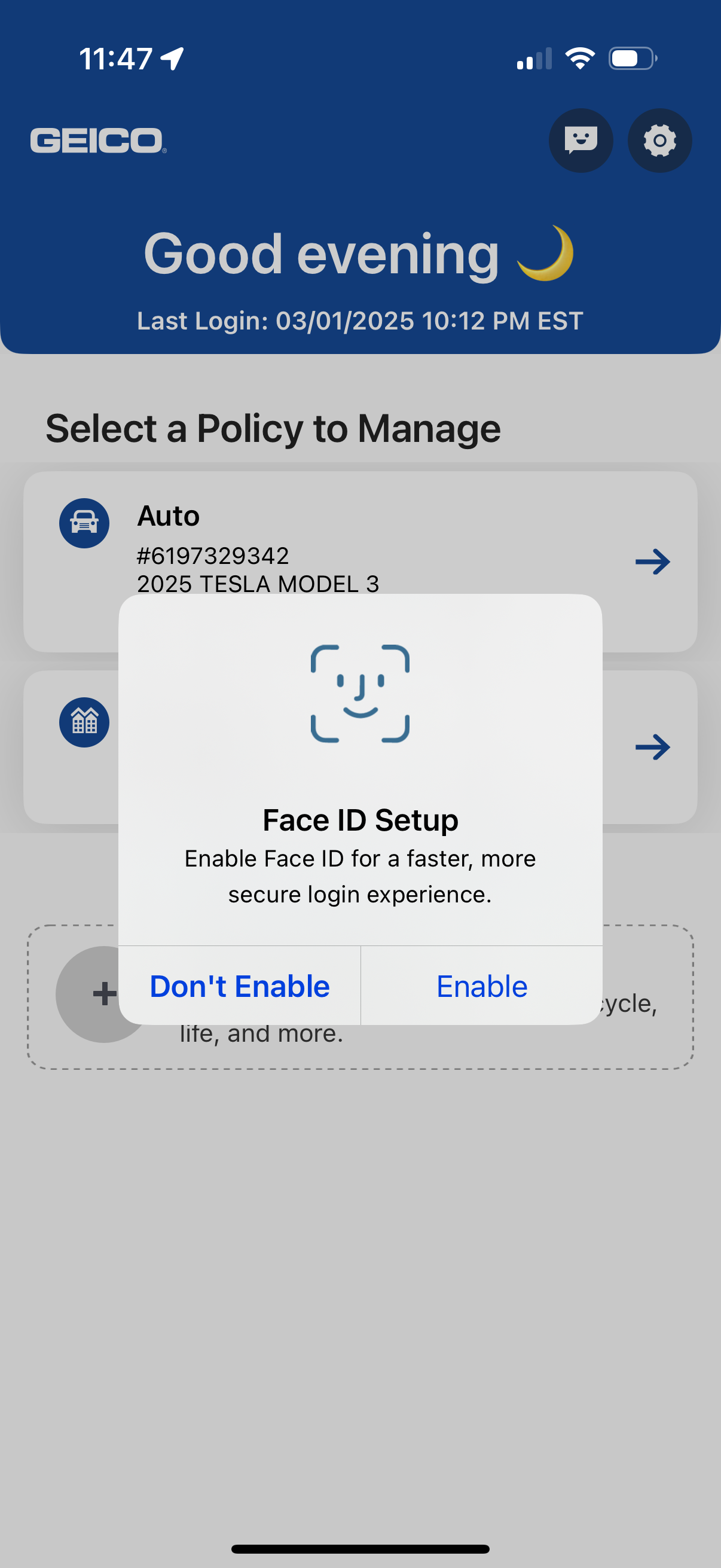
Insurance app home screen prompting the user to select a policy to manage (e. g.