Onboarding welcome screen for a note-taking and study app highlighting the value proposition, social proof (10M+ global downloads and trusted by top universities), and a primary CTA button to begin setup/start using the app.
App Store promotional screen for a note-taking app highlighting “Rich Note Tools” with preview images of handwritten notes and diagrams. A system in-app rating prompt overlays the page, asking the user to tap a star to rate the app or choose “Not Now,” with a primary “Continue” button behind it.
An iOS in-app rating prompt modal asks users to tap a 1–5 star rating to review the app on the App Store, with a “Not Now” dismiss button. The dialog overlays an onboarding/feature marketing screen that has a “Continue” call to action.
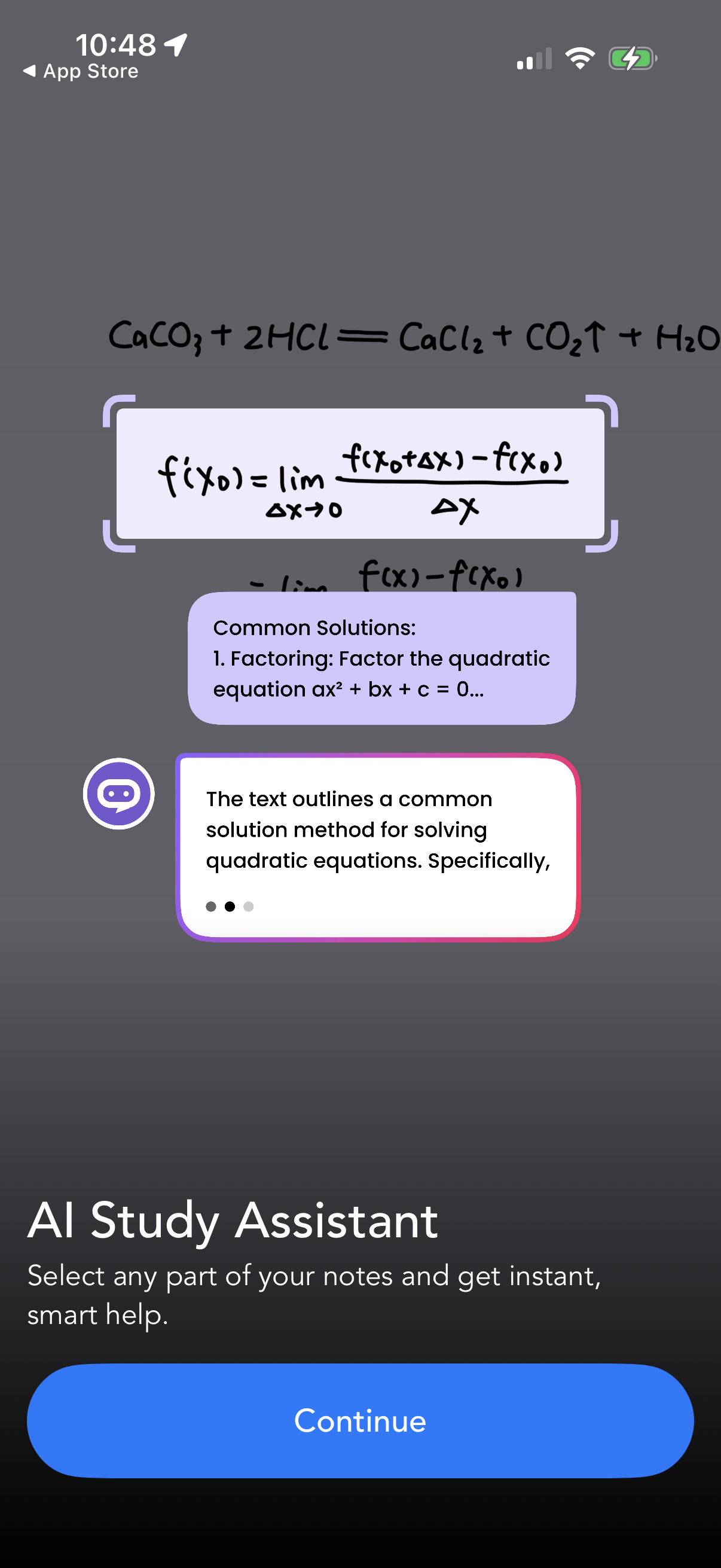
Onboarding screen for an AI study assistant showing how users can select or highlight a portion of their notes to get instant explanations and solution steps. Includes a brief feature description and a primary “Continue” call-to-action to proceed.
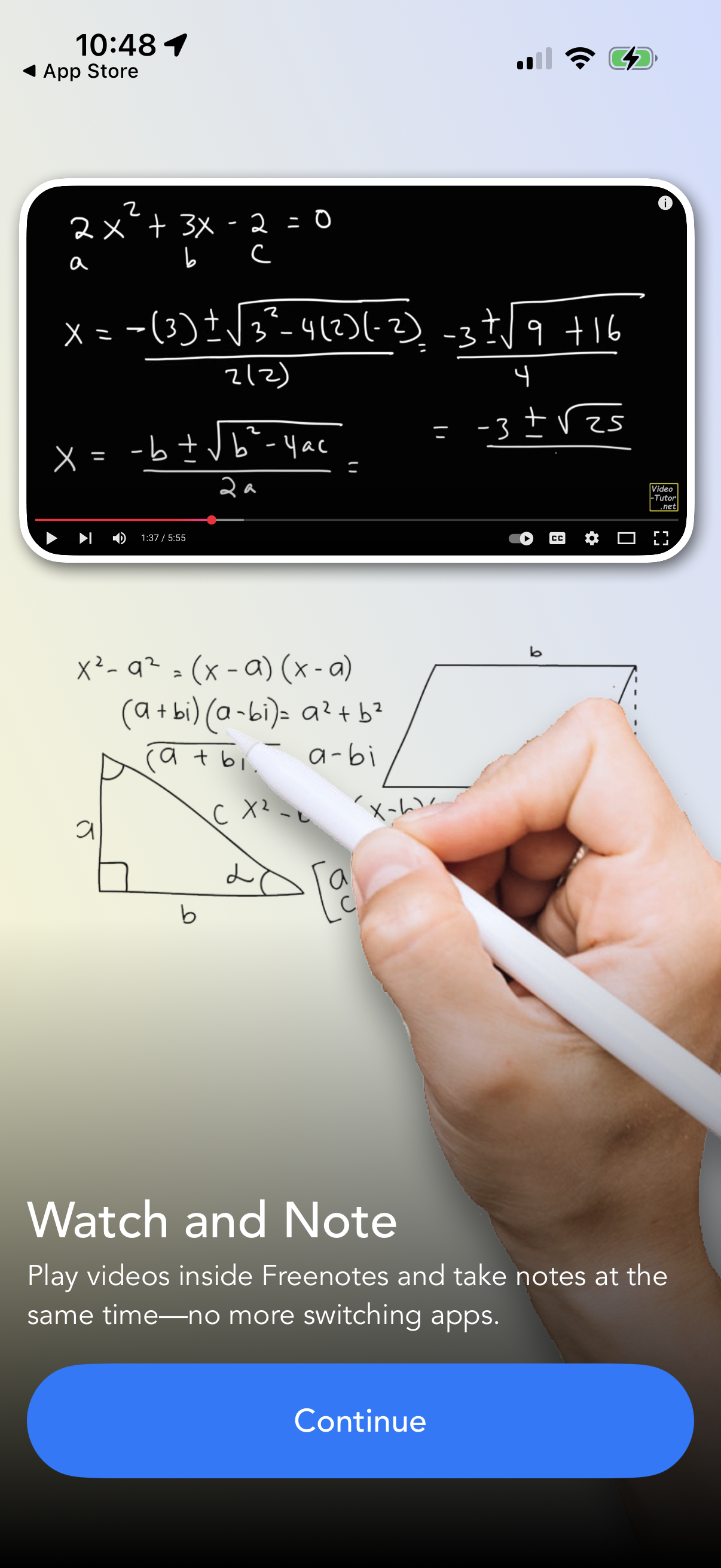
App Store onboarding/feature highlight screen for a note-taking app showcasing a “Watch and Note” capability that lets users play videos inside the app while taking notes simultaneously. Includes a short explanatory message and a primary “Continue” call-to-action.
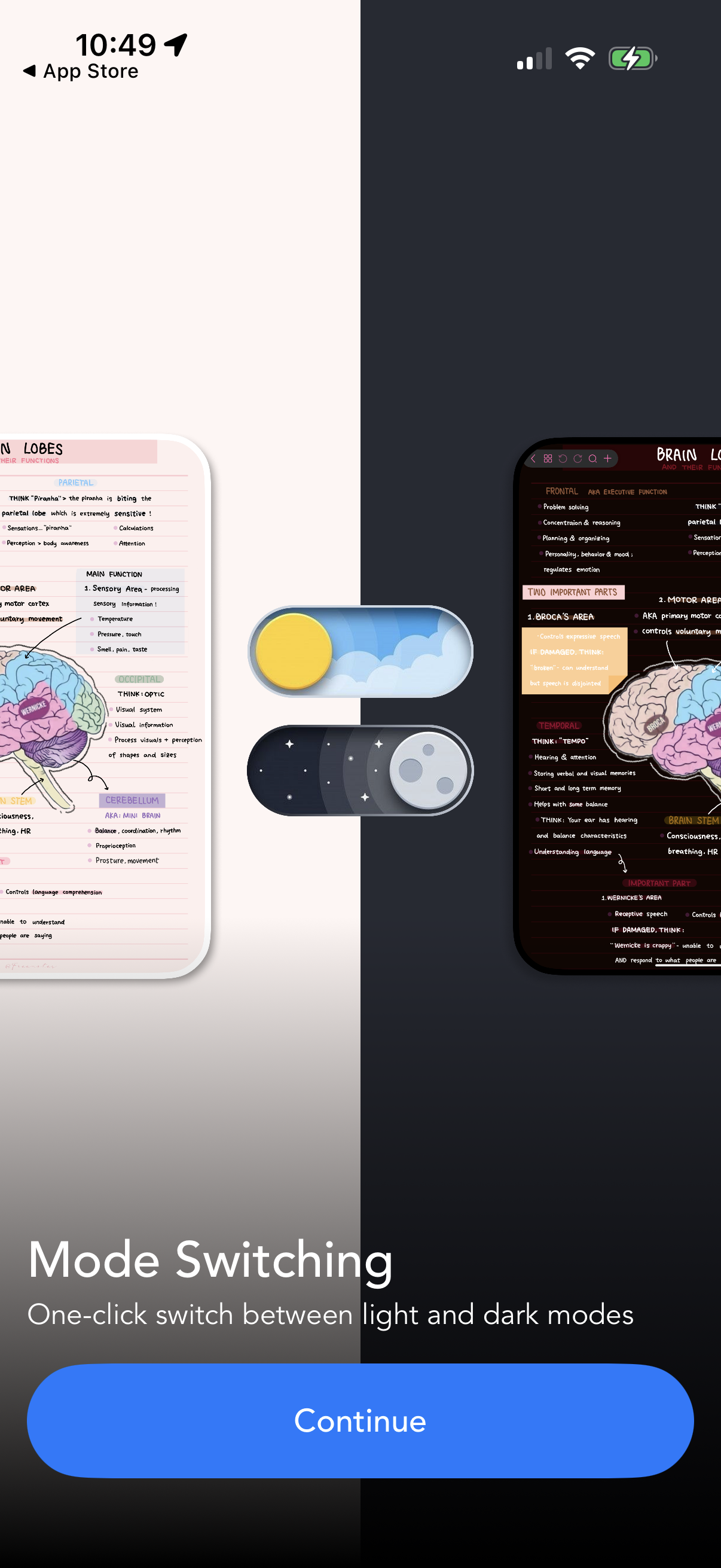
Onboarding feature highlight explaining mode switching with a visual toggle between light and dark themes. Includes a prominent “Continue” button to proceed after previewing the two appearance options.
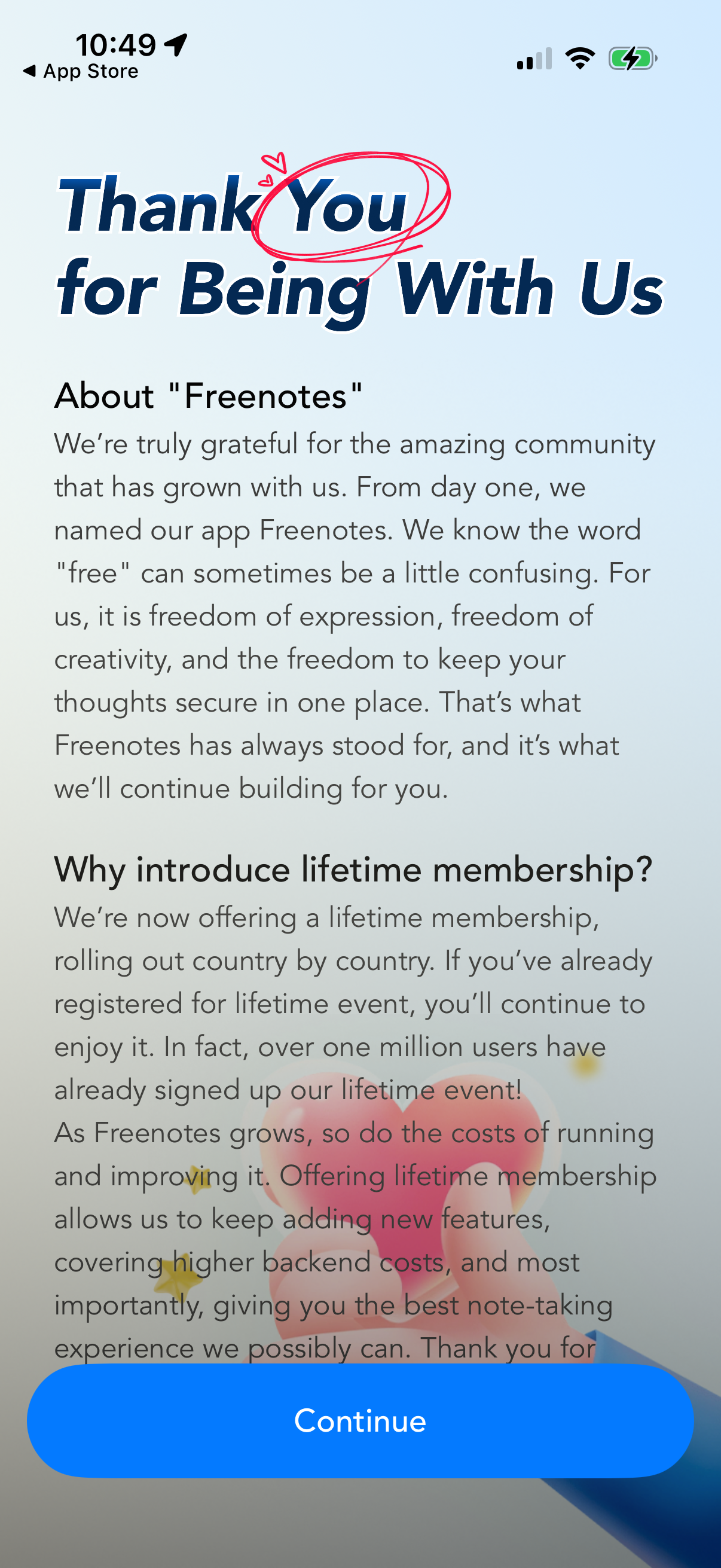
A thank-you and informational onboarding screen for a note-taking app explaining the meaning of the app name and announcing the introduction of a lifetime membership. Users read a long-form message and proceed via a prominent “Continue” button at the bottom.
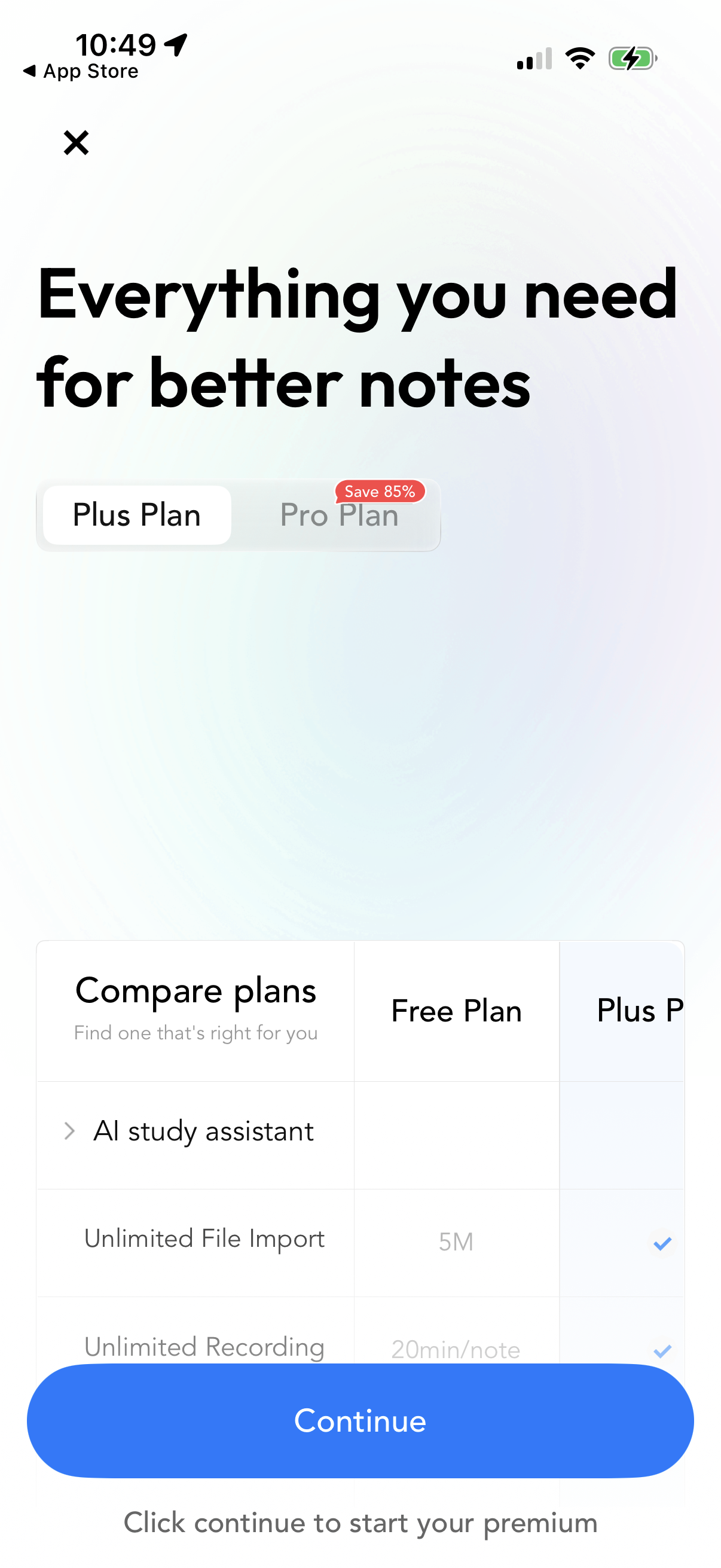
Subscription paywall for a notes app promoting “Everything you need for better notes,” with a toggle to choose Plus vs Pro plan and a “Save 85%” badge. Includes a compare-plans table (Free vs paid tiers) listing premium features like AI study assistant, unlimited file import, and recording, plus a prominent Continue button to start the premium subscription.
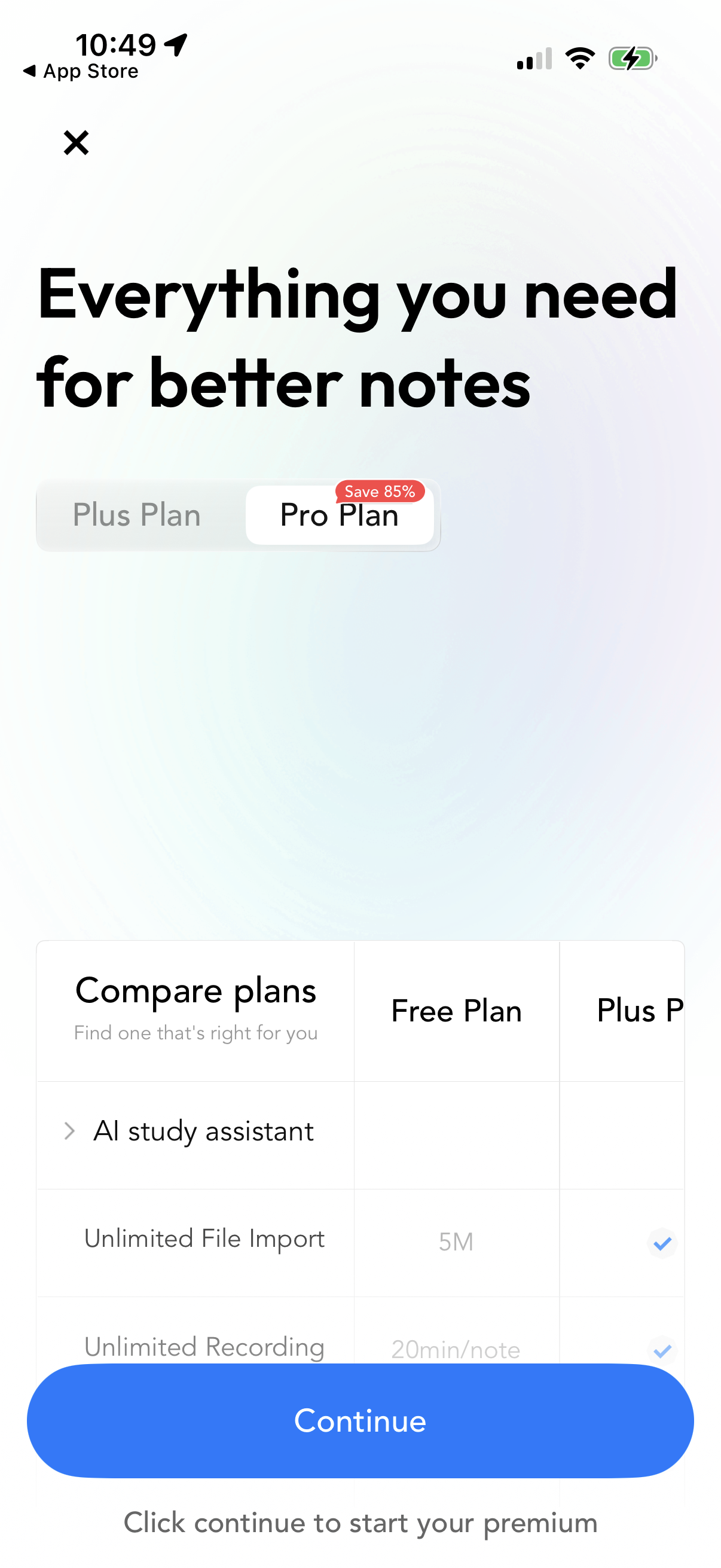
Premium upsell paywall for a note-taking app promoting “Everything you need for better notes,” with a segmented control to switch between Plus and Pro plans and a “Save 85%” discount badge. Includes a compare-plans table listing features across Free/Plus/Pro and a large “Continue” CTA to start the subscription, with a close button to dismiss.
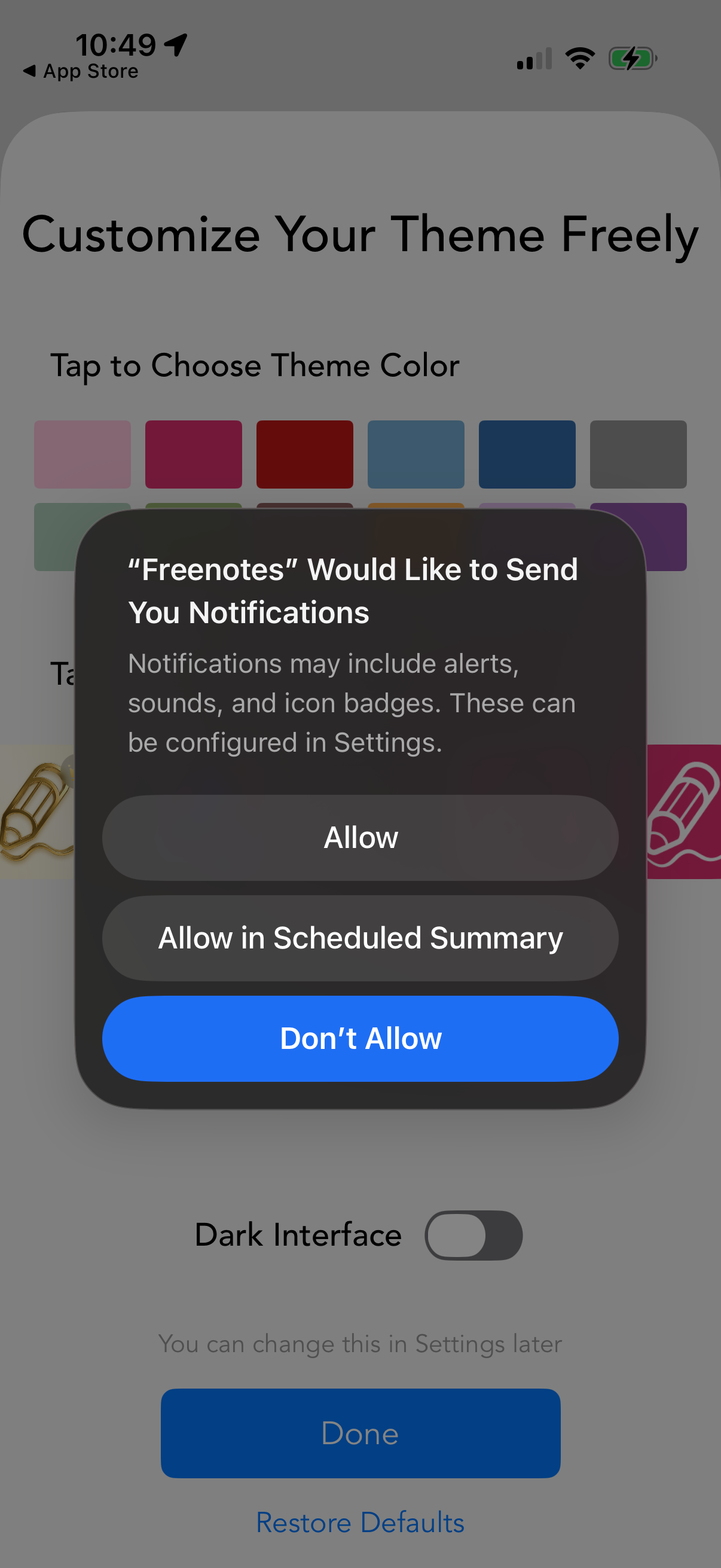
iOS system permission modal asking to allow an app to send push notifications, with options to Allow, Allow in Scheduled Summary, or Don’t Allow. The dialog appears over an in-app theme customization settings screen with color palette selection, a dark mode toggle, and Done/Restore Defaults actions.
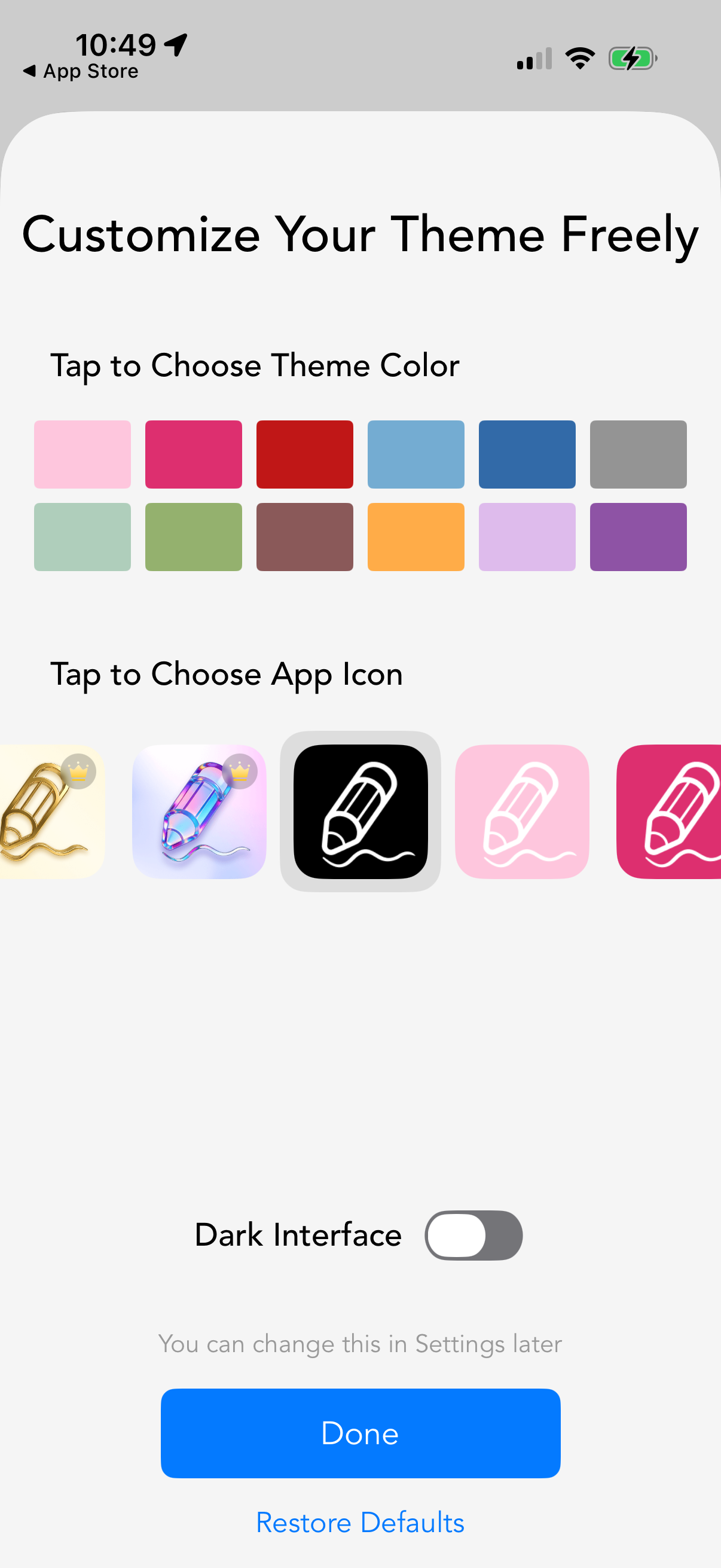
Theme customization screen that lets users choose a theme color from a palette, select an app icon variant, and toggle a dark interface mode. Includes actions to save changes with Done or reset preferences via Restore Defaults.
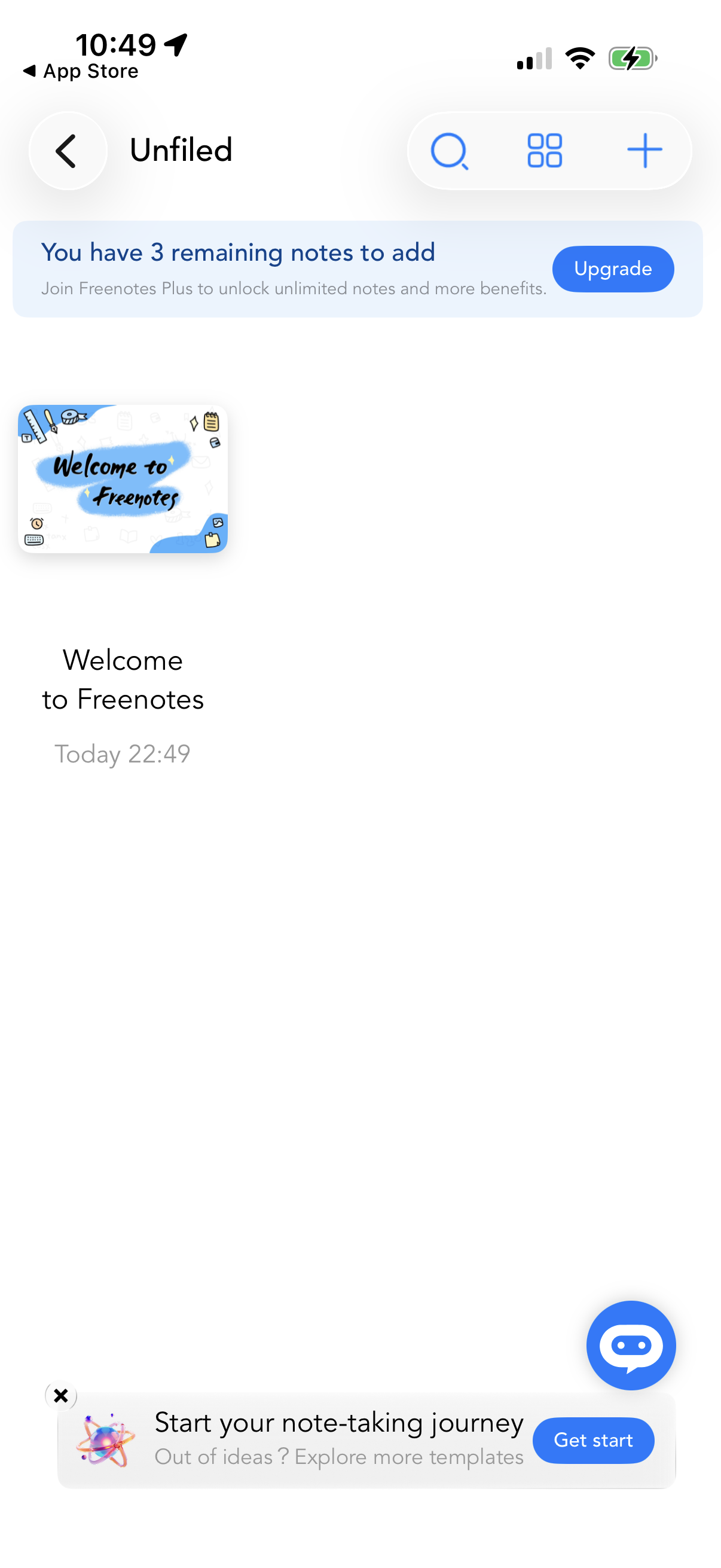
Notes app “Unfiled” folder showing a list/grid of saved notes with thumbnail preview, title, and timestamp, plus controls to search, toggle view layout, and create a new note. The screen includes upsell banners for a premium upgrade with remaining note limit and an onboarding prompt to start note-taking or explore templates.
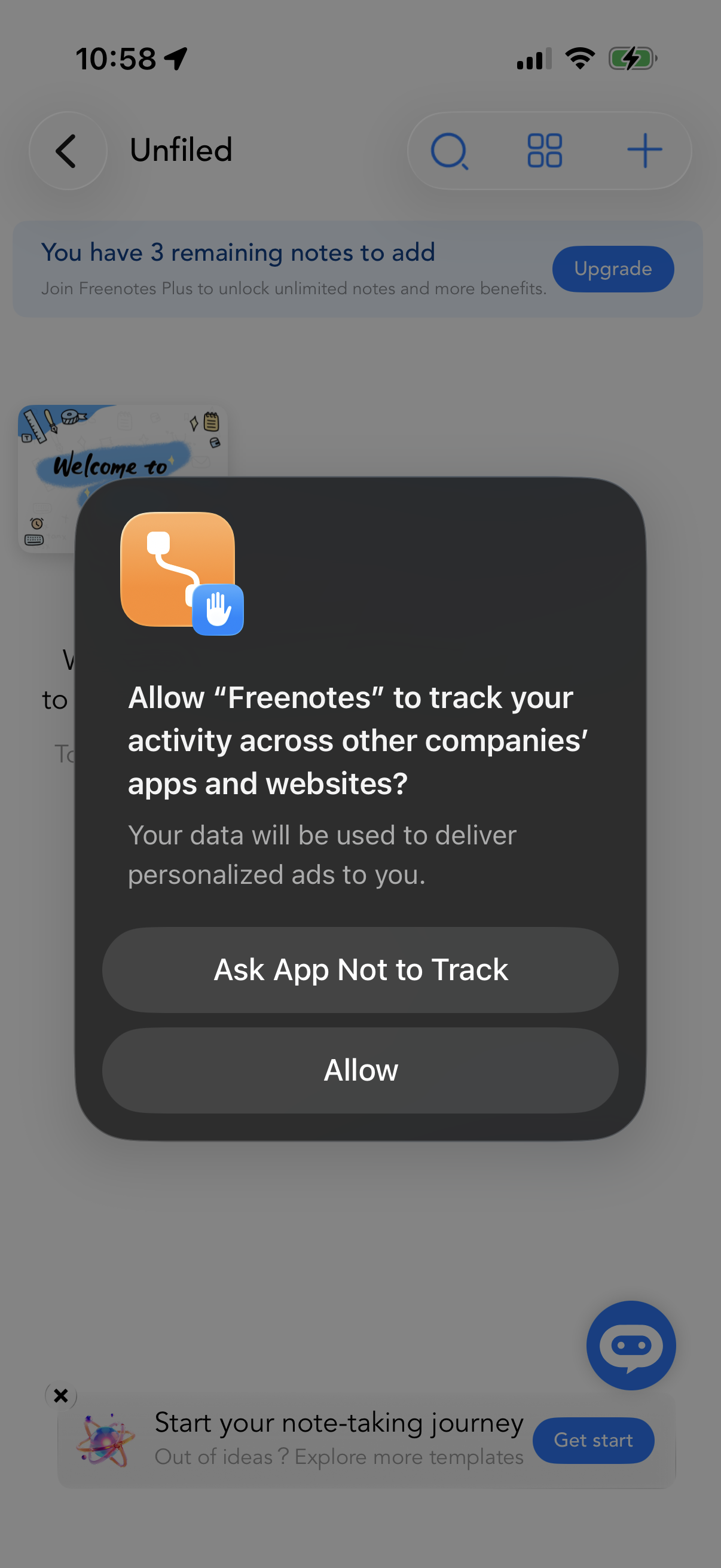
iOS App Tracking Transparency permission modal asking whether to allow the app to track activity across other apps and websites for personalized ads, with primary actions to “Ask App Not to Track” or “Allow. ” The dialog overlays a notes app screen in the background.