Onboarding

App splash screen with a solid purple background displaying the Fishbowl logo centered, indicating the app is launching/loading with no user actions available.
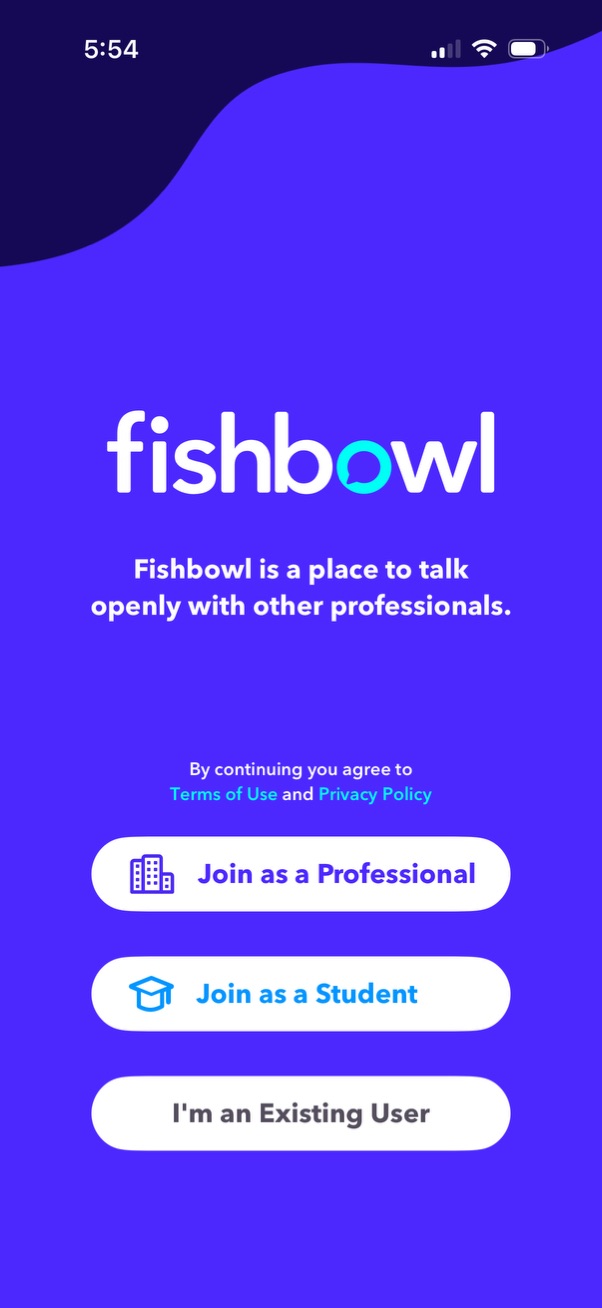
Welcome/onboarding screen for a professional networking discussion app introducing the product and requiring agreement to Terms of Use and Privacy Policy. Users can choose an account type to sign up as a Professional or as a Student, or tap “I’m an Existing User” to log in.
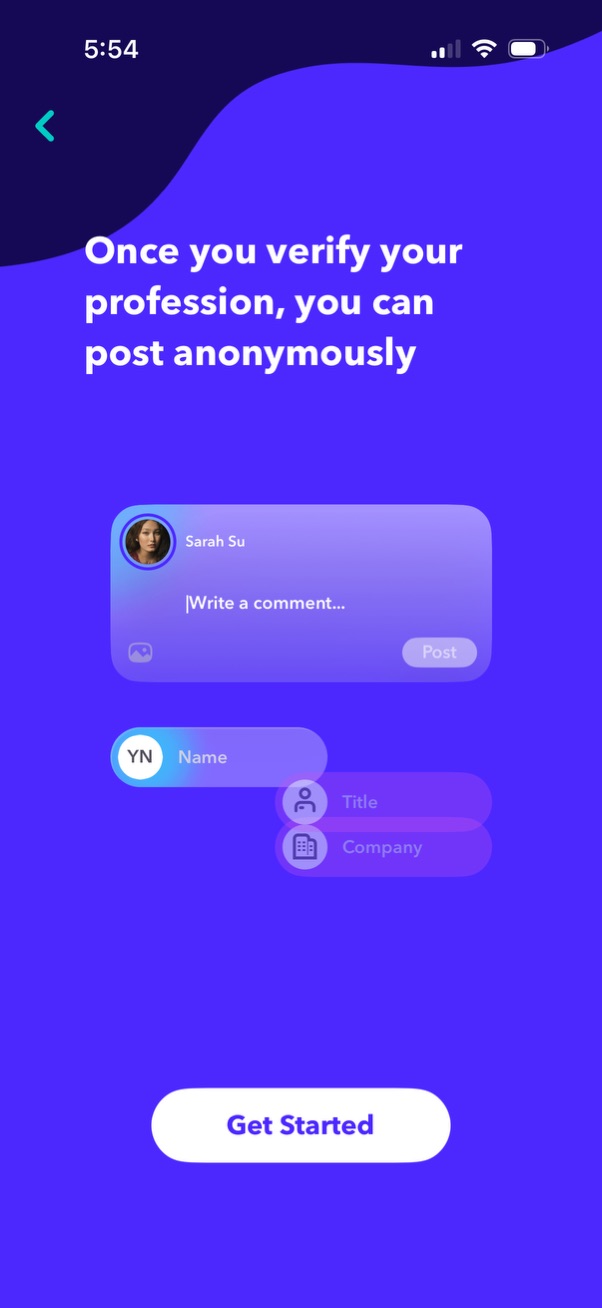
Onboarding explainer screen promoting profession verification to enable anonymous posting, illustrated with a comment composer and profile/identity fields (name, title, company). Includes a back arrow and a primary “Get Started” call-to-action to begin the verification flow.
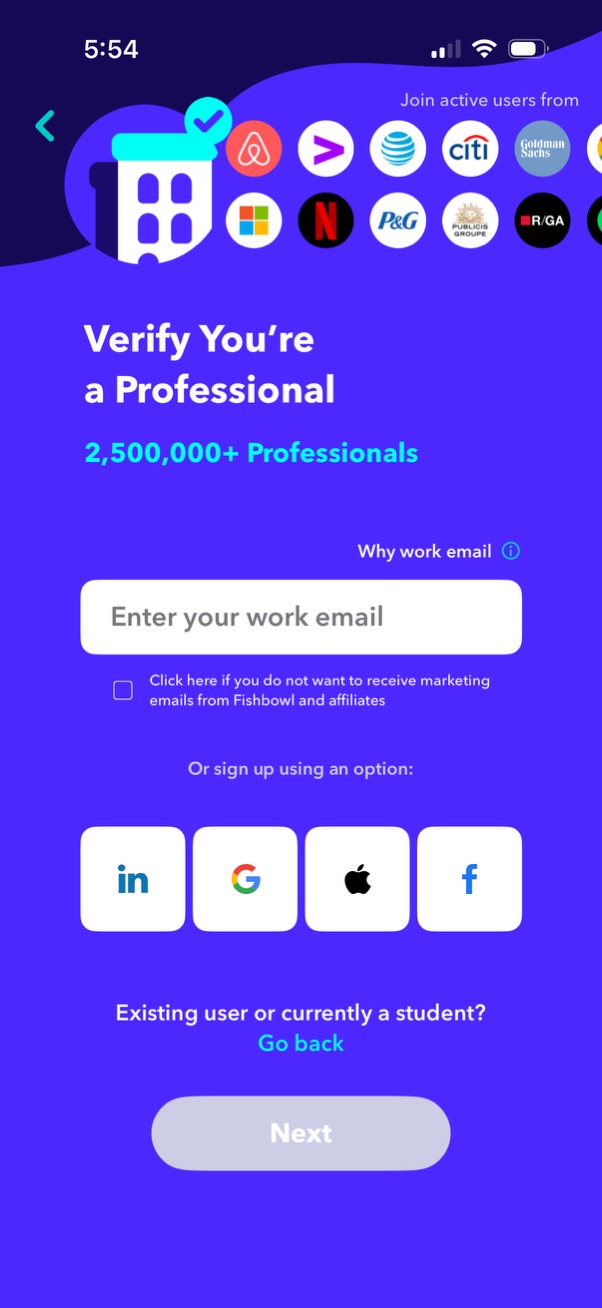
Professional verification sign-up screen prompting users to enter a work email to verify they’re a professional, with an opt-out checkbox for marketing emails and an info link explaining why a work email is needed. Offers alternative registration options via LinkedIn, Google, Apple, or Facebook and a disabled “Next” button until required input is provided, plus a link for existing users or students to go back.
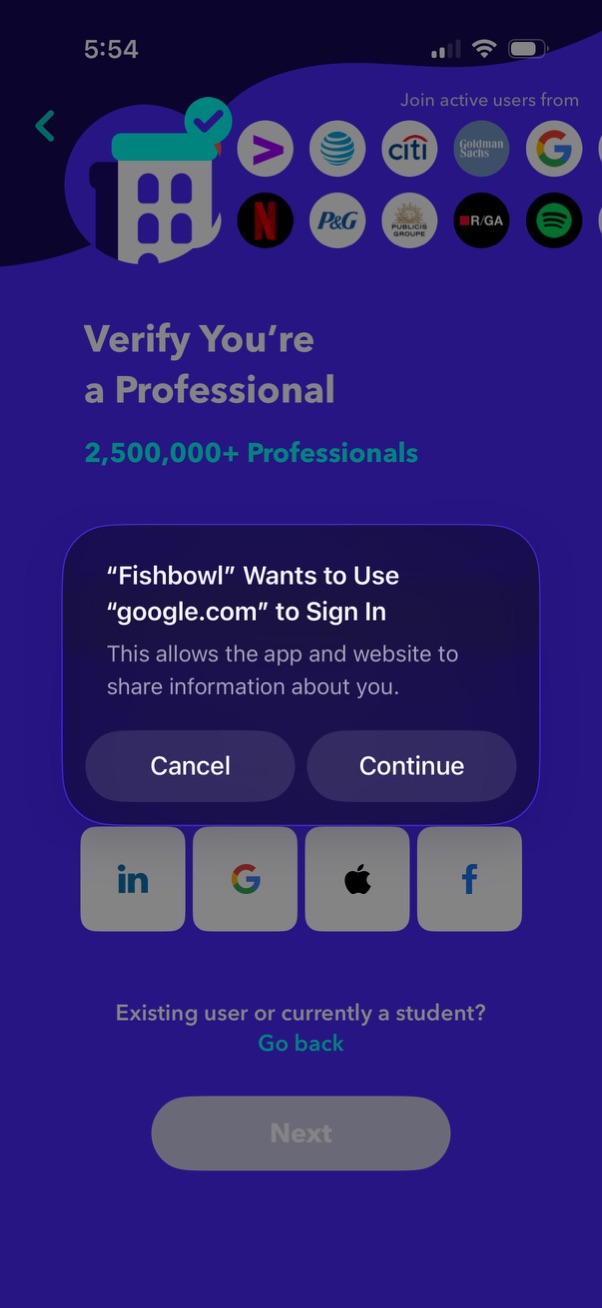
Professional verification onboarding screen prompting users to sign in with a work account, showing social login options (LinkedIn, Google, Apple, Facebook) and a modal requesting permission to use Google. com to sign in with Cancel/Continue actions.
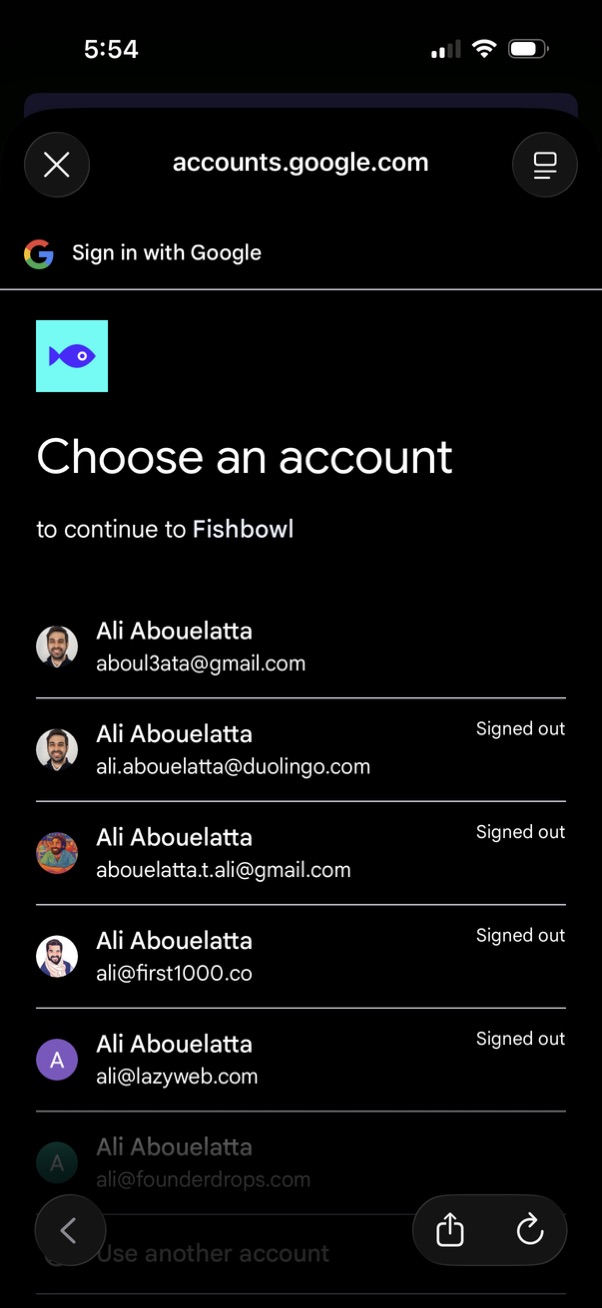
Google “Sign in with Google” account picker screen prompting the user to choose an existing Google account to continue to an app, showing a list of saved accounts with email addresses and signed-out status. Includes options to close the flow and use another account.
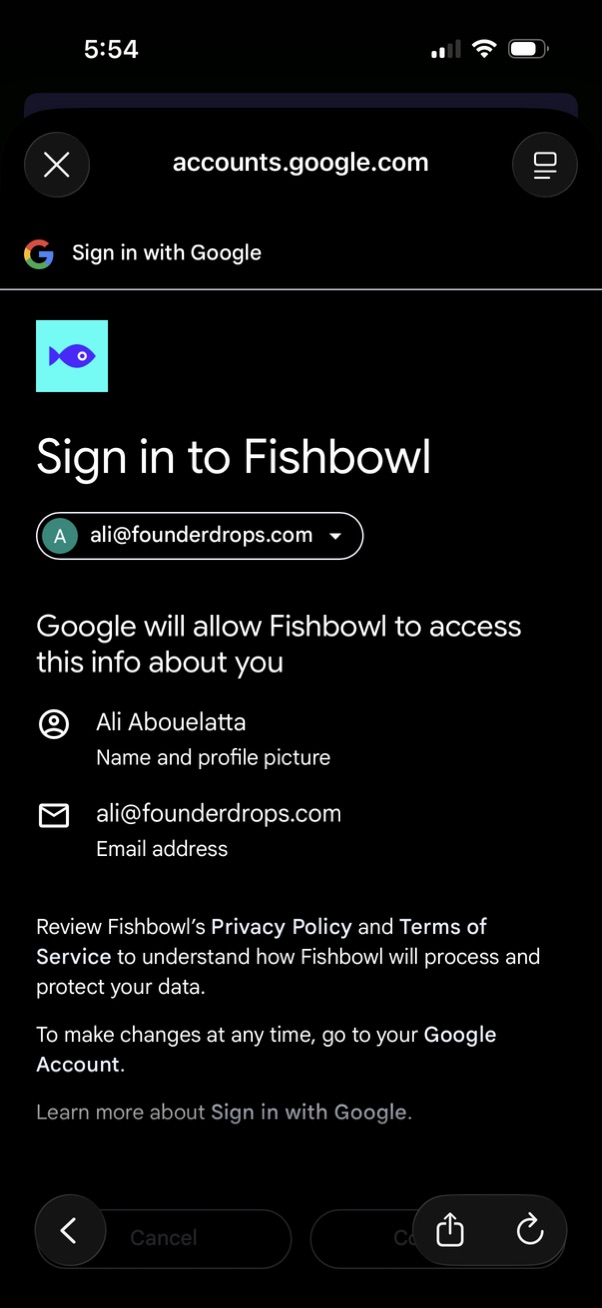
Google OAuth “Sign in with Google” consent screen for signing into a third-party app, showing the selected Google account dropdown and the permissions/data access summary (name/profile photo and email) with links to privacy policy and terms. Includes actions to cancel or continue the sign-in.
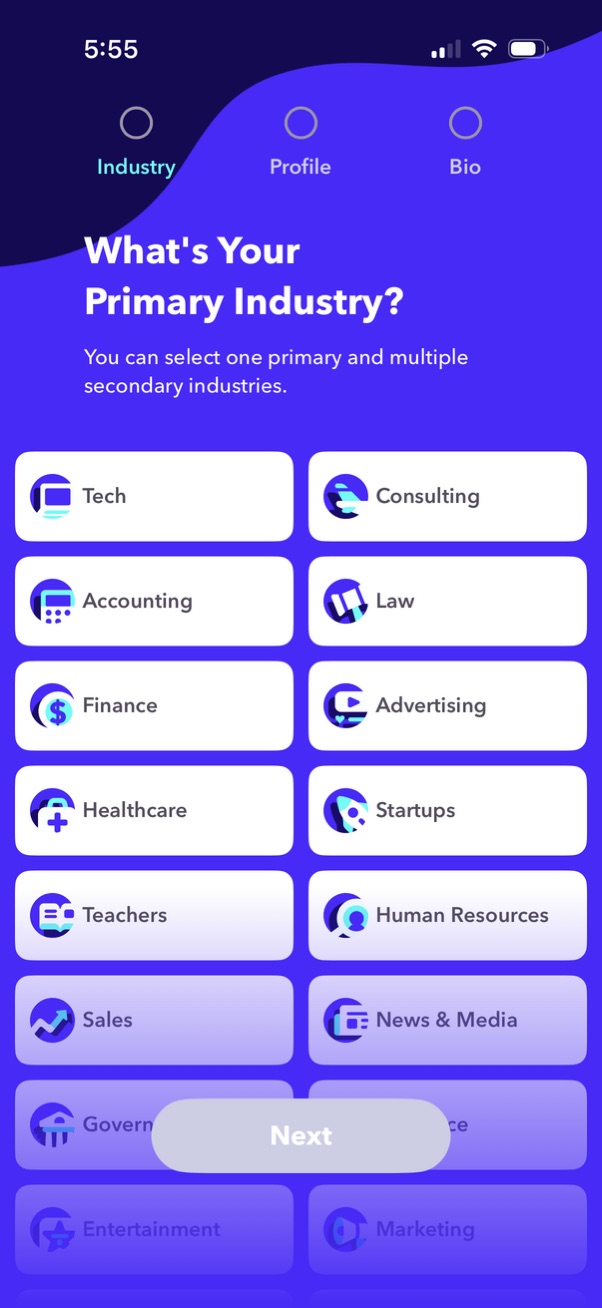
Onboarding profile setup screen asking the user to choose their primary industry (and optional secondary industries) from a grid of selectable category tiles like Tech, Finance, Healthcare, and Consulting. Includes a step progress indicator at the top and a disabled/enabled “Next” button to continue after making a selection.
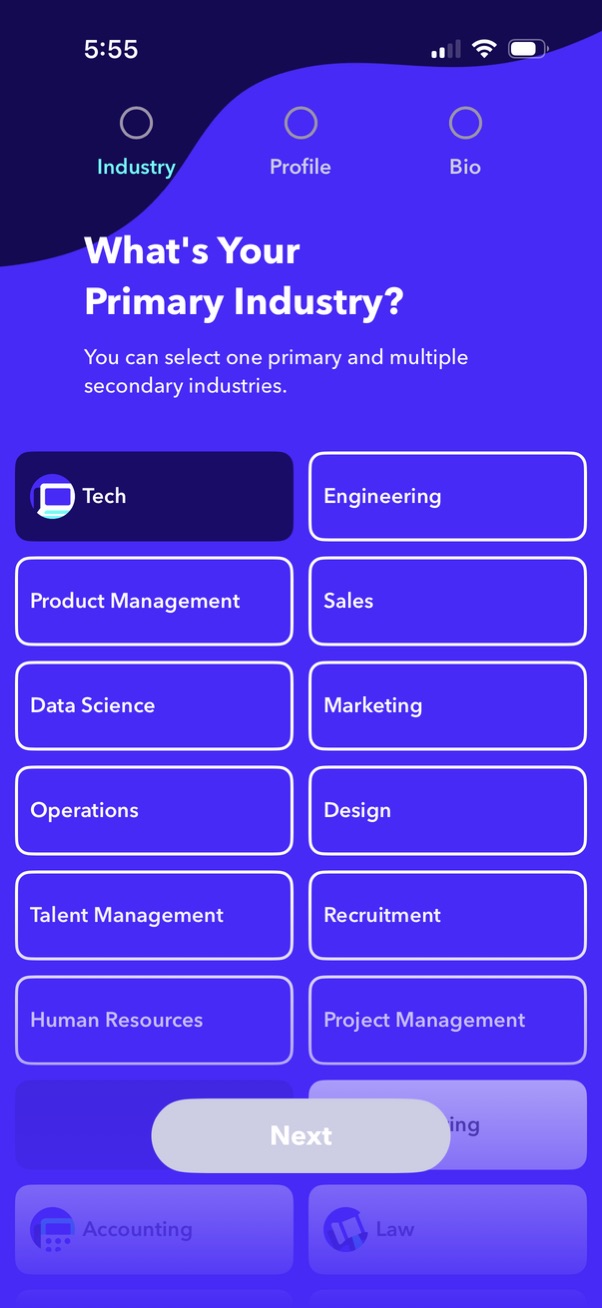
Onboarding profile step asking the user to choose their primary industry (with option to select multiple secondary industries) from a grid of selectable category tiles like Tech, Engineering, Sales, and Design. A progress indicator shows steps (Industry, Profile, Bio) and a disabled/enabled Next button advances to the next step.
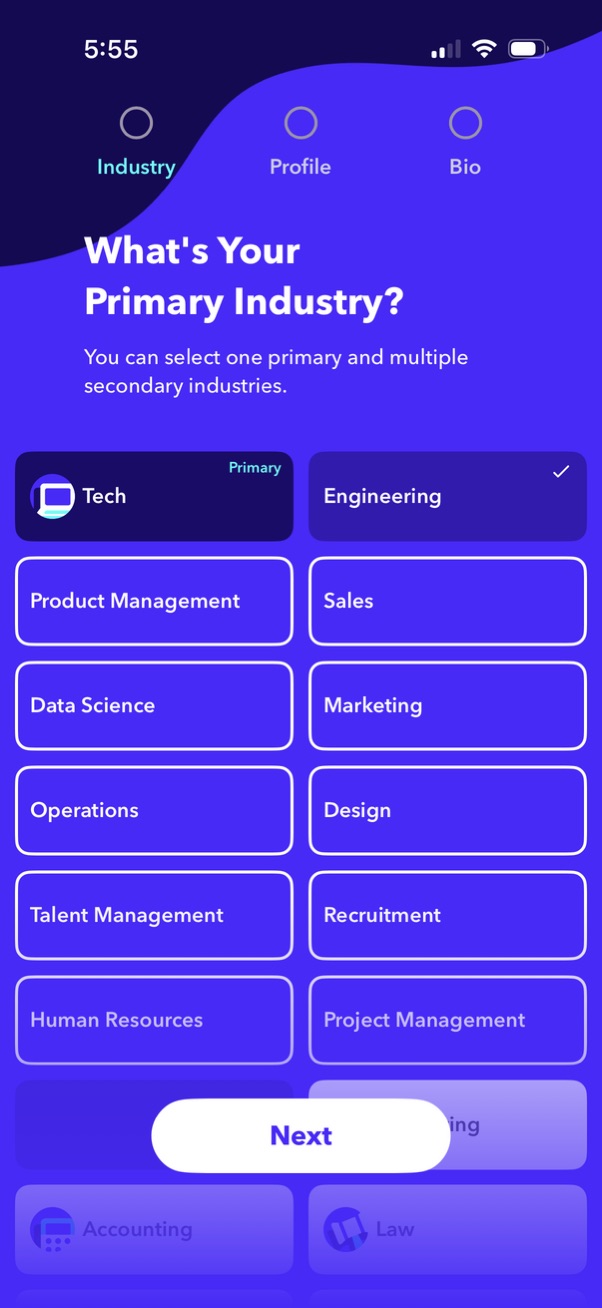
Onboarding profile setup screen asking “What’s your primary industry? ” with a multi-select grid of industry categories where one option is marked as the primary and others can be selected as secondary.
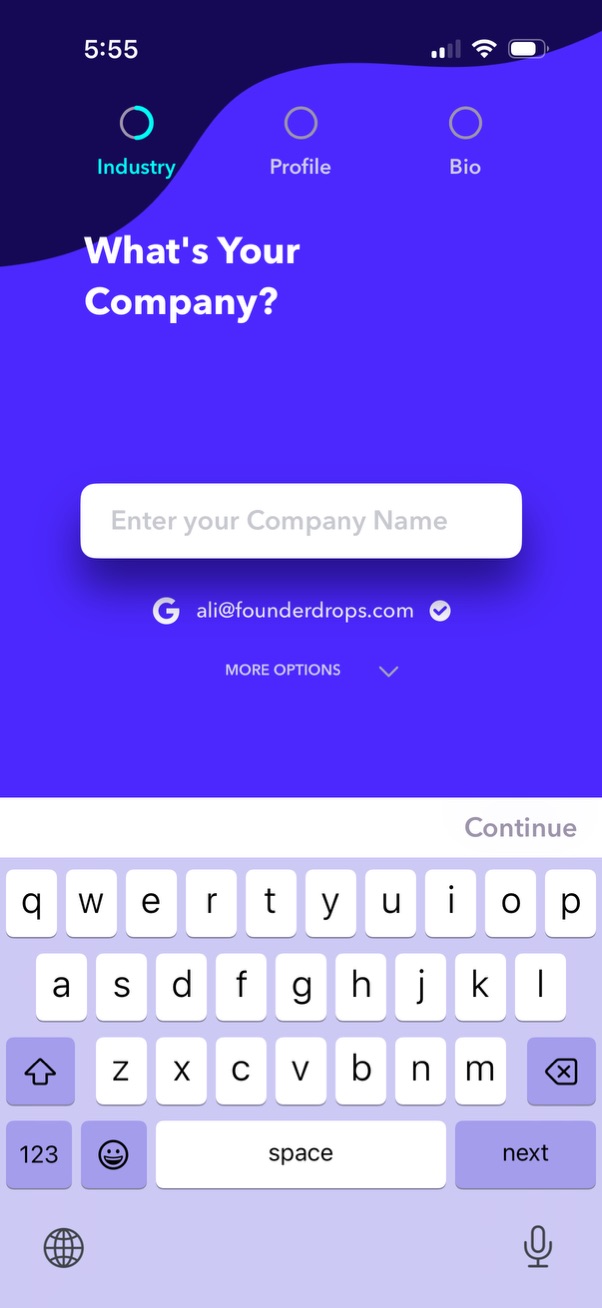
Onboarding profile setup screen asking the user to enter their company name, with a step progress indicator (Industry, Profile, Bio) and a prefilled verified email with a “More options” dropdown. Includes a primary Continue action with the keyboard open for text entry.
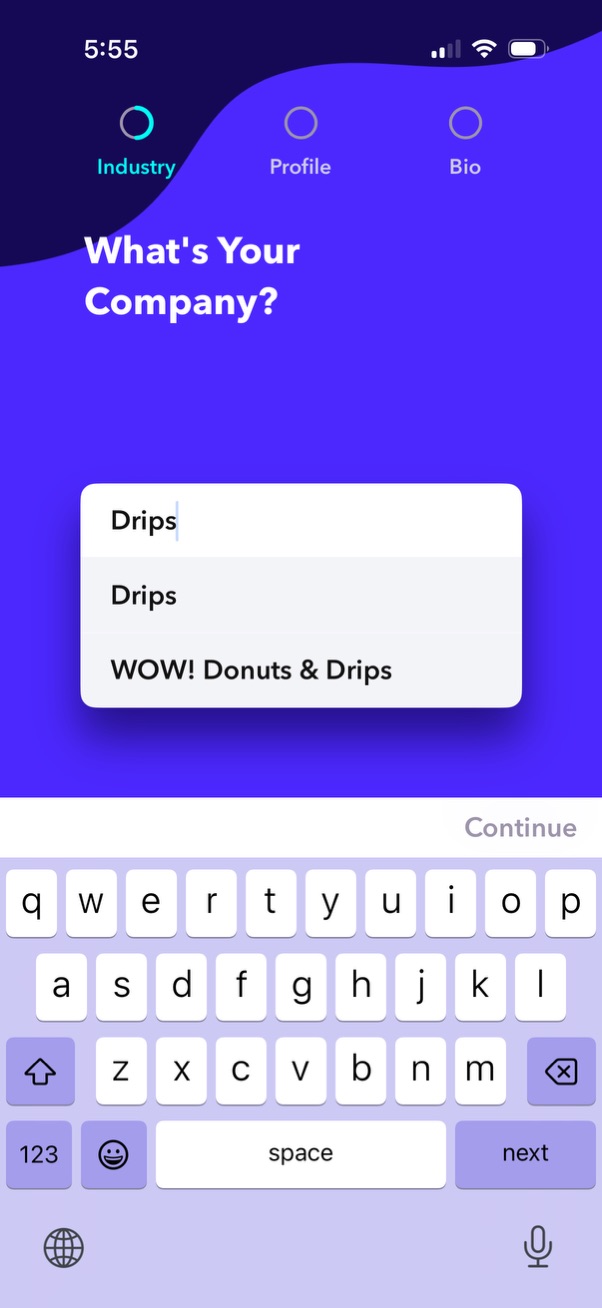
Onboarding/profile setup screen asking “What’s Your Company? ” with a company name text field that shows an autocomplete dropdown of matching company suggestions as the user types.
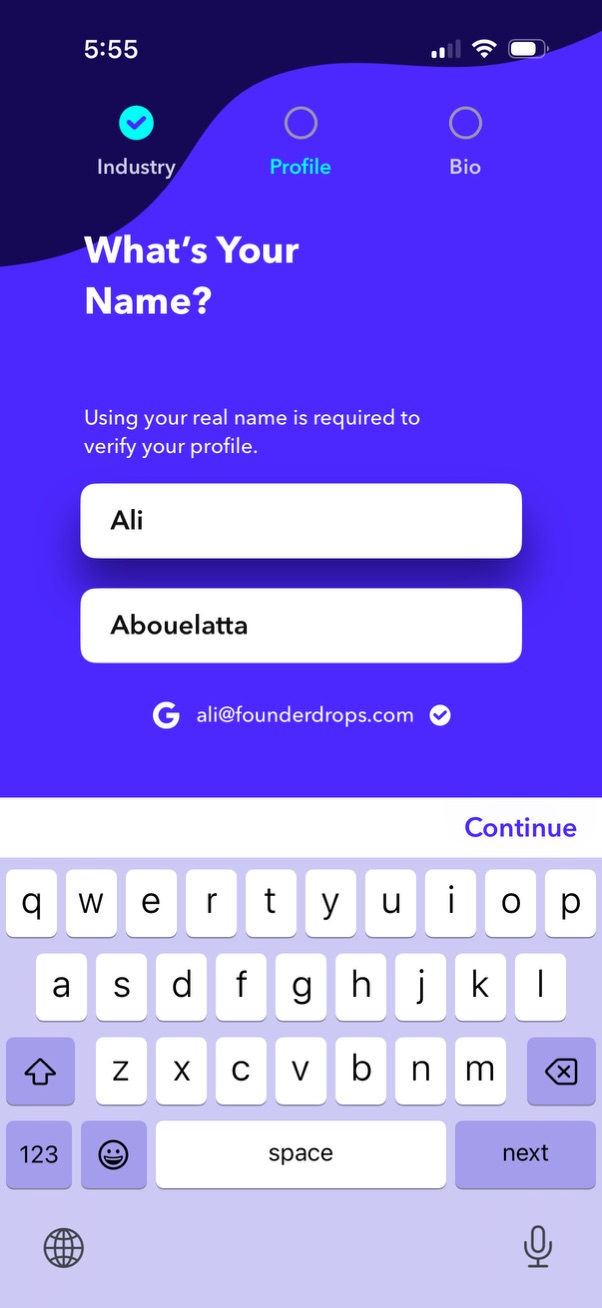
Profile setup onboarding screen asking “What’s Your Name? ” with first and last name input fields, a note that real names are required for profile verification, and a Continue action to proceed to the next step in the multi-step flow.
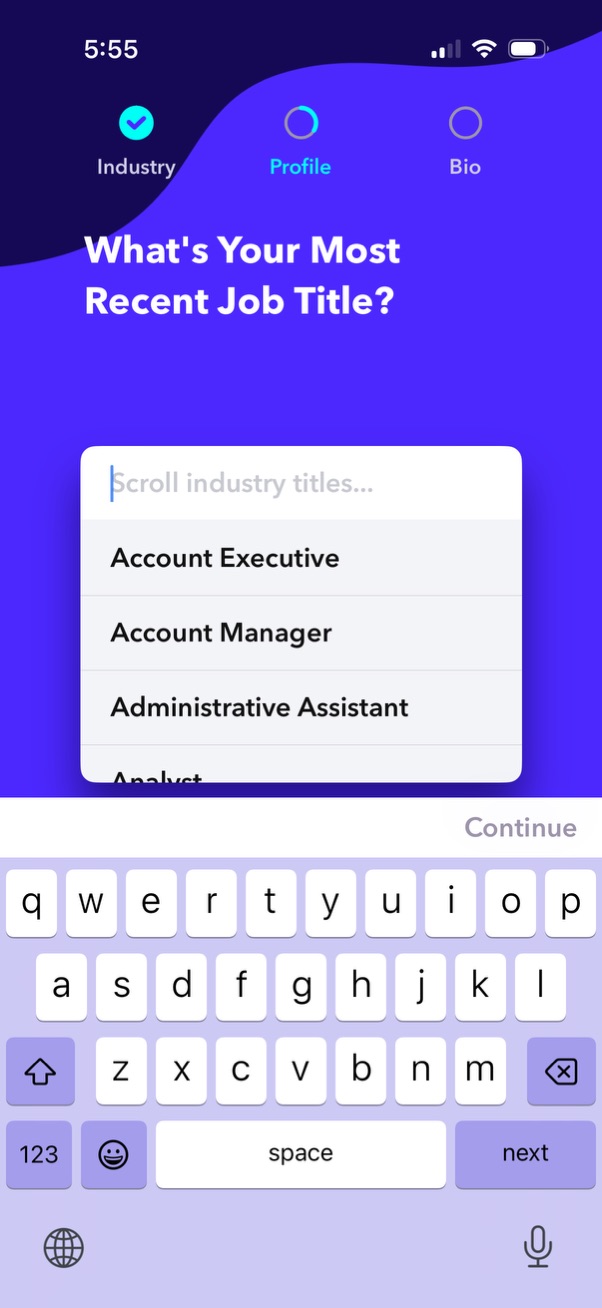
Onboarding profile setup screen asking the user to select their most recent job title, with a searchable dropdown list of industry titles to scroll and choose from. Includes a step progress indicator (Industry, Profile, Bio) and a Continue action to proceed.
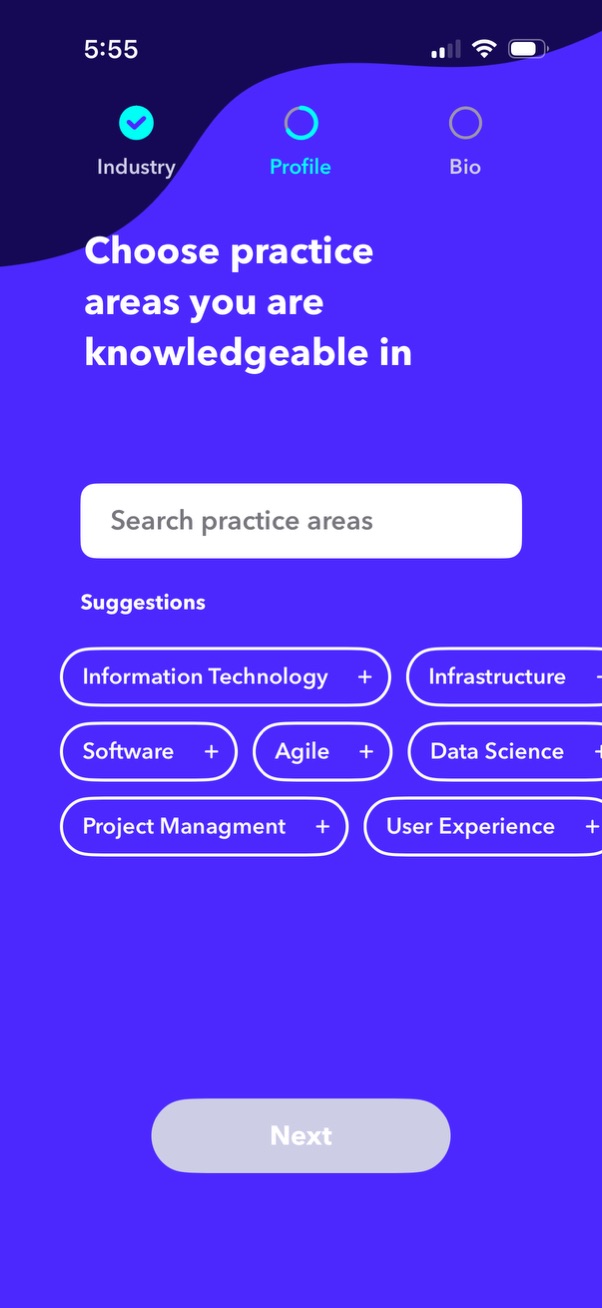
Onboarding profile setup screen prompting the user to choose practice areas or expertise topics, with a search field and suggested selectable chips with add/remove icons. Includes a step progress indicator (Industry, Profile, Bio) and a disabled “Next” button that becomes available after selections.
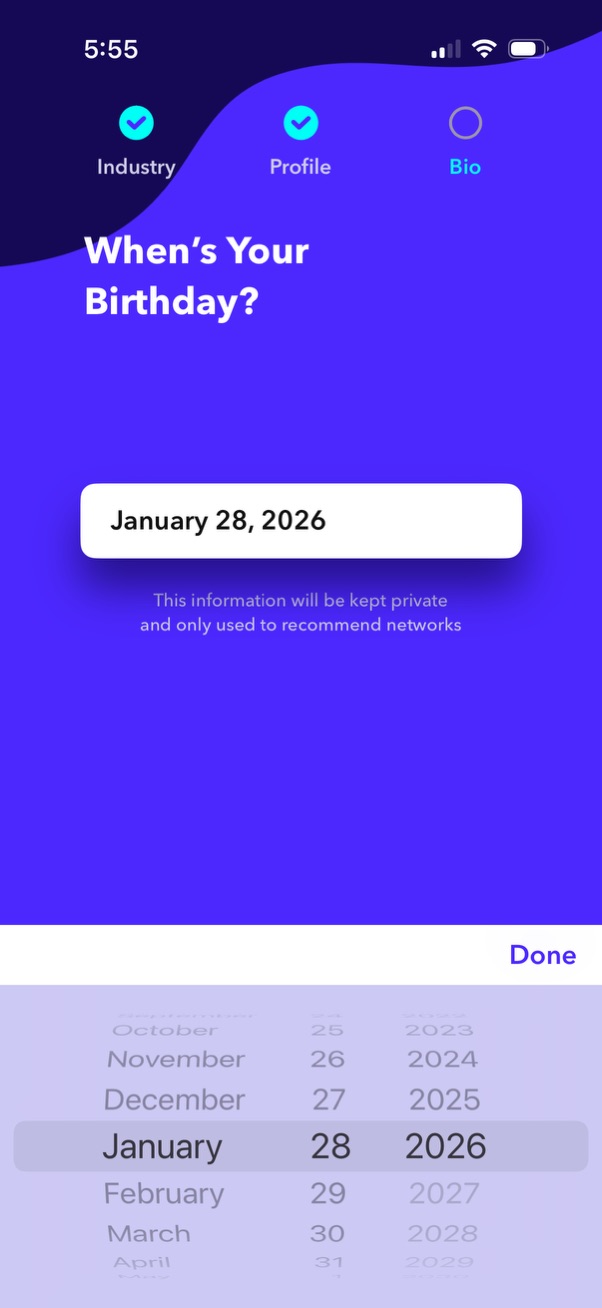
Onboarding profile setup screen asking for the user’s birthday, with a date picker wheel to select month, day, and year and a Done action to confirm. Includes a step progress indicator (Industry, Profile, Bio) and a note that the information will be kept private and used for recommendations.
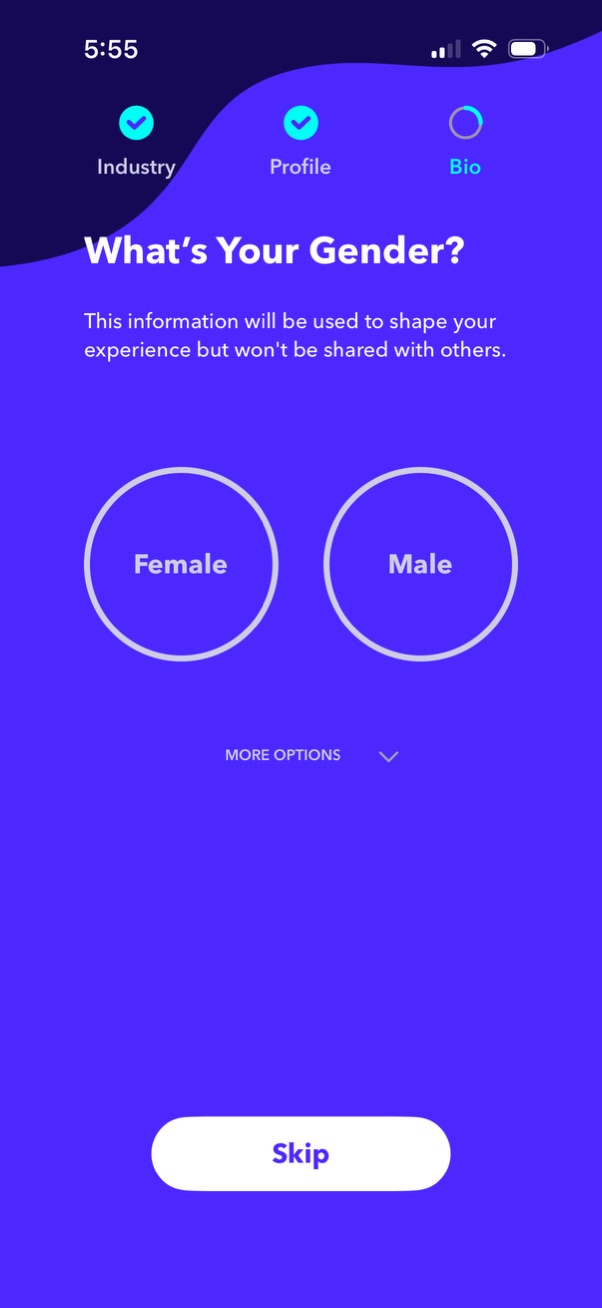
Onboarding profile setup screen asking the user to select their gender to personalize the experience, with large selectable options for Female and Male and a “More options” dropdown. Includes a progress indicator for the multi-step signup flow and a Skip button to bypass this question.
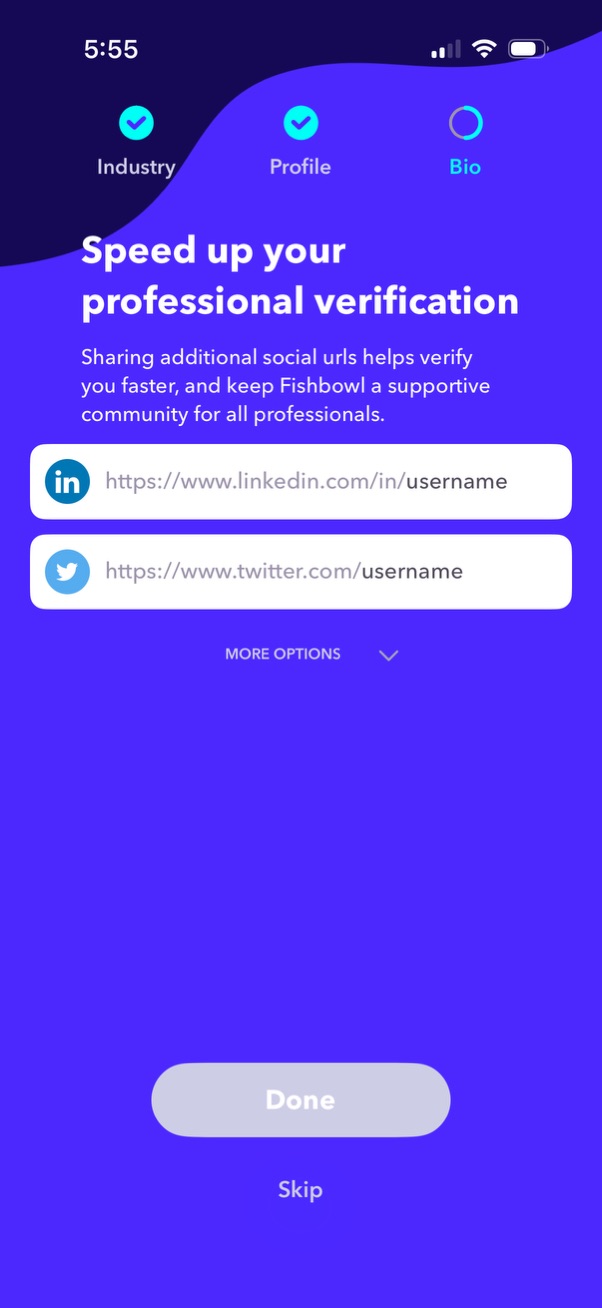
Onboarding bio step for professional verification prompting users to add social profile URLs (LinkedIn and Twitter) to verify faster, with a “More options” dropdown. Primary actions let the user finish with Done or bypass the step with Skip, shown alongside a progress indicator for Industry, Profile, and Bio.
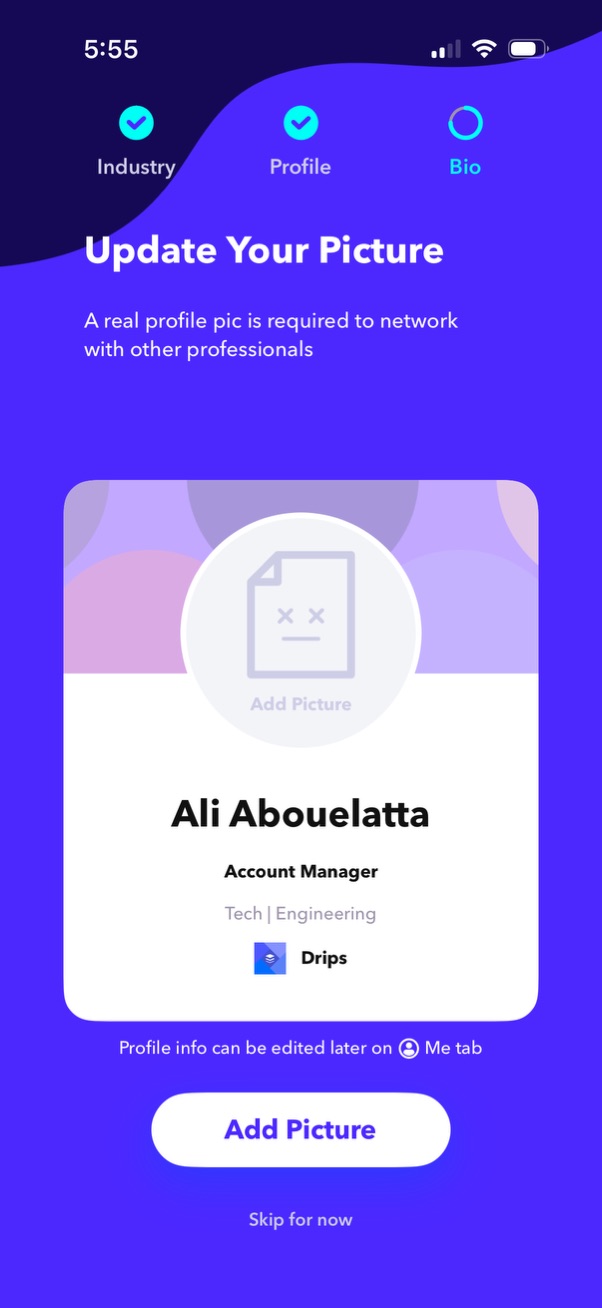
Profile setup onboarding step prompting the user to update their profile photo, showing a profile preview card with name, job title, industry and company. Primary action is an “Add Picture” button with an optional “Skip for now,” and a progress indicator for Industry, Profile, and Bio steps.
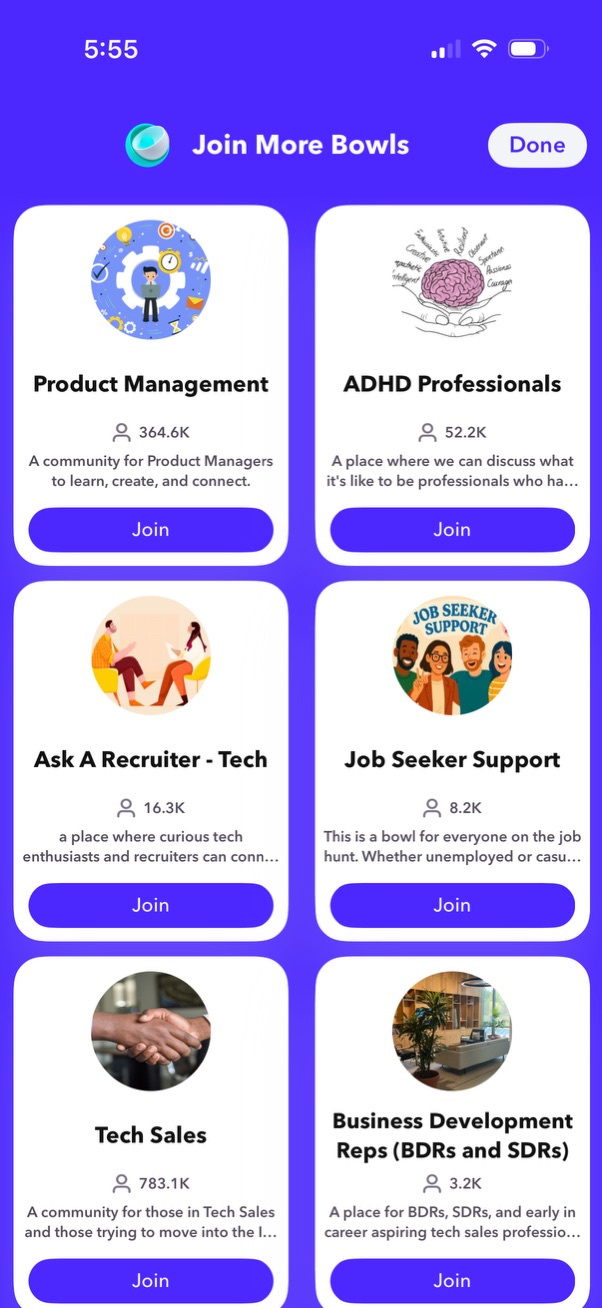
Community discovery screen showing a grid of recommended interest groups with cover images, group names, short descriptions, and member counts, each offering a primary Join button. Includes a top navigation with a Done action to exit the “Join more” flow.
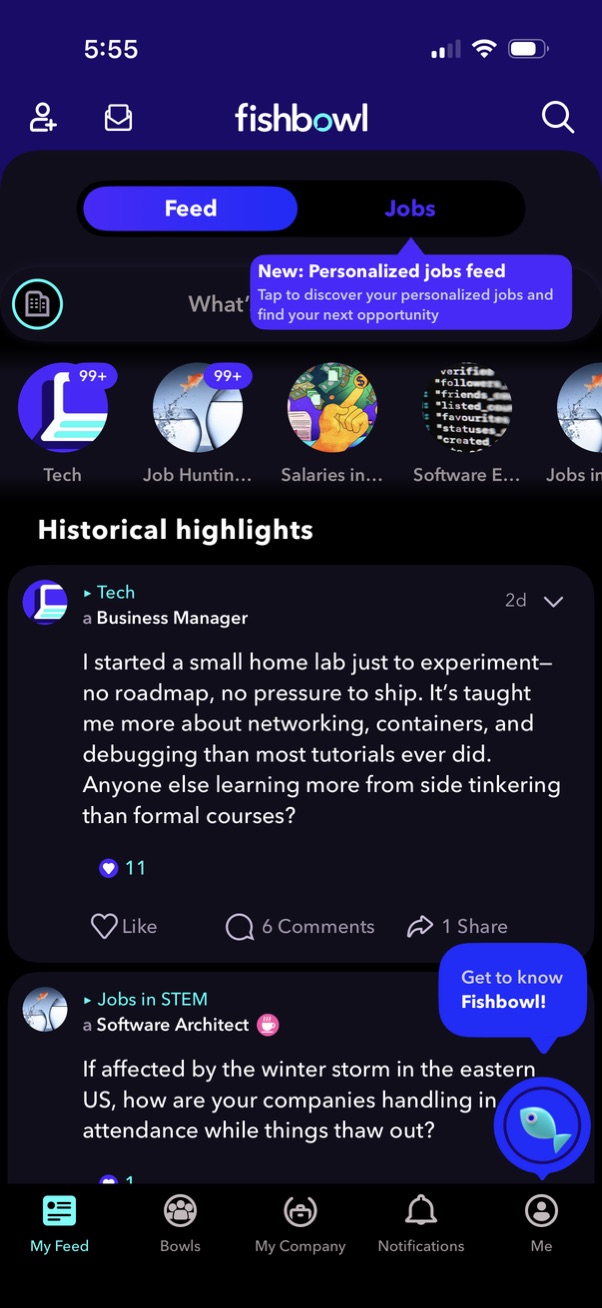
Social community home screen for a career networking app showing a Feed with a toggle to switch to a personalized Jobs feed, topic/story chips, and a scrolling list of post cards with engagement actions like like, comments, and share. Top navigation includes add/invite, messages, and search, with a bottom tab bar for My Feed, Bowls (groups), My Company, Notifications, and Profile.