Onboarding paywall
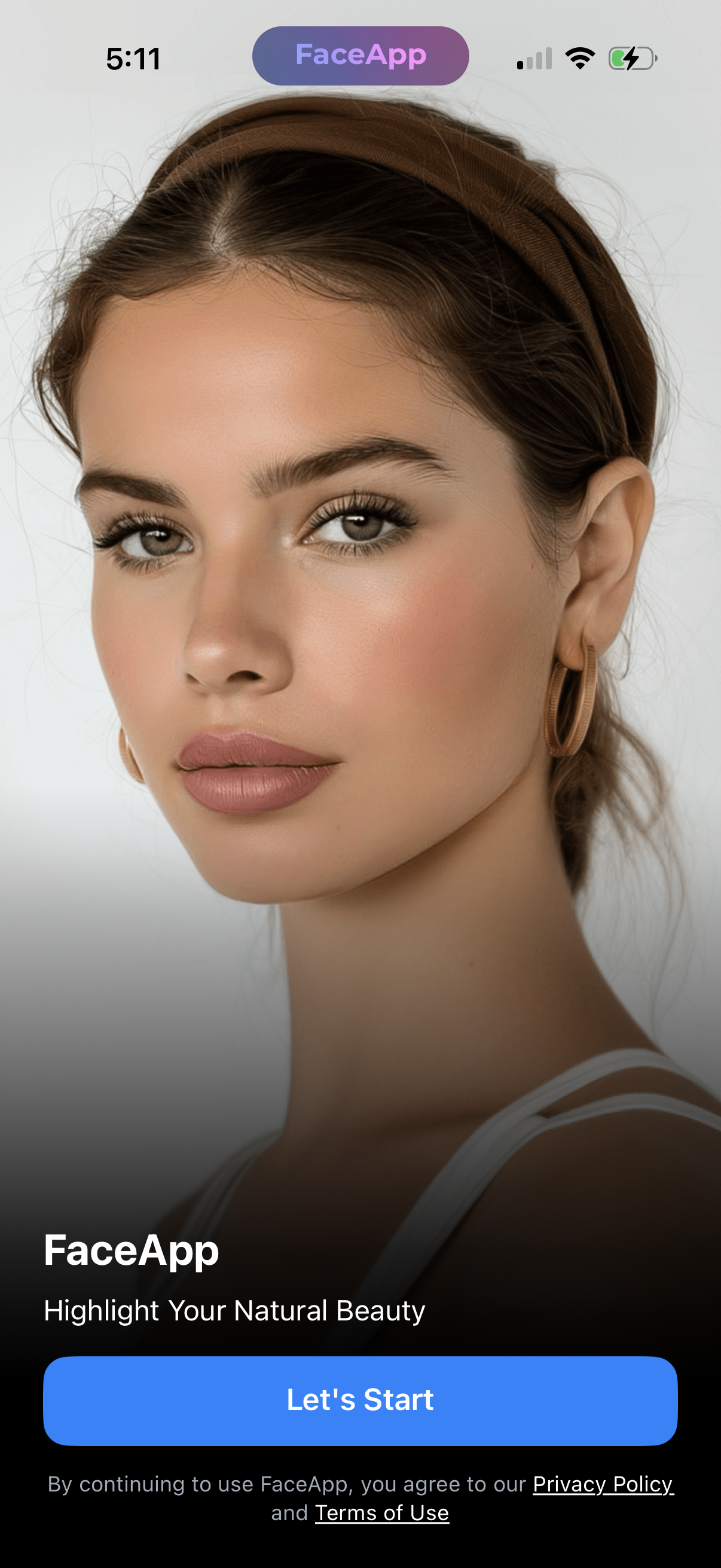
Face editing app welcome/onboarding screen featuring a full-screen portrait preview and branding tagline about enhancing natural beauty. Primary call-to-action button “Let’s Start” to begin, with links to Privacy Policy and Terms of Use at the bottom.
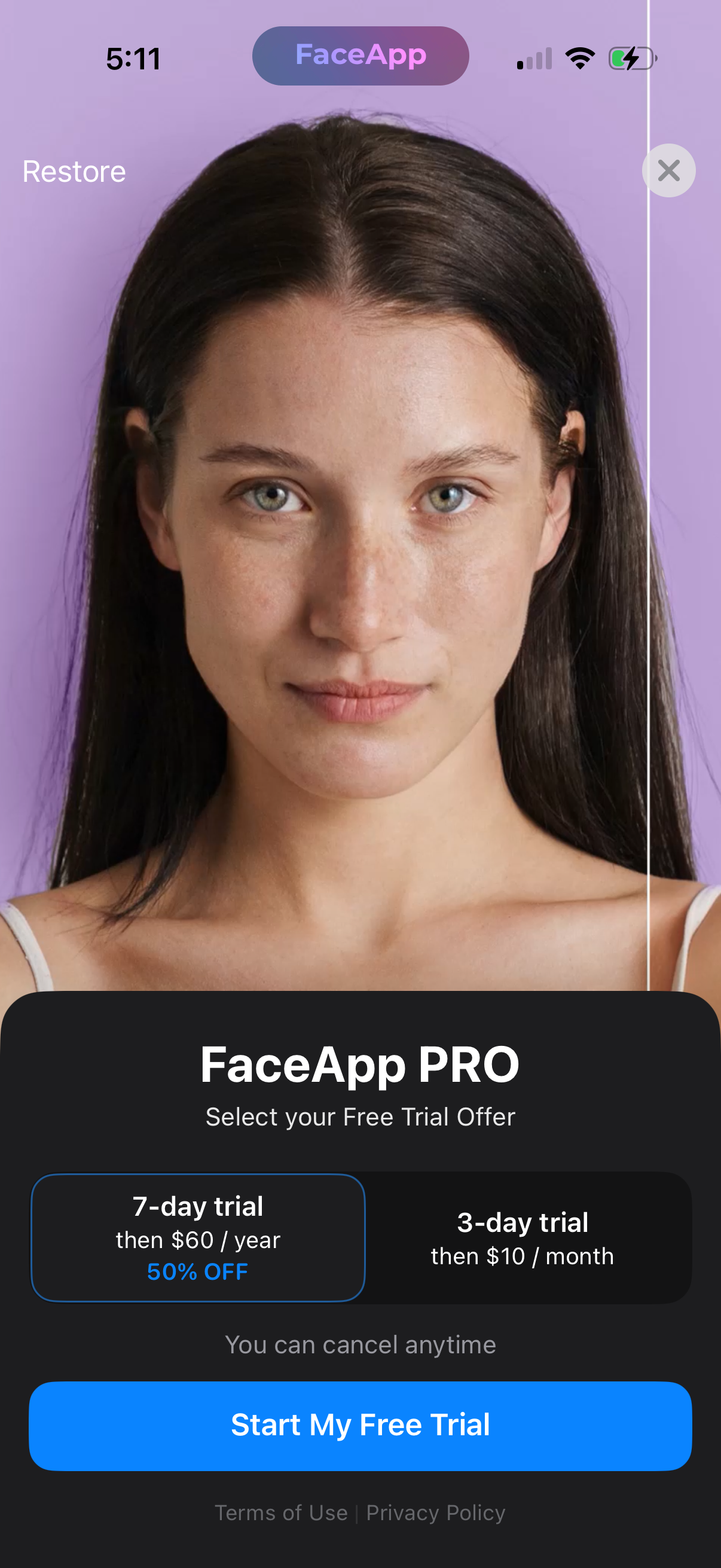
Subscription paywall screen for a photo editing app promoting FaceApp PRO, showing a full-screen preview image with options to restore purchases or close. Users choose between two free trial plans (annual or monthly pricing) and tap a primary “Start My Free Trial” button, with cancellation info and links to terms and privacy policy.
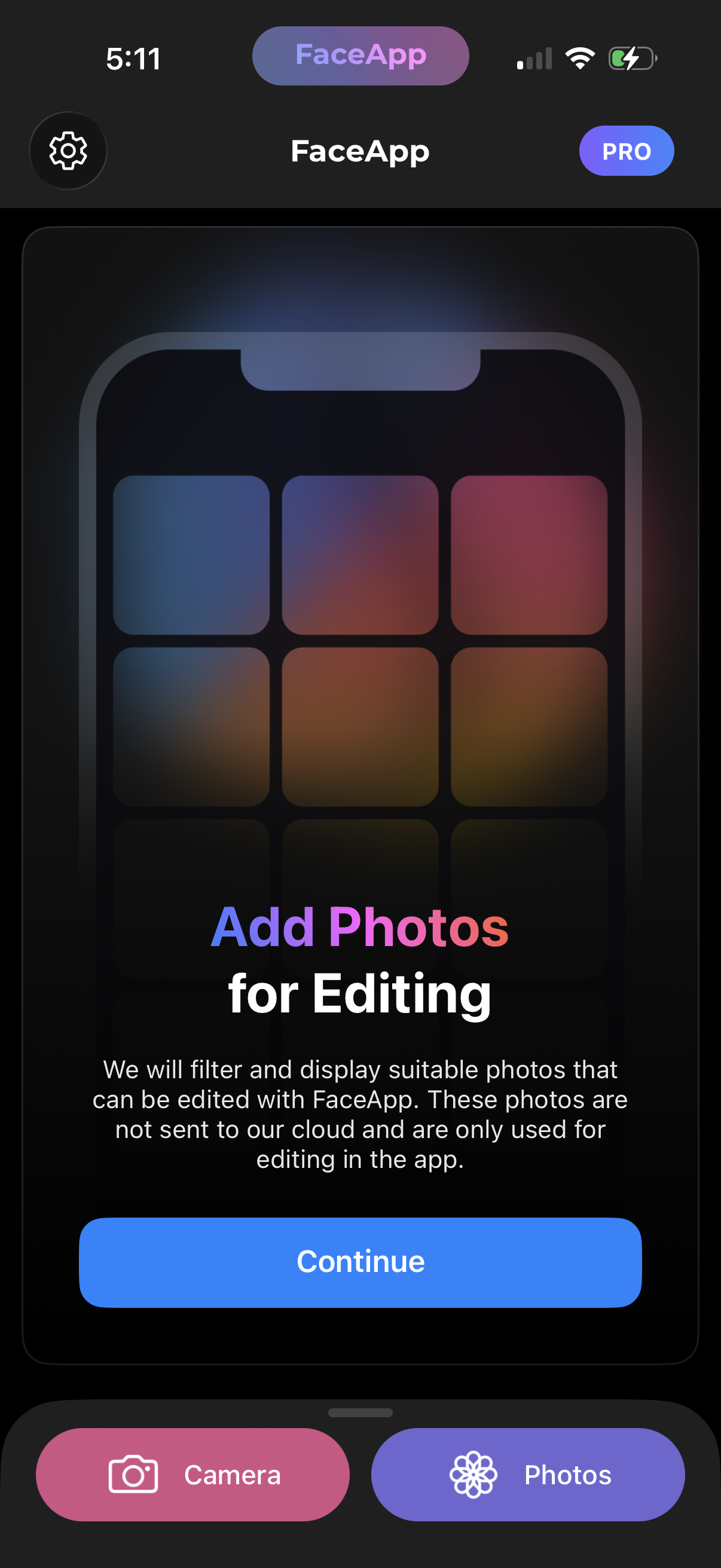
Photo editing app home screen prompting the user to add photos for editing, explaining local photo filtering/privacy and offering a primary Continue button. Bottom action bar provides options to start with Camera capture or choose from Photos, with access to settings and a Pro upgrade entry point.
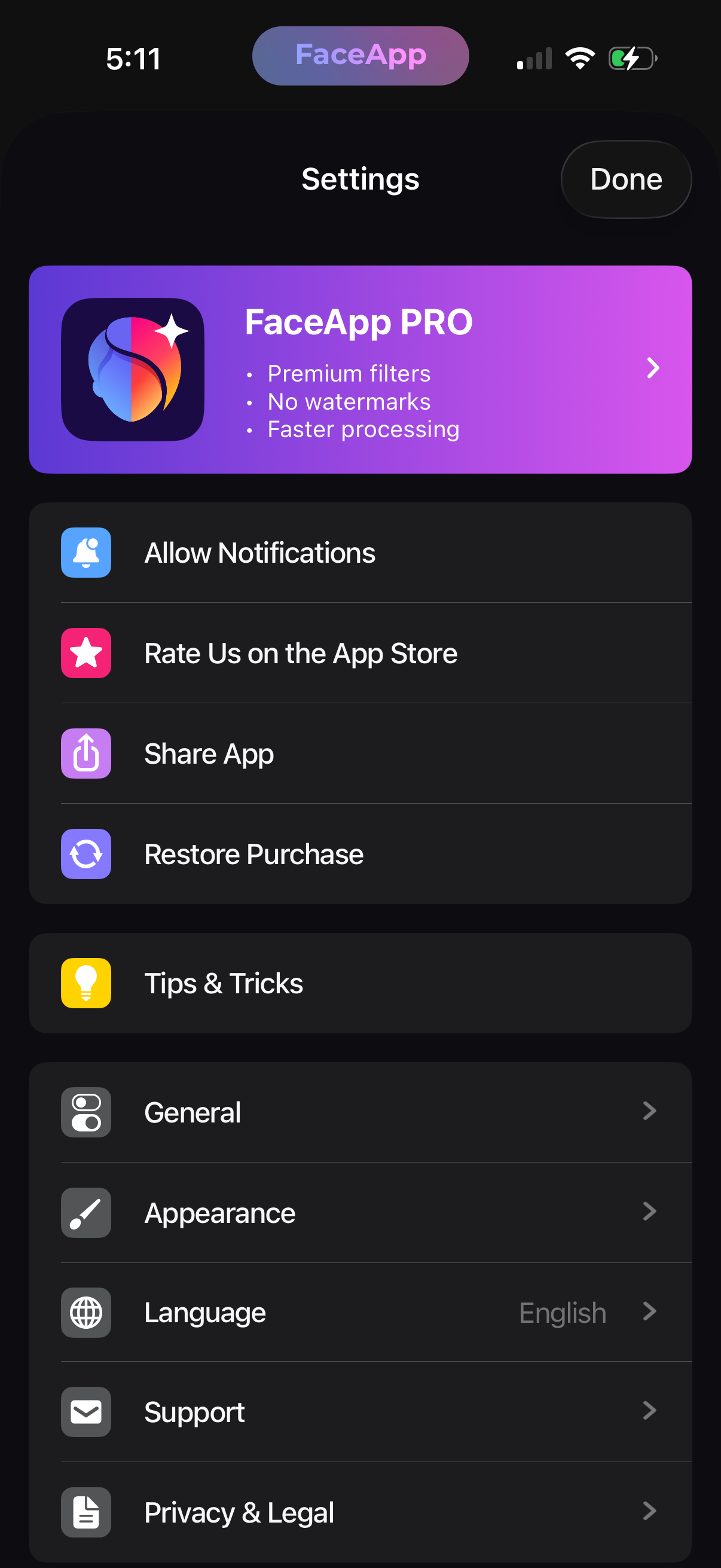
Settings screen for a photo editing app featuring a prominent FaceApp PRO upsell card listing premium benefits, with menu options to allow notifications, rate the app, share, and restore purchases. Additional settings sections include tips & tricks, general and appearance preferences, language selection, support, and privacy & legal, with a Done button to exit.