add home widget

Splash/welcome screen for a clock widget app promoting a nostalgic Nintendo DS-style clock for the iPhone home screen or StandBy mode, with a “touch to continue” prompt to proceed into the app.
Splash/landing screen introducing a nostalgic Nintendo DS-style clock widget app for iPhone home screen or StandBy mode. Prompts the user to tap the touch screen to continue.
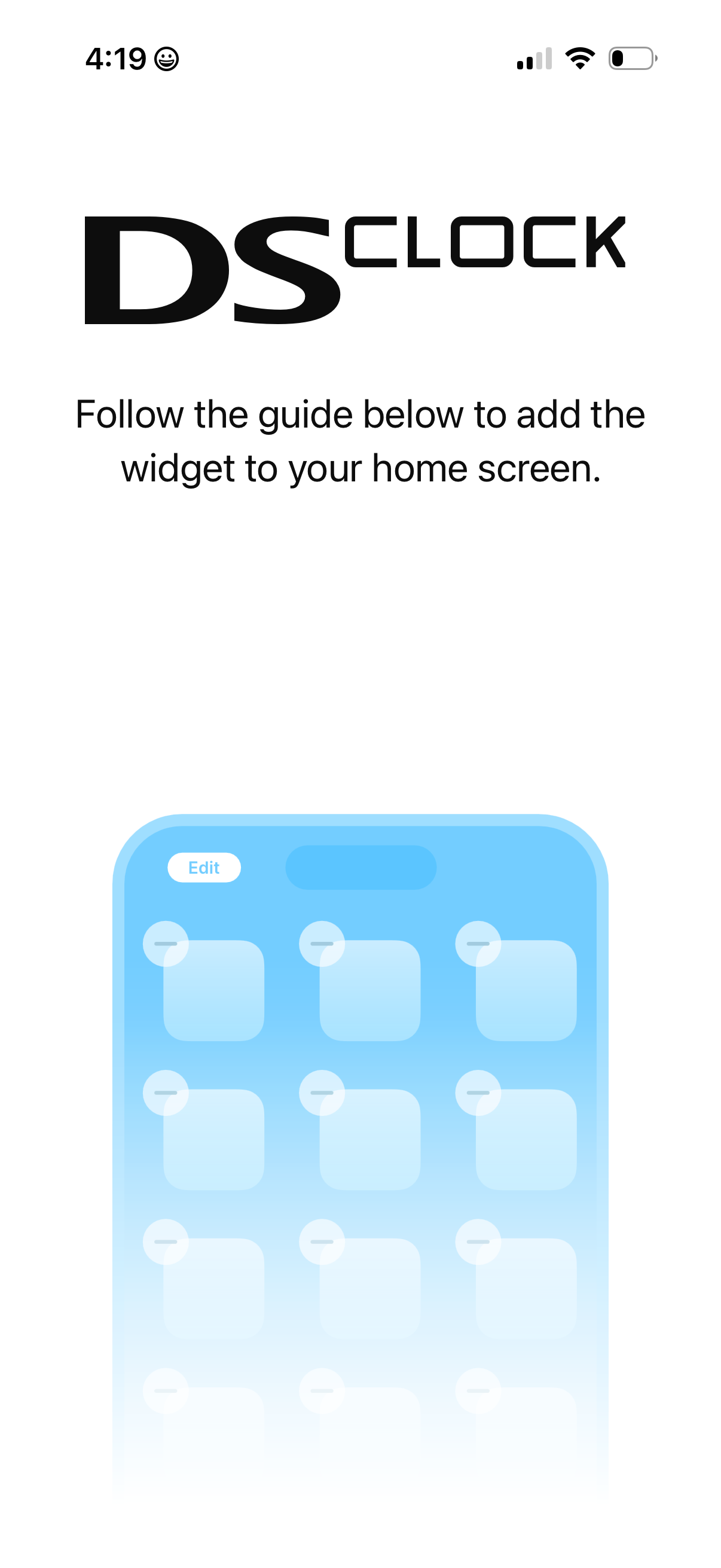
Instructional onboarding screen for setting up a home screen widget, prompting the user to follow a guide to add the widget to their device’s home screen with an illustrative diagram of the home screen in edit mode.
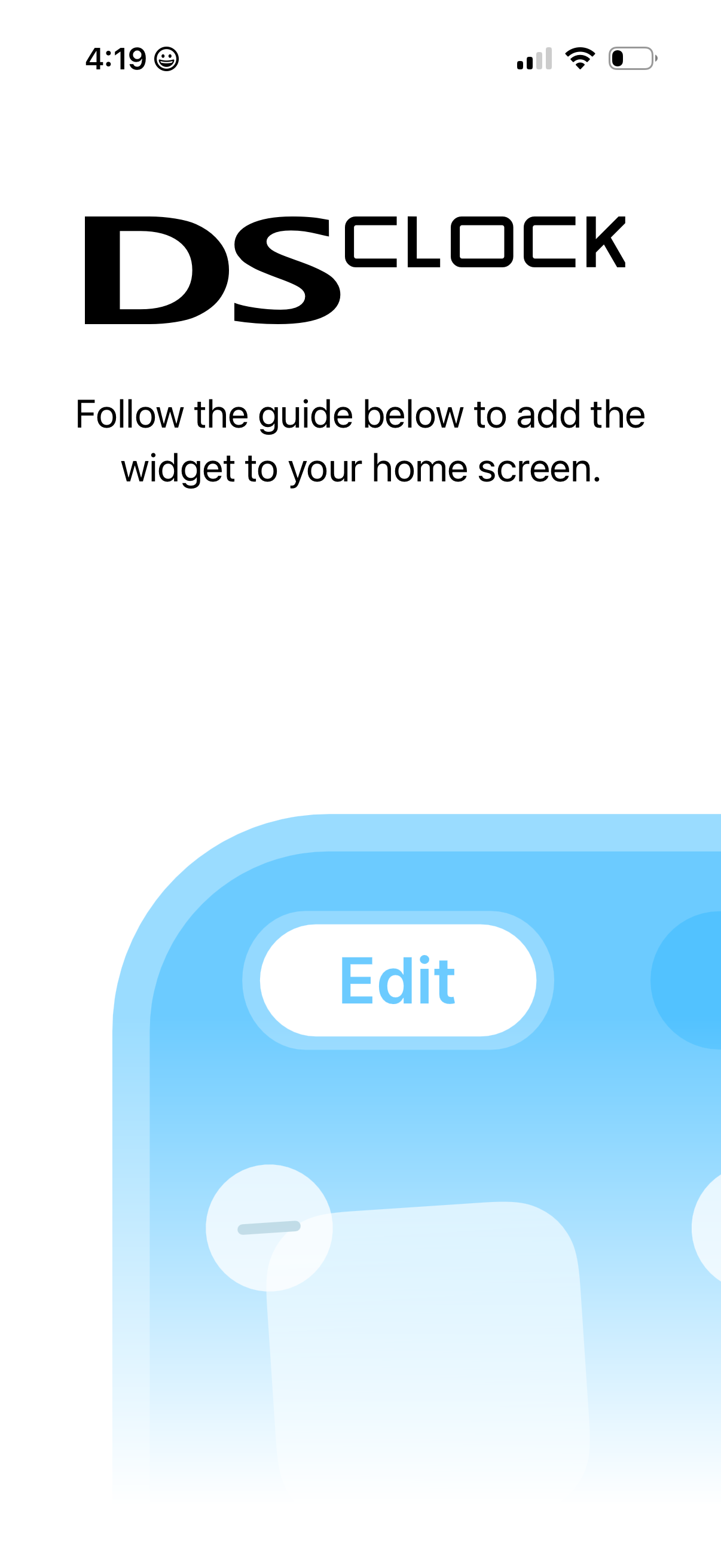
Onboarding instruction screen explaining how to add the app’s widget to the iOS home screen, using a simple guide message and an illustrative graphic of the home screen edit mode. Designed to help users set up and place a widget from the app on their device.
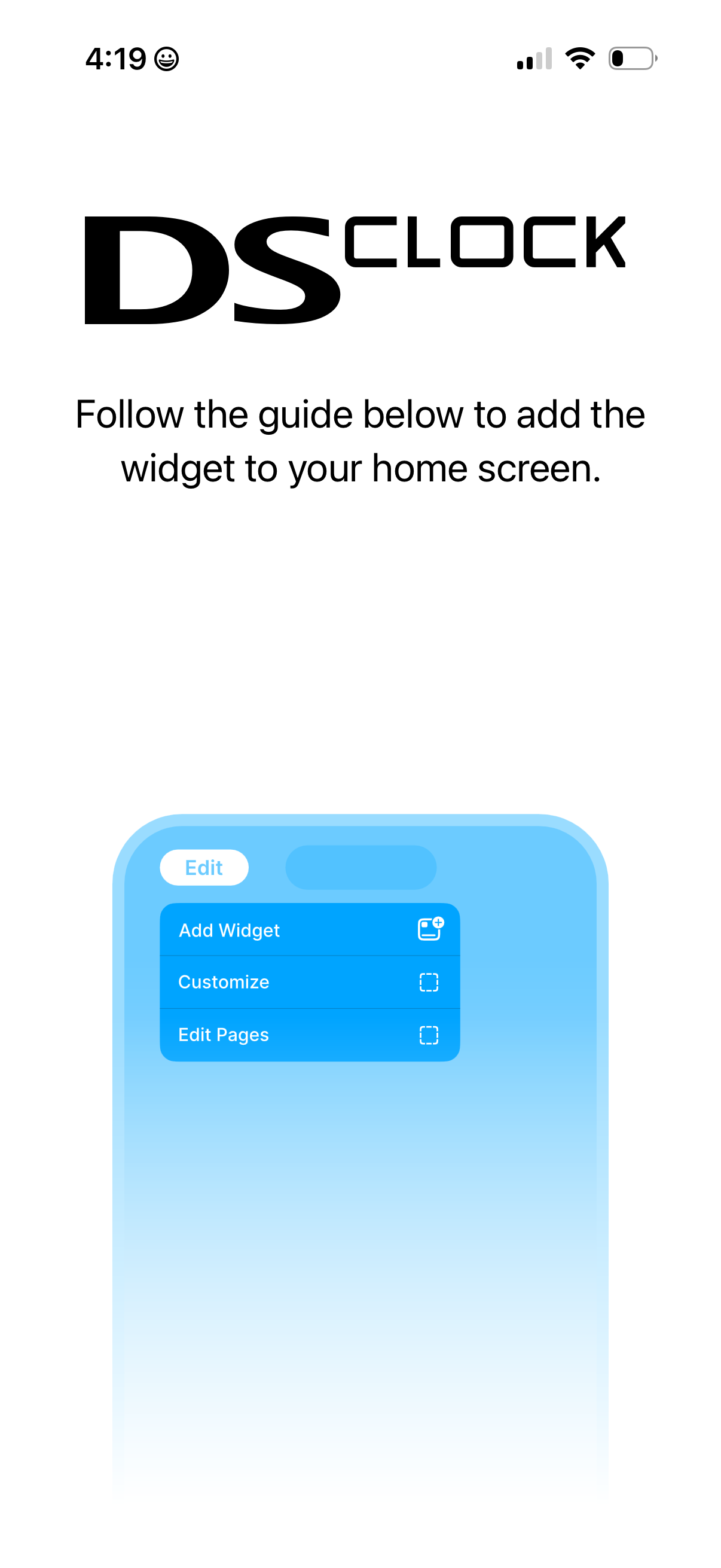
Onboarding/instruction screen explaining how to add the app’s widget to the iOS home screen, featuring a brief guide and an illustrative image of the home screen edit menu with options like Add Widget, Customize, and Edit Pages. This screen helps users set up a home screen widget and understand the steps to enable it.
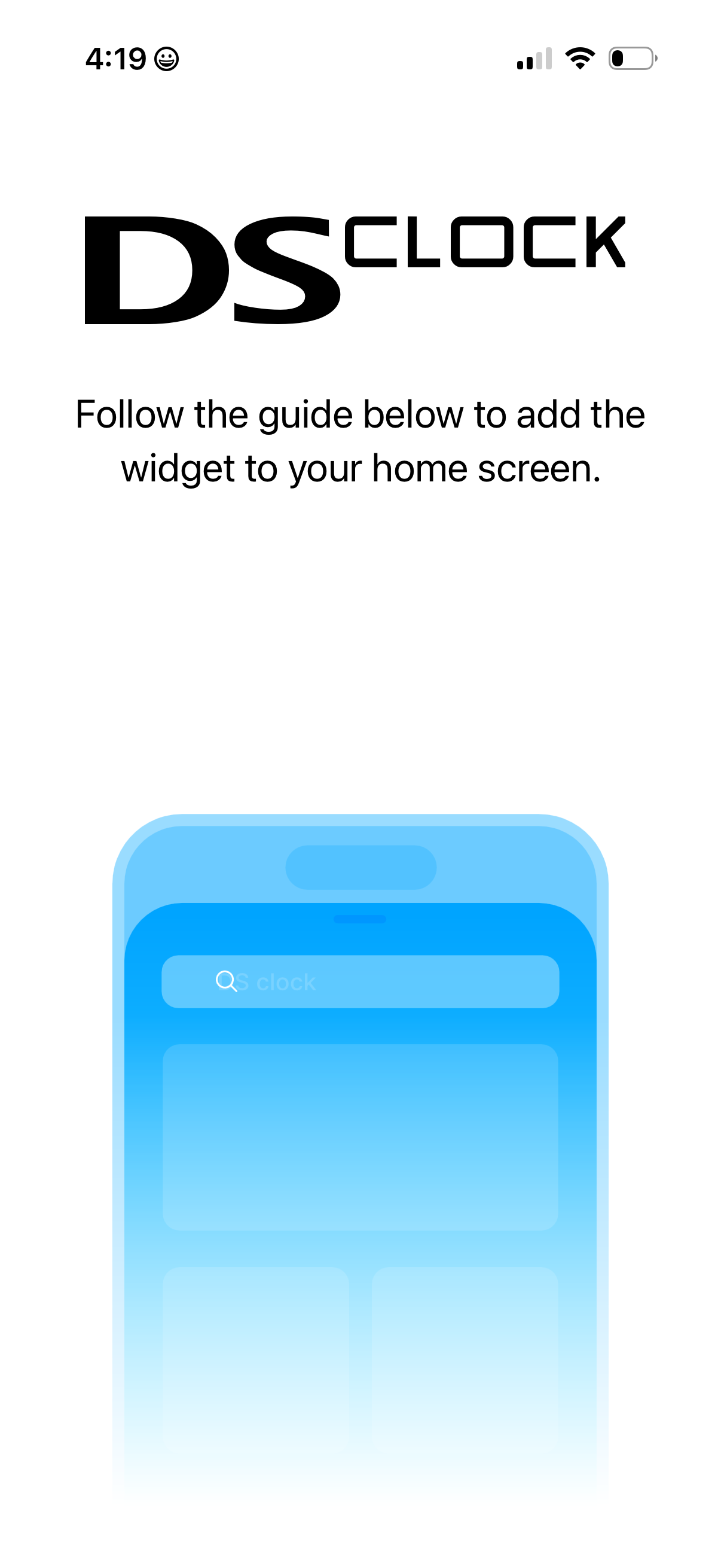
Intro help/onboarding screen for a clock app that instructs users to follow a guide to add the app’s widget to their home screen, featuring a large app logo and an illustrative home screen widget graphic.
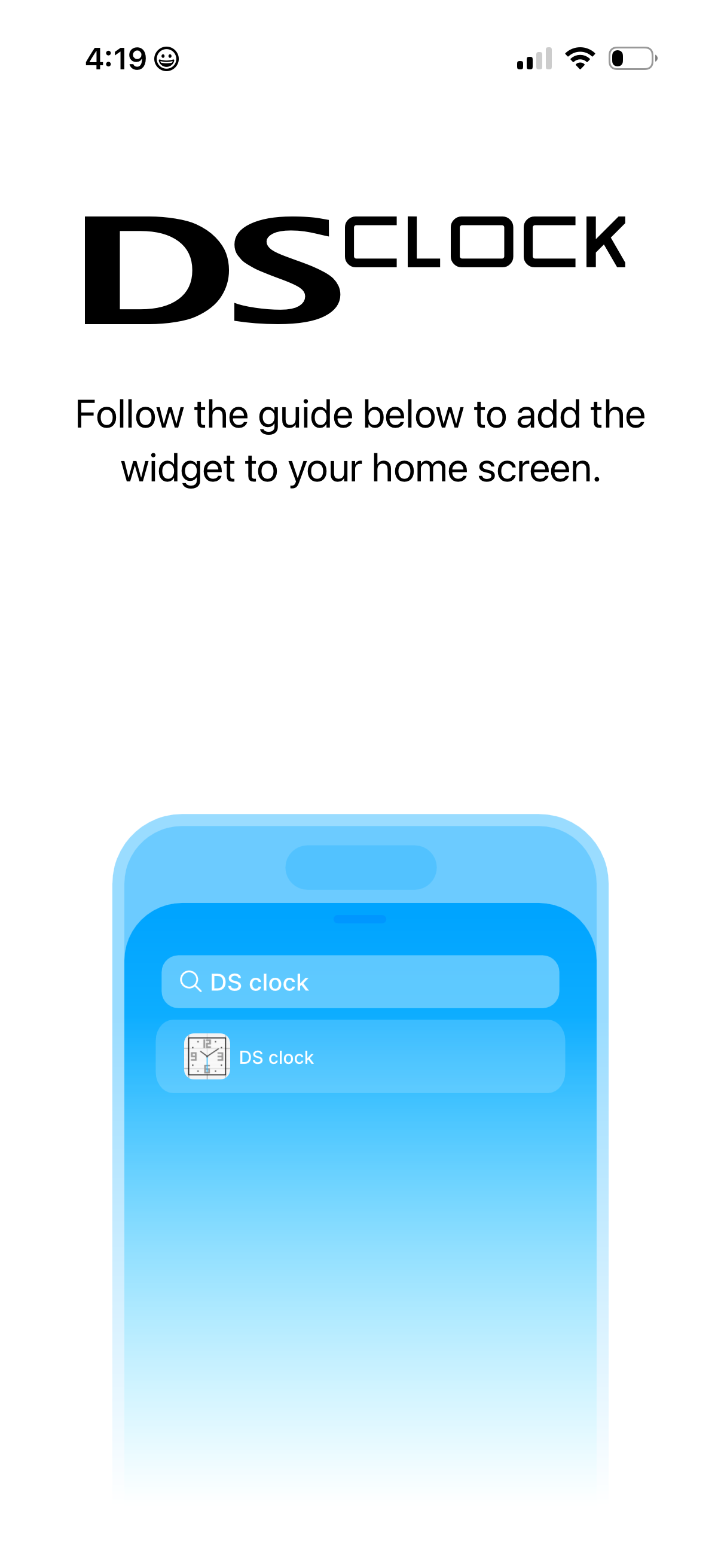
Onboarding/instruction screen for a clock app explaining how to add the app’s widget to the iOS home screen, with a simple guide and illustrative mockup showing searching for the widget.
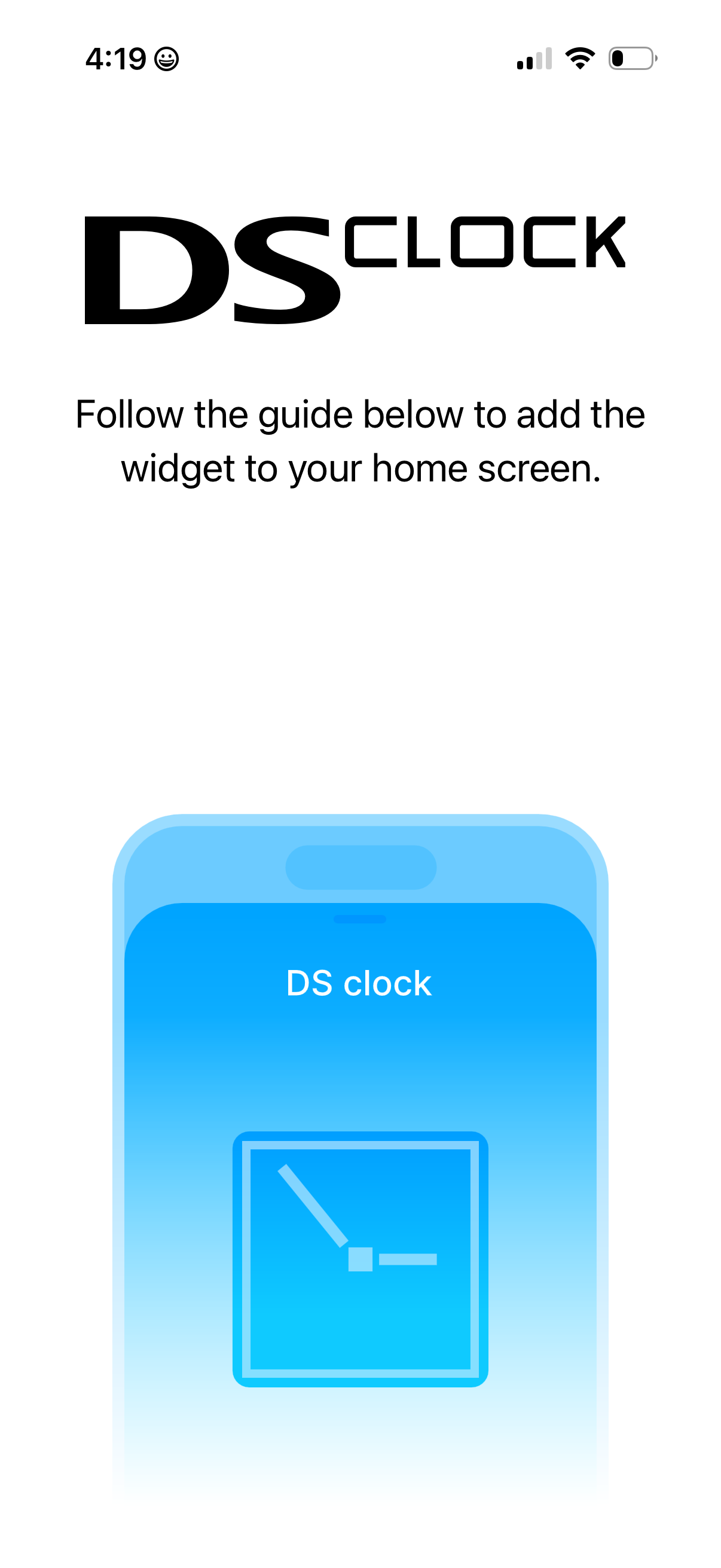
Instructional onboarding screen for a clock app that guides users to add a widget to their home screen, featuring a brief help message and an illustrative widget graphic.