Report Wrong Order & refund

Customer support help screen for a CVS order asking what assistance is needed, with selectable categories for issue with items (missing/wrong/poor quality), problem with delivery (late, not arrived, wrong order), or something else including safety and non-order issues. Each option navigates to the next step for reporting the problem.

Customer support issue selection screen for a CVS delivery order, prompting the user to choose the type of delivery problem. Options include “Order arrived late,” “Received somebody else’s order,” and “Nothing arrived,” each leading to a next step in reporting or resolution.

Customer support issue flow for a food delivery order where the user reports receiving somebody else’s order and must confirm whether the entire order is wrong or only part is missing/incorrect. Includes primary and secondary action buttons to choose the appropriate resolution path.

Customer support issue reporting screen for “Received somebody else’s order” that asks the user to upload one or more photos of the receipt (optional), add a text description of what went wrong, and submit the claim, with an alternative link for users who don’t have the receipt.

Order issue reporting screen for “Received somebody else’s order” prompting the user to attach at least one photo of the receipt (with multiple upload slots) and add a text description of what went wrong. A bottom sheet lets the user take a new photo, choose one from the photo library, or cancel.

Receipt capture confirmation screen showing a photo preview for scanning/expense entry, with actions to retake the photo or verify/submit it. Includes a close button in the header and primary “Verify” CTA for confirming the captured receipt image.

Issue reporting screen for “Received somebody else’s order” prompting the user to add at least one photo of the receipt and optionally attach additional images, with a text field to describe what went wrong. Includes an action sheet to take a photo, choose from the photo library, or cancel, plus the ability to remove an attached photo.

In-app camera screen for capturing a photo of a receipt for expense submission or reimbursement, showing live preview with guidance text. Includes close/cancel navigation, flash/auto toggle, and a large shutter button to take the photo.
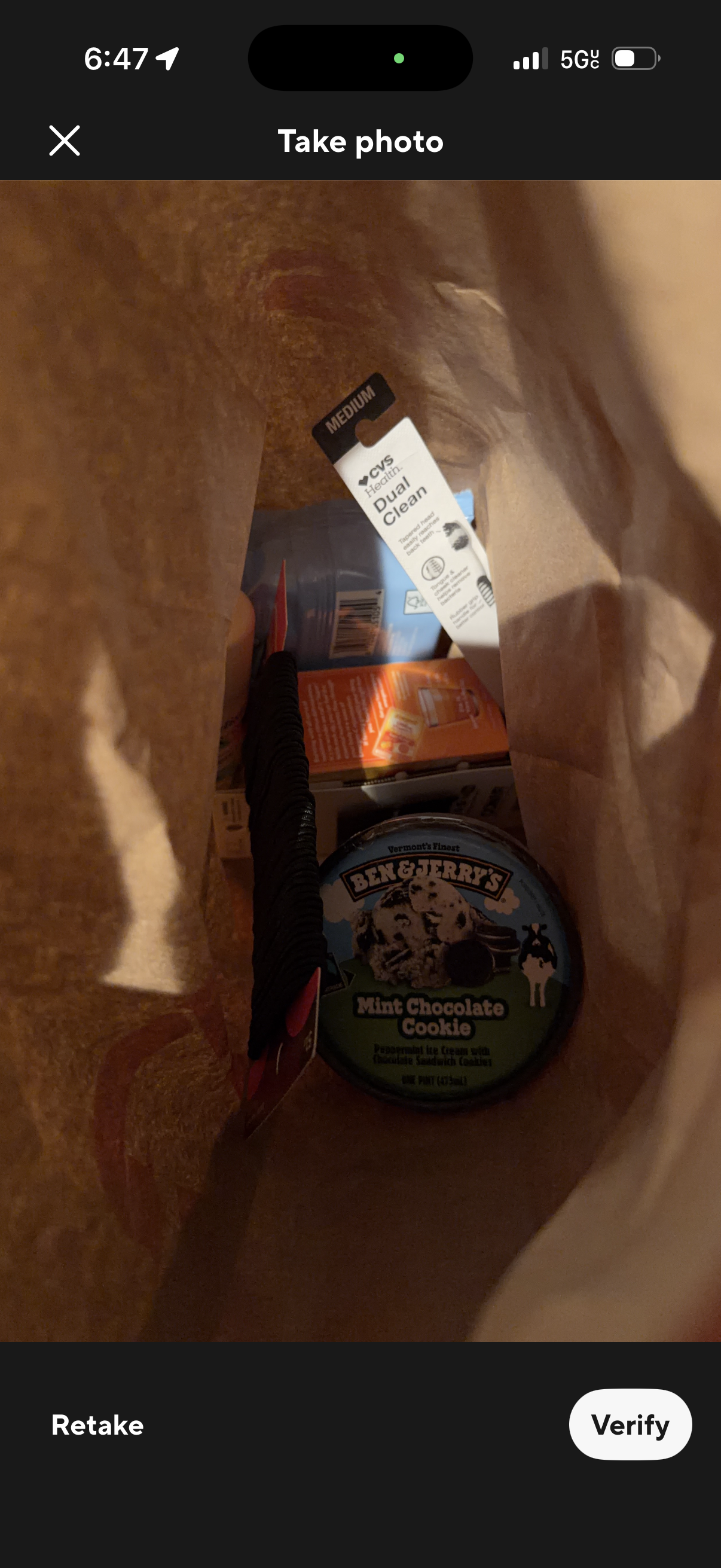
Photo capture confirmation screen for verifying a picture, showing a full-screen preview of the taken photo and actions to retake or verify/submit. Includes a close button to exit the camera flow.

Receipt capture camera screen for scanning/uploading a purchase receipt, showing a live photo preview and an error banner stating “Receipt not detected” with guidance to capture the full receipt. Primary actions let the user go back or retake the photo.

Customer support issue flow for reporting “received somebody else’s order” in a delivery app, asking the user to select one radio-button reason related to receipt and item mismatches (other delivery service, wrong store, wrong customer name, wrong items). Includes a primary Continue CTA to proceed after choosing the applicable option.

Customer support resolution screen for a wrong food delivery order, letting the user choose a preferred remedy via radio buttons: immediate app credits, a refund (timing may vary), or redelivery with an ETA and no additional cost. A prominent “Accept” button confirms the selected resolution option.
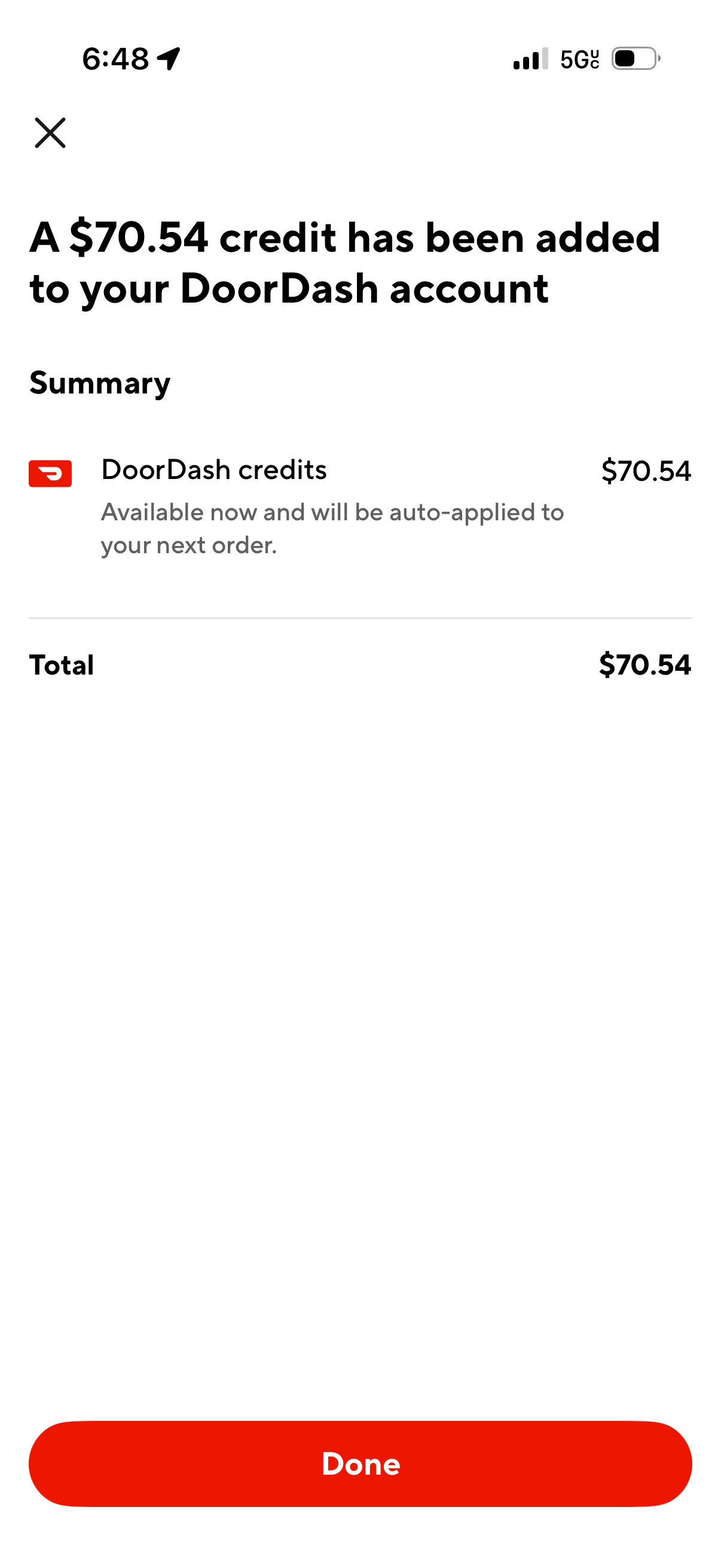
Confirmation screen showing that an account credit has been added, with a summary line item for credits, the total amount, and a note that the credit will be auto-applied to the next order. Includes a close icon and a primary “Done” button to dismiss.
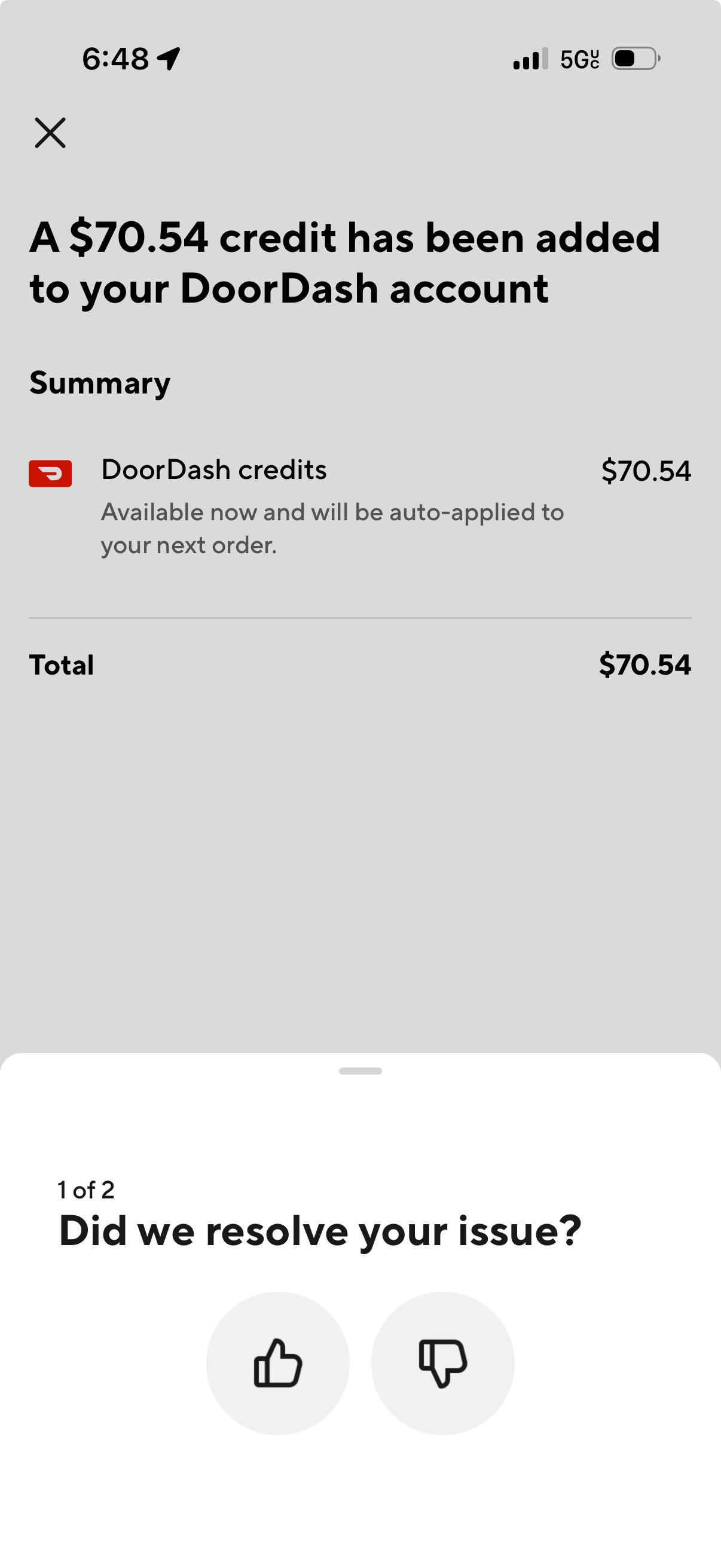
Confirmation screen showing a refund/credit added to a food delivery account, with a summary of DoorDash credits, total amount, and note that it will be auto-applied to the next order. A bottom sheet prompts customer support feedback asking “Did we resolve your issue?

Customer support feedback modal prompting users to confirm whether their issue was resolved with a thumbs up/down choice, then rate satisfaction on a slider from very dissatisfied to very satisfied. Includes a prominent Submit button and close (X) to dismiss the survey.

Customer support feedback survey modal asking if the issue was resolved with thumbs up/down, then rating satisfaction on a scale. Users can select reasons via checkboxes, add an optional text comment, and submit the form.