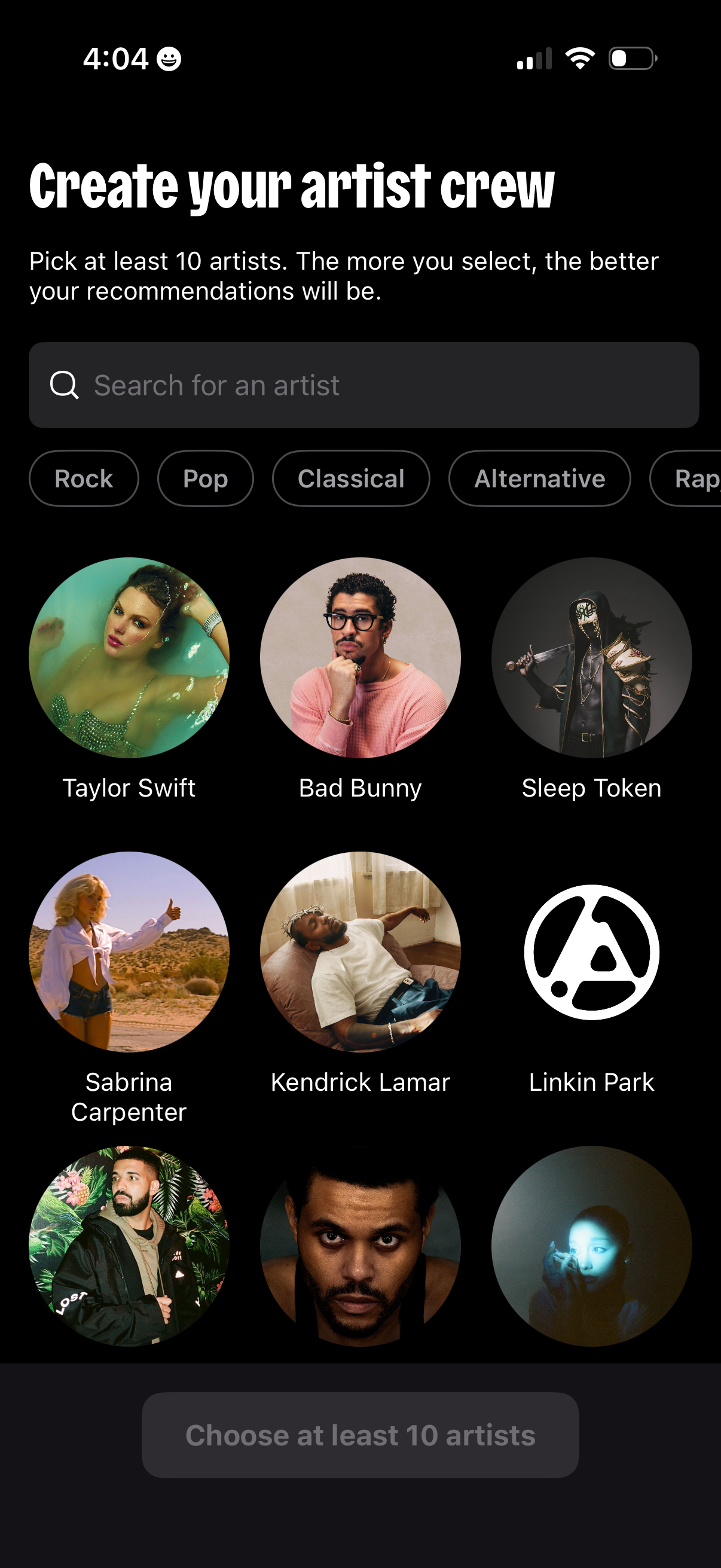
Music onboarding preference screen for creating an “artist crew” by selecting at least 10 favorite artists to improve recommendations, featuring a search bar and genre filter chips. Displays a grid of artist avatars/names to tap-select and a disabled primary button that becomes enabled once enough artists are chosen.
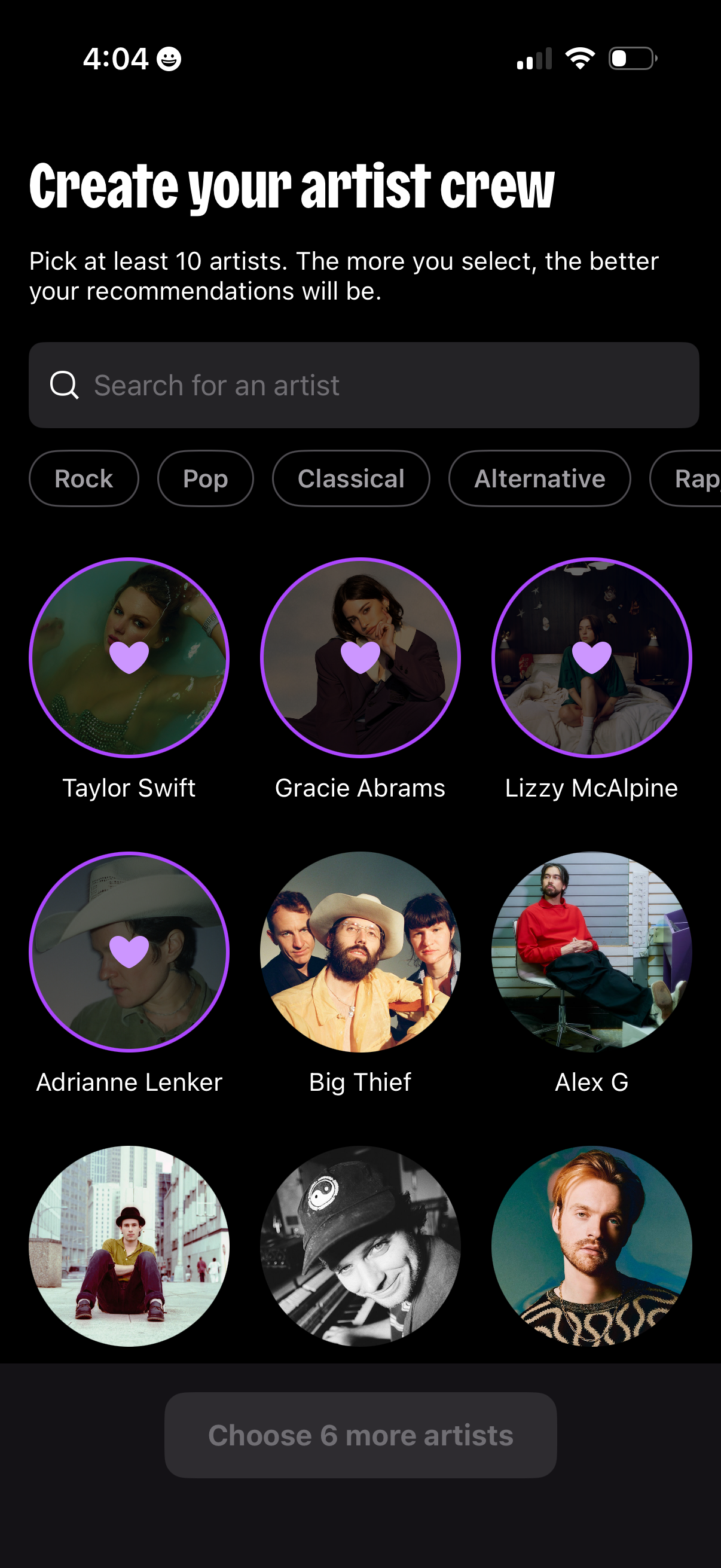
Music app onboarding screen for creating an “artist crew” by selecting at least 10 favorite artists to personalize recommendations. Includes an artist search field, genre filter chips, a grid of artist profile photos with heart selection indicators, and a disabled bottom CTA prompting the user to choose more artists before continuing.
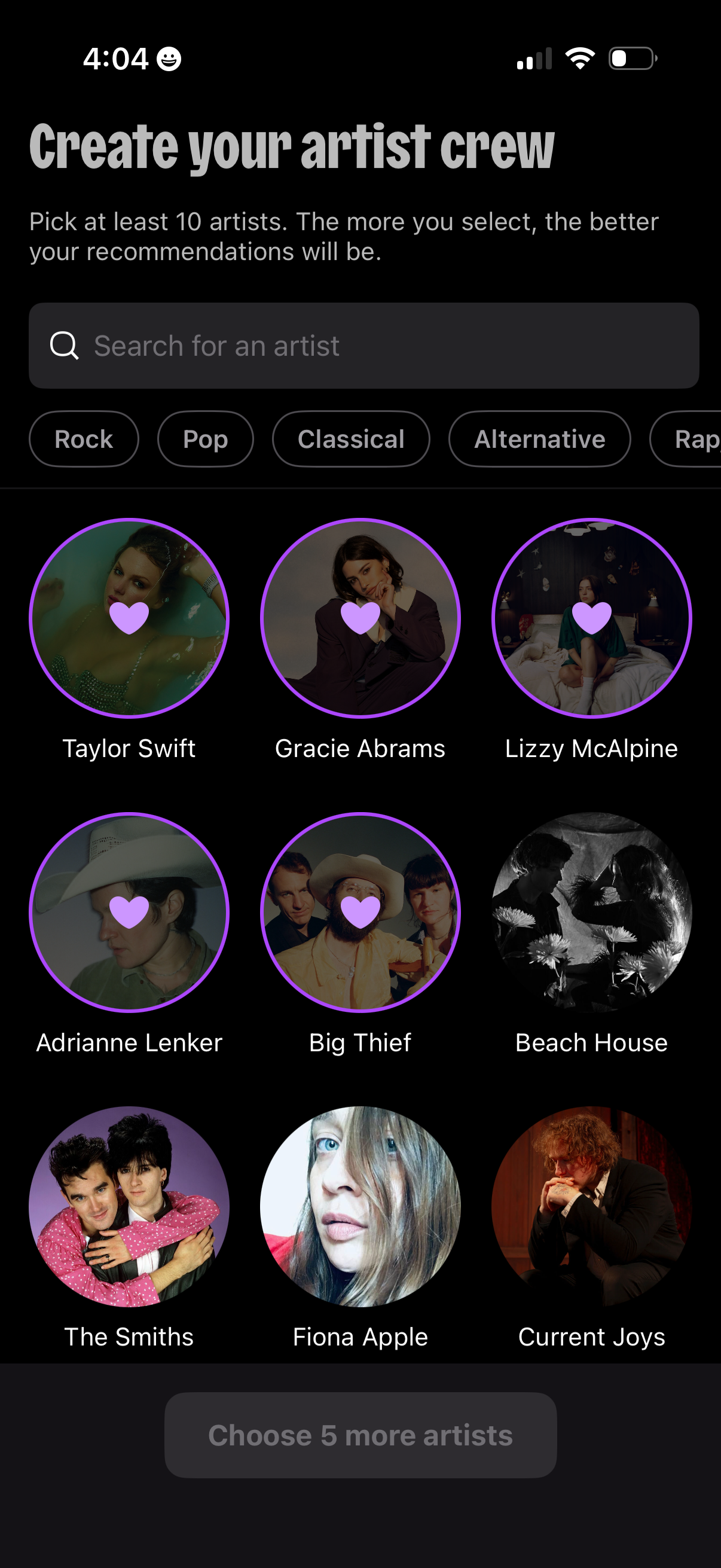
Music onboarding screen for creating an “artist crew” by selecting at least 10 favorite artists to personalize recommendations. Includes a search bar, genre filter chips, a grid of artist profile images with heart selection states, and a disabled CTA button prompting the user to choose more artists.
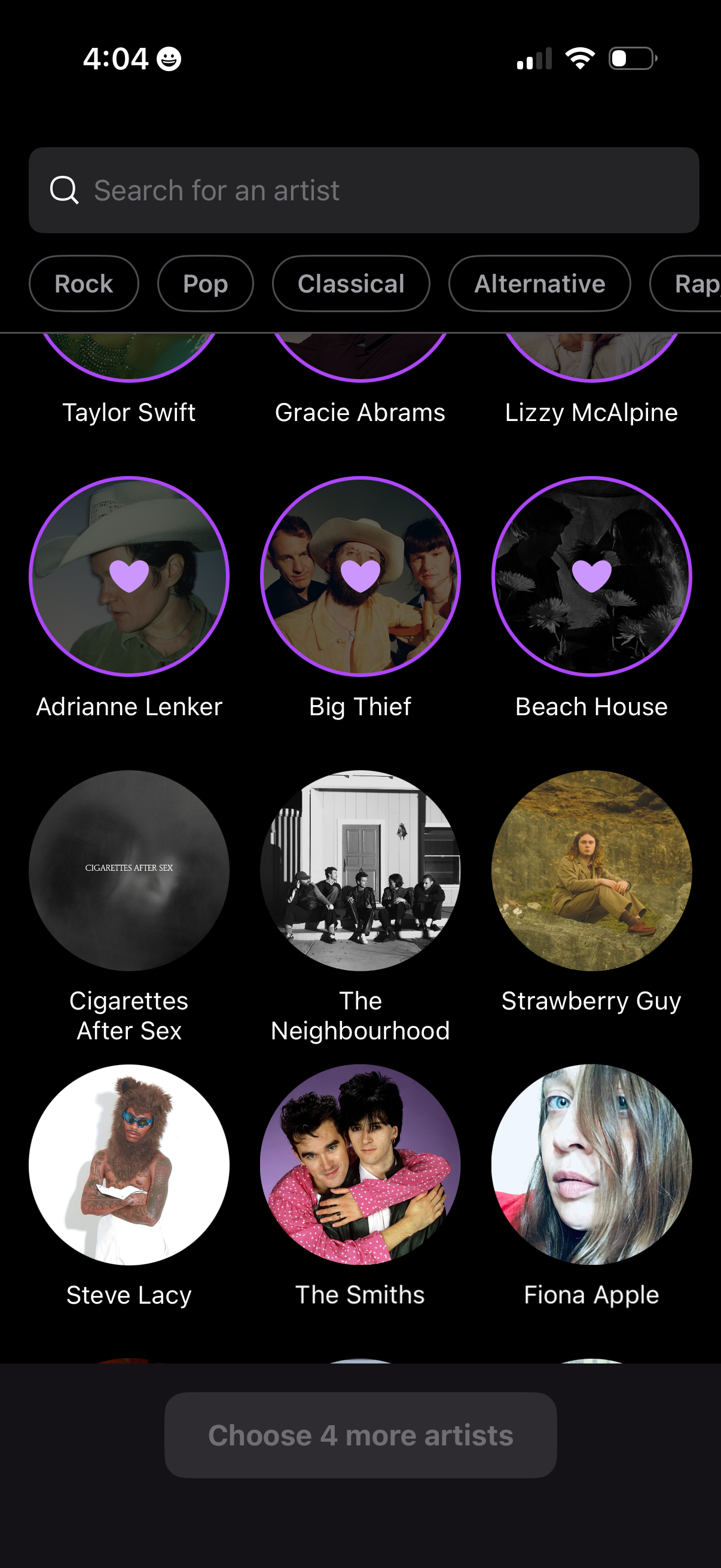
Music onboarding screen for selecting favorite artists, featuring a search bar and genre filter chips to browse suggestions in a grid. Users tap heart icons on artist tiles to add preferences, with a bottom prompt indicating how many more artists must be chosen to continue.
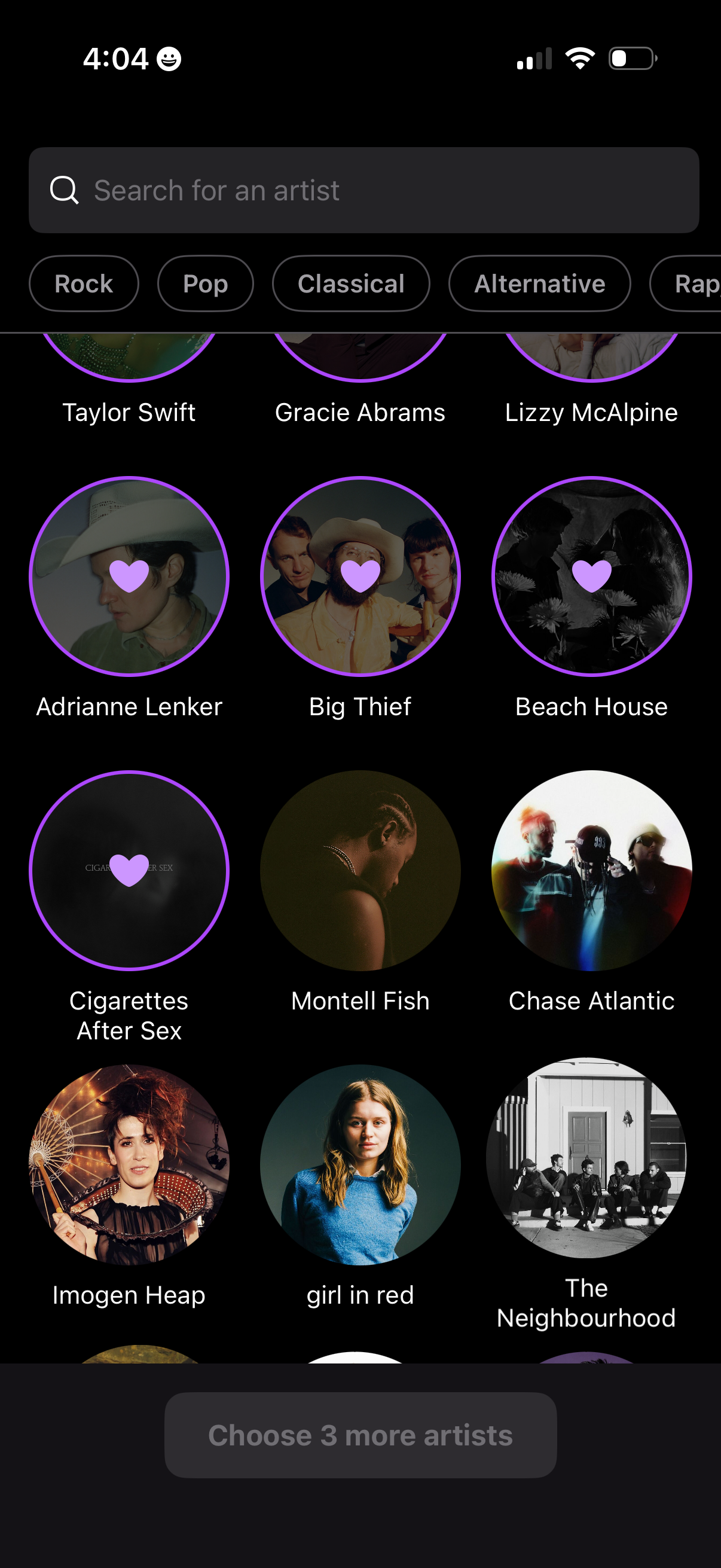
Music onboarding screen for selecting favorite artists, featuring a search bar, genre filter chips, and a grid of artist avatars with heart icons to toggle selection. A bottom CTA prompts the user to choose more artists before continuing.
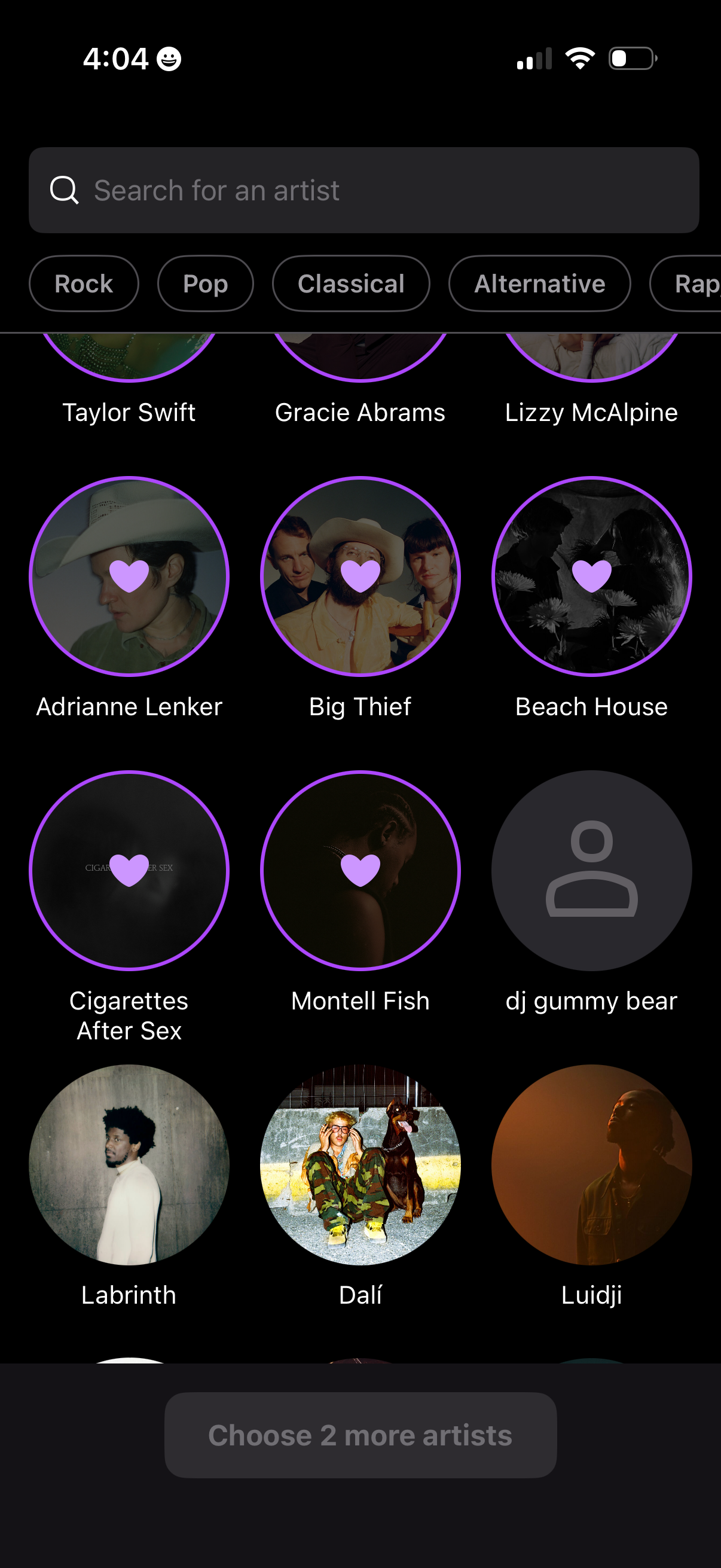
Music onboarding screen for selecting favorite artists, featuring a search bar, genre filter chips, and a grid of artist tiles with heart icons indicating selected favorites. A bottom CTA prompts the user to choose more artists before continuing.
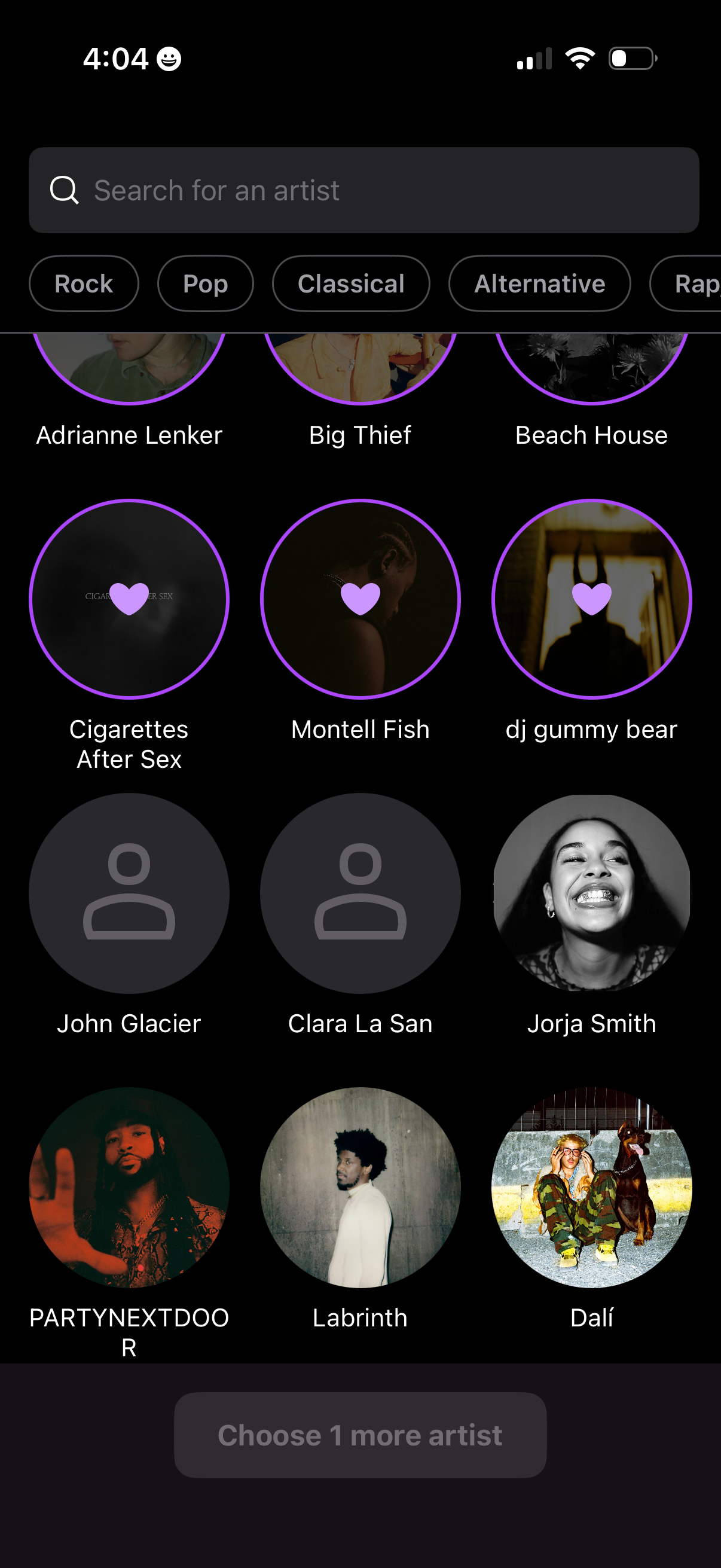
Music preference selection screen where users search for an artist and browse genre filter chips (e. g.
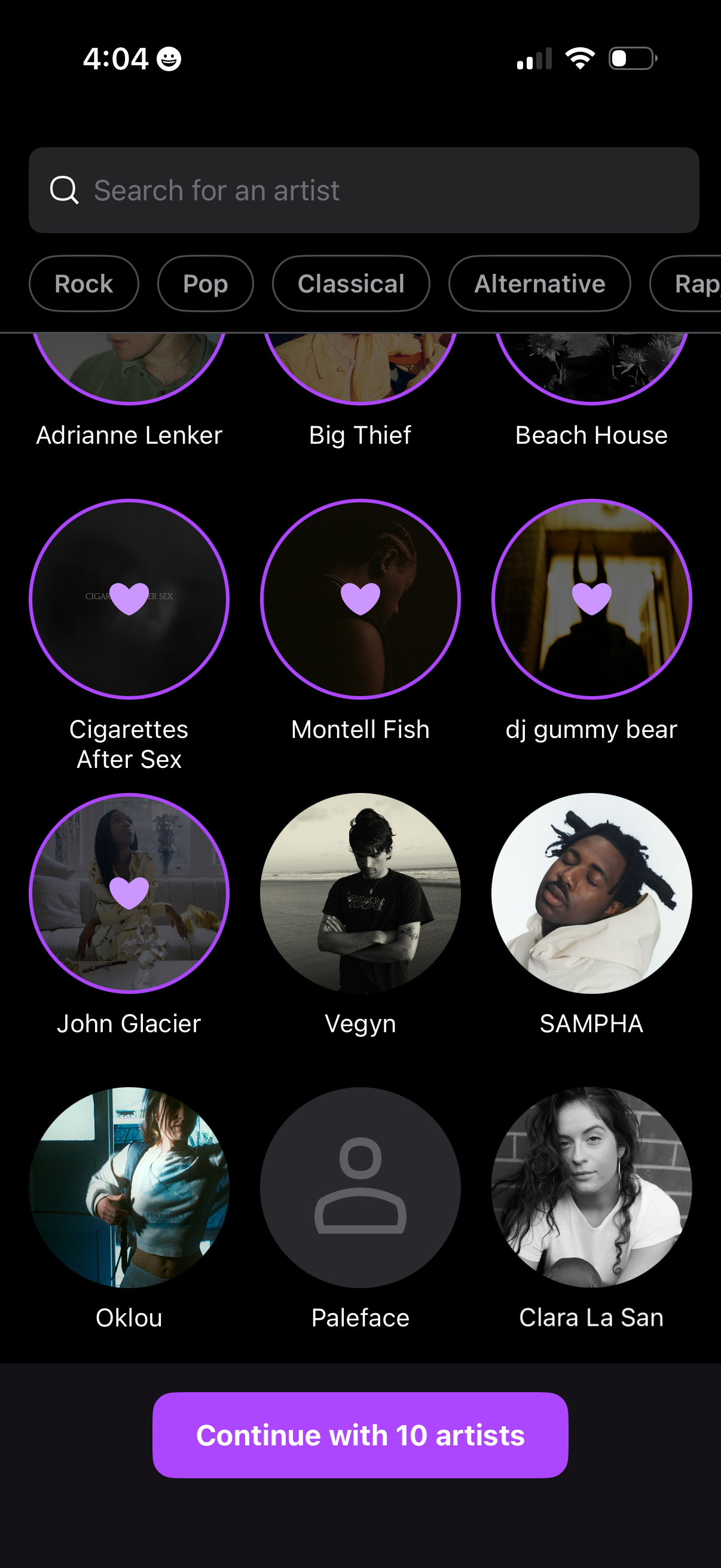
Music onboarding screen for selecting favorite artists, featuring a search bar, horizontal genre filter chips, and a grid of artist avatars with heart icons to follow/unfollow. A primary bottom CTA lets users continue after choosing a set number of artists (e.
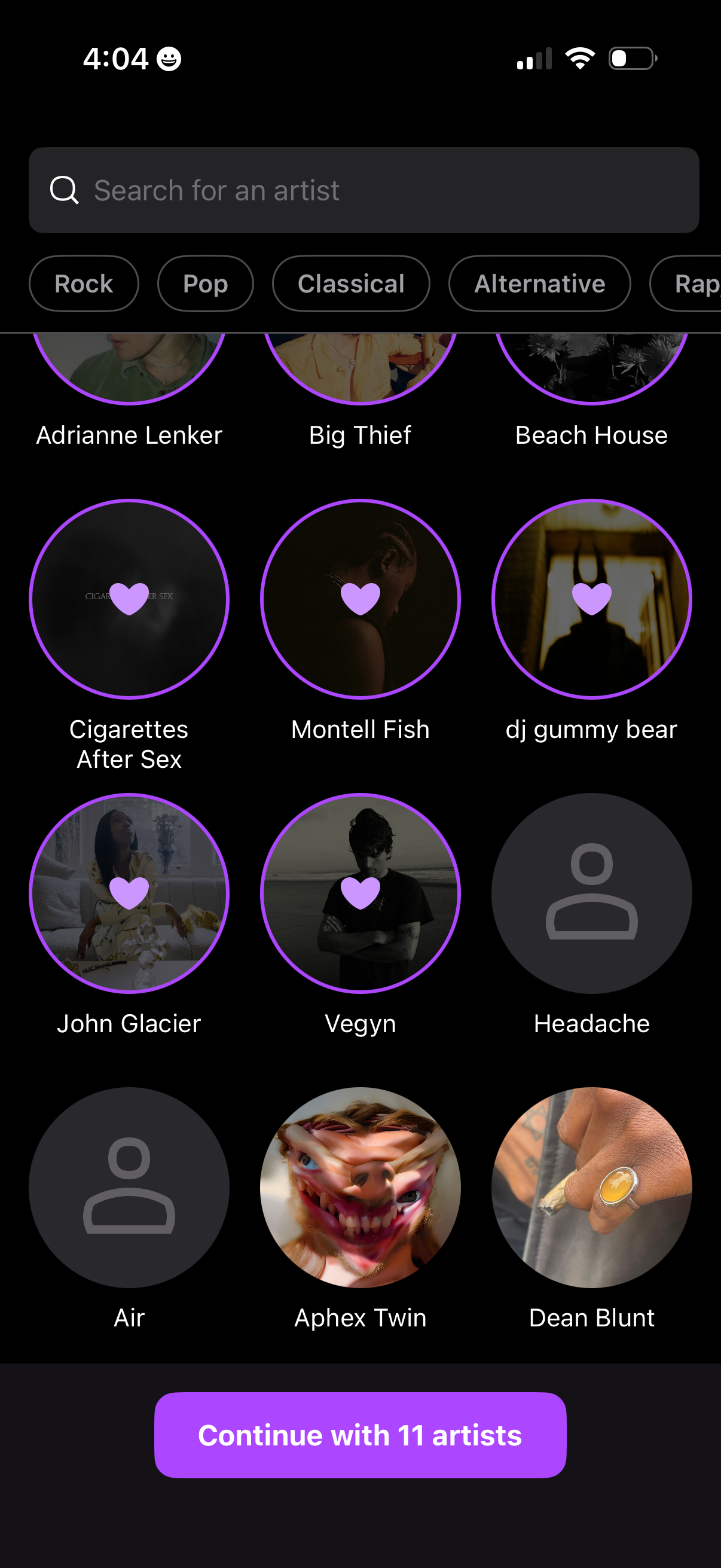
Music onboarding screen for selecting favorite artists, featuring a search bar, genre filter chips, and a grid of artist avatars with heart indicators for selected items. A primary CTA button at the bottom lets users continue with the chosen number of artists.
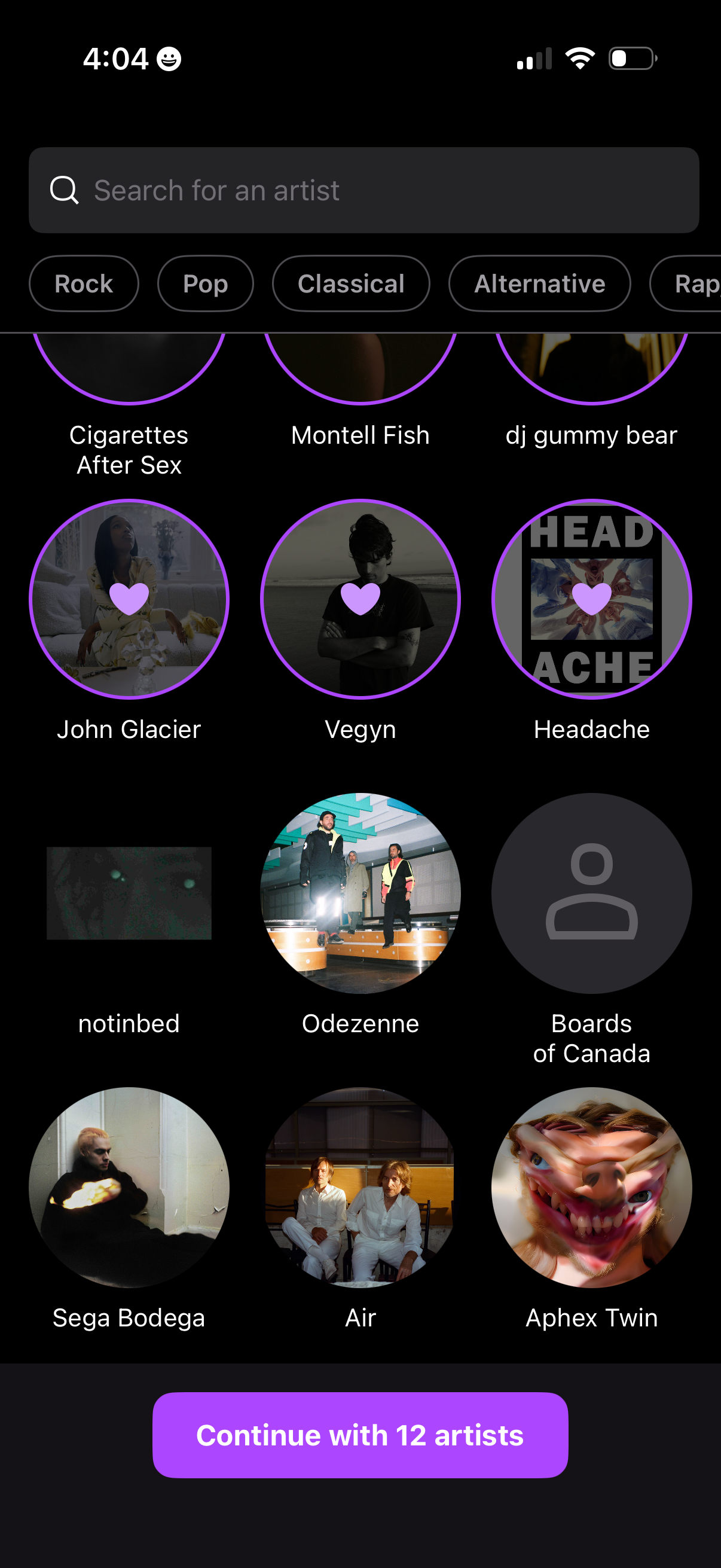
Music onboarding screen for selecting favorite artists, featuring a search bar, genre filter chips, and a grid of artist avatars with heart indicators for chosen favorites. A sticky bottom call-to-action button lets the user continue once enough artists are selected.
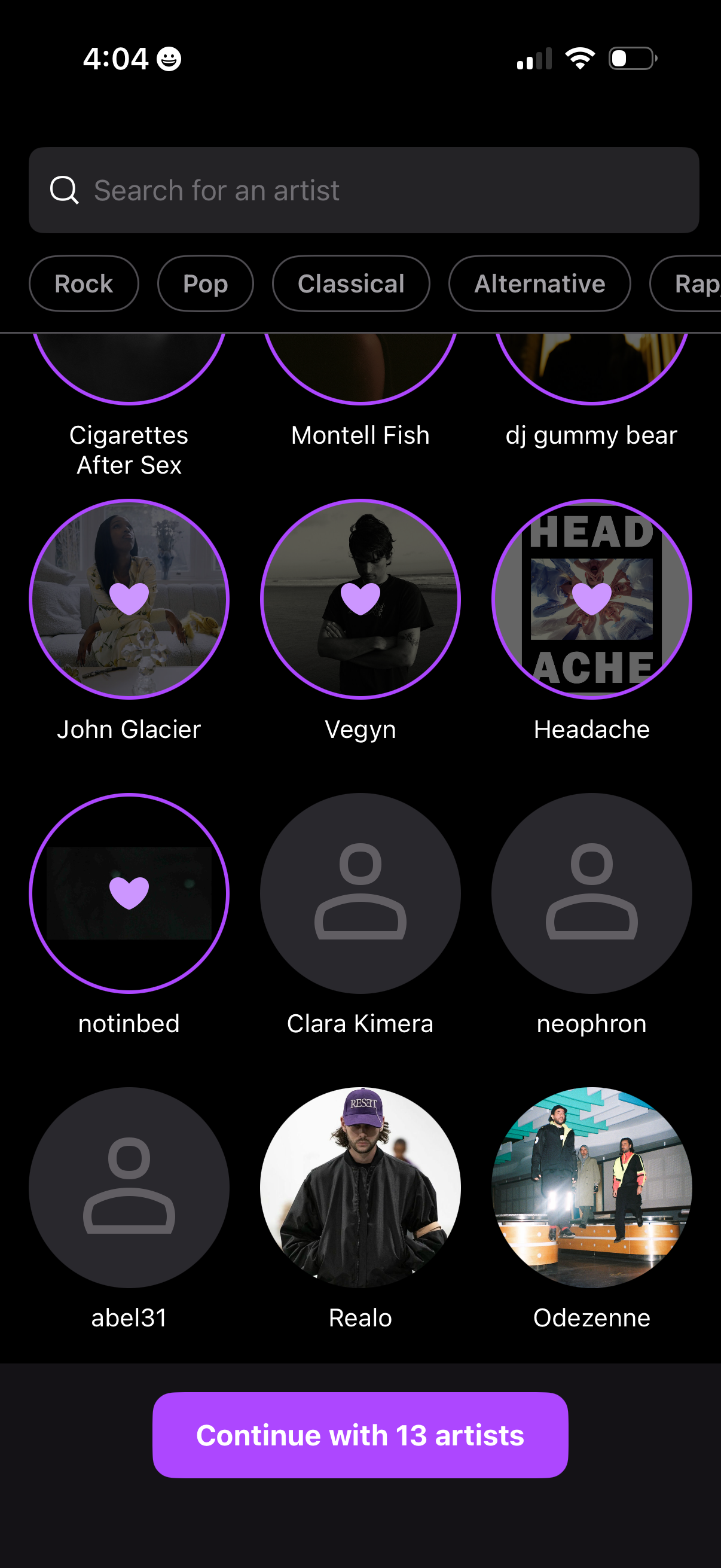
Music onboarding artist selection screen with a search bar to find artists, genre filter chips, and a grid of artist avatars showing selected favorites with heart icons. Users can pick multiple artists and tap a primary CTA button to continue with the selected artists count.
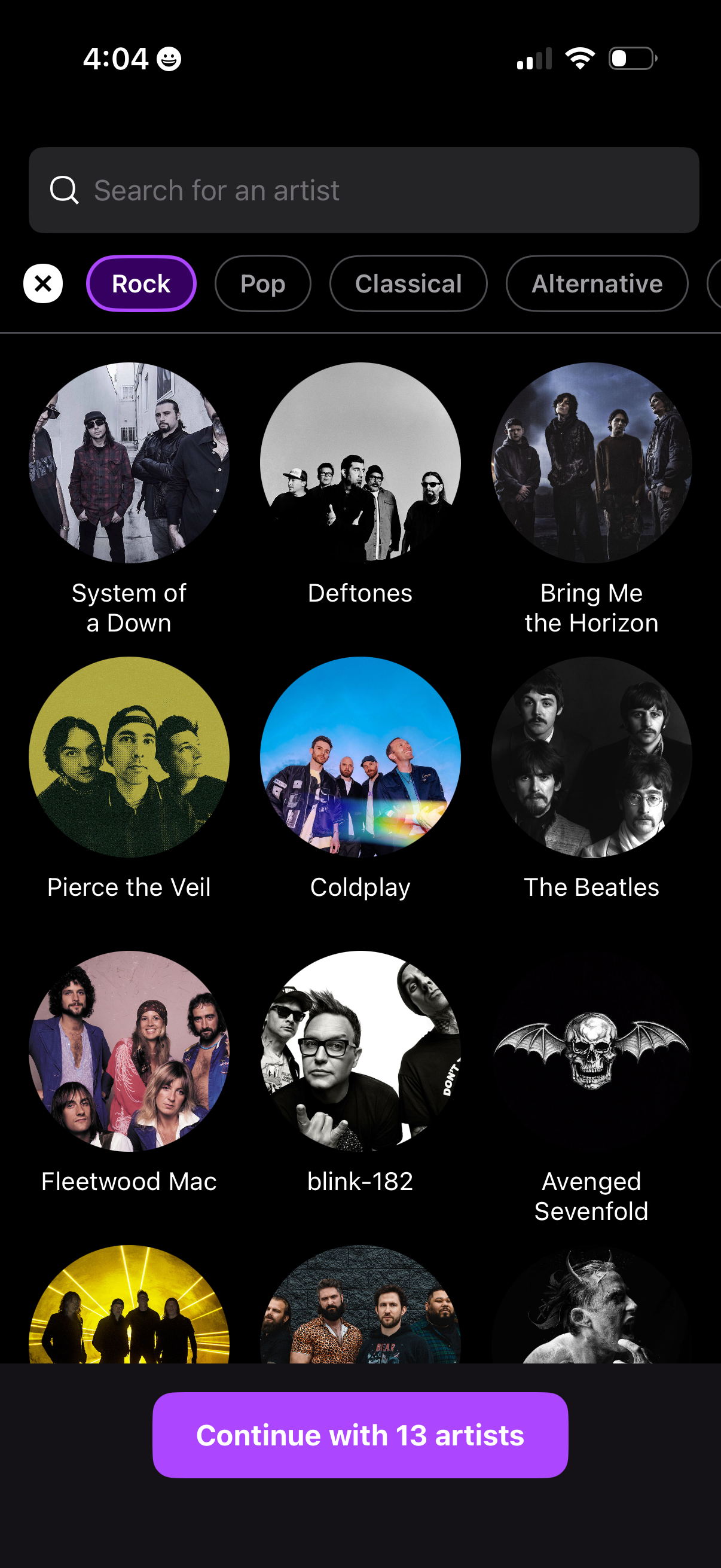
Music onboarding screen for selecting favorite artists, featuring a search bar, genre filter chips (e. g.
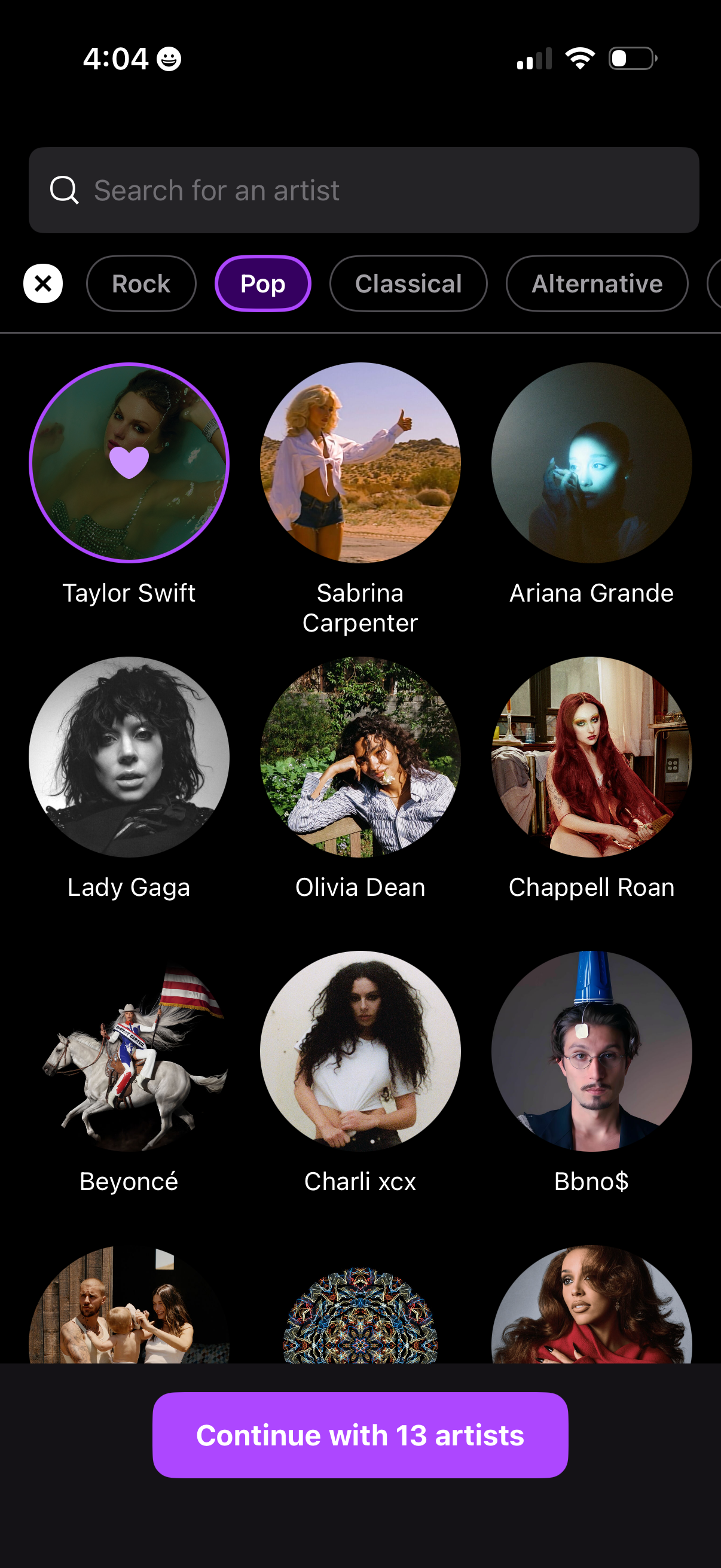
Music onboarding screen for selecting favorite artists, featuring a search bar, genre filter chips (Rock, Pop, Classical, Alternative), and a grid of artist avatars you can tap to add/remove favorites. A persistent bottom CTA lets you continue after choosing multiple artists, showing the current selection count.
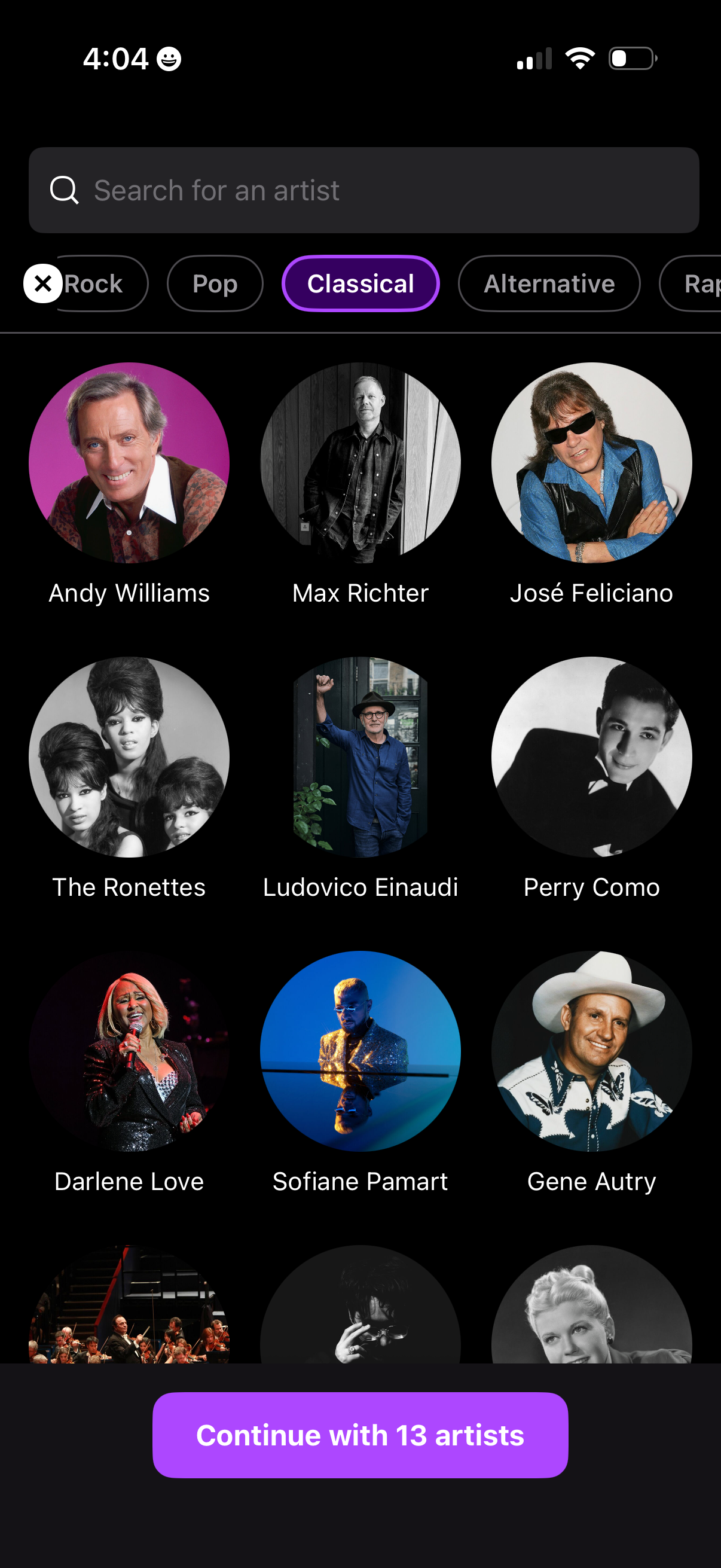
Music onboarding screen for selecting favorite artists, featuring a search bar to find an artist, genre filter chips with “Classical” selected, and a grid of artist profile photos with names to tap and choose. A fixed bottom CTA button lets the user continue with the currently selected number of artists.
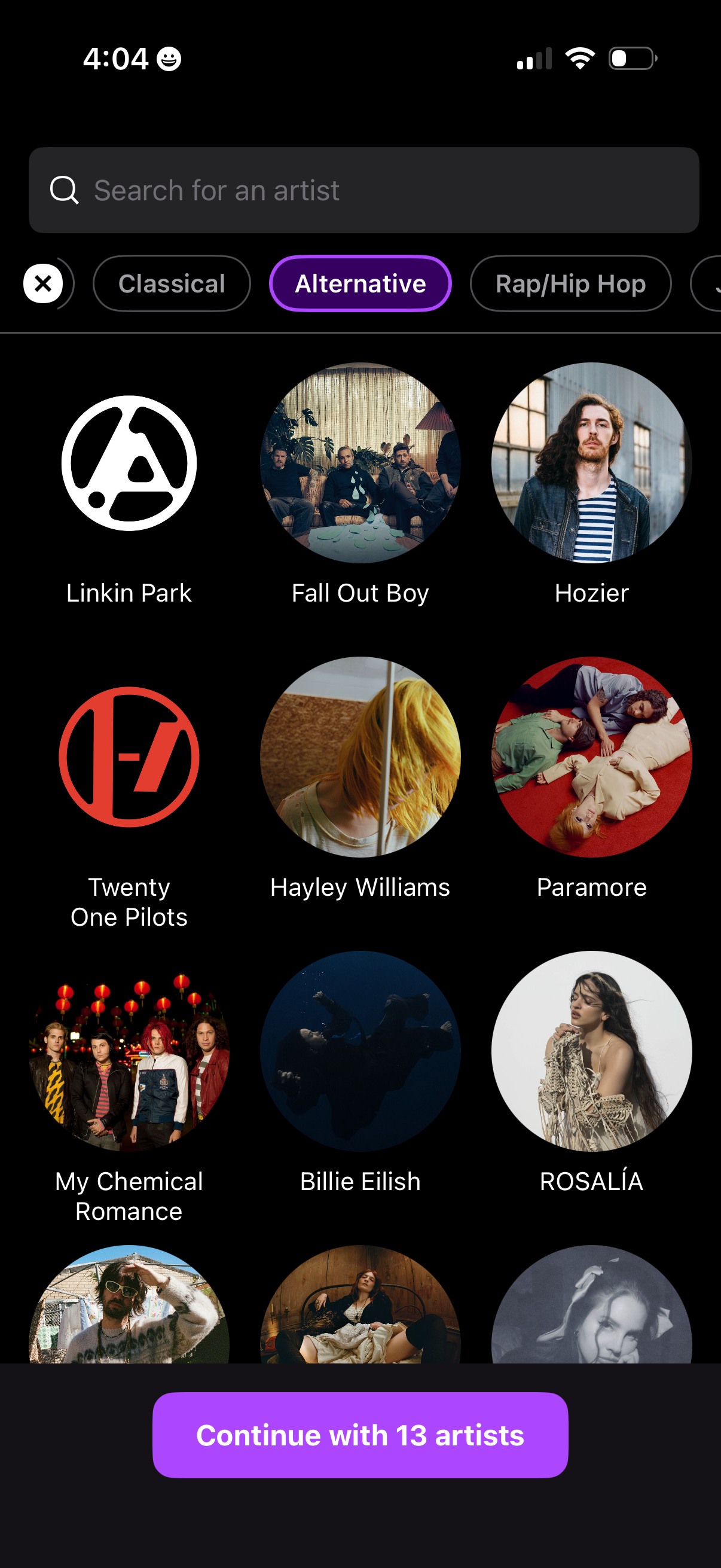
Music onboarding screen for selecting favorite artists, featuring a search bar, genre filter chips (e. g.
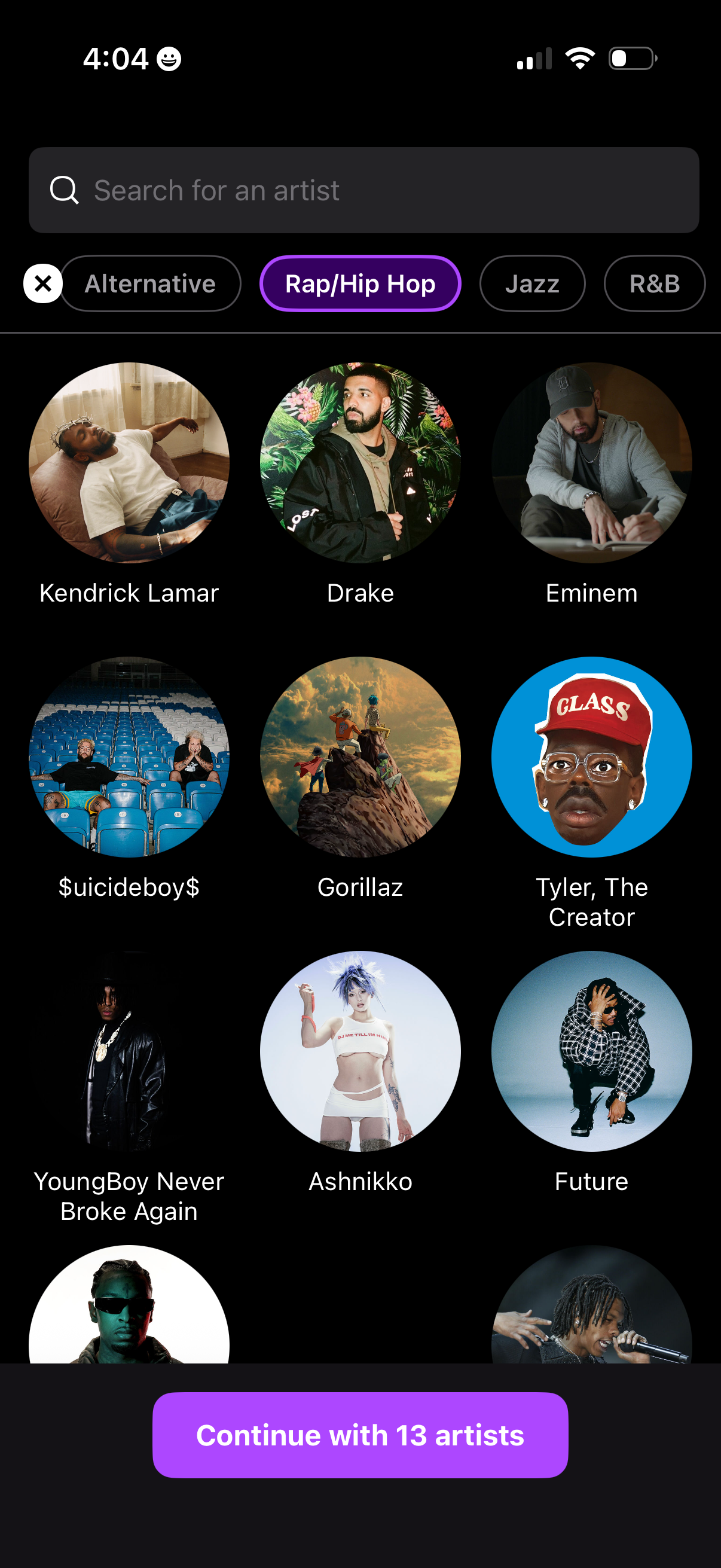
Music onboarding screen for selecting favorite artists, with a search bar to find an artist, genre filter chips (e. g.
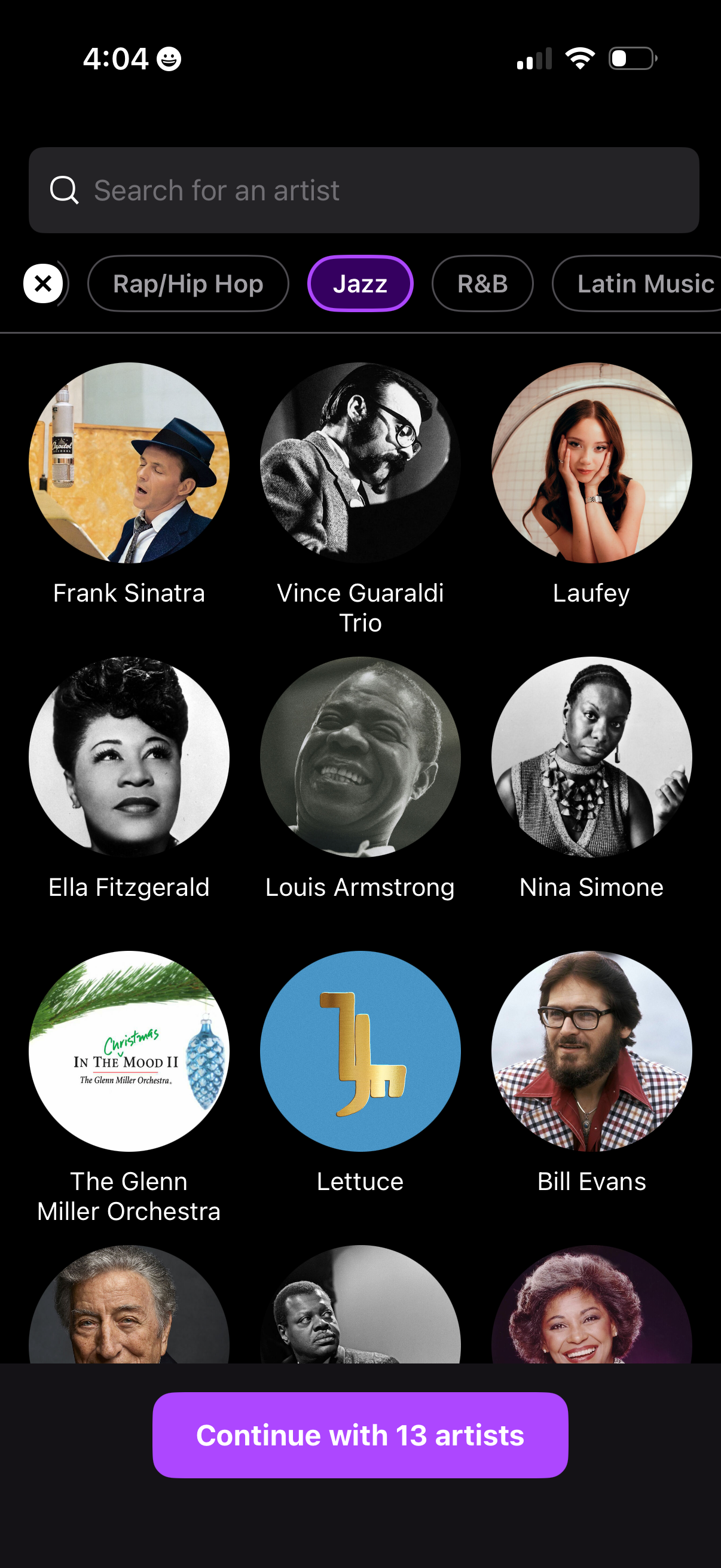
Music onboarding screen for selecting favorite artists by genre, featuring a search bar, genre filter chips (with Jazz selected), and a grid of artist profile tiles to choose from. A prominent bottom CTA button lets the user continue with the selected number of artists.
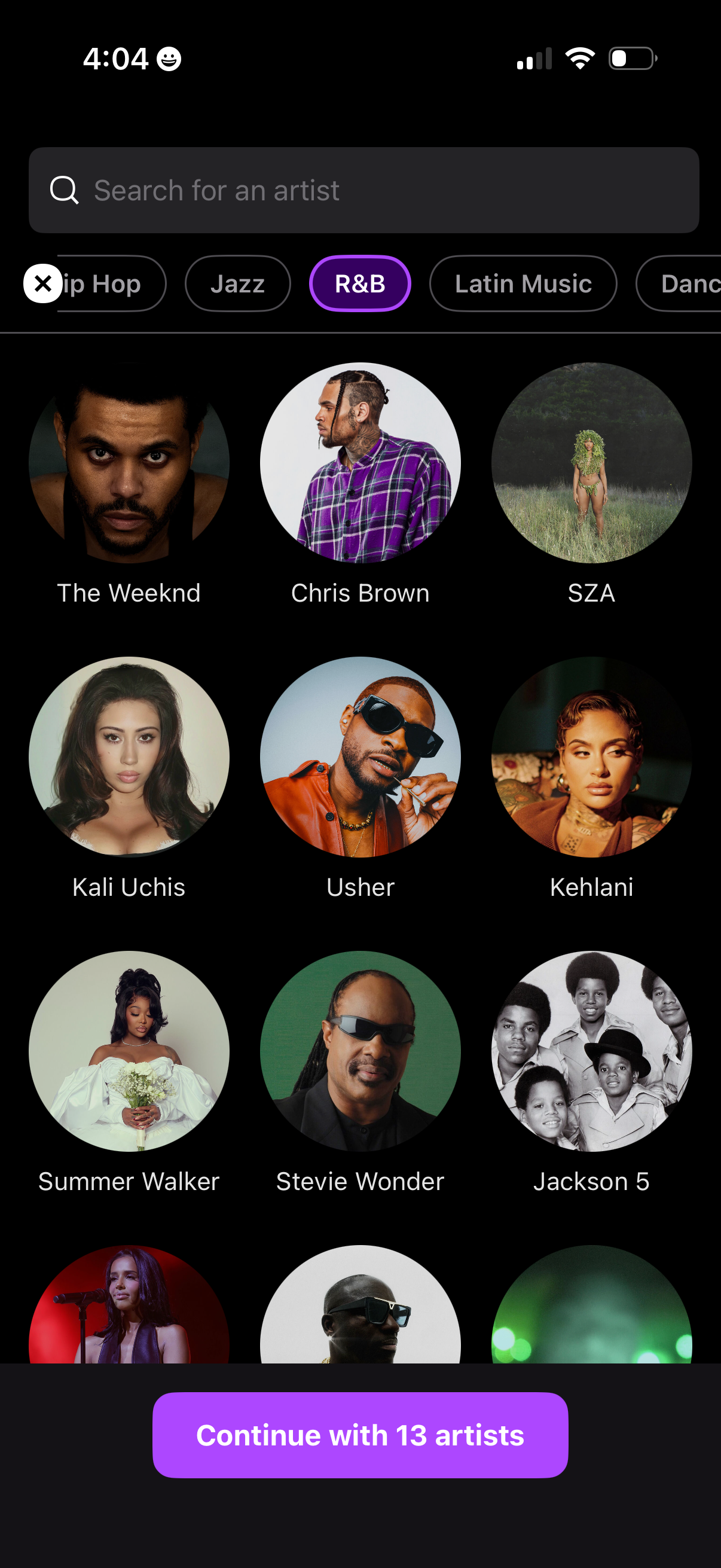
Music onboarding screen for selecting favorite artists, featuring a search bar to find an artist, genre filter chips with R&B selected, and a grid of artist avatars to tap and choose preferences. A bottom call-to-action button lets the user continue with the selected number of artists.
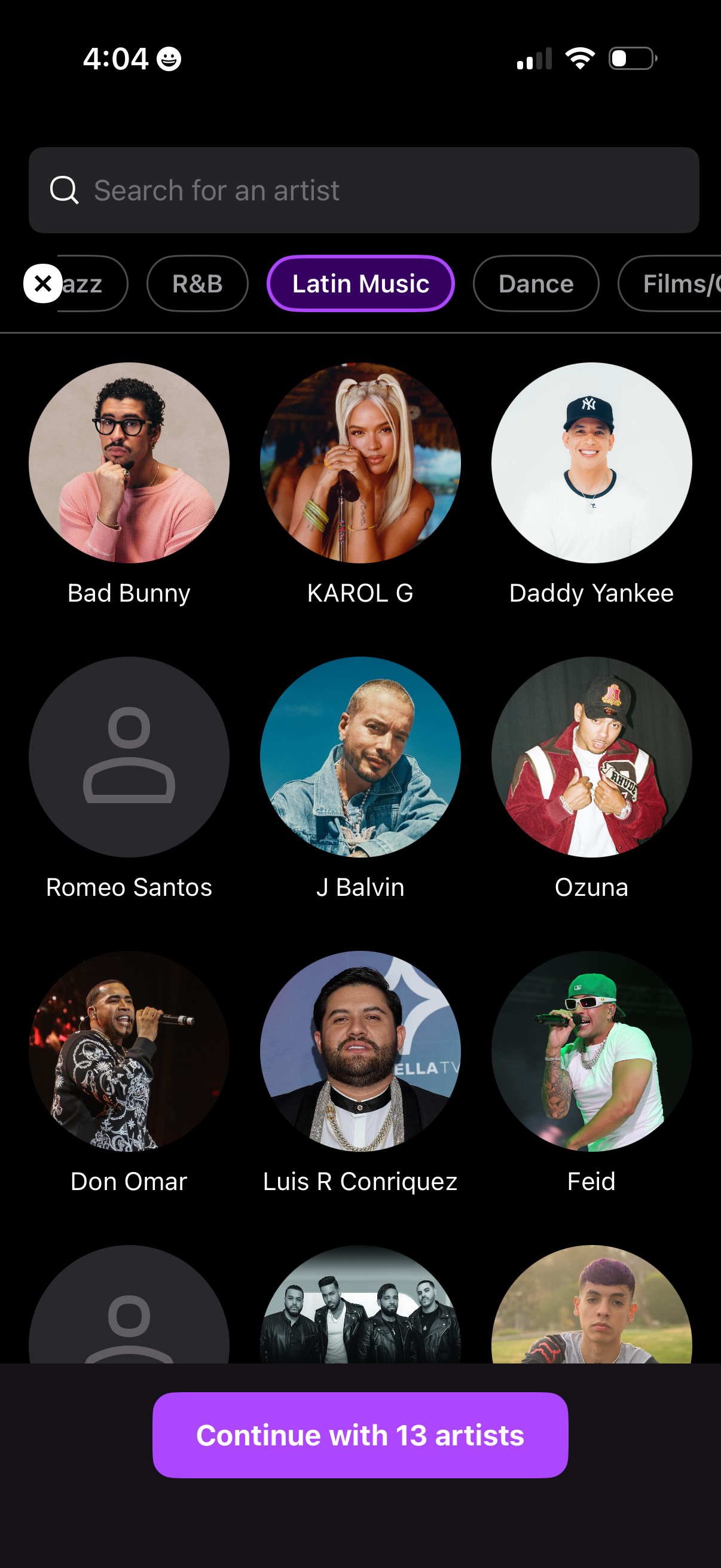
Music onboarding screen for choosing favorite artists, featuring a search bar to find an artist, genre filter chips with “Latin Music” selected, and a grid of selectable artist profile tiles. A persistent bottom CTA button lets the user continue with the selected number of artists.
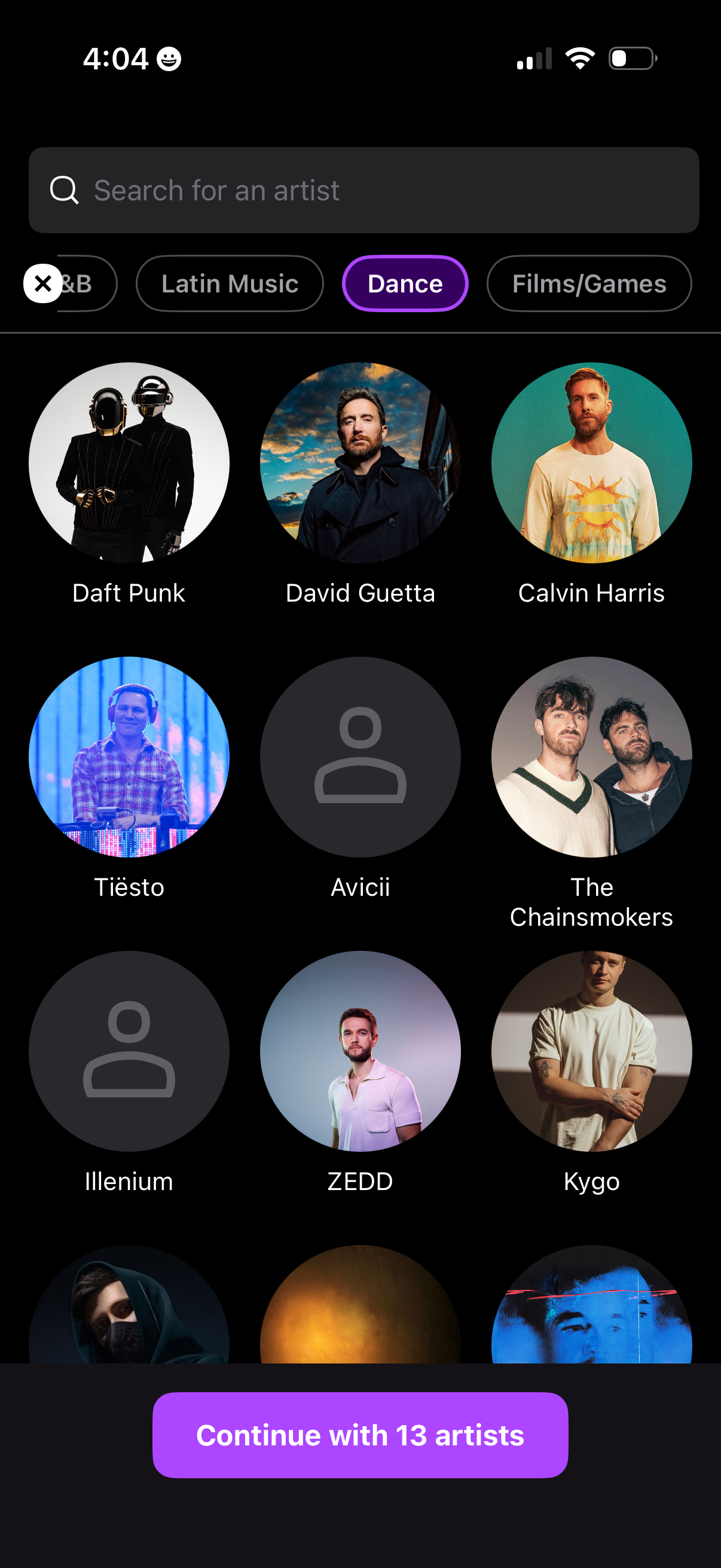
Music onboarding screen for selecting favorite artists, featuring a search bar, genre filter chips (e. g.
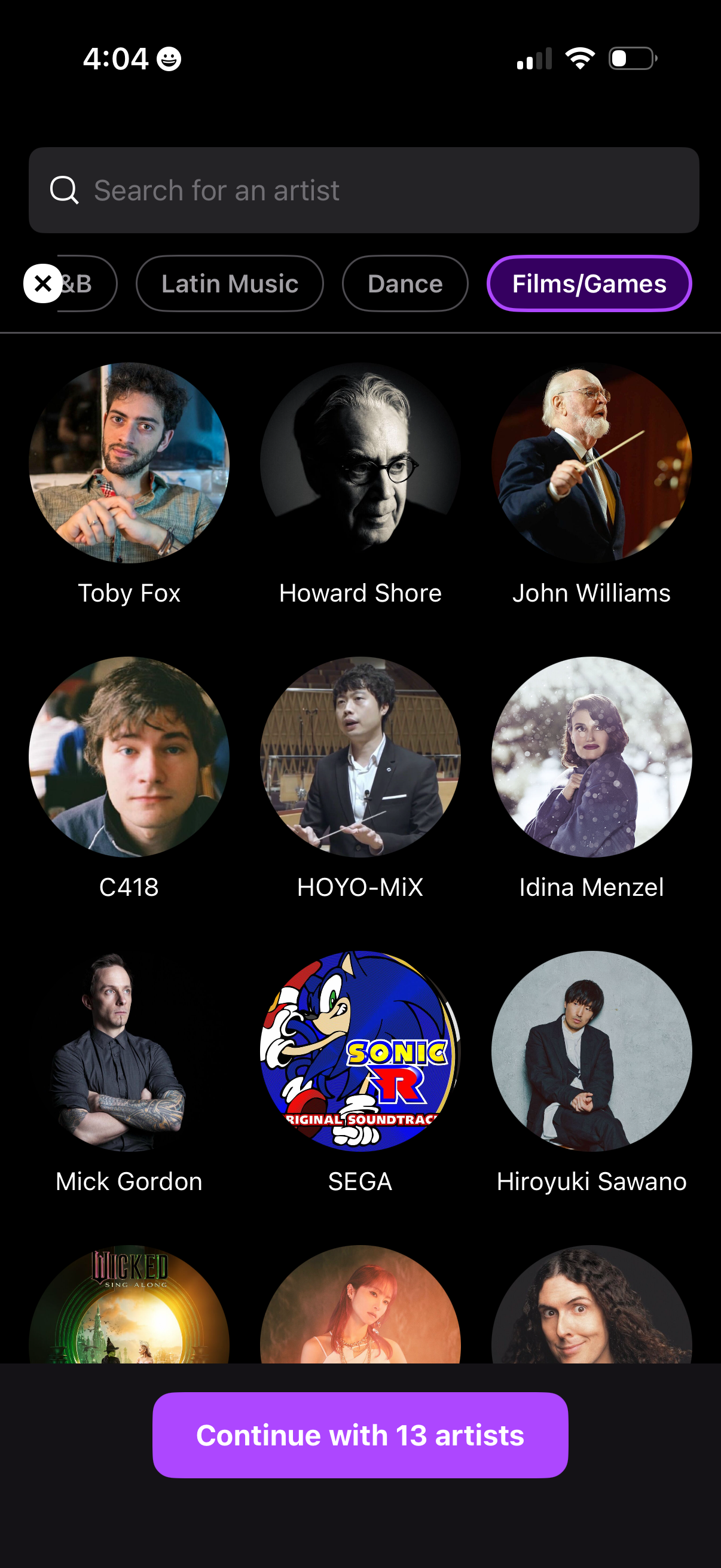
Music app artist selection screen with a search bar and category filter chips (e. g.