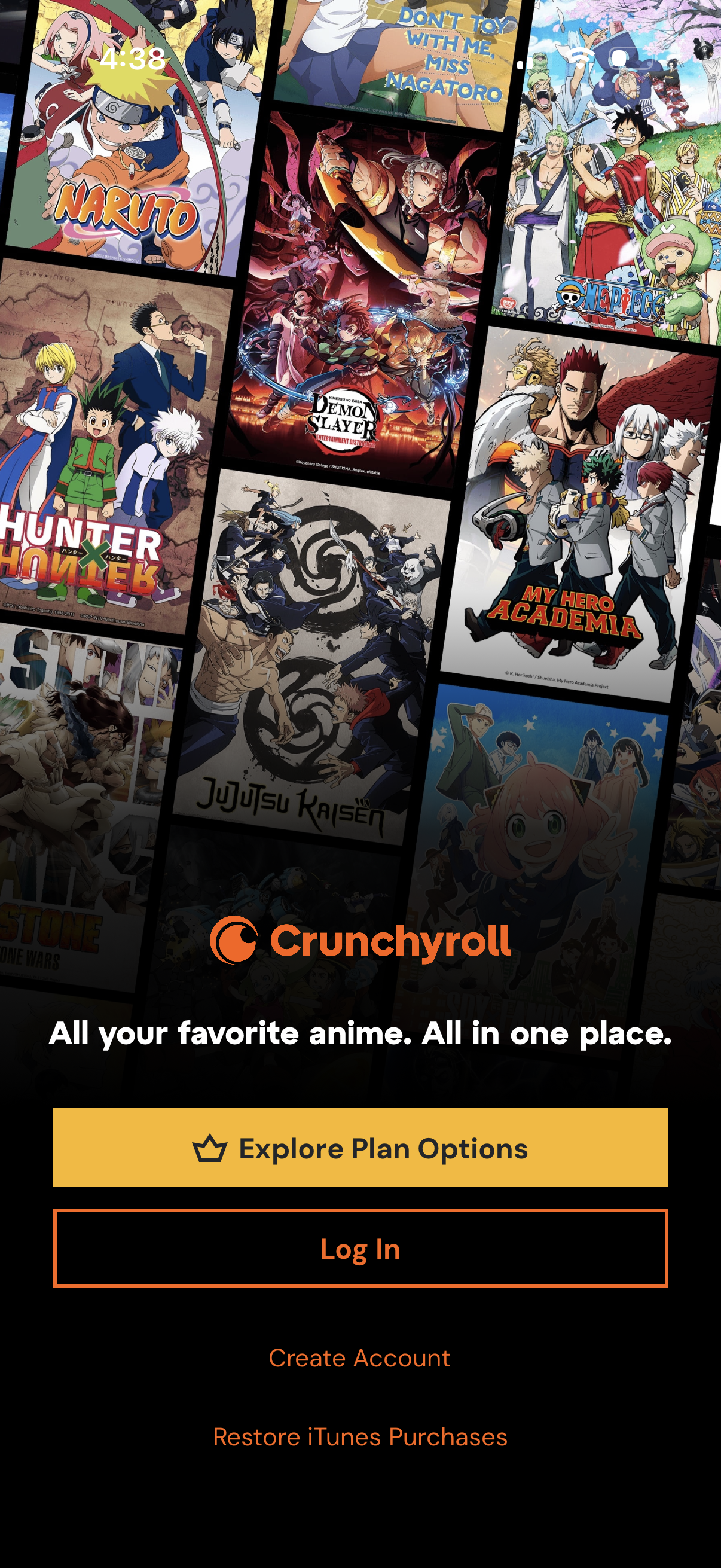
Subscription/paywall landing screen for an anime streaming app with promotional show artwork and a tagline, offering primary actions to explore plan options, log in, or create an account. Includes a secondary link to restore previous iTunes purchases.
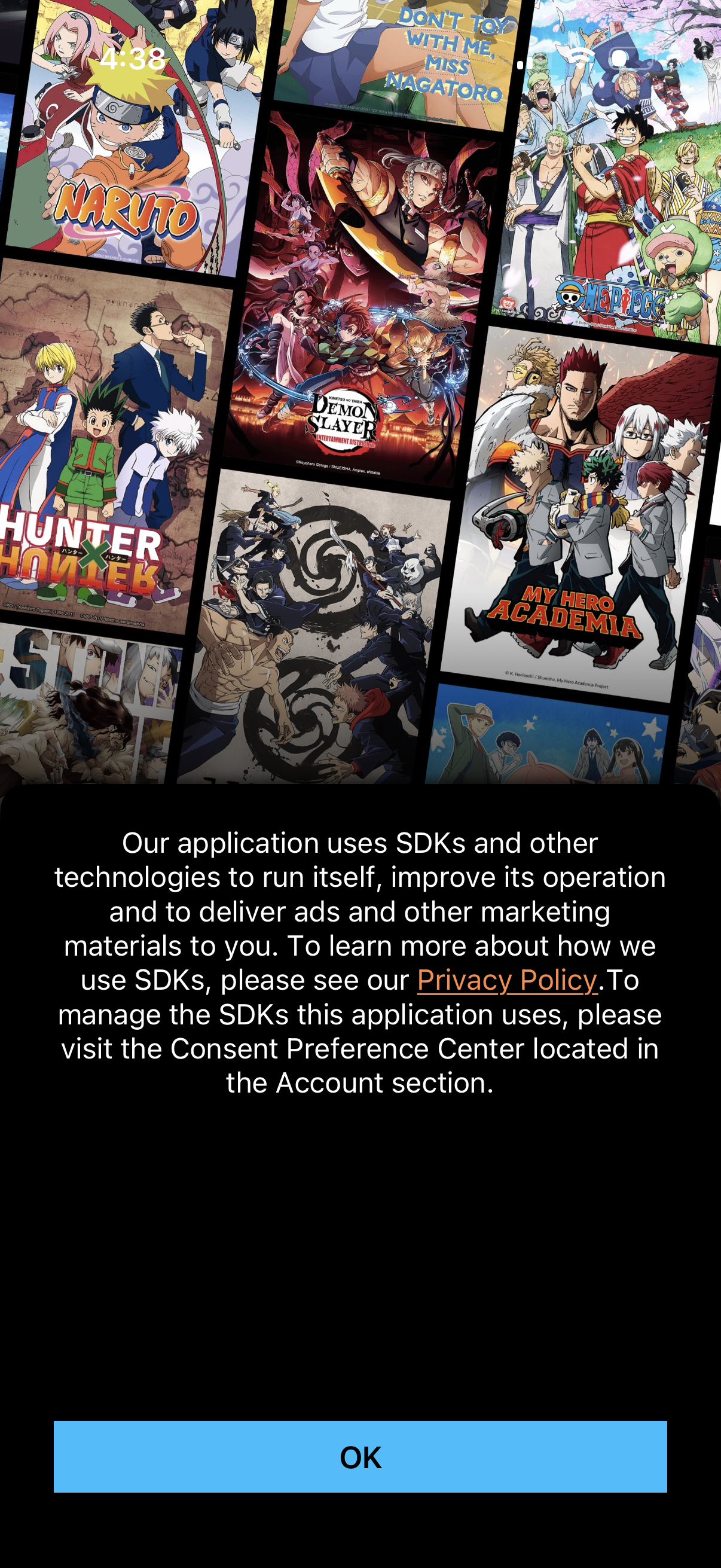
Privacy and SDK usage consent notice overlay explaining that the app uses third-party SDKs for operation, analytics, and delivering ads/marketing, with a link to the Privacy Policy and instructions to manage consent preferences in the Account section. User can dismiss the dialog with a single OK button.
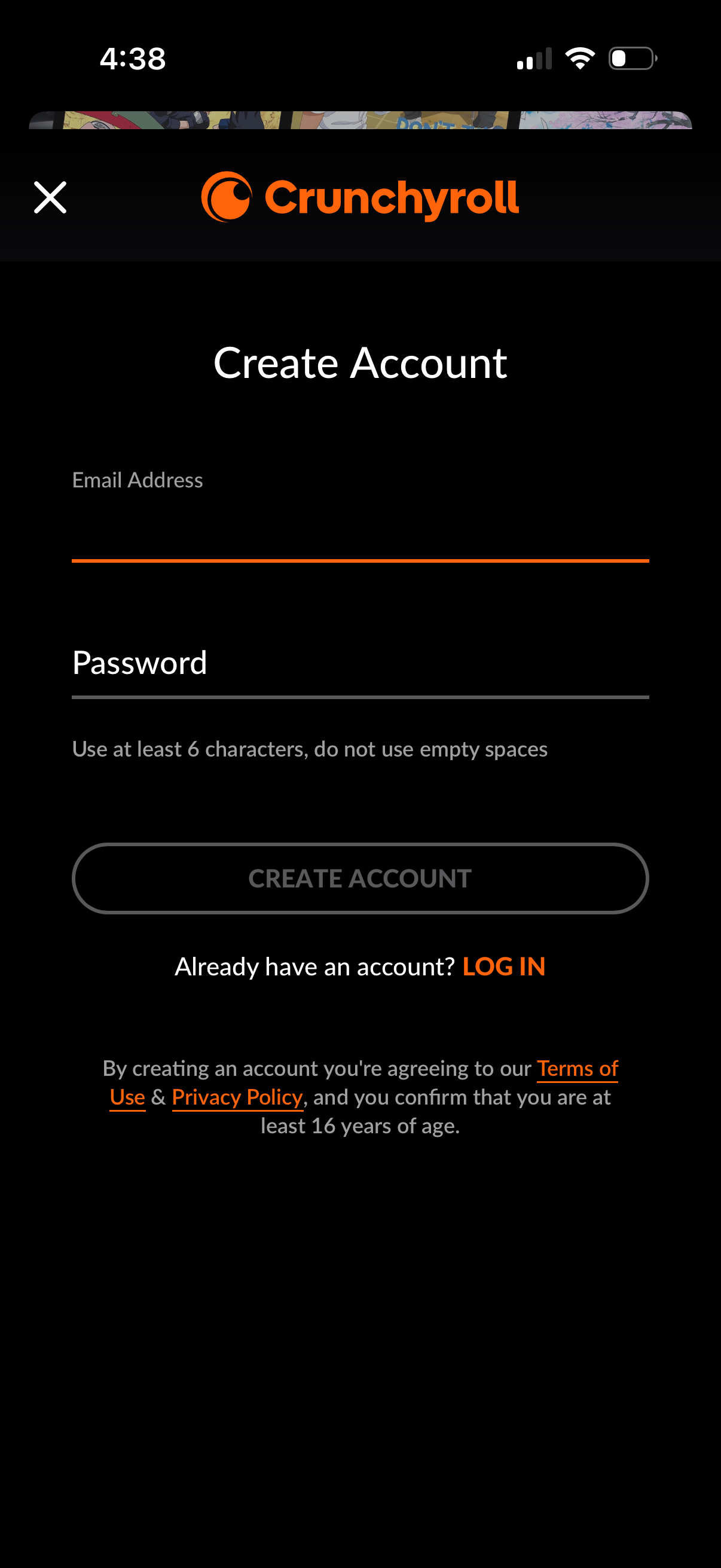
Create account sign-up screen for a streaming app with fields for email address and password (with password requirements) and a primary Create Account button. Includes a link to log in for existing users plus terms of use and privacy policy consent and age confirmation.

Subscription paywall screen for a streaming app’s premium plan, letting users toggle Monthly vs Yearly pricing and view a “first 7 days free” trial with renewal cost and included benefits (no ads, unlimited library access, new episodes early). Primary CTA is “Start Subscription,” with an option to close the paywall.
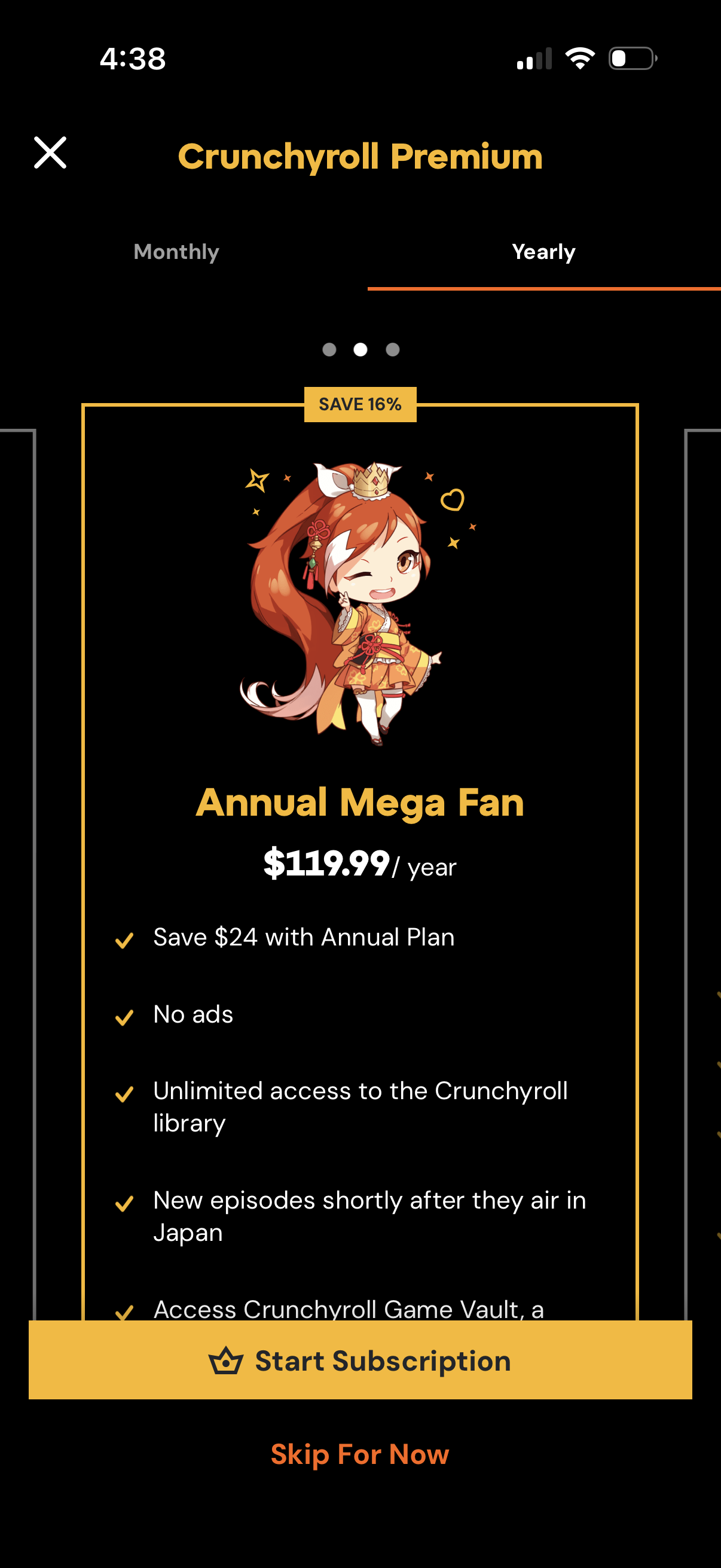
Subscription paywall for Crunchyroll Premium showing yearly plan pricing for the “Annual Mega Fan” tier with savings badge and a list of benefits (save with annual plan, no ads, unlimited library access, new episodes shortly after Japan). Primary actions include starting the subscription, skipping for now, and switching between monthly and yearly options.
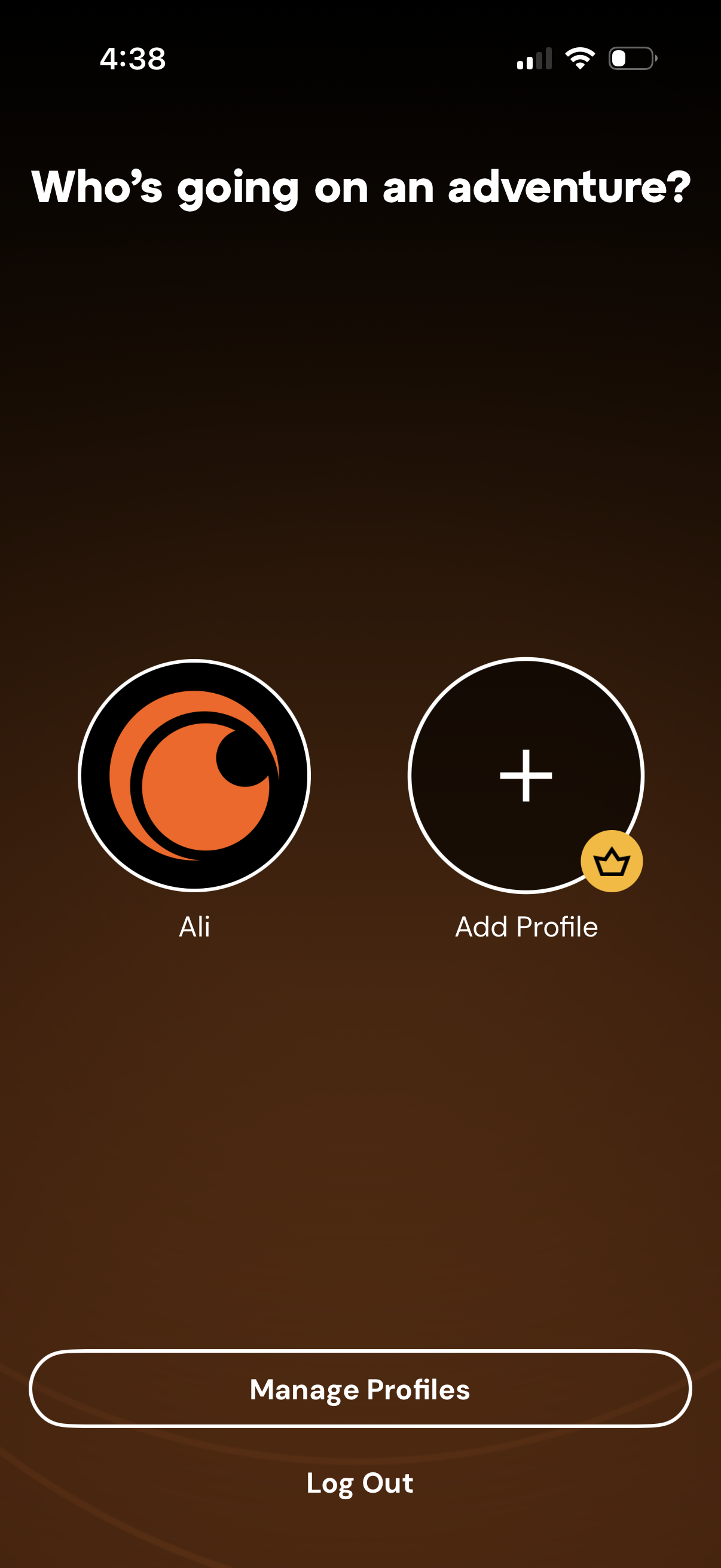
Profile selection screen for choosing who is using the app before starting an adventure, showing existing user profiles and an option to add a new profile. Includes actions to manage profiles and log out.
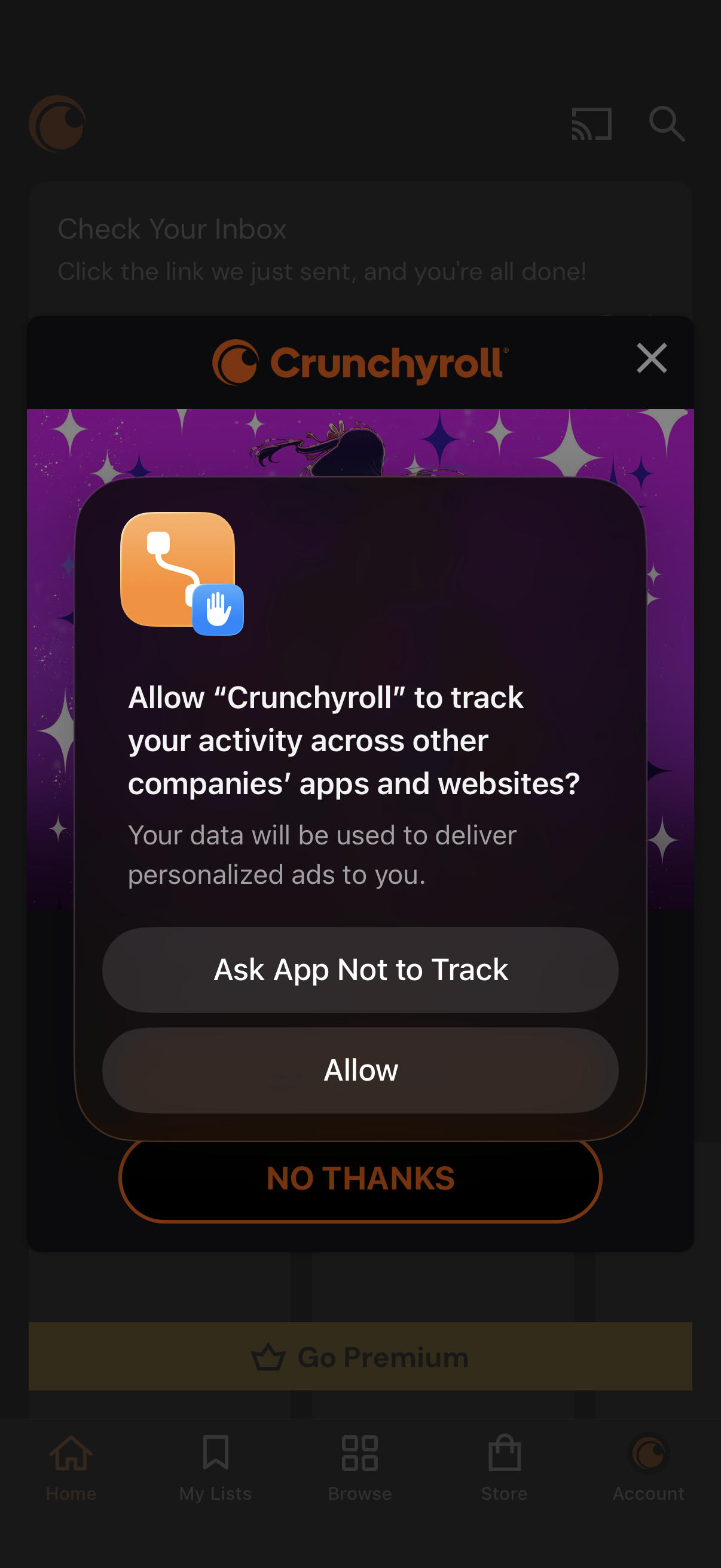
A system privacy permission modal asks whether to allow the app to track user activity across other apps and websites for personalized ads. Primary actions include “Ask App Not to Track” or “Allow,” with a close button and underlying app screen dimmed in the background.
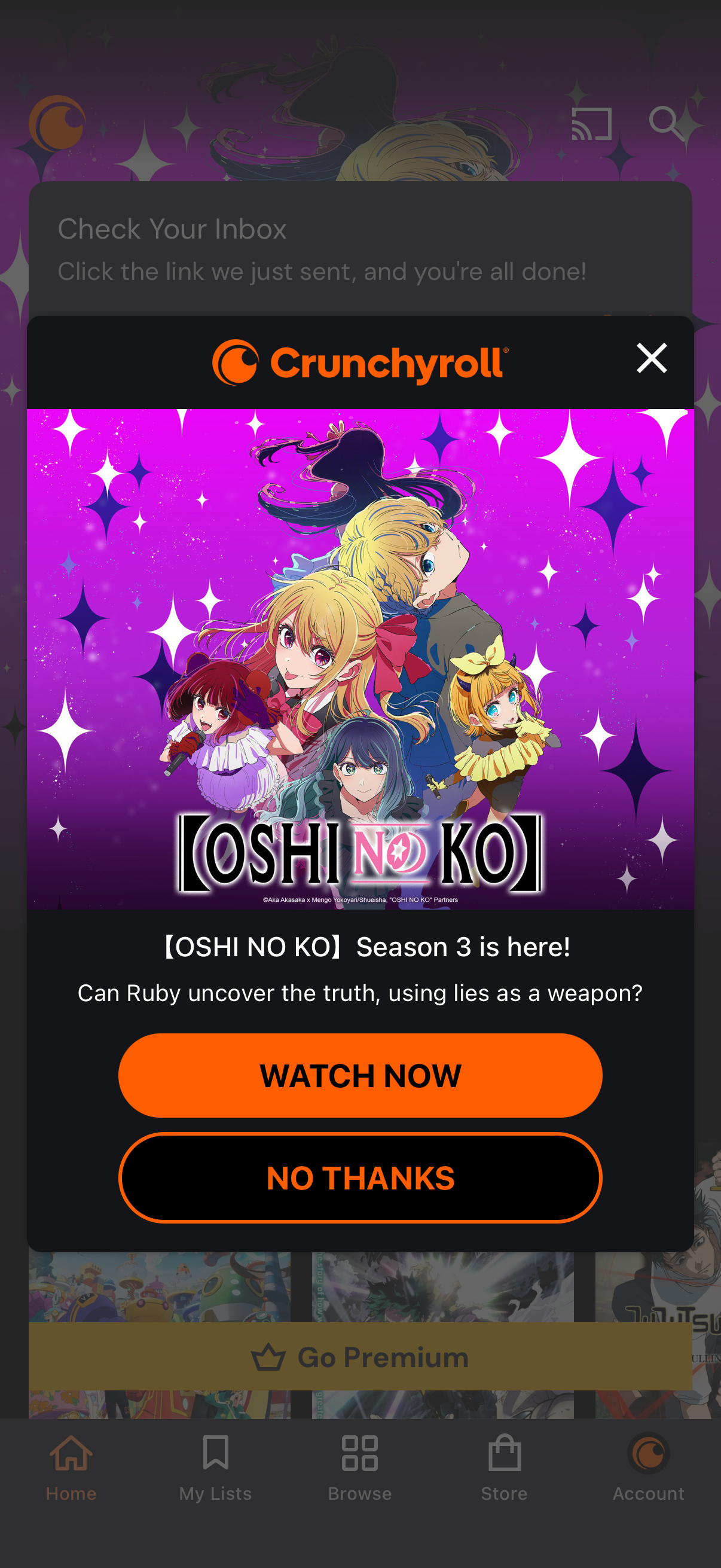
Full-screen promotional modal in a streaming app announcing a new season release, featuring key art, a short description, and primary/secondary CTAs (“Watch now” and “No thanks”) plus a close (X) button over the home screen. A system banner notification at the top prompts the user to check their inbox to complete an email verification link.
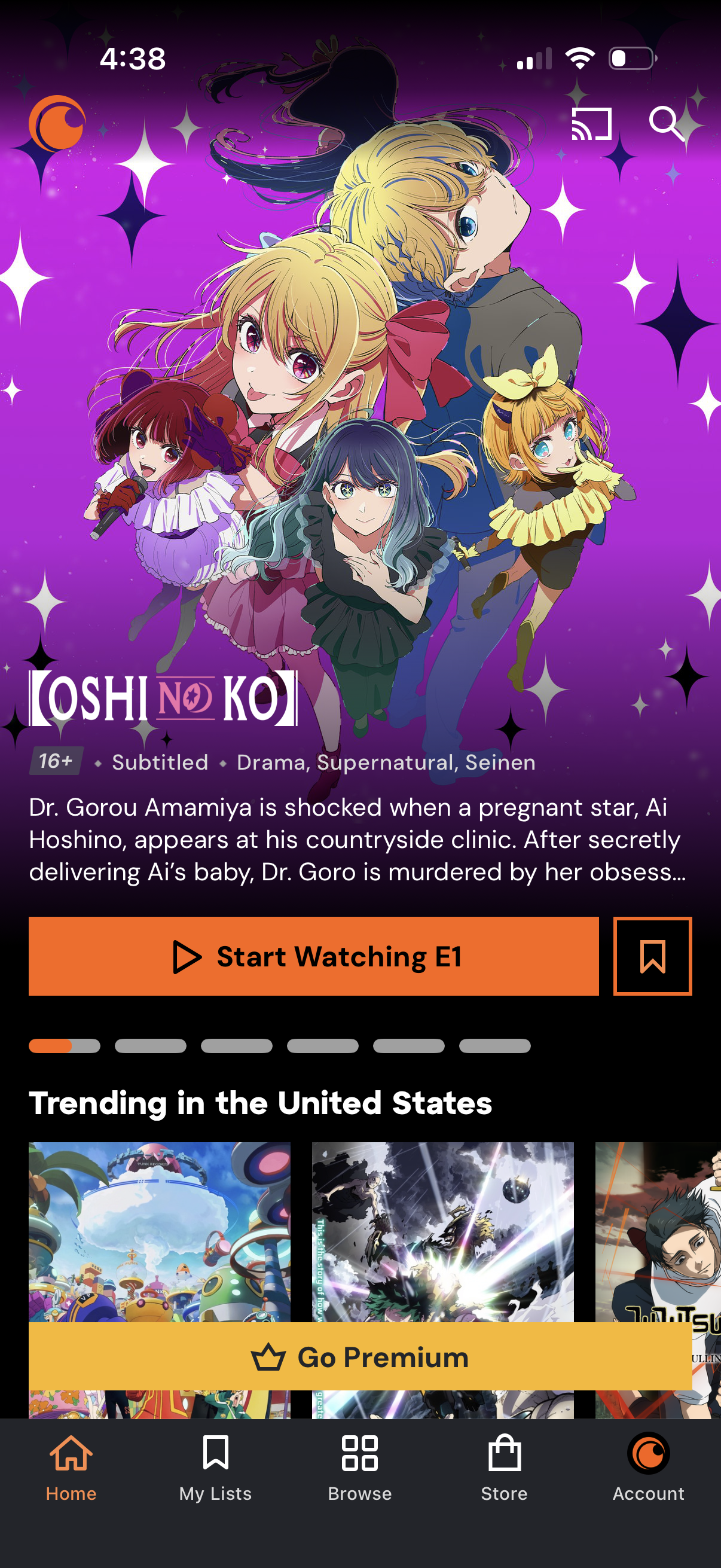
Anime streaming app home screen featuring a highlighted series with title, age rating, subtitle availability, genre tags, and synopsis, plus primary CTA to start watching episode 1 and a bookmark/save button. Below is a “Trending” carousel with a prominent “Go Premium” upsell banner, along with top search/cast icons and a bottom tab bar for Home, My Lists, Browse, Store, and Account.