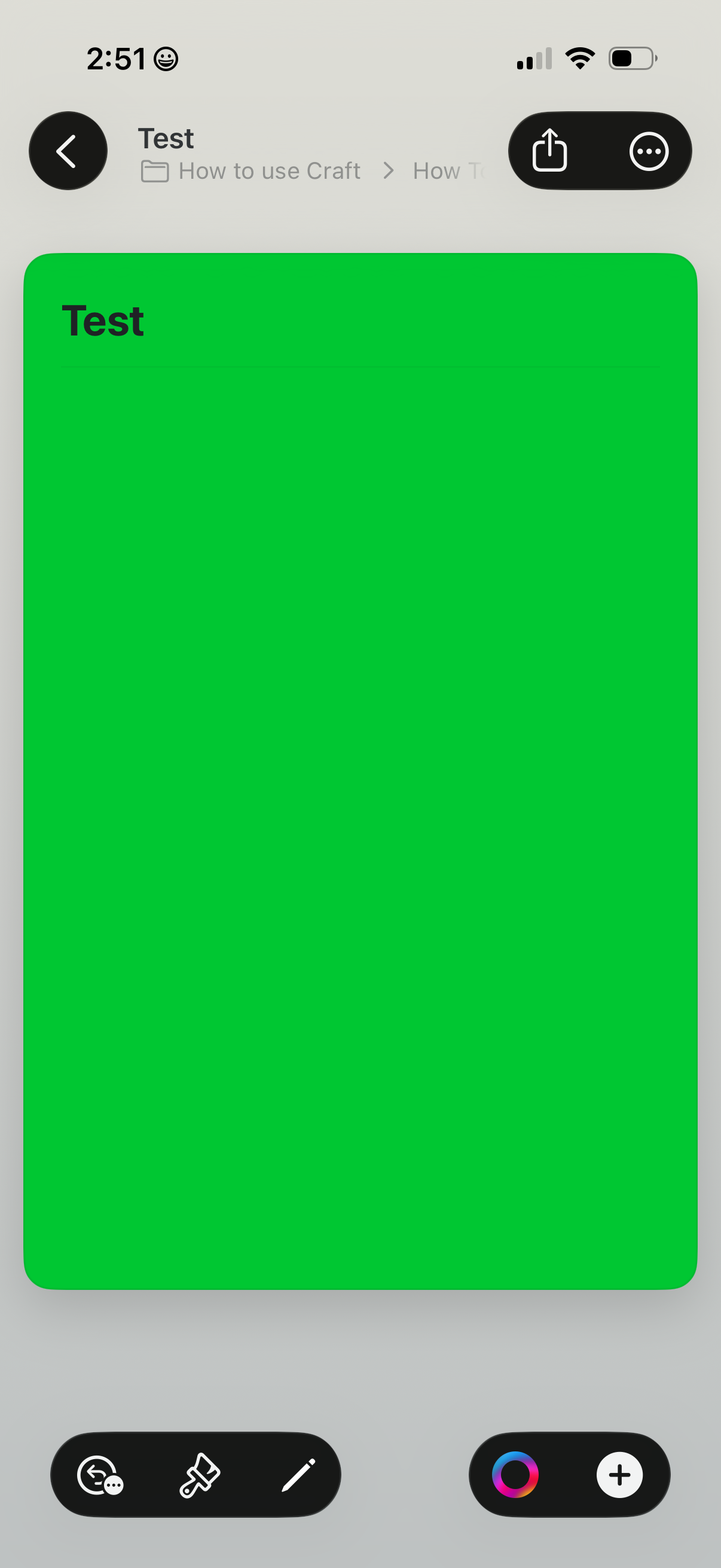
Document editor canvas showing a large colored page block with a title, with top navigation for back, sharing, and more options. Bottom toolbars provide editing actions like formatting/paint tools, pen or drawing, color picker, and add/insert button.
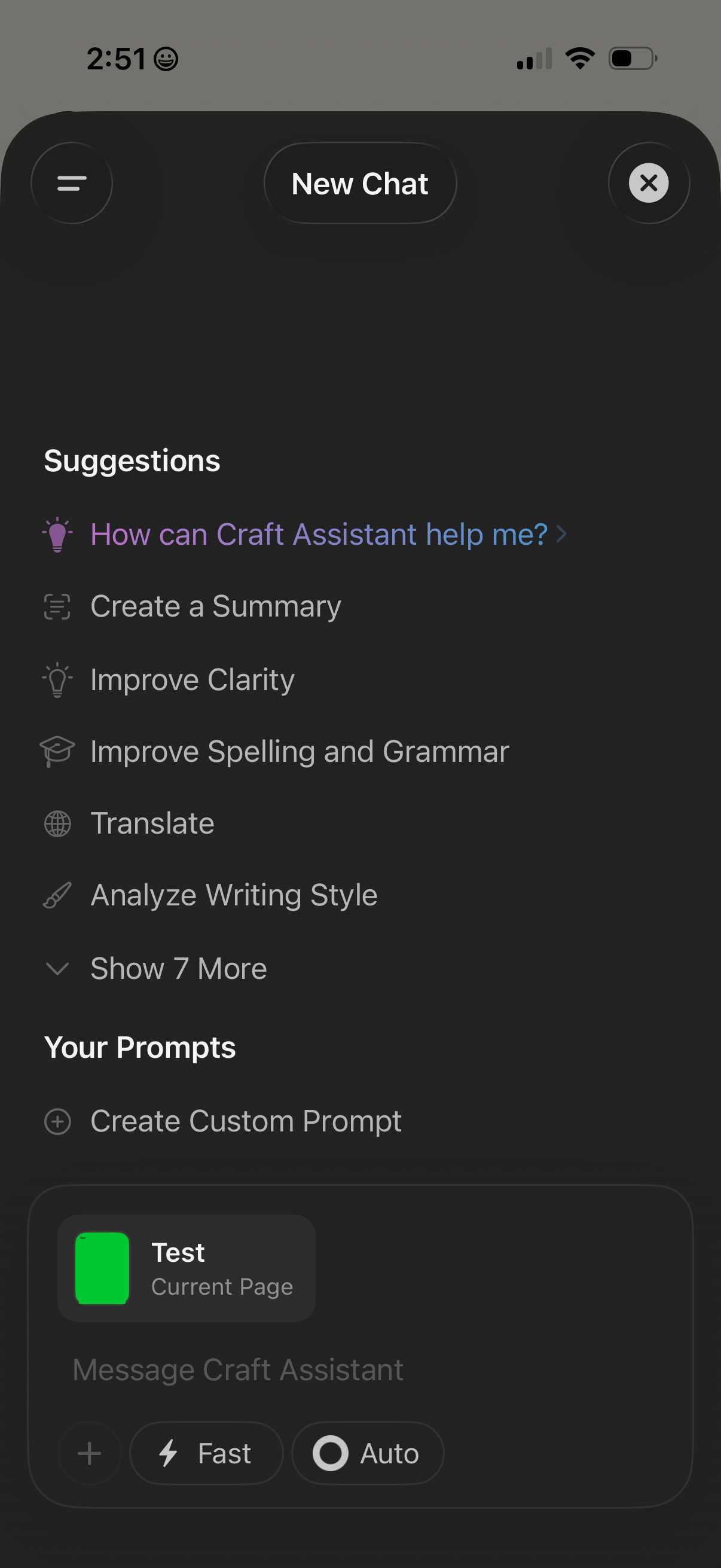
New chat screen for an AI writing assistant showing suggested prompt actions like create a summary, improve clarity, fix spelling and grammar, translate, and analyze writing style, with an option to show more suggestions. Includes a section to create custom prompts and a message composer with mode toggles (e.
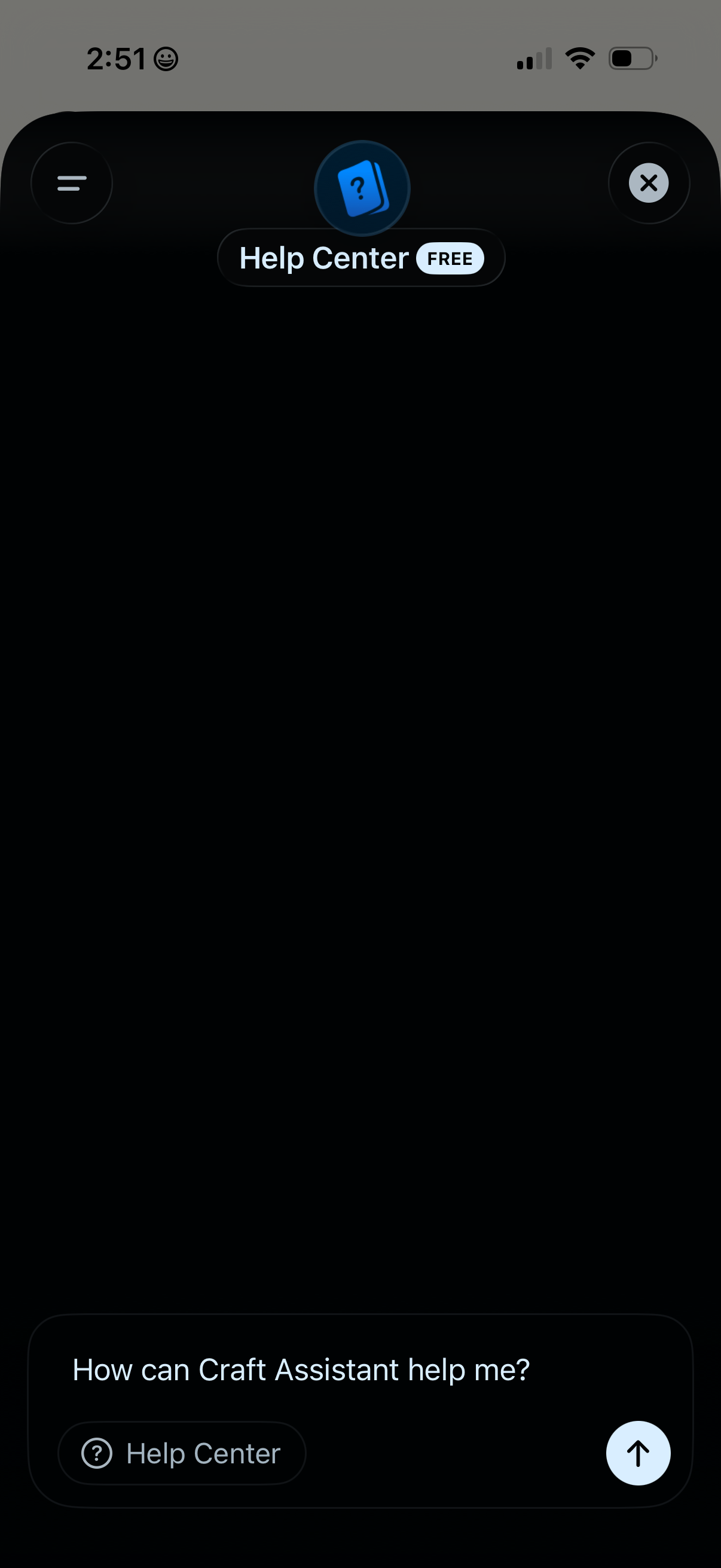
Help Center chat screen with a minimal dark interface for an assistant, showing a message input field prompting “How can Craft Assistant help me? ” with a send button and an option to open Help Center resources, plus menu and close controls in the header.
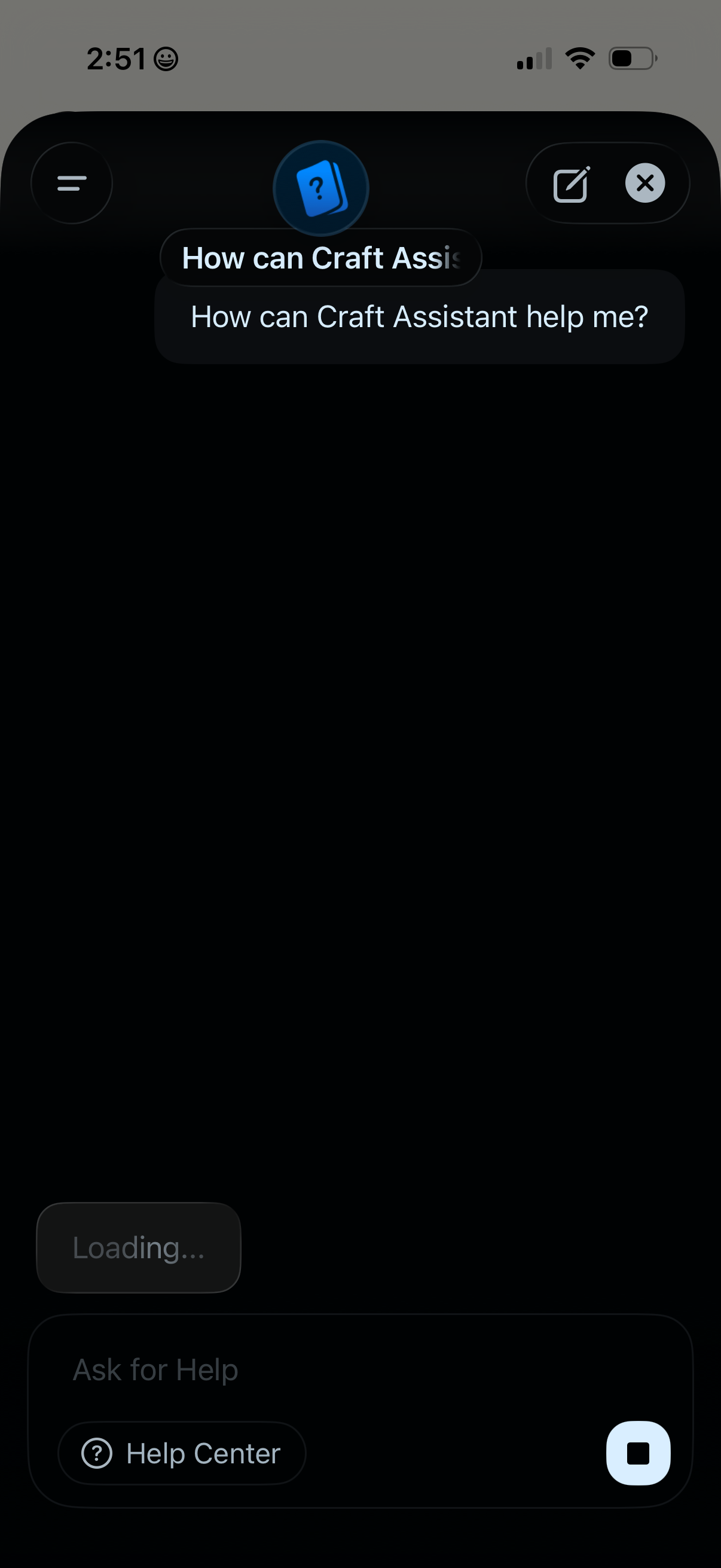
In-app help assistant chat screen prompting “How can Craft Assistant help me? ” with a loading state and an “Ask for Help” panel linking to the Help Center.
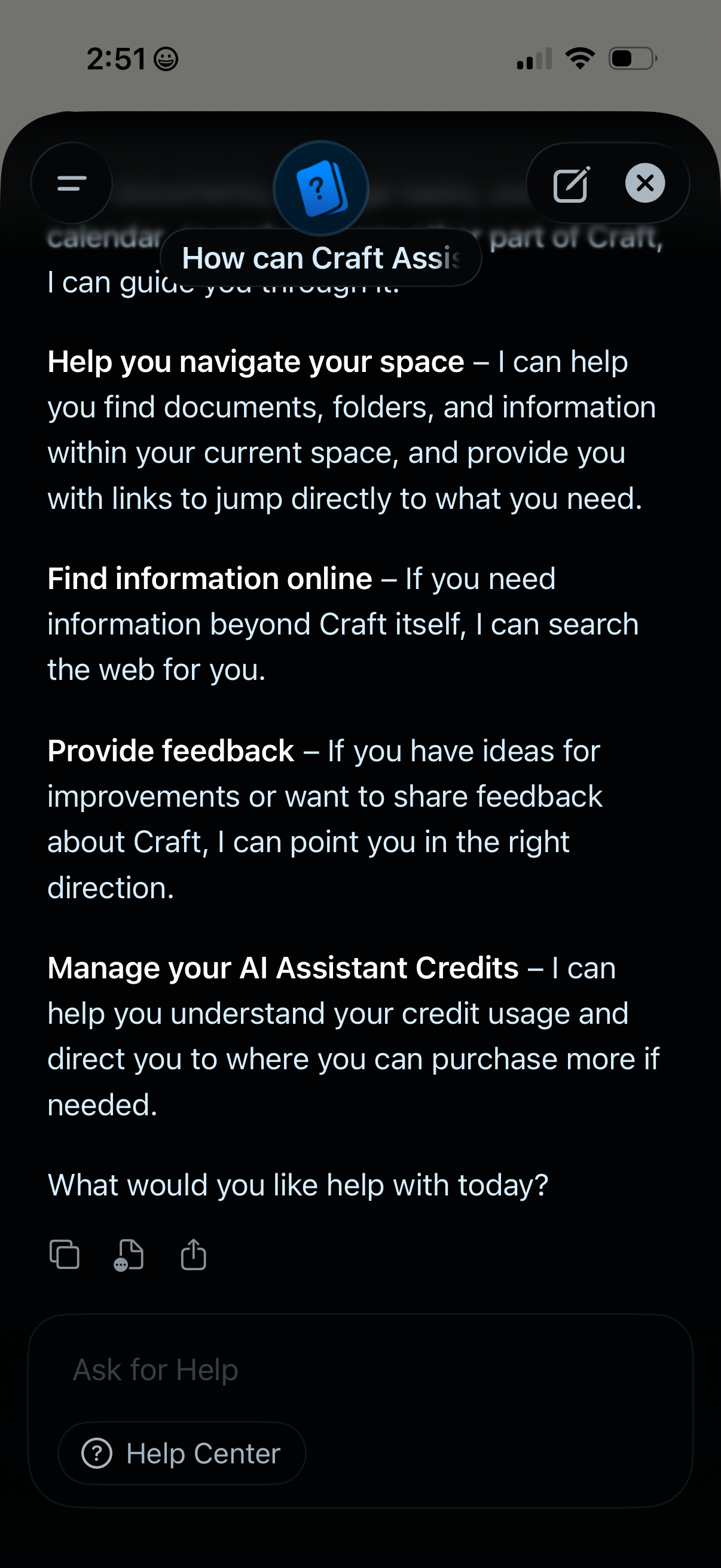
In-app “How can Craft Assistant help? ” info screen explaining the AI assistant’s capabilities, including navigating the workspace to find documents and folders, searching the web for information, providing product feedback, and managing AI assistant credit usage and purchases.
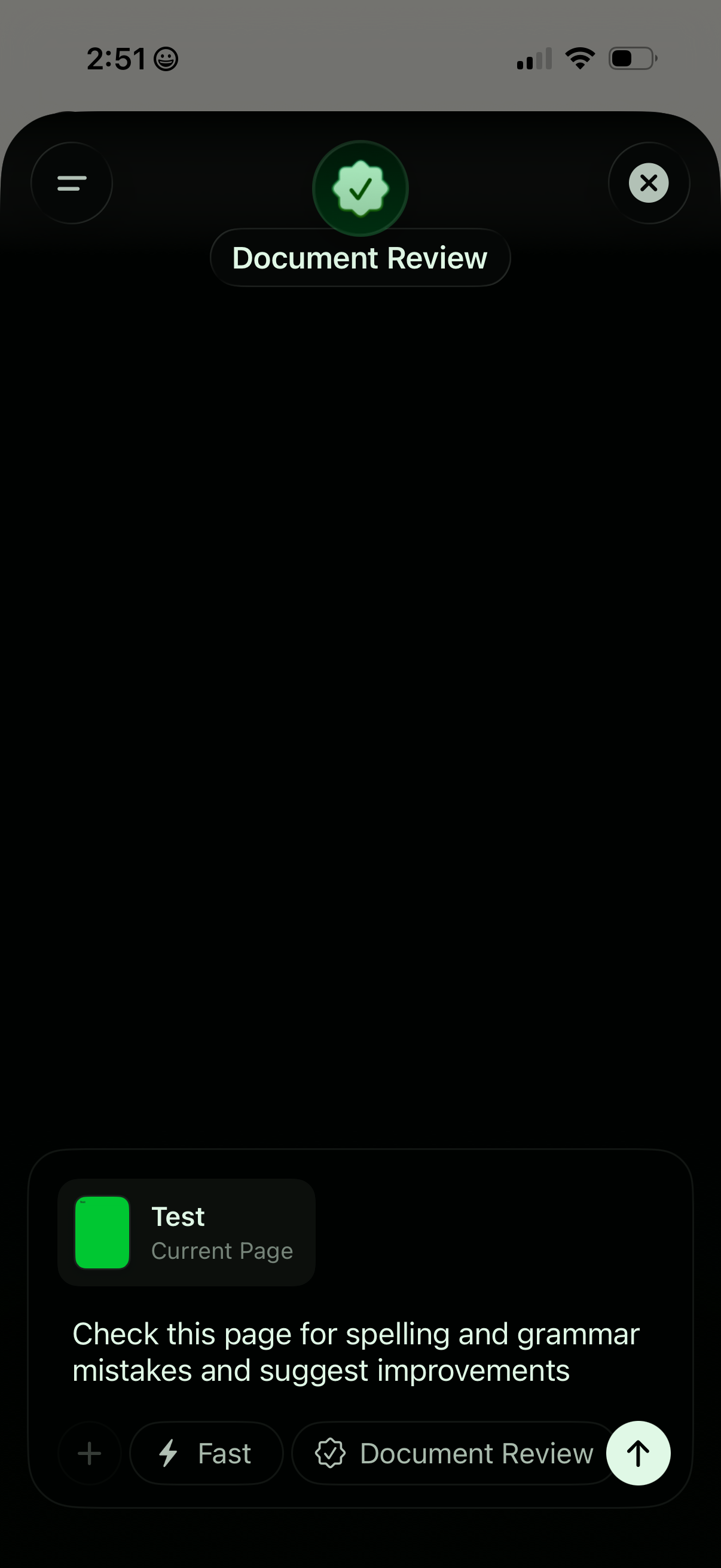
AI assistant document review screen where the user can request proofreading of the current page, checking for spelling and grammar mistakes and suggesting improvements. Includes a prompt input area with mode controls (e.
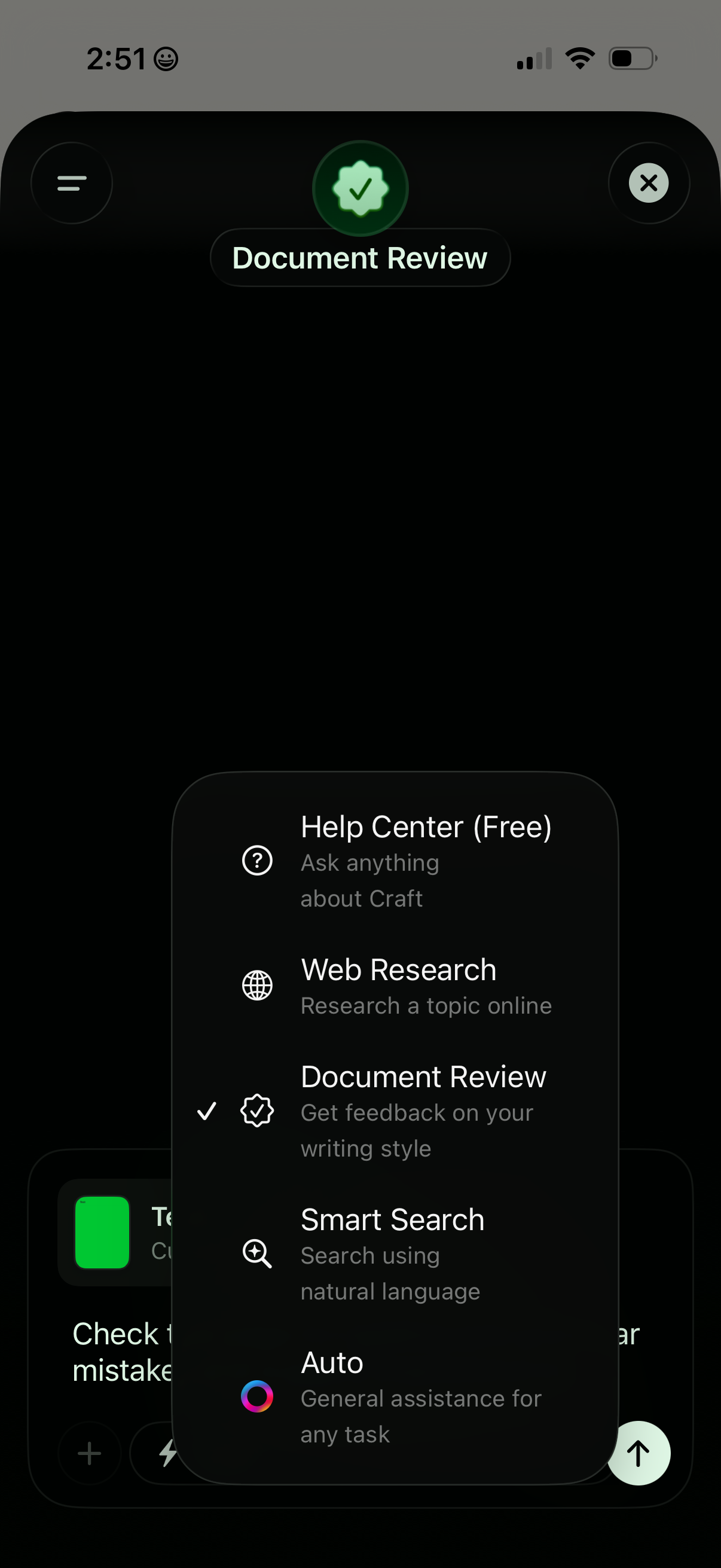
AI assistant mode selector overlay on a mobile chat screen, showing options like Help Center, Web Research, Document Review (selected), Smart Search, and Auto with brief descriptions. Users can open the menu, switch the assistant’s task mode, or dismiss/close the modal.
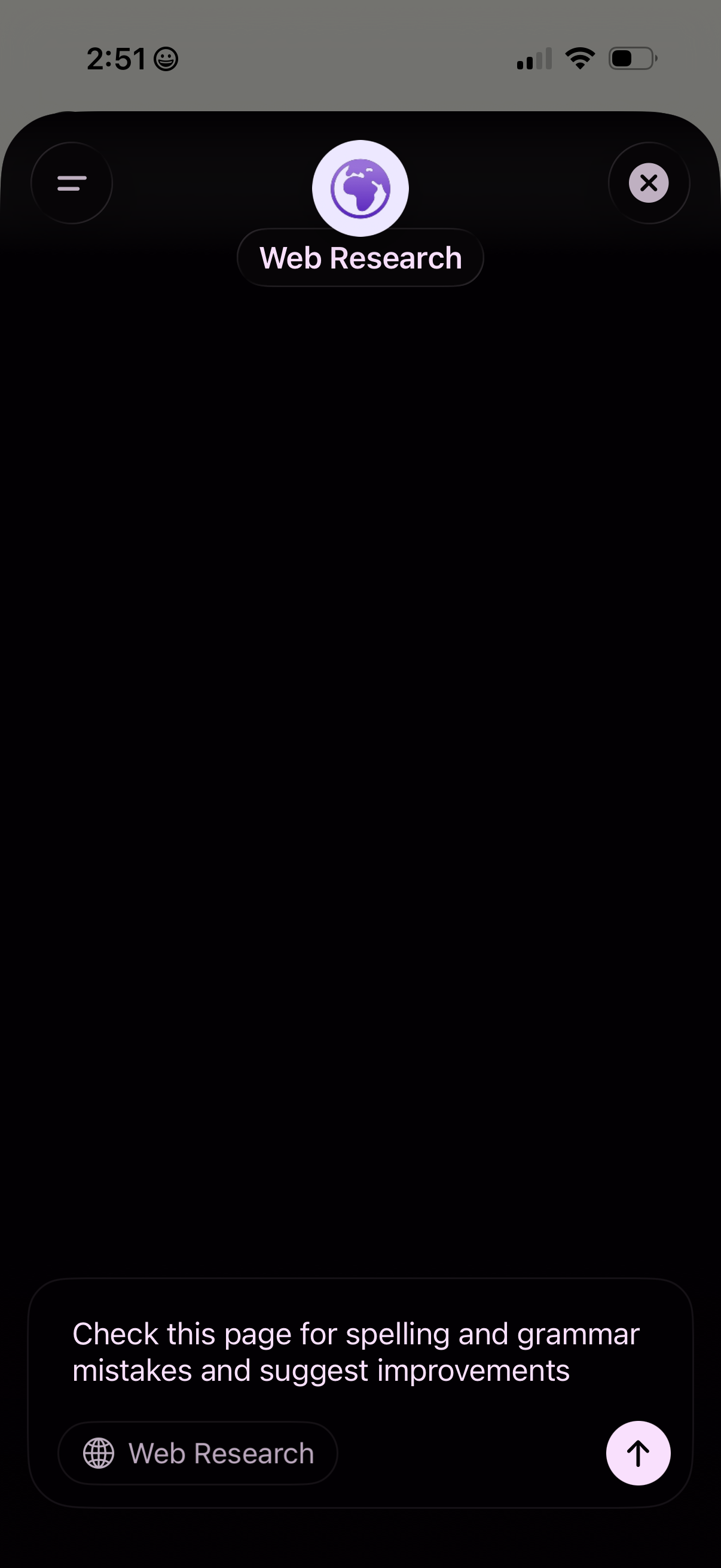
Dark-themed AI assistant web research screen with a “Web Research” mode header, hamburger menu, and close button. A bottom prompt composer lets users type a request (e.
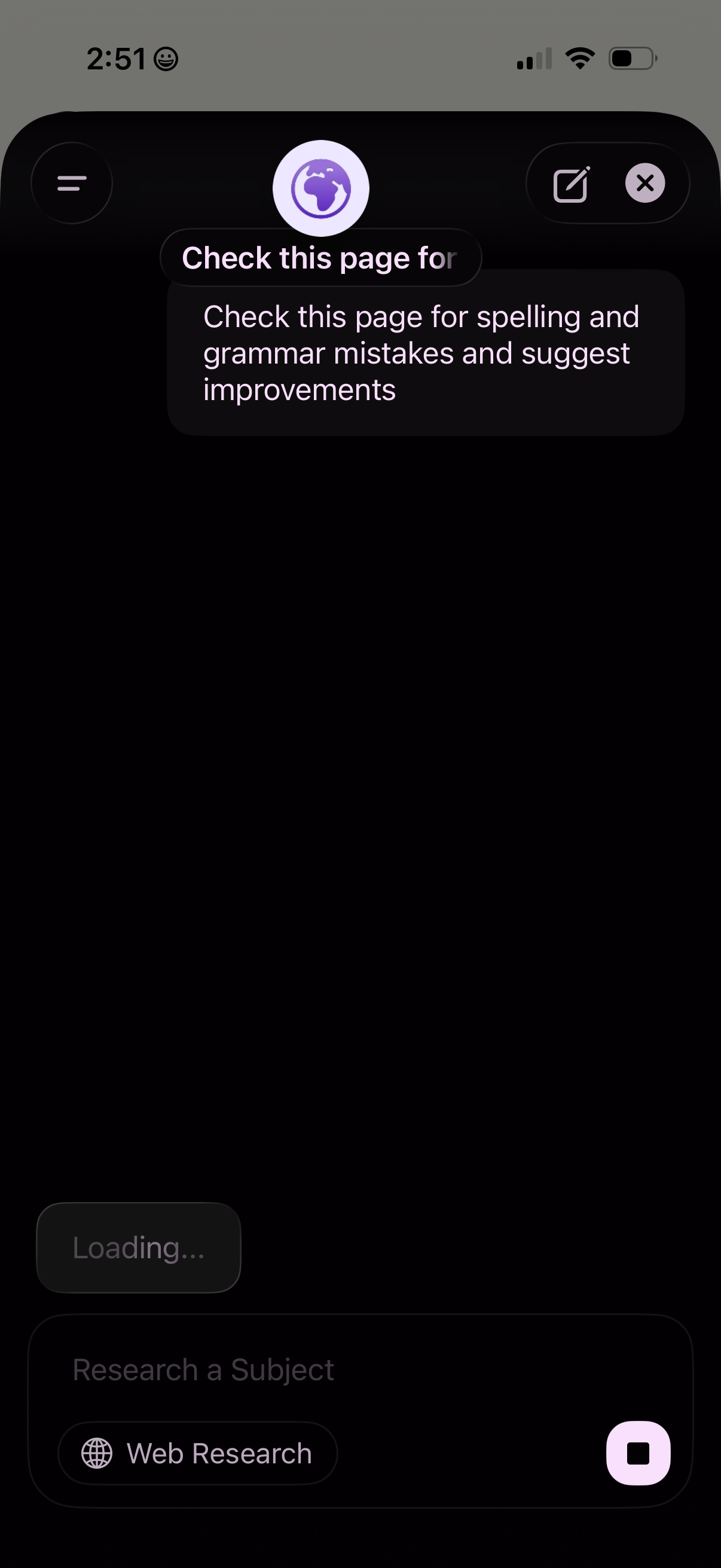
AI assistant overlay menu for a mobile browser or reading screen, offering a “Check this page for” tool to scan the current page for spelling and grammar mistakes and suggest improvements. Includes controls to start/stop the action, with additional options like web research, plus close and menu buttons.
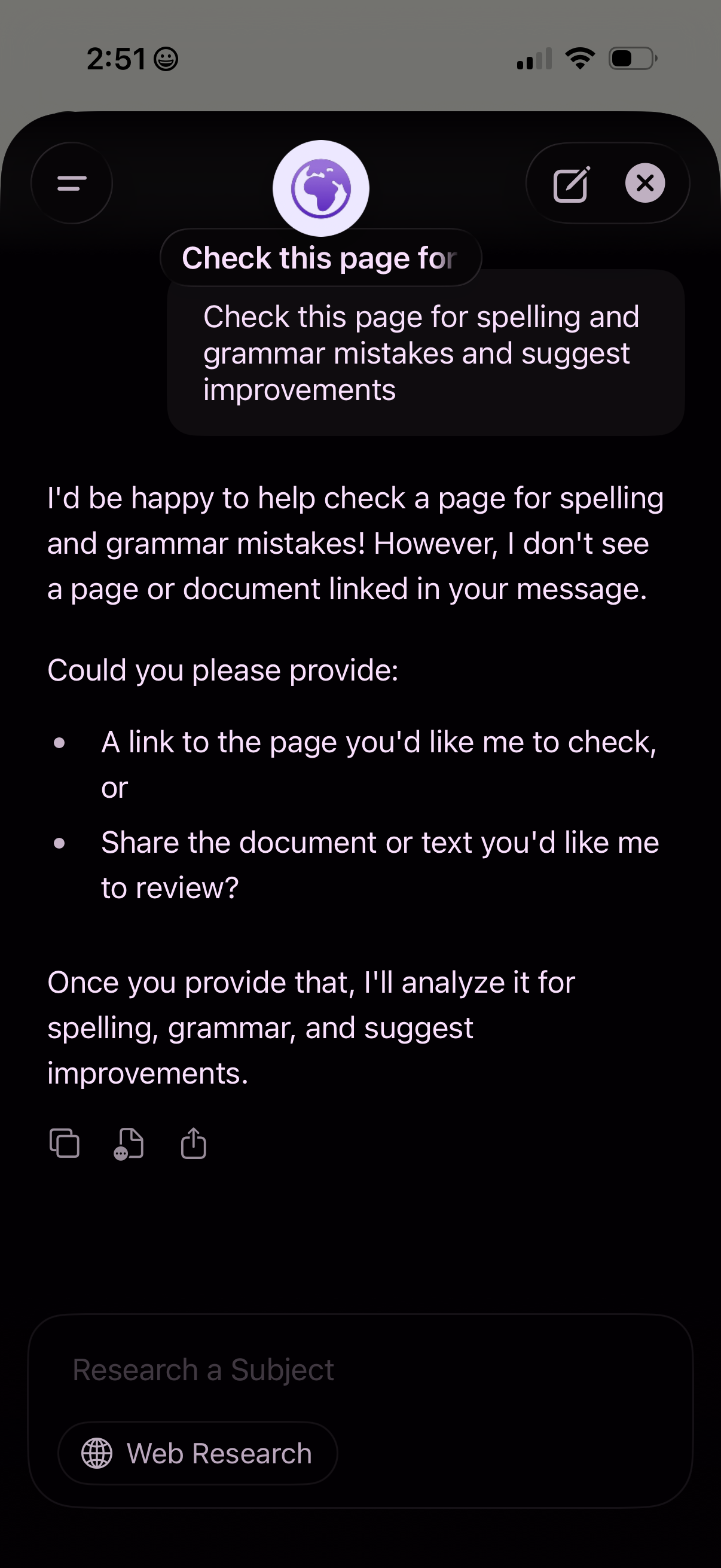
AI assistant chat screen for “Check this page for” spelling and grammar mistakes, responding that no page/link was provided and asking the user to share a URL, document, or text to review and suggest improvements. Includes navigation controls like menu, compose/edit, close, and message actions (copy/share).
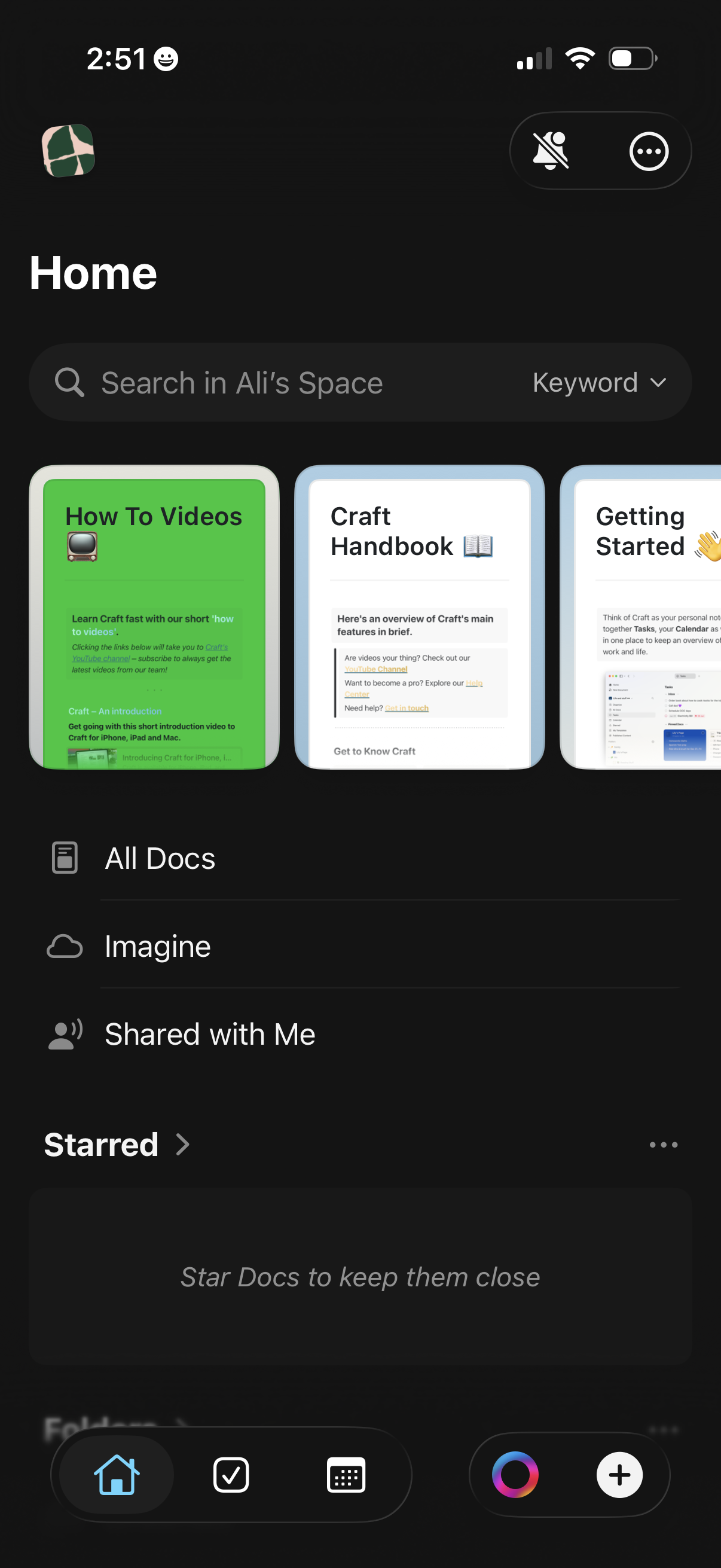
Home dashboard of a document/workspace app with a global search bar (keyword filter) and quick-access cards for getting started resources. Includes navigation to All Docs, an AI “Imagine” tool, and “Shared with Me,” plus a Starred section for favorited documents.