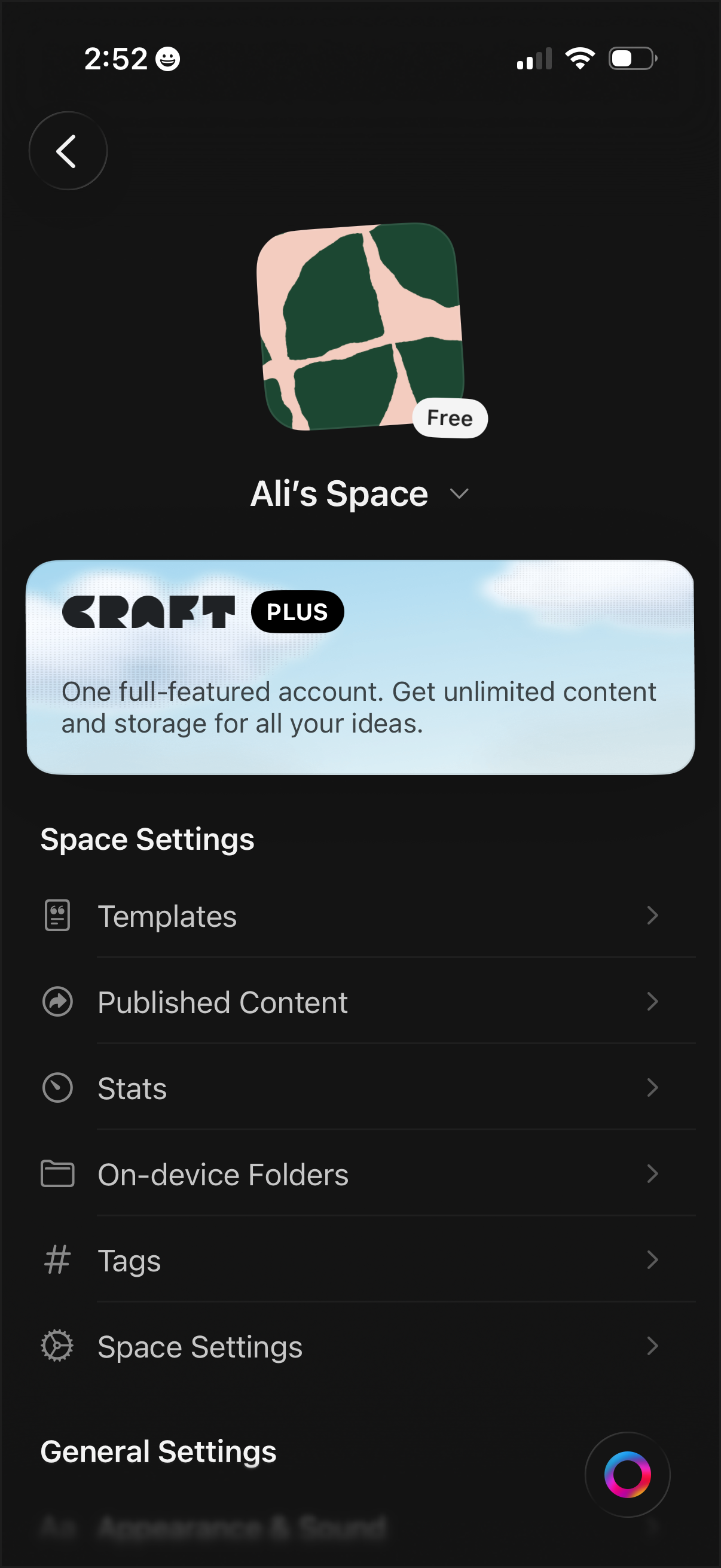
Workspace/space settings screen for a notes or document app showing the current space name, icon, and plan status, with an upsell banner for a premium subscription. Provides navigation to manage templates, published content, stats, on-device folders, tags, and additional space/general settings.
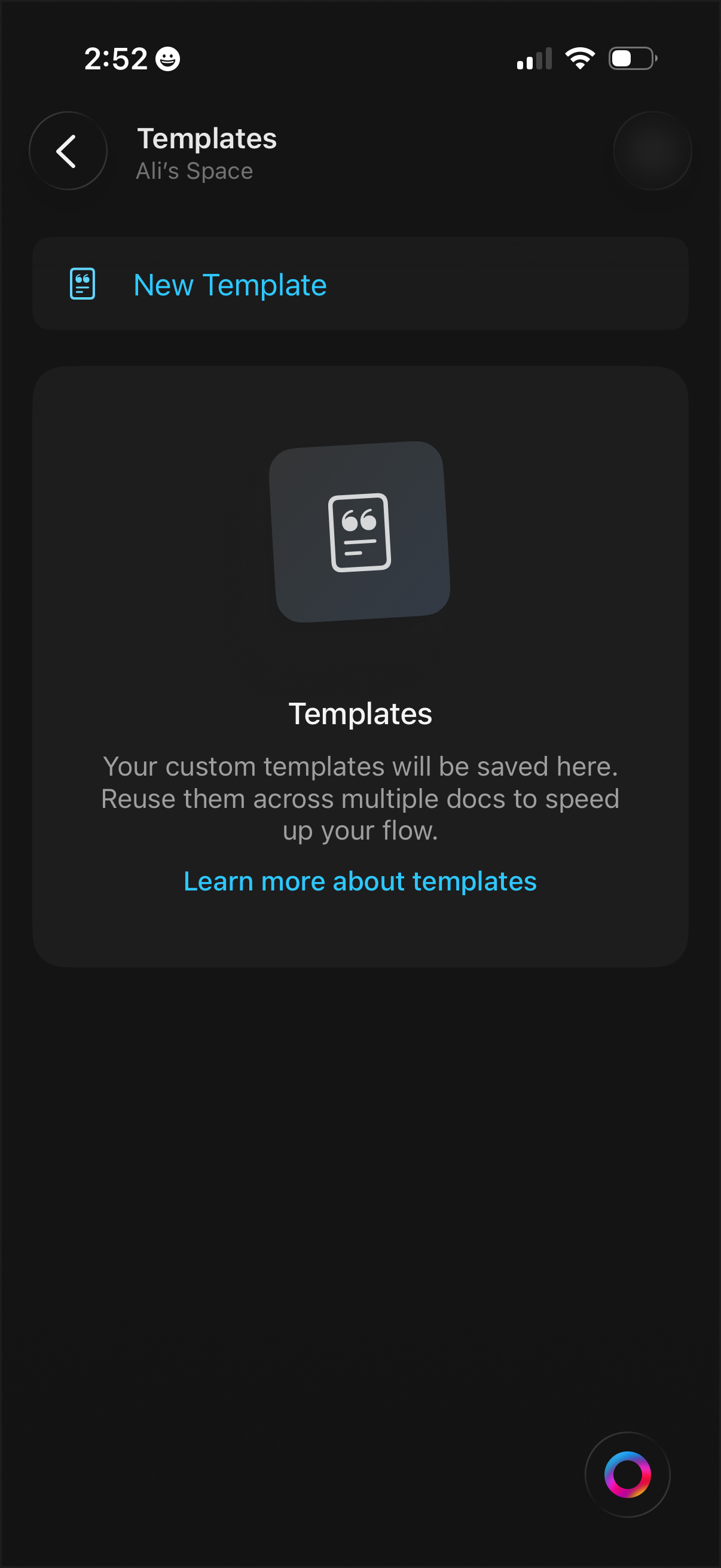
Templates management screen in a productivity/workspace app showing an empty state with explanation of reusable custom templates. Primary actions include creating a New Template and opening a “Learn more about templates” help link, with back navigation.
Dark-mode note editor screen for creating or renaming a page, with a single text field to enter the page title. Includes a back button to cancel and a prominent checkmark action to save/confirm the new title while the keyboard is open.
Dark-themed note or document editor screen showing a title field and blank content area, with a back button and overflow menu in the header. Bottom toolbar provides actions like comment/feedback, formatting or paint tools, edit with pencil, color picker, and add/create via a plus button.
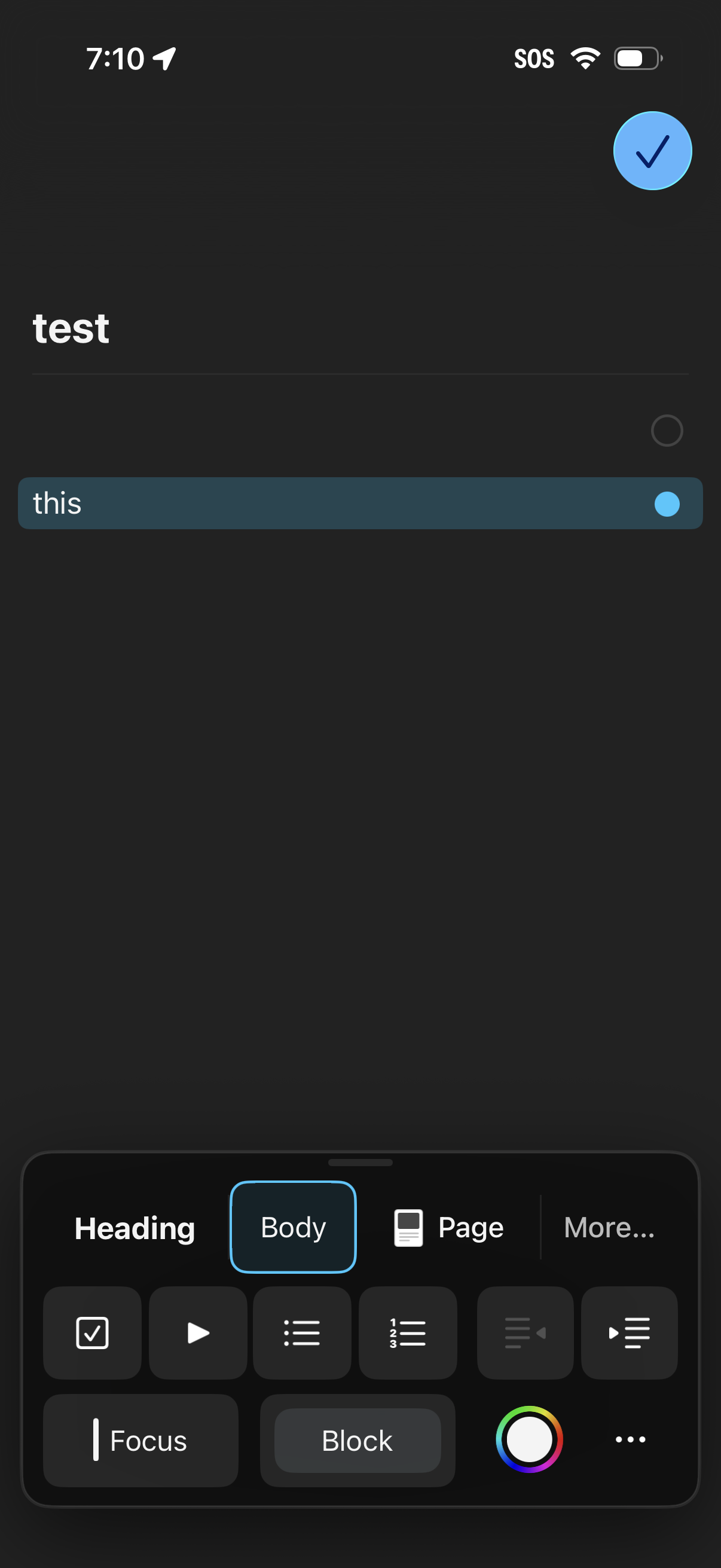
Dark-mode note editor screen for creating or editing a note with a title and body text field, featuring a top-right checkmark button to save/confirm changes. A formatting toolbar is open at the bottom with options for heading/body styles, lists, page settings, focus/block tools, and color or more formatting controls.
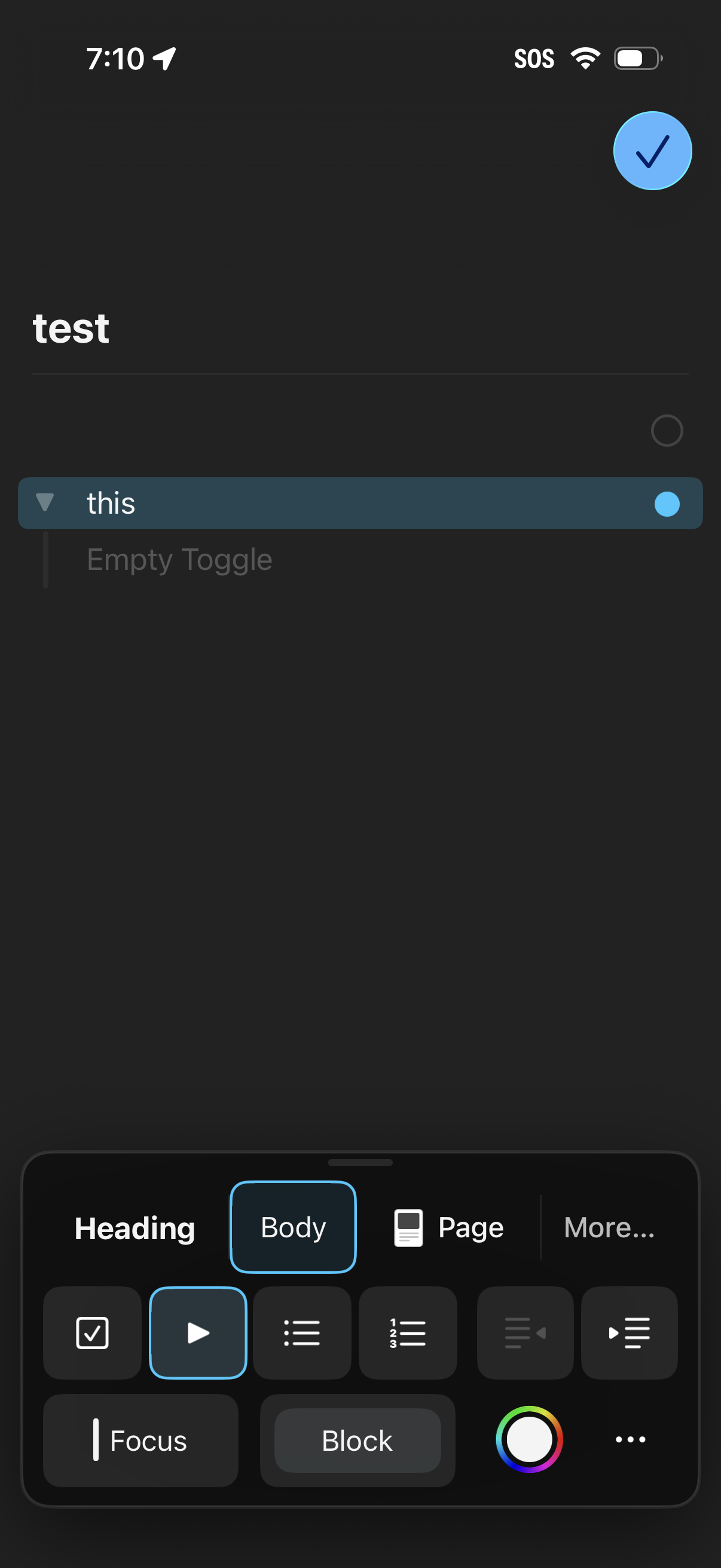
Dark-mode note editor for a page titled “test,” showing an editable list item with a toggle/checkbox and placeholder text, plus a floating checkmark button to confirm changes. A bottom formatting toolbar lets users switch between heading/body styles, add blocks like to-do/toggle/list, and access focus, block options, and color settings.
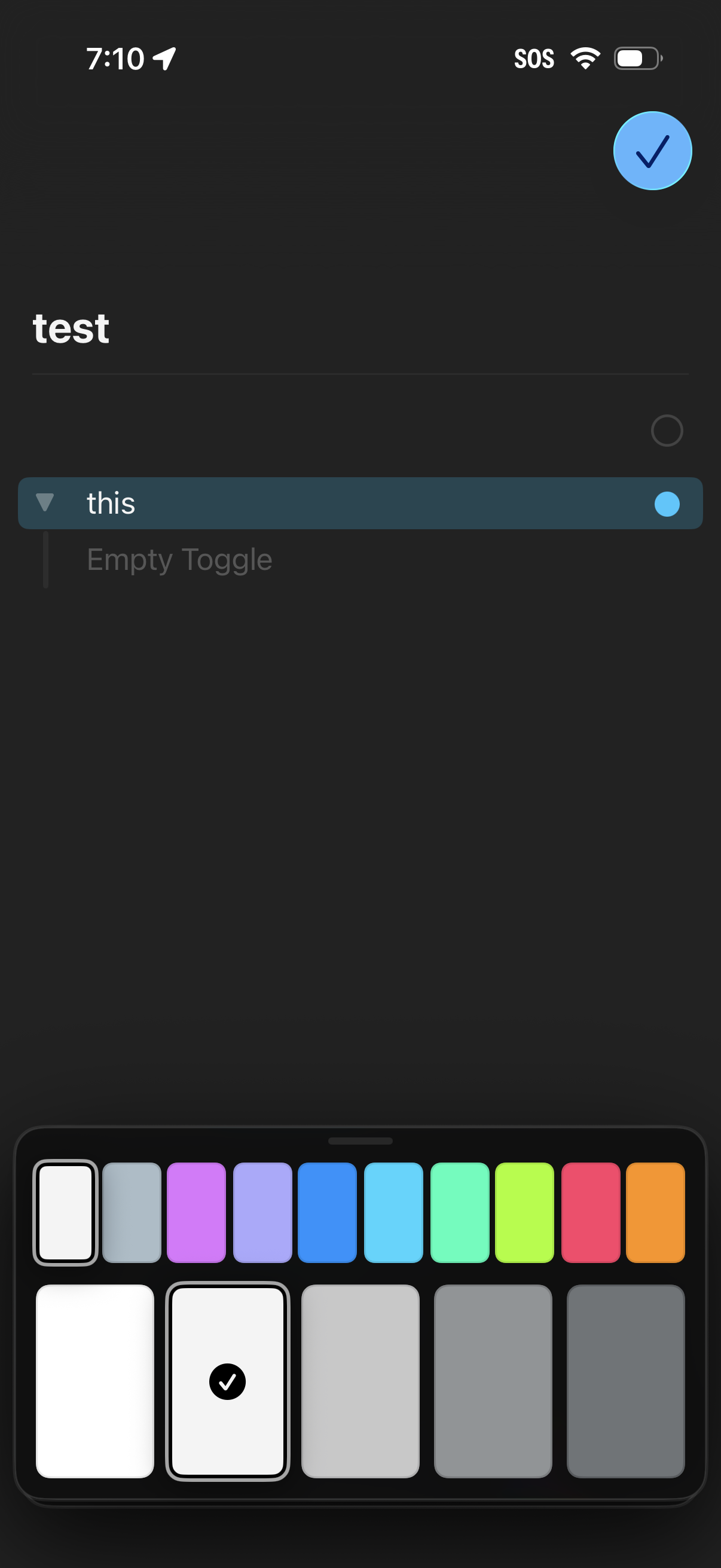
Dark-mode note or list item editor showing a title field and a highlighted row with a toggle/selection indicator and placeholder text. A color palette picker appears at the bottom to choose an accent or highlight color, with a checkmark button in the top-right to save/confirm changes.
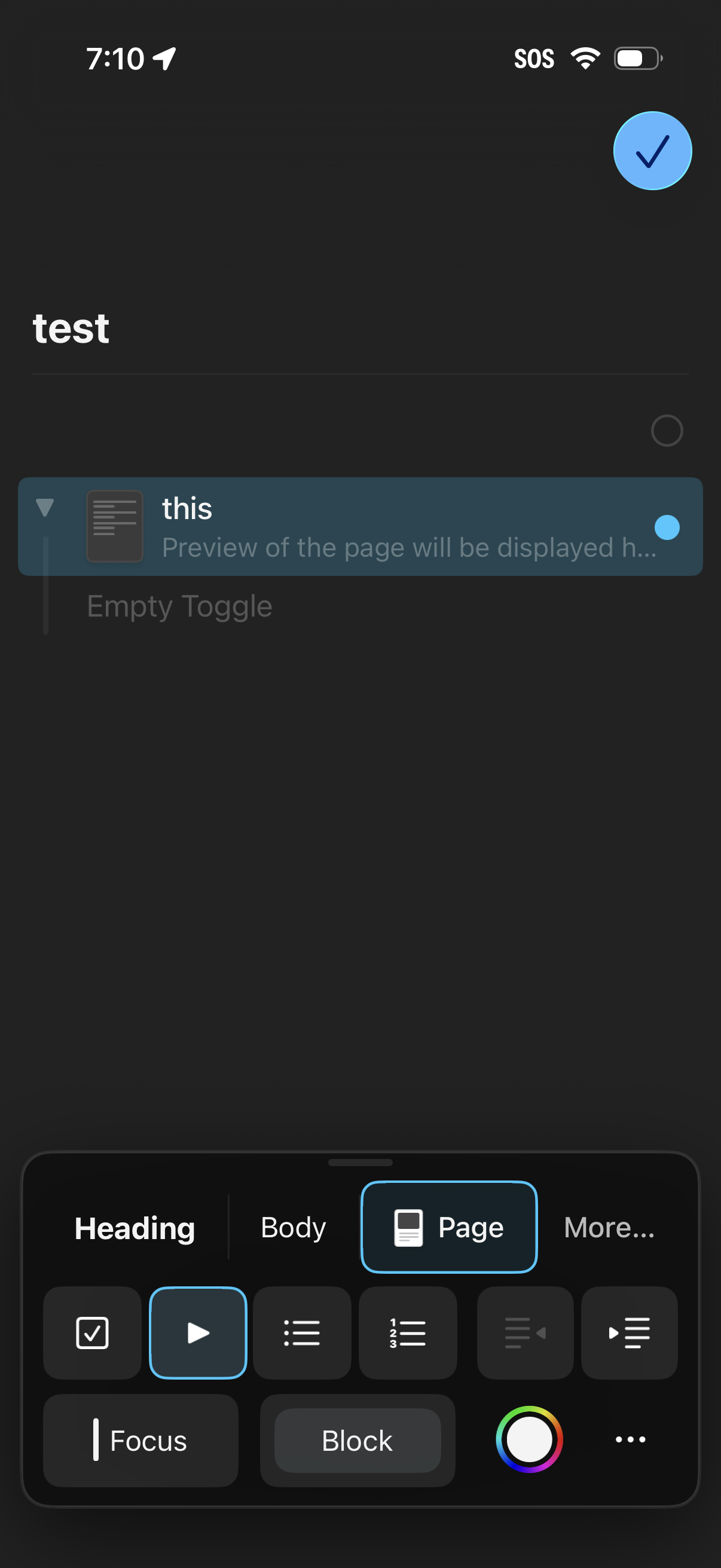
Mobile note editor screen for creating or editing a page with a title and selected block, featuring a bottom formatting toolbar with tabs for Heading, Body, Page, and More plus block type controls (toggle, list, focus/block). A floating checkmark action confirms and saves the changes.
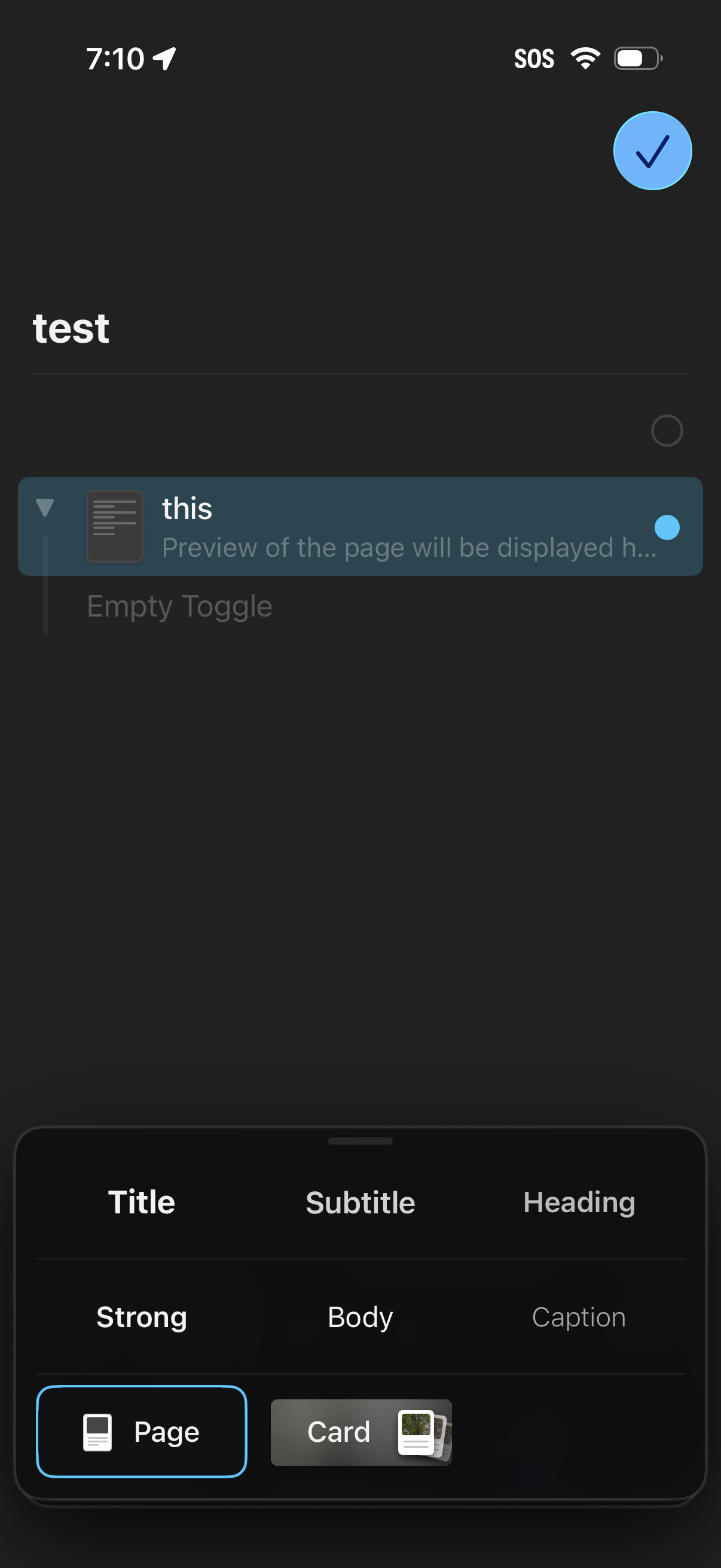
Mobile note or document editor in dark mode showing a page titled “test” with a selected content block, preview snippet, and an “Empty Toggle” option. A floating checkmark confirms changes, while a bottom formatting palette lets users choose typography styles (title, subtitle, heading, body, caption) and switch block type between Page and Card.
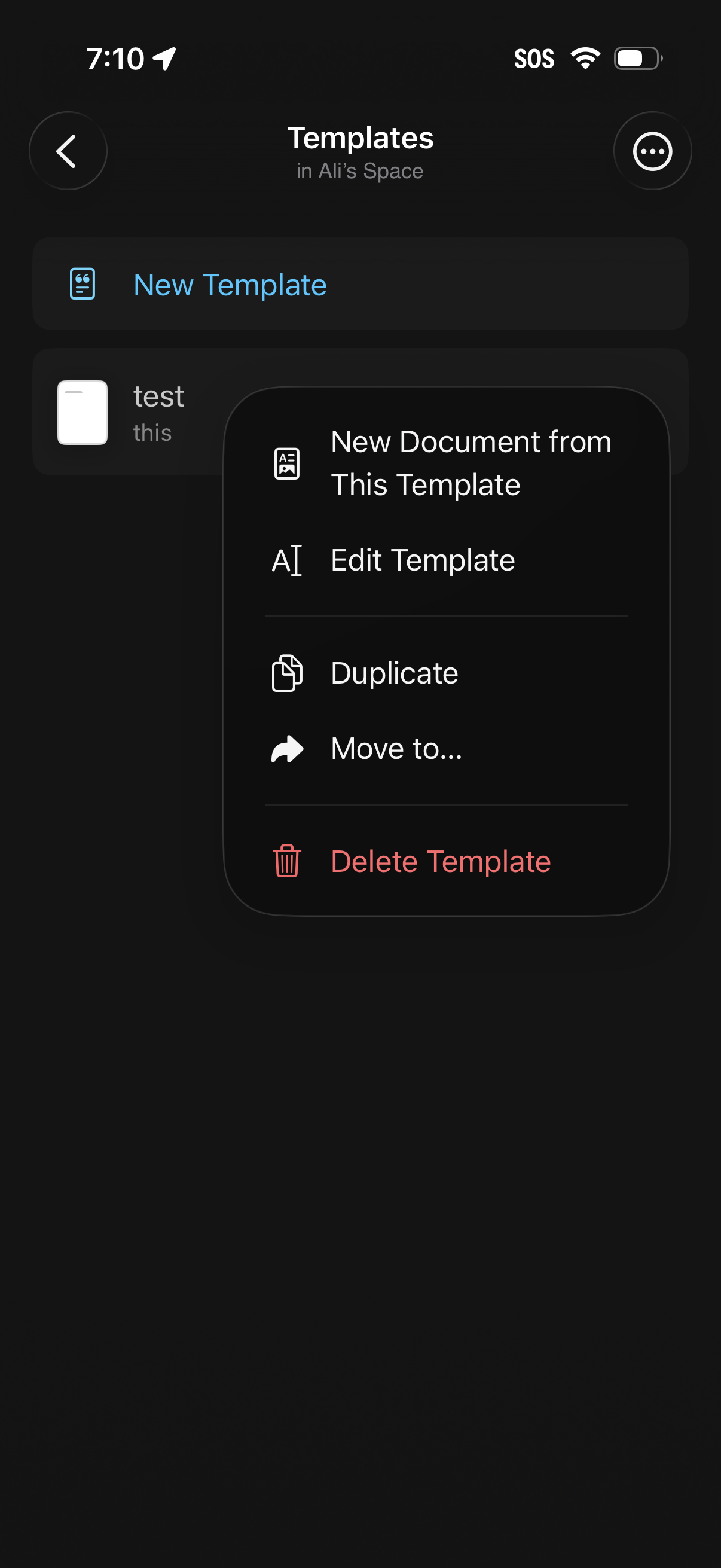
Templates library screen showing a list of document templates with a primary action to create a new template. A template overflow/context menu is open with actions to create a new document from the template, edit, duplicate, move to another location, or delete.