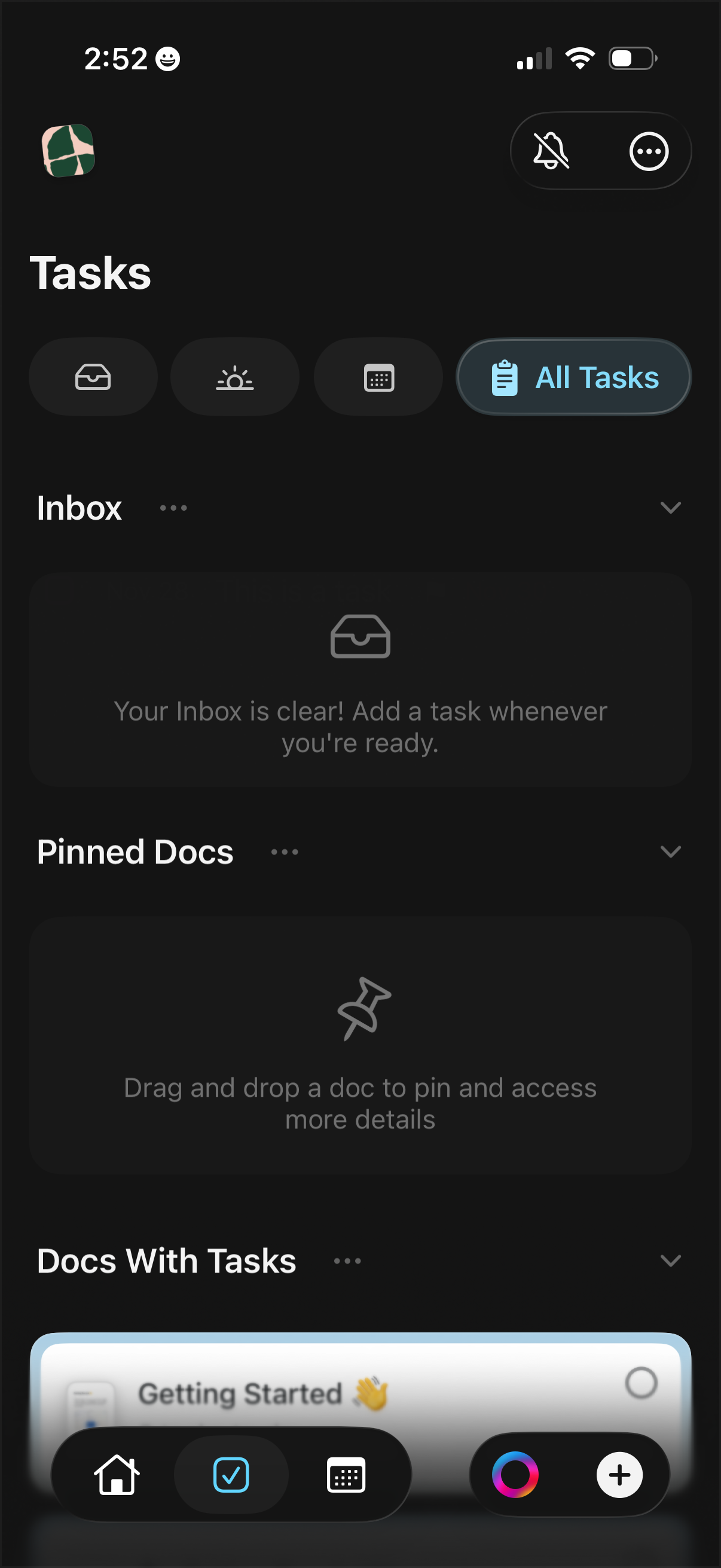
Task management home screen showing task filters and an “All Tasks” toggle, with sections for Inbox, Pinned Docs, and Docs With Tasks that can be expanded or managed via overflow menus. Includes empty states prompting the user to add tasks or drag and drop documents to pin for quick access.
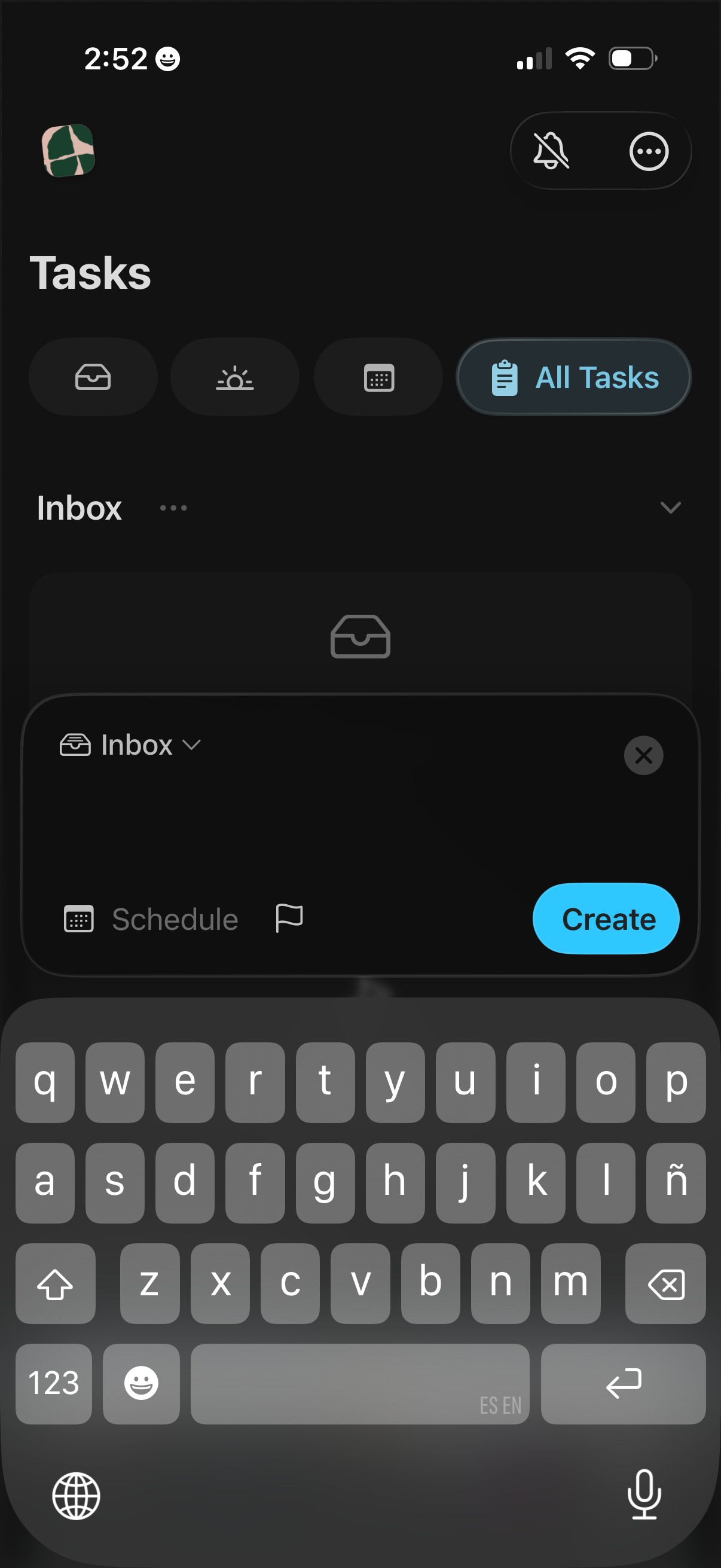
Dark-mode task manager “Tasks” screen showing an Inbox list with filter tabs (including All Tasks) and quick controls, plus a bottom-sheet composer to add a new task to a selected list with options like schedule/date and priority flag and a prominent Create button. The screen also includes notification/more menus and uses the keyboard for task entry.
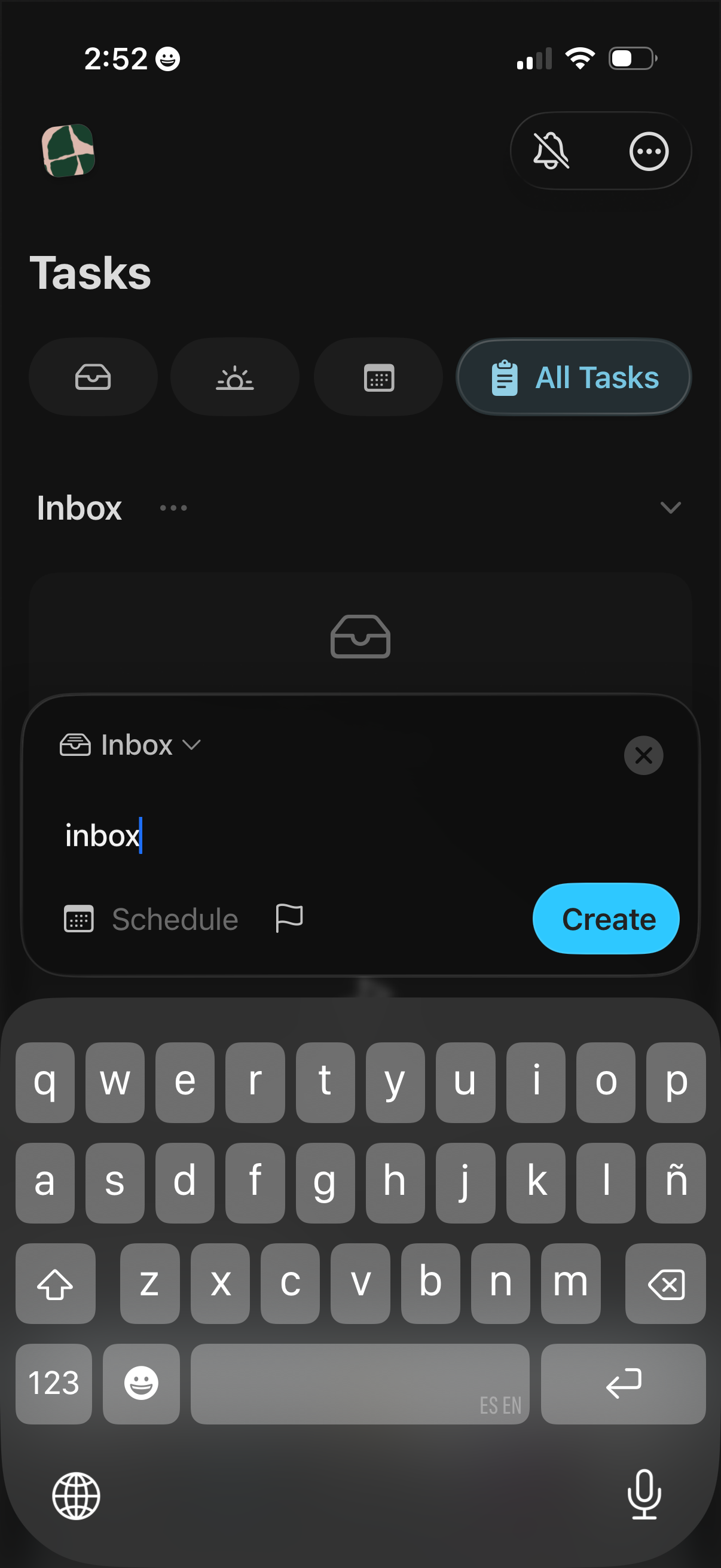
Task manager “Tasks” screen in dark mode showing an Inbox task list and filter chips including an “All Tasks” view. A bottom-sheet creation form lets the user type a new task, choose the list, set a schedule and flag/priority, then tap Create.
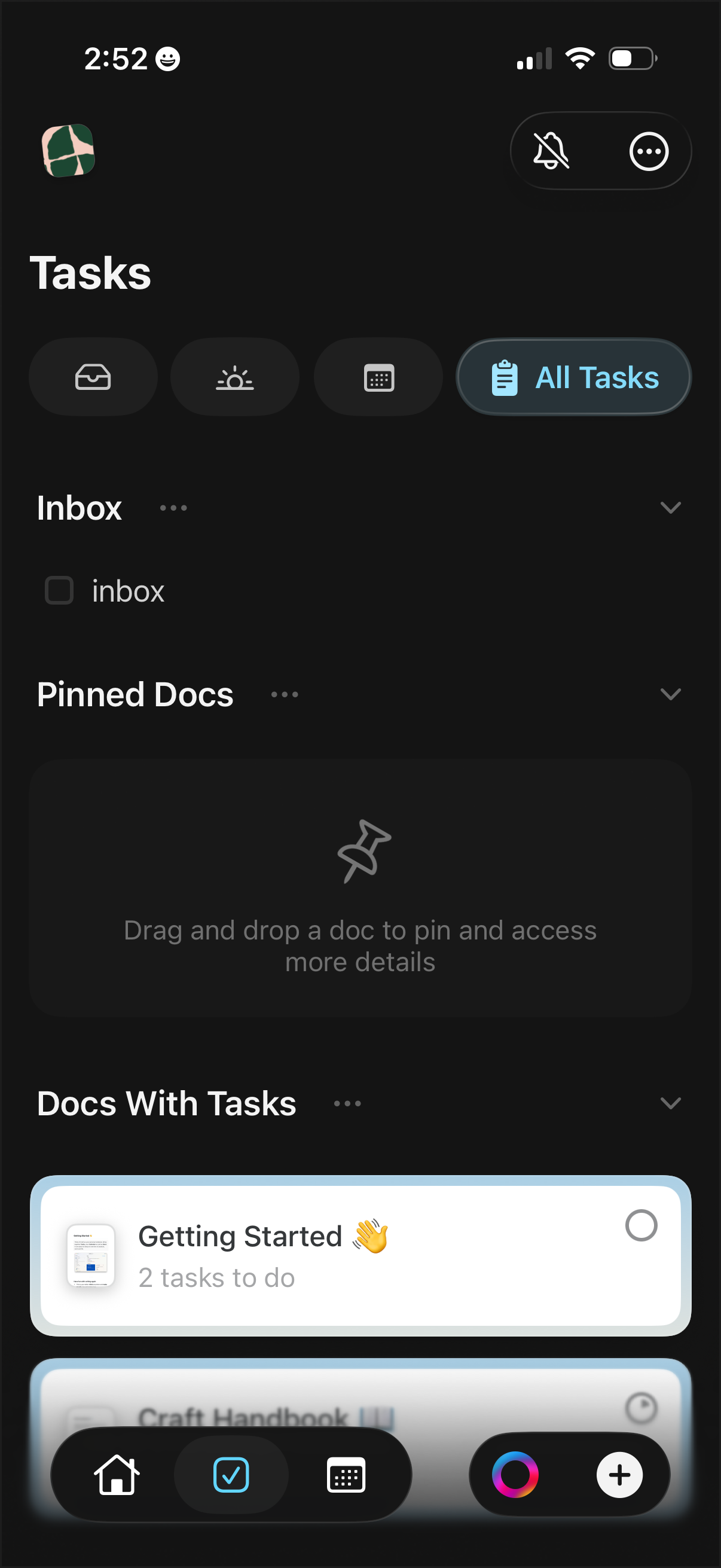
Task management home screen showing an “All Tasks” view with filters and sections for Inbox, Pinned Docs, and Docs With Tasks. Users can expand sections, pin documents via drag-and-drop, and view task lists grouped by document with remaining task counts and completion checkboxes, plus quick actions to add new items.
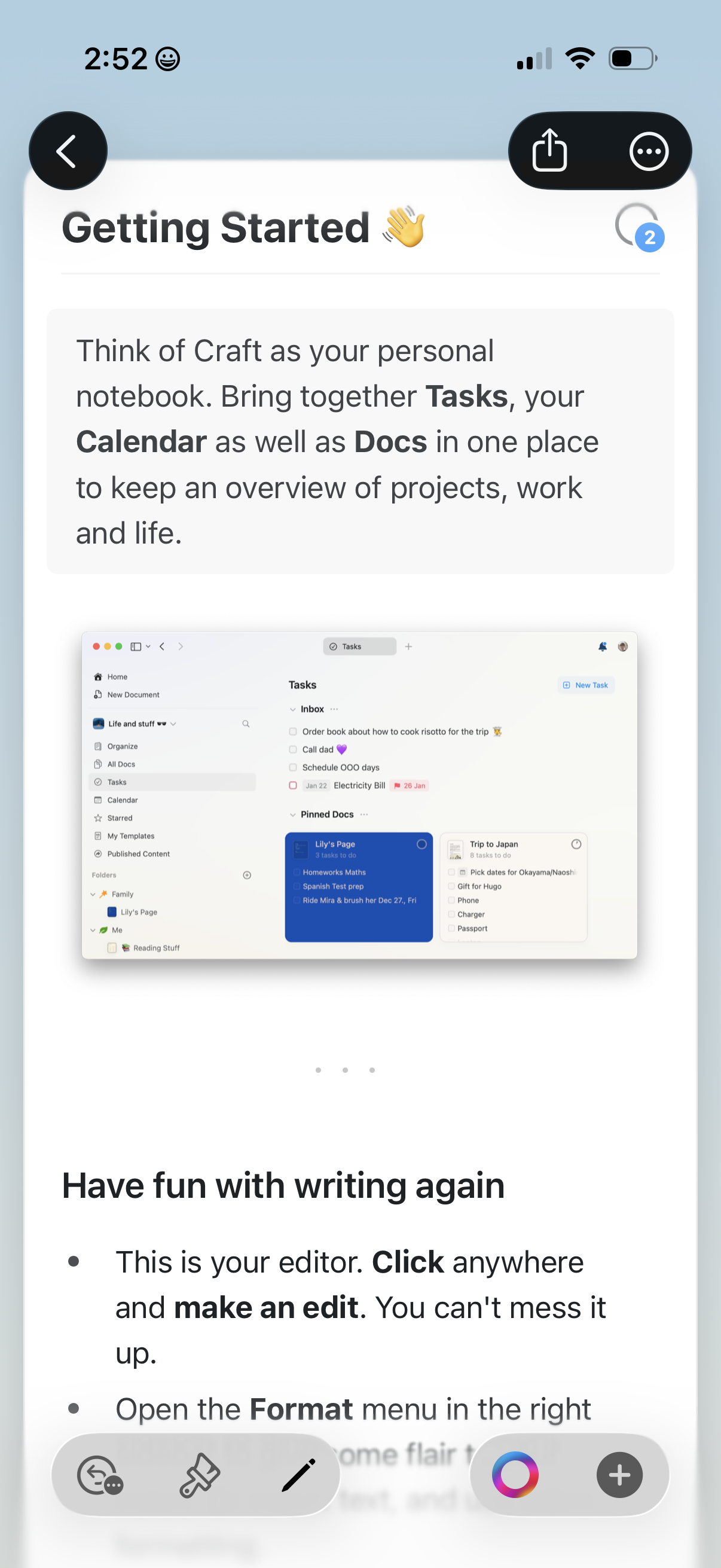
Getting Started onboarding/help document for a note-taking and productivity app, explaining how to use the personal notebook to combine tasks, calendar, and docs with an overview screenshot. The screen includes back navigation and share/menu actions and continues with editor tips encouraging users to click to edit and explore formatting.