Apple Sign-In

Onboarding welcome screen for a personal finance app with a “Let’s Do Money Better” headline and illustration background, prompting account creation. Primary actions include signing up with Apple or email, plus a link to log in for existing users.
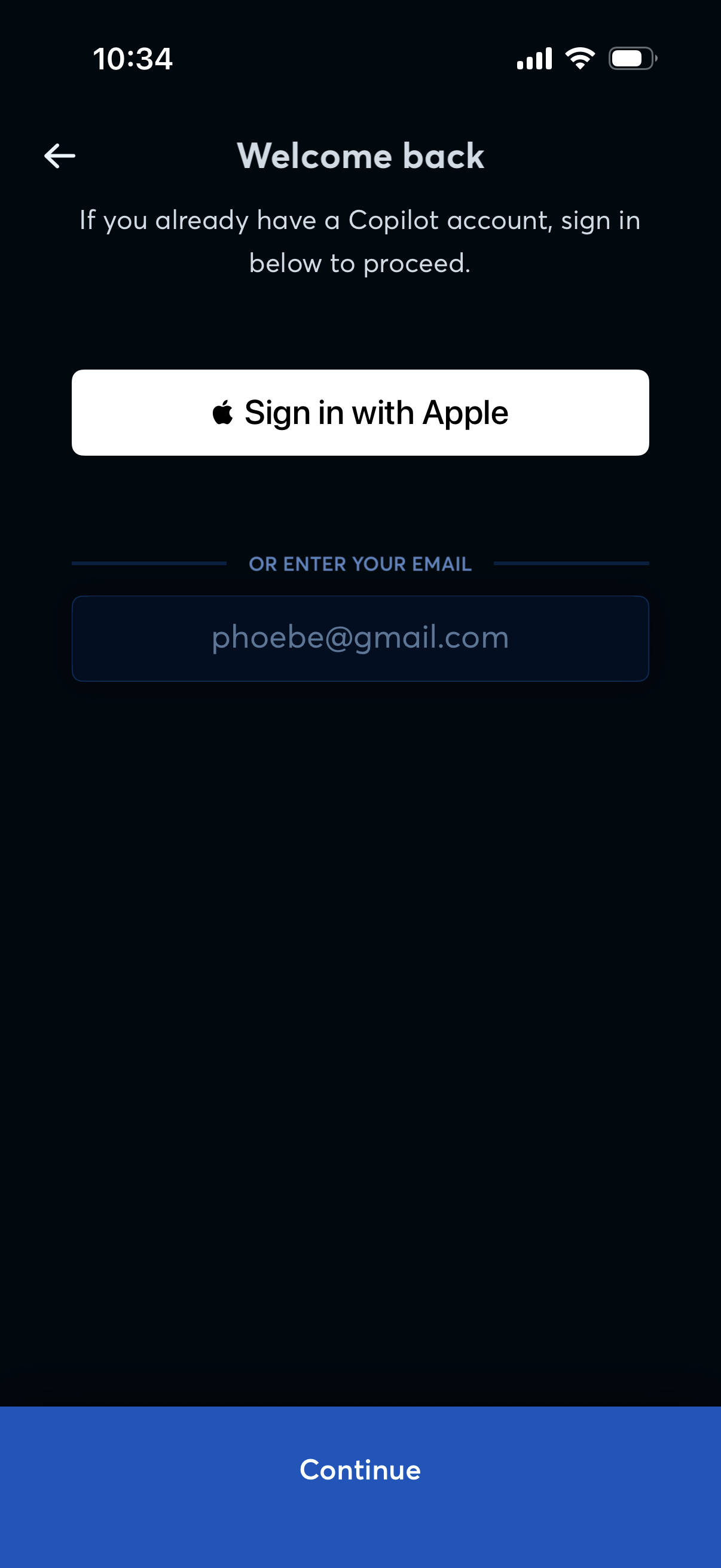
Welcome back sign-in screen offering authentication via “Sign in with Apple” or by entering an email address, with a primary Continue button to proceed and a back navigation icon.
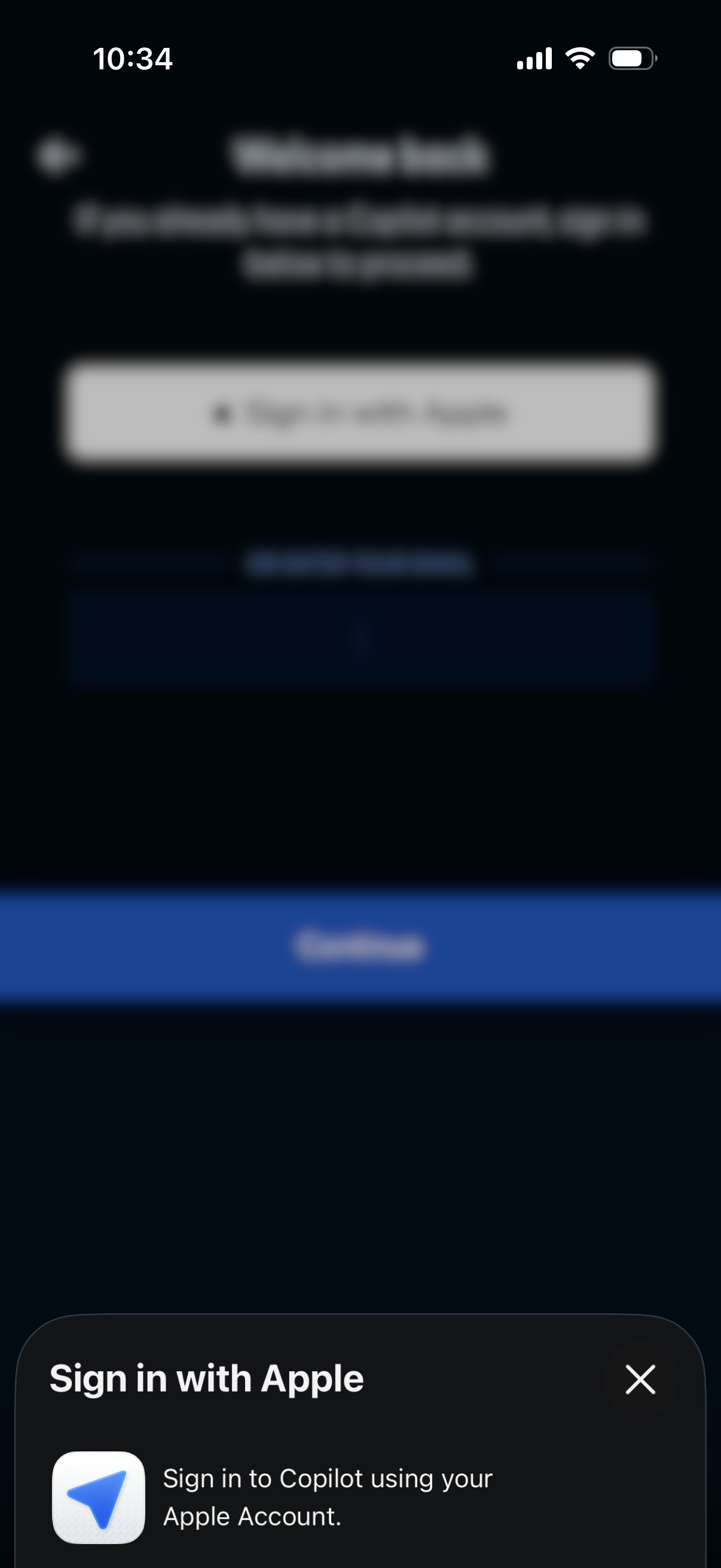
Login screen for signing into a Copilot account using Apple, featuring a “Sign in with Apple” bottom sheet prompt and a primary Continue button to proceed with the Apple authentication flow. Includes a back navigation option and emphasizes using an existing account to access the app.
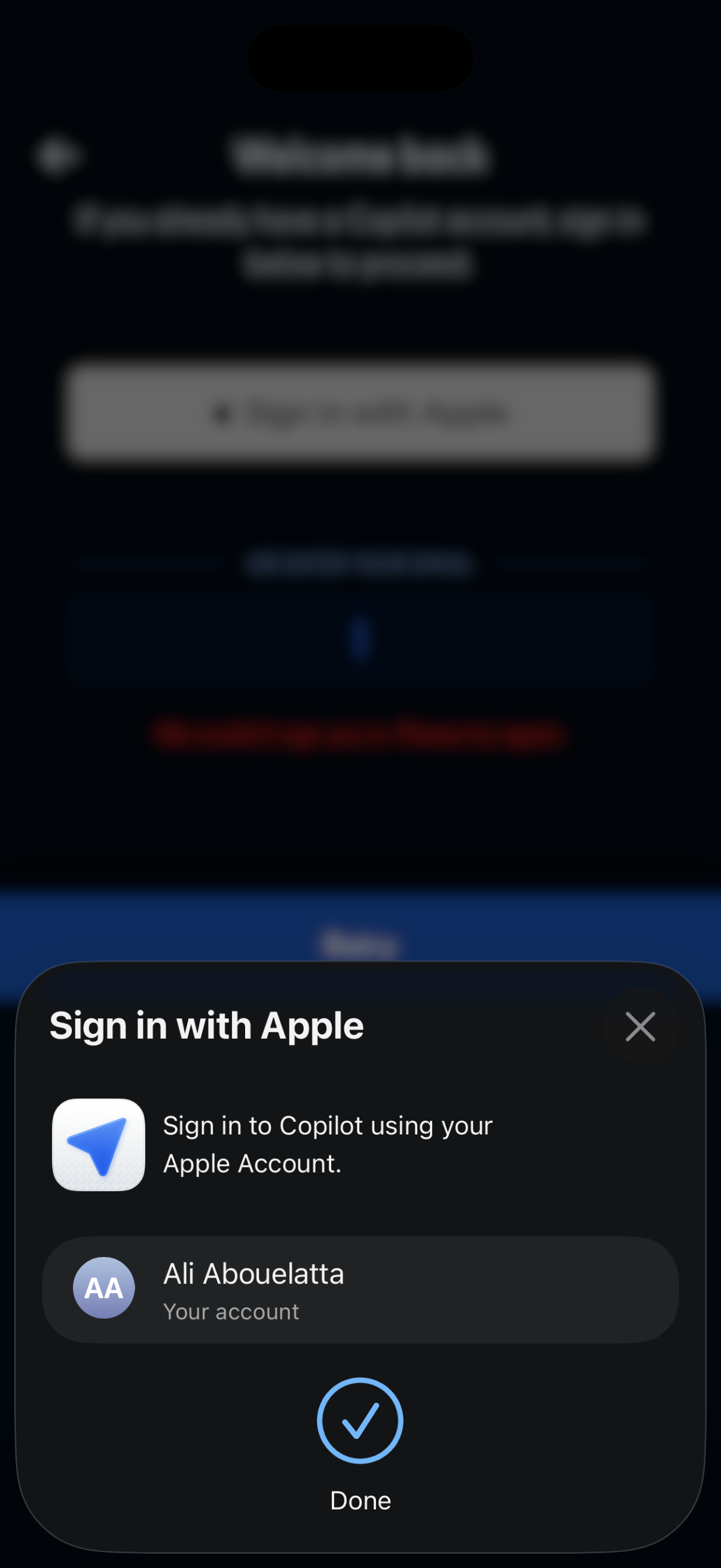
A native iOS “Sign in with Apple” modal sheet used to authenticate and connect an app account, showing the selected Apple account and a close button. The primary action is confirming the sign-in by tapping Done.
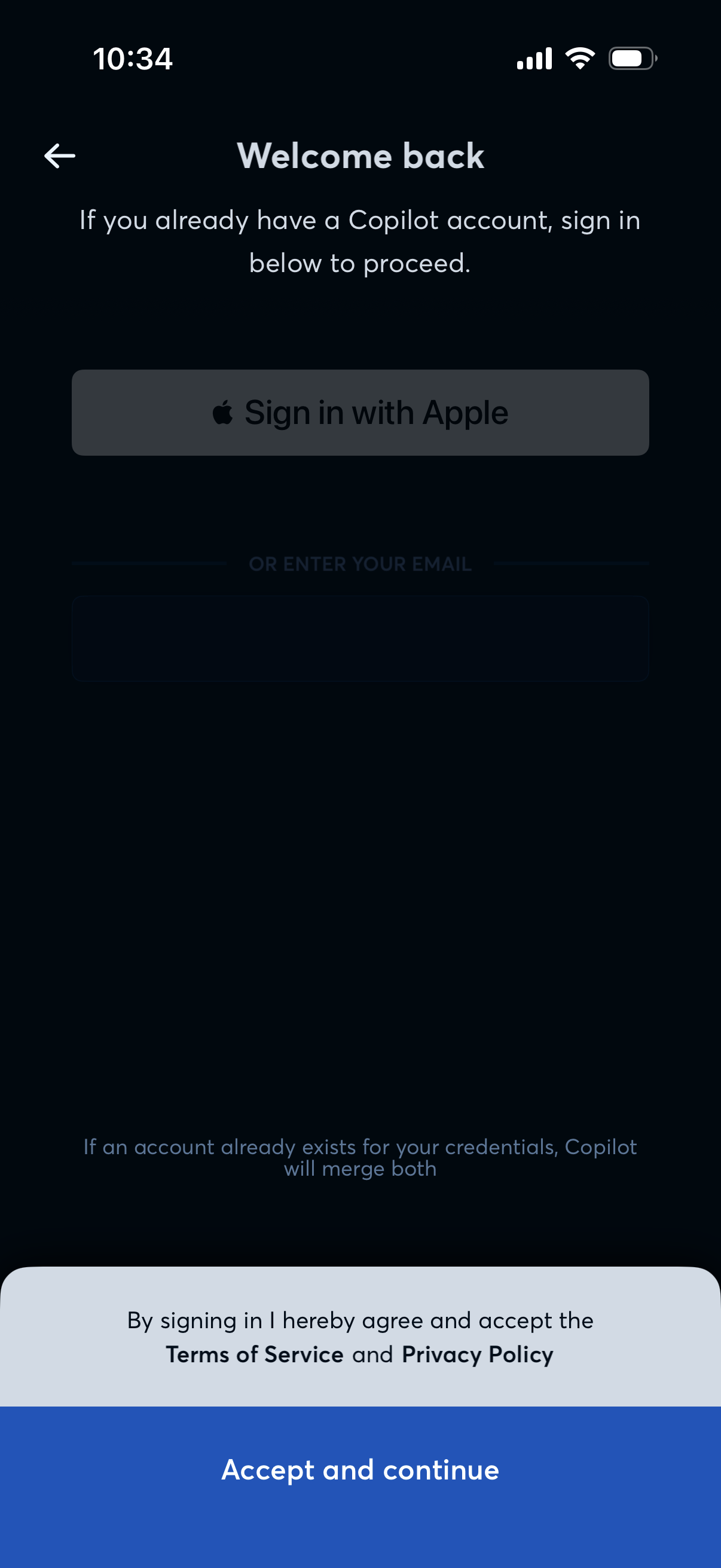
Mobile app welcome back login screen offering sign-in with Apple or by entering an email, with a note about merging existing credentials. A persistent bottom sheet asks the user to accept Terms of Service and Privacy Policy and provides an “Accept and continue” primary action.
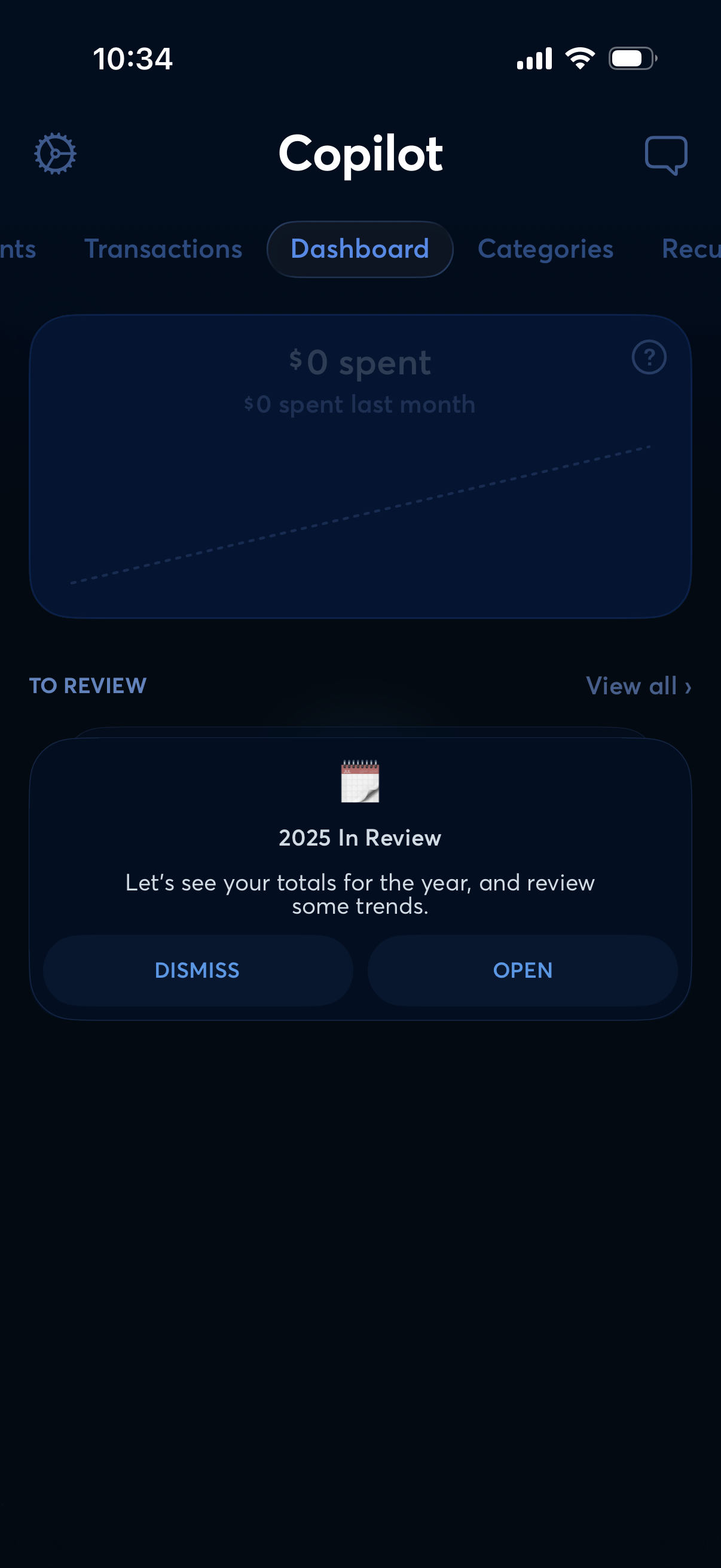
Personal finance app dashboard with tabs for Transactions, Dashboard, and Categories, showing a spending summary card with monthly spend trend. Includes a “To review” section featuring an annual “In Review” report prompt with actions to open or dismiss and a link to view all reviews.
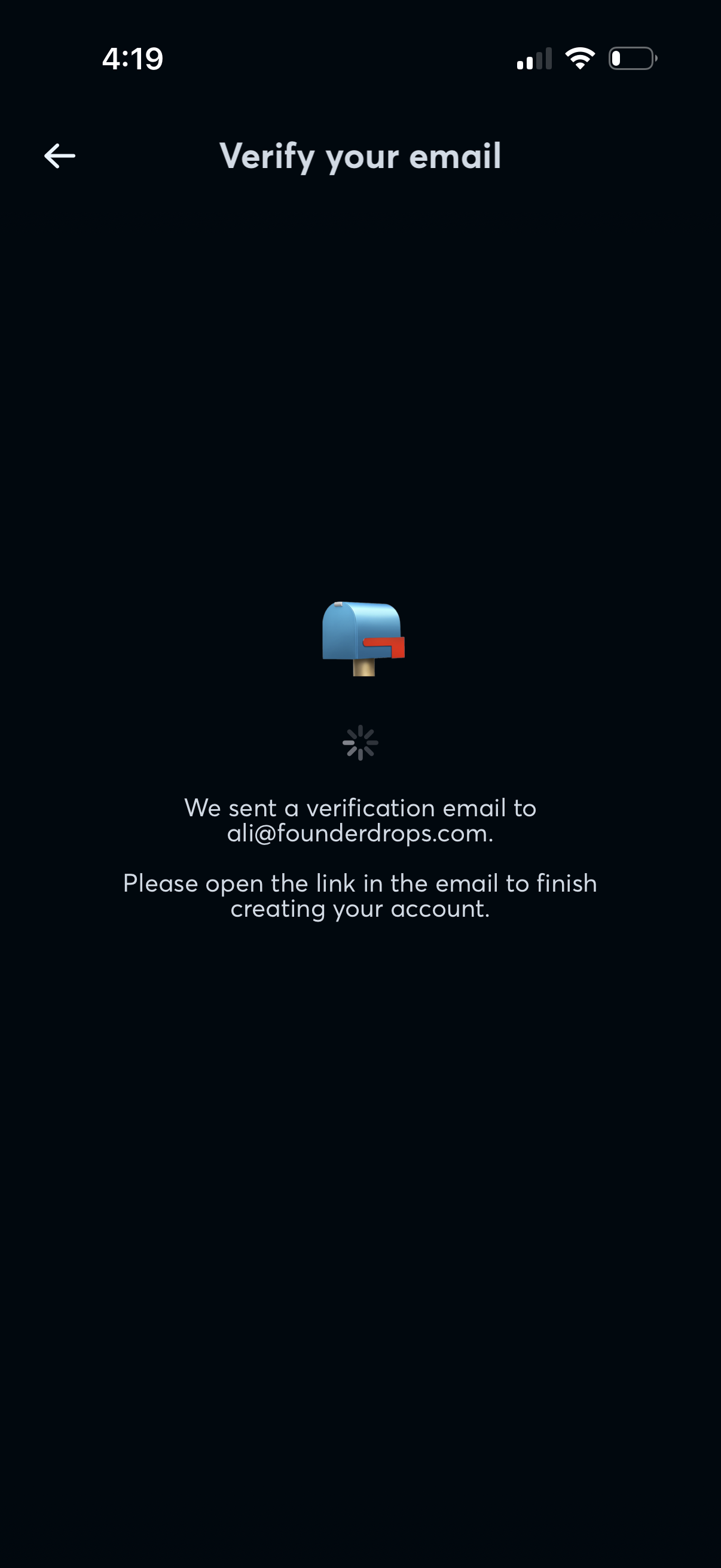
Email verification waiting screen during sign-up, confirming that a verification email was sent and instructing the user to open the link in their inbox to finish creating the account. Includes a back navigation arrow and a loading/processing indicator while awaiting confirmation.
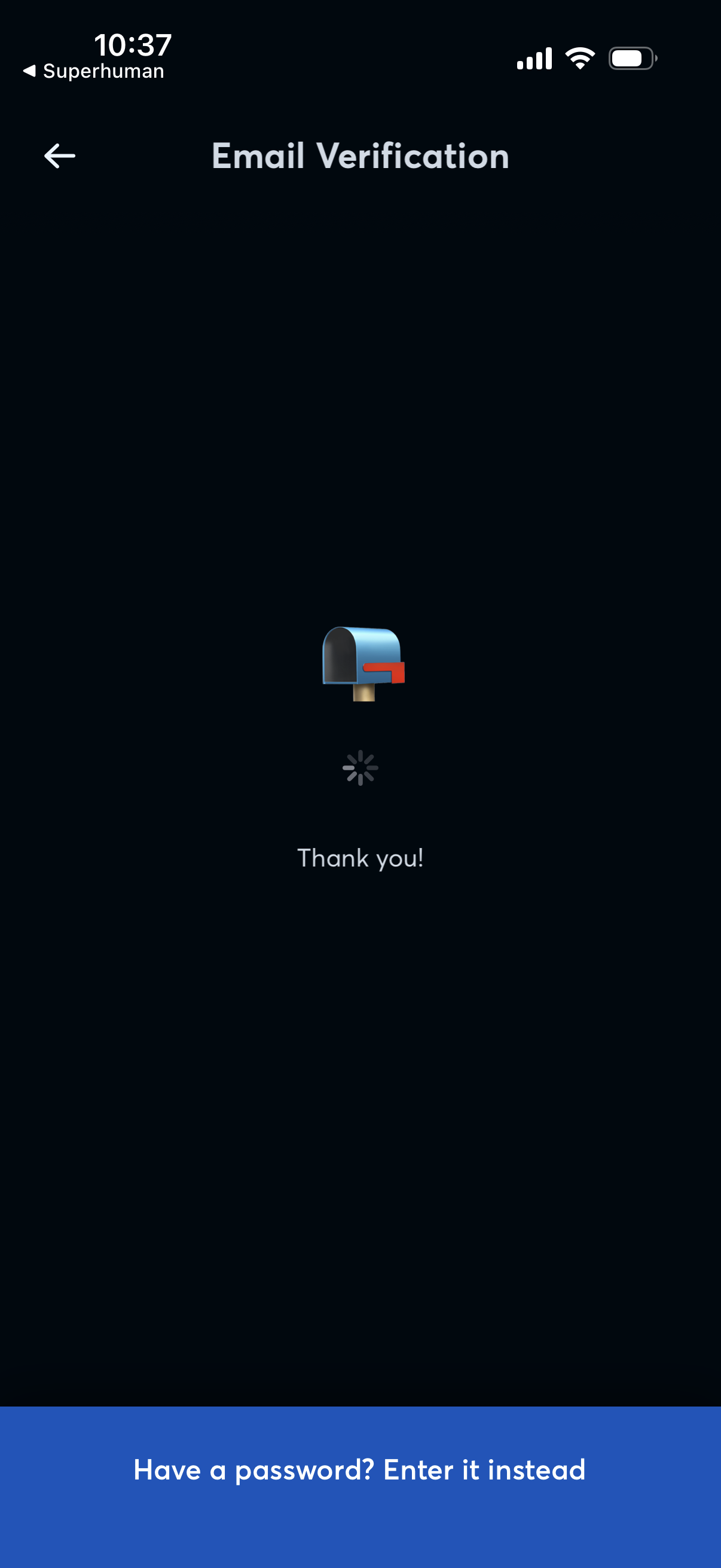
Email verification loading screen showing a confirmation message (“Thank you! ”) with a spinner while the app verifies the user’s email.
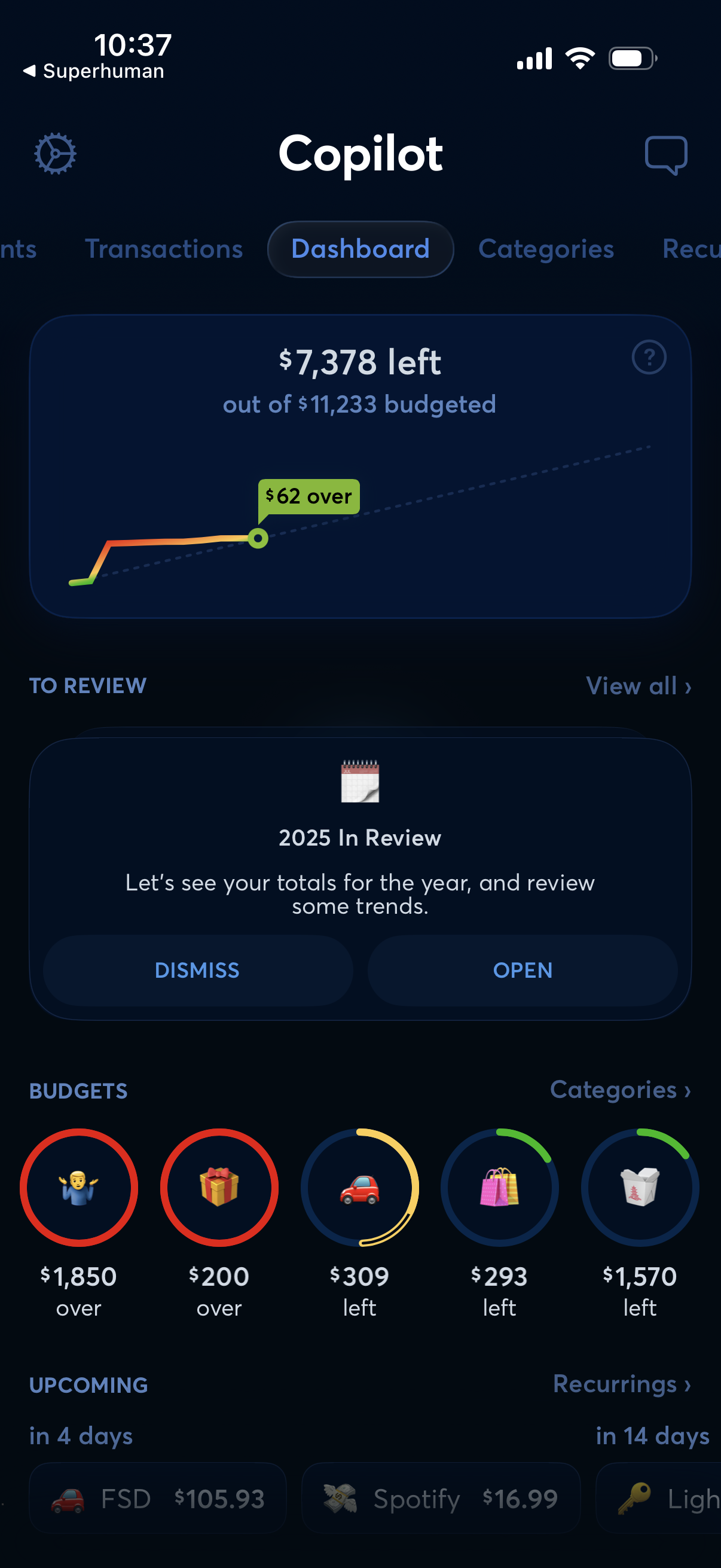
Personal finance budgeting dashboard showing remaining budget versus total budgeted with a spending progress chart and over/under indicator, plus shortcuts to review annual trends and view budget status by category. The screen includes navigation tabs for transactions, categories, and recurring payments, and highlights upcoming and recurring charges.