Sign up
Branded welcome/splash screen for a bike-share app (Citi Bike powered by Lyft) featuring a full-screen hero image and logo overlay. A primary “Let’s go” button prompts the user to begin onboarding or enter the app.
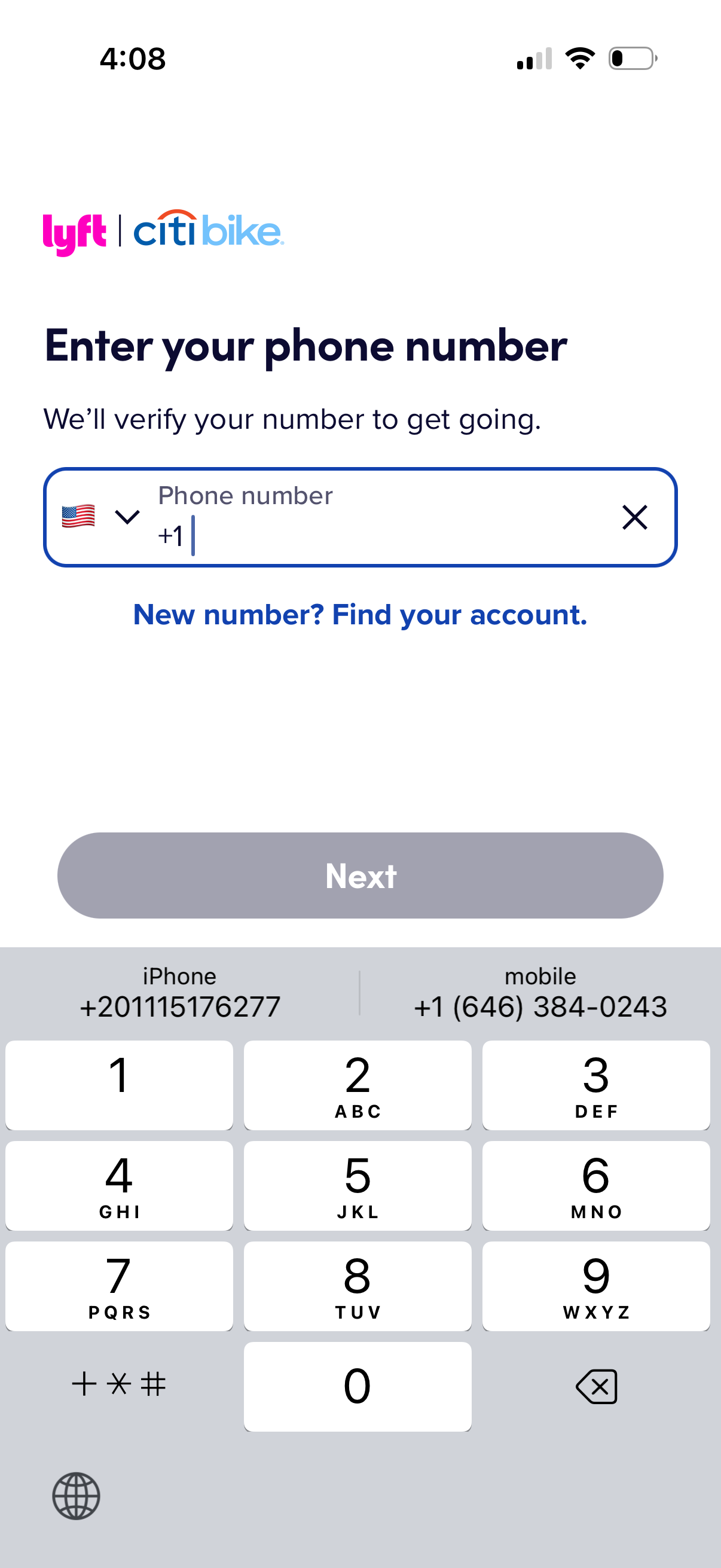
Phone number login/sign-up screen for account verification, featuring a country code selector and phone number input field with clear button. Includes a “Next” CTA (disabled until a valid number is entered) and a link to recover an account for users with a new number.
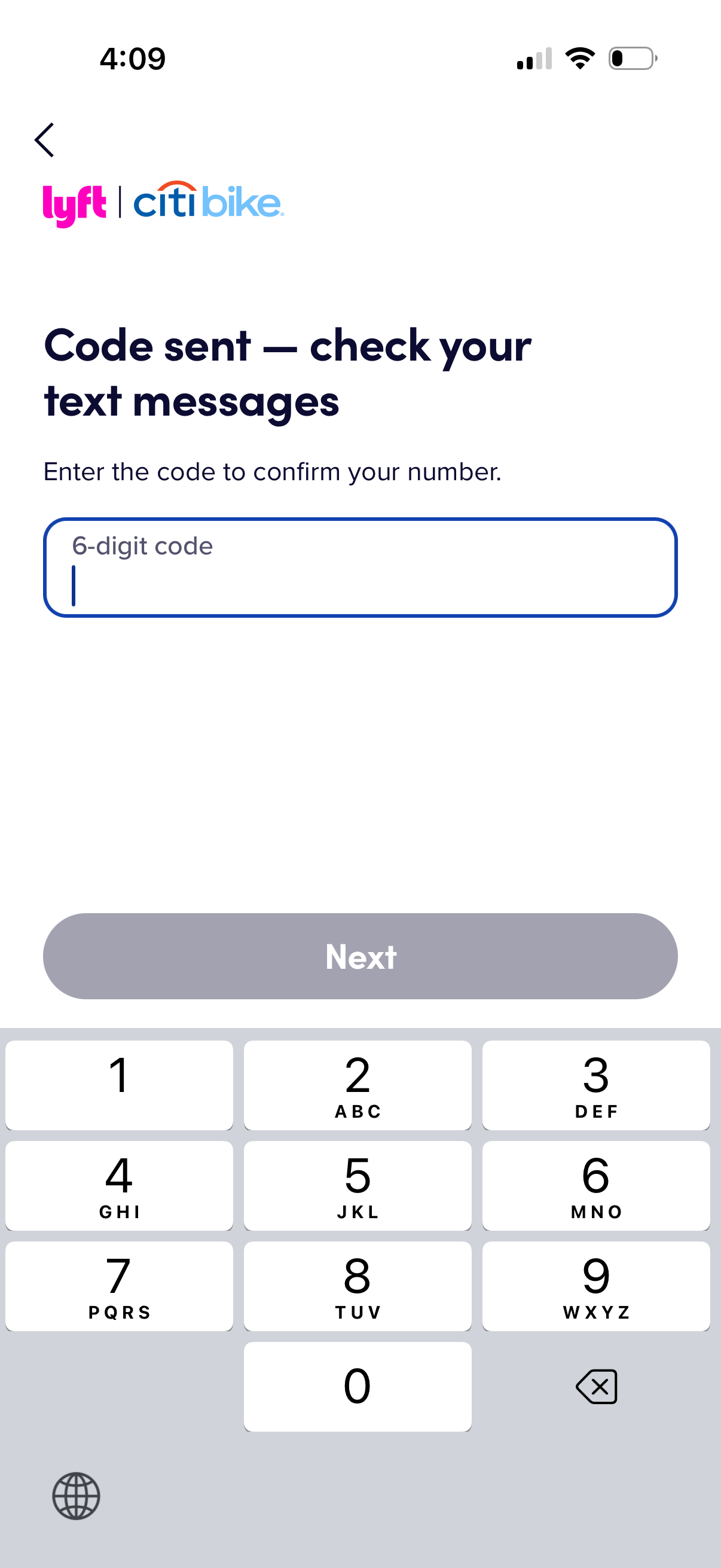
SMS verification screen prompting the user to enter a 6-digit code to confirm their phone number, with a single code input field and a disabled “Next” button until the code is entered. Includes a back navigation control for returning to the previous step in the sign-in or onboarding flow.
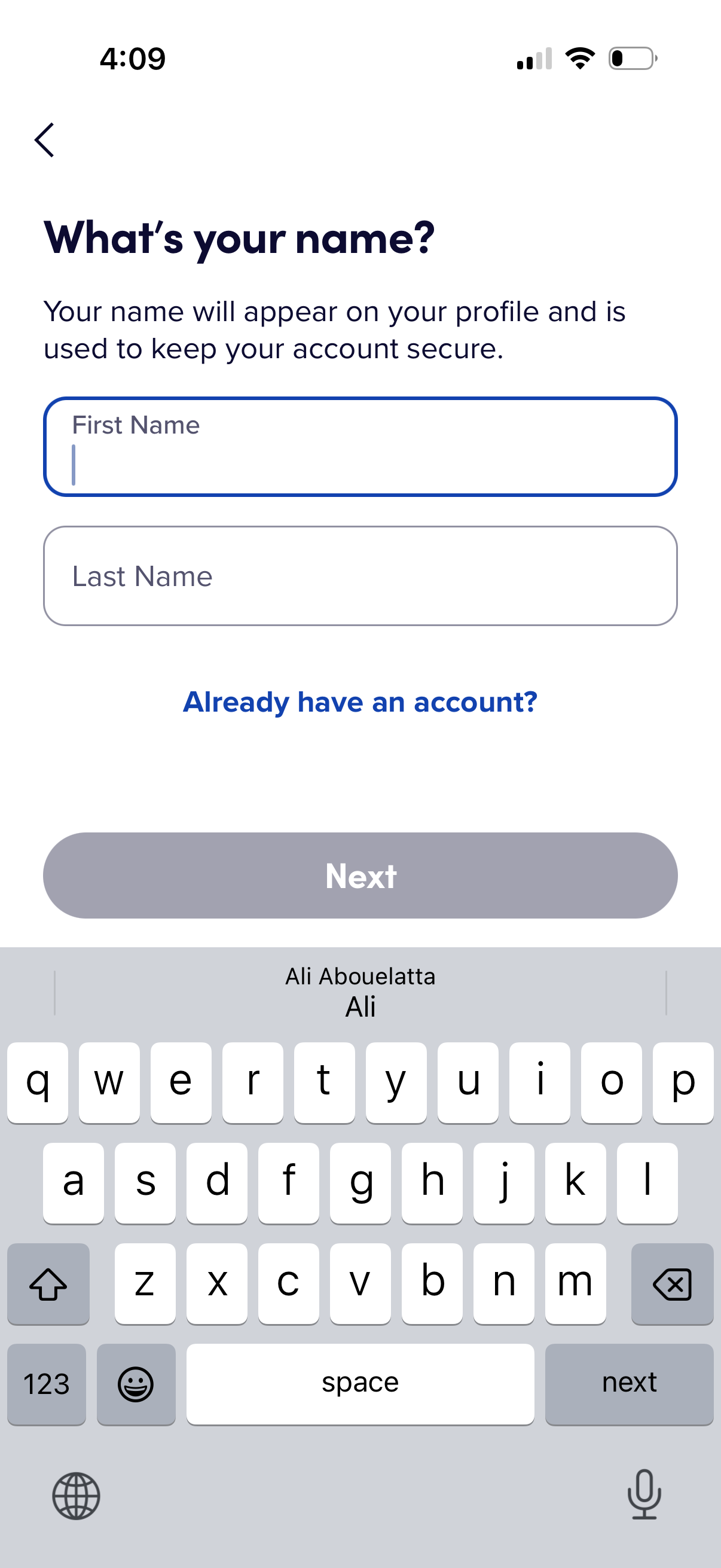
Account sign-up onboarding screen asking for the user’s name with separate first name and last name text fields, plus a back button and an “Already have an account? ” link.
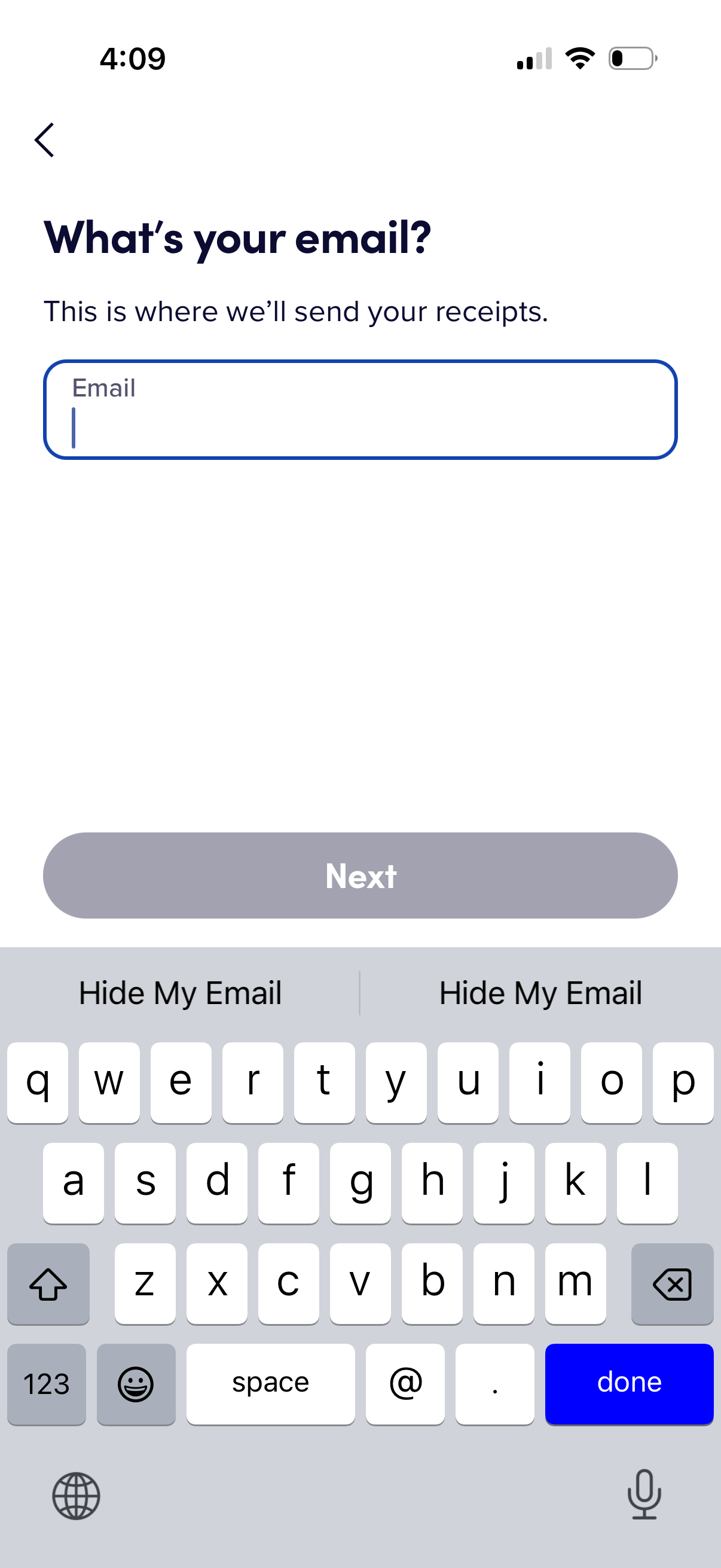
Checkout or signup form screen asking the user to enter an email address to receive receipts, with a single email input field and a disabled “Next” button until a valid email is provided, plus a back navigation option.
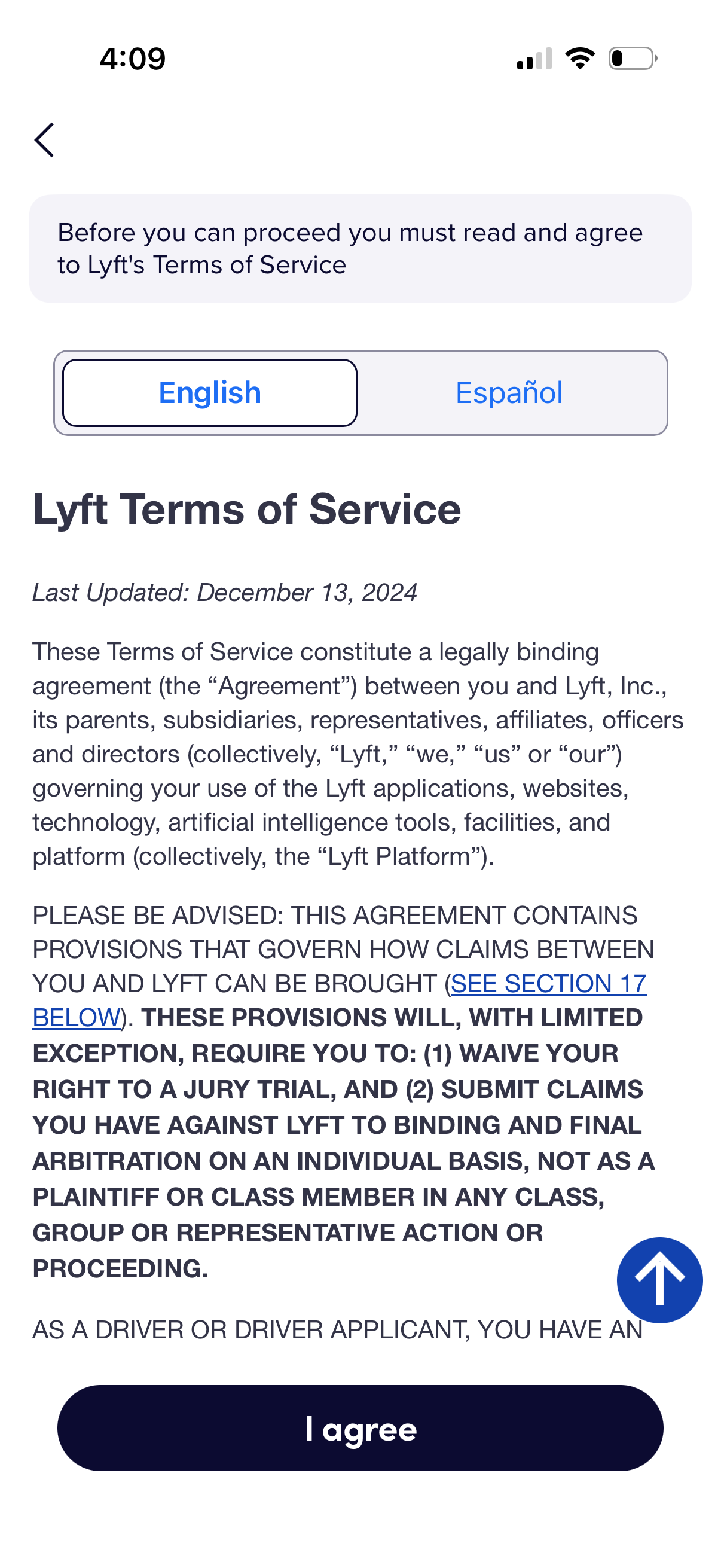
Terms of Service consent screen requiring users to read and agree before proceeding, with a language toggle (English/Español) and a scrollable legal document. A persistent “I agree” button at the bottom allows acceptance to continue onboarding or account setup.
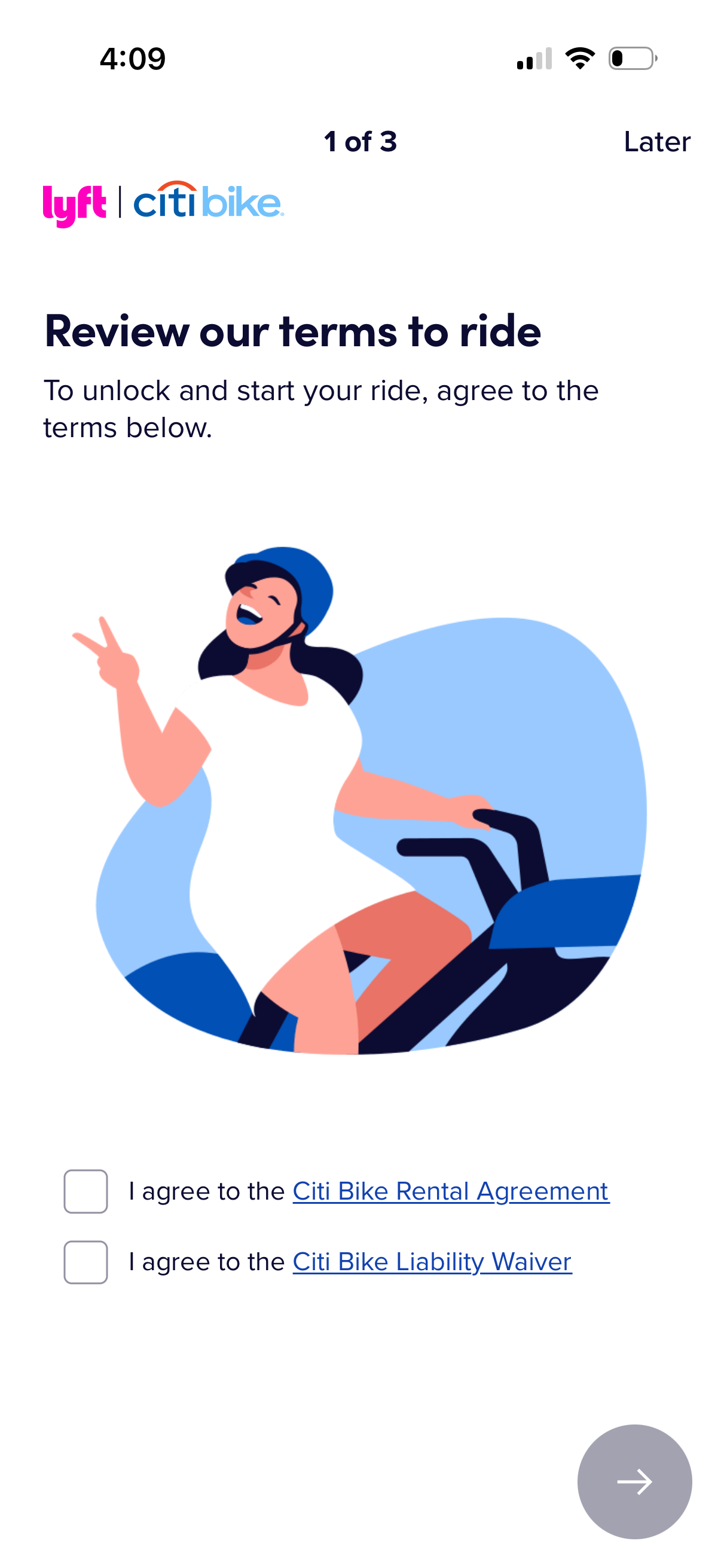
Bike-share onboarding step prompting users to review and accept required terms before unlocking and starting a ride. Includes checkboxes to agree to the rental agreement and liability waiver with links, a “Later” option, and a next arrow button to continue.
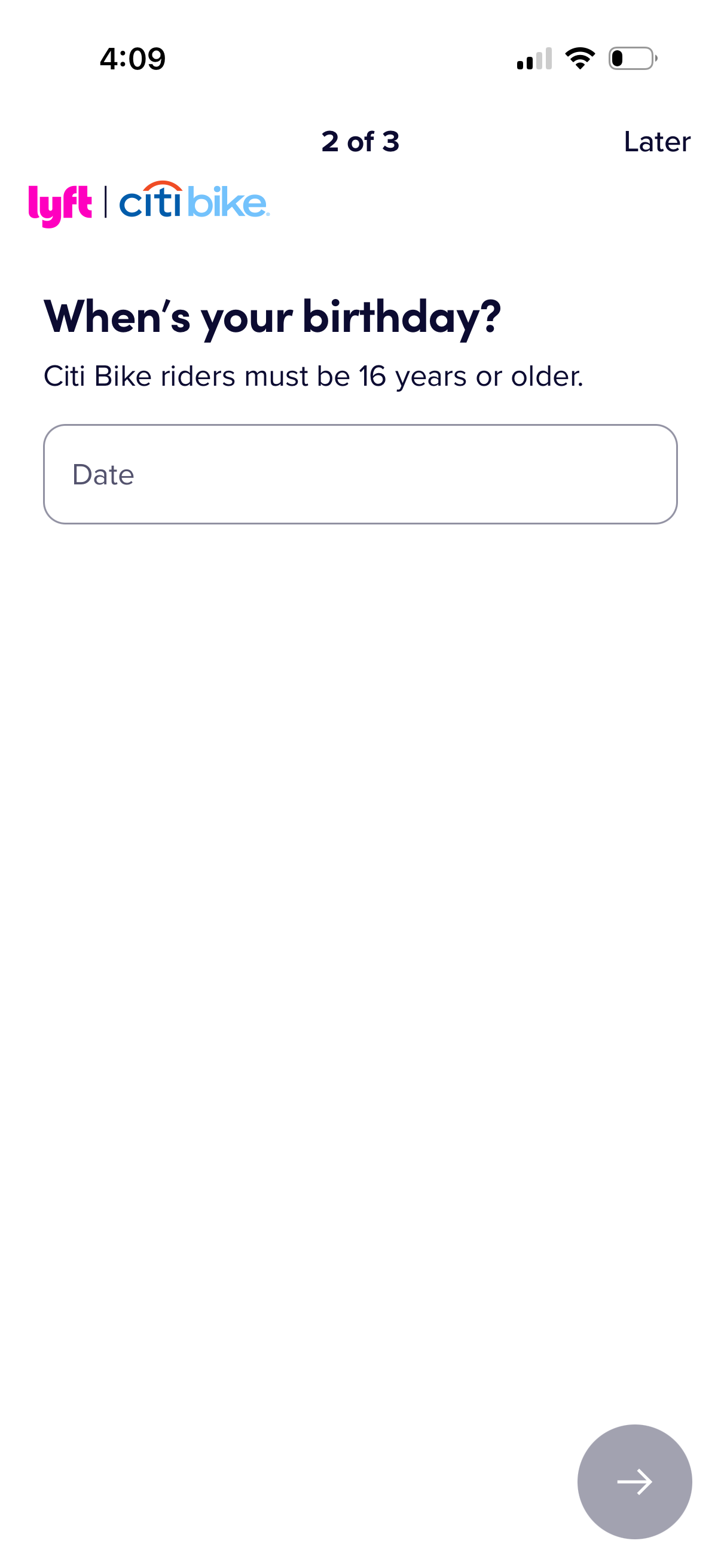
Onboarding signup step requesting the user’s birthday via a date input field to verify age eligibility (must be 16+), with progress indicator (2 of 3), a “Later” option to skip, and a next arrow button to continue.
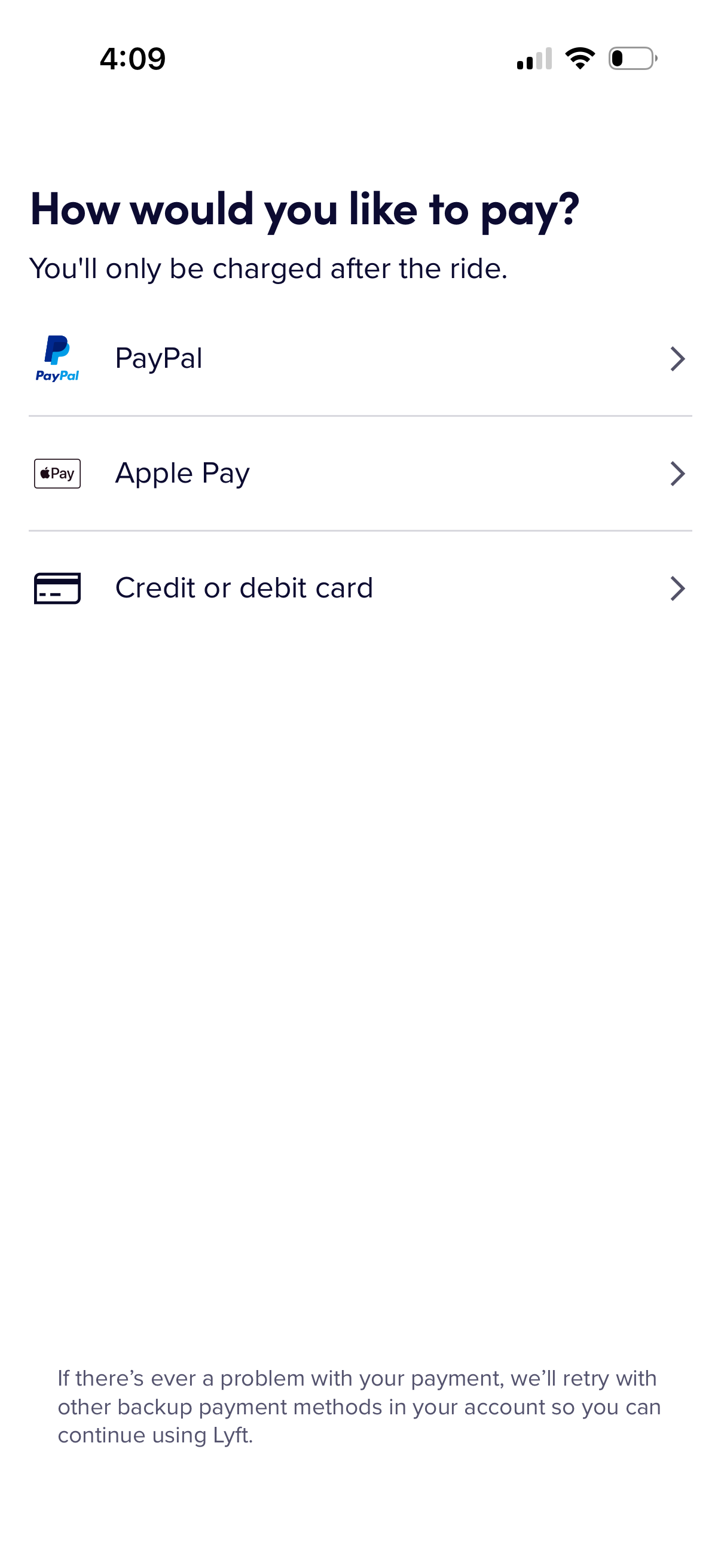
Payment method selection screen for a ride-hailing app asking “How would you like to pay? ” with options to choose PayPal, Apple Pay, or add a credit/debit card, noting charges occur after the ride and backup payment methods may be retried if a payment fails.
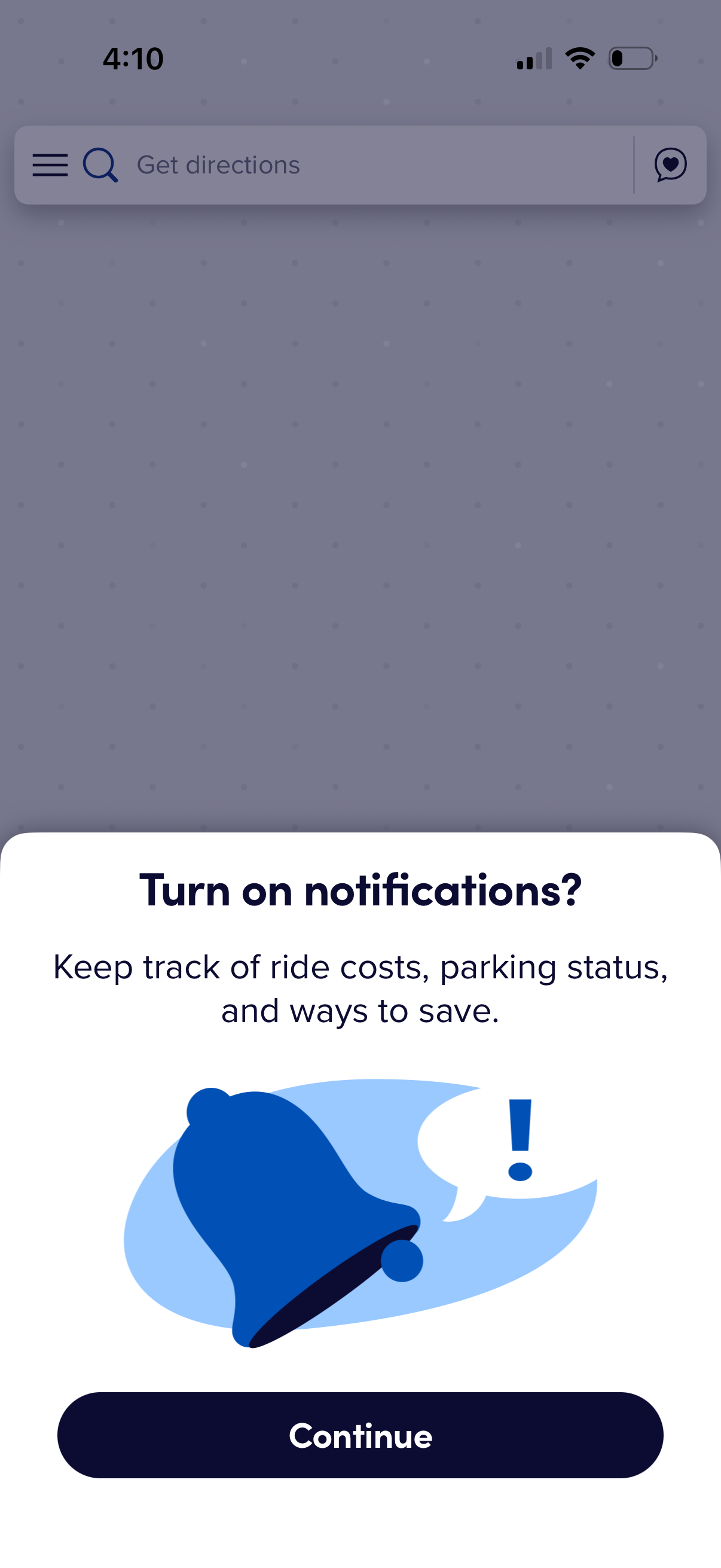
Map-based navigation screen showing a bottom sheet prompt to enable push notifications so users can track ride costs, parking status, and savings updates. Includes a primary “Continue” call to action while the header search bar supports getting directions and accessing menu/favorites.
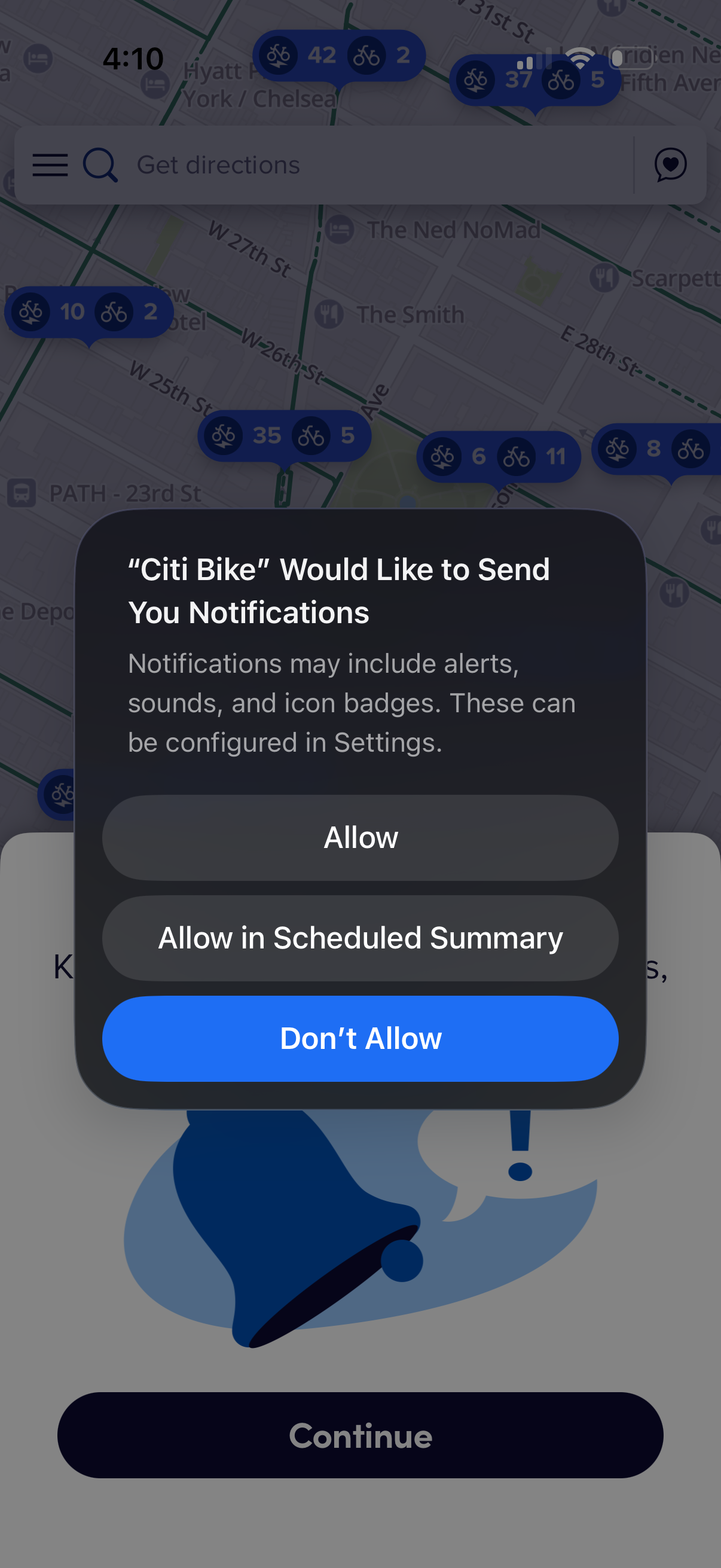
iOS system permission modal asking to allow a bike-sharing app to send push notifications, with options to Allow, Allow in Scheduled Summary, or Don’t Allow. The prompt appears over a map screen with a “Get directions” search bar and station availability pins, and a disabled Continue button in the background.
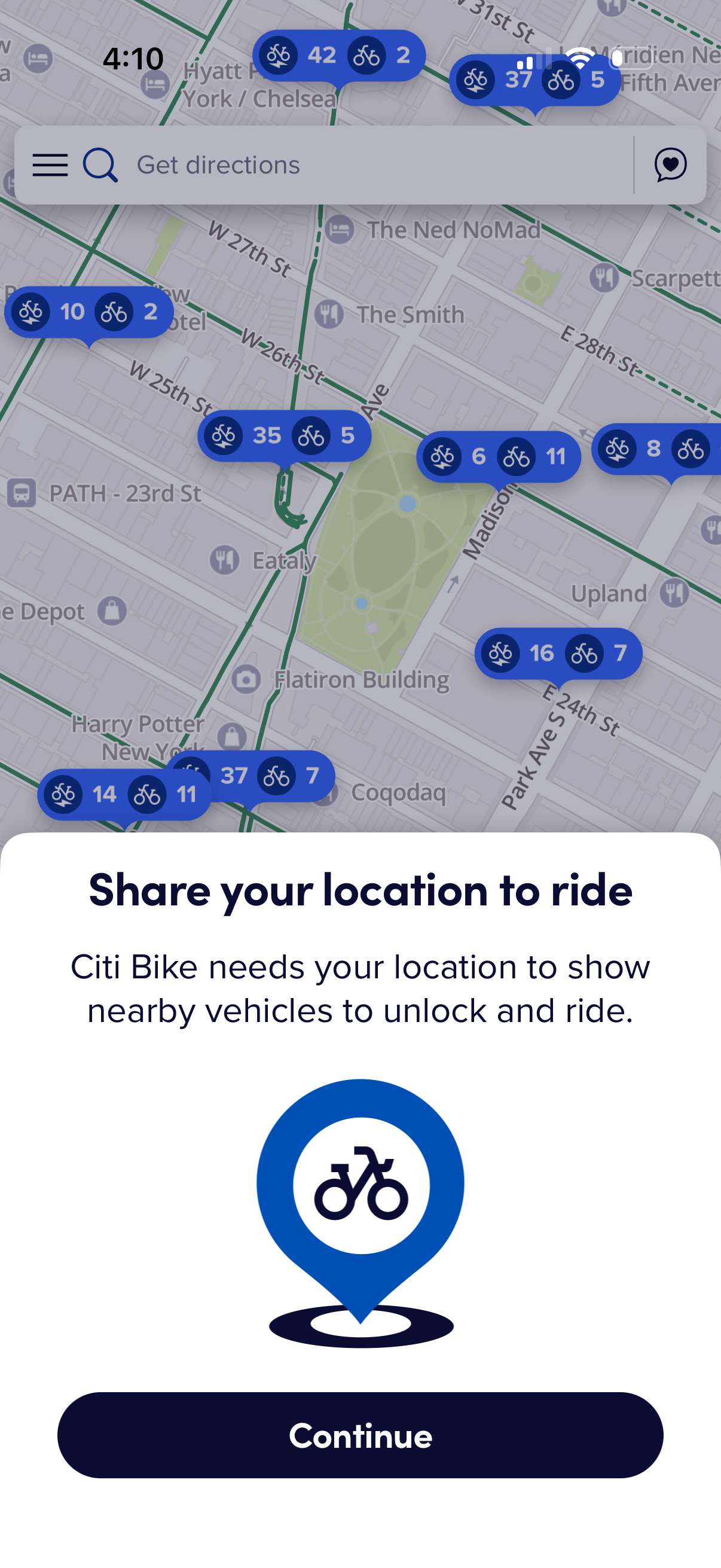
Bike-share app map screen showing nearby bikes with availability counts and a “Get directions” search bar, overlaid with a permission prompt asking the user to share their location to view nearby vehicles. Primary action is a large “Continue” button to enable location access and proceed to unlock and ride.
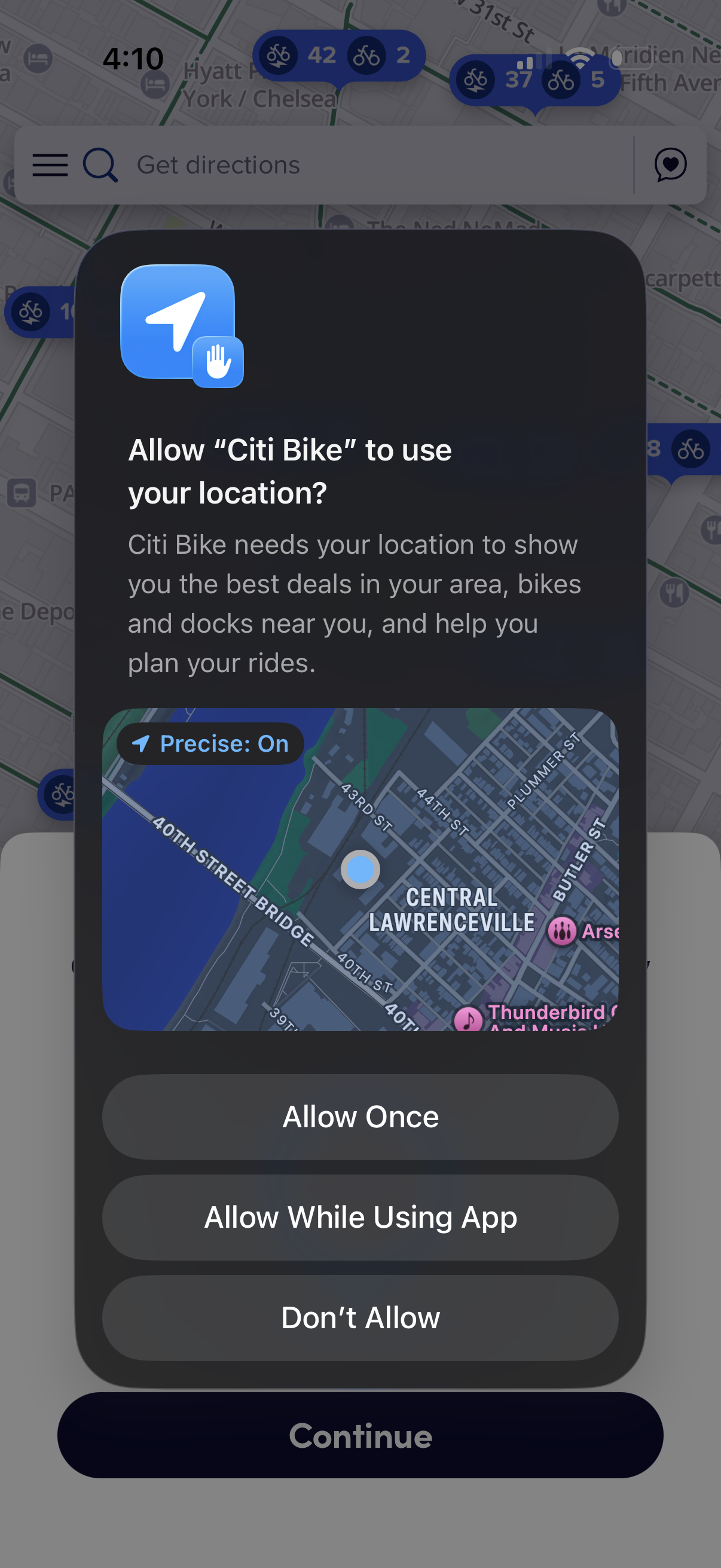
iOS system location permission prompt for a bike-sharing app, asking to allow access to precise location to show nearby bikes and docks and plan rides. Provides actions to Allow Once, Allow While Using App, or Don’t Allow over a map/directions screen.
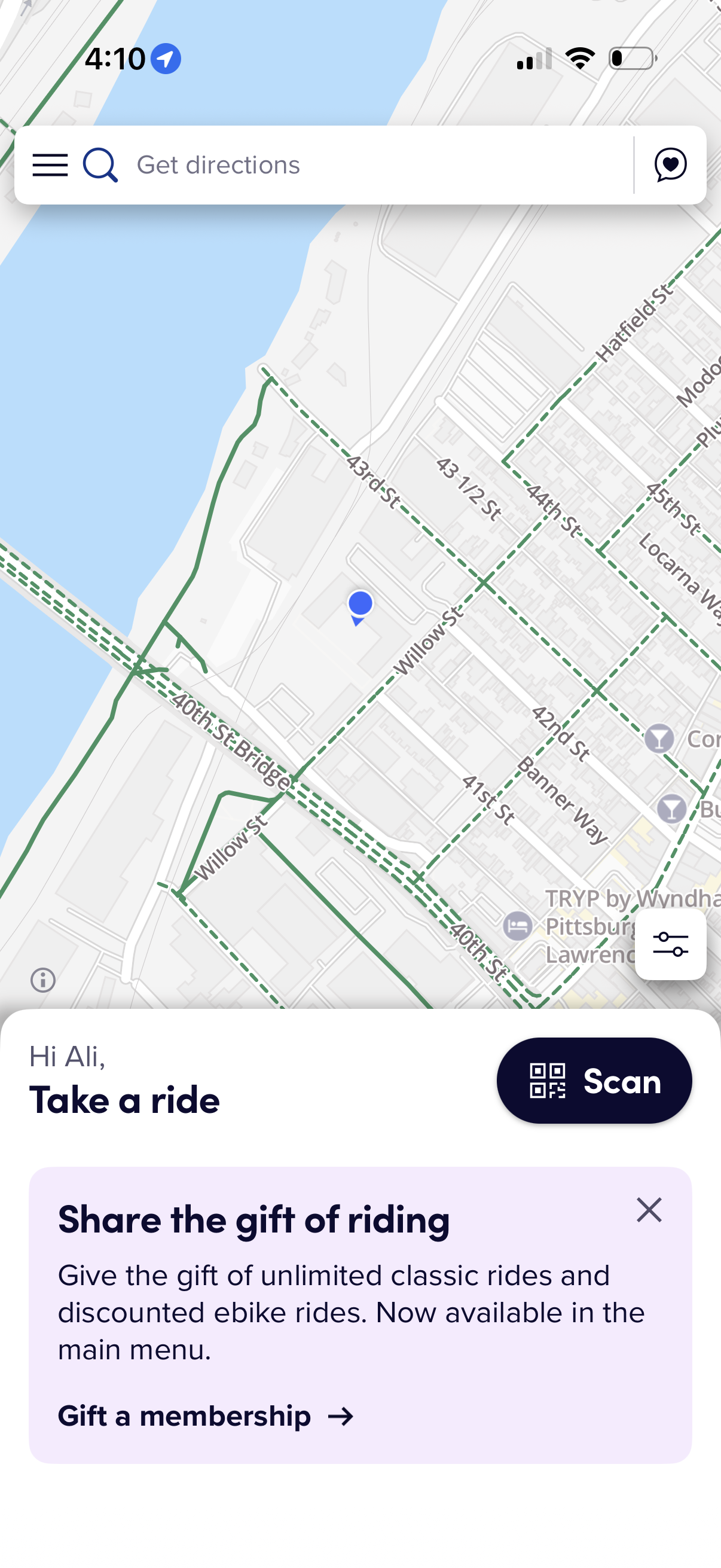
Map-based bike/scooter rental home screen showing the user’s current location with a top search bar for “Get directions,” menu and favorites icons, and a floating filter/control button. A bottom panel prompts “Take a ride” with a prominent QR “Scan” button to unlock a vehicle, plus a promotional card to gift a membership.