Onboarding
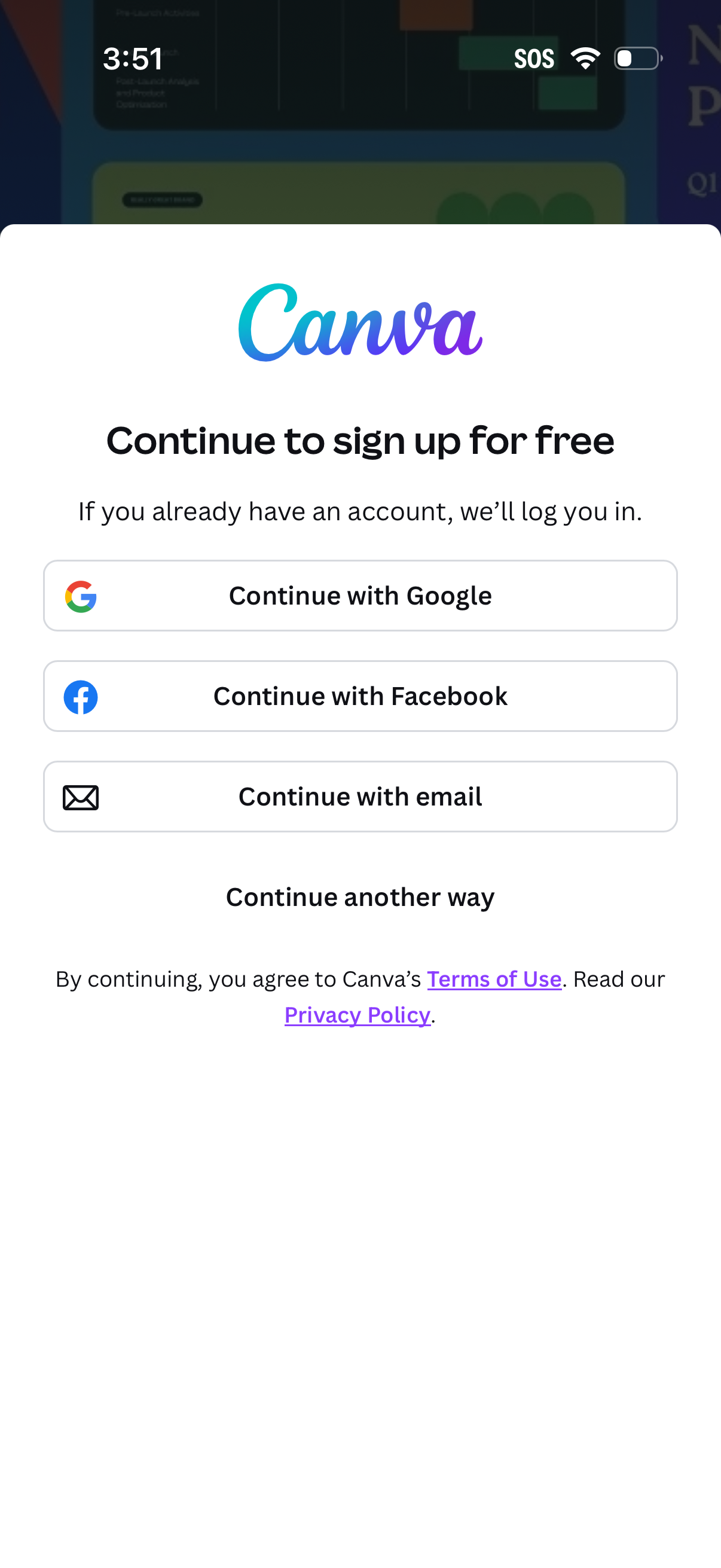
Sign-up/login screen prompting users to continue to create a free account, with single sign-on options for Google and Facebook plus an email signup button. Includes a “continue another way” link and legal links to Terms of Use and Privacy Policy.
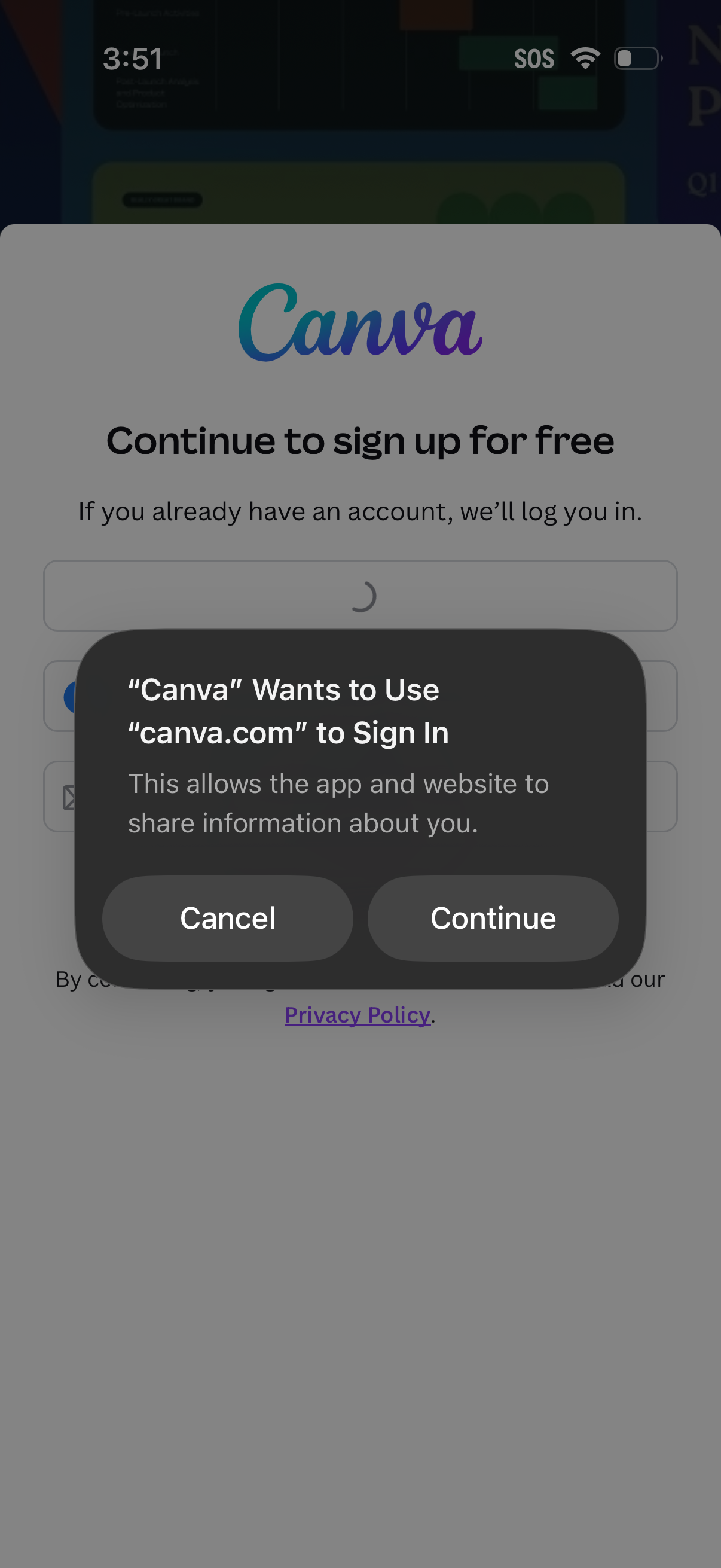
Sign up/login screen prompting the user to continue creating a free account, with an iOS system permission dialog for web-based sign-in that asks to allow the app to use the website credentials and share information. Primary actions are Cancel or Continue to proceed with the authentication flow, with a link to the privacy policy in the background.
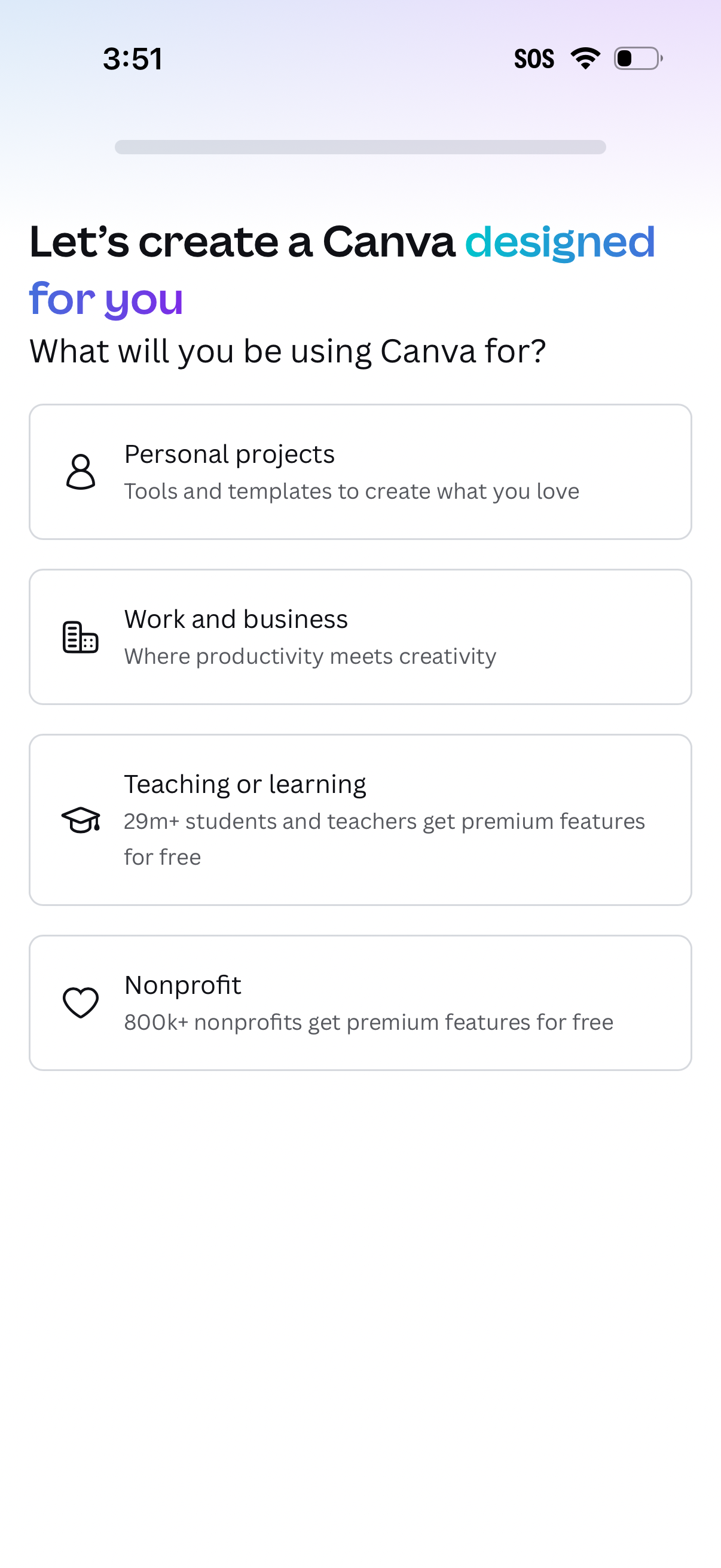
Onboarding preference screen asking what the user will be using the design app for to personalize their experience. Presents selectable options as large cards with icons, including Personal projects, Work and business, Teaching or learning, and Nonprofit.
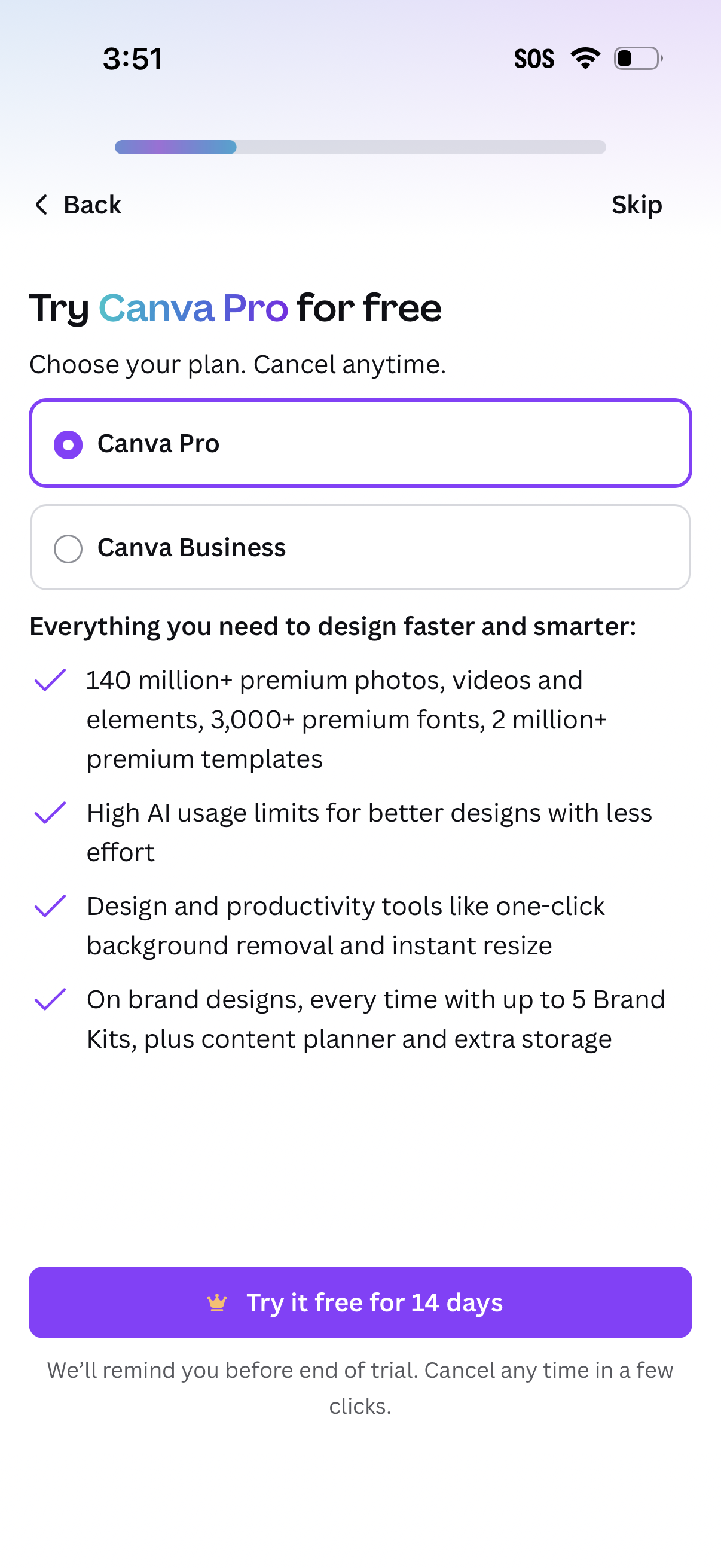
Subscription upsell screen offering a free trial of a premium plan, with radio buttons to choose between Pro and Business and a checklist of included benefits. Primary CTA starts a 14-day trial, with back/skip navigation and cancellation reminder.
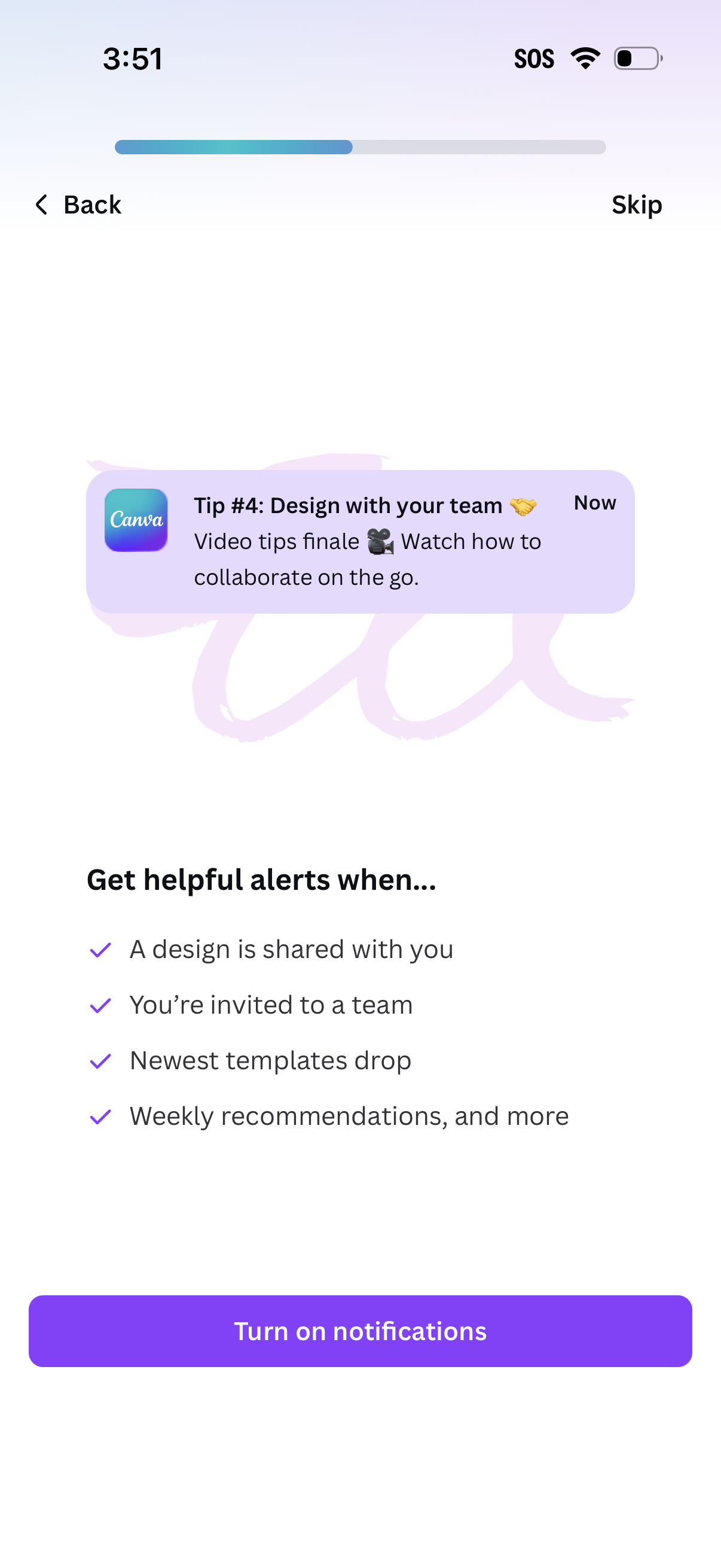
Notification opt-in onboarding screen prompting users to turn on push notifications, explaining alert types like shared designs, team invites, new template drops, and weekly recommendations. Includes Back and Skip navigation and a primary “Turn on notifications” call-to-action.
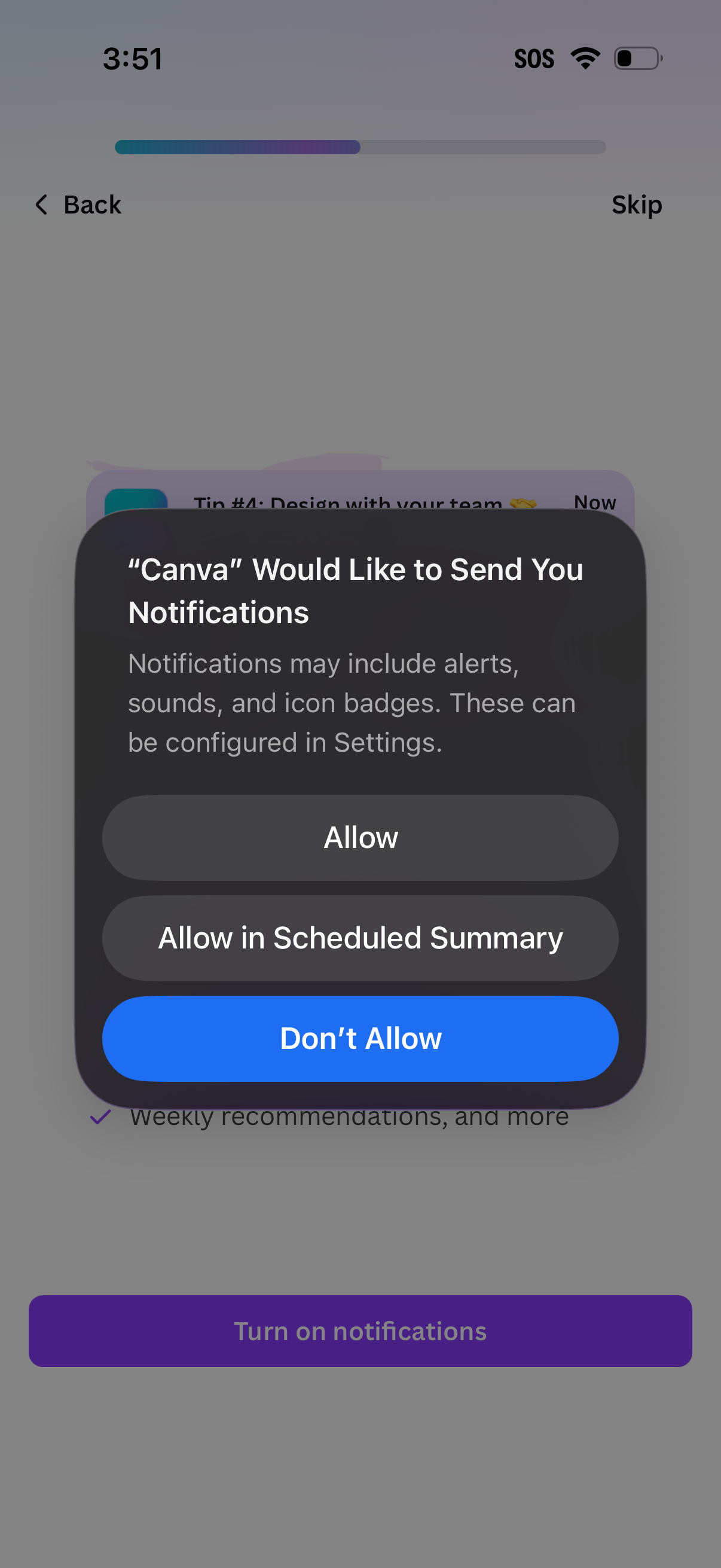
Onboarding screen prompting users to enable push notifications, showing the iOS system permission modal with options to Allow, Allow in Scheduled Summary, or Don’t Allow. The underlying flow includes a progress indicator plus Back and Skip navigation, encouraging users to turn on notifications.
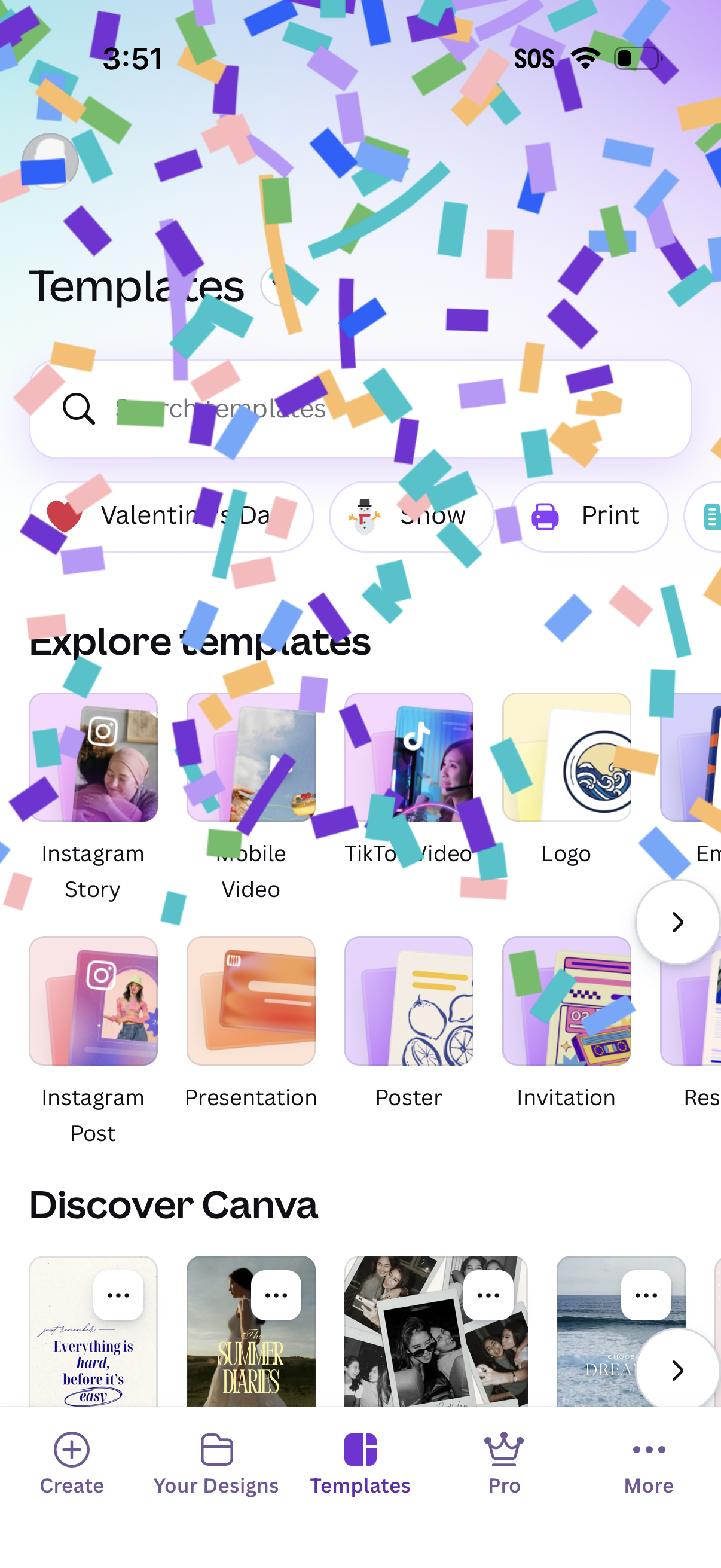
Templates browsing screen in a design app with a search bar and filter chips (e. g.
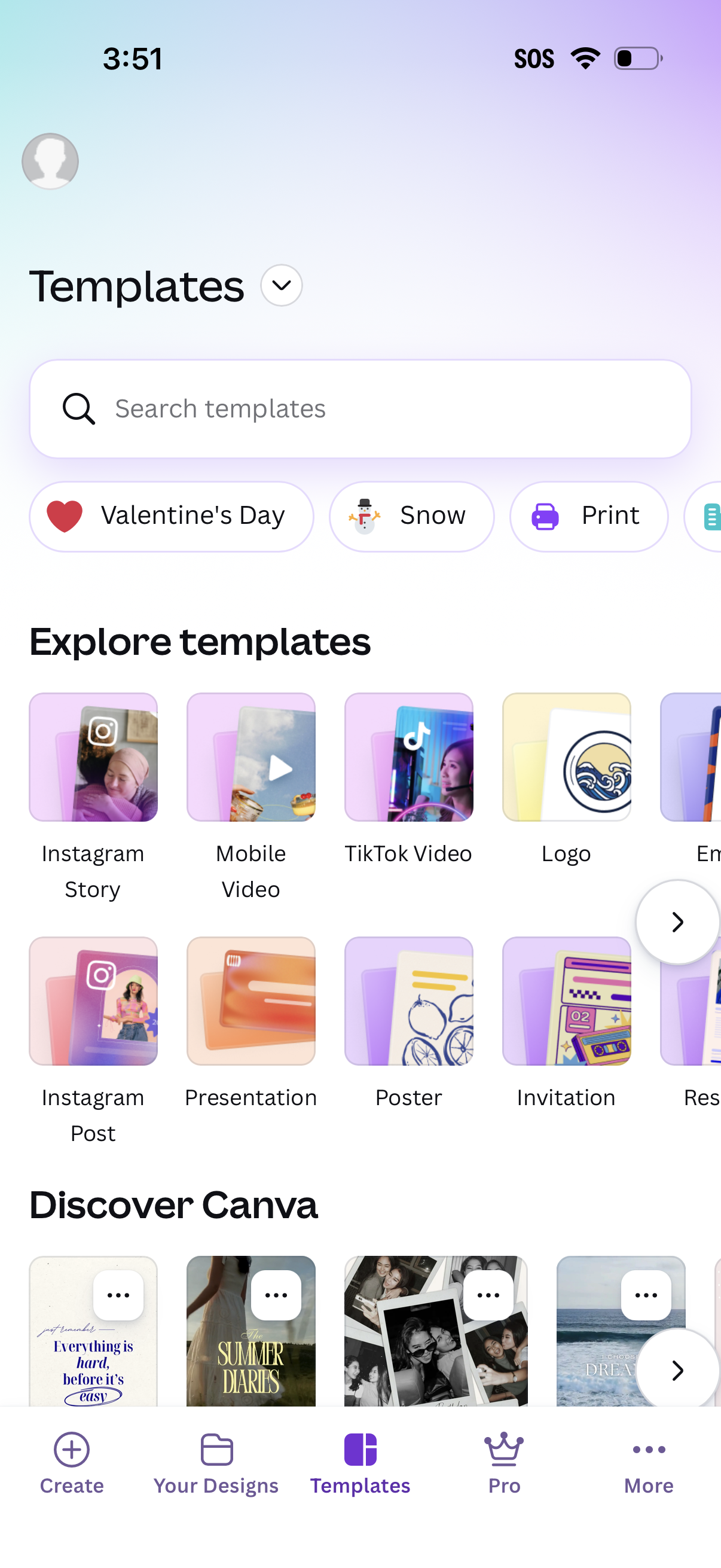
Template browsing screen in a design app with a search bar, category filter chips (e. g.